Category: Tips and Tricks

  • Airtel releases official manual GPRS / 3G settings for those in doubt

    Airtel releases official manual GPRS / 3G settings for those in doubt

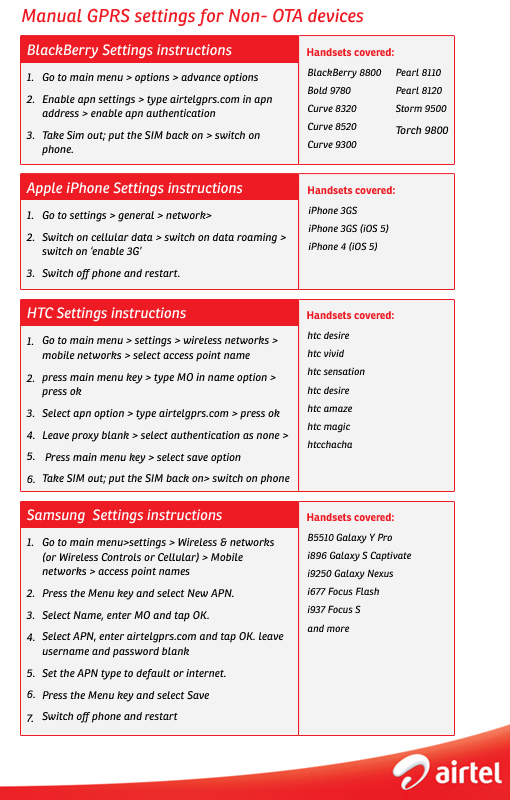
    Possibly sick of the millions of Android / iPhone / Blackberry adopters asking for correct APN et al, Airtel has officially released settings for all possible handsets in this image graphic below.


    While their main APN remains “airtelgprs.com” other settings may be needed for some devices.

  • MTNL 3G Delhi woes on Android ? We have got Your Fix!

    MTNL 3G Delhi woes on Android ? We have got Your Fix!

    Okay so you got greedy and ported to MTNL for cheaper 3G. Well so did we, but as it seems its not so easy to get settings for Android devices since their settings keep changing and 1503 is really no help. But fear not children of the Electronic age iGyaan has got your fix right here.


    After struggling with various settings we have finally got the correct settings for MTNL Postpaid and Prepaid

    The following settings are based on Android device but should work for most phones without any problems.


    MTNL Dolphin 3G Postpaid Settings

    Go to >Settings>Wireless and Networks>Access Points Names >  Add New

    Name : mtnl

    APN: gprsmtnldel

    Proxy : (Not Set)

    Port : 9401

    Username : mtnl

    Password : mtnl123

    Server : (Not Set)

    MMSC : (Not Set)

    MMS Proxy : (Not Set)

    MMS pory : (Not Set)

    MMS Protocol : Wap 2.0

    MCC : 404

    MNC : 68

    Authentication Type : PAP

    APN Type : (Not Set)


    Where (Not Set) is usually a blank field*

    these settings should get you up and running in no time.


    For Prepaid

    Name : mtnl

    APN: gprsppsdel

    Proxy : (Not Set)

    Port : 9401 (try leaving this blank, in some cases works without this )

    Username : mtnl

    Password : mtnl123

    Leave everything else untouched


    Enjoy 3G  or HSDPA on the Nation owned provider.

  • How to : Set up your Google Plus Account Step by Step

    How to : Set up your Google Plus Account Step by Step

    Today we are going to help you set up a Google Plus Account – Step By Step


    Step 1 : Invitations

    If you don’t already have an invitation to Google plus, then you should consider making friends with better people, like us.

    Hit this link to get an Invite 

    Note:

    • You will need a gmail email address or a fully qualified google profile to get this to work.
    • Google apps and associated email addresses  are currently not supported

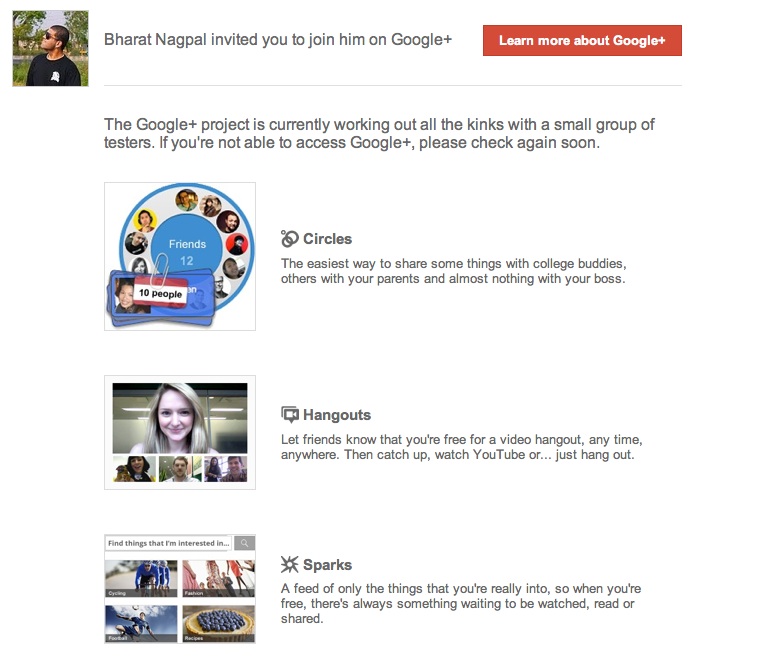
    When you get an invite it should look something like the image below


    After you get an invite  you will need to click the button :  


    Step 2 : Register 

    Once you click on the button you will be redirected to the registration page:


    Add your details, upload and crop your profile Photo.

    And you are all set to CLICK JOIN


    Step 3 : Profile

    Now that you are in, you would want to set up your profile.

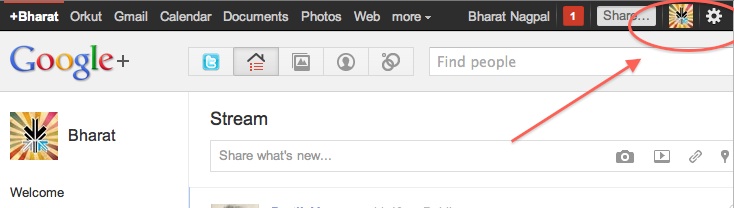
    You will be greeted with a similar welcome page : 
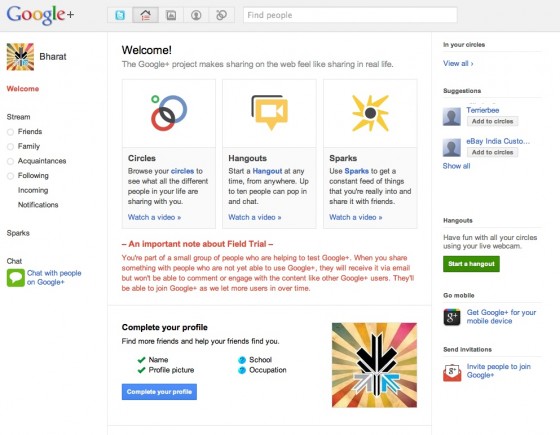
    welcome page
    • Click the sprocket settings button on the top right of you browser to get into Google Plus settings.


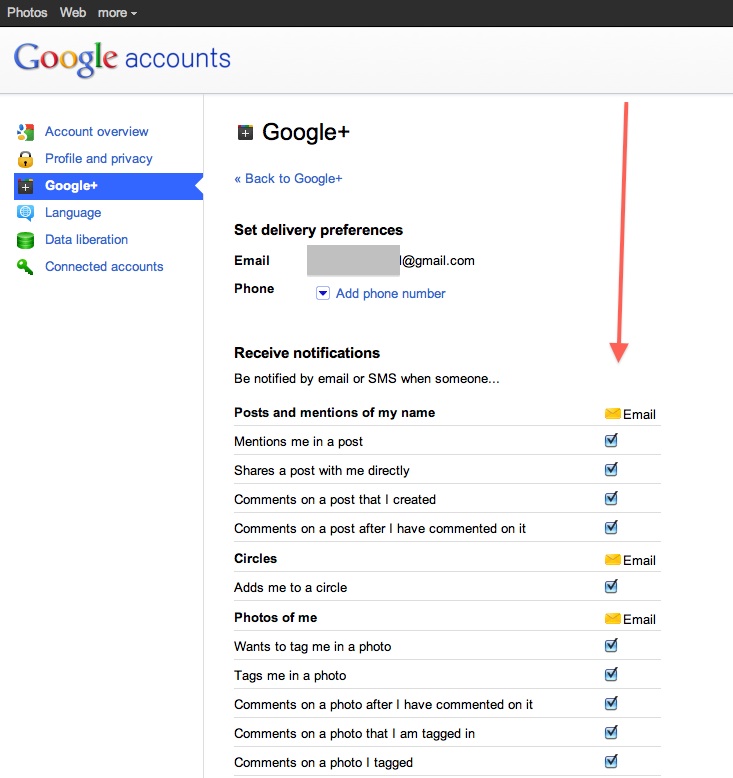
    • Next, Set up your privacy and sharing settings in the page.

    HIT – SAVE, and you are done!


    Step 4 : Setting up Circles

    Hit the circles button on your profile page to set up Circles.


    Once on the circles page you will be able to , find people by email addresses or by searching for them over other networks and email services like yahoo mail or hotmail.

    Simple create circles of your choice, Like Friends, Family, Colleagues, Game Buddies, College, etc.

    You can also add the same person to multiple circles.

    Once you are done finding and adding your friends, its time to start posting!.


    Step 5 : First Post!

    • Simple click on the share bar in your Google Plus homepage and start writing.
    • You can add media like videos or photos or even links and location from where you are posting.
    • Also select what all circles you would like to share this post with.
    • You can also leave it blank to share with everyone
    Once you are done typing click the green Share button.

    Congratulations you have successfully started using Google Plus (+)


    You can now start inviting your friends too!
    Stay tuned for an update to this post where we share details about Sparks, Hangouts and Streams


    We also have a tutorial on how to transfer your Facebook friends to Google + here.
  • How To: Move your Facebook Photos to Picasa

    How To: Move your Facebook Photos to Picasa

    With Google+’s popularity on the rise, a lot of users are looking for an easy way to shift their albums from Facebook to Picasa. The aptly named move2picasa.com website allows you to log in with your Facebook id and copy all your photos to Picasa. Please note that the photos would be moved without captions etc.

    If you have a lot of photos, it could take you a few hours to transfer them. Apparently, the more photos that you and others try to transfer, the slower the service will be. Despite the wait, this seems to be an adequate solution for most people. One other thing, you either move all your photos or you move none. There is no feature to select or filter which images are copied.

    Once your photos are in Picasa, sharing them with your circles is very easy. The web app was built by AmiWorks’ Aman Kumar Jain and Amogh. According to the website, some 300,000 photos have already been moved.

  • Apple Releases Update to Detect and Delete MacDefender ‘Scareware’: UPDATE

    Apple Releases Update to Detect and Delete MacDefender ‘Scareware’: UPDATE


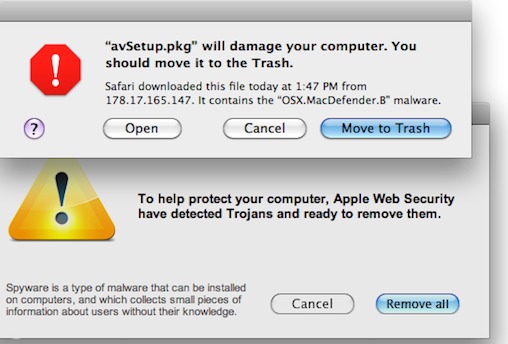
    Yesterday, Apple released an update for Snow Leopard  to detect and warn useres if they have installed a fake Mac security software called MacDefender. The term ‘Scareware’ basically means that the software will plague users with popups and alerts warning them that their computer is infested with trojans, worms and other malware. To get rid of these popups users have to fork over $60 to $80 to purchase the registered version of the useless software.

    The update, labelled 2011-003, adds a new definition to the rudimentary virus detection engine embedded in Snow Leopard, and also increases the requency with which it checks for definition updates to daily. This brings the total tally of antivirus definitions on the Mac AV engine to 6.

    This update was only offered to users running OS X 10.6 aka Snow Leopard. Macs powered by the older 10.5 Leopard OS will not recieve the same anti-MacDefender protection. Users can download the update from the apple website or update their system using the regular ‘Software Update’.


    UPDATE:

    The people responsible for the fake Mac security software has already updated their “scareware” to evade defenses Apple put in place late Tuesday, a French security company Intego confirmed today. “Apple’s [antivirus] did not detect the new sample,” said Peter James, a spokesman for Intego. According to James, the new malware file is identified as “mdinstall.pkg” and if installed, plants the phony MacDefender software on the victim’s Mac.

    Intego confirmed  that the scammers had created a new version that wasn’t detected by Apple’s new defenses. “This isn’t surprising, that there’s a new variant out almost as soon as Apple released its security update Tuesday,” said James. “[The attackers] are following the news, they’re efficient.”

  • How To: Remove Spam from your Website Best Captcha Alternative

    How To: Remove Spam from your Website Best Captcha Alternative


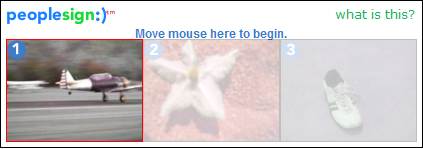
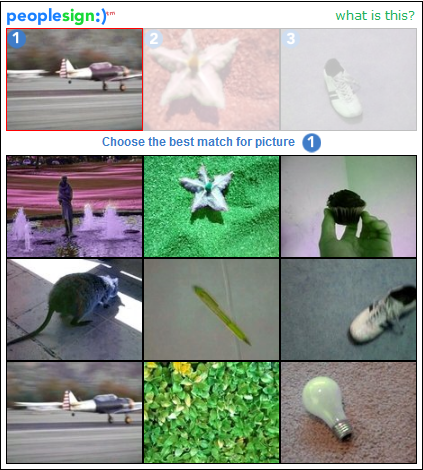
    How many people have had to enter the funny squiggly text while registering on a new website? We have, and we’re sick of it. So when we went looking for alternatives, we found a brilliant piece of software. Its the same old captcha theory, with a new twist. It’s called PeopleSign. Instead of using text as a input field, it uses pictures. What you basically have to do is that you match a picture from a list of pictures. Spambots are currently programmed to decifer text captchas but they have no image processing capabilities. We have faced a huge reduction in spammers by using this captcha technology. Try it for yourself and leave your comments below.


    You can sign  up for this service here: http://www.peoplesign.com/main/registerToHostPeoplesign.html

iGyaan Network
Privacy Overview

This website uses cookies so that we can provide you with the best user experience possible. Cookie information is stored in your browser and performs functions such as recognising you when you return to our website and helping our team to understand which sections of the website you find most interesting and useful.