Tag: airplay

  • AirPlay Mirroring From an Android Phone Demonstrated

    AirPlay Mirroring From an Android Phone Demonstrated

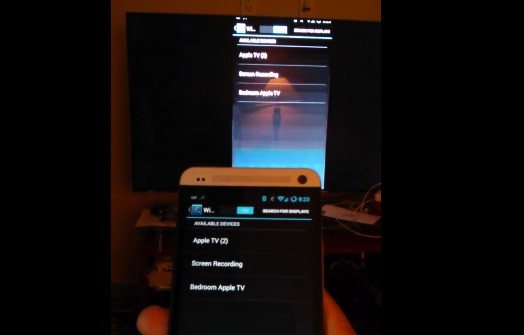
    Koushik Dutta VP of Engineering  at CyanogenMod just posted a video showing off AirPlay Mirroring from an Android phone(HTC One). There are other apps in the Play Store that connect Android devices over AirPlay, but the mirroring support integrated into the Operating System is something new.

    He is been working on Android streaming support to various protocols/devices for the “AllCast” media streaming app since Google’s changes cut it off from the Chromecast, and Apple’s screen sharing feature is the latest target for him. AllCast support is already in place for pushing media to Roku and DLNA-compatible hardware, and he further says this mirroring feature is “coming soon to a CyanogenMod near you.”

    You can watch the demonstration below:

    [youtube id=”oYNEJSJbHWc” width=”100%” height=”300px”]

    [via,via]

  • Apple developers get Mac OS X Mountain Lion downloads

    Apple developers get Mac OS X Mountain Lion downloads

    If you continue to stay on the Apple Developer program then you can have yourself a developer preview download of the new exciting Mac OS X Lion. The new versions of Reminders , messages , gatekeeper, Notification center and iCloud and sharing capabilities can be experienced in this preview.  Hit the link below to sign into your member area and begin the download.

    [Apple]

  • Apple shows off OS X Mountain Lion

    Apple shows off OS X Mountain Lion

    Apple has already begun the next update cycle of the OS X platform with just over a year ago Apple unleashed OS X Lion on Mac owners. This time around the number is bumped to 10.8 and the name to Mountain Lion. The overall outlook of the OS remains the same with more integrations and basic app changes in tow.

    The biggest add-on for the OS has to be the Notification centre that has been inspired from the iOS notification centre.

    Notification Centre.

    The spotlight icon on the far top right of the screen is replaced with a circle with a dot in the centre, which lights up when you receive a message or a notification even a calendar reminder.

    Messages

    The other major release in OS X mountain lain will be the replacement of iChat with messages, which will allow you to message all iOS devices on iMessage and other macs on Messages. Using the service, you can send messages, documents, HD videos and photos (up to 100MB apiece) to one person or several, using phone numbers or email addresses as points of contact. Messages on Mac still incorporates chat services like AIM and GChat. Messages sent through the service are encrypted, and the app also uses a notification to let you know when messages have been delivered / read.

    Reminders

    The next cool thing of our liking that has been ported from iOS to Mac is Reminders. For those who don’t know , this is more of a glorified to-do list. It will sync with iOS reminders keeping the seamless architecture intact.

    Notes

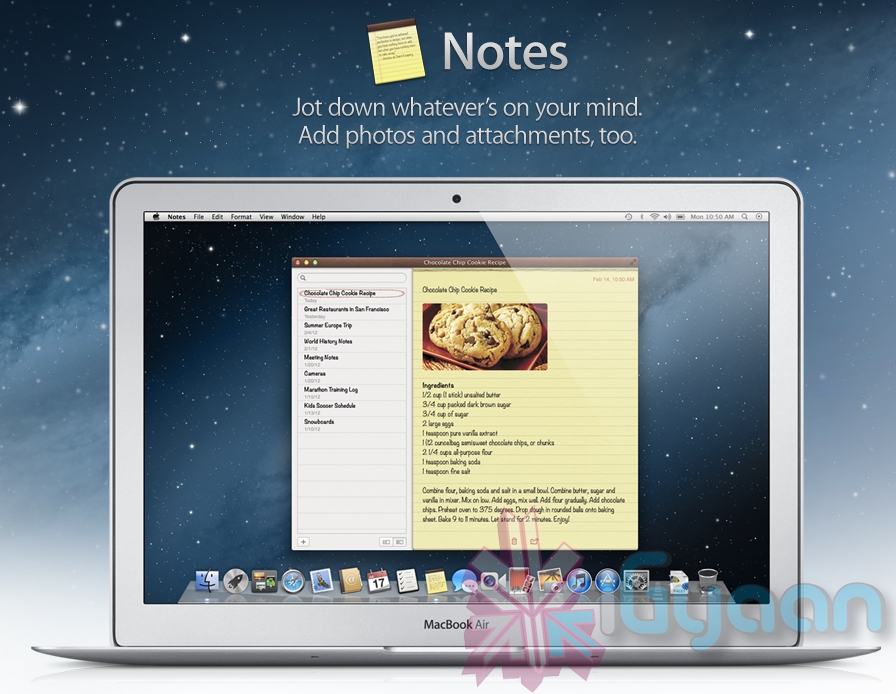
    Another addition to the Mac OS X Mountain Lion is the Notes app, which not only completely resembles the on on iOS but also syncs up with all your devices and email addresses via iCloud.


    Apple has added deeper integration of iCloud on Mountain Lion, allowing users to sync up and back up more data, also allowing seamless interconnectivity with all other Apple devices owned by a user. The other additions to Lion include Airplay mirroring, integrated Game center and included sharing – allowing you to instantly share content from your desktop via email, message, AirDrop and third-party services like Twitter, Flickr and Vimeo.

  • App A Day: MetalStorm Wingman

    App A Day: MetalStorm Wingman

    Do you love airplanes? Are you an air fanatic? Do you want to shoot down enemy fighters while you’re partnered up with your best friend? If you answered yes to those questions, then you HAVE to try this game.

    Metalstorm: Wingman is the successor to the highly successful game Metalstorm: Online. It is a highly addictive flight combat simulator which offers a wide range of gamers the ability to pilot their very own fighter jet. The game is fairly simple to play. At the very basic level, you have to shoot down enemy planes with missles and cannons. You control your aircraft by tilting your iDevice in the desired direction of flight. The on screen controls allow you to fire your weapons, control the speed of your jet, change the camera view and pause the game. You can also swipe the screen in any direction and have your plane perform an advanced evasive maneuver in that direction.

    The game offers players a variety of aircraft to purchase, as well as a detailed tech tree for each. Players also have the option of equipping their aircraft from a wide arsenal of missles and cannons.

    While these features alone would have made the game quite nice, what makes it truly amazing are its multiple game modes. You have the standard campaign and single player modes but there is also a multiplayer ‘verses ‘ mode as well as a ‘Co-Op survival mode’. What this means is that you can play a game verses your friend and blow his plane to bits, or you could team up with them and see how many waves you can survive as wingmen together. Did we happen to mention that there’s a little icon that pops up in the corner of your screen in multiplayer games? It lets you talk to your wingman/opponent while you’re in-game. Multiplayer in Metalstorm is achieved through the Game Center. It works flawlessly (during numerous tests) over both WiFi and 3G, with players in the same room or across the world.

    But wait! There’s More! Do you have a nice, big, shiny and sleek TV in your room? Yes! Ever wanted to play a game from your phone on that big TV? Yes! Do you happen to also have an Apple TV? Yes! All you have to do is connect the Apple TV and your iPad 2/iPhone 4s/iPod Touch and start AirPlay Mirroring. Congratulations. You’re now ready to play Metalstorm: Wingman in 720p on your TV. While the screen is being mirrored, the game shows the inside of a cockpit on your device’s screen, which adds to the coolness of the entire experience.

    The only feature of this game that we did not like was the fact that you have to be online to play it, either over WiFi or 3G. You cannot play this game without a connection. Not even single player mode. We can hope that they will disable this feature in a future update.

    So how much does this game cost? Nothing. Its free to download and free to play. There are various in-app purchases available for various coin packages to easily help you to upgrade your plane, restock your weapons and even buy an all new plane.

    Here’s hoping to see you in the skies someday. God speed. And Good Luck.

    MetalStorm: Wingman - Z2Live, Inc

  • Airtight brings Airplay features Google TV

    Airtight brings Airplay features Google TV

    Have an iOS device but miss the Airplay feature because you didn’t get the Apple TV ? Well Airtight is the answer, considering you got Google TV instead. A simple app that costs only 99 cents allows you to use any Airplay enabled device like an iPad or iPhone to share with a Google TV on the same network. It currently works with only sharing of Non-DRM Movies, and Music and direct mirroring is not yet supported. So a US $ 99 Apple TV seems like a better option if you still haven’t invested in a Google TV.

    [Airtight]

  • Apple kicks off discussions on Apple TV with Media Executives

    Apple kicks off discussions on Apple TV with Media Executives


    Apple is reportedly discussing the possibility of the Apple TV (not the tiny box, but a real television) with global Media honchos. Steve Jobs’ next big thing before he passed away was the change in the Television industry. Apple’s new CEO Tim Cook has no plans to drop the idea as the company pushes the game forward.

    An idea that includes a TV that packs wireless streaming with AirPlay to deliver TV shows and movies as well as technology it’s developed to tie-in DVR storage and iCloud, allowing personal access on tablets and devices handheld. There should be major voice activated control implemented in the whole ecosystem, possibility of that is the already popular Siri voice control systems.

    Several companies including Google have already attempted this ill fated journey, only to fail all attempts. Lets see what Apple brings to the table and if it changes anything.

  • The complete guide for upgrading to iOS 5 on a Mac and PC

    The complete guide for upgrading to iOS 5 on a Mac and PC

    If you own an iOS device and are skeptical about the new iOS 5 update. Here is our quick guide for upgrading your precious iOS device to the latest from Cupertino.

    The first step is updating your Computer.

    Computer

    You will need to update you computer to the last builds of the following softwares, if you are on a PC only download the iCloud control panel and update iTunes.

    Lion 10.7.2
    iPhoto 9.2
    iTunes 10.5
    iCloud control panel for Windows


    iTunes

    Before you begin updating your device, the first step is always to take a backup

    Follow the guide Step by Step

    1. Backup your iOS device to your pc/mac using iTunes
      (Right-click on your device in the left-hand column in iTunes. Select Backup.)
    2.  Download the iOS 5 update. You can manually download the update here
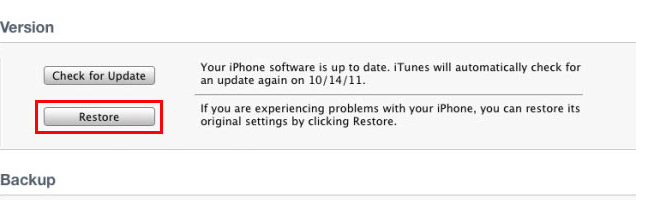
    3.  Plug your iOS device into iTunes and Check for Update.
    4. iTunes will give you two options (Update or Restore), choose the one required and start updating.
    iCloud
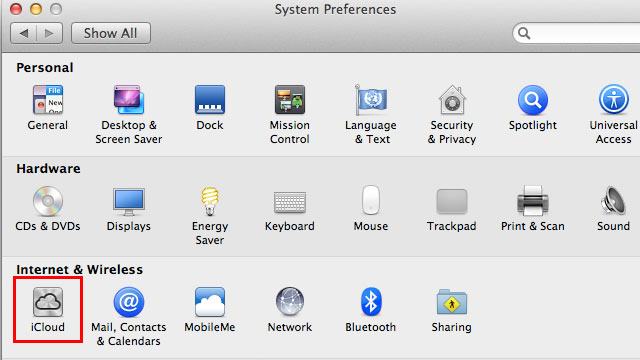
    While your device is updating head over to iCloud in System>Preferences on a Mac (control panel in PC)
    • Use your existing iTunes ID to sign in 
    • If you don’t have an ID create one
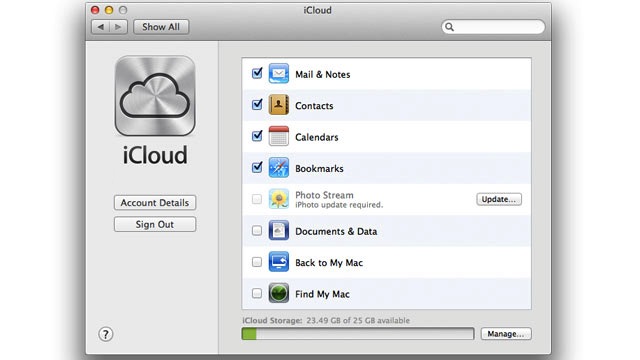
    • Once you sign in you settings panel will show
    • Now set all the preferences according to your requirement.
    • Okay iCloud is set

    Set up Device

    • Once your iPhone finishes the update, you’ll be presented with the setup-assistant.
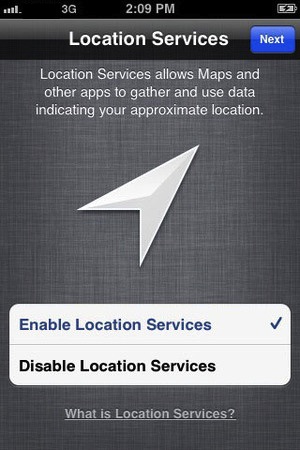
    • During the setup you’ll first be asked if you want to set up Location Services.
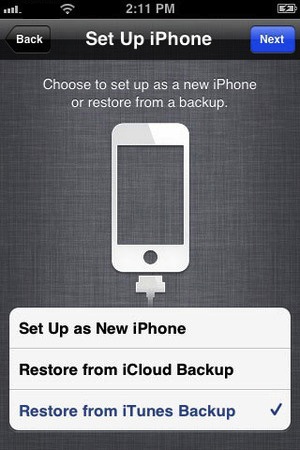
    • Next you will be asked whether to set as new device or restore (new feature in iOS)
    • Choose the relevant option and proceed.
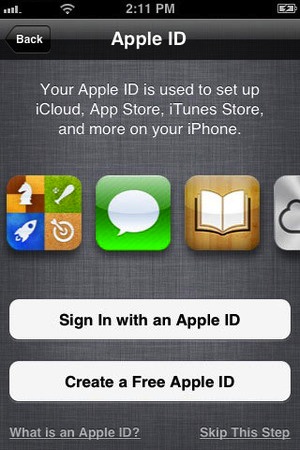
    • Next you’ll be asked to add your Apple ID information. This information is used to set up iTunes, the App Store, and iCloud.
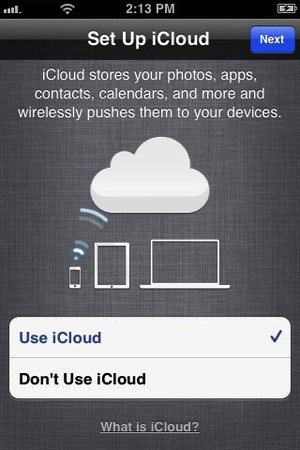
    • Next is iCloud, if you followed our Guide : just enter the same account details as you entered for iCloud on mac/pc.
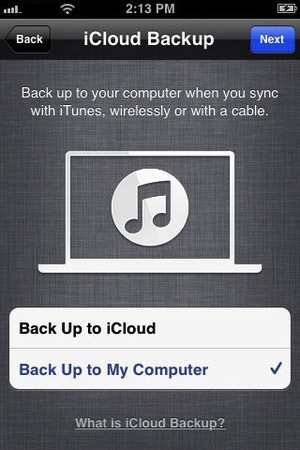
    • The setup will now ask whether you want to backup to cloud of Mac, We suggest mac/pc (since the cloud will be busy for the time being)
    • Next the assistant will ask you a certain number of questions, which you can answer according to your choice, whether you want “Find my iPhone”
      or want to send information to Apple.

    You are all Done Enjoy your new iOS 5 Device 

    So did you upgrade to iOS 5 ?
    How was it?
    [polldaddy poll=5579753]
  • iOS 4.3 Coming March 11 with new AirPlay features and FaceTime

    iOS 4.3 Coming March 11 with new AirPlay features and FaceTime

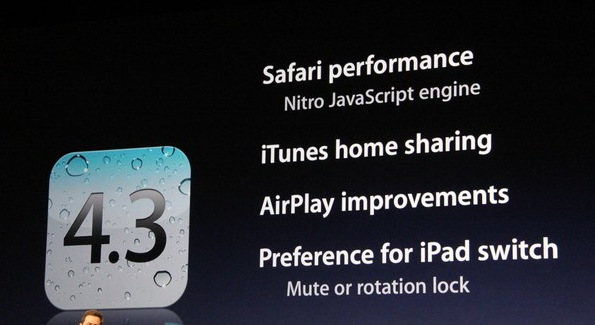
    Apple’s releasing the final version of iOS 4.3, which features

    • Nitro Javscript engine from Safari on OS X,
    • iTunes Home Sharing
    • Updated suite of AirPlay
    • We also Get Wifi Hotspot for iPhone 4
    • Photo Booth and FaceTime
    • It’ll be a free download for all iPads, the GSM iPhone 4, the iPhone 3GS
iGyaan Network
Privacy Overview

This website uses cookies so that we can provide you with the best user experience possible. Cookie information is stored in your browser and performs functions such as recognising you when you return to our website and helping our team to understand which sections of the website you find most interesting and useful.