Tag: iOS9

  • 11 Hidden iOS 9 Features That Everyone Should Know

    11 Hidden iOS 9 Features That Everyone Should Know

    By now most iPhone and iPad users must have updated their device to the new iOS 9. With the update users would have also found some changes and features that are brand new.

    We recently spoke about a few of the more visible changes that came with the new update. Today, we’ll look at some other new hidden additions that you might not have noticed as yet.

    Drag and select multiple pictures
    iOS 9 Photos

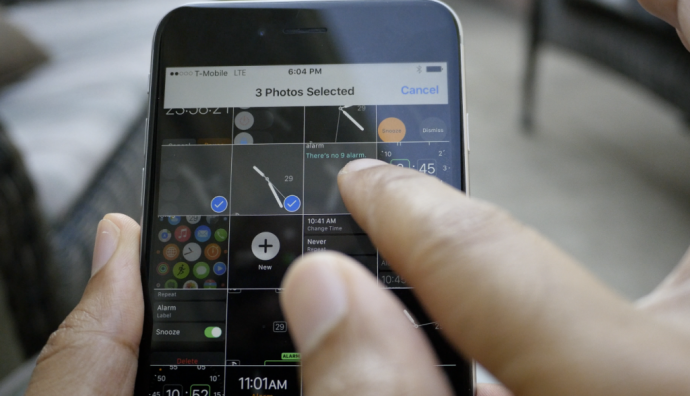
    Now, before you start thinking that the multiple select option already existed, we are not denying that. But now with the iOS 9, users can select multiple photos from within the Photos app more easily. After you tap on “Select” you can hold and drag around your finger to select as many photos as you wish without having to select every photo individually. Along with this is the ability to hide multiple photos at once.

    Siri can now recognize your voice

    Hey-Siri-640x557

    If you like to command Siri from a distance when your iPhone or iPad is on charge then you can enable the Allow “Hey Siri” option in General > Siri settings. However, this is not the new feature we’re talking about. Now, when you newly activate “Hey Siri” on iOS 9, you’ll be taken through a couple of steps which requires you to speak aloud a few sentences so that Siri can recognize your voice. Once you’ve finished the steps, Siri will now be able to recognize you and will respond to your voice when you say “Hey Siri”.

    Siri has a new audio wave

    Siri


    Not only has Siri become smarter, but it’s groovier as well. The audio wave that shows up when you talk to Siri is now a lot more colorful and way cooler than the simple, old white colored waves. This little change does a lot more for the aesthetics of Siri rather than functionality. It’s simply a fashion change for Siri and we’re loving the new look.

    Quickly call and message people via Proactive

    iOS 9


    Have you tried swiping right on your Home screen yet? You’ll find a new Siri Suggestions page with a search bar on top. Siri has indeed become more useful than ever. Type the name in the bar and you’ll find multiple options such as message, call, or mail for that person. This is also a neat way of finding emails of the person without having to search for it in the Mail app. Siri suggests just about everything you would want to find.

    Hidden iCloud Drive app
    018b0c4cb9e68560a1e287709c121ed320c06cd6fe

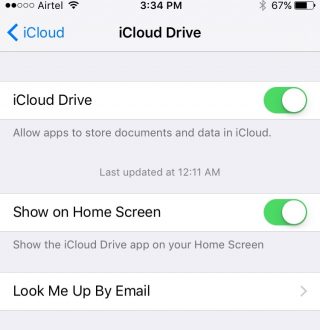
    You can now have an iCloud Drive icon on your home screen. The setting is switched off by default at first, so you’ll have to enable it by going to Settings > iCloud > iCloud Drive and turning on the “Show on Home Screen” option.

    Silence Siri using Ringer (mute button)
    01d7e79679173cc2ddeb973a1e1943235a79d4ac5f

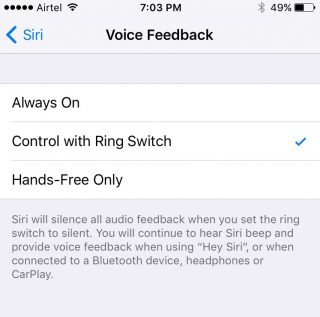
    If you don’t want Siri to talk and would rather just read the info text on screen, you have the option of muting it by simply flipping the Ringer switch. To activate it, you need to go to Setting > General > Siri, click on Voice Feedback and switch from “Always” to “Control with Ringer Switch”.

    Quick Reply for almost all apps


    iOS 9

    You can now Quick Reply for most third-party messaging apps. Earlier you could only Quick Reply for Mail and stock messenger, but now you can pull on the notification you’ve received from mostly any third-party app (including Twitter) and the option to quickly reply will be available.

    Larger multi tasking screen
    0165f852c5f9ca2274ec91c4cd5350c309e204ab4a

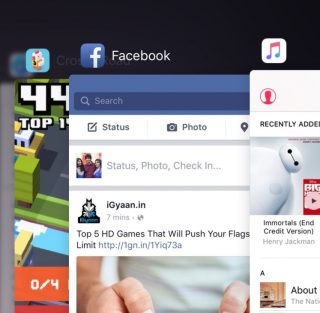
    When you double click the Home button, you’ll find that all your active apps are larger and more easily readable, taking up a good amount of screen space so that you can see what’s showing on the app without having to open it. It’s the little things that make life easier.

    Audio app suggestions

    iOS 9 Lock Screen


    When you plug in your headphone into the jack, you’ll notice that the music player opens up automatically in your lock screen or suggests the audio app you are most likely to use in the bottom left. The suggestion is not only based on the app you use most but also takes factors such as location into account.

    Search through Settings
    01c459edca1eb0abbc0501f0183f14913b8edb9718

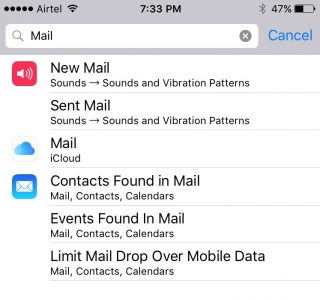
    If you have a particular setting in mind that you want to change, you don’t have to look through the entire Settings app. There is now a search bar on top of Settings where you can type in a particular query (e.g. “Mail”) and everything matching that query will appear in a list below.

    Wi-Fi Assist

    0147536242f5fe0da826e4b2a6f53bd41f8c528df1

    Another helpful addition is the Wi-Fi Assist option that is enabled by default once you update your device to iOS 9. This feature is for situations where your mobile data may be more powerful than your Wi-Fi. When enabled the feature will switch you to mobile data if your Wi-Fi connection shows some trouble.

    Along with our previous post on iOS 9, we’ve covered quite a few new hidden features, and yet the latest update offers a whole lot more. Keep exploring and tell us what new feature you’ve discovered in the comments below.

    Image Source : [tw-button size=”medium” background=”#07ABE2″ color=”” target=”_blank” link=”http://www.imore.com/ios-9-faq”]iMore[/tw-button]

    [tw-button size=”medium” background=”#07ABE2″ color=”” target=”_blank” link=”http://www.igeeksblog.com/quick-reply-from-lockscreen-on-iphone-and-ipad/”]iGeeksBlog.com[/tw-button]
  • 5 Cool Features of iOS 9

    5 Cool Features of iOS 9

    iOS 9 is finally out, and those of you who haven’t updated your iPhones and iPads yet can do so while we tell you some of the neat new features of the latest operating system.

    New icons

    011ed5879fb24339be3910d11b899362dbe85caca7

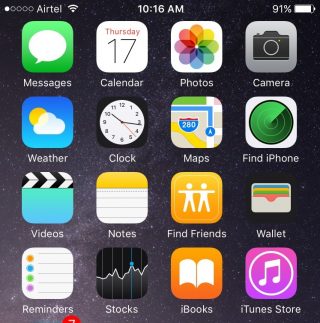
    Whenever we do an update it’s obvious our eyes are going to search for something new from the get go. While the iOS 9 is mostly the same as the iOS 8 in terms of the look of it, users will find three brand new icons in their home screen (Well, two actually and one revamped). The two new default apps are called Find iPhone and Find Friends. Both these apps were already available for download in the App Store. Find Friends/iPhone is pretty useful if you want to know if a friend is nearby for a cup of coffee, or if you’ve suffered a mini heart-attack from losing your iPhone.

    The Passbook has been renamed as Wallet, which is a cleaner name and suits that fact that the app can now store all your credit cards, reward cards and membership cards.

    A back button


    0119e9620c5dde814972d8d7fd656a5d8bf3cd8f13


    The iOS 9 has plenty of new features that are hidden away from the usual ones. Once you start using your device as you normally would, you’ll find subtle changes and additions in your iPhone that really make a difference to your usability.

    Take for instance the new back button that appears on the top-left corner of your screen when you switch from one app to another. And if you open a link from your Mail that takes you to Safari, the back button will appear that will take you back to Mail. Now you won’t have to double-click the Home button every time you want to go back to the previous app.

    New Low Power Mode


    0166c8c88067dc3e5379a40cde8644836efd09e44f

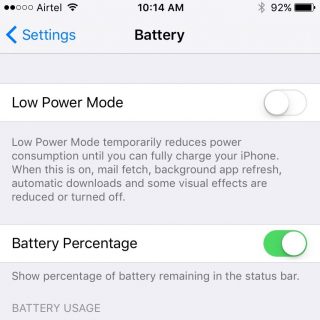
    This is perhaps one of the best new features Apple could have provided. The new Battery settings comes with The Low Power Mode which promises to give you an additional 3 hours of battery life, if you find yourself on really low power and still need the phone to stay alive for a few more hours.

    The Low Power Mode disables background app refresh, automatic downloads, mail fetch and visual effects to give you as much extra battery life as it possibly can. Battery information will be displayed in the Notification Center for the iOS device and the Apple Watch.

    Changes to the shift key

    0176c86e7956390bad0ac2100fd11fdc647ce80d25


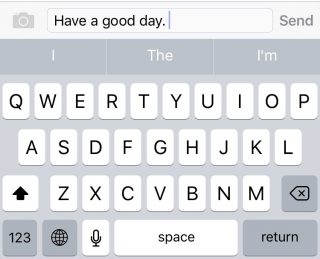
    Apple has made another subtle but much needed change to the keyboard. You can actually see the capitalized letters when you turn on the caps lock. The letters change to upper case when ‘shift’ is on and change back to lower case when ‘shift’ is turned off.

    New Notes app

    01fa1ab0a97825190ae34c2a65ce175ca6c905631f

    Notes has undergone some major changes. You now have the feature to add Photos to your notes, make a checklist, and draw and doodle using your fingers. The Notes app also allows you to embed websites, photos, maps, and more without having to leave the app.

    You can take a photo from within the Notes app as well. Finally, you can arrange the items attached to your notes with the new Attachment Browser.

    These are but a few of the subtle and not-so-subtle changes that come with the new iOS 9. Other features also include split-screen multitasking and picture-in-picture for the iPad, a new and improved Siri, with a Proactive feature when you swipe right on the homescreen, transit directions in Maps, new search bar in Settings, and much more. Though some of these features are yet to work well in India.

    What are your favorite updates from the new iOS 9? Let us know in the comments below.

  • Top 4 Ways to Get Your Apple Device Ready For iOS 9

    Top 4 Ways to Get Your Apple Device Ready For iOS 9

    Those of you who were up-to-date with the Apple event that took place last week will remember that the new iOS 9 update is scheduled for a September 16 release, which is today. The update is compatible for all current iPhones and iPads.

    However, before you press that ‘Download and Install’ button, here are a few things you can do to prepare your phone for the update.

    Check Compatibility

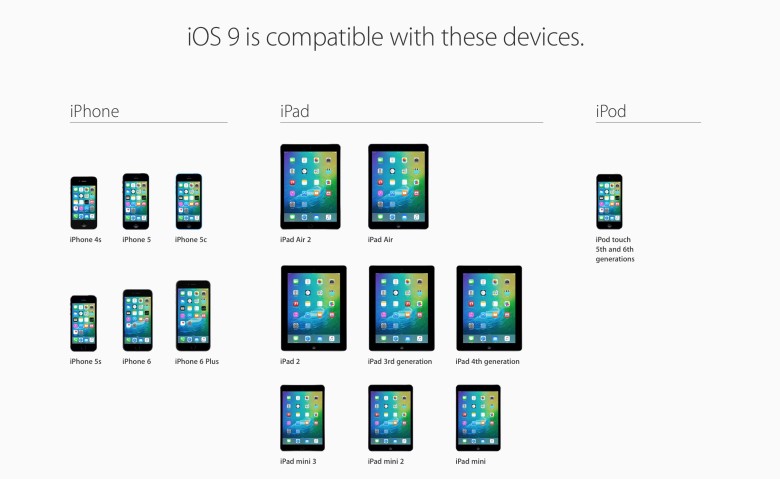
    All the way back to iPhone 4s and iPad 2.

    Before you get too excited, you should check whether you iPhone is compatible for an iOS 9 update. This is especially the case for those who are using really old Apple devices (we’re talking almost ancient). The new iOS 9 is compatible devices as old as the iPhone 4s, iPad 2, and 5th generation iPod touch, but will not work for the iPhone 4.

    Free up some storage

    The new iOS 9 comes as a huge relief for 16 GB users as it will take up only 1.3 GB of space compared to iOS 8’s massive 4.58 GB. We can almost here the cries of joy over this news. However, before you can enjoy all that extra free space chances are that you’ve already filled up your 16 GB device to the brim. Any update requires some free space, so now would be a good time to delete some of the really old apps that you no longer use. You can press and hold on an icon till it does its little jig and then tap the X on the upper left to delete it, or you can go to the Usage option in Settings to find out which app is taking the most space and delete it from there.

    Back-up your data

    There’s always that hint of fear when you go for a new update. Sometimes due to some bugs, your device may crash a lot like it did with iOS 8 in its initial months, or you may find that some of your data missing. Hence, we suggest you back-up your data using either iCloud or iTunes to be on the safe side.

    If you’re backing up using iCloud simply go to Settings > iCloud > Storage & Backup and toggle iCloud Backup to ON and finally tap on Back Up Now.

    If you wish to back up using iTunes simply open iTunes and go to File > Devices > Transfer Purchases and once that is done go to File > Devices > Back Up.

    Clean up your media

    iPhone 6s 8

    The iOS 8 recently introduced the Apple Music in which you can stream unlimited music for a monthly subscription. Those who have subscribed to it most likely stream all their music freeing up a lot of space. However, those who still have a lot of music or videos saved to their devices should take some time out and delete the ones you no longer listen to or watch.

    Once you’ve sufficiently freed up your space, you can go ahead and download the new iOS 9. Wait for your Settings app to show a little red circle on the top-right corner sometime today, and update away.

iGyaan Network
Privacy Overview

This website uses cookies so that we can provide you with the best user experience possible. Cookie information is stored in your browser and performs functions such as recognising you when you return to our website and helping our team to understand which sections of the website you find most interesting and useful.