If you own an iOS device and are skeptical about the new iOS 5 update. Here is our quick guide for upgrading your precious iOS device to the latest from Cupertino.
The first step is updating your Computer.
Computer
You will need to update you computer to the last builds of the following softwares, if you are on a PC only download the iCloud control panel and update iTunes.
Lion 10.7.2
iPhoto 9.2
iTunes 10.5
iCloud control panel for Windows
iTunes
Before you begin updating your device, the first step is always to take a backup
Follow the guide Step by Step
- Backup your iOS device to your pc/mac using iTunes
(Right-click on your device in the left-hand column in iTunes. Select Backup.)
- Download the iOS 5 update. You can manually download the update here
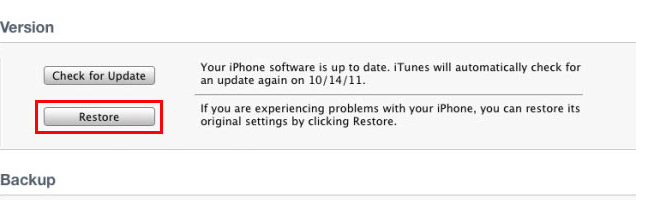
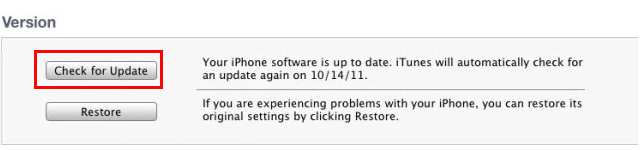
- Plug your iOS device into iTunes and Check for Update.
- iTunes will give you two options (Update or Restore), choose the one required and start updating.
iCloud
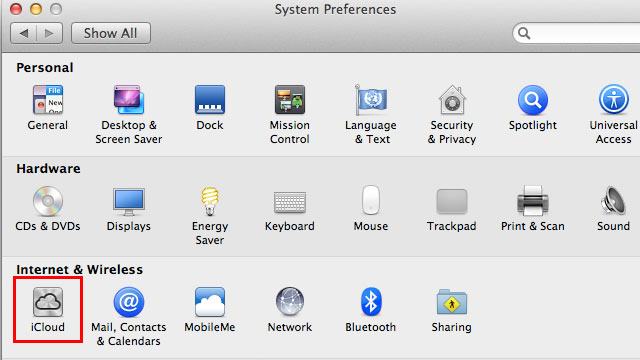
While your device is updating head over to iCloud in System>Preferences on a Mac (control panel in PC)
- Use your existing iTunes ID to sign in
- If you don’t have an ID create one
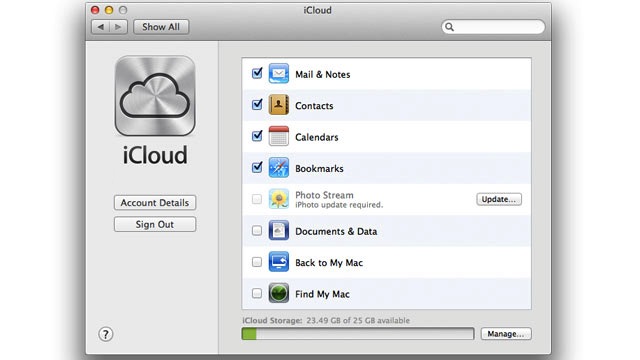
- Once you sign in you settings panel will show
- Now set all the preferences according to your requirement.
- Okay iCloud is set
Set up Device
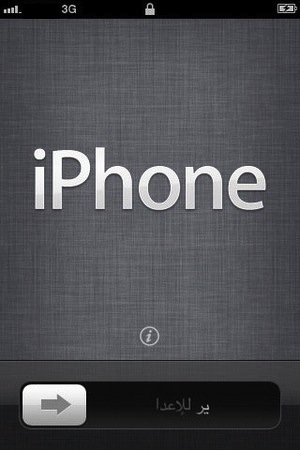
- Once your iPhone finishes the update, you’ll be presented with the setup-assistant.
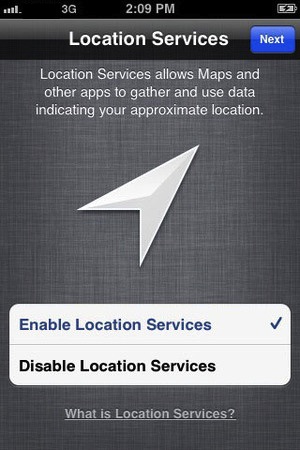
- During the setup you’ll first be asked if you want to set up Location Services.
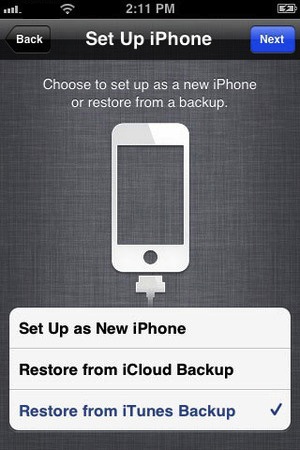
- Next you will be asked whether to set as new device or restore (new feature in iOS)
- Choose the relevant option and proceed.
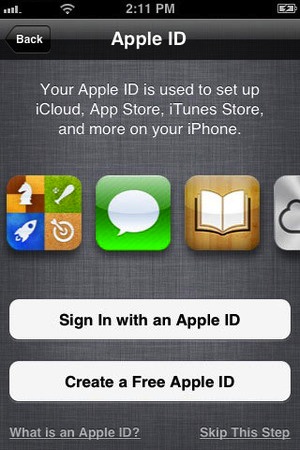
- Next you’ll be asked to add your Apple ID information. This information is used to set up iTunes, the App Store, and iCloud.
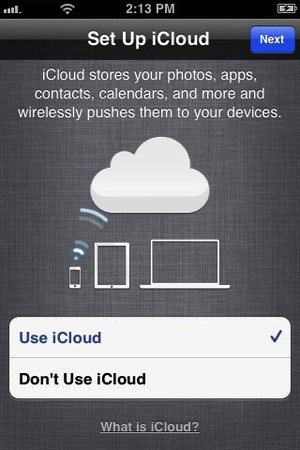
- Next is iCloud, if you followed our Guide : just enter the same account details as you entered for iCloud on mac/pc.
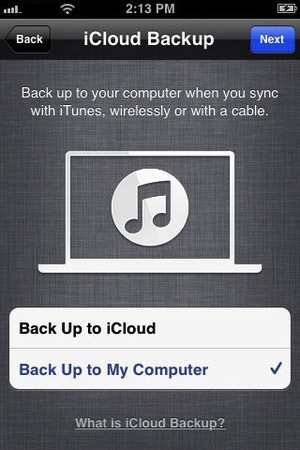
- The setup will now ask whether you want to backup to cloud of Mac, We suggest mac/pc (since the cloud will be busy for the time being)
- Next the assistant will ask you a certain number of questions, which you can answer according to your choice, whether you want “Find my iPhone”
or want to send information to Apple.
You are all Done Enjoy your new iOS 5 Device
So did you upgrade to iOS 5 ?
How was it?
[polldaddy poll=5579753]