Apple has garnered a reputation for being the most genuine and reliable brand for many years. Its iOS smartphones, Macbooks and the upcoming Apple smartwatch have seized the attention of the audience. In spite of this, the fact also stands true that there are also some dissatisfactory customers who wish to switch from iOS to Android.
For those who have been using the iOS platform from the beginning may find it hard to switch to Android. The operating system may intimidate first-time users as it works quite differently. Use this guide and transfer music, contacts, messages, videos and other relevant documents to your new Android smartphone.
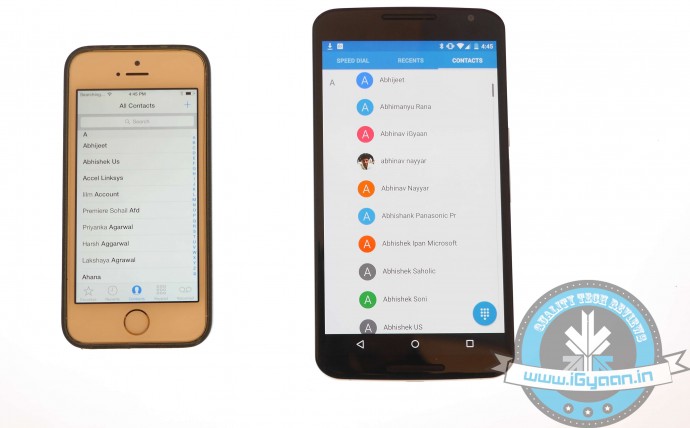
Transfer Contacts
Before you land on to the Android platform, the first thing you need to do is back up your iOS device. Contacts are important need to be saved in top priority. Transferring data through iCloud is extremely easy. Just keep in mind these simple steps:
- Sign into iCloud and click Contacts.
- Select all contacts by pressing Command+A.
- Go to the cog wheel icon and tap Export vCard; a VCF file with all the contacts will download.
- Plug in the Android device and copy the VCF file onto your Android.
- Import the copied contacts from the Contacts or People app.
Another way to copy contacts is through iTunes:
- Plug your iPhone via USB and open iTunes.
- On the Info tab on the Menu bar, tick Sync Contacts with.
- Choose Google Contacts.
- Type in your Gmail Username and Password in the new window and click Apply.
- All your contacts information along with numbers and email addresses will store on Gmail and Apple alike.
As the contacts are now on your Gmail account. Your new Android smartphone will ask you for an option to sync on the first boot. Just add the Gmail account and your contacts will automatically appear in a list on the device.
Sync Calendar
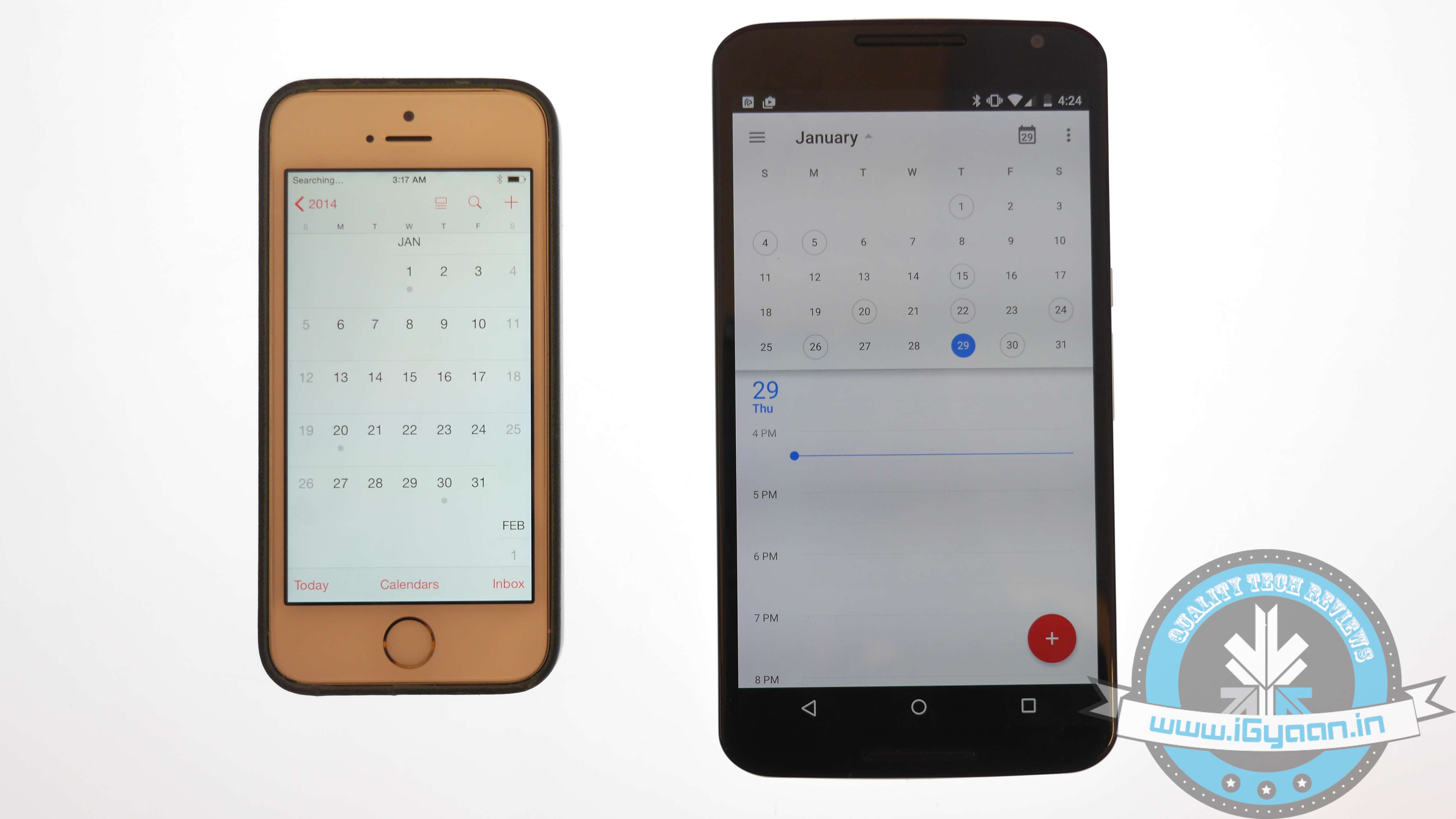
Syncing Calendar is not an easy job, but SmoothSync for Cloud Calendar will make it convenient for you. Get started with these few easy steps on your iOS device:
- Open SmoothSync for Cloud Calendar and login to your iCloud account.
- On the next window, select calendars you wish to sync.
Now, it will take care of the rest. All the important events and notifications will now come on your Android device.
Transport Music
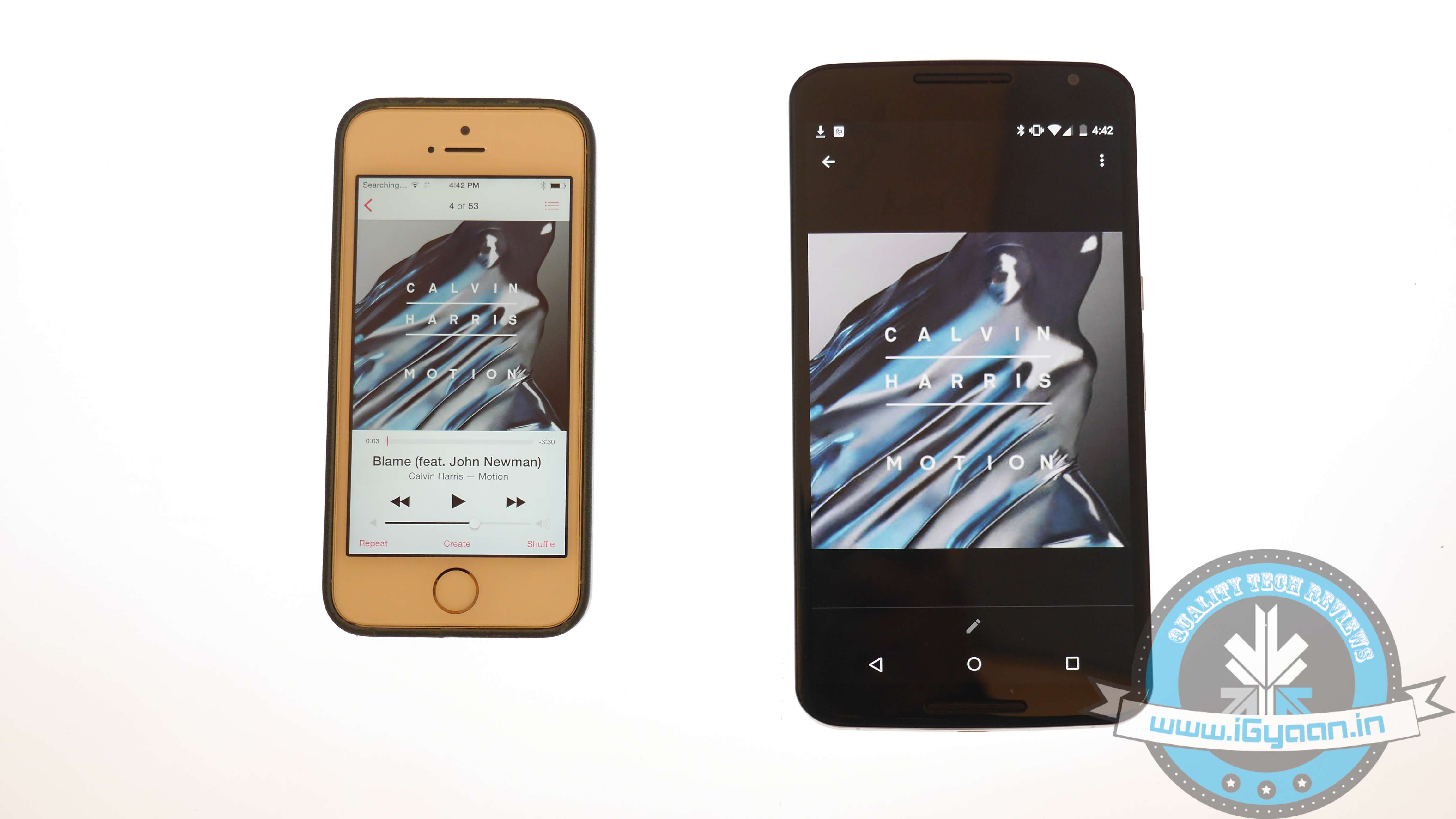
Building a music library of your choice is a hard done effort of many years. You cannot afford to lose it. The easiest possible way to transfer music files from iOS to Android is to download Music Manager on a system that has both Google Music and iTunes.
- Sign in to Google Music.
- Once the Music Manger is downloaded and installed, select iTunes option as the present music storage option.
- Choose Upload all songs and playlist. The songs will then be uploaded on the app apart from your iOS handset.
- You can now transfer your music library to your Android device.
Shift videos and photos
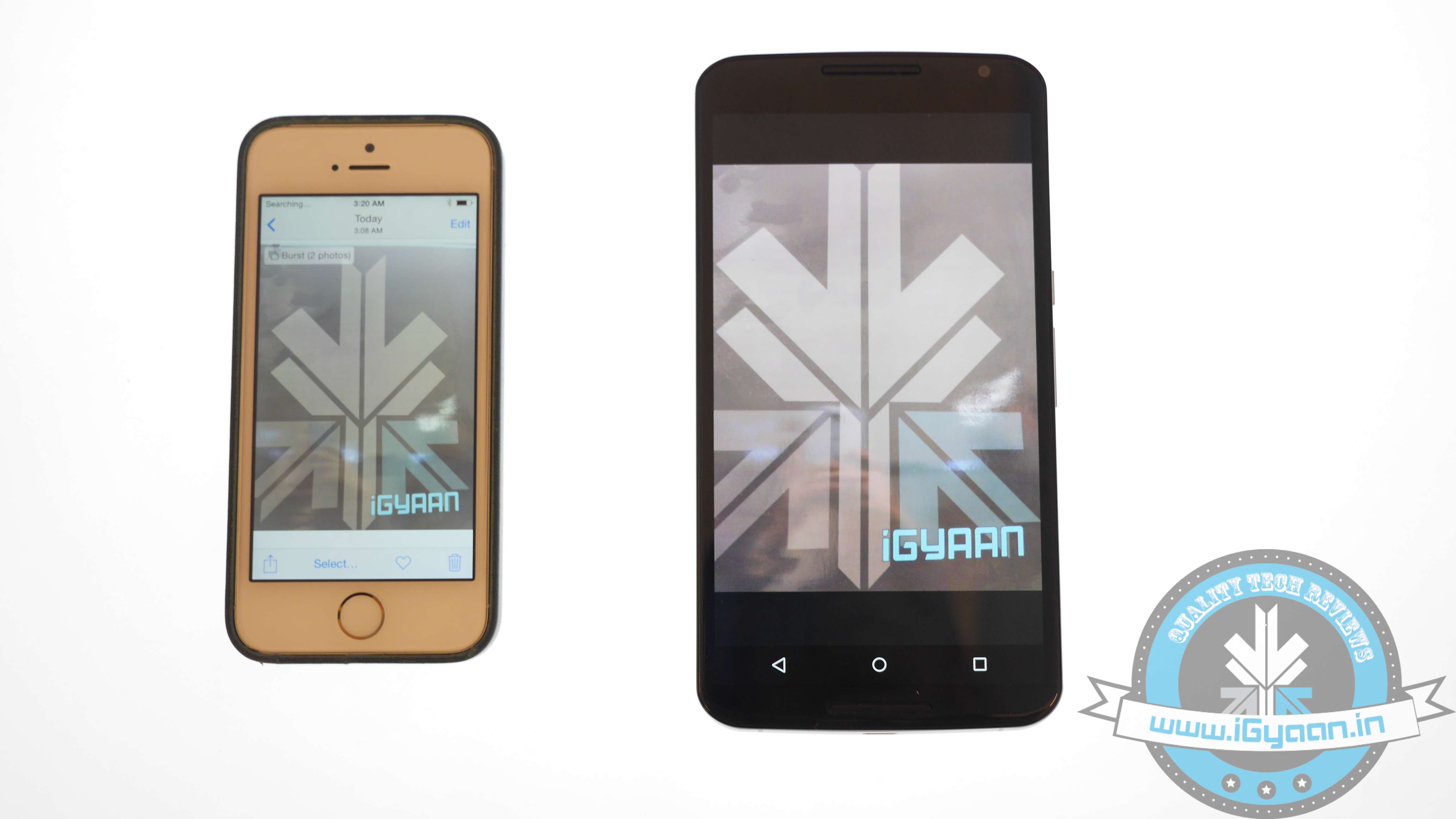
Out of many ways of transferring pictures and videos from iOS handset to Android, the easiest one is to connect your iOS handset and Android device to a computer via USB cable.
- Locate both the devices in My Computer folder.
- Open the storage of both the devices.
- Locate DCIM on the iOS device.
- Select the images and drop them into the Android storage folder.
- Images of the iOS phone will now appear on your Android device.
This drag-and-drop method is the simplest and least time consuming than the wireless transfer option.
Relocate text messages
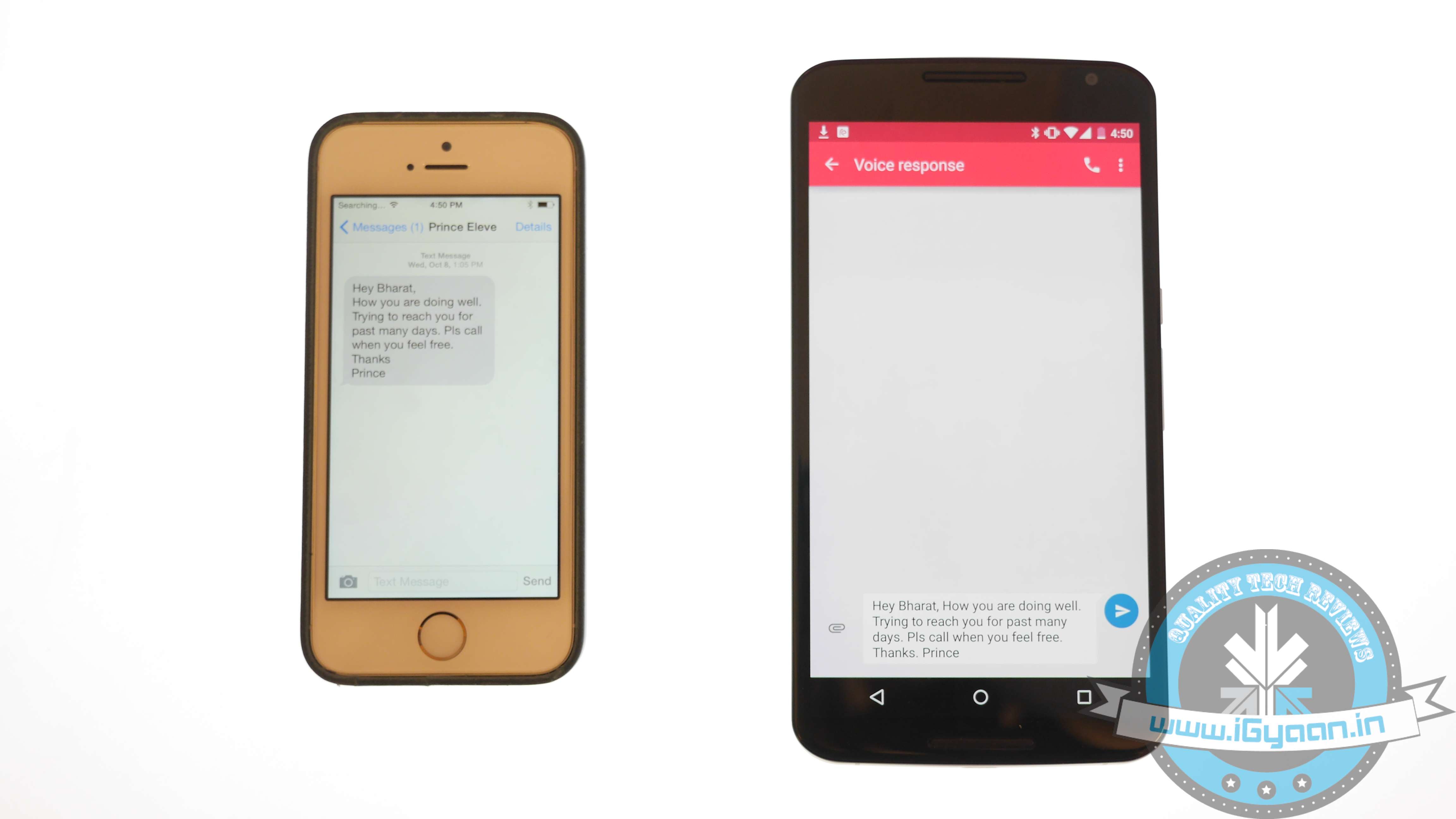
Some of you might find it useless, but for some others messages are as important as contacts, music and photos. The transferring of iMessages to Android is not an easy job; it’s a three-step process, which is simplified below:
- Connect iPhone to your computer and open iTunes.
- On the bar at left, right click on your phone name and choose Backup.
- A file with random name will save on your system.
- Transfer this file to your Android device storage.
The messages are in your Android device but are not yet readable. Convert them to a readable format through iSMS2droid.
- Download iSMS2droid and install it.
- Open the application and choose Select iPhone SMS Database.
- Locate the backup file just transferred to your phone.
- A pop-up will ask you for your permission to load SMS.
- Tap All and the conversion will start.
Post the conversion, another app needs to be installed – SMS Backup & Restore.
- Open the app and choose Restore.
- Select the converted file from the directory and click Restore All Messages; the restoration will commence.
- A pop-up will show the restored message number along with those that cannot be restored.
Once you are done with relocating your stuff, visit Google Play Store. A whole new world of apps is waiting for you!