Tag: NAS

  • Synology® Launches RackStation RS812+ and RS812RP+ (PR)

    Synology® Launches RackStation RS812+ and RS812RP+ (PR)

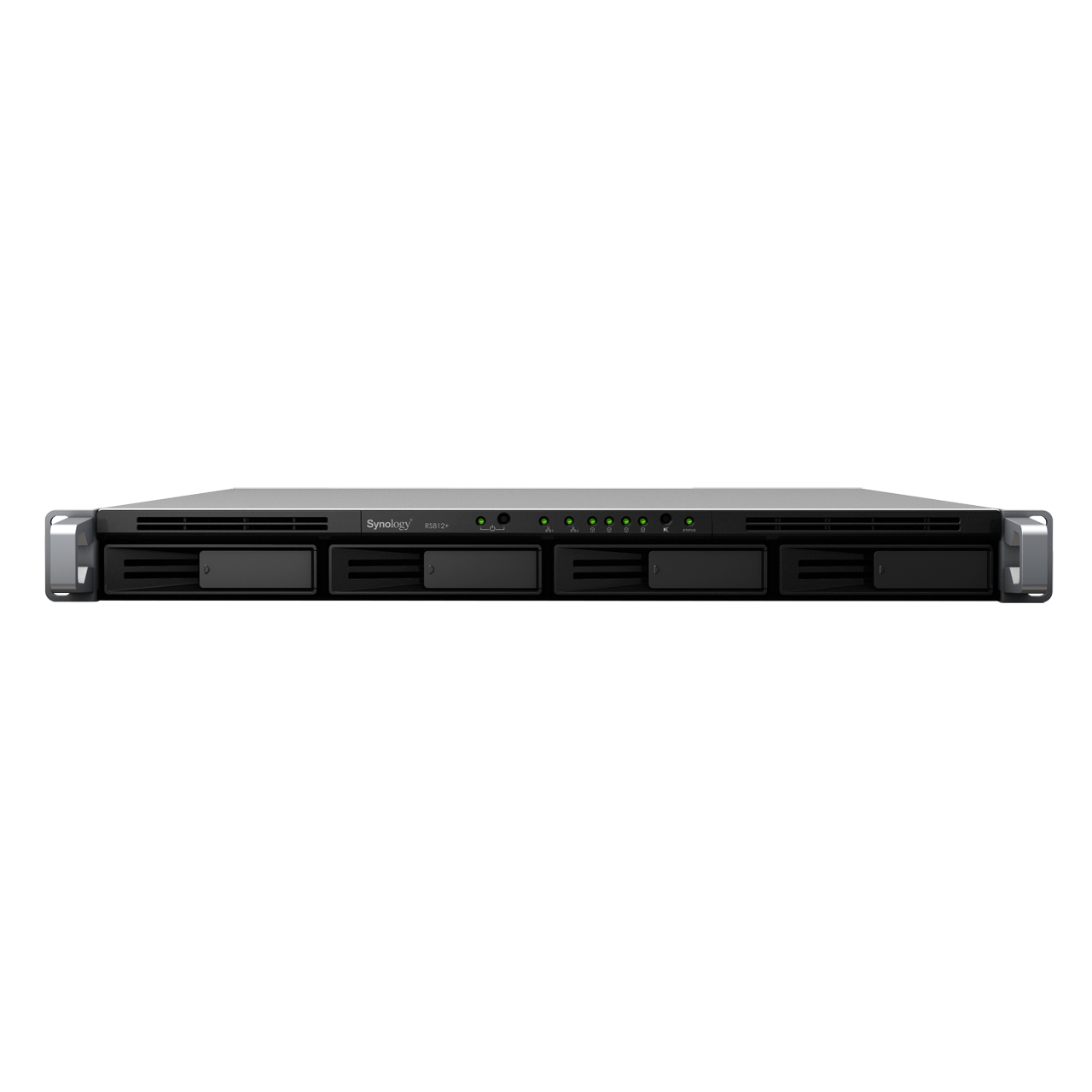
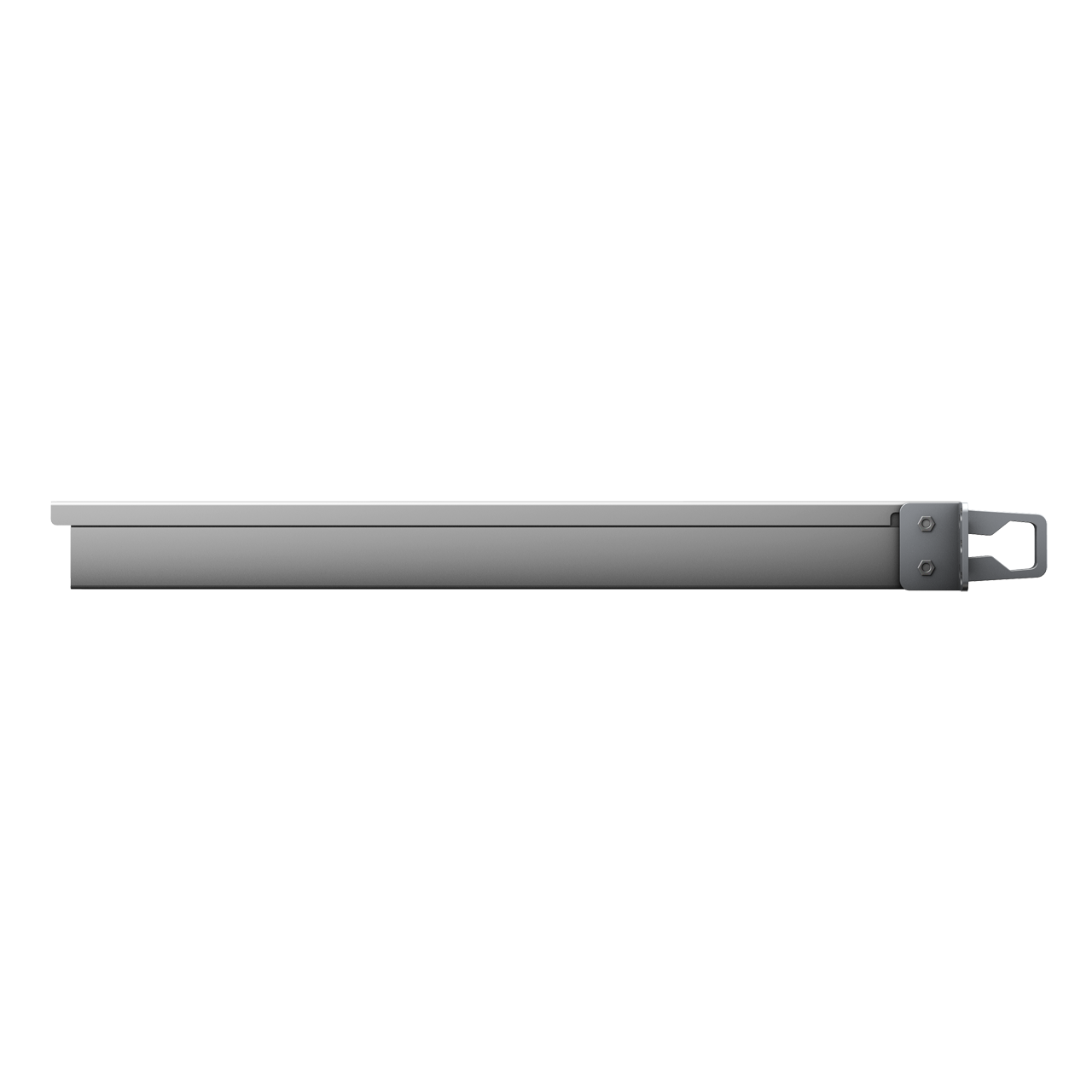
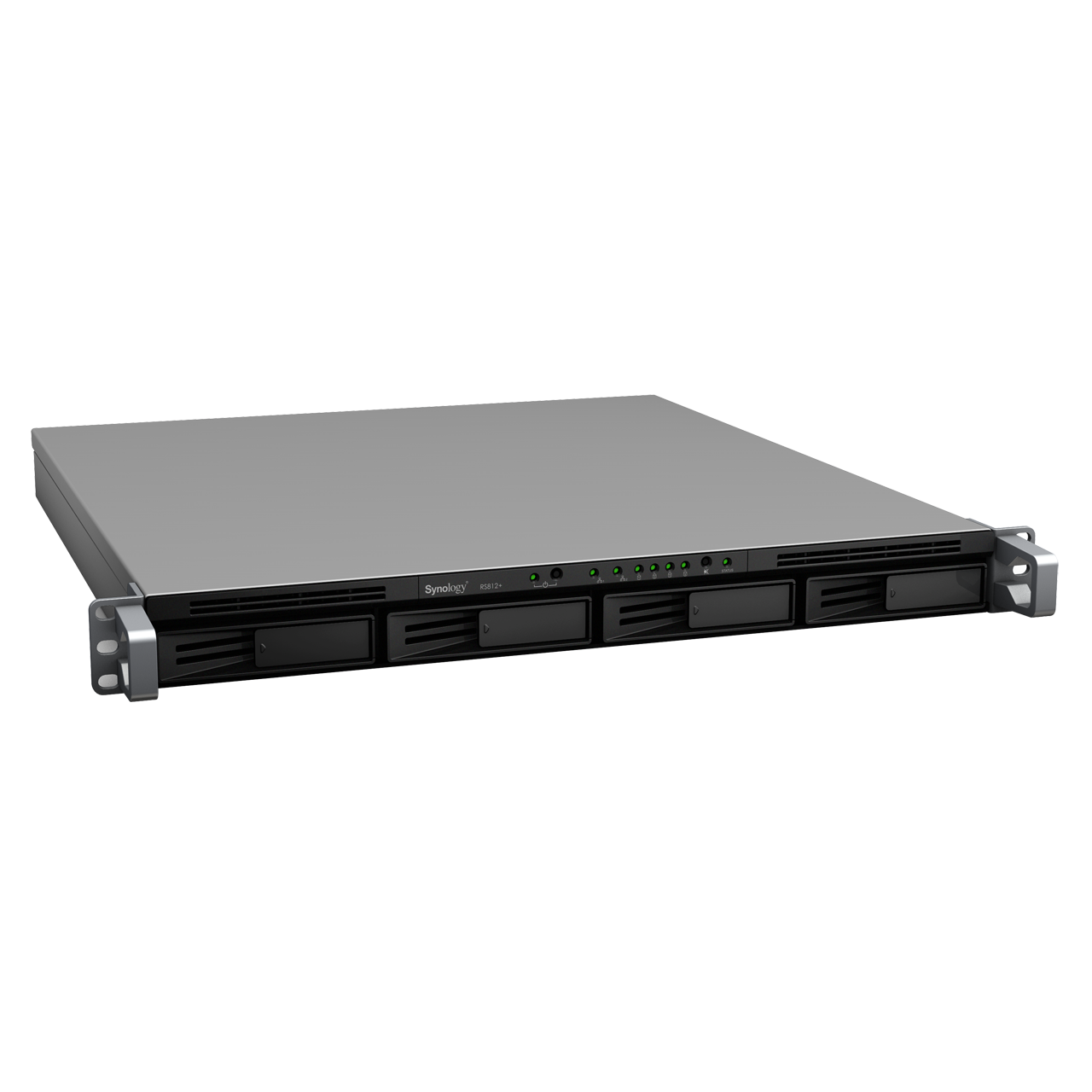
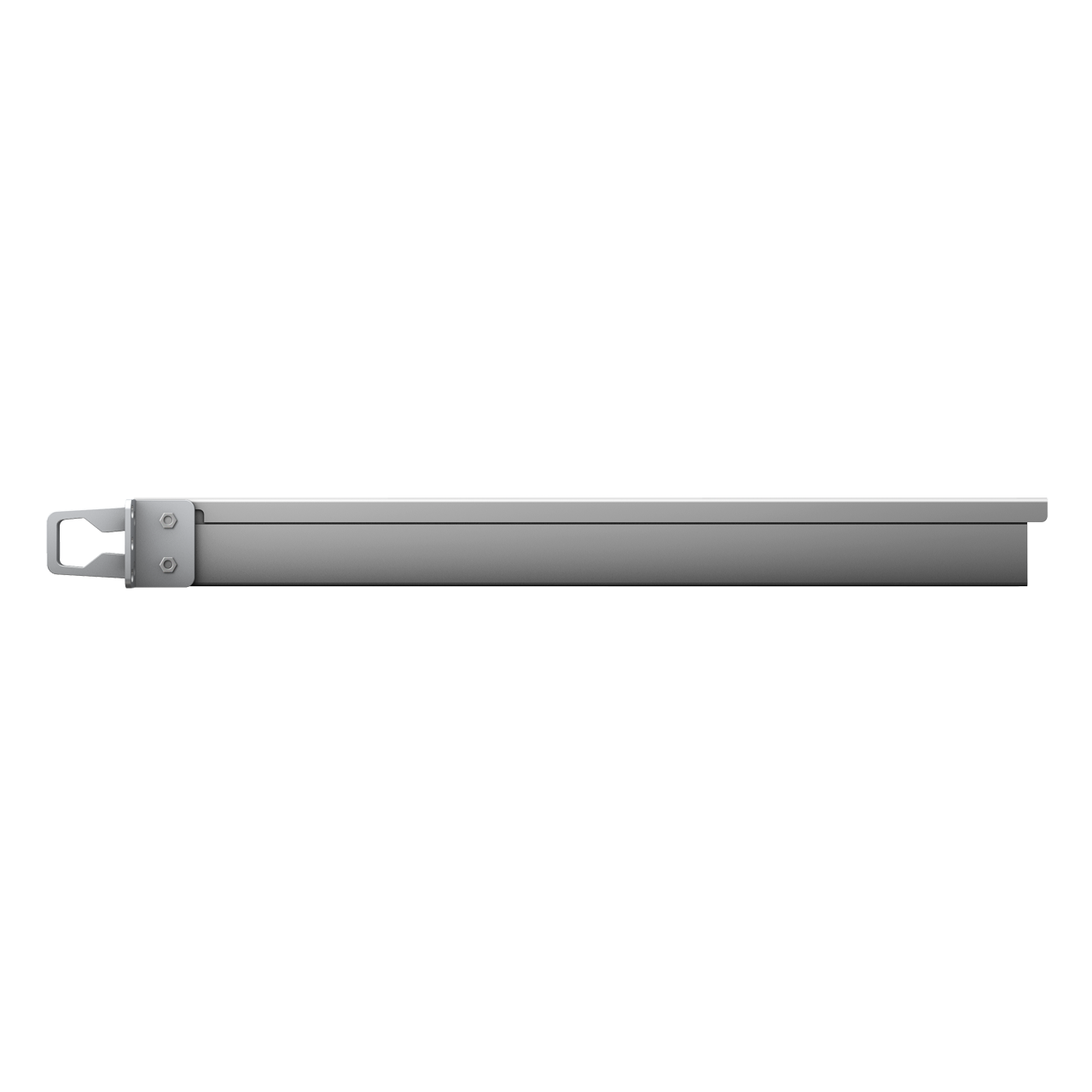
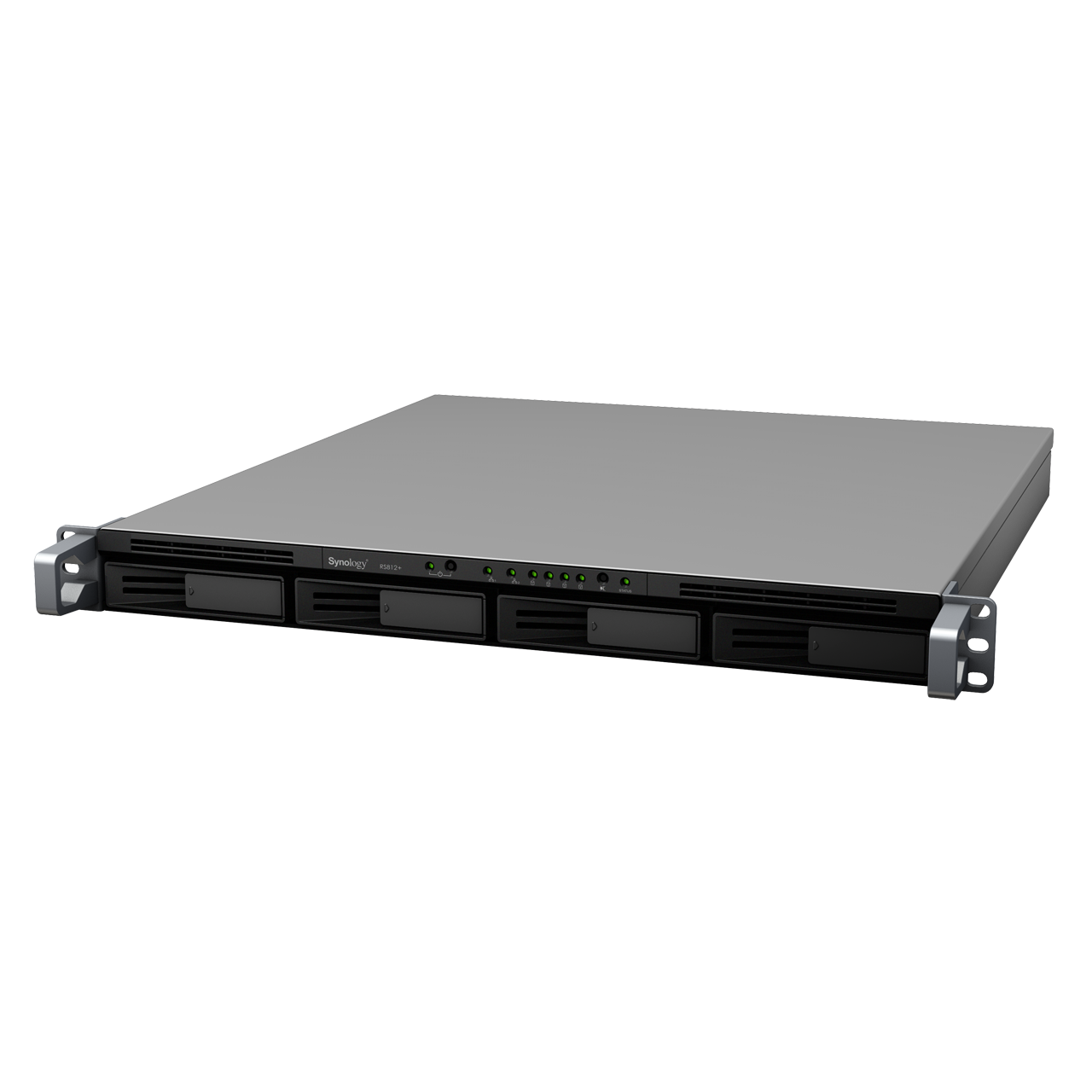
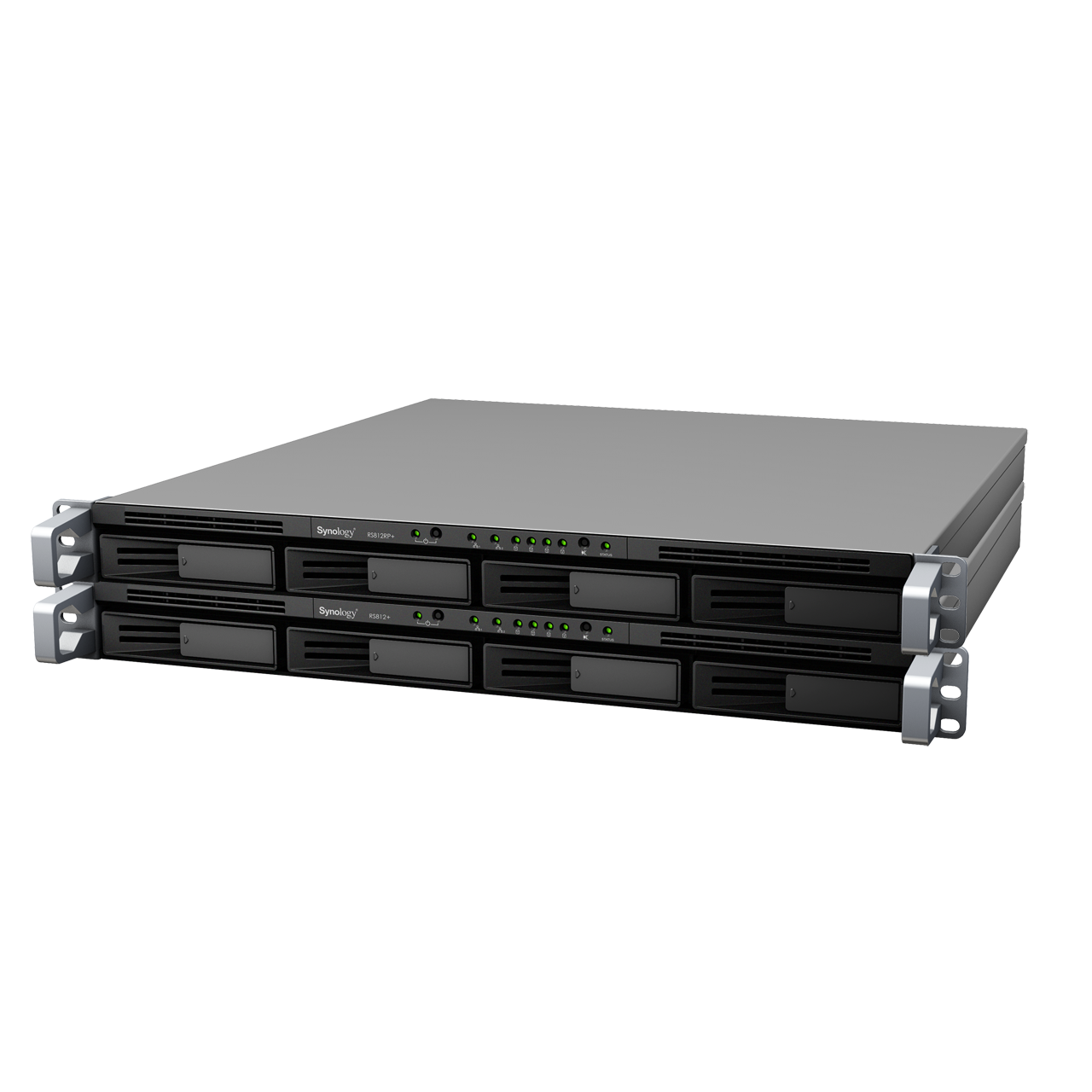
    Synology has launched two new RackStations for their existing lineup. The new RS812+ and RS812RP+ are 4-bay rackmount NAS servers meant for small businesses, and add the scalability to already existing Rack Networking equipment.  Both models feature a passive CPU cooling technology, a fan redundancy mechanism, and dual LAN network failover support to eliminate a single point of failure.

    Specs Include

    • 2.13GHz dual-core processor 
    • 1 GB RAM
    • 4-bay rack mount
    • write speeds at 202.31 MB/sec and 175.11 MB/sec  in RAID 5
    • DiskStation Manager 4.0 (DSM 4.0
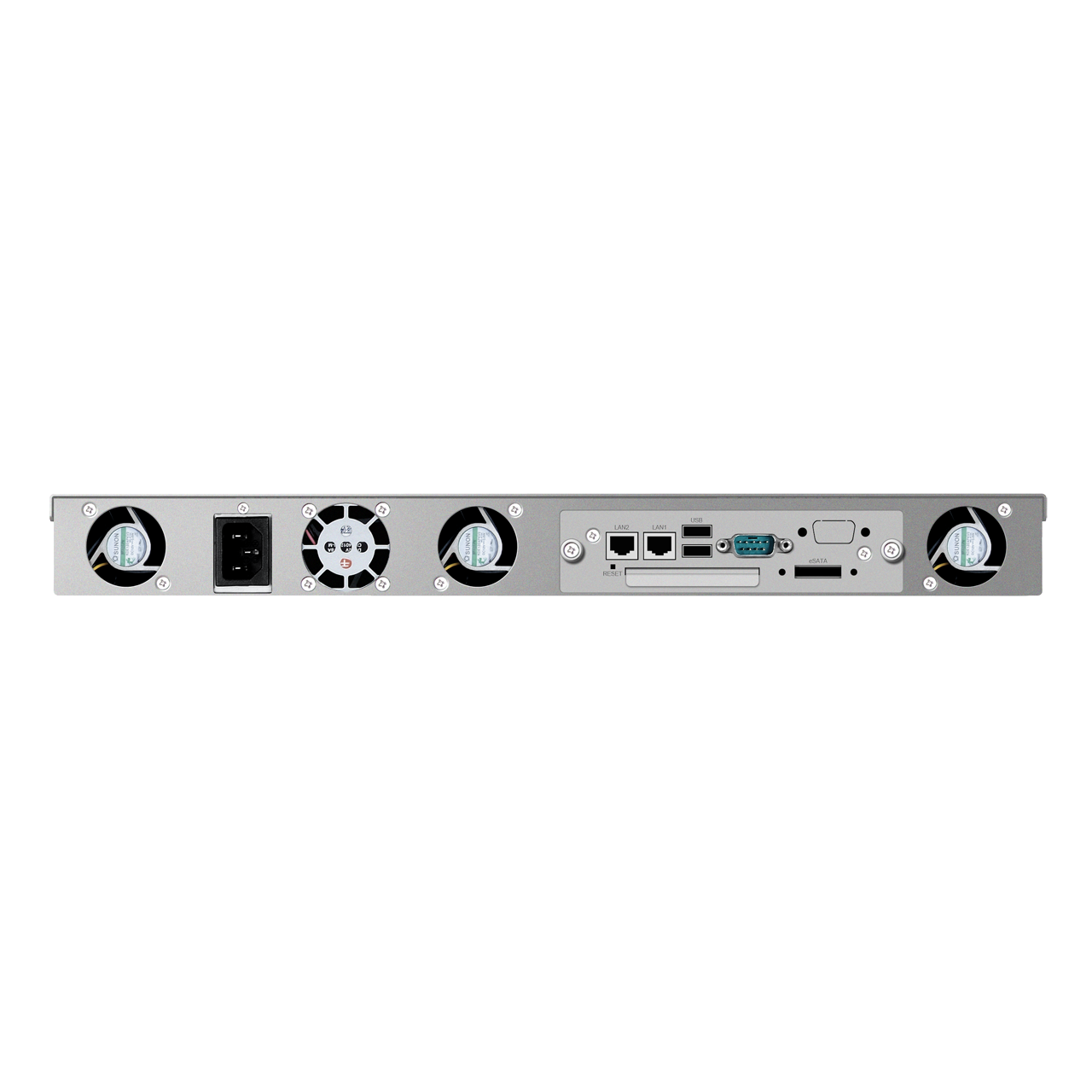
    • 2 LAN with Failover and Link Aggregation Support
    • Fast Motherboard Swapping Design
    • CPU Passive Cooling Technology & System Fan Redundancy
    • Scale up to 8 Drives with Synology RX410
    • Windows® ADS and ACL Support
    • VMware® / Citrix® / Hyper-V® Compliance 


    [toggle title_open=”Press Release” title_closed=”Press Release” hide=”yes” border=”yes” style=”default” excerpt_length=”0″ read_more_text=”Read More” read_less_text=”Read Less” include_excerpt_html=”no”]


    Synology® Launches RackStation RS812+ and RS812RP+


    Robust and scalable with optimized server reliability


    Taipei, Taiwan—March 27, 2012—Synology® today announced RackStation RS812+ and RS812RP+, expandable 4-bay rackmount NAS servers bringing high performance, scalability, and reliability to small and medium businesses.


    “Synology RS812+ and RS812RP+ are built to address the needs of businesses that require high performance and maximum system uptime to run mission-critical applications,” said Peter Chen, Product Manager of Synology Inc. “They ensure business continuity with an array of redundancy and availability features,” added Chen.


    Both models feature a passive CPU cooling technology, a fan redundancy mechanism, and dual LAN network failover support to eliminate a single point of failure and maximize system uptime during malfunction. Redundant power supplies in the RS812RP+ further assure uninterrupted service. To reinforce system availability and maintenance efficiency, the hot-swappable hard drives and easily accessible circuit boards are designed to be user-replaceable.


    Powered by a 2.13GHz dual-core processor and 1GB RAM, the RS812+ and RS812RP+ achieve read and write speeds at 202.31 MB/sec and 175.11 MB/sec respectively in RAID 5 configuration with Link Aggregation enabled. When businesses grow, they can leverage the expansion capability of a Synology RX410 to scale up the total storage space to 8 hard drive bays and upgrade system RAM to 3GB in tandem with their expanding workloads. With comprehensive iSCSI support, the RS812+ and RS812RP+ provide seamless storage solutions for major virtualization servers, including VMware®vSphere, Citrix® XenServer and Microsoft® Hyper-V.


    Synology RS812+ and RS812RP+ run on DiskStation Manager 4.0 (DSM 4.0), the operating system of every Synology DiskStation and RackStation. DSM 4.0 provides rich features to boost users’ productivity and simplify their tasks, all on a sleek user interface optimized for multitasking. Synology RS810+, the predecessor of the RS812+ and RS812RP+, has received numerous media accolades, including the “Editor’s Choice” award from Digital Reviews Network, Australia.


    Visit http://www.synology.com/products/product.php?product_name=RS812%2B for more product information.


    Availability


    Synology RS812+, RS812RP+, and RX410 are now shipping globally.


    Synology at a Glance


    Founded in 2000, Synology is a young and energetic company dedicated to developing high-performance, reliable, versatile, and environmentally-friendly Network Attached Storage (NAS) products. Our goal is to deliver user-friendly solutions and solid customer service to satisfy the needs of businesses, home offices, individual users and families.

    [/toggle]
  • Synology® Releases The DiskStation Manager 4.0  (PR)

    Synology® Releases The DiskStation Manager 4.0 (PR)

    Only weeks ago Synology had launched their beta version of the DiskStation Manager 4.0 for their NAS equipment. On Tuesday, March 6, 2012 announced the official release of DiskStation Manager 4.0 (DSM 4.0). The new upgraded software manager unleashes better cloud capabilities along with a newer UI which is more intuitive. There is also improved compatibility with mobile applications and the works.

    If you are rocking a Synology NAS, go ahead and download their latest version 

    The download is available at http://www.synology.com/support/download.php

    The live demo site is available at http://www.synology.com/products/dsm_livedemo.php

    [toggle title_open=”Press Release” title_closed=”Press Release” hide=”yes” border=”yes” style=”default” excerpt_length=”0″ read_more_text=”Read More” read_less_text=”Read Less” include_excerpt_html=”no”]


    Synology® Announces the Official Release of DiskStation Manager 4.0


    Fueled by the latest technologies to facilitate personal and business productivity


    Taipei, Taiwan—March 6, 2012—Synology today announced the official release of DiskStation Manager 4.0 (DSM 4.0). In just 50 days the DSM 4.0 beta program hit a new record in excess of 90,000 downloads, achieving an average of one download per minute. Synology appreciated enthusiastic beta participants for their valuable feedback in contribution to a better NAS server experience.


    “DSM 4.0 marks a significant milestone for Synology, representing its efforts to provide users with best-of-breed technologies, an easy approach to master their own clouds, and productive business solutions with no additional cost,” said Rosiel Lee, product manager of Synology Inc. DSM 4.0 offers:


      • Easy-to-use cloud services – Cloud Station offers users a simple and auto way to keep their files in sync, including the change history for data recovery. QuickConnect allows users to sync without the hassle of port forwarding. Unlike licensed cloud services, Cloud Station can grow with users’ demands and there is no recurring fee. In addition, DSM 4.0 pushes event triggered notifications via Microsoft Windows Live Messenger®, Skype and DS finder, assuring effortless system monitoring.


      • Robust business features – Users can now add a DiskStation to a VLAN environment, flexibly creating segmented networks on the same physical wire. A DiskStation can also work as a DHCP server to distribute IP addresses to different devices. DSM 4.0 supports iSCSI LUN backup, which features point-in-time technology, incremental backup and space reclaim to create instantaneous copies and optimize task efficiency. Synology’s complete VPN support allows for a cost-effective private network to securely share information across multiple locations. What’s more, Windows® ACL settings can be edited quickly on the intuitive interface of DSM.


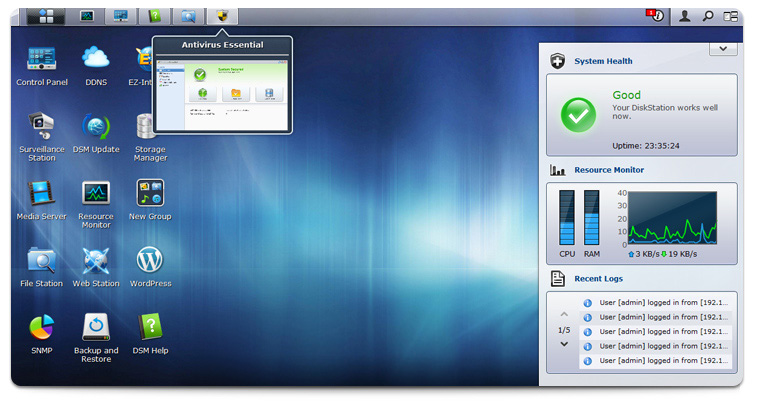
      • Smart management – DSM 4.0 provides a more efficient approach to software installation and upgrade by turning applications, such as Photo Station and Download Station, into packages that can be added in need. Integrated with HTML5 and CSS 2D Transforms, Pilot View and Instant Preview helps users easily switch between applications. Desktop widgets display a variety of system resources to simplify server management.


      •  Powerful surveillance solutions – Surveillance Station now supports over 1,000 IP cameras and streams surveillance footages faster. In addition, users can deploy a single fisheye camera to cover all the angles without blind spot. Live-view Analytics carries out real-time analysis on multiple channels to keep them alert with critical events.


      • Enriched mobile support – Synology takes the lead to support Amazon® Kindle Fire and bring DS finder to Windows Phone 7. DS photo+ and DS file are also available for Android® tablets. More mobile users can carry terabytes of data stored in their DiskStation on-the-go.


    Additional new features include application portals, proactive virus scan, hotspot support, configuration backup enhancements, Picasa Web Albums and Twitter® support on Photo Station, etc. Please visit http://www.synology.com/dsm/index.php for more information.


    Availability


    Synology DSM 4.0 is free to download for users who own a DiskStation x08 series and onward. Supported models include:
    DS712+, DS212, DS212+, DS212j, RS212, RS812, DS1512+, DS1812+, DS3612xs, RS3412xs, RS3412RPxs, DS3611xs, RS3411xs, RS3411RPxs, DS2411+, RS2211+, RS2211RP+, DS1511+, RS411, DS411, DS411+II, DS411+, DS411j, DS411slim, DS211+, DS211, DS211j, DS111, DS1010+, RS810+, RS810RP+, DS410, DS410j, DS710+, DS210+, DS210j, DS110+, DS110j, DS509+, RS409+, RS409RP+, RS409, DS409+, DS409, DS209+II, DS209+, DS209, DS209j, DS109+, DS109, DS109j, DS409slim, DS508, DS408, RS408, RS408RP, DS108j


    The download is available at http://www.synology.com/support/download.php


    The live demo site is available at http://www.synology.com/products/dsm_livedemo.php


    Synology at a Glance


    Founded in 2000, Synology is a young and energetic company dedicated to developing high-performance, reliable, versatile, and environmentally-friendly Network Attached Storage (NAS) products. Our goal is to deliver user-friendly solutions and solid customer service to satisfy the needs of businesses, home offices, individual users and families.

    [/toggle]
  • Synology DS411Slim NAS Hands On : Your own Personal Cloud

    Synology DS411Slim NAS Hands On : Your own Personal Cloud

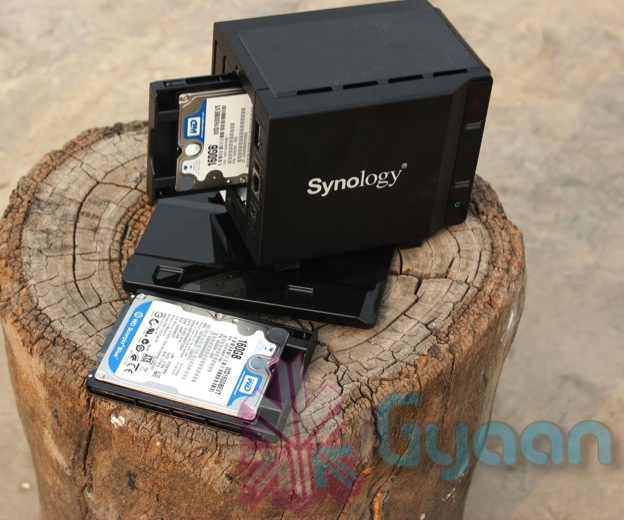
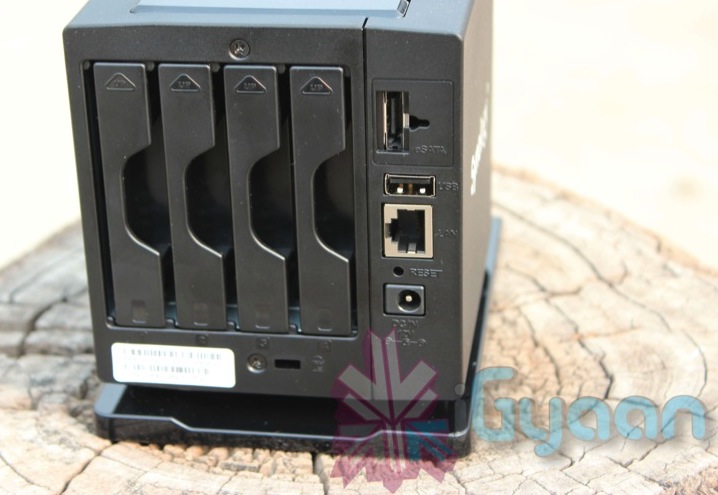
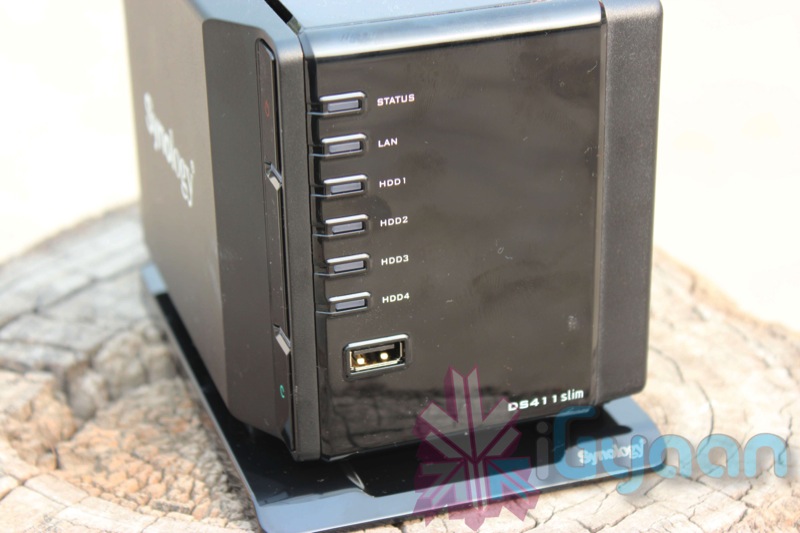
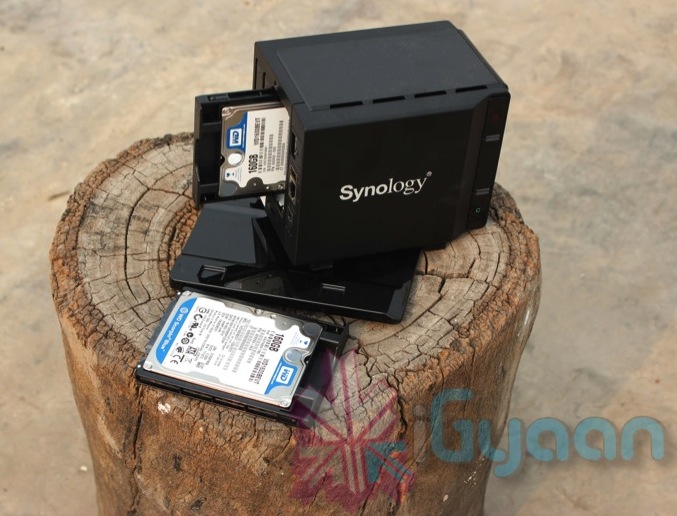
    Network Attached Storage, is a term that reminds us of big bulky devices that store large 3.5 inch Hard Drives. These units are usually obnoxious and loud and provide limited access to the storage. That all has changed as Synology introduces the DS411 Slim. This slim palm size ( or actually palm width) NAS uses 4 Sata 2.5 inch hard drives inside a beautiful piano black shell. Not only is this small and good to look at it is very quiet with noise levels at just  21.1 dB(A). 

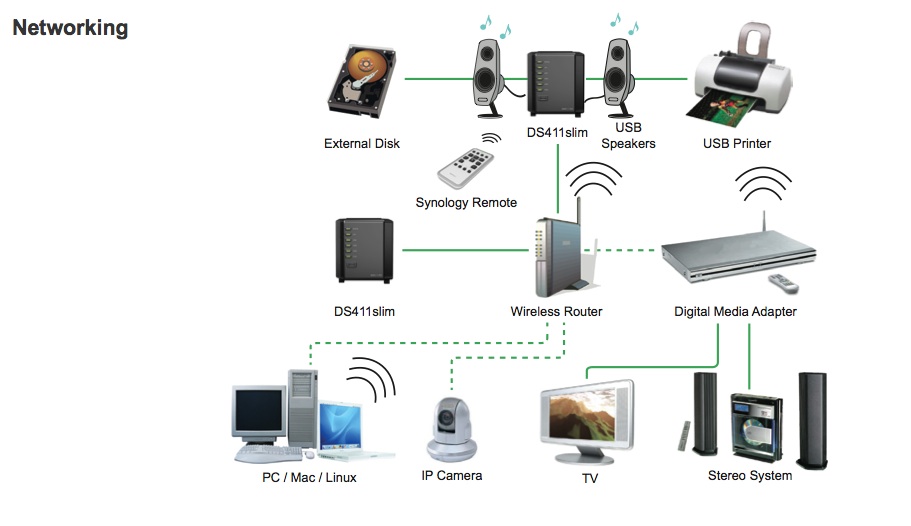
    The DS411 Slim gives you the ability to create your own private cloud, with a host of features including iOS and Android Apps to access your data make this a real worthwhile investment. The DS411slim allows you to create your personal data store and share files b/w  Windows, Mac, and Linux. Internet file access is simplified by the encrypted FTP server, the web-based File Browser and File Station. HTTPS, firewall, and IP auto-block support ensure file sharing over the Internet is protected at a high security level. 

    For those with a download fetish the DS411 Slim has an inbuilt Download Center which  allows 24×7 BitTorrent, FTP, HTTP, eMule, and NZB download center without a PC. The DS411 is the ultimate media store using the inbuilt DLNA/UPnP Compliant Media Sever that allows you to stream multimedia files with an UPnP Digital Media Adapter (DMA) to a stereo system or a TV-set. Sony PS3 and Microsoft Xbox360 are also supported. 

    The Ds411 Slim can also be used as an iTunes Server and an Audio Stream unit that supports Internet radio stations, and iPod playback  along with playback of audio files stored on the unit using optional speakers. Check out the tech specs below

  • Apple Upgrades Time Capsule, Now with 3TB Wifi-N Backups

    Apple Upgrades Time Capsule, Now with 3TB Wifi-N Backups

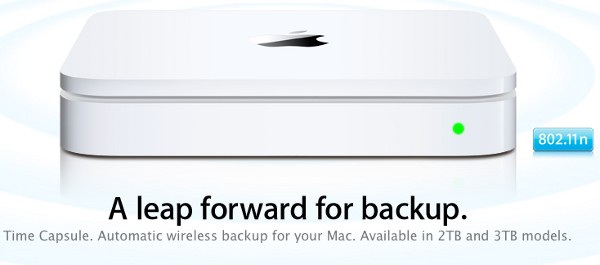
    Apple launched the original Time Capsule with 2TB of storage for your happiness in 2009. This year Apple has upgraded the Device to offer 3TB of wireless backups for your Apple machines and added Wireless – N capabilities.

    Time Capsule is also a full-featured 802.11n Wi-Fi base station. It operates in the 2.4GHz and 5GHz bands simultaneously.

    Prices

    2TB : US$ 299 : Rs 13500/- approx

    3TB : US$ 399 : Rs 18000/- approx


  • Seagate GoFlex Satellite with Wifi and an Inbuilt Battery Revealed

    Seagate GoFlex Satellite with Wifi and an Inbuilt Battery Revealed


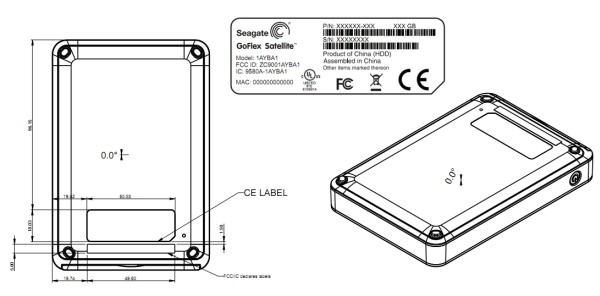
    In an interesting FCC filing, The Seagate GoFlex Satellite was Revealed. The Portable harddisk allows you to stream media and content directly from the drive without the need of wires. The network attached storage will also feature an iOS app which will enable users with an iOS device to stream directly to their handheld devices. The hard drive has 802.11 b/g/n WiFi and a 3.7V battery within its body. It will also feature a USB 3.0 port which will charge and allow the device to be docked the old fashioned way – with wires.

    [VIA]

    [FCC]

  • DIY : How To Revive An Old Computer Part 1

    DIY : How To Revive An Old Computer Part 1

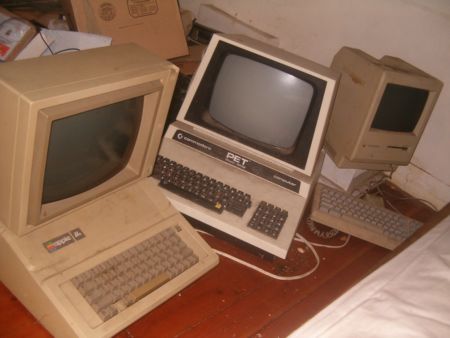
    Lots of people today are looking for a new computer. Their reasons for doing so are varied but there are many common complaints that people have with old computers. The primary complaint i receive from users is that their computer is ‘too slow’. While the day to day tasks of the end-user remain pretty much the same (using Microsoft Office, surfing the web, watching movies,playing games etc.), the computing power required to perform those tasks has increased significantly.  So does this mean that your old desktop/laptop is now useless and obsolete? Should you throw it away or let it collect dust in a corner? NO. There are many uses for an old computer, a few of which i will be listing below:


    Make a Home Server

    The home server is one of the easiest and most common uses for an old computer. The basic home server can do simple tasks like sharing files over your home network, while more advanced setups can perform a plethora of tasks such as file sharing, website hosting, torrent downloader,  a dedicated firewall for your network, controlling electronic devices in your house etc. The requirements of each user will be different and you should decide the tasks that you would like your server to perform in advance to ensure an easier setup.


    The Basic Setup:


    I recommend using FreeNAS as an OS for your home server. It is an open-source OS based on FreeBSD which means it is free to download, use and distribute. The most basic task performed by FreeNAS, as the name suggests, is to provide Network Attached Storage in your home.  It can perform a wider variety of tasks but we’ll get to that later.


    Things you’ll need:

    • FreeNAS Live CD (Link Below)
    • Old Computer
    • Monitor & Keyboard for installation only (you can disconnect them after the install)
    • A few Hard Disks (minimum 1)
    • A 512mb or larger Pen Drive


    Download FreeNAS 32-bit Live CD

    Download FreeNAS 64-bit Live CD


    Insert the Live CD into your CD drive and wait for the computer to boot up. This can take some time, 5-10 minutes, and you will hear a *chirp* from your PC speaker when the system is ready. At this moment, the system is ready to use as-is from the Live CD or it can be installed onto our hdd or pen drive. I would personally recommend installing the system on your pen drive if your PC supports USB Boot. This leaves more SATA/IDE ports free to attach extra storage.

    When you reach the above screen, the system is booted. Since we dont want to run our system off a CD, choose option 9.

    We are going to be installing our system on a pen drive so we will choose option 1.


    You will receive a warning, Press OK.


    Choose your installation media and press OK. In most cases you will have only one option in this step.

    Choose your install destination and press OK. In most cases you will have a few options here. Please remember to choose your pen drive at this stage. If the device names (ad0, ad1, etc.) are confusing, you can identify your device with the capacity or manufacturer details.

    After this step, FreeNAS is installed on your system. Press Enter and choose the Exit option and you will be returned to the main menu. Choose option no. 7 to reboot your system. To ensure that the system boots from the pen drive, please remove the Live CD  and ensure that the pen drive is selected as the primary boot device in your BIOS.


    After the reboot, the first thing you have to do is to configure your network interface and LAN IP. These are the last things you need to configure on your FreeNAS box. When you get to the Console Menu, Choose option 1.

    Select your Primary interface. If you have multiple interfaces, you can select optional interfaces from the same menu.

    After assigning all interfaces select none and press OK.


    You will be given a list of assigned interfaces. Press OK and you will be taken back to the Console Menu.

    Select option 2 to assign your ip address. I recommend assigning a static ip to your server, so select No when given the option to use DHCP. Enter your ip address, subnet mask, internet gateway and DNS addresses. You do not need to configure an ipv6 address.

iGyaan Network
Privacy Overview

This website uses cookies so that we can provide you with the best user experience possible. Cookie information is stored in your browser and performs functions such as recognising you when you return to our website and helping our team to understand which sections of the website you find most interesting and useful.