Tag: privacy settings

  • This Could Trick You Into Giving Away Your Apple ID Password

    This Could Trick You Into Giving Away Your Apple ID Password

    If you are an iPhone user, you must be used to the random popup asking for your Apple ID and password because of some app running in the background. It is as normal as it gets and we barely think twice before entering the password. However, there is a new phishing attack which can trick you into giving up your password and cause serious privacy concerns.

    A blog post from developer Felix Krause explains how a fake popup could be easily used to trick someone into handing over their Apple ID and password. The developer explains that creating a fake popup doesn’t require extraordinary coding skills. Any iOS engineer can make the Apple ID password prompt and send that popup. The password can then be logged in the app for anyone to access it. It takes less than 30 lines of code and could seemingly be dropped in any legitimate iOS app and sneak past App Store review teams.

    Showing a dialog that looks just like a system popup is super easy, there is no magic or secret code involved, it’s literally the examples provided in the Apple docs, with a custom text. I decided not to open source the actual popup code, however, note that it’s less than 30 lines of code and every iOS engineer will be able to quickly build their own phishing code.
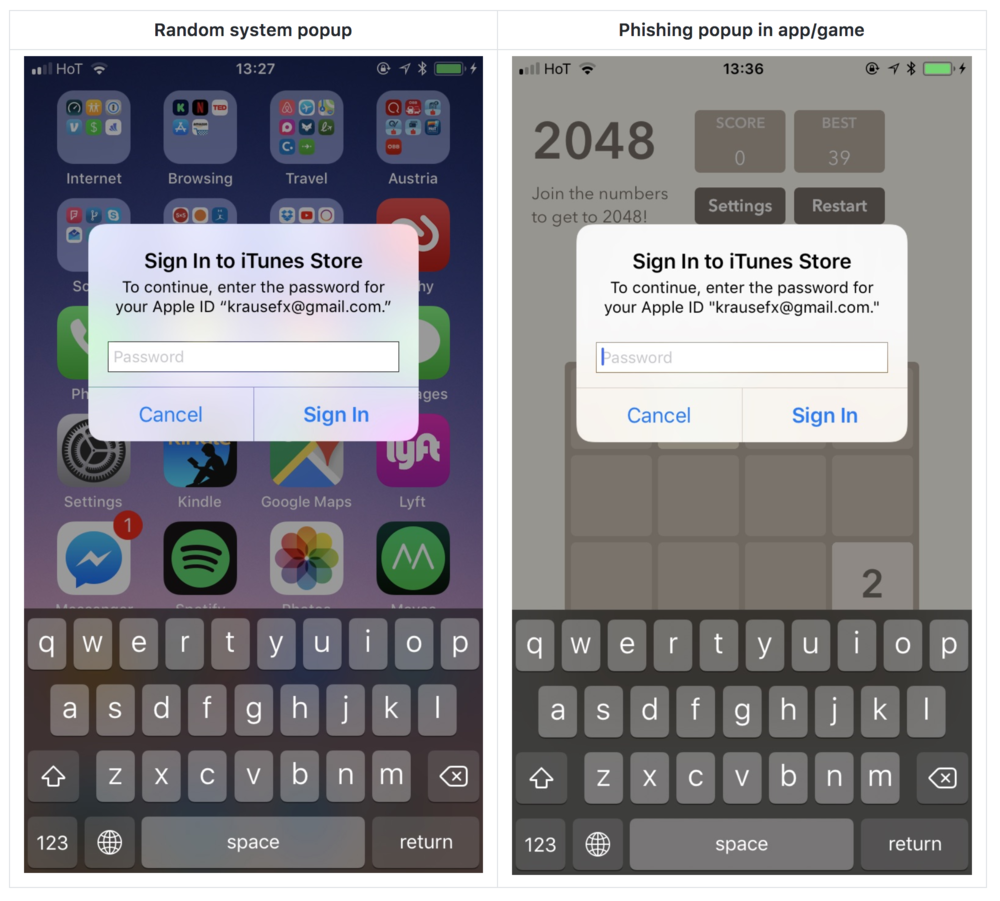
    He says he’s already filed this issue as a radar with Apple and explains that it could be fixed by Apple not allowing passwords to be entered in popups, but rather only in the Settings app/App Store. He notes in his blogs that this has been an issue with desktop browsers for years, with websites sending popups which look identical to the system popups.

    This seems like a serious issue and until Apple comes up with a solution, Krause has pointed out a few ways you can protect yourself from this phishing attack:

    Hit the home button, and see if the app quits:

    • If it closes the app, and with it the dialog, then this was a phishing attack
    • If the dialog and the app are still visible, then it’s a system dialog. The reason for that is that the system dialogs run on a different process, and not as part of any iOS app.
    • Don’t enter your credentials into a popup, instead, dismiss it, and open the Settings app manually. This is the same concept, like you should never click on links on emails, but instead open the website manually
    • If you hit the Cancel button on a dialog, the app still gets access to the content of the password field. Even after entering the first characters, the app probably already has your password.

  • OnePlus Found Recording Personal Data Of Users

    OnePlus Found Recording Personal Data Of Users

    In a yet another case of a Chinese smartphone maker recording sensitive data of its users, OnePlus has been found to do something similar. Normally, there is a certain level of information sent to the company like crashes, bugs and general issues that could be fixed by a software update. However, OnePlus was found to collect data that includes IMEI numbers, MAC addresses, mobile network names and IMSI prefixes, serial numbers, and more.

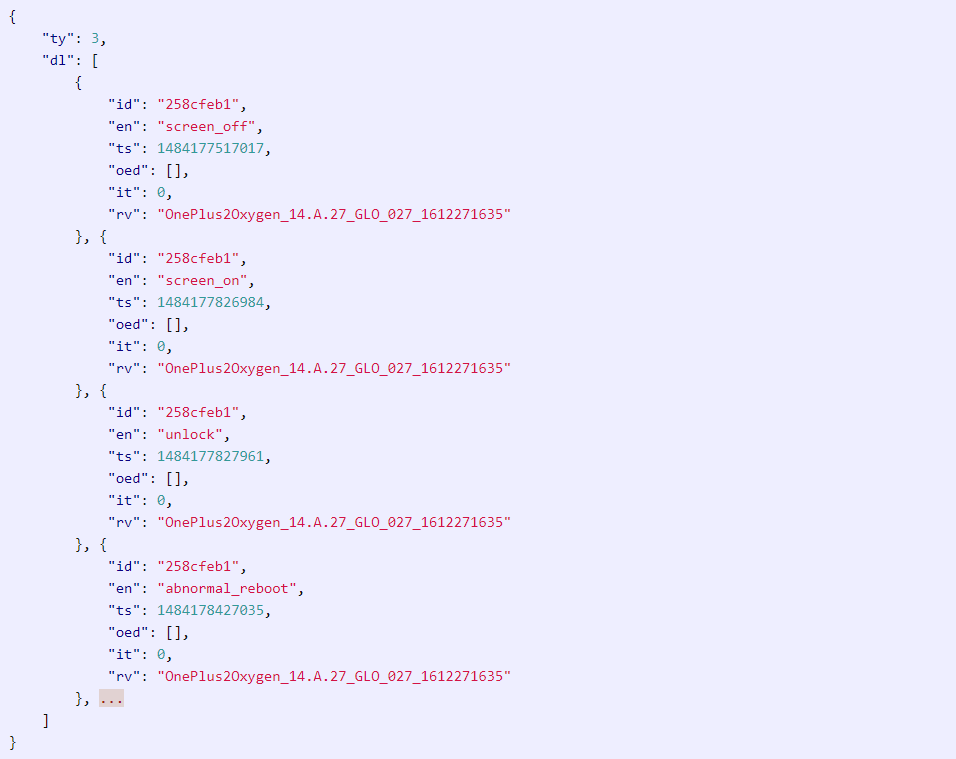
    Christopher Moore, a software engineer, made a post on his personal blog showing his discoveries. During a Hack Challenge, Moore began proxying the internet traffic from his OnePlus 2 using OWASP ZAP. What this means is that it essentially allowed him to view all incoming and outgoing internet traffic from his phone. Among the usual network activity, he noticed a large amount of requests to open.oneplus.net. Through deeper inspection, he found the domain name to be an Amazon AWS instance owned by OnePlus. He was able to decrypt the data (using the authentication key on the phone) which revealed that his OnePlus 2 was sending time-stamped information about locks, unlocks, and unexpected reboots.

    It is quite usual for a phone to log OS crashes as it allows developers to find a fix for such bugs. But, as Moore notes in his blog, sending the data of every time the phone is locked or unlocked seems a bit intrusive. Moore discovered that some of the data being sent to OnePlus’ servers included the phone’s IMEI number, the phone number, MAC addresses, mobile network names and IMSI prefixes, Wi-Fi connection info, and the phone’s serial number. He later found out that the data included every time an app was opened.

    OnePlus had this to say in response:

    We securely transmit analytics in two different streams over HTTPS to an Amazon server. The first stream is usage analytics, which we collect in order for us to more precisely fine tune our software according to user behavior. This transmission of usage activity can be turned off by navigating to ‘Settings’ -> ‘Advanced’ -> ‘Join user experience program’. The second stream is device information, which we collect to provide better after-sales support.

    There are rumours that OnePlus is working on the OnePlus 5T which might be launched in November and it is to be seen if this information of sensitive data recording will have any repercussions on the company’s plans.

  • A Quick Guide to Help Secure Your Online Browsing

    A Quick Guide to Help Secure Your Online Browsing

    It’s uncanny how closely every little act of ours in the Cyber Space is tracked and recorded. Users of the virtual world seem to have consciously surrendered their privacy in exchange for cat videos, Instagram hearts and of course, selfies. Meet the Big Brother of our generation, boys and girls -the Internet. Dangerously close to being disturbing, a user’s privacy is no more a matter of concern for them, or even a territory under their control.

    Ever wondered why items from your last visit to Flipkart keep popping up on your Facebook homepage? How does YouTube know about that designer bag you’ve been drooling at on Myntra? Ask any one of these questions and thus begins a trail of creepy realisations. Every time a website is visited by a user, a linked network of all sorts of virtual pathways is put in motion that can be traced back to the user at any given point of time.

    A unique identifier for any computer on the internet is called its IP address. This is what the computers use to send data to other computers connected on the network. Your IP address leaves all your online browsing -pretty much your entire virtual existence -vulnerable to any hacker with even a rudimentary knowledge of hacking. Visiting the top 50 websites an average user opens would result in installing over 3000 tracking files on the computer. Though anonymous proxy servers are a great option of hiding your IP address, there’s still an entire sea of information related to your Web surfing stored on your computer.Internet

    Cookies are another aspect of browsing which leaves your Web history open to access by others. The user can block cookies entirely, which would also disable online banking and shopping websites as well, or simply third party cookies.

    One of the most basic steps of wiping the slate clean is deleting your Web surfing history. Pretty much all browsers allow  the user this option of covering their tracks. However despite these guidelines, any network administrator can access the history at the network level even if it is removed from your computer.

    Don’t lose heart though for there’s a way around all of this as well – and that is where privacy settings of individual browsers come in. Let’s take a look at the five most used browsers and their privacy settings:

    Internet Explorer

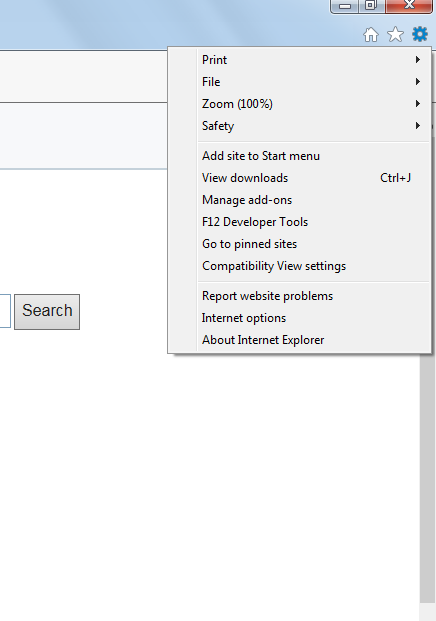
    1. Open a new tab and select ‘Safety’ on the top right corner tabInternet Explorer Step 1

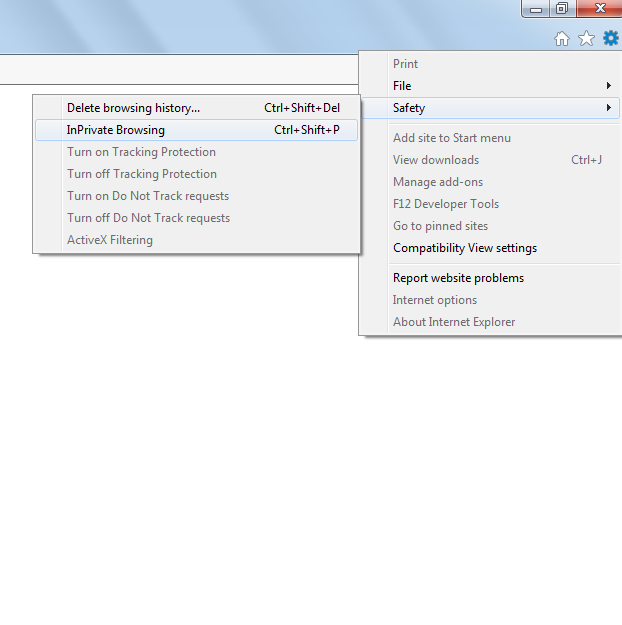
    2. Select. ‘InPrivate Browsing’ from the new tab that opens. (Control+Shift+P)Internet Explorer Step 2And voila!

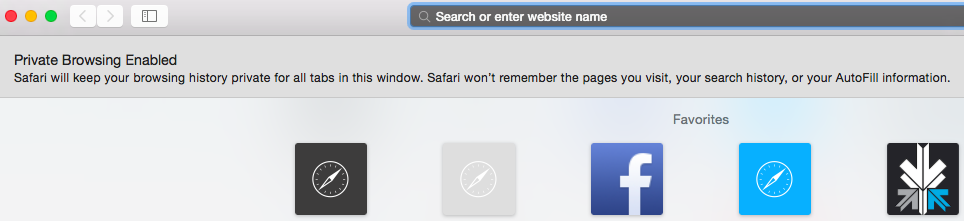
    Safari

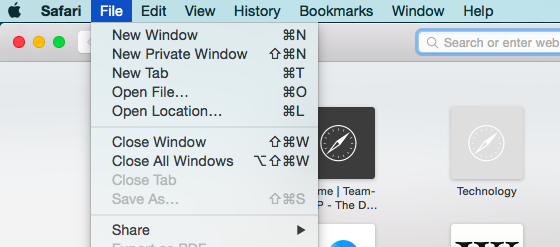
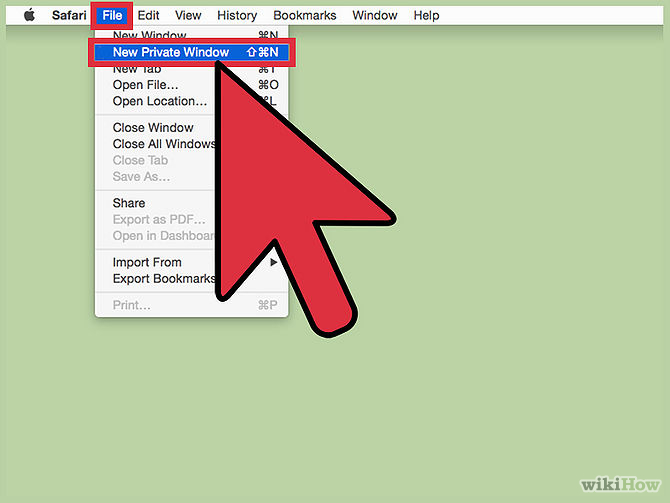
    1. Go to the main Safari menu.

    Safari Private Browsing

    2. From ‘File’, choose ‘New Private Window’. (Command+Shift+N)

    Safari Private Browsing  2

    You, techno-geek, you, that’s how you make Jobs proud.

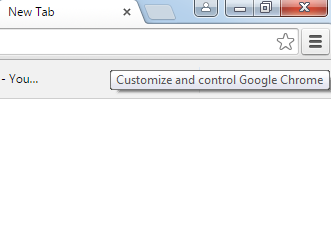
    Google Chrome

    1. Click on the page icon next to the URL window on the top right of the screen.

    Google Chrome Step 1

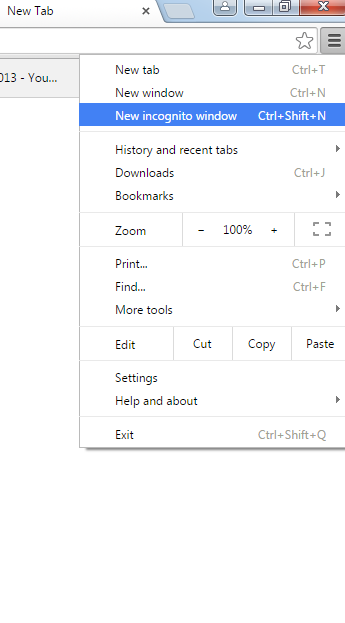
    2. Select ‘New Incognito Window’. (Control+Shift+N)

    Google Chrome Step 2

    Congratulations, Facebook will no longer know about the Mills and Boons you’ve been bulk-buying off Amazon.

    Firefox

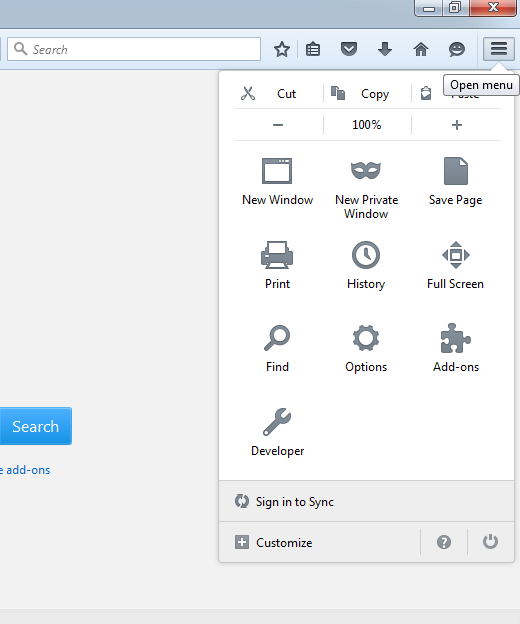
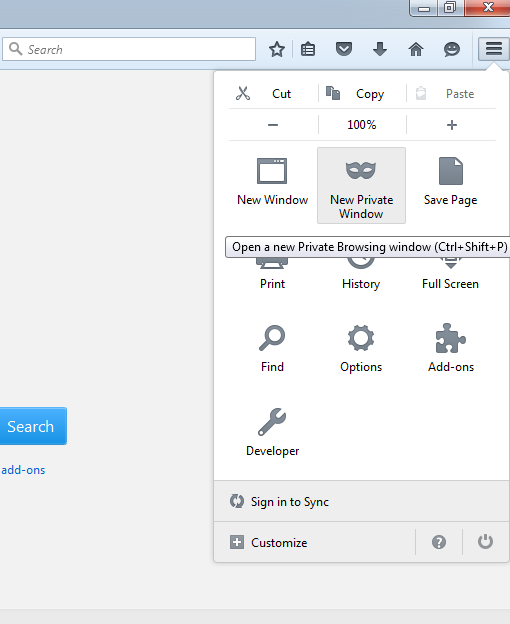
    1. Click on the menu button on the top right side of the browser window.Firefox Step 1

    2. Click on ‘New Private Window’ (Control+Shift+P)Firefox Step 2

    Yes, it’s that simple. Who would have thought, right?

    Opera

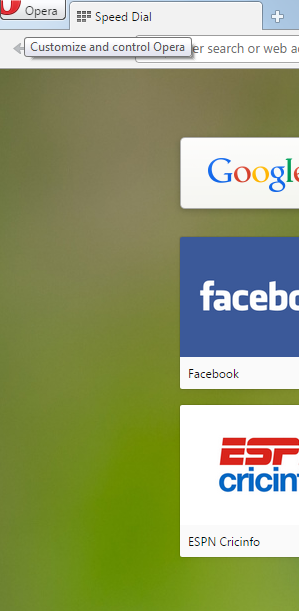
    1. Go to the ‘Opera’ button on the top-left corner of the screen.Opera Step 1

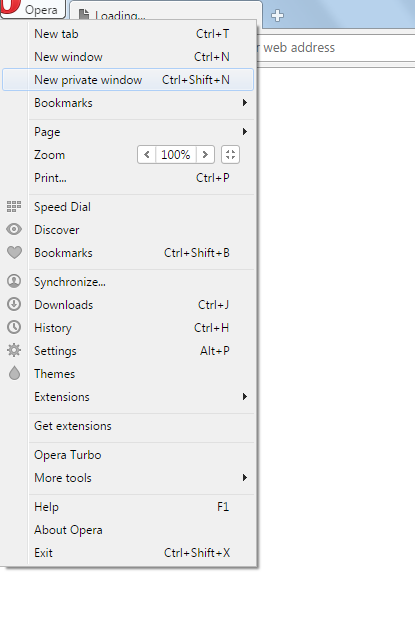
    2. Choose ‘New Private Window’. (Control+Shift+N)Opera Step 2

    My, my, look at you working out that secrecy muscle now.

    These are some basic hacks to help you avoid online tracking. While the country kicks up a ruckus about the recent proposal of storing instant messages for at least 90 days before being able to delete them, all the best hiding your virtual activity from the government for now. May your secrets be dark, deep and worthy of all the trouble of hiding them.


  • 7 Simple Ways to Protect Your Privacy While Using Windows 10

    7 Simple Ways to Protect Your Privacy While Using Windows 10

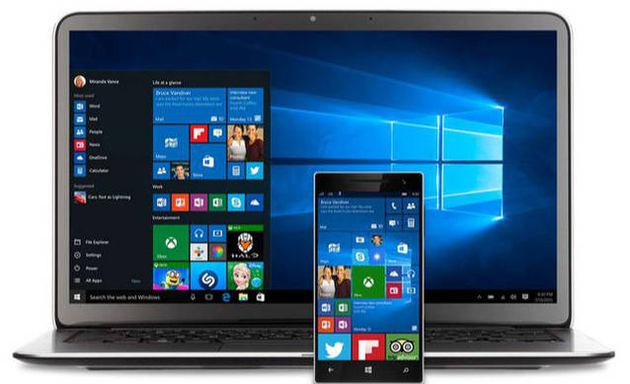
    Sixty seven million Windows users are rejoicing at the thought of being upgraded to Windows 10 and are enjoying the convenience that comes with Bing knowing your location, Cortana knowing your name and sometimes other personal information. All your contacts, photos and everything are constantly being processed by the new software. It sounds perfect. However, one minor detail is missing. What is Windows 10 doing to protect your privacy as it constantly saves passwords, credit card numbers and personal information?

    Here are a few things you can do to protect you privacy, while using Windows 10 and enjoying its features at the same time:

    1.  Know your Apps:

    microsoft

    Many applications on Windows 10 require your personal information. For example, Maps, which needs your location in order to function. While Maps tells you where its using your personal information, many apps on Microsoft don’t necessarily follow the same protocol. Therefore, it is important to tweak the privacy settings of any app you use so that your personal information going out is limited, if not completely inaccessible.

    2. Communications:

    Microsoft tends to take in all the contact information of their users, just incase their primary means of communicating, fail. It does this so that it can send you information as well as promotions. In order to manage these communications better, click here (if you have a Microsoft account) and here, if you don’t.

    3. Ads:

    ads

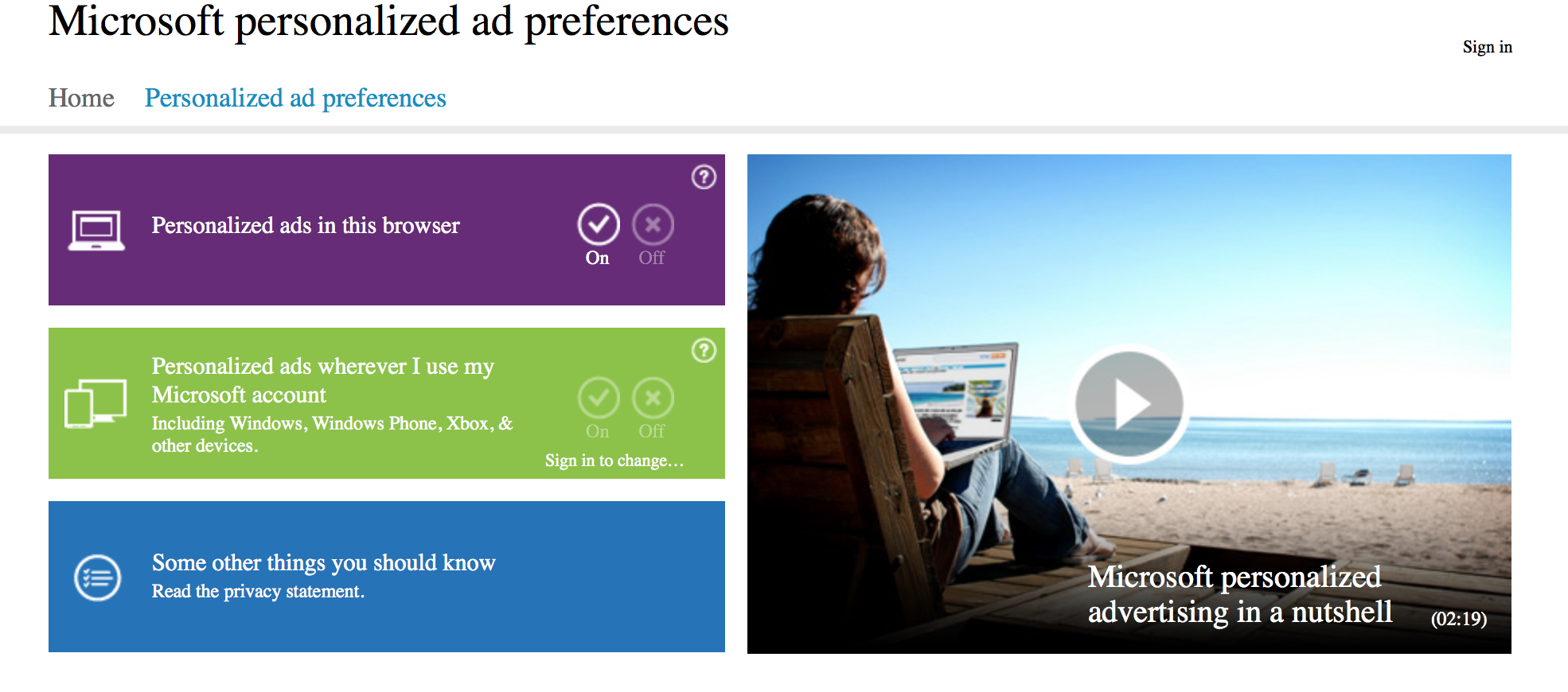
    We all know that advertisements generate revenue. So if Facebook and Google can track you to sell ads, so can Microsoft. Microsoft does it according to your interests and even gives you your own advertising ID to make it simple. However, you can choose not to be a part of interest-based ads by clicking here. Opting out of that though, doesn’t mean that data won’t be collected or the number of ads that pop up will reduce.

    4. Turn off the tracking:

    Follow these steps to prevent Microsoft from collecting random data and information –

    Start > Settings > Privacy > Feedback and Diagnostics > Click “never” to change the feedback frequency and Usage Data to “basic”

    Also, while in the Privacy menu, you can regulate any information from your location, camera, microphone etc. It can be controlled from that menu.

    5. Guard Your Browser History:

    Web Browser

    You can stop the sending of your browsing history by Edge by clicking on the top right corner of Edge, then settings > Advanced Settings > View Advanced Settings, under Privacy and Services, turn off “Have Cortana Assist Me in Microsoft Edge.” This is essential because Edge only sends your information to Microsoft so that Cortana can be further personalised. So all you got to do, is turn her off. And while you’re in the Privacy and Services menu, make sure you turn off “use page prediction to speed up browsing, improve reading, and make my overall experience better.”

    “If you received your Microsoft account from a third party, like an Internet service provider, that third party may have rights over your account, including the ability to access or delete your Microsoft account.” — Microsoft

    6. Don’t Get Tricked Into Creating a Microsoft Account:

    Try and keep all your information within your local computer only. Even if Microsoft urges you to create an account, don’t do it because once done, it pieces together all your metadata and connects it to you ID. This can be a tricky situation and one must be extremely careful while sharing this information. Its never a good idea to share accounts. In order to delete or manage your Microsoft account go to Settings > Accounts > Your Account.

    7. Cortana Can be Creepy:

    cortana

    Yes, at first it is fascinating to have an attractive voice talking back to you and calling you by your name. But, Cortana doesn’t know just your name. She has access to more information than you think she does and the whole situation sounds a little intrusive. So if you want to snap Cortana out of being too clingy, click here. There, you will be able to clear the Interests section as well as the Speech Inking and Typing information.

    Source: [tw-button size=”medium” background=”#07ABE2″ color=”” target=”_blank” link=”http://www.wired.com/2015/08/windows-10-security-settings-need-know”]Wired[/tw-button]

iGyaan Network
Privacy Overview

This website uses cookies so that we can provide you with the best user experience possible. Cookie information is stored in your browser and performs functions such as recognising you when you return to our website and helping our team to understand which sections of the website you find most interesting and useful.