Tag: tutorial

  • How To : Upgrade Micromax A85 to Android 2.3.4 Gingerbread, Step by Step ( iGyaan Version)

    How To : Upgrade Micromax A85 to Android 2.3.4 Gingerbread, Step by Step ( iGyaan Version)

    Happy March 2012 people, since we promised a stable workable rom for the A85/ cherry Magnum / K Touch k700 with Android 2.3 , we are here to deliver in time. 

    Before we begin with the update process there are a few things we would like to clear out few important things with you people.

    Important Notes 

    1. We do not take guarantee that this rom will work perfectly and could crash / damage / brick your device. So proceed with your own caution.


    2. This ROM has been cooked by iGyaan but is majorly based on the official Cherry Magnum 2x update (you will see once you flash your phone)
    3. We have added bug fixes and tweaks from the Micromax Android 2.2 rom and K-touch K700 Rom to this upgrade.


    4. Unfortunately during the update you will loose all data/ apps and most importantly gesture features from the Micromax 2.2 stock rom. So Please Backup Accordingly.


    Here are our finding with this rom.

    (Based on 3 test units)

    1. Its very stable = Little or no crashes.
    2. Audio quality is excellent and networks are solid.
    3. Battery performance seemed better / depends on usage.
    4. Very fast and snappy.


    Okay now that you are aware of the above lets begin with the process.

    Tutorial

    What you need

    • Micromax A85/ Cherry Magnum 2x / KTouch K700 (either will do).
    • Windows PC.
    • RAR expander ( winRAR etc.).
    • USB-MicroUSb Data Cable.
    • iGyaan Update Bundle : [button link=”https://rapidshare.com/files/1042248031/igyaan_a85_bundle.rar”]Download Here[/button]
    • Finally , A strong heart and lots of patience.


    Step One 

    • Make sure you downloaded the iGyaan Update Bundle : if not then [button link=”https://rapidshare.com/files/1042248031/igyaan_a85_bundle.rar”]Download Here[/button]
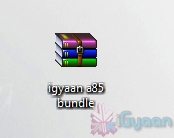
    • Extract the RAR on your desktop.


    Step Two 

    • Extract vcredist_x86.rar and install the software within ( its Visual C++ redistributable)


    Step Three

    • Power off your A85/ Cherry Magnum 2x / KTouch K700
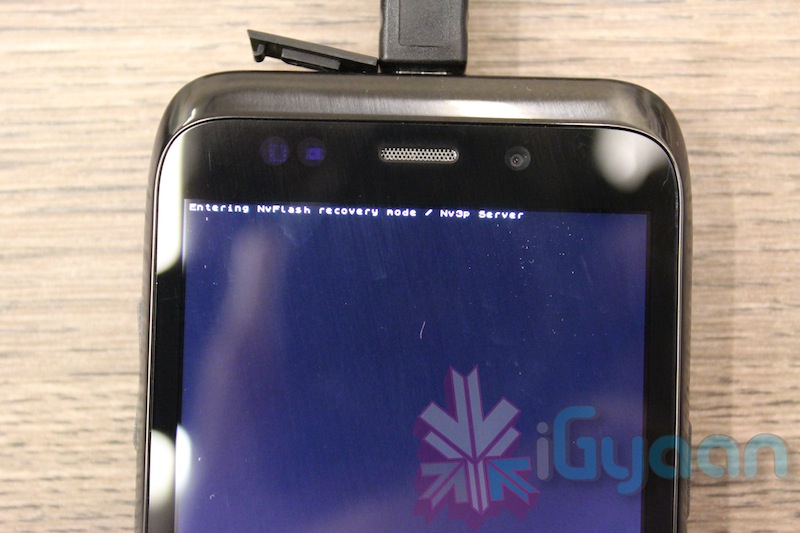
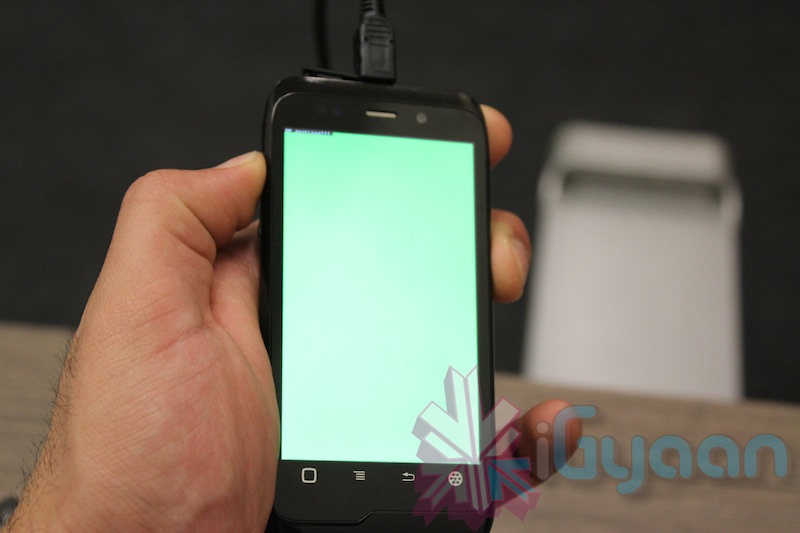
    • Once OFF : Hold the Power + Volume Up button till you see a Green Display 
    • Let go immediately after you see the green screen on the device
    Step Four

    • Plug in the USB cable into the PC and attach it to the A85/ Cherry Magnum 2x / KTouch K700
    • Windows will try and install the drivers but will not be able to.
    • Manually select the drivers ( included in the igyaan bundle in a folder called usbpcdriver)
    • Once the drivers are successfully installed Reboot you pc

    Step Five

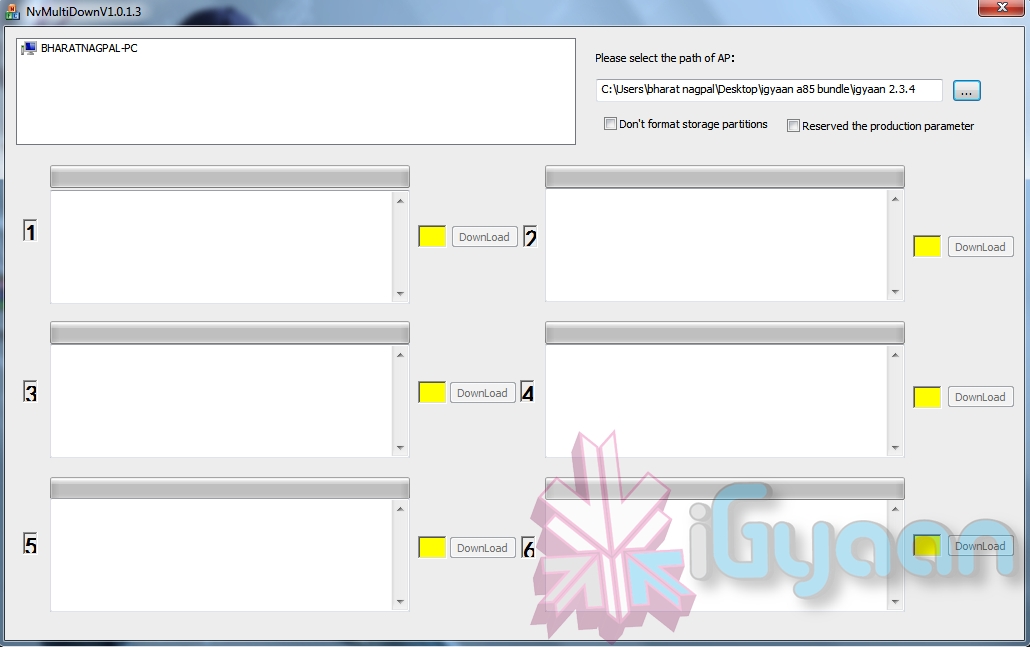
    • Once rebooted Navigate to the iGyaan bundle and then folder NvMultiDown
    • Now run the NvMultiDOwn.exe


    Step Six

    • Once the program is running On the right side select the “iGyaan 2.3.4” update folder 
    • Uncheck the 2 boxes below the file location. (if they are checked.)
    • Remove the battery and usb cable from you A85/ Cherry Magnum 2x / KTouch K700
    • Repeat Step 3 from above and connect the Device to the USB cable
    • Once you connect the device will show up in the NvMultiDown program
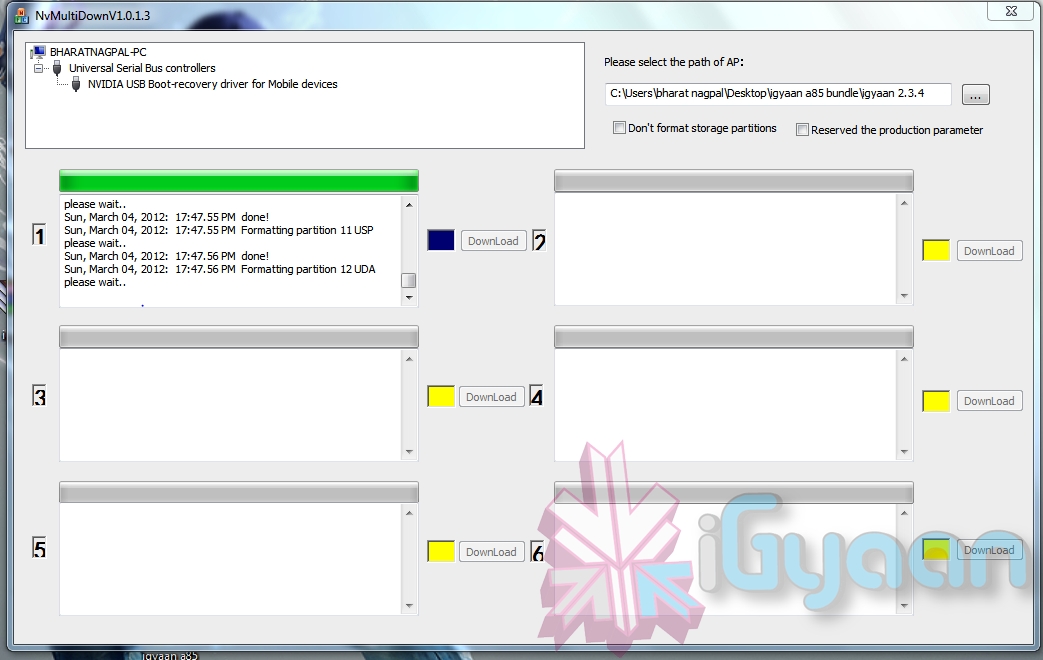
    • Your device will start to update.

    Step Seven

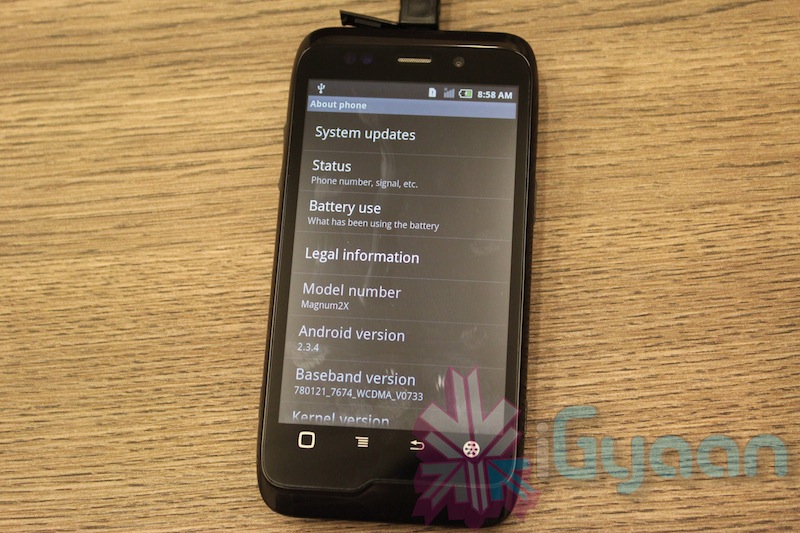
    • Once Update finishes your device will boot with Android 2.3.4
    • Enjoy!


    Now a lot of you may face problems with the update, so those who figure out answers to the problems please help each other out in iGyaanForum.com in the discussion thread : [button link=”http://igyaanforum.com/showthread.php?t=541″ bg_color=”#bcc483″ border=”#7a097a” text=”dark”]Discussion Thread[/button]


    Please don’t mirror the downloads and keep the original link intact.

    If you create instructions don’t forget to link back to this page and don’t copy our links.


    Micromax Android 2.2 Stock Rom

    Incase you are facing problems with the 2.3 build that you cannot find a fix for, we have instructions to revert to the original rom. in our update bundle we have also included the stock rom.

    The stock Rom also includes the gestures app and all stock applications , incase you have warranty issues you can revert to the stock ROM aswell.

    Tutorial to revert to Stock 2.2

    Follow Step 1 – Step 5 Above

    Step Six

    • Once the program is running On the right side select the “Stock mmx 2.2” folder 
    • Uncheck the 2 boxes below the file location
    • Remove the battery and usb cable from you A85/ Cherry Magnum 2x / KTouch K700
    • Repeat Step 3 from above and connect the Device to the USB cable
    • Your device will start to downgrade to 2.2

    Step Seven

    • Once Update finishes your device will boot with Stock Micromax Rom.
    • Enjoy!


    Video Coming Shortly!

  • How to : Upgrade the Spice Mi 410 to 2.3.4 Gingerbread Step by Step

    How to : Upgrade the Spice Mi 410 to 2.3.4 Gingerbread Step by Step

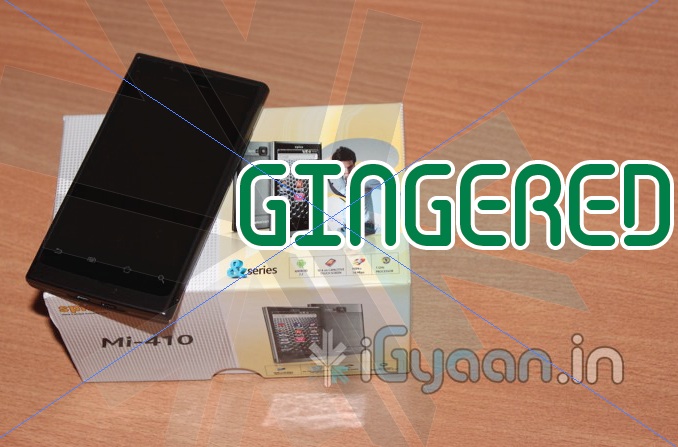
    The Spice Mi 410 was launched some time back, we also got an unboxing video for you guys. Now thanks to several readers of iGyaan, we found a way to update the Mi-410 to the latest Software Update Android 2.3.4 aka Gingerbread, and we tell you how!


    Note : Please take a backup of your device, contacts/ pictures / files, anything thats important.

    Also Note : This might void your warranty or damage your device and you do this at your own risk


    What you Need!

    1. Spice Mi 410 (Duh!)
    2. A Windows / Mac
    3. Data cable (USB-microUSB) / Memory Card reader
    4. Patience
    5. Combo Update [button link=”http://www.cherrymobile.com.ph/downloads/MAGNUM_softwareupdate2.zip” style=”download”]DOWNLOAD [/button]

    Step 1

    Download the above mentioned file, its an update for Cherry Mobile Magnum, which is actually the same handset, branded under the cherry mobile name.


    Step 2

    Extract the ZIP file. downloaded above and copy the extracted FB0-318B-0-5019-A01.nb0 to your SD card. Make sure it is placed in the Root Folder and not in the Downloads folder.

    Also rename the file FB0-318B-0-5019-A01.nb0 to firmware.nb0 you can do this before or after copying the file, it does not matter.


    Step 3

    Enter bootloader mode :

    • To do this first power off your device.
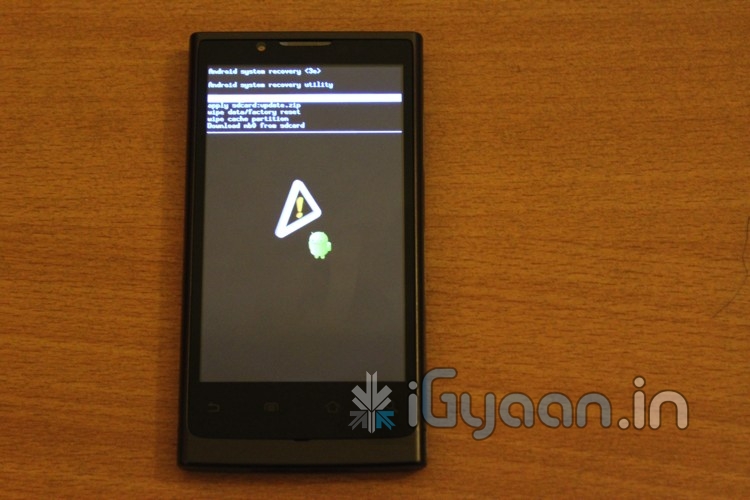
    • Once off, Hold – Vol Up + Vol Down + Power Button and you will see the Android Image as below

    • Next Hold down on the home button and you should be in the bootloader mode see below


    Step 4

    • Use the volume down button to scroll to “Download nb0 from SD card”
    • Then tap the back Button


    Your phone should now upgrade to the new firmware and reboot into the new os with the Cherry Mobile Logo.

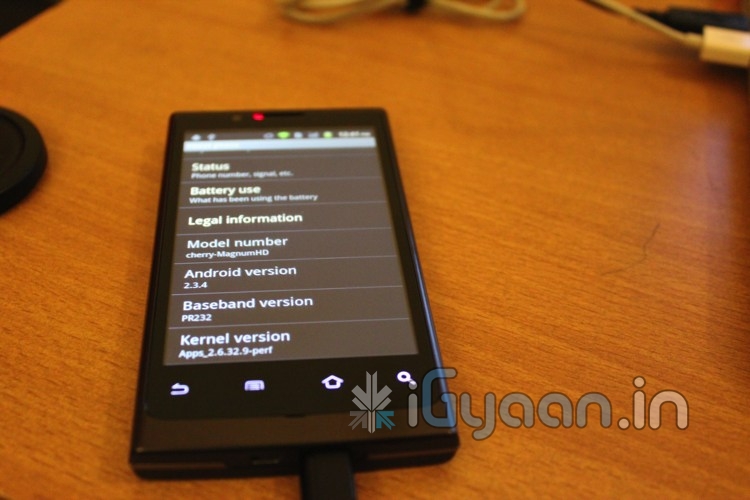
    Quickly jump into Settings to confirm the Upgrade

  • DIY : How to Install Android 2.3 Gigerbread on you Samsung Galaxy Ace

    DIY : How to Install Android 2.3 Gigerbread on you Samsung Galaxy Ace

    Today we are going to show you how to Install GingerBread 2.3 on your SAMSUNG GALAXY ACE mobile PHONE.


    What you will NEED!


    1. A Samsung Galaxy ACE (DUH!).

    2. The 2.3 Firmware S5830( click here to download password =  samfirmware.com).


    3. ODIN downloader (click here to  download). and USB Driver (Click HERE)

    4. OPS files (click here to download).

    5. A windows PC + samsung data cable.


    Important NOTES:

    If you get errors after upgrade : i.e. error: phone application has stopped working or get constant crashes,do the following:

    To fix phone not working, initiate restore phone to factory settings command from Settings – Privacy

    TAKE SERIOUS CONSIDERATION BEFORE UPGRADING AND HAVE YOUR BACKUP IMAGE READY IF SOMETHING GOES WRONG – use the OLD FIRMWARES: (All backup images can be found here)

    • Make sure your device is fully charged!
    • BE sure to backup all your data!
    • You are doing this at your own risk, Although, This will NOT void your warranty!
    • Your phone does not need to be rooted to get this working.


    AFTER BACKUP – FACTORY RESET YOUR PHONE BY ENTERING THE FOLLOWING CODE

    *2767*3855#


    STEP 1

    Download all the files above, and make sure you have the latest version of KIES software installed.

    STEP 2

    Extract the RAR to get a .tar file.

    STEP 3


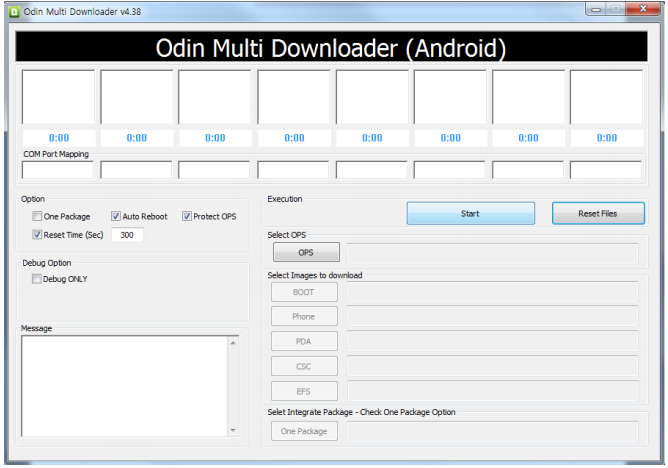
    Open ODIN Downloader.

    MAKE SURE you select One Package, Auto Reboot and Protect Ops checkboxes.

    Select the Ops file (the file we downloaded earlier).

    And finally select the tar package we extracted from the RAR downloaded earlier.

    (You can also extract the rtar and select packages indivisually)


    NOW CLOSE ODIN.

    STEP 4

    Backup you phone and data with the KIES software (after you are done exit KIES)

    Turn OFF the Galaxy ACE and remove the Battery

    Reinsert The Battery and Press the following buttons together

    CENTER HOME BUTTON + POWER BUTTON + VOLUME DOWN Together

    Hold the buttons together till you see the downloading screen


    STEP 6 (Final Step)

    CLICK START and wait for process to finish, once done your device will automatically reboot and will have Android 2.3 running on it.

    A Few Things you will notice with 2.3

    • The rom runs faster but uses more RAM
    • Video now is up to 640x480px
    • Camera can’t auto focus.
    • The interface is overall nicer looking and runs smooth
    • There are a lot of bugs and it may crash frequently

    Test this out at your own risk, if you have feedback please leave it below

    Rom Files courtesy (samfirmware.com)

  • Activate GOD MODE in Windows

    Activate GOD MODE in Windows


    WARNING: DO NOT TRY THIS ON VISTA 64-bit!

    I wonder how many of you have used cheat-codes in games?? Quite a few i presume. Well here’s a cheat code for windows that gives you God like powers to control your machine. To enable it, create a folder on your desktop and name it:


    GodMode.{ED7BA470-8E54-465E-825C-99712043E01C}


    This should give you an icon like this             


    Double click on the God Mode icon to open a control-panelesque folder which contains over 48 different setting groups which let you control EVERY aspect of your windows computer.  Have fun being God!


    WARNING: DO NOT TRY THIS ON VISTA 64-bit!

  • Blackberry Dakota and Touch Leaked in demo video : Pinch to Zoom is a go

    Blackberry Dakota and Touch Leaked in demo video : Pinch to Zoom is a go


    Looks like the rumors were true after all, Folks over at Crackberry have gotten their hands on exclusive demo videos of the upcoming Blackberry Devices. The Dakota video is above  and the Touch / Monaco video is running below.

    [CrackBerry]

  • How to – Upgrade the Ram in your Unibody Apple Macbook Pro

    How to – Upgrade the Ram in your Unibody Apple Macbook Pro

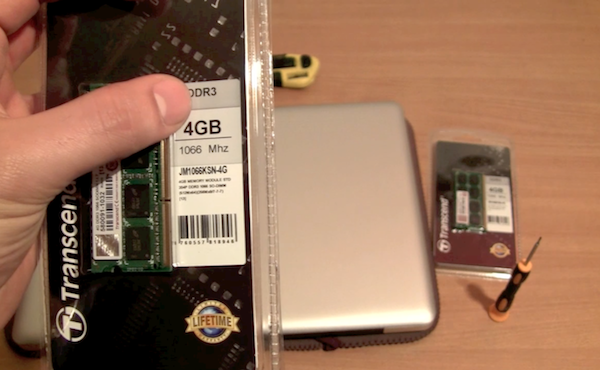
    A simple and quick tutorial on how to save approximately 15,000/- INR.

    Do it yourself- Use the instructions from the video to upgrade the ram yourself.

    This does not void your warranty, and perfectly complies with Apple Terms of Use.

    iG Tech

  • HTC HD2 can now dual-boot Windows Phone 7 and Android

    HTC HD2 can now dual-boot Windows Phone 7 and Android

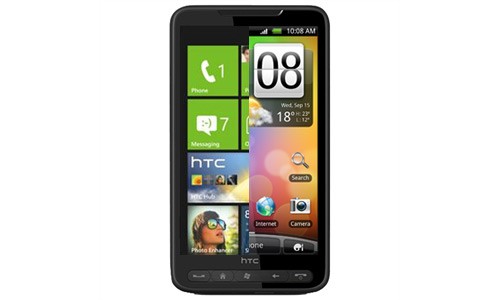
    If you have the HD2 you might be quite aware that both Windows phone 7 and Android can be easily ported to the device. But, developers have successfully managed to dual boot the two OSs from the same SD card.

    Check out the Video below detailing all the Info.


    Source xda-developers

iGyaan Network
Privacy Overview

This website uses cookies so that we can provide you with the best user experience possible. Cookie information is stored in your browser and performs functions such as recognising you when you return to our website and helping our team to understand which sections of the website you find most interesting and useful.