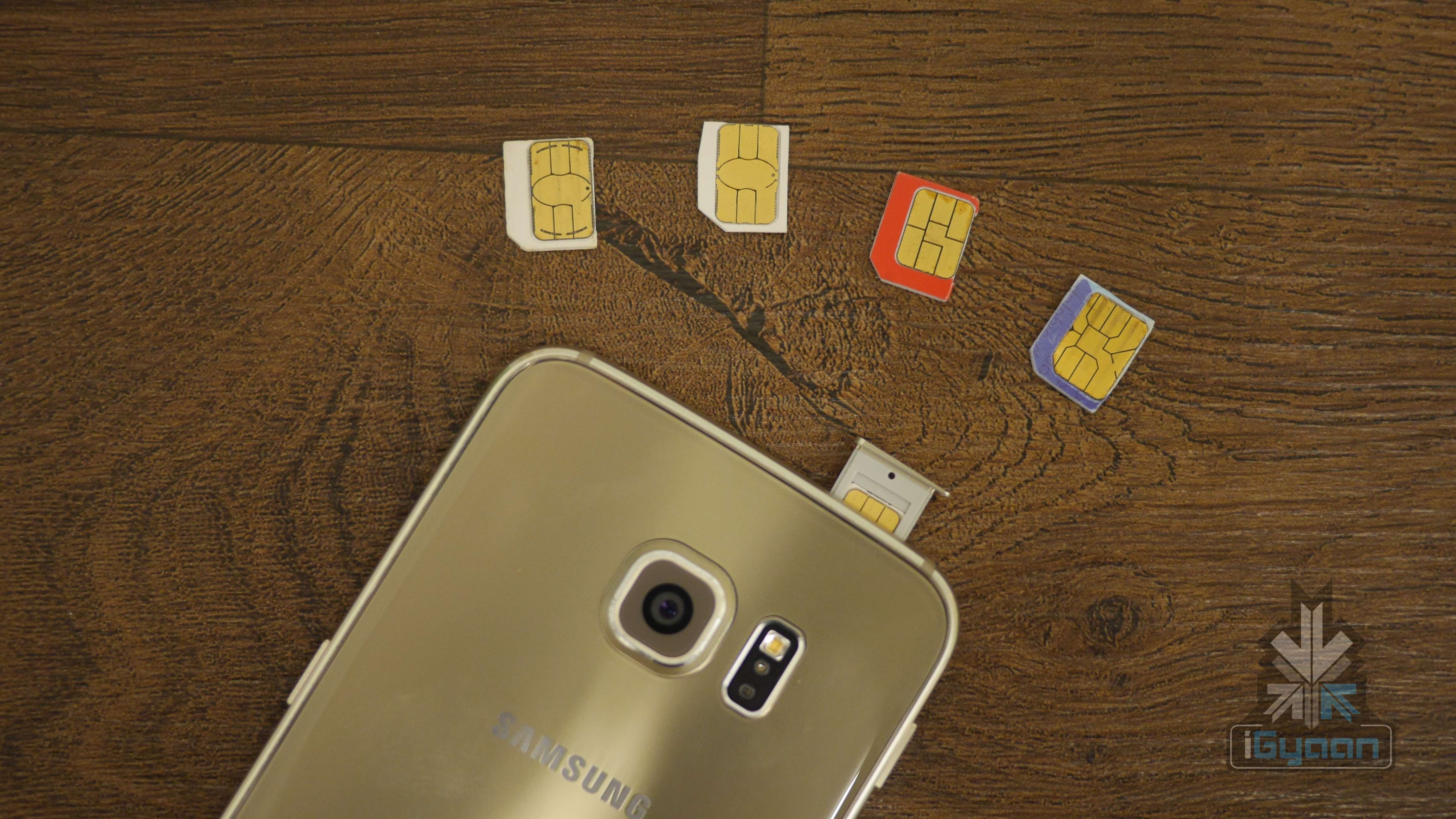
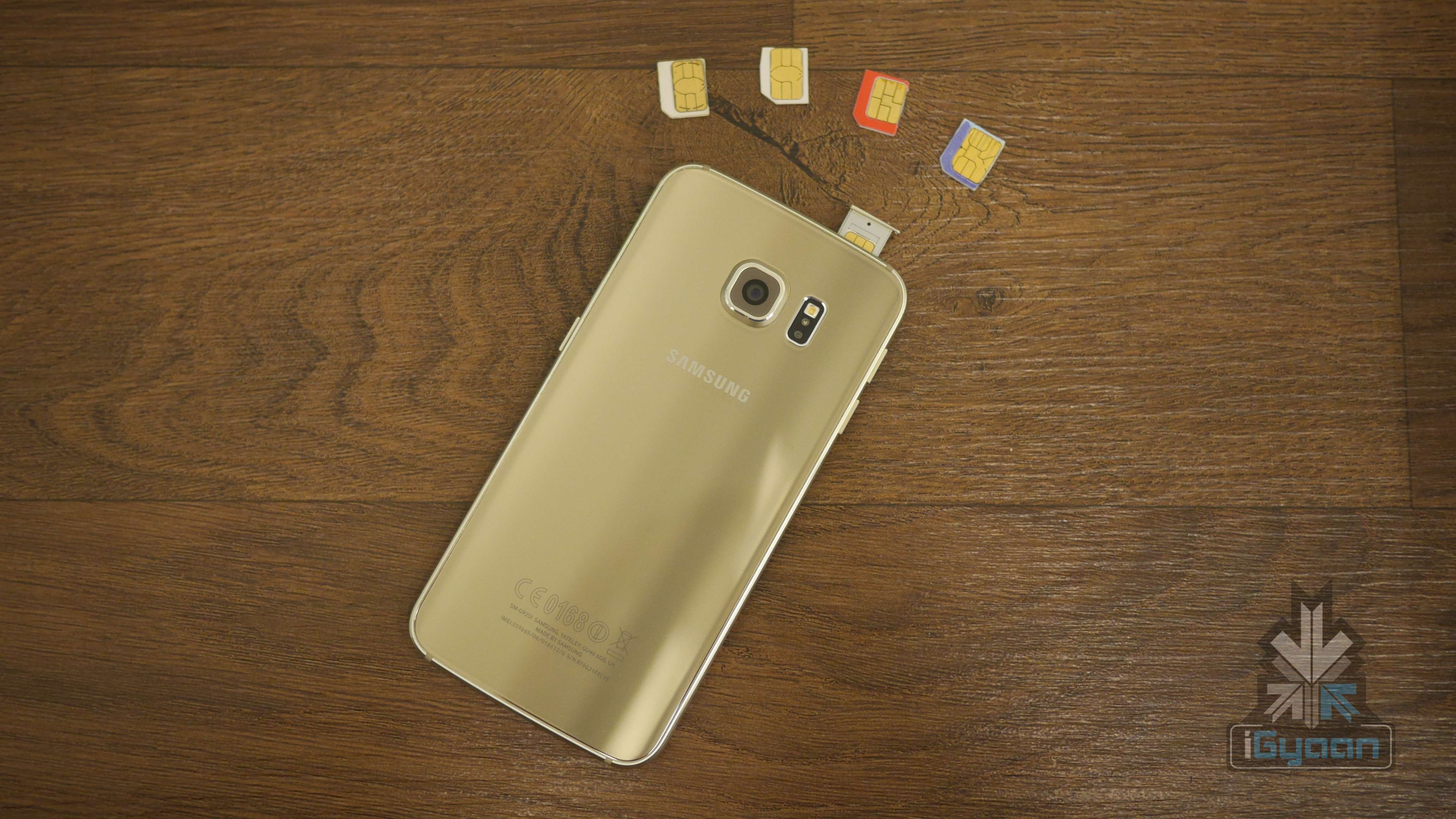
On the 3rd of July, telecom companies around India launched the National Mobile Number Portability (NMNP). This means that you can now move from one city to another and still retain your mobile number. While many may be aware of this already, we decided to provide a step-by-step guide for those who may not know the proper procedure to port their number and a few things to keep in mind before doing so.
Step 1 : Generate An Eight-Digit Unique Porting Code
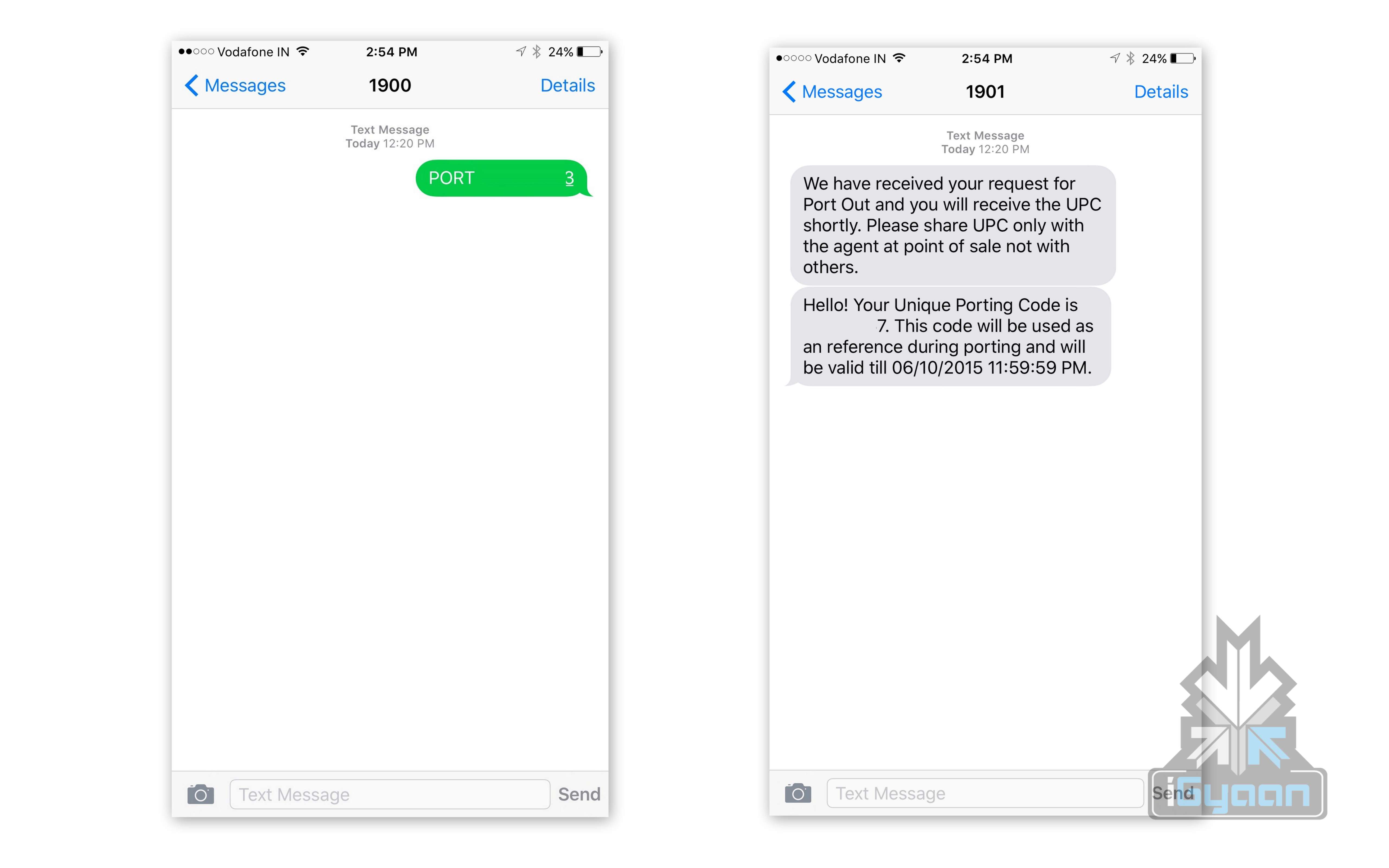
The first thing you have to do is generate an eight-digit Unique Porting Code by sending “PORT <10-digit mobile number>” to 1900. You will then receive an SMS of the UPC code and the UPC expiration date.
Step 2 : Get The Required Documents
Before you head to your mobile operating store, you’ll need to carry along a few documents. You will need an ID proof, address proof, a passport size photograph, and a copy of your last paid bill (in case of post-paid customers). Airtel customers can carry forward the existing talk-time or outstanding/pending bills to the new telecom service.
Step 3 : Visit The New Mobile Operator Store
Once you have your UPC code and required documents ready, you can visit the mobile operator store you wish to switch to and fill out the number porting form. You will also buy a new sim card. The whole porting process costs Rs. 19.
STEP 4 : Choose Your Plan
Both pre-paid and post-paid customers will have the option to either retain their original plan or to choose a different one based on their needs. Every operator has its own range of plans and you can pick yours at the store.
Step 5 : Processing Time
Some operators like Airtel promise that all NMNP requests will be processed within 24 hours. You will receive an SMS regarding the deactivation of your old sim card. Once deactivated, you can insert your new sim. Generally, most operators complete the porting process within 7 days.
Note : Some Important Points
Post-paid customers must make sure any unpaid bills are paid before porting as this can hold up the porting process
Make sure your active connection is at least 90 days old
Some operators like Airtel and Idea require you to call 59059 for tele-verification once the new sim is activated.
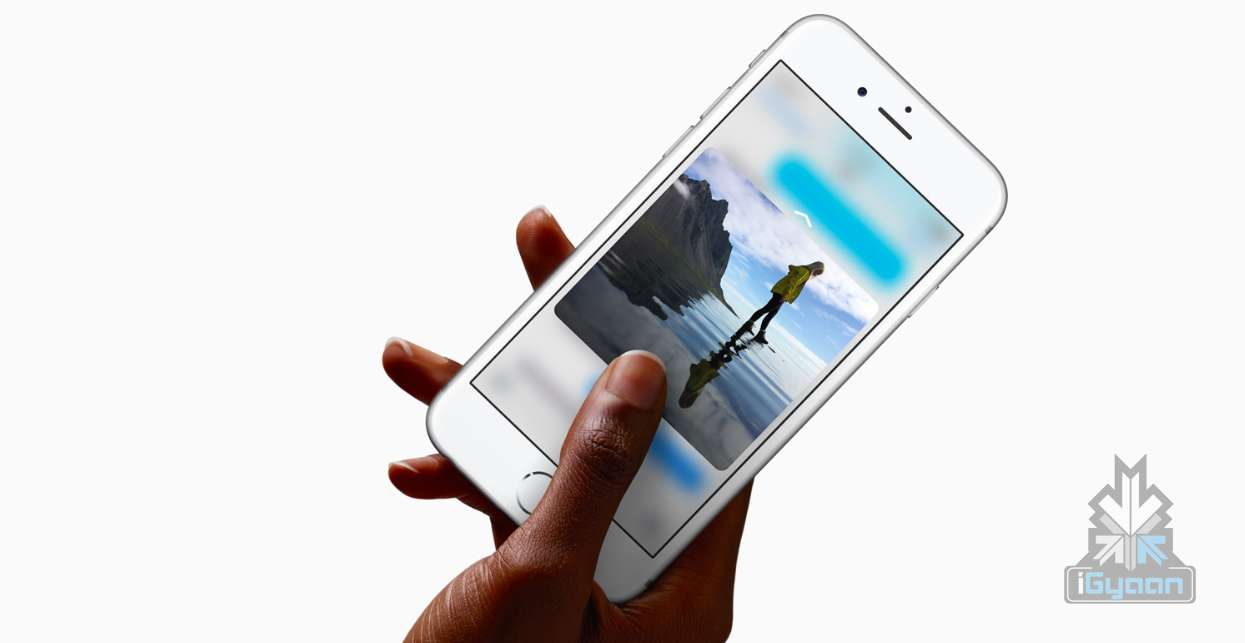
Those of you who were up-to-date with the Apple event that took place last week will remember that the new iOS 9 update is scheduled for a September 16 release, which is today. The update is compatible for all current iPhones and iPads.
However, before you press that ‘Download and Install’ button, here are a few things you can do to prepare your phone for the update.
Check Compatibility
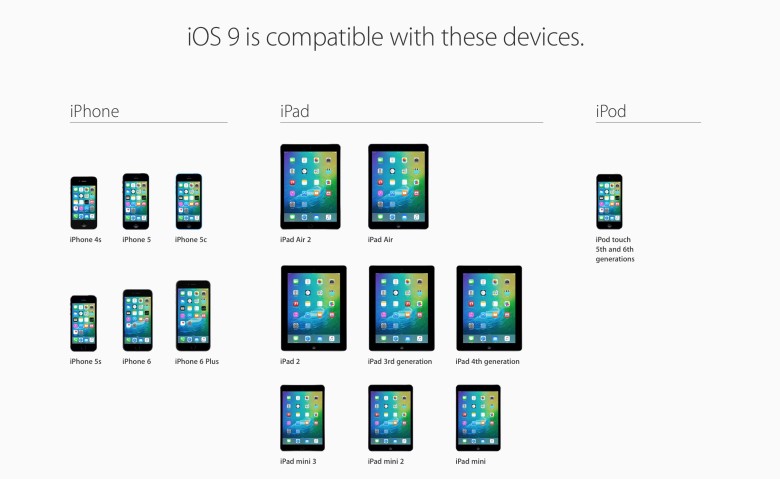
Before you get too excited, you should check whether you iPhone is compatible for an iOS 9 update. This is especially the case for those who are using really old Apple devices (we’re talking almost ancient). The new iOS 9 is compatible devices as old as the iPhone 4s, iPad 2, and 5th generation iPod touch, but will not work for the iPhone 4.
Free up some storage
The new iOS 9 comes as a huge relief for 16 GB users as it will take up only 1.3 GB of space compared to iOS 8’s massive 4.58 GB. We can almost here the cries of joy over this news. However, before you can enjoy all that extra free space chances are that you’ve already filled up your 16 GB device to the brim. Any update requires some free space, so now would be a good time to delete some of the really old apps that you no longer use. You can press and hold on an icon till it does its little jig and then tap the X on the upper left to delete it, or you can go to the Usage option in Settings to find out which app is taking the most space and delete it from there.
Back-up your data
There’s always that hint of fear when you go for a new update. Sometimes due to some bugs, your device may crash a lot like it did with iOS 8 in its initial months, or you may find that some of your data missing. Hence, we suggest you back-up your data using either iCloud or iTunes to be on the safe side.
If you’re backing up using iCloud simply go to Settings > iCloud > Storage & Backup and toggle iCloud Backup to ON and finally tap on Back Up Now.
If you wish to back up using iTunes simply open iTunes and go to File > Devices > Transfer Purchases and once that is done go to File > Devices > Back Up.
Clean up your media
The iOS 8 recently introduced the Apple Music in which you can stream unlimited music for a monthly subscription. Those who have subscribed to it most likely stream all their music freeing up a lot of space. However, those who still have a lot of music or videos saved to their devices should take some time out and delete the ones you no longer listen to or watch.
Once you’ve sufficiently freed up your space, you can go ahead and download the new iOS 9. Wait for your Settings app to show a little red circle on the top-right corner sometime today, and update away.
Has your laptop been heating up way too often for the past few days, making you worried about it crashing or burning your fingers? You know you’ve got a heating problem when your laptop sounds like an airplane taking off. We understand your plight and have a few ways to beat the heat.
Find a flat surface
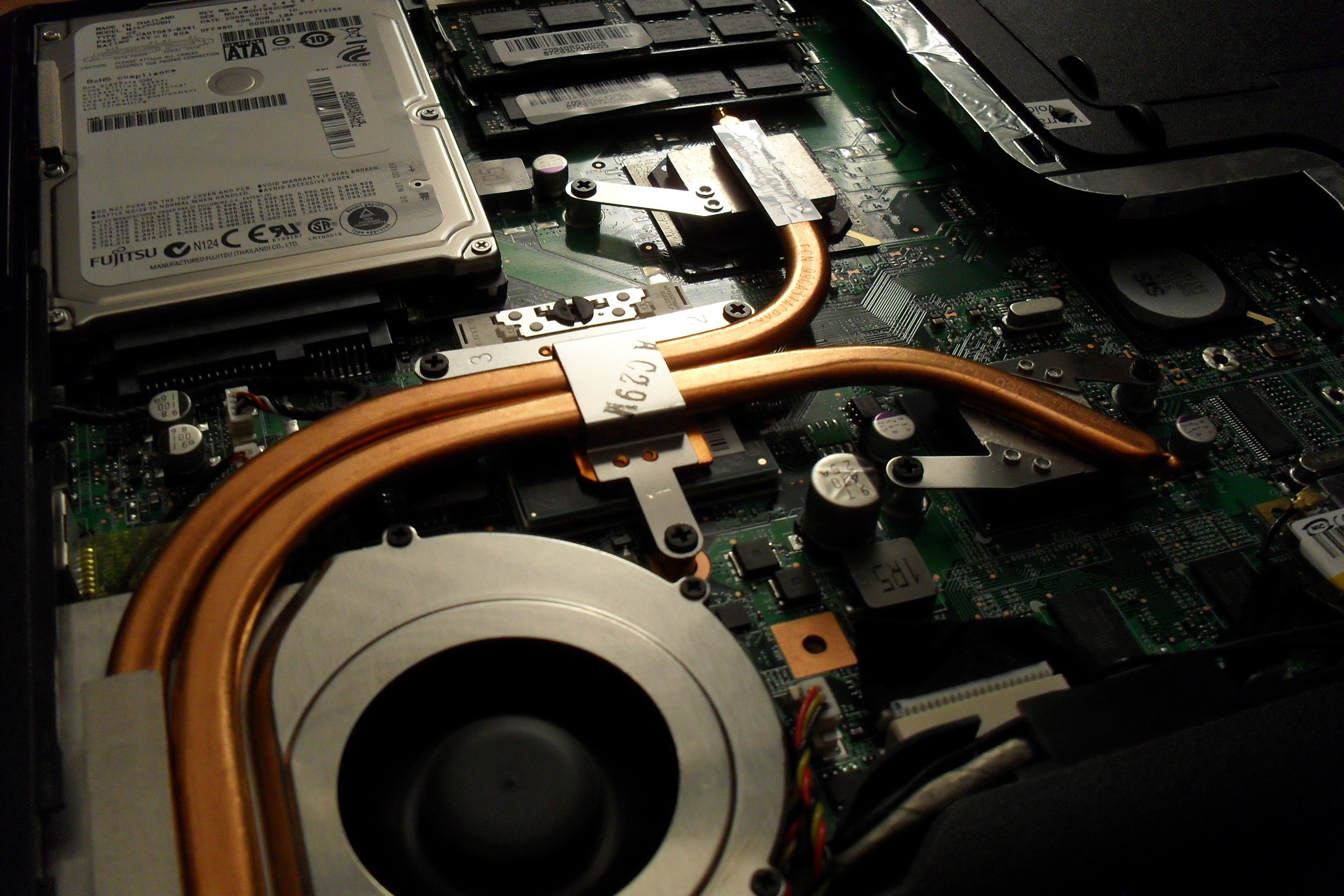
One of the reasons your laptop is burning up is because you’re keeping it in all the wrong places. Keeping the laptop on your lap, or the bed, or any soft surface will cause it to heat up as you’re blocking the airflow vent that’s under the laptop. Make sure your laptop is sitting on a flat, hard surface and try to work in a cool room on a hot summer day.
Don’t keep it constantly charged
Make sure that the moment your laptop reaches a hundred percent charge, you take it off the charger. Keeping the laptop constantly charged won’t increase the battery life, but will only harm the battery further. The charger adds to the heat that is already being produced inside your laptop.
Keep limited open tabs
We tend to keep multiple tabs open when browsing the net. You may have YouTube open in one tab, Facebook in another, Gmail in one more, and so on. While its perfectly okay to do that because background tabs become inactive, however, having multiple tabs open in your internet browser (which include video and heavy data sites) does take its toll on the processor. So keep as few tabs open as possible.
Close all idle apps
Sometimes we tend to minimize apps not being used rather than closing it. Minimizing the apps such as VLC player, or Office programs, only clears up the screen, but the app is still active in the background. These apps continue to take up processing space and consume battery, so it’s recommended you close the apps not being used. Basically, close down those apps that demand excessive amounts ( 90% and above).
Use a cooling pad
Finally, the most obvious tip is to use a cooling pad. This is so obvious that almost all of you might already be using it. However, some may find it a troublesome affair to carry around a cooling pad everywhere you go. A cooling pad is handy if you plan to use your laptop in one fixed place. The important thing is to find a cooling pad that is right for your laptop and your work environment.
Here is a neat pad that you can keep on your lap, desk, or even on one leg while lounging around.
Though many of you may already be aware of some or most of these tips, there are always some tech novices out there who could use a little help. We hope these suggestions are helpful. If you know of more ways to cool a laptop, leave a comment below.
So you have an old Android phone and you’re wondering whether you should trade it in for a newer one. How about you keep the old phone and get a new one anyway? There are plenty of things you could do with your old Android phone than you probably thought. So, before you plan on selling it for a price much lower than what your phone is still worth, here are 5 things you can do instead:
1. Turn it into a home media controller
Your smartphone can actually do a lot if you know the right apps for it. It can be used as a home entertainment controller through a couple of ways.
If you pair your device with Google’s Chromecast streaming stick, you can stream content wirelessly from apps like YouTube, Netflix, Google Play Movies, Wynk, YuppTV, and Eros Now to your TV over your Wi-Fi network. The device is available on Amazon, Flipkart, and Snapdeal.
Another way to set-up your home media controller is by downloading an app called Plex. This is a free app that allows you to stream content to your TV.
2. A permanent GPS system for your car
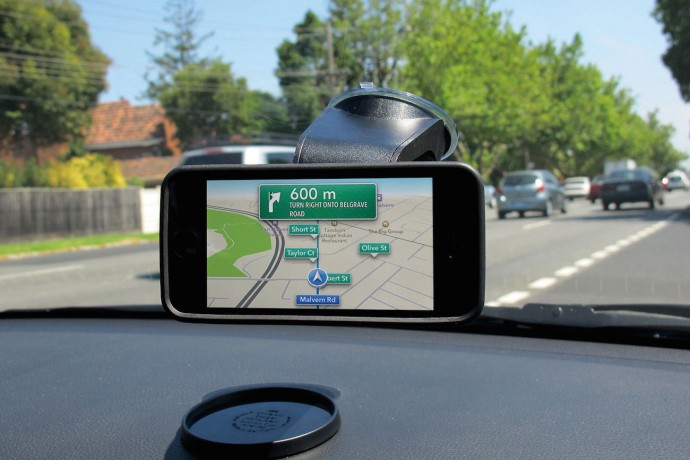
Why buy an expensive GPS system when your old Android smartphone can do it for free (apart from the data charges, of course). Mount your phone into your car’s dashboard and let it serve you as a dedicated GPS device.
The added advantage to this is that, since you can leave it permanently in your car, the device can also serve as a tracker via. apps like “Wheres My Droid”, if you ever you find your car missing from the parking spot.
3. An MP3 player for the car
If you are going to use the device as a permanent GPS system, you might as well use it as an MP3 player by attaching an aux cable or connecting the phone to your car via Bluetooth. Just fill her up with all your favorite music using as much storage as you want (since you won’t need it for anything else) and you can forget about CDs or the radio.
A home security cam
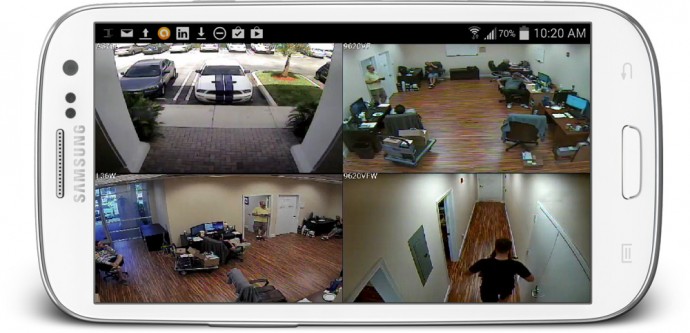
Chances are your old smartphone still has a decent camera. And if you want a little more security in your office or home, you can turn that phone into a web-security camera. All you need to do is download the free IP Webcam app and follow the instructions to set it up. Within seconds you’ll be able to view your camera from any platform using VLC player or web browser.
Another popular app called Presence can turn your old smartphone into a security camera and motion detector.
Make it kid-friendly
Children need something to distract them. Nowadays a Lego set just doesn’t cut it. Your child may just be at peace if you let them fiddle with your old smartphone. Clear your phone of all the apps that do not concern them and add a few apps made just for toddlers, and then let them take it from there. Not only is it a great way to distract your child allowing you time alone with your TV, but a few educational apps and games can really be fun and helpful as well.
If you can think of more ways to get the most out of your old smartphone, let us know in the comments below.
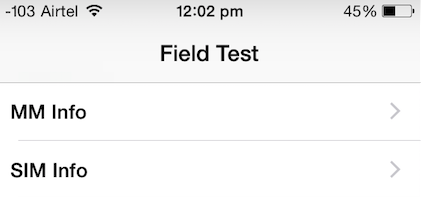
Telecom companies in India are putting us through a lot these days. If it’s not the ever increasing bills we face monthly, it’s the incessant call drops. We now know a trick for iPhone users that will help detect the amount of network you have, other than the signal bars. Field Test Mode makes things slightly easier.
How to initiate Field Test Mode on an iPhone:
1. Open the phone’s keypad, as if making a call.
2. Add *3001#12345#* and hit the call button.
3. Now on the top left corner you will see a number indicating your network strength.
If you hit the home button, the sign will return to signal bars. Here’s how you can retain the number:
Follow the earlier three steps. Once the page appears on your screen, hold your power button till “Slide to Power Off” comes on the screen. Release the power button, and hold the Home button until Field Test Mode quits. You can now tap on the signal bar, to switch between the bar and numbers. To opt out of this, you can simply restart your iPhone.
How to Read the Numbers : It’s simple – the lower the number, the more likely you are to experience bad signal. Anything lower than -110 is a problem, and anything above -80 is considered good. With this feature, you’re more likely to know when you would be experiencing problematic call drops.
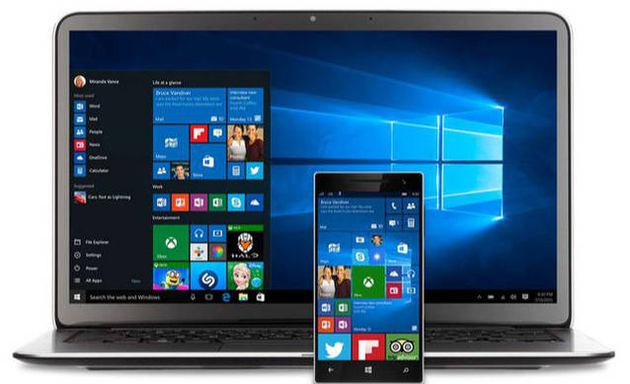
Sixty seven million Windows users are rejoicing at the thought of being upgraded to Windows 10 and are enjoying the convenience that comes with Bing knowing your location, Cortana knowing your name and sometimes other personal information. All your contacts, photos and everything are constantly being processed by the new software. It sounds perfect. However, one minor detail is missing. What is Windows 10 doing to protect your privacy as it constantly saves passwords, credit card numbers and personal information?
Here are a few things you can do to protect you privacy, while using Windows 10 and enjoying its features at the same time:
1. Know your Apps:
Many applications on Windows 10 require your personal information. For example, Maps, which needs your location in order to function. While Maps tells you where its using your personal information, many apps on Microsoft don’t necessarily follow the same protocol. Therefore, it is important to tweak the privacy settings of any app you use so that your personal information going out is limited, if not completely inaccessible.
2. Communications:
Microsoft tends to take in all the contact information of their users, just incase their primary means of communicating, fail. It does this so that it can send you information as well as promotions. In order to manage these communications better, click here (if you have a Microsoft account) and here, if you don’t.
3. Ads:
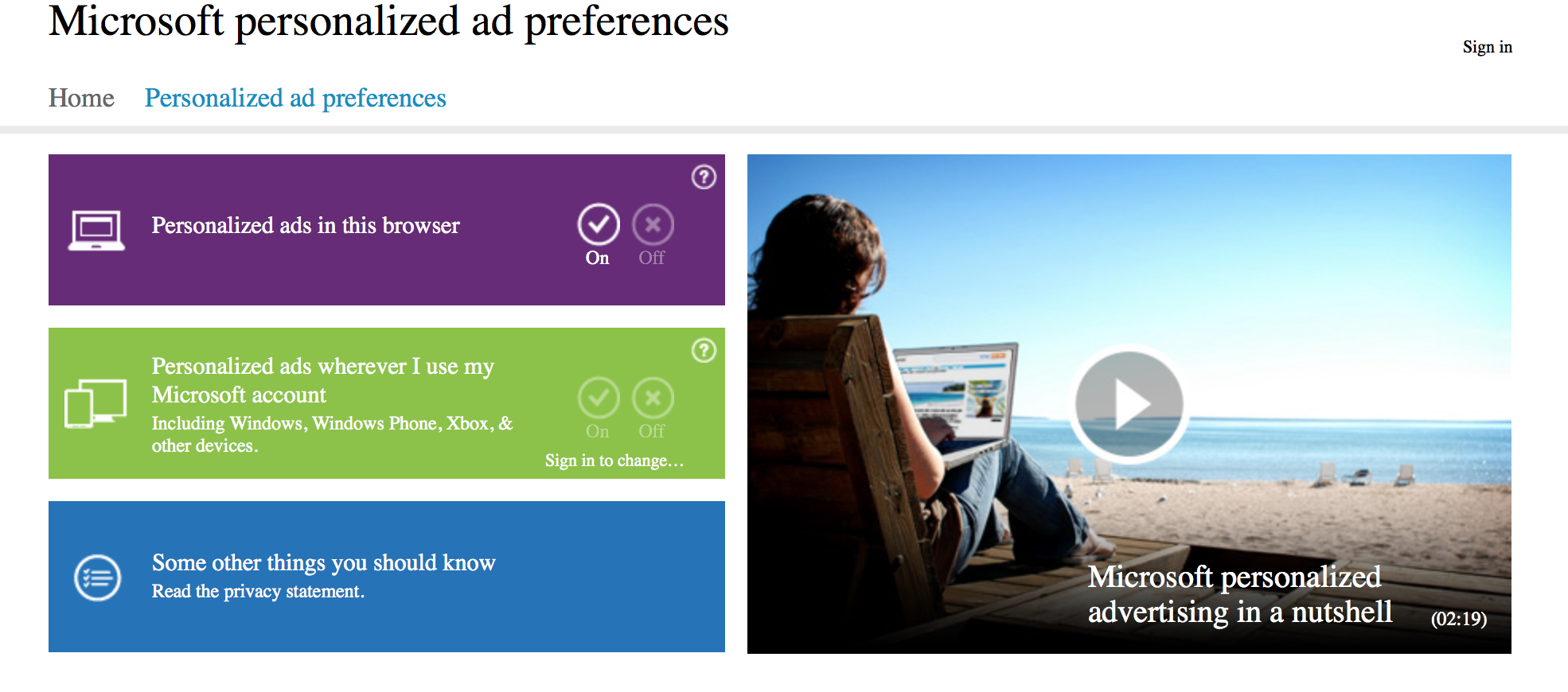
We all know that advertisements generate revenue. So if Facebook and Google can track you to sell ads, so can Microsoft. Microsoft does it according to your interests and even gives you your own advertising ID to make it simple. However, you can choose not to be a part of interest-based ads by clicking here. Opting out of that though, doesn’t mean that data won’t be collected or the number of ads that pop up will reduce.
4. Turn off the tracking:
Follow these steps to prevent Microsoft from collecting random data and information –
Start > Settings > Privacy > Feedback and Diagnostics > Click “never” to change the feedback frequency and Usage Data to “basic”
Also, while in the Privacy menu, you can regulate any information from your location, camera, microphone etc. It can be controlled from that menu.
5. Guard Your Browser History:
You can stop the sending of your browsing history by Edge by clicking on the top right corner of Edge, then settings > Advanced Settings > View Advanced Settings, under Privacy and Services, turn off “Have Cortana Assist Me in Microsoft Edge.” This is essential because Edge only sends your information to Microsoft so that Cortana can be further personalised. So all you got to do, is turn her off. And while you’re in the Privacy and Services menu, make sure you turn off “use page prediction to speed up browsing, improve reading, and make my overall experience better.”
“If you received your Microsoft account from a third party, like an Internet service provider, that third party may have rights over your account, including the ability to access or delete your Microsoft account.” — Microsoft
6. Don’t Get Tricked Into Creating a Microsoft Account:
Try and keep all your information within your local computer only. Even if Microsoft urges you to create an account, don’t do it because once done, it pieces together all your metadata and connects it to you ID. This can be a tricky situation and one must be extremely careful while sharing this information. Its never a good idea to share accounts. In order to delete or manage your Microsoft account go to Settings > Accounts > Your Account.
7. Cortana Can be Creepy:
Yes, at first it is fascinating to have an attractive voice talking back to you and calling you by your name. But, Cortana doesn’t know just your name. She has access to more information than you think she does and the whole situation sounds a little intrusive. So if you want to snap Cortana out of being too clingy, click here. There, you will be able to clear the Interests section as well as the Speech Inking and Typing information.
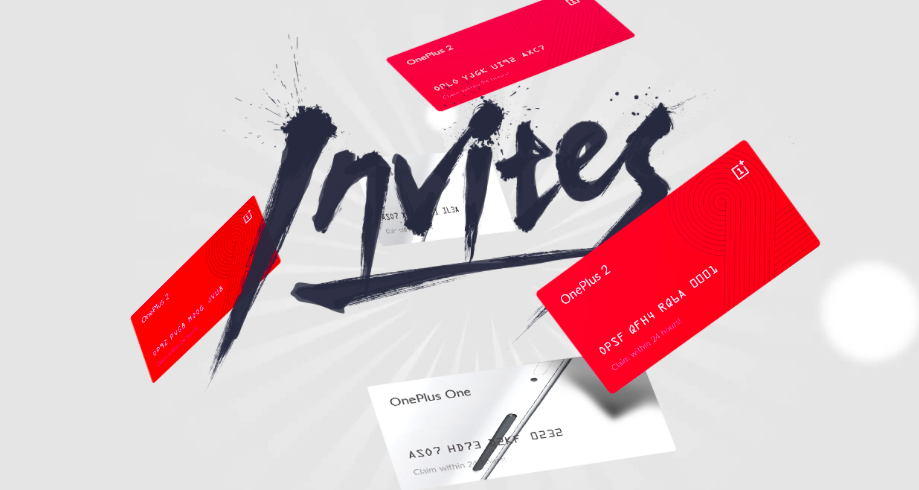
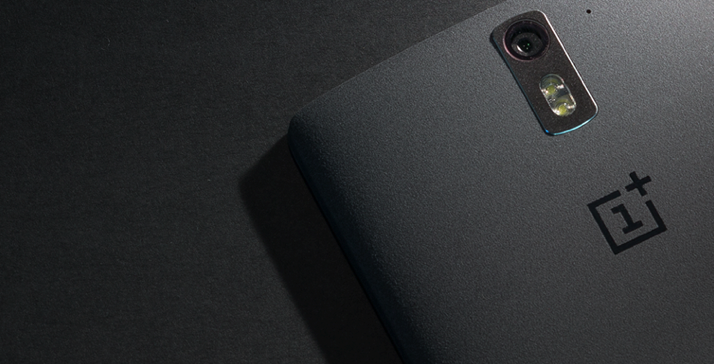
With the OnePlus 2 launch yesterday, we decided to tackle the company’s dreaded invite system. Although OnePlus claims that they have a new and improved plan charted out for the upcoming smartphone, we have our doubts. Trying to get an invite for anything is serious business, especially when you’re talking about one of the most anticipated devices of 2015.
Today we discuss how to make sure you get your hands on the coveted red card, without too much hassle.
Reserve Your Phone
Starting off with the easiest. The company recently announced that they’re going to start a separate list for interested buyers. All you need to do is – log in, enter your email ID and hopefully you’ll receive an invite soon after.
Same as with their previous flagship, anyone who manages to get a OnePlus 2 will also receive an invite that can be shared with friends or family. These invites are valid typically up to 1-2 weeks from purchase.
So, make sure you pair up with a friend. Chances are one of you is bound to score an invite. OnePlus promises that unlike last time, the sharable invite will arrive sooner (than later).
Get Your Social Media Guns Out
The company is sure to run contests on their social media pages. To follow OnePlus on Twitter click here, here for Facebook and here for Instagram. Make it a habit to frequent their accounts and take part in any giveaways that come your way.
Use The Forum Advantage
On a recent blog post by OnePlus, the company admitted that they would be favouring forum members when sending out invites. Users who join the OnePlus One forum can either win an invite via an engagement, event or contest, or through the official registration list. Consider signing up now.
Giveaways Etc
Since the Chinese company is now exclusively launching the OnePlus with Amazon India, you should track the e-commerce website for ongoing contests. Also, you can expect a giveaway here on iGyaan as well.
Living in a day and age where there is a new phone being launched every other day, this was one of the rare products we’re genuinely excited about.
Watch the hands on video with the OnePlus 2 right here:
[tw-toggle title=”Here’s Why OnePlus Insists on Using the Invite System”]
Ever wonder why OnePlus follows the annoying invite system? It’s actually one of the smartest business moves by the company. It is there to ensure that their company takes strong and steady steps forward. Thanks to the system, they only manufacture enough inventory as the demand. While at times the demand may be higher than the supply, their supply will never overpower the demand. They said it was their solution to managing risks. And for such a young company, that is one of the most important things they need to think about.
[/tw-toggle]
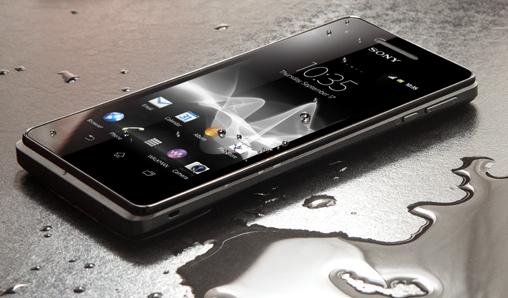
While we’re relieved the rain is washing away the scorching summer, monsoon can be tedious. Clothes don’t dry, the roads are mucky, and you’re perpetually losing your umbrella. More than anything, our precious smartphones need protection. Now, unless your phone comes with an inbuilt mechanism that expels water as it comes, it is most likely that it need protection.
To make sure you have a happy monsoon, we bring some easy hacks to protect your phone:
1. Use a spare phone
In this case, the saying ‘better to be safe than sorry’ should be implemented. You can just leave aside your smartphone at home and use a spare phone for a while, maybe a Nokia 1100 or a reliable oldie that has what it takes to withstand the season. But remember to cover up your old device with a safe plastic casing.
2. Zip Lock
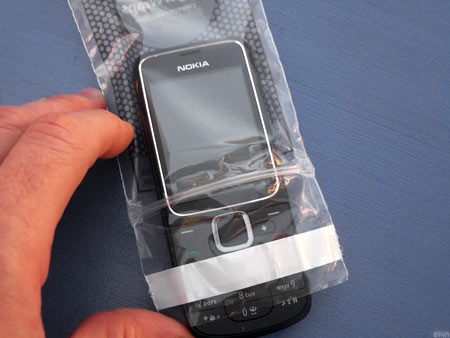
Normally, Ziplock pouches are used to store food or medicines. But it is also one of the cheapest ways to protect your phone from getting drenched.
If this option is not available, any plastic bag would work out just fine. These are the most basic methods to protect your smartphone, and it always works out.
3. Use Cling-film or Balloons
Another low-cost method, cling film can help save your smartphone from the damage. Cling-film is a plastic foil with which our mothers used to pack us our tiffins. Tight and air-locking, this is yet another cheap method to protect your smartphone.
Wondering how you can use a balloon? Take an inflated balloon and place the phone on it, screen side facing towards the balloon. Now slowly, start deflating the balloon till the end. You will see the mobile completely wrapped up with the rubber around it. The cover is water-tight and will protect your phone from the water-induced damage. Just for more protection, you can repeat the procedure again on the other side of the handset, thus gaining a double layer.
4. Conceal the openings on your phone
Try to conceal the open areas of your phone like the micro-USB port, headphone jacks, speakers, etc with a tape. Be warned! Though this method is not a foolproof solution, it may help reducing the risk of water entering the device.
WhatsApp is sure to have found a space on almost everyone’s handsets. The app with over a 800 million active user base, offers one of the best services to have a real-time conversation. Most of us must be using the app for a while now, but you probably didn’t know that WhatsApp is hiding many features that could make the wrinkles from your forehead, vanish. Mastering the tool can help you save the bandwidth, mute negligible groups, keep the stalkers at bay, and hence, have a good night’s sleep.
Here are some of the features that can make your life a lot easier.
Add Conversation Shortcut to the Home Screen
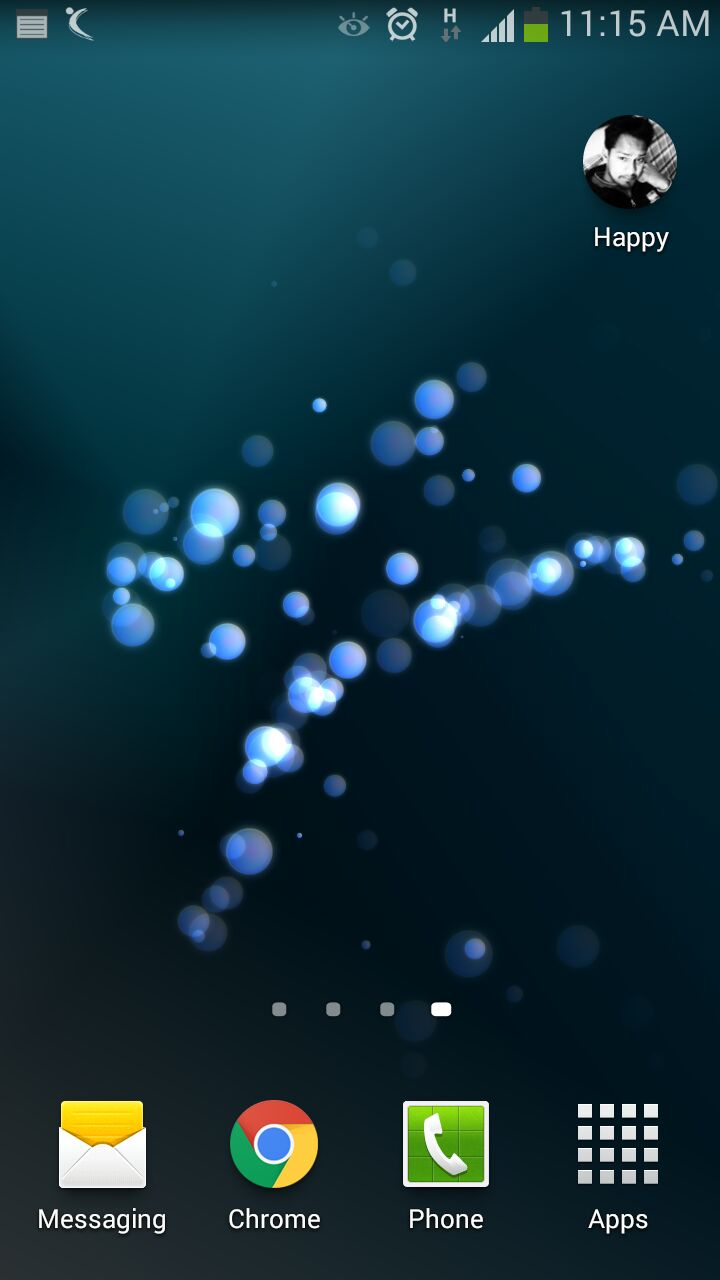
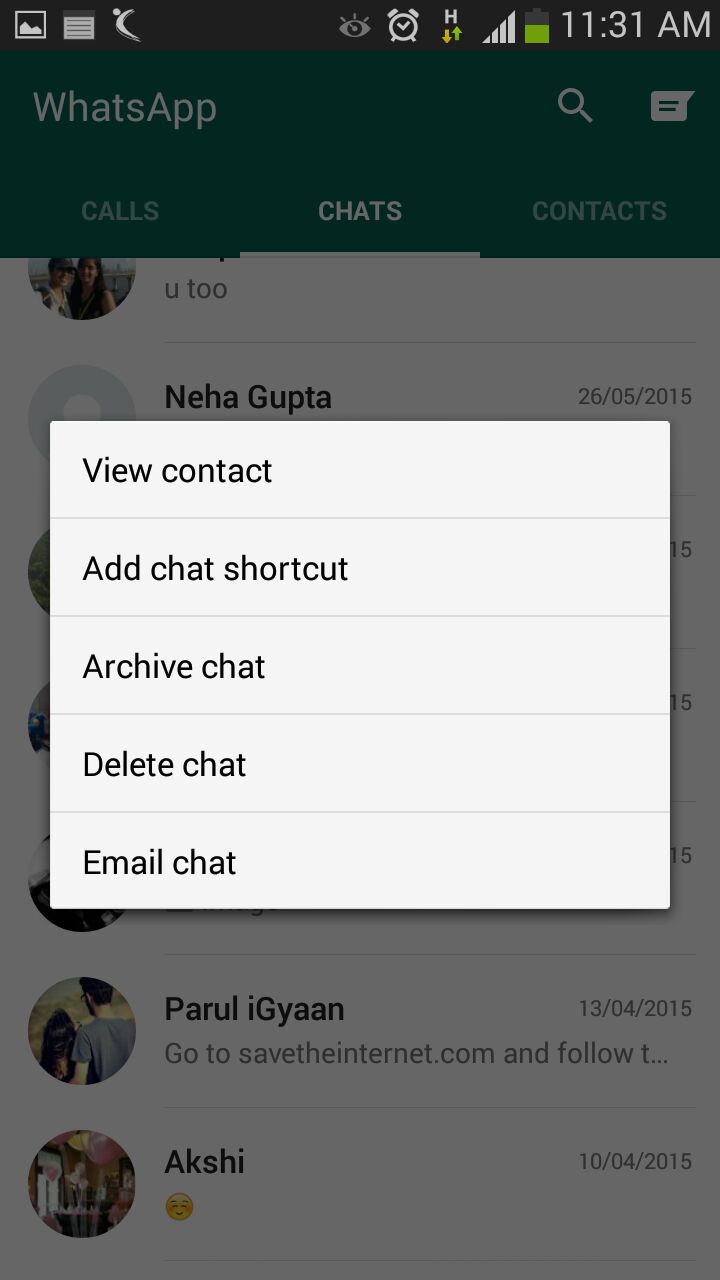
There must be folks in your WhatsApp contacts with whom you talk frequently to. Bring them a step closer by creating a chat shortcut on Home screen. Long tap on the desired contact and click ‘Add chat shortcut’ present in the chat menu. An icon will add to your home screen through which you can chat directly with the person, without surfing through a list of contacts. A useful feature, unfortunately missing on Apple devices.
Pop-Up Notifications
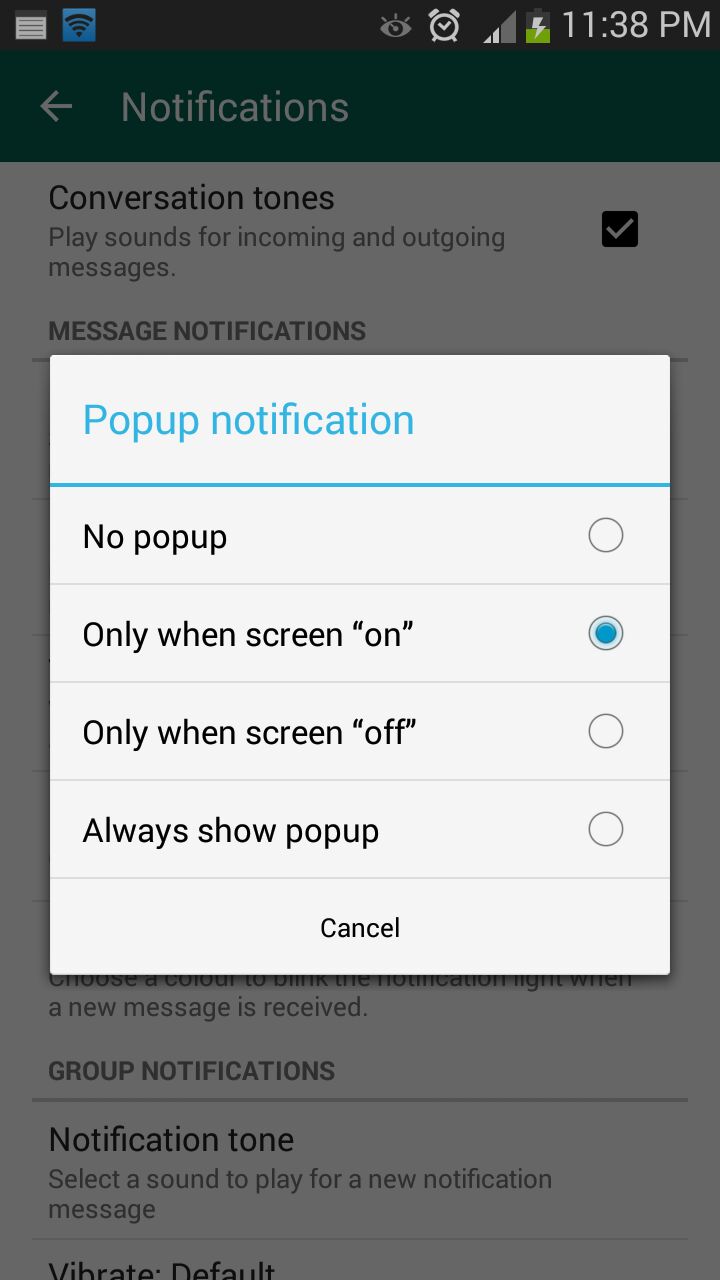
This feature on WhatsApp lets you access messages even when the screen is locked. Go to Settings > Notifications > Popup Notifications and select ‘Only when screen is off’ to see messages and reply without unlocking the device. Pop up notifications put aside the hassle of unlocking screen to see received notifications and reply to them.
Mute Group Chats
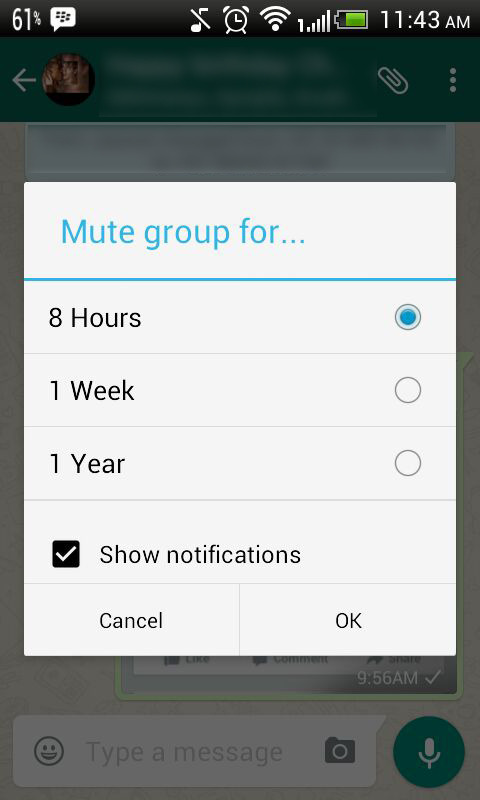
Besides giving you the convenience of sharing things at one place, Group chats can be a bit noisy at times. No worries! Mute them and let your friends do the talking. Click on the group and from the drop-down menu, select Mute. Select the time frame for which you don’t want any updates and disable Show notifications.
Disable Media Auto-Download
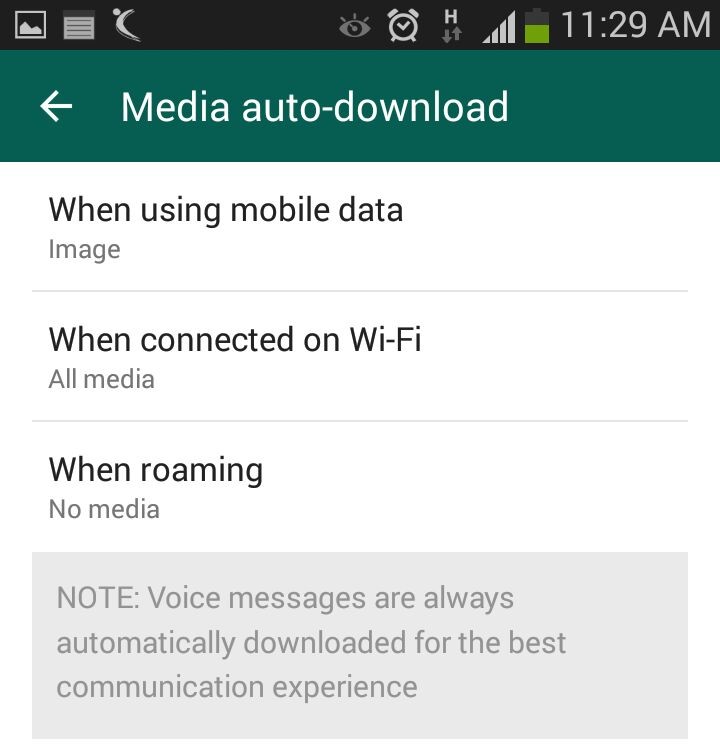
Media auto-download gobbles up your internet data. Turn it off to save the bandwidth and specify WhatsApp when you want the audio and video files to be downloaded. Click on Settings > Chat settings > Media auto-download and choose from the options when using mobile data, Wi-Fi and roaming.
Send Conversations Through Email
Users are going to love this feature, at least some of them. WhatsApp allows you keep a record of your chats on your PC or inbox by sending conversations through email. It’s as fast as any other mailing process and takes mere seconds. Long press the contact and tap on ‘Email chat’ from the chat menu. Add recipients’ email address and the conversation will be sent to the provided address. You can choose to include media file if you like.
Avoid Blue Ticks
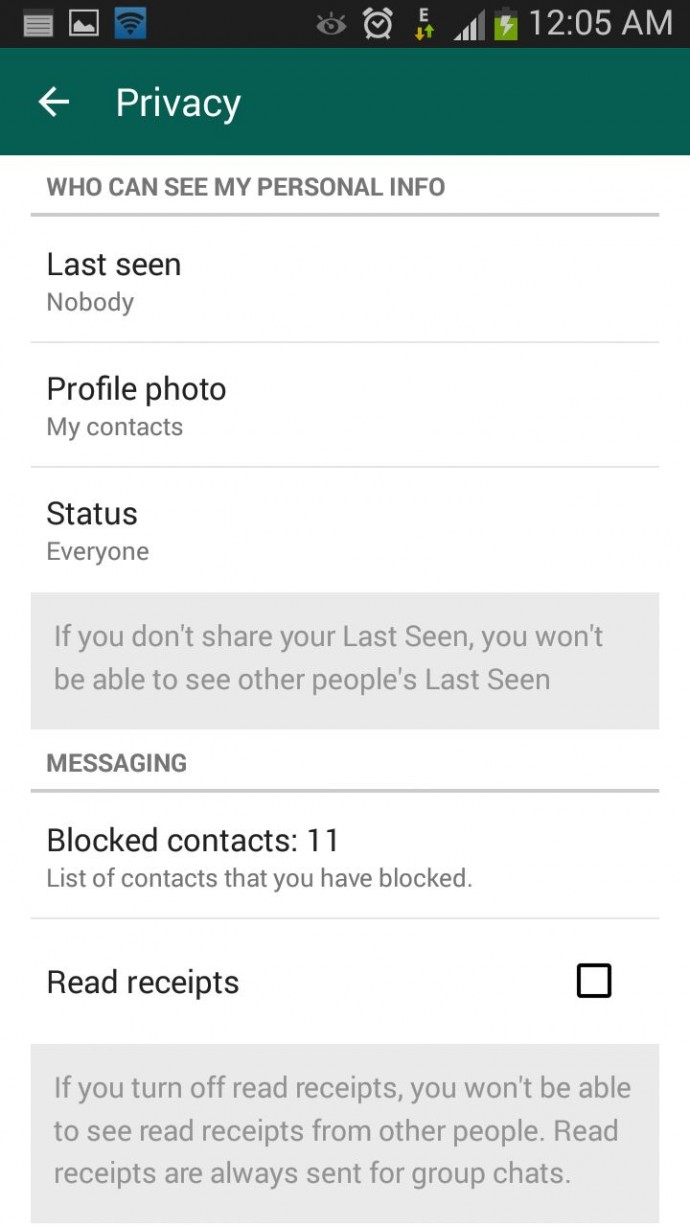
Where the cross-platform social messaging service got acclaims for real-time conversation, blue ticks brought outrage for offering recipients with read receipts. The new WhatsApp version allows you to avoid this through a simple setting. Click on Settings > Account > Privacy and disable Read receipts if don’t want the sender to know about the delivery status. Now, neither you nor any sender will be able to see read receipts. Isn’t it useful?
Travel today has become simple. Well, simpler than what it used to be. With some who travel frequently and the summer upon us, a chance or need to visit a new destination may arise for a lot of people. However, with a lot to consider when traveling to new lands; from modes of transport to lodging and getting around. It has become more a stressful exercise. Having spent the early part of 2014 and 2015 traveling from one part of the world to another, I have come across people who seem fearful of said experience. They find what is supposed to be a fun exercise, a torture or a stressful endeavour.
Here are a few of my tips to overclock your travel experience and hack into making everything work better for you when you travel.
1. Pro Packing
The one thing you must educate yourself with before you travel, is the general atmospheric nature of the region to where you are headed. This will help you determine what all you need to take with you. Take only what you must, and as little as possible, you might end up shopping more than you expected to. If splurging on consumerism is not your thing, traveling light has many benefits. With Airlines trying to extract the profit balance, the Allowed weight of baggage is becoming lesser and lesser. If you do go on a shopping frenzy, always keep a digital luggage scale handy, so that you know when you have reached your limit.
Pack Like A Pro
While everyone is an expert in packing their own things, few tips like rolling up clothes, and lining the bottles to the side of your luggage really works to free up that space. Stuff your shoes with socks and other soft small clothing items, double pack your liquids in sealed plastic bags to avoid those unwanted shampoo stains on your favorite business suit.
An extra set of clothing in your carry on luggage goes a long way, especially when your luggage is delayed or lost in transit. Never put anything of value in checked in baggage and wrap fragile items in layers of newspaper or bubble wrap.
TSA Lock
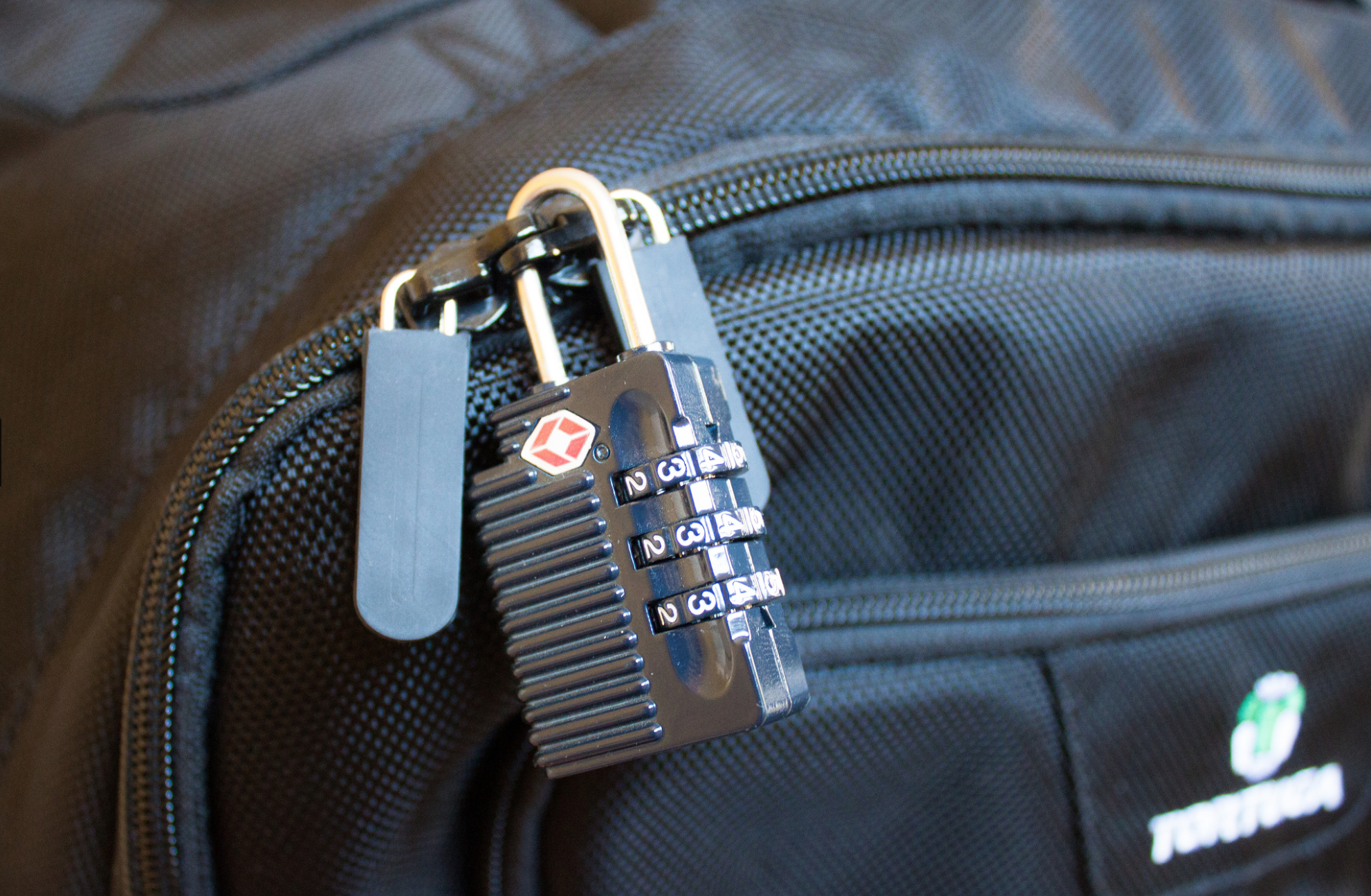
Lock your checked in bags with a TSA approved locks. This type of lock will allow security agencies to open and check the bag if they so need to, then re lock it safely. Travel size is the way to go, so ensure that, if you carry any liquids in your carry-on bags they are within the carry-on size limits (below 100ml in most cases).
2. Beat The Airline
When you travel, it seems that everything is chargeable. Extra luggage, food and even basic comfort is a paid luxury. When possible, plan in advance; buy tickets early and even pay for the extra luggage online. This will save over 50% of what airlines call “opportunity earnings”. Always check in online, this helps you beat the queue, find a fairly comfortable seat and also mostly get away with slightly heavier baggage. Use the bag drop service, when available, after checking in online, to avoid the luggage being weighed when traveling within countries.
If you can afford to, then always only buy business class tickets, use the same airline as often as you can and always join that airlines frequent flyer program. If booked well in time, business class tickets can be had for only a slight percentage more than the economy tickets. The business class service is fantastic , seats are very spacious, enough to be sleep-worthy on a long haul and food is actually edible and healthy, while alcohol is poured in generous quantities.
Business Class is Awesome!
Tanking up on frequent flyer miles miles can have its privileges, once you progress from silver to gold to platinum, you will see a host of possibilities open up. An additional bag, priority check-in, free lounge access, porter service at most international airports all this for basically being loyal to the airline. You will also get free upgrade vouchers, and freebie gifts as a frequent flyer.
Your miles always come in handy too, pay excess baggage fee, get upgrades, or even buy tickets using up your miles as modes of payment. You can often end up traveling for free if you are smart from the get go.
3. Pick Your Transport
Depending on the kind of person you are pick your transport and plan for it in advance. The best way to get around in a new city is to use what the locals use. For example, New York city is best seen with the use of the underground rail and the bus network.
New York Metro Card
If you are traveling for a week or more, buying a weekly/monthly pass may come in handy. This card allows free unlimited rides on the train and bus network within the city, also a month long pass usually ends up being cheaper than one single taxi ride.
Car Rental Counter
Some cities are easily accessible on foot, and some using cycles available for rent. Barcelona is one such place, where travelers can get around best using rented bicycles. Goa is best seen by renting motorbikes, or even cars and open trucks. You can even rent vehicles when traveling considerable distances, an hour or two hours drive away from your place of stay. Most rental companies will accept foreign Drivers licenses and offer great discounts and upgrades when booked well in time. These rental companies also have loyalty programs which almost work like frequent flyer programs, allowing free upgrades, priority service, etc.
Airport transfers can be tricky too, always plan these in advance. Usually governments arrange bus services from Airports to downtown areas. New York has the “NYC Airporter” service which is run by the city, this service costs US $ 15 one way VS the one way taxi fare which is roughly US $ 70. New Delhi Airport has shuttles that run for free and sometimes for a very nominal fee. If you cannot find such a service, try using the local public transport when available. Berlin for example ( and most European destinations) has a great bus networks that connects to the airport.
Pro-Tip: Pre booking a taxi or finding a govt. authorized taxi service works well.
4. Pro Lodging
Depending on the kind of person you are, there are always lots of options available when booking a place to stay. If you are okay sharing spaces, websites like AirBnB have proven to be pocket friendly.
If you are booking a hotel that you have never stayed at before, always only book for the first night. Your epic vacation could come to a screeching halt if the pictures you saw while booking lied about the exact state or locality of said hotel. If you have paid only for the first night you can always go look for a better place incase your existing spot does not cut it for you.
Smart Booking can be healthy!
If the place of stay is known by you or those around you, then always book well in advance to get the best possible deals. Try booking directly with the hotels from their websites, using coupons or by emailing hotels. This usually turns out much cheaper than using websites that claim to be cheapest, and you often get deals like free breakfast and room upgrades.
5. Eat and Party where the Locals Do
Make friends before you arrive! The best way to know a place is to actually have friends who live there. Lots of travel forums and social networks allow you to get to know people before you arrive to a new city.
Ho Chi Minh Food Market
Avoid going to “touristy” places, they usually end up being a disappointment. As far as food goes, there is no better way to experience the food of new place than to eat where the locals eat. This will have the most authentic flavors and the best prices, you will meet fun people and have a blast.
6. Pro Connectivity
While travel sim cards are available a plenty, staying connected nowadays is more than just phone calls. Data is a very important need of the modern day traveller, and it’s best had by getting a local number. Most countries issue Sim cards to tourist almost instantly, after taking a copy of your passport. Find out the best phone and data plans for pre paid cards and simply get there and get connected. Retain these cards and activate online account for your numbers, so you can simply recharge your number before you travel again, to be connected on arrival.
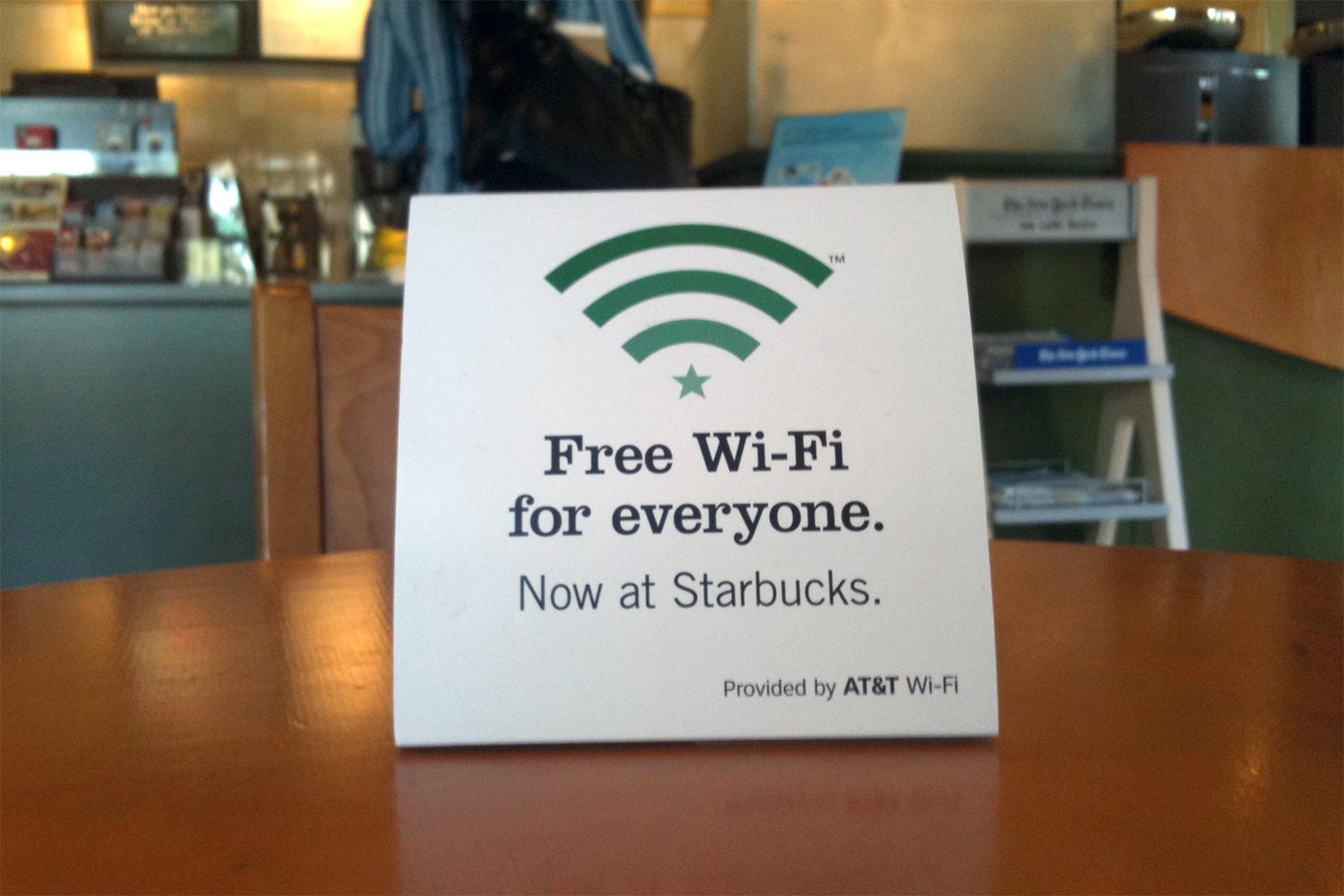
Coffee shops and Cafes like Starbucks provide free Wi-Fi and power sockets to charge your devices. Never miss an opportunity to grab a hot cuppa, or a mocha frappuchino and get connected while you recharge your portable.
Most airlines now have Apps that not only allow you to check in and get your boarding cards on your phone, but also send instant notifications on delays, gate closing times and last minute gate change. Just so you don’t miss the last call announcement while listening to music on your fancy noise canceling headphones. If you own an iPhone, Passbook will scan your emails and remind you about your flights and add boarding cards to the book.
Bonus : Tech Travel
While most travel to enjoy visiting a new place, there are some with a fixed agenda. If you fly often, a long battery life tablet like an iPad and noise cancellation headphones may as well become your best friends.
A tablet allows you to carry millions of books, games , movies and a lot more to keep you busy. The noise cancellation headphones with active noise cancellation will almost entirely eliminate the loud airline engine hum and also prevent babies from waking you up with their first flight in a pressurised torture tube.
A travel adapter you own, will save you upto US $ 100 that some hotels may charge you, for not owning one. Some hotels don’t even carry these, so you might get stuck at a hotel without being able to charge your phone, your laptop or even your shaver. Different countries and regions have different power sockets and a multi country travel adapter is a must for a frequent flyer to international destinations.
Related Travel Products
Enjoy you Summer, plan well and if you do end up in some disaster let us know!
Everyone needs a reliable WiFi connection today. Almost all our devices are WiFi enabled, and the Internet is a crucial part of our lives too. We stream radio, music and videos from any corner of our house and connect multiple devices thanks to the wireless technology. Although it is one of the most important part of our lives now; slow speed, bad receptions and other negative WiFi issues are very frustrating.
Here are some common ways to boost your WiFi signal:
The Perfect Spot for your Router
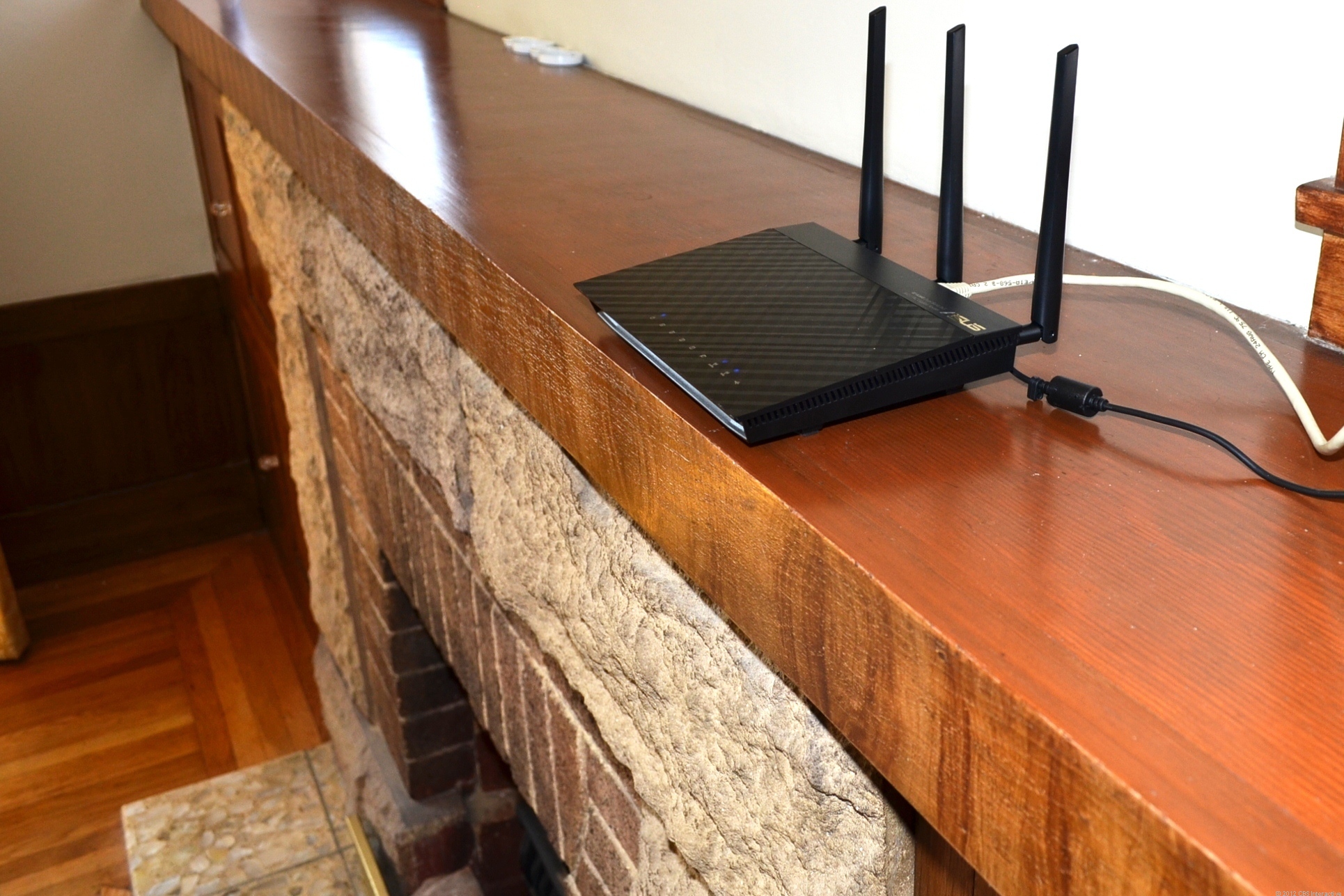
Just because the router looks dirty or outdated does not mean you hide it behind the desk or dressing table. In order to get the best signal, it must be put in a place that has minimum obstruction and is free of any walls. For example, the best place would be the living room because of the huge area. An elevated area would prove to be an advantage too.
Switching the Channel
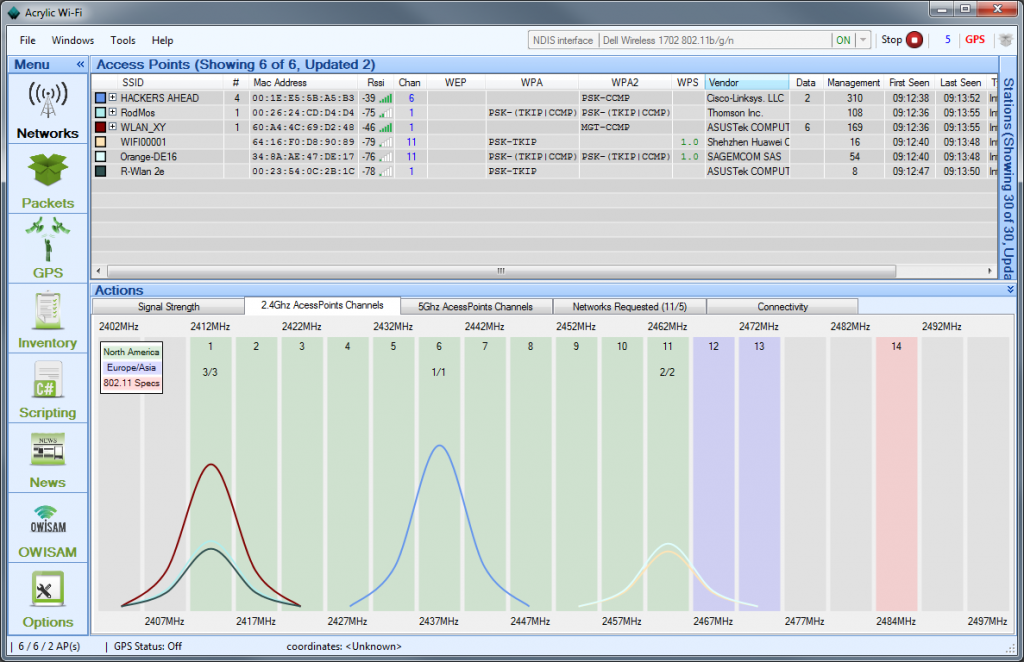
Neighbouring WiFi signals tend to interfere with your own WiFi signals, thus leading to the degrading of the network. WiFi routers operate on different channels, and you would want to adjust your channel on to the one with minimum interference. The most common channels for wireless networking are channel 1,6 and 11.
The more, the merrier
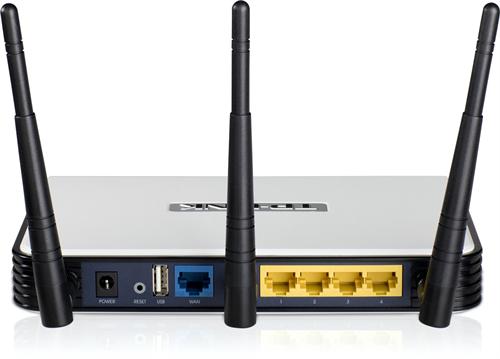
Most WiFi routers come with two fixed antennas, which are obviously not strong enough to send signals to the distant corners of the house. Adding a booster antenna can solve this problem. With three antennas in place, it comfortably covers large areas, throughout entire homes or offices.
Avoid Interfering Devices
Devices like cell phones, cordless phones, microwaves can often interfere with your signal. Suggestions would be to move the router as far as you can from the interfering appliances.
For example, a microwave operates at the same frequency as one of the WiFi access points, thus reducing efficiency and capacity of your access by 50%.
Install a Wireless Repeater or Booster
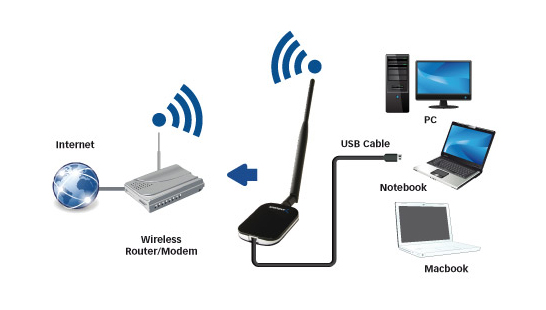
Attaching a wireless Booster will boost the strength of your wireless network. But, if you need to boost the range too, connect a wireless Repeater. These devices allow you to communicate with specific SSID or repeat the signal with the same or a different name, thus providing enhanced coverage and strength, without having an Ethernet cable to connect to the access points. The greatest benefit is it works like an extended signal provider, without requiring additional wiring. Both attachments are very cheap in cost.
In developing times like now, we live under the constant threat of computer viruses and malware that reach your system through emails or any external devices like a pen drive. We have multiple Anti-Virus programs available and it is critical to keep updating them. But the key to a virus-free environment is beyond using an anti-virus program. Safe computing practices and policies should be used to safeguard your PC from such threats.
Let’s take a look at some user friendly, yet efficient methods of dealing with viruses, other than using Anti-Virus programs:
Do not open suspicious email attachments
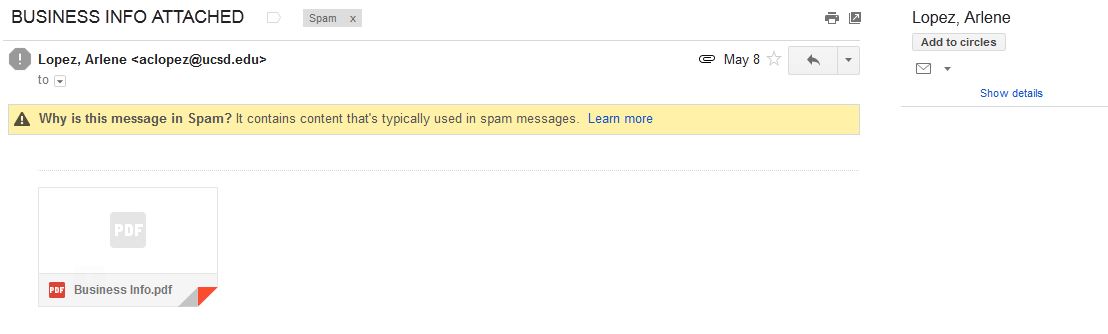
Most of the infected emails are filtered in the SPAM Folder
It is wise not to open any unknown email with an attachment unless you are expecting them. Most of the viruses and links to phishing websites come through emails. To know whether the mail contains a virus or not, you can follow the steps below:
Always check the sender’s address. If the address is known to you, it is safe to open the mail. But if the address is unknown, we would recommend caution before clicking on the mail.
Check the subject line. If the subject line shows some random sentences asking you to open the mail, Do Not click on it. Some viruses are capable of mimic, or spoof, legitimate email addresses.
Keeping your computer updated
Keeping your computer updated helps to lower down incoming viruses from external sources. It is because across different Operating Systems, various security updates are released, thus helping in protecting your computer.
Using a Firewall
Pictorial representation of how a Firewall works
Use of Firewall does not entirely eliminate the threat of Viruses, but it helps in alerting you if a virus or worm attempts to connect to your computer. It can also block hackers from downloading potentially harmful files to your computer.
Disabling the Auto-Play Option
Many viruses attach themselves to a drive and start installing automatically when the media is connected to a computer. As a result, connecting any external hard disk or external data can lead to automatic propagation of such threats. Hence, disable Autoplay.
Lastly, Surf Safe
Many anti-malware programs include browser plug-ins that help avoid virus infections and internet phishing. These plug-ins should always be utilized with regular web browsing. Personal data and sensitive information should never be entered on any web page that has arrived independently. They should instead open a web browser, enter the address of the page they need to reach, and enter their information instead of clicking on a hyperlink and assuming the link has directed them to the proper URL. Hyperlinks contained within an e-mail message often redirect users to fraudulent, fake, or unauthorized websites. By entering web addresses manually, users can help ensure that they arrive at the actual page they intend.
Although the above methods should be carried out on a daily basis, the only fool-proof savior is a good Anti-Virus program, like Avast! to name one. Many computers receive free anti-virus programs, but these are not enough to provide sufficient protection against the ever-growing list of threats. We need to stay updated with ever-growing technology. Browse safe!
Despite all the announcements made at Google I/O for the new Android M OS , Google left out a set of updates that may be slightly more crucial to some people. With the developer preview of Android M now available to those with Nexus devices, some of the new features we saw are interesting.
However, one big thing that will affect every Android phone buyer in India is the new handling of microSD storage. With Android M, all new handsets will have the ability to turn microSD card storage into system memory. This is a very big deal, especially because it will make buying a larger capacity smartphone redundant. Companies often charge premiums for higher capacity variants of the same hardware, differentiating them only on the inbuilt storage.
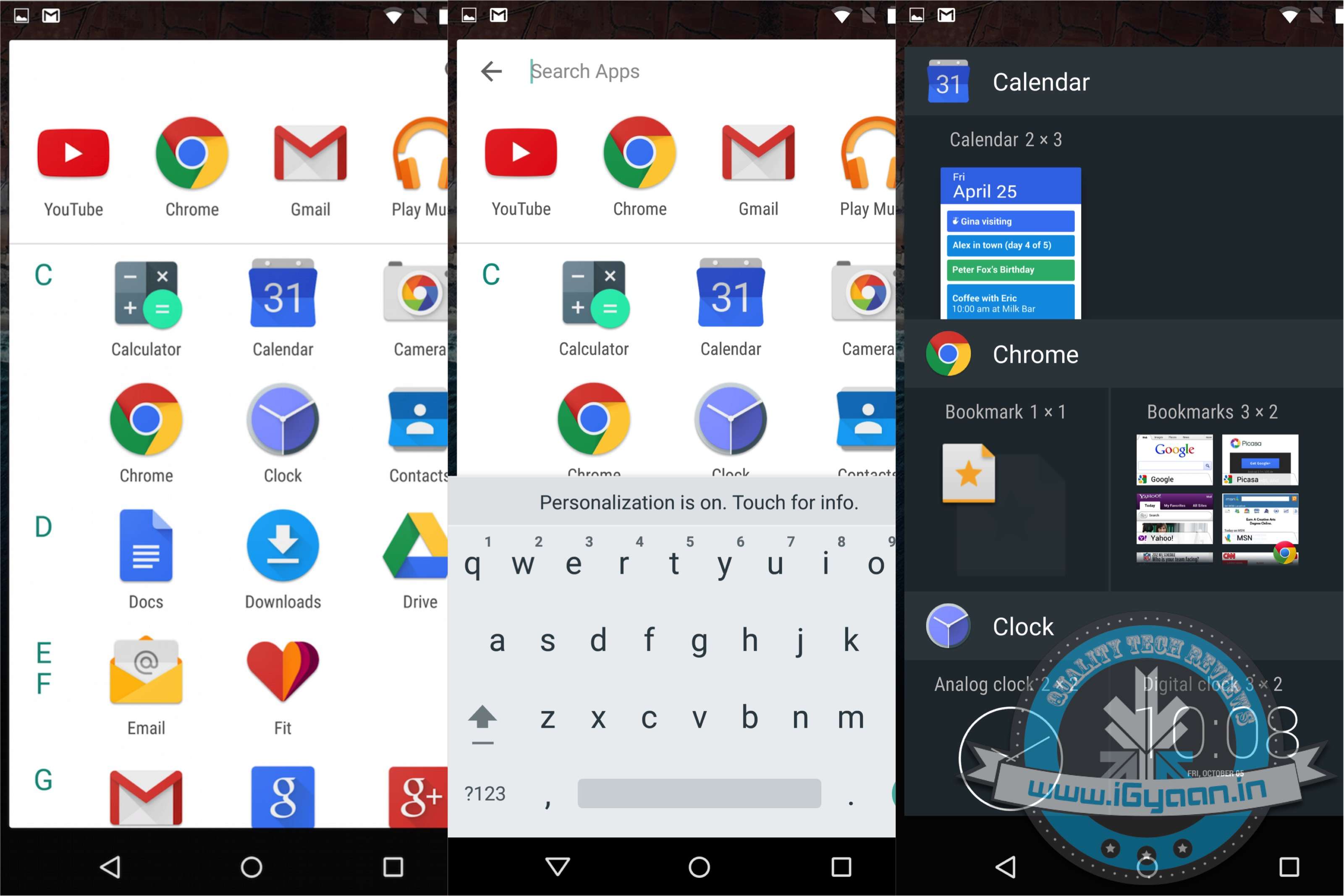
Google Now Launcher
Sources tell us that Samsung intentionally left out microSD card storage from the Galaxy S6 and S6 Edge to earn premiums on higher capacities. They also did this because they were aware of this feature being launched in the next update of Google’s Android operating system. If Samsung had given the ability to install a microSD on the Galaxy S6 and S6 Edge, after the launch of Android M and Samsung’s update, it would have meant either lower earnings on the higher storage variants or a halt in sale all together as people would get the cheapest and then install a microSD.
Here are the other hidden features of Android M:
Uninstall apps using the Google Now Launcher. Long tap any app and drag up and right.
Head over to Settings > Device > Apps > Advanced > Memory to visit the RAM Manager. This feature lets you seethe performance of each App on your device per the RAM available on the handset. This nifty feature also allows you to kill Apps that consume too much memory.
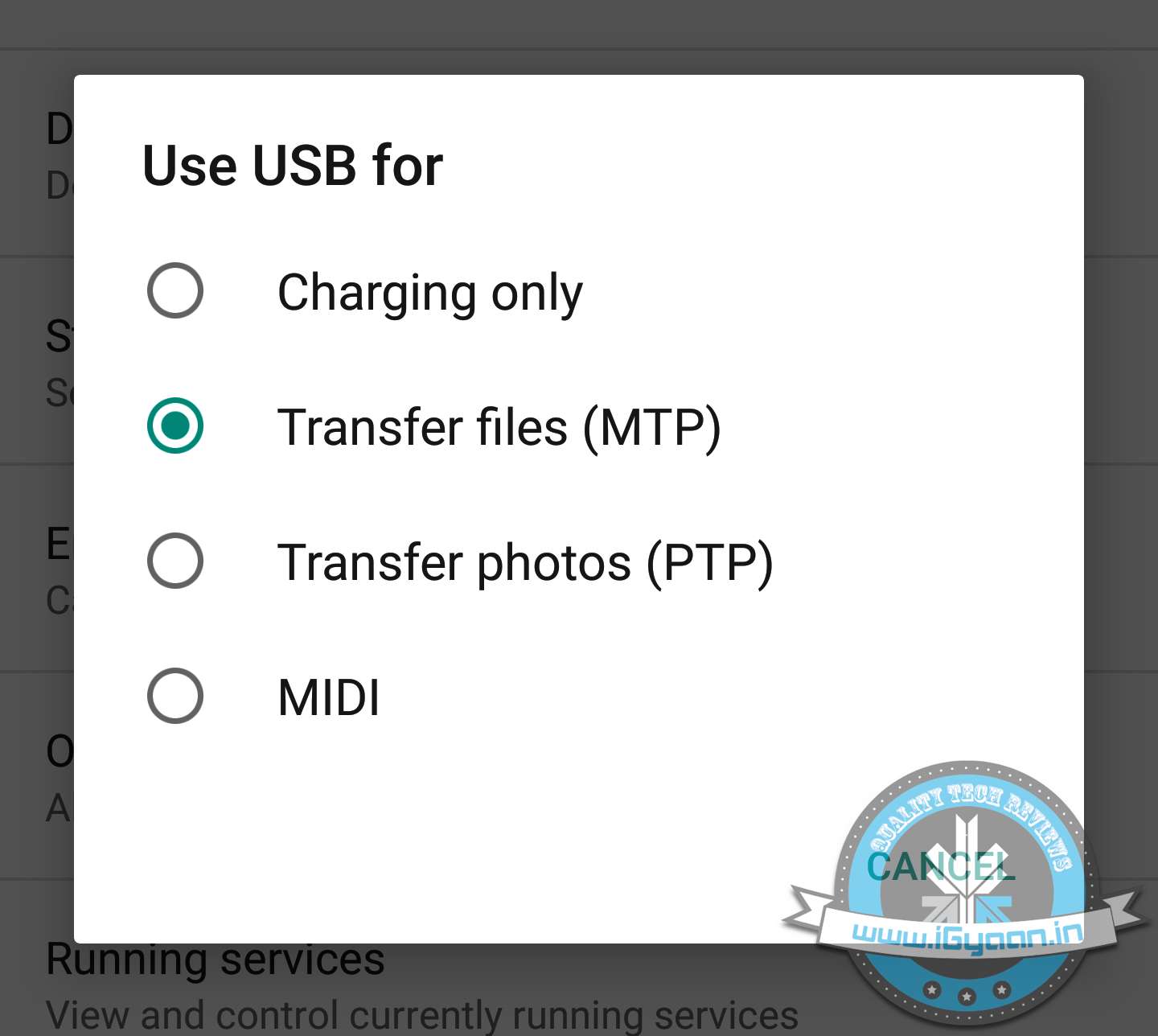
Support for MIDI devices: a feature that budding musicians have had on the iOS devices for a while now comes to Android and will allow you to attach Keyboards and DJ decks that support MIDI connections.
USB OTG is also standard, and all devices with Android M will support USB OTG. This mixed with the new microSD management will essentially end the high price variant devices.
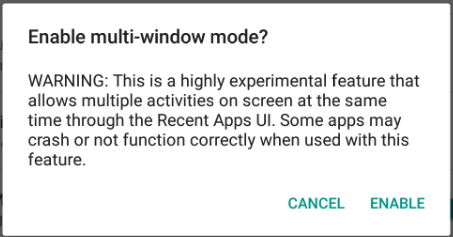
Multi-window support can also be enabled by going through a slightly back end process.
Hotspot 2.0 allows you to create Wireless Hotspots on both the 2.4 GHz and 5 GHz bands.
Swiping from the bottom left to right on the Lock Screen will now launch Google Now Voice search vs the dialer in Android Lollipop.
The new Doze feature is highly customisable and can be turned on or off on a per app basis. Allowing you to save battery on the usage of apps you do not need in the background.
Do you think you’re taking full advantage of using one of the best computer systems in the world? Apple has hidden a few interesting hacks on your Apple MacBook, which are worth taking note of.
Here’s a list of 5 fun things you could do with your MacBook:
1. Have Your Emails Read to You, in an English Accent
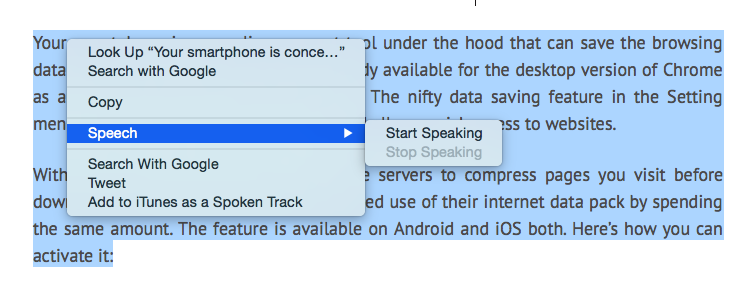
Not only is it super simple to get your Mac to read out text for you, you can even pick and choose the voice/accent you like. To have text read out to you, highlight the text, right click and pick the ‘Speech’ option, followed by ‘Start Speaking’. To change the voice, visit ‘Diction and Speech’ in System Preferences. Since we’re partial towards English accents, we like ‘Daniel’ from United Kingdom read out our articles to us.
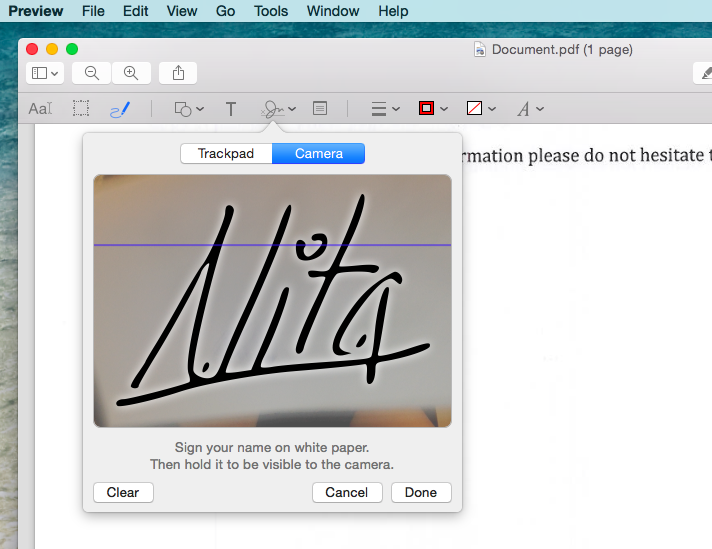
2. No, you don’t need to print a document to sign it.
In this age of technology, did you really think you had to print a document, sign it, and then scan it again? No. Those days are long gone. You can have signatures saved up on your Mac for quickly sending out a document.
To save your signature, launch the Adobe Reader, pick ‘Tools’ from the top bar and then ‘Annote’. Which will then give you the option to manage your signatures. Now ‘Create Your Signature’ by signing a white piece of paper and holding it up for the camera which has been launched.
This might sound like a tedious procedure, but it’s way better than relying on your printer/scanner in the future. Not just that, you can save multiple signatures at the same time.
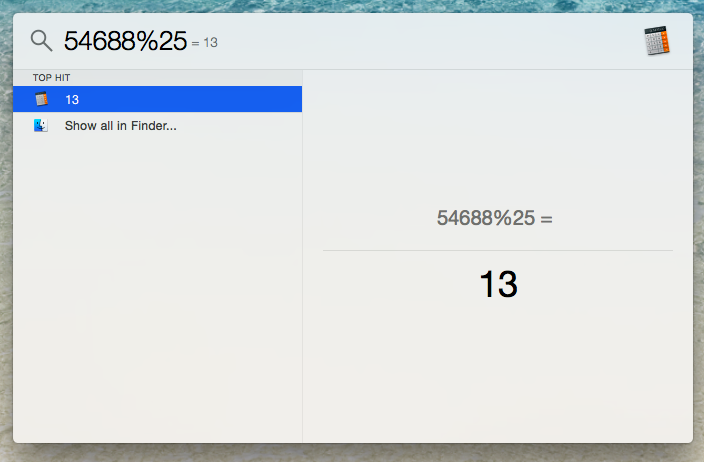
3. Too Lazy to Open the Calculator? No Problem.
You can use the search bar of your computer to work out a quick calculation. It isn’t too hard to locate a calculator on your desktop, but this trick saves that extra second.
4. Selective Screenshot
We’re all aware that by using Command + 3, you can screenshot the entire screen, but have to tested out Command + 4? You can pick and choose exactly the area of the screen you’d like to grab, without getting the unnecessary background of your desktop.
5. Quickly hide your browser
For times when you’re sneakily keeping up with the Kardashians, this is a nifty trick everyone should know. Command + H, and your browser is instantly hidden. We suggest you keep an official looking document in the background, just to add authenticity.
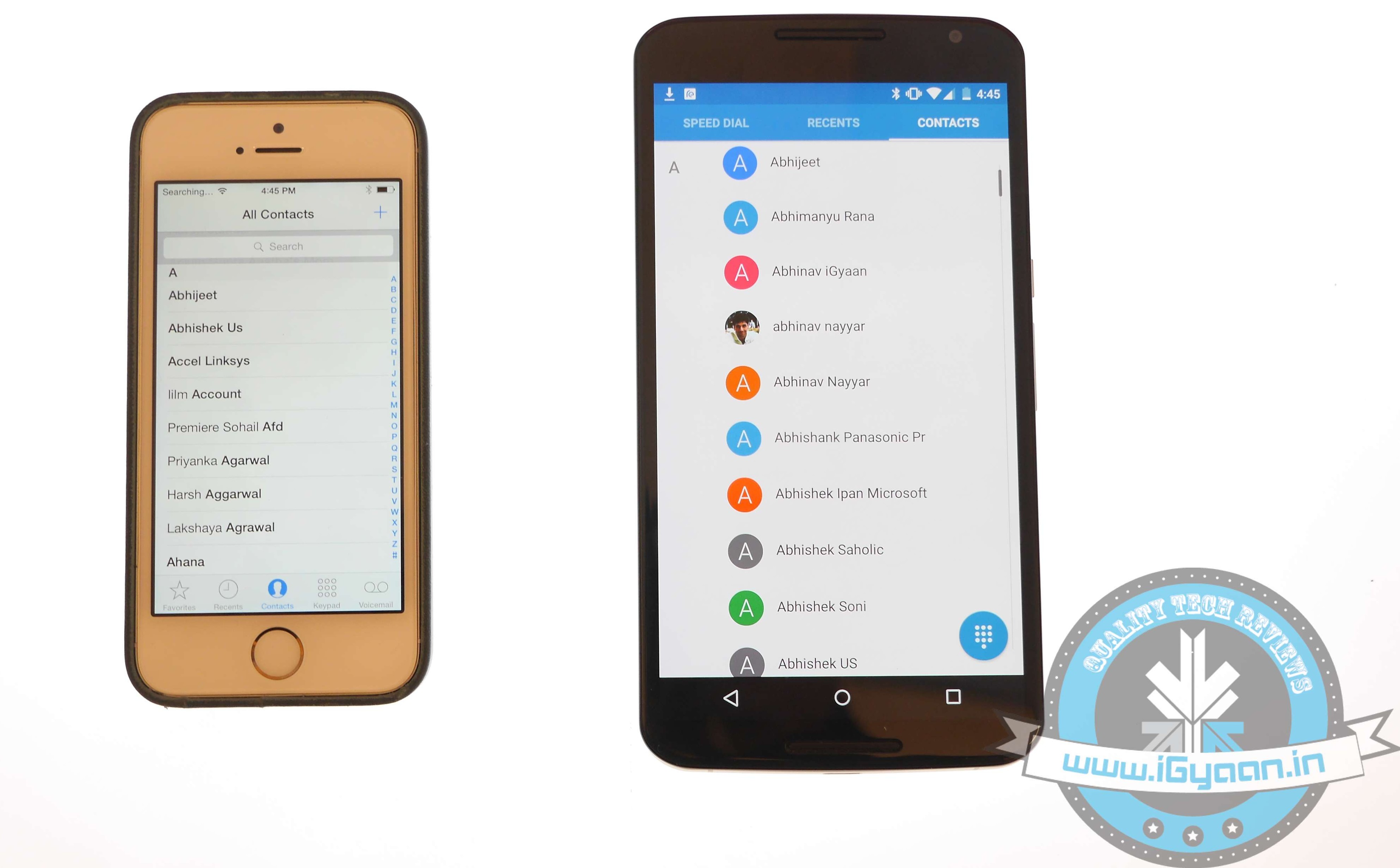
Switching phones with different operating system is easy, but transferring data between the two can be a task. If you are an Android user and are planning to switch to iOS, then you might be concerned about your contacts, music, calendar, photos and videos. This guide will assist you in making a smoother and effortless shift between the two ecosystems.
The first rule of safe data transfer is backing your device. This way, even if you are stuck at any step, you will have the data with you. Once all your data is backed up, follow the directions below and get started:
Shift Contacts, Mail and Calendar
One of the easy and quick methods to transfer contacts, emails, and calendar to the iOS is by syncing your Gmail account. Go for the below-mentioned steps on your Android:
Go to Settings > Accounts > Google
Click on your Gmail account and tap on Sync Gmail, Sync Calendar and Sync Contacts
This will sync your selected information to your Gmail account. Now open your iPhone and perform the following steps:
Choose Settings > Mail, Contacts, Calendars and add your Gmail account
Enable all the options like Mail, Contacts, Calendar and Notes if you wish.
Transfer Photos and Videos
If you don’t wish to lose the pictures and videos on your Android, then Copy My Data or PhotoSync would be the best option to go for. Perform the below-mentioned method to transfer photos, as well as videos:
Open PhotoSync on Android and make a selection of the pictures
Tap on the minuscule, Refresh-like red button on the top and select Phone in the next window that will appear
Tap on the iPhone name in the other window or type in IP address in case it doesn’t appear automatically
The transfer will begin.
Transfer Music
Music transfer from Android to iOS conveniently through iTunes. Read and replicate the steps below:
Plug in the Android device to a computer and copy your collection to it
Install iTunes and go to Library > Music > File > Add Folder to Library.
Copy all audio files you want to have on your device
Now without closing the iTunes, attach your iPhone to the computer
Click Sync on the dialogue box that appears on attaching the iPhone
All your songs will now appear on your iOS device.
Transfer Messages
There are moments your messages carry important information and losing them is no option. Well, this means that you have to shift your messages to the new iOS device. Message transfer is a stressful task, but we have figured out the easiest way for you.