Tag: Tips and Tricks

  • 4 Simple Tips to Help Safeguard Your Smartphone this Monsoon

    4 Simple Tips to Help Safeguard Your Smartphone this Monsoon

    While we’re relieved the rain is washing away the scorching summer, monsoon can be tedious. Clothes don’t dry, the roads are mucky, and you’re perpetually losing your umbrella. More than anything, our precious smartphones need protection. Now, unless your phone comes with an inbuilt mechanism that expels water as it comes, it is most likely that it need protection.

    To make sure you have a happy monsoon, we bring some easy hacks to protect your phone:

    1. Use a spare phone

    nokia1100

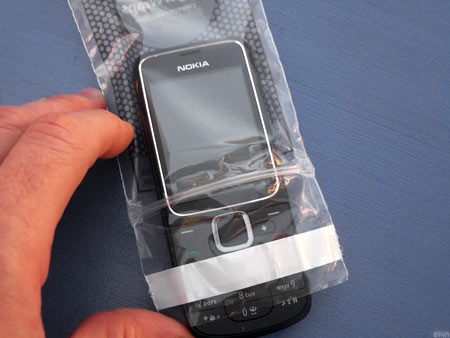
    In this case, the saying ‘better to be safe than sorry’ should be implemented. You can just leave aside your smartphone at home and use a spare phone for a while, maybe a Nokia 1100 or a reliable oldie that has what it takes to withstand the season. But remember to cover up your old device with a safe plastic casing.

    2. Zip Lock

    zip lock

    Normally, Ziplock pouches are used to store food or medicines. But it is also one of the cheapest ways to protect your phone from getting drenched.

    If this option is not available, any plastic bag would work out just fine. These are the most basic methods to protect your smartphone, and it always works out.

    3. Use Cling-film or Balloons

    Another low-cost method, cling film can help save your smartphone from the damage. Cling-film is a plastic foil with which our mothers used to pack us our tiffins. Tight and air-locking, this is yet another cheap method to protect your smartphone.

    Wondering how you can use a balloon? Take an inflated balloon and place the phone on it, screen side facing towards the balloon. Now slowly, start deflating the balloon till the end. You will see the mobile completely wrapped up with the rubber around it. The cover is water-tight and will protect your phone from the water-induced damage. Just for more protection, you can repeat the procedure again on the other side of the handset, thus gaining a double layer.

    4. Conceal the openings on your phone

    Samsung-Galaxy-S4-Mini-Top-1280x853

    Try to conceal the open areas of your phone like the micro-USB port, headphone jacks, speakers, etc with a tape. Be warned! Though this method is not a foolproof solution, it may help reducing the risk of water entering the device.

  • 6 WhatsApp Features Everyone Should Know

    6 WhatsApp Features Everyone Should Know

    WhatsApp is sure to have found a space on almost everyone’s handsets. The app with over a 800 million active user base, offers one of the best services to have a real-time conversation. Most of us must be using the app for a while now, but you probably didn’t know that WhatsApp is hiding many features that could make the wrinkles from your forehead, vanish. Mastering the tool can help you save the bandwidth, mute negligible groups, keep the stalkers at bay, and hence, have a good night’s sleep.

    Here are some of the features that can make your life a lot easier.

    Add Conversation Shortcut to the Home Screen

    whatsapp 1

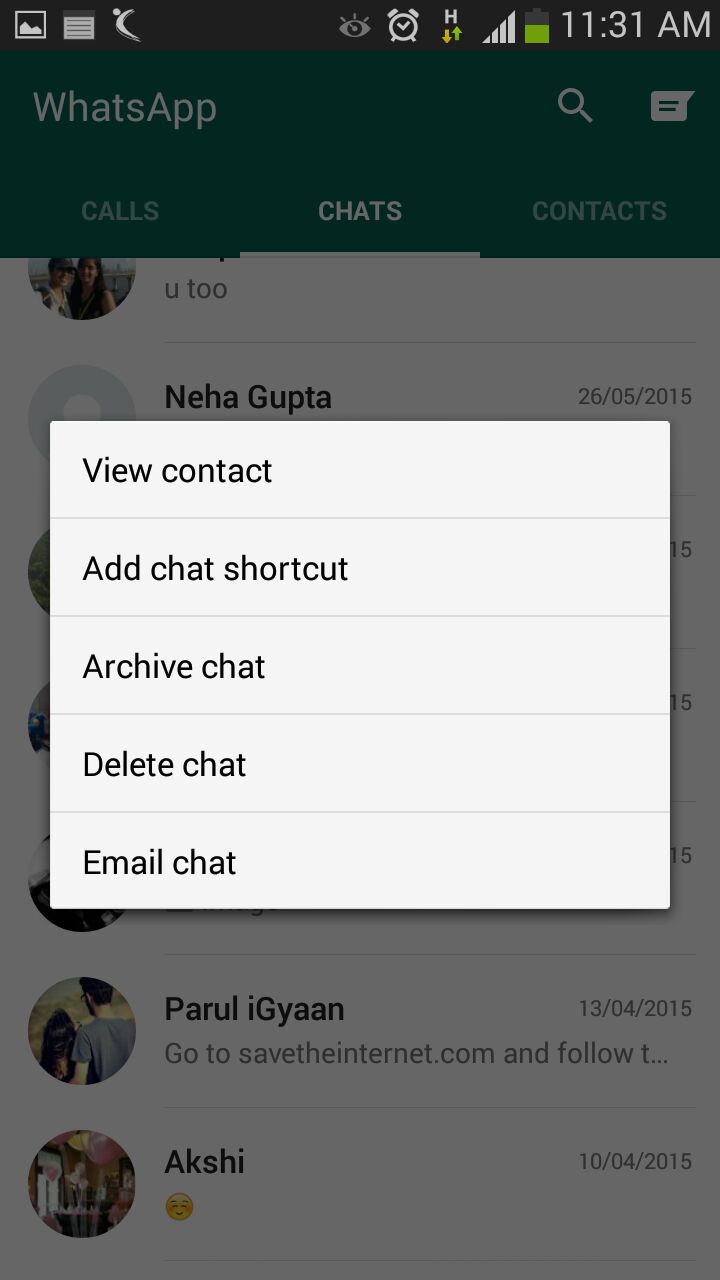
    There must be folks in your WhatsApp contacts with whom you talk frequently to. Bring them a step closer by creating a chat shortcut on Home screen. Long tap on the desired contact and click ‘Add chat shortcut’ present in the chat menu. An icon will add to your home screen through which you can chat directly with the person, without surfing through a list of contacts. A useful feature, unfortunately missing on Apple devices.

    Pop-Up Notifications

    WhatsApp

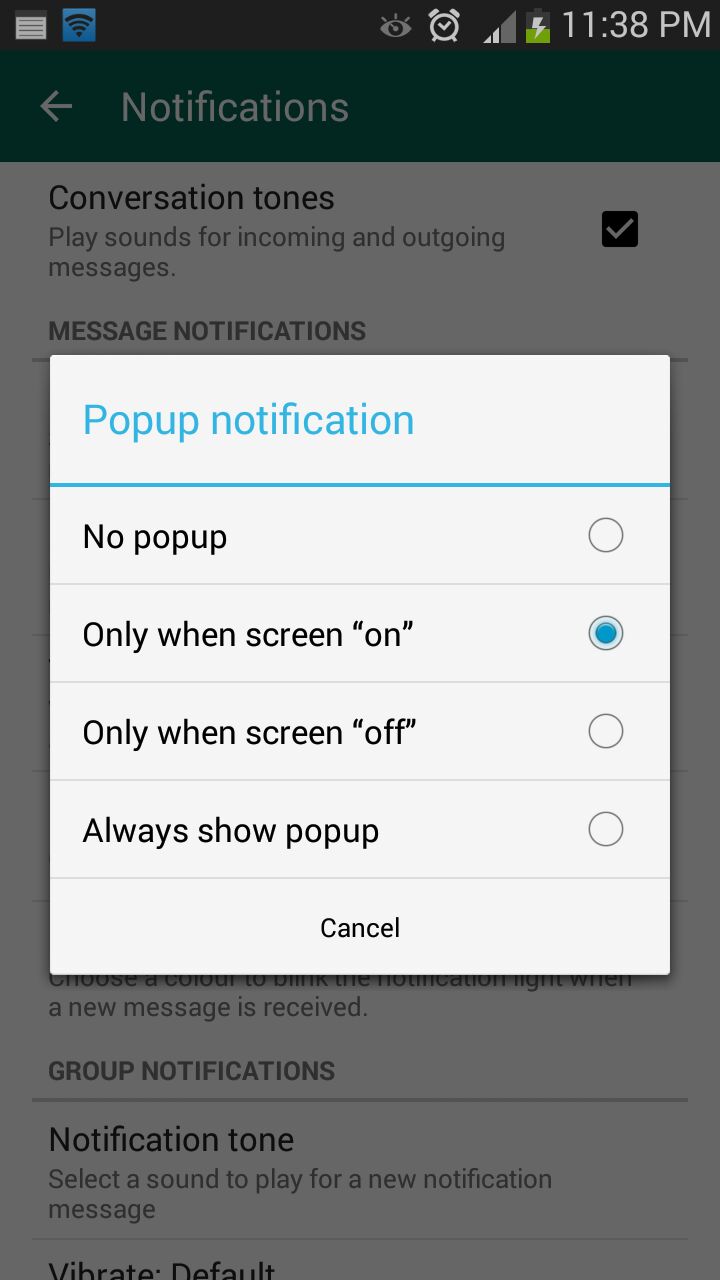
    This feature on WhatsApp lets you access messages even when the screen is locked. Go to Settings > Notifications > Popup Notifications and select ‘Only when screen is off’ to see messages and reply without unlocking the device. Pop up notifications put aside the hassle of unlocking screen to see received notifications and reply to them.

    Mute Group Chats

    whatsapp 5

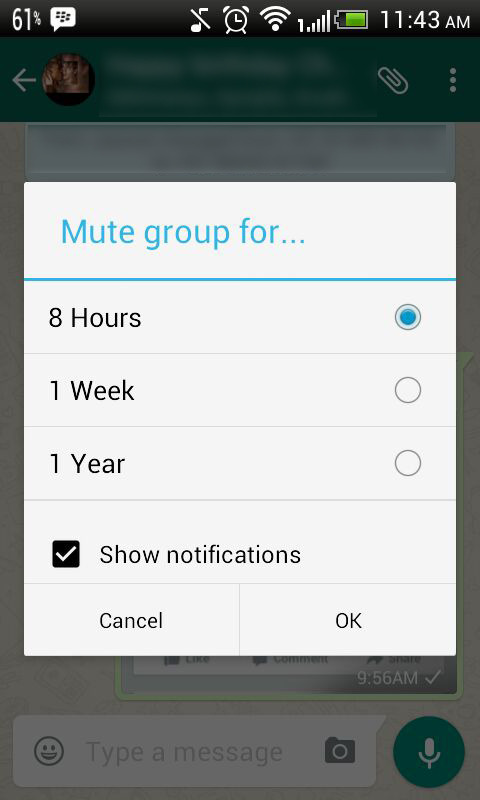
    Besides giving you the convenience of sharing things at one place, Group chats can be a bit noisy at times. No worries! Mute them and let your friends do the talking. Click on the group and from the drop-down menu, select Mute. Select the time frame for which you don’t want any updates and disable Show notifications.

    Disable Media Auto-Download

    whatsapp 3

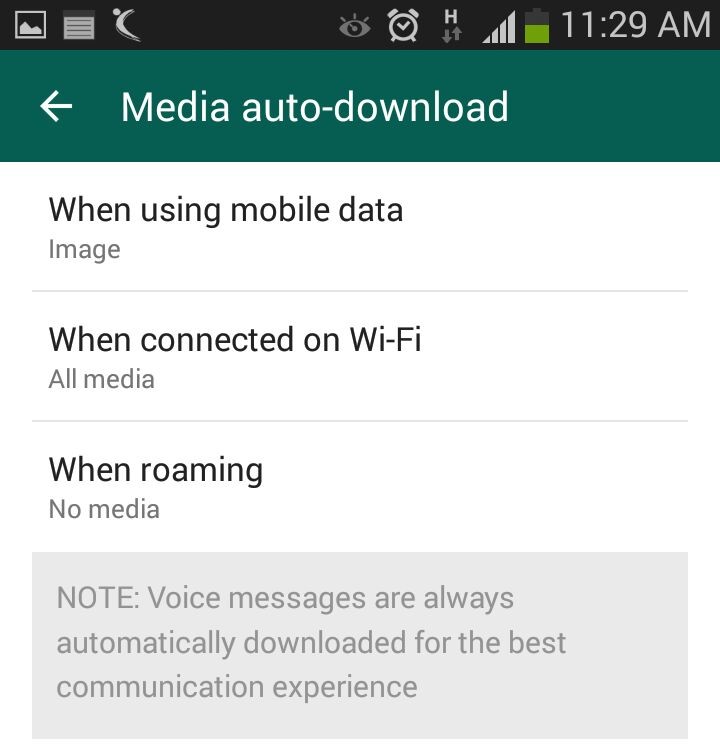
    Media auto-download gobbles up your internet data. Turn it off to save the bandwidth and specify WhatsApp when you want the audio and video files to be downloaded. Click on Settings > Chat settings > Media auto-download and choose from the options when using mobile data, Wi-Fi and roaming.

    Send Conversations Through Email

    whatsapp 4

    Users are going to love this feature, at least some of them. WhatsApp allows you keep a record of your chats on your PC or inbox by sending conversations through email. It’s as fast as any other mailing process and takes mere seconds. Long press the contact and tap on ‘Email chat’ from the chat menu. Add recipients’ email address and the conversation will be sent to the provided address. You can choose to include media file if you like.

    Avoid Blue Ticks

    whatsapp

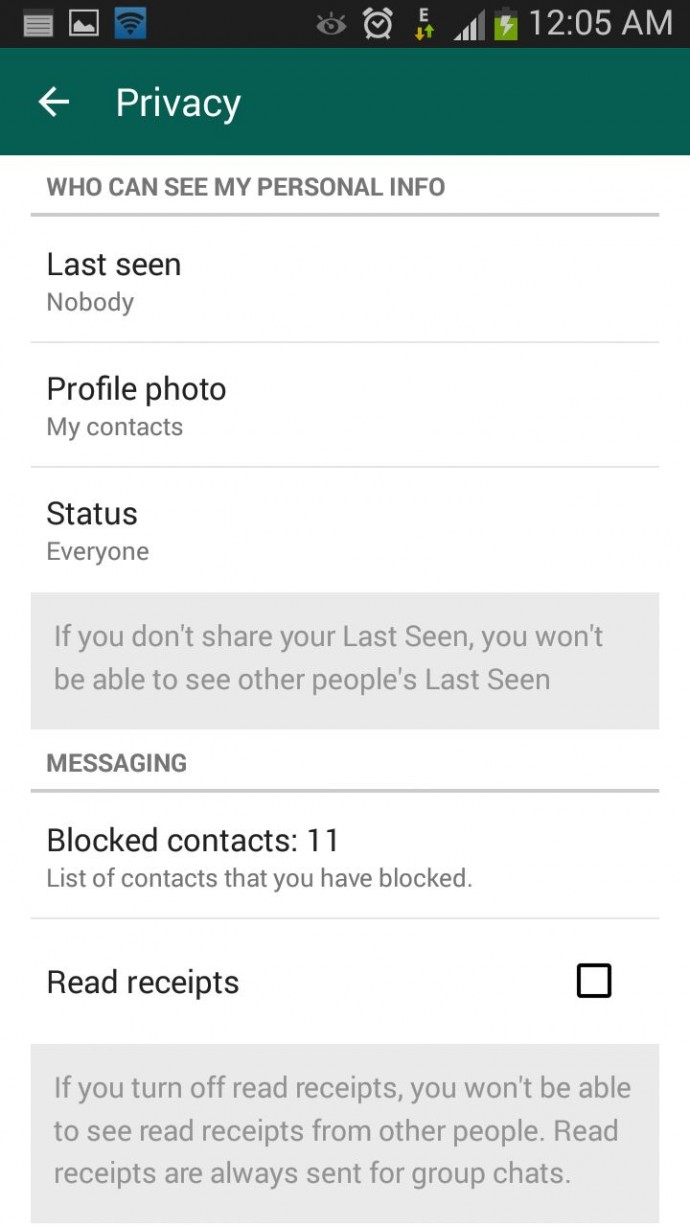
    Where the cross-platform social messaging service got acclaims for real-time conversation, blue ticks brought outrage for offering recipients with read receipts. The new WhatsApp version allows you to avoid this through a simple setting. Click on Settings > Account > Privacy and disable Read receipts if don’t want the sender to know about the delivery status. Now, neither you nor any sender will be able to see read receipts. Isn’t it useful?

  • Tips to Improve Your WiFi Connectivity

    Tips to Improve Your WiFi Connectivity

    Everyone needs a reliable WiFi connection today. Almost all our devices are WiFi enabled, and the Internet is a crucial part of our lives too. We stream radio, music and videos from any corner of our house and connect multiple devices thanks to the wireless technology. Although it is one of the most important part of our lives now; slow speed, bad receptions and other negative WiFi issues are very frustrating.

    Here are some common ways to boost your WiFi signal:

    The Perfect Spot for your Router

    Router Placement

    Just because the router looks dirty or outdated does not mean you hide it behind the desk or dressing table. In order to get the best signal, it must be put in a place that has minimum obstruction and is free of any walls. For example, the best place would be the living room because of the huge area. An elevated area would prove to be an advantage too.

    Switching the Channel

    WLAN-Channel-interference

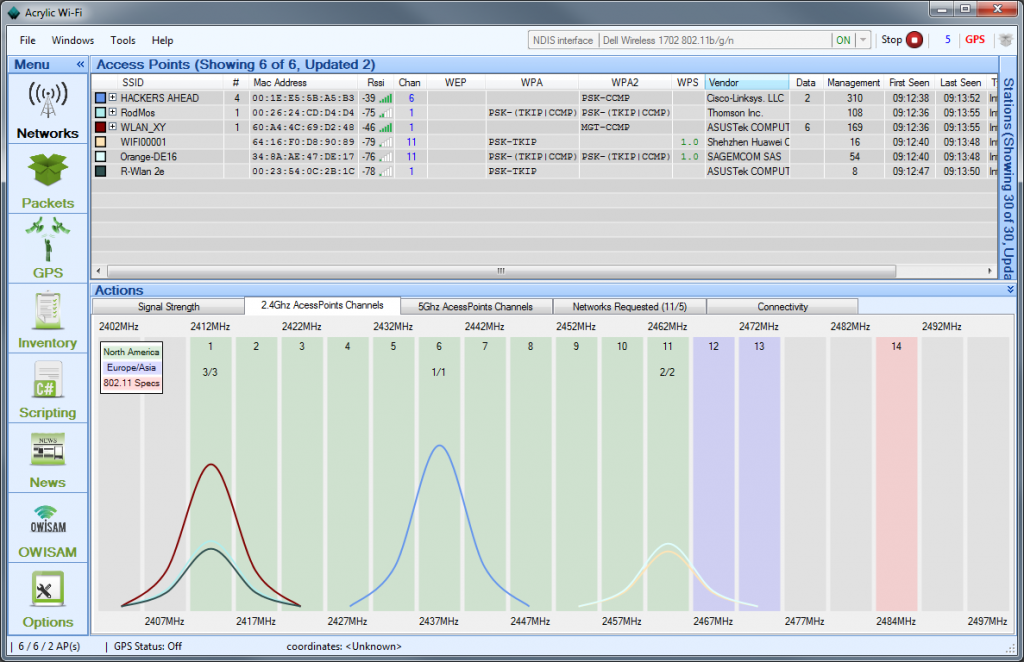
    Neighbouring WiFi signals tend to interfere with your own WiFi signals, thus leading to the degrading of the network. WiFi routers operate on different channels, and you would want to adjust your channel on to the one with minimum interference. The most common channels for wireless networking are channel 1,6 and 11.

    The more, the merrier

    wifi router

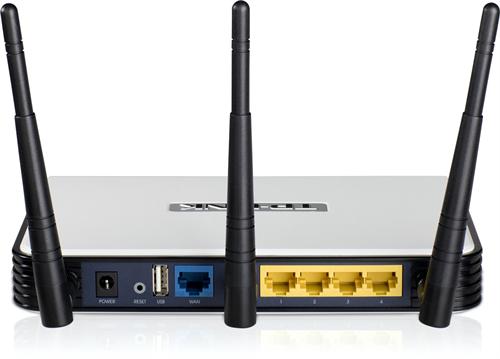
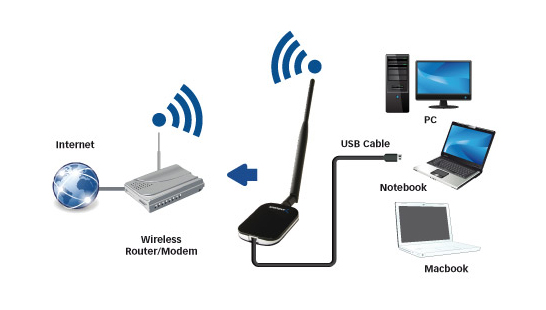
    Most WiFi routers come with two fixed antennas, which are obviously not strong enough to send signals to the distant corners of the house. Adding a booster antenna can solve this problem. With three antennas in place, it comfortably covers large areas, throughout entire homes or offices.

    Avoid Interfering Devices

    Wifi

    Devices like cell phones, cordless phones, microwaves can often interfere with your signal. Suggestions would be to move the router as far as you can from the interfering appliances.

    For example, a microwave operates at the same frequency as one of the WiFi access points, thus reducing efficiency and capacity of your access by 50%.

    Install a Wireless Repeater or Booster

    wireless repeater

    Attaching a wireless Booster will boost the strength of your wireless network. But, if you need to boost the range too, connect a wireless Repeater. These devices allow you to communicate with specific SSID or repeat the signal with the same or a different name, thus providing enhanced coverage and strength, without having an Ethernet cable to connect to the access points. The greatest benefit is it works like an extended signal provider, without requiring additional wiring. Both attachments are very cheap in cost.

  • Get an Organised Facebook Page With These 7 Tips And Tricks

    Get an Organised Facebook Page With These 7 Tips And Tricks

    Social platform Facebook is widely used by people of all groups. Though, it’s an amazing means to share updates, pictures and more with your friends and family, it sometimes pesters users through advertisements, invitations popping up to play games, posts sharing on your behalf and many more.

    Have you ever been in such circumstances where your mum scolded you on Facebook and likes of that post multiplied in minutes with people having a good laugh at it? Well, we all must have come across one or the other issues in the gigantic service, but fret not as the below-listed tips and tricks will keep awkward situations at bay.

    1. Remove Facebook Advertisements

    Advertisements are the most annoying part of any web page and same is the case with Facebook. Whenever we login to our account, a plethora of ads force us to leave the page. However, you would no longer be frustrated opening up your Facebook account as ‘Cleaner’ will keep your page tidy. Download Facebook Cleaner and avoid ads and updates on your account.

    2. Keep parents off Facebook
    facebook album link share

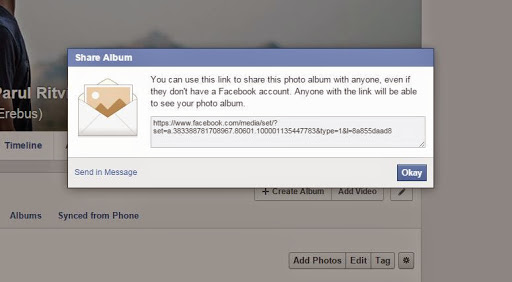
    Many a times it is seen that mums are interested in the activities of their grown-up kids. In spite of your mums’ continuous threats to join Facebook, you can sit back and relax as she would no longer complain. Now show her the pictures of your choice and be at the best of your behaviour. All you need to do is open the desired album, tap settings and copy the link. You can send this album as an email or via ‘Send in Message’ option, as per your liking.

    3. Discontinue auto-playing Facebook videos
    facebook video autoplay

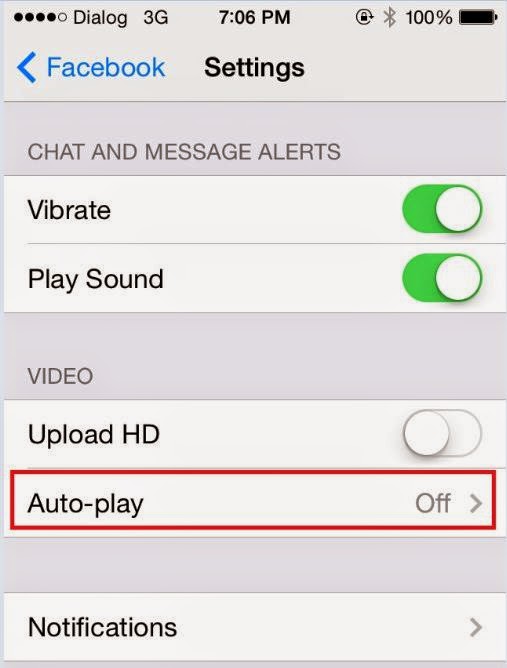
    ‘This video is completely ridiculous. Why the hell people update such stuff.’ You must have said similar lines for disgusting videos auto-playing on your Facebook page as you scroll down the recent activities of your friends. Many a times we don’t bother and pause the videos individually, but seldom when we’re in a hurry to sneak onto our account for a few minutes, the videos automatically start playing. Well, this can be avoided by making some slight changes. Click on Settings -> App settings and choose Off on the Video AutoPlay option on the Android phone. iOS users can turn it off by choosing Settings on the phone and then clicking Facebook>Settings>Off under Video Auto-play option.

    4. Restrict apps’ requests and notifications
    facebook block apps

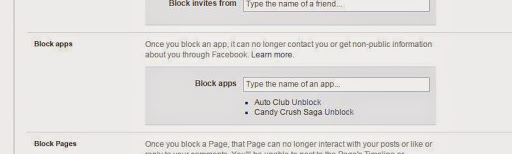
    With advancements in technology, games are no more the same as they used to be. You can now connect to Facebook and can ask your friends for help in case you’re stuck in the middle of some game and a lot more. Usually, these games send notifications to your friends or ask you to join it, which is quite pestering. However, you can easily get rid of the irritating updates by clicking the downward triangle icon. Then in your Setting options; click to customise your blocking options. Then enter the name of the apps you no longer want to get notifications of.

    5. Stop apps posting on your behalf
    facebook

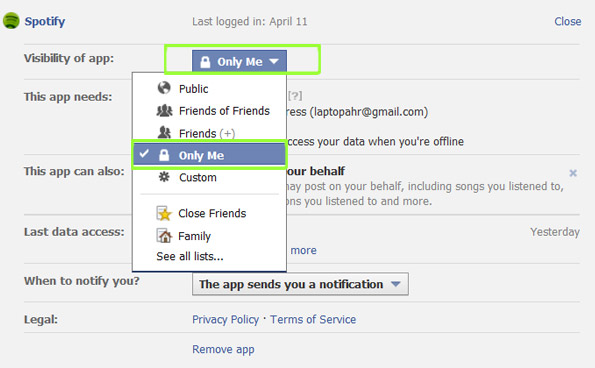
    Some of us involve ourselves in Candy Crush or Subway Surfer to beat the boredom, but at the same time we don’t want our boss or teachers get record of  our gaming achievements. Many apps insist on posting the recent record break or achievements on the wall, but preventing them is much easier than one would have thought. Go to downward triangle and choose Settings and then Apps. Edit the list of offending apps and set ‘Visibility of app field to ‘Only me’. Your achievements will be updated on the wall but only you will be able to see them.

    6. Unfollow People

    facebook unfollow

    You may be friends with some people, but you no longer desire to receive or share News Feeds with them. It can be your ex-boyfriend or an irritating friend. Removing them from your friends’ list may hurt them but there’s a way to ignore them without even letting them know.

    The easiest way to hide the activities is by going to the status of the unwanted person and choose ‘Unfollow [friend’s name]’. You can also remove a particular uninteresting post from appearing on your page. Also, confine status updates to your close friends by choosing a list in the Friends drop-down option before hitting post.

    7. Select Display Pictures Only on Facebook Profile Page
    Facebook Friends box

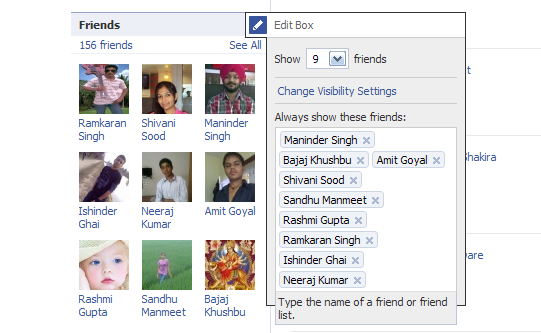
    On the left-hand corner of the page, there is a Friends box with tiny pictures of your friends. However, you don’t get in touch with them often and they still appear shamelessly on your page (not your friends, but Facebook is to be blamed for this). But there’s a way you can decide what all friends you want to see on your page. Go to the Edit option on your Friends box and list the names of your friends. The chosen friends will now appear in your Friends box.

  • Tips and Tricks to Make Sure You’re Never Left Stranded With a Drained Battery

    Tips and Tricks to Make Sure You’re Never Left Stranded With a Drained Battery

    It’s no mystery that smartphones are big time battery hoggers. Given the diverse range of multi-function capabilities, battery life has always been a concern for developers, manufacturers and users. Surely, the smart move would always be to have your charger handy. But life doesn’t always go according to the plan. Fortunately, there are plenty of options you can opt to stem the flow of juice from your device.

    Here are some essential tips to make sure your phone battery never dies when it is actually needed.

    1. Let the battery drain once in a while

    For optimum performance, ‘reboot’ your battery whenever you can by waiting to charge until the battery is down to about 10 percent. Then, charge it up to 100 percent—and remember not to overcharge it. Overcharging actually reduces a battery’s capacity, and every rechargeable battery can only go through the cycle a limited number of times.
    2. Minimise notifications

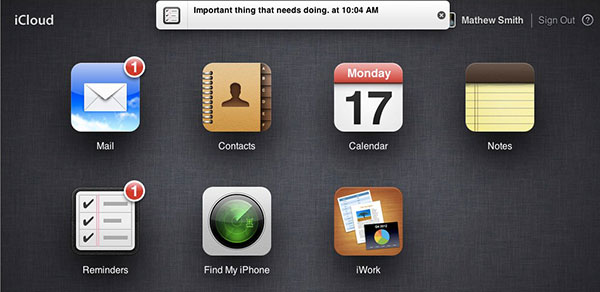
    icloud

    With constant connectivity to the Internet, we tend to get notifications on our smartphones all the time – be it updates on the latest news, emails, high scores from games, add-ons for apps etc. But I’m sure that you would only want to be notified about the more essential events like new text messages or messages from WhatsApp.  Set ‘Sleep time’ or ‘Blocking mode’ to switch off Wi-Fi and mobile data when you don’t need them. If your phone is basically off limits at work, set your device to not ring, vibrate or connect to the internet while you’re at work. Likewise, you can set your phone to Airplane mode when you’re asleep, or use sleep or blocking modes to set up limits for what your phone does during certain times of the day, whether that’s while you’re asleep, at work or in a meeting.

    3. Update your Apps regularly

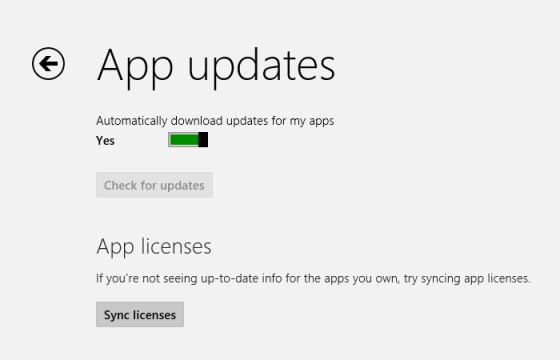
    your-apps-appupdates

    Keep your apps up to date. Developers often release updates for apps and games that offer improved optimisation and this can have a big impact on the battery life. If you discover a battery hog, then consider removing it. Don’t use task killer apps. Also, keep your smartphone as cool as possible. Sitting in direct sunlight on the dashboard of your car will actually drain the battery faster.

    4. Turn off ‘in-active Apps’

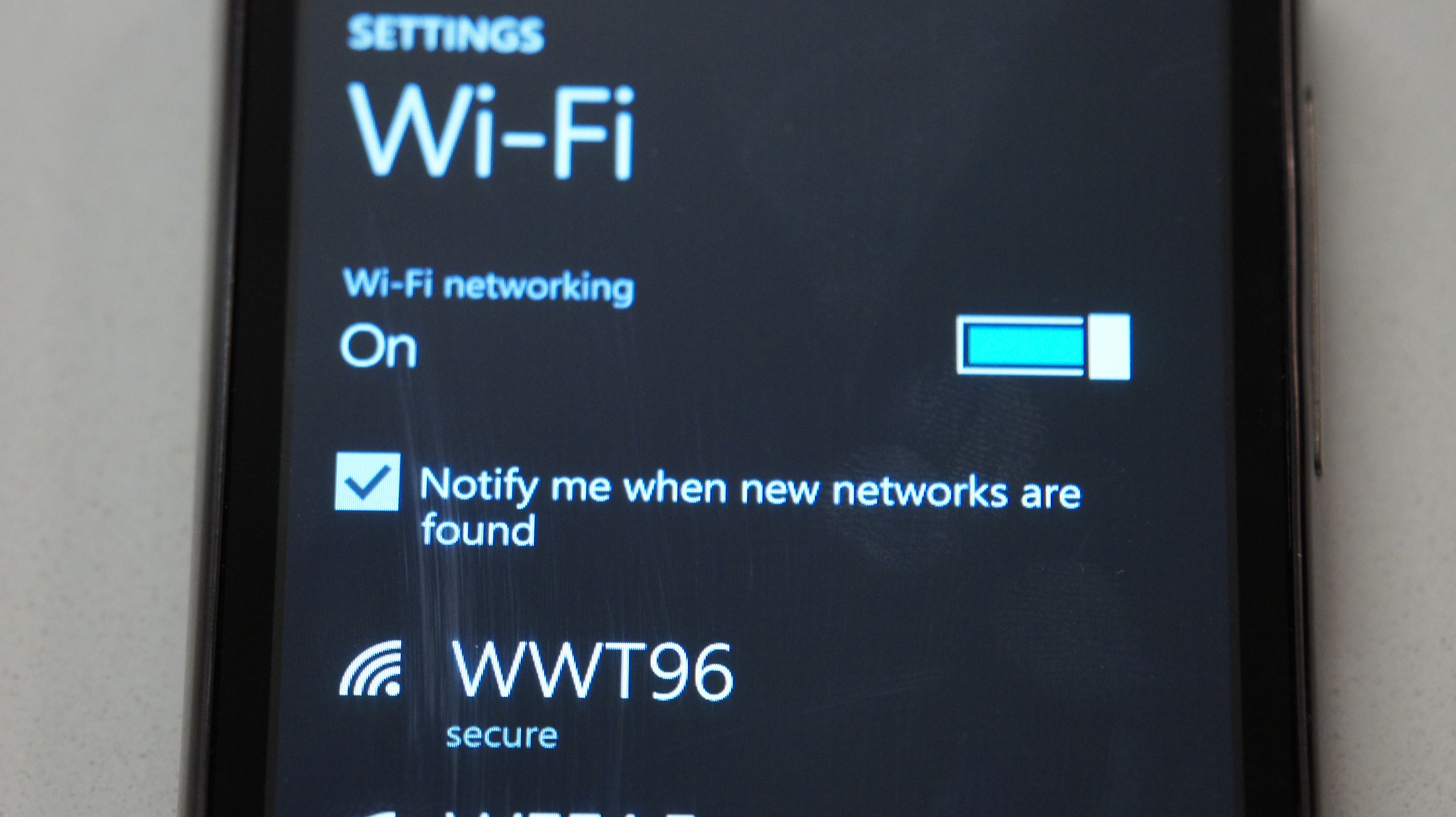
    Windows Phone Wifi

    It is amazing that today’s phones have LTE, Wi-Fi, NFC, GPS and Bluetooth, but do you really need them all round the clock? Your phone lets location-based apps reside in the background, and the constant drain of your battery will become noticeable, fast. Wi-Fi hogs a lot of juice on all devices because it’s always searching for a signal. You can also turn off 4G LTE if you happen to be somewhere without a strong signal. Keep the screen as dim as you can stand it, and close apps when you are done with them. This way, they don’t run in the background. Extend the refresh time: Set your email to get new messages every 15 minutes (or even longer) rather than as soon as they arrive on the server. And whenever possible, put your device to sleep. Also, unless you really need that added awareness, turn off vibration. It actually takes more power to vibrate your phone than it does to ring it.

    5. Invest in a Mi Power Bank

    Its massive capacity can handle all your charging needs for the weekend
    Its massive capacity can handle all your charging needs for the weekend

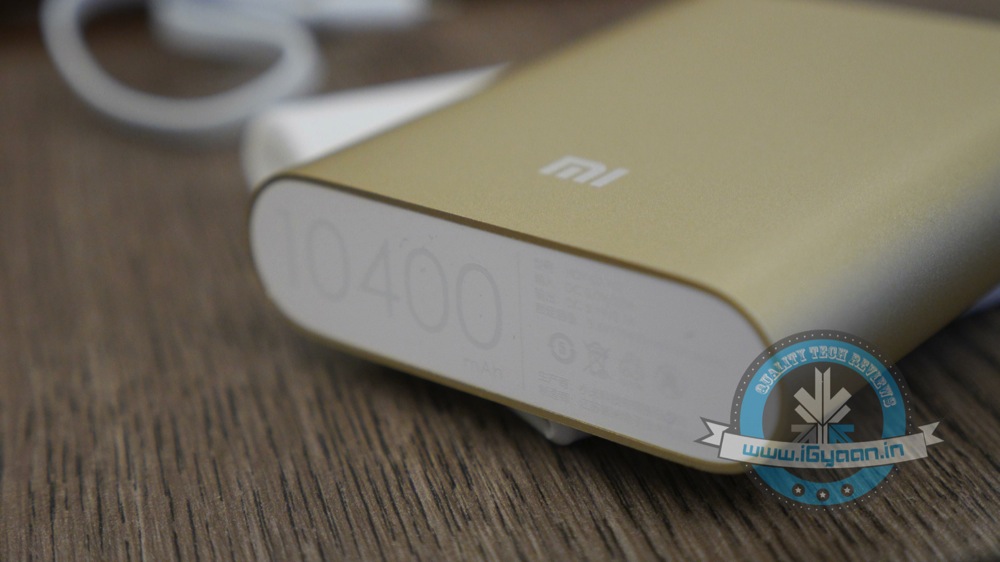
     Power Banks are the most popular and convenient way of charging your phone on the go. Xiaomi has two offerings at present in the power bank category.With massive capacity and modest pricing, the devices are perfect for the juice thirsty smartphone batteries. The Chinese electronics giant had launched 5200 mAh and 10400 mAh power bank variants. Read our full review of them here.

    6. Battery Cases

    i-Blason-Apple-iPhone-6-4.7-Inch-External-Protective-Battery-Case-74.99Battery cases combine a hardware enclosure, which protects your phone with an extended battery life that can double your phone’s endurance. You can find models compatible with popular phones from a variety of manufacturers. Also, carrying a power bank might be a tedious option when you are traveling and are during fieldwork for long hours. So, we’re listing some of the best ones for you:

    1. i-Blason cases for iPhones: i-Blason power cases come with amazing advantages which can help you charge your iPhone to 100% battery capacity while working, shopping, or travelling. They are fabricated with impact-absorbing materials and comes with rechargeable battery up to a 4700 mAh capacity battery.
    2. Mugen Power Battery Case for Moto G : Specifically for Moto G, this battery case provides you with 2800 mAh of extra battery. The case has a robust design which, according to makers, can withstand handfull of slips and falls.
    3. ZeroLemon for LG G3 : Rugged Zero Shock Hybrid Protection Case, ZeroLemon case includes Free High Quality Screen Protector and yes a whooping 9000 mAh extended battery (probably the world’s highest).
    4. Samsung Extra Battery Kit for Note 4 : This isn’t exactly a battery case, however it is as useful. The Spare Battery Charger is great for when your battery is low, but you need to continue using your device and are not able to attach it to a wall outlet. Samsung extra battery kit charges your battery without needing to connect the handset. Simply slip the battery into the storage compartment and connect your charging cable. The size of this charger makes it easy to charge at home or on the go.
  • Top 10 Tips and Tricks for Samsung Galaxy Note 4

    Top 10 Tips and Tricks for Samsung Galaxy Note 4

    Samsung’s Note franchise is known for its vast amount of features, which are equally useful for business and consumer purposes. The latest addition to this series, Galaxy Note 4, comes with a functionality that is overwhelming and a thoroughly cleaned-up TouchWiz interface that makes getting around the device straightforward and easy. However, there are fairly ample amount of things you’ll never come to know about your new Note 4 until you take a good look inside its menu.

    We are listing top 10 essential tips and tricks for Samsung Galaxy Note 4.

    1. Use of Motion Gestures

    Samsung Note 4 Features 2

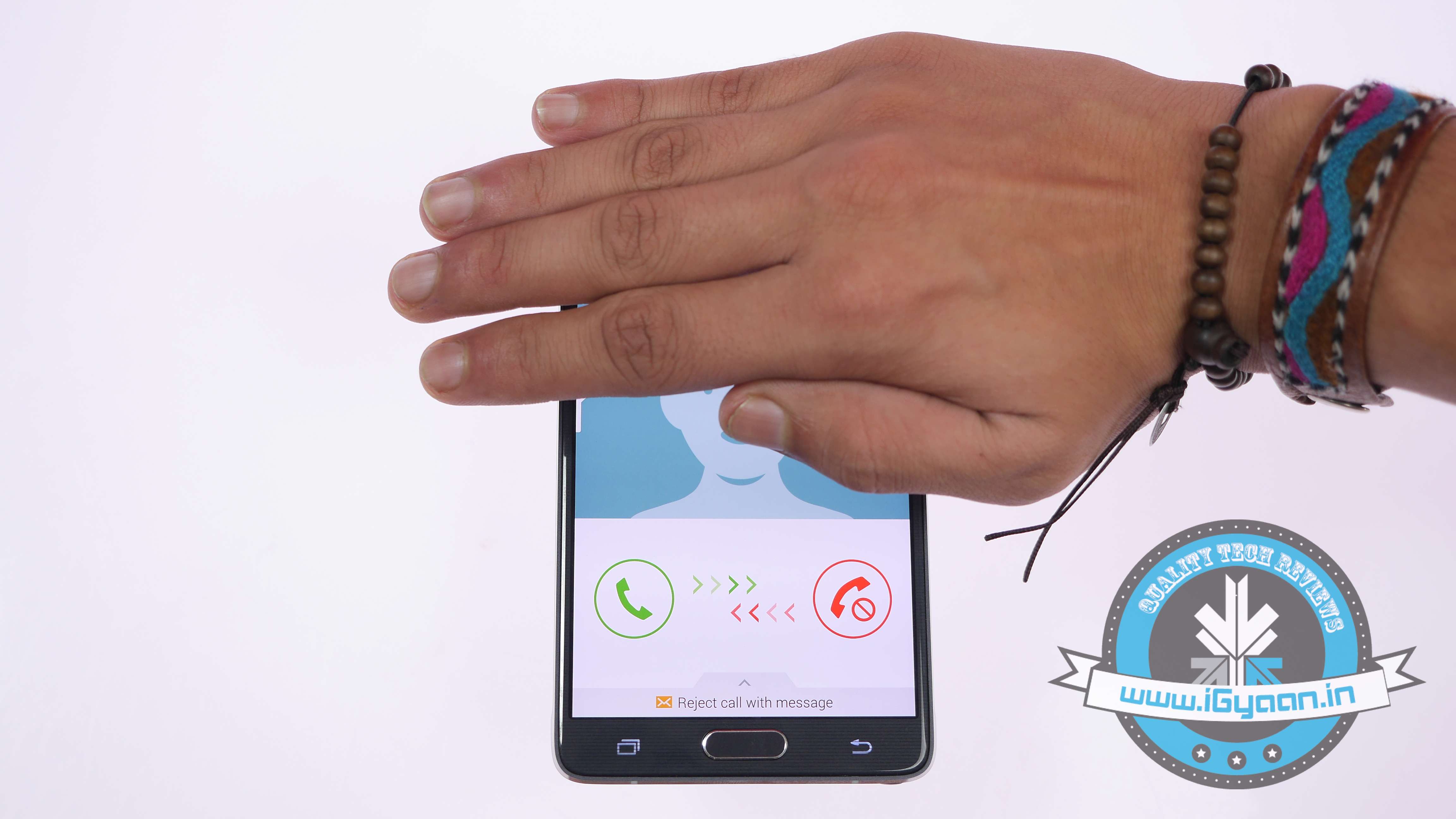
    Samsung has added some very convenient hand gesture controls in the new Note 4. The Note 4’s Motions and Gestures setting lets you customise a number of gesture controls. Switch on ‘Direct Call’ and it will let you pick up and hold the phablet to your ear to make a call to a predefined default number. The option of ‘Smart Alert’ will make your device vibrate to indicate new notifications and events when you pick it up. The ‘Mute/Pause’ option lets you mute incoming calls or alarms by turning the device over or placing your palm over it. Finally, ‘Palm Swipe to Capture’ lets you place the side of your hand on the screen and swipe it across to capture a screenshot.

    2. Customise your Notification Bar

    Samsung Note 4 Features 0

    You can customise the Quick Settings directly from the Settings panel. Also, you can drag the panel down from the top, tap the Quick Settings icon, and then tap the pencil icon to start editing.

    3. Use One-handed Operations

    Samsung Note 4 Features 12

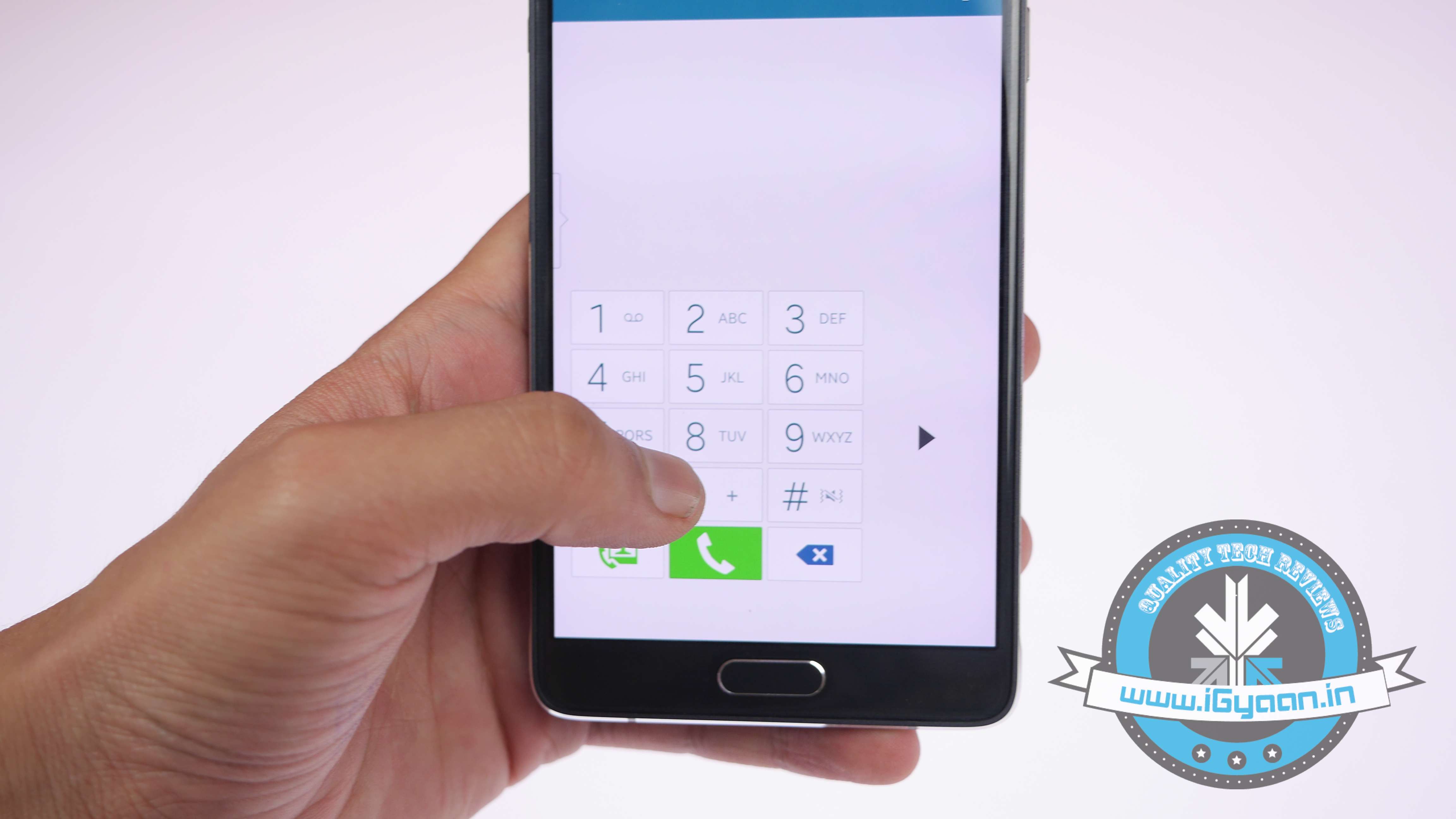
    Samsung has added loads of features to make one-handed operations more manageable. Under Settings > One-handed operation, you can choose from three different one-handed utilities. First one is the option of reducing the screen size that lets you adjust the screen size and layout by swiping out from the midpoint or either edge of the app. One-handed input compacts the apps down like the Dialer, in-call buttons, and Samsung keyboard. As soon as the on-going app compacts, the Side key panel will pop up Android’s navigation buttons on the screen so that you can access them quickly.

    4. Wider Selfies

    Samsung Note 4 Features 10

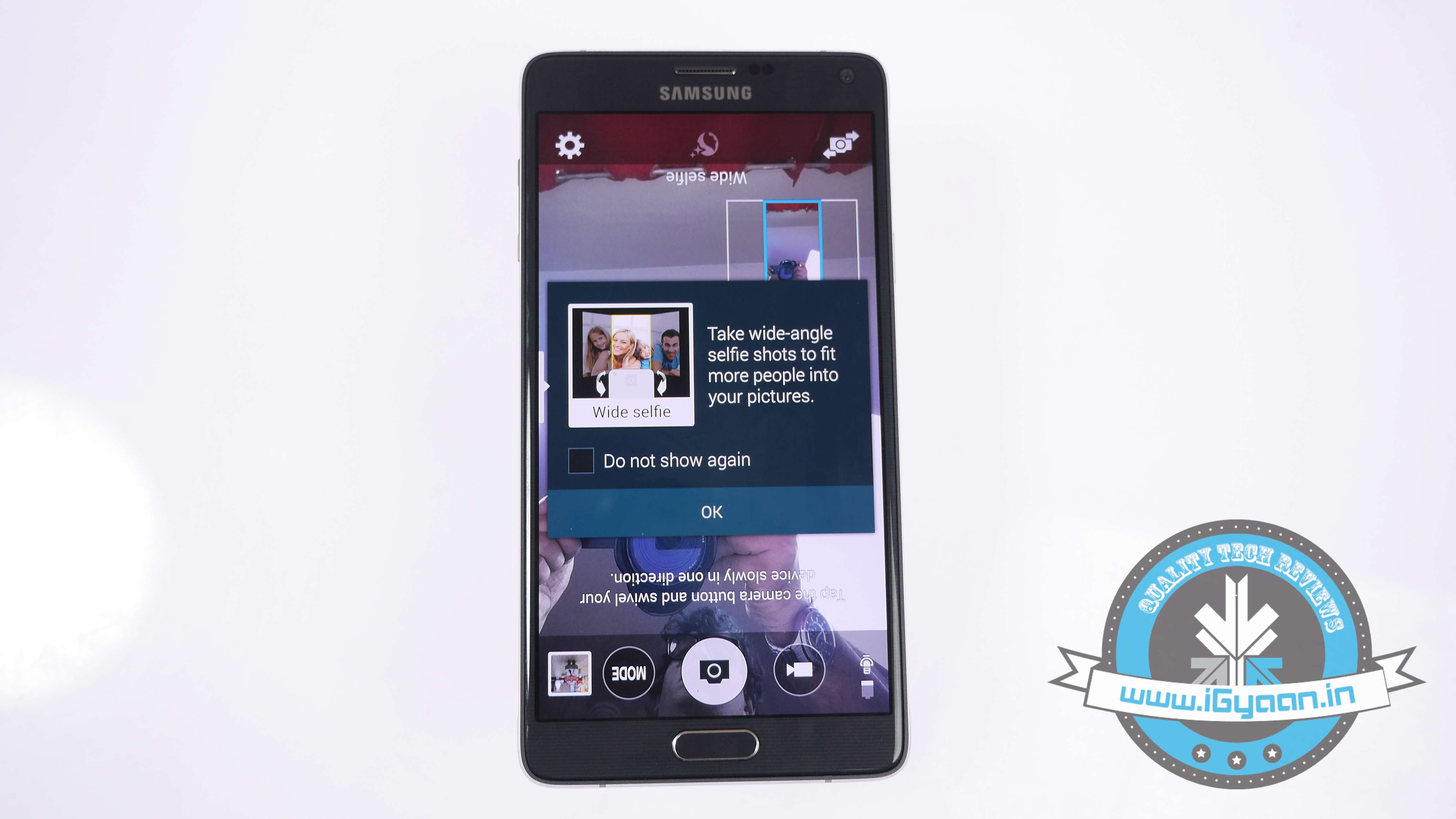
    Catering to the worldwide selfie trend, Samsung has added a Panorama-like selfie feature which lets you take wider selfies. Open your Note 4’s camera, switch to front camera, tap ‘Mode’ and hit the ‘Wide selfie’ option. Put your finger on the heart rate sensor and lift it to take a photo, and say ‘Cheese’. You’ll get a panorama-like outline which you have to fill by tilting the device left and right. When the blue frame has reached each end of the white frame, your spacious selfie is done.

    5. Use Alternative Commands to Snap Pictures

    Screenshot 2014-11-08 13.01.16

    Tap anywhere on the screen inside the camera app—just not on the shutter button—and then tap the Settings icon. Tap again for more settings. Tap on the volume key towards the bottom of the screen. From here, you can set the volume, whether it’s to snap a photo or record a video. Also, it acts as a zoom controller. In that same settings menu, you can turn on the voice control to take photos or record videos.

    6. S-Pen’s Improved Functionalities

    Samsung Note 4 Features 1

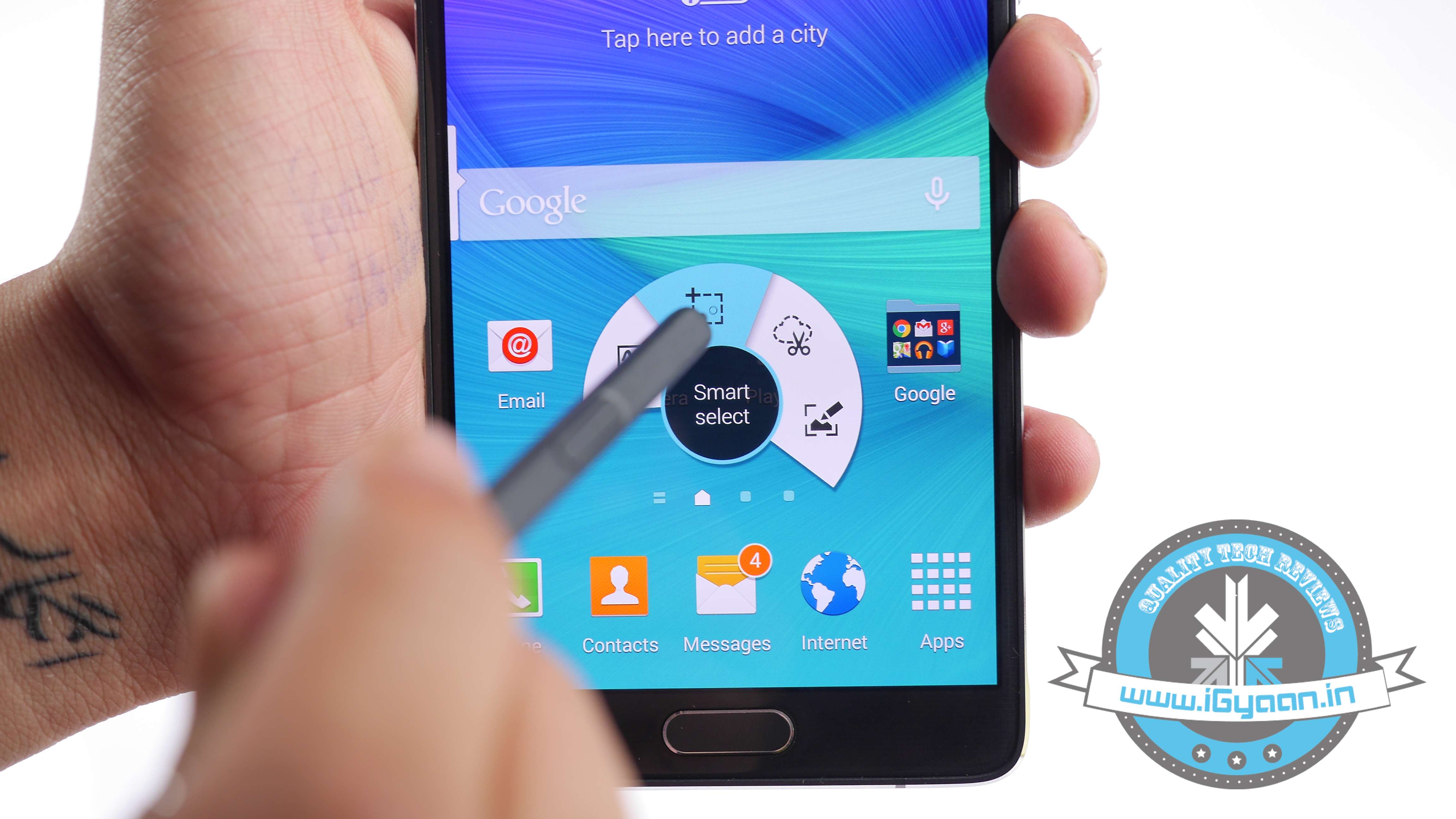
    One of the primary distinguishing features of Galaxy Note 4 is the integrated S Pen functionality. The S Pen has been around since the original Samsung Galaxy Note and has got better with every new release. The Air Command pop-up menu launched with the Note 3 and it has refined largely for the S Pen and large display of the Note line. One improvement that is tough to demonstrate is the increased pressure sensitivity from 1,000+ to over 2,000+ level. The most convenient feature is the ability of the S Pen to select multiple images by dragging it around the screen, more like you do it with your mouse on your desktop.

    7. Use your Note 4 with Gloves

    Samsung Note 4 Features 8

    Because, why not? It’s going to be winter soon and you’re probably going to be sporting gloves until next April. It’s hard to use a phone with gloves on. Fortunately, you can increase the Note 4 display’s touch sensitivity from the settings menu, so you don’t have to take those gloves off just to send a text message. And also, you won’t have to look forward to frost-bitten fingers anytime soon.

    8.  Play with Depth of Field

    Samsung Note 4 Features 4

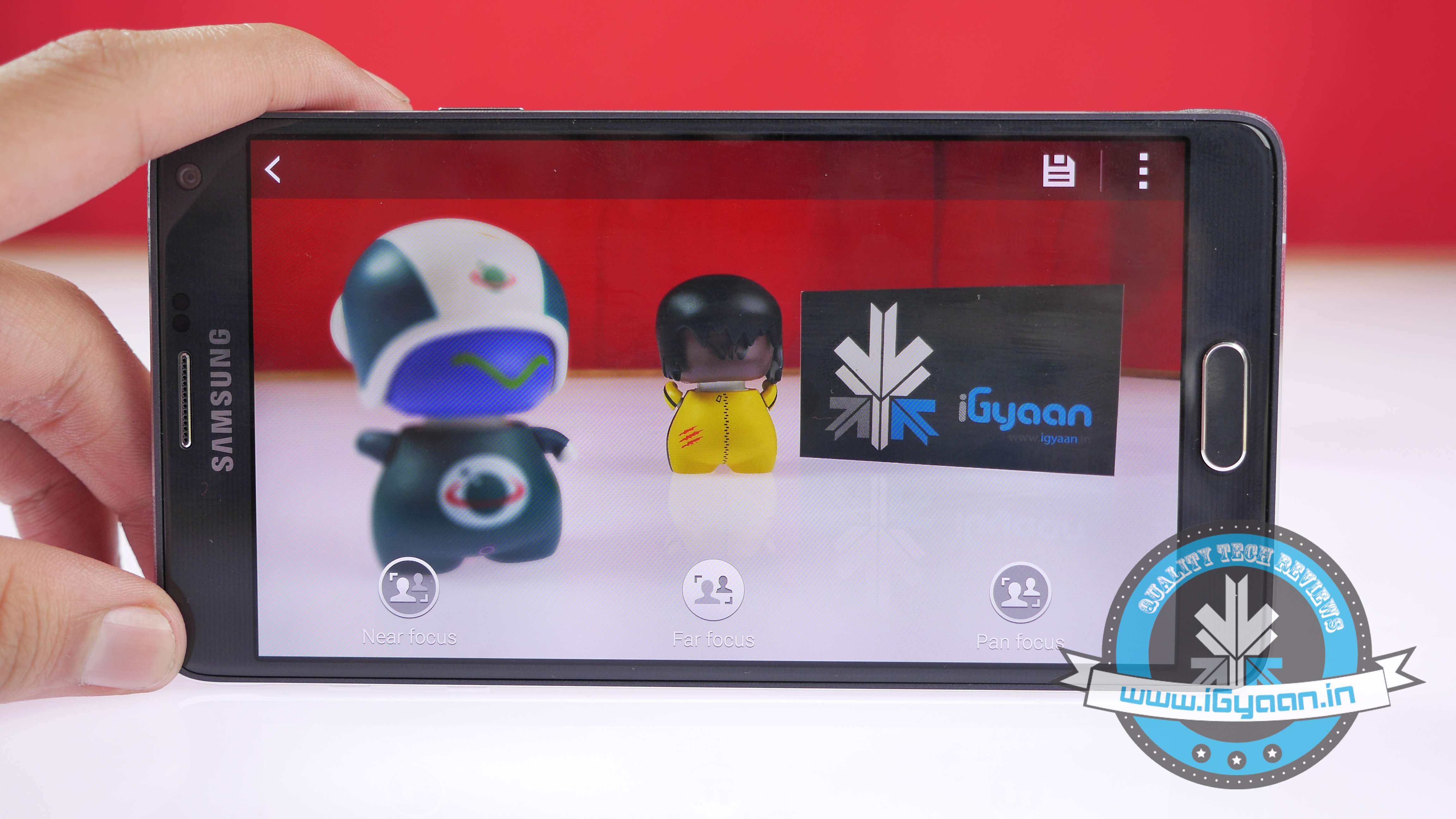
    Samsung followed suite of HTC by bringing in the Selective Focus feature. To enable it, open Camera, tap Mode, Selective Focus, and take a photo as usual. There are ‘Near focus’, ‘Far focus’, and ‘Pan focus’. The first makes the object of your photo stand out against a blurred background, the second does the opposite, and the last one makes both the subject and the background noticable.

    9. Get Notified when a Doorbell Rings or your Baby Cries:

    Samsung Note 4 Features 11
    There is built-in doorbell detector and baby crying detector in the new Note 4. When your phone detects these respective sounds, it makes the smartphone vibrate. You can find both these options in the Settings, Accessibility, Hearing, Sound detectors menu.

    10. The Music Square

    Samsung Note 4 Features 9

    Samsung has added an interesting feature in Note 4’s built-in Media player, called Music Square. You can find it inside the app’s three-square menu. The square has an algorithm which analyses your songs and matches them to four-mood categories. You can also create a mood-based playlist.

    Check out our video below and subscribe to our YouTube channel for the newest updates here:

  • Top 5 Tech Blunders You Should Avoid

    Top 5 Tech Blunders You Should Avoid

    You have money? Spend it! But make sure ensure you invest wisely. We have complied a list of 5 tech blunders you should never make:

    5. Buying Pirated Windows

    windows_not_genuine

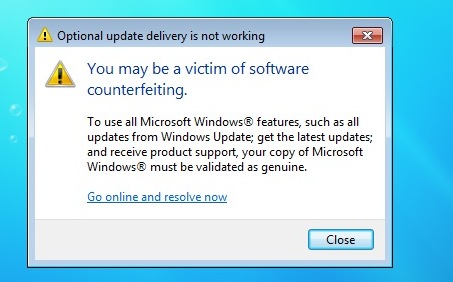
    One of the most common tech blunder that most people make is to Install the pirated version of Windows. But you have to ask yourself whether it’s worth losing and rebooting your system a year down the line, or paying a few extra thousand for the original windows now?

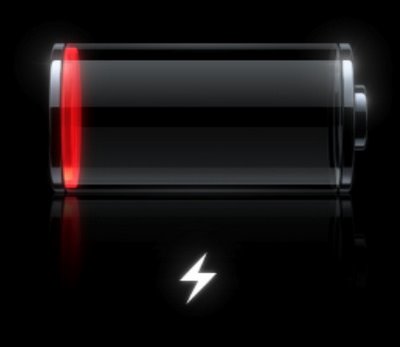
    4. Leaving the house with less than 62% battery life

    Low-battery

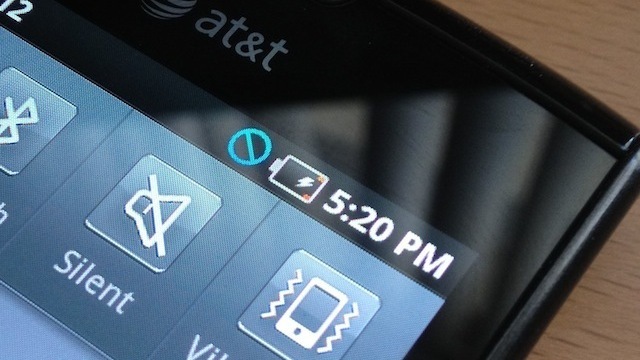
    Smartphones today either run on Android or iOS which are known for their User Interface. One thing, however, these phones are not reputed for is their battery life. Make sure you leave home with a fully charged phone or suffer the wrath of the missed calls.

    3. Buying a device with an old software

    android donut

    There are two kinds of old software buyers. One who don’t care about the latest version and the other who expect an upgrade to launch for their device. The latter are easy to spot since they are always seen complaining about their device.

    2. Investing in a 3D Tv

    3dtv

    Investing in a 3D TV is one of the biggest mistakes one could make. With only few movies and games available and scarcity of time; 3d TV’s are not the best bet yet.

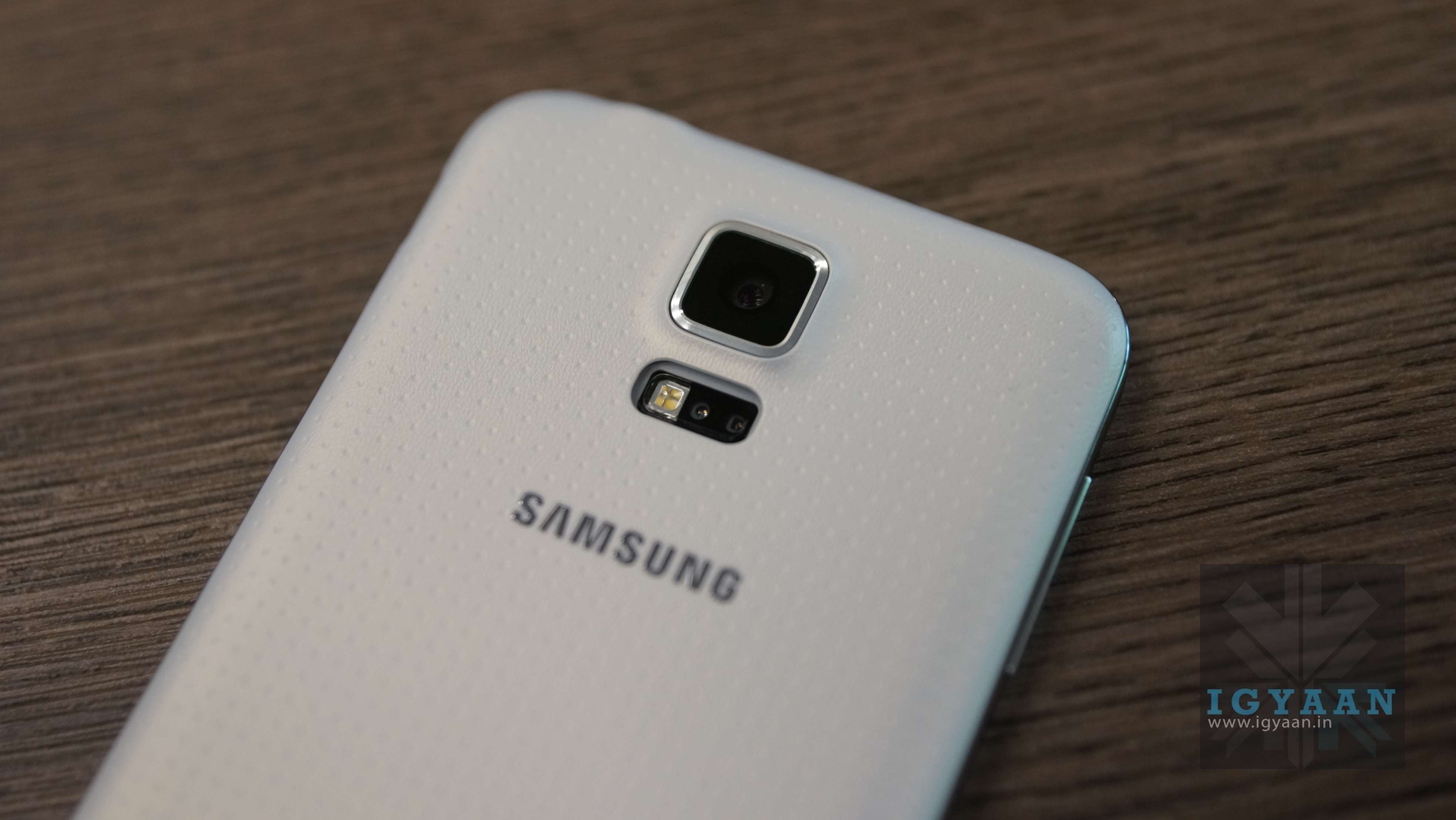
    1. Buying Samsung Galaxy S5 at full price

    Galaxy S5 review 5

    It was initially launched at a whooping Rs 53,500 after which the prices dropped drastically. For people who value their wealth and want their money’s worth, this is not the device for you.

    two kin

  • 5 Essential Tips To Get A Happy Motor Bike

    5 Essential Tips To Get A Happy Motor Bike

    Maintaining a bike is an easy routine. But for most it can be kind of troublesome and tiring. Taking care of your bike is the key to a bike that will serve you well for years.

    First of all change your engine oil or gear oil frequently as it lubricates your gears and engines, and also keeps your engine cool. Not changing the engine oil will cause further damage to the engine Which can’t be noticed early. The owner’s manual will specify how frequently the oil should be changed and this schedule should be followed.

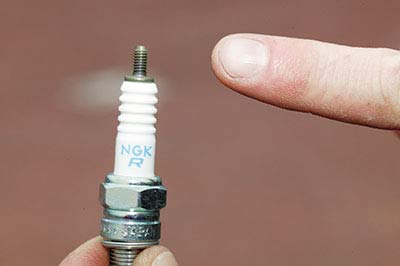
    Next is the spark plugs; it is the item which causes a spark which in turn will ignite the petrol. This should be changed as specified in the owner’s manual (or if a problem is suspected). It is critically important to use the correct spark plug grade and type. If the manual suggests an iridium plug then these can be worth the extra cost, lasting 16,000 kms or more. Considering that it can take several hours to access the spark plugs on many modern bikes this is money well spent.

    Spark Plug
    Spark Plug

    The chain which rotates the rear tire should be kept lubricated. If it’s kept lubricated, it should last for a very long time (50,000 kms is not unusual). If it’s not lubricated, it would be damaged due to excess heat and will wear. This cumulative wear on all the separate links makes the chain loose, and more likely to fall off the sprockets. This can be very dangerous indeed. The chain tightening procedure should be detailed in the owner’s manual, but bear in mind that too tight is a lot worse than too loose.

    Also washing the bike is part of maintaining. Keeping it clean of dirt will not only make it look nice, it has its benefits and it’s the key to a bike which lasts long. It also makes it easier to notice missing or loose bolts and nuts.

    Washing the bike.
    Washing the bike.

    Checking the tire treads every once a week is a good habit. You should change the tyres when you notice a change in the way the bike handles, or at the very latest when the tread is worn down to the wear bars. Under-inflated tyres will overheat and may fail. Over-inflated tyres will give less than optimal grip specially on Indian roads.

iGyaan Network
Privacy Overview

This website uses cookies so that we can provide you with the best user experience possible. Cookie information is stored in your browser and performs functions such as recognising you when you return to our website and helping our team to understand which sections of the website you find most interesting and useful.