
How to : Set up your Google Plus Account Step by Step

Today we are going to help you set up a Google Plus Account – Step By Step


Step 1 : Invitations

If you don’t already have an invitation to Google plus, then you should consider making friends with better people, like us.

Hit this link to get an Invite 

Note:

  • You will need a gmail email address or a fully qualified google profile to get this to work.
  • Google apps and associated email addresses  are currently not supported

When you get an invite it should look something like the image below
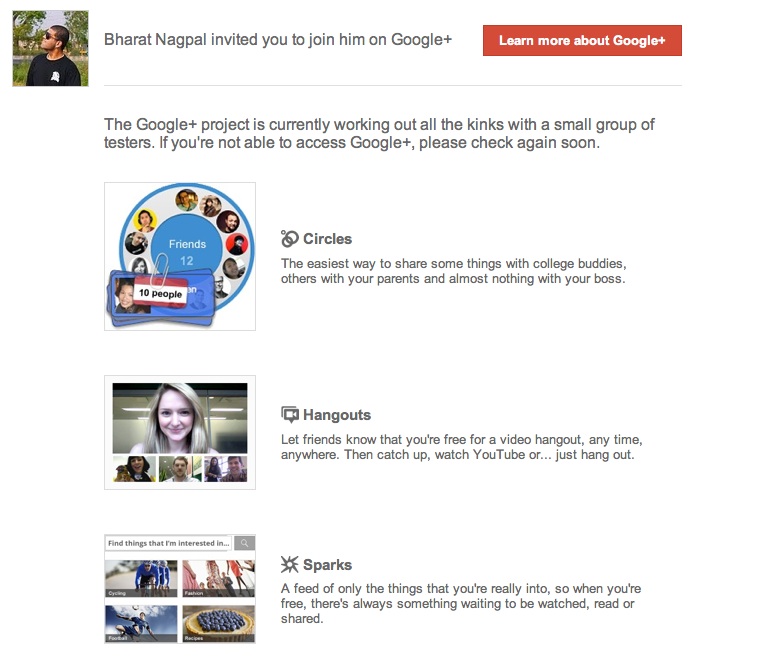


After you get an invite  you will need to click the button :  


Step 2 : Register 

Once you click on the button you will be redirected to the registration page:


Add your details, upload and crop your profile Photo.

And you are all set to CLICK JOIN


Step 3 : Profile

Now that you are in, you would want to set up your profile.

You will be greeted with a similar welcome page : 
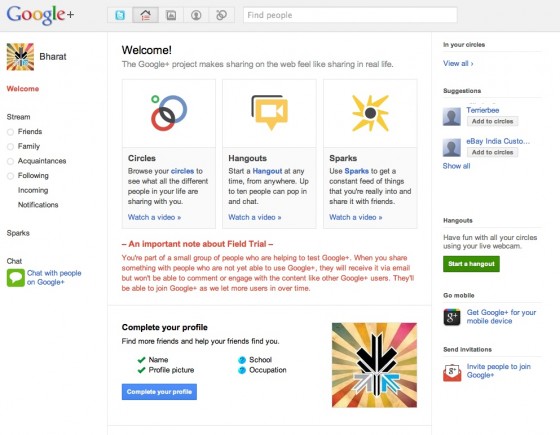
welcome page
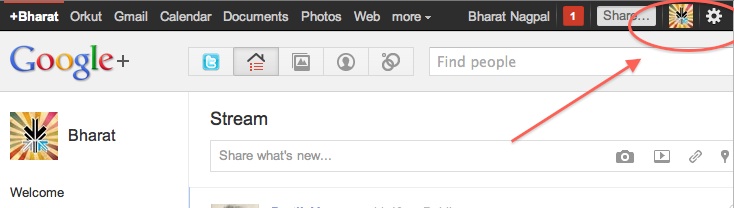
  • Click the sprocket settings button on the top right of you browser to get into Google Plus settings.


  • Next, Set up your privacy and sharing settings in the page.
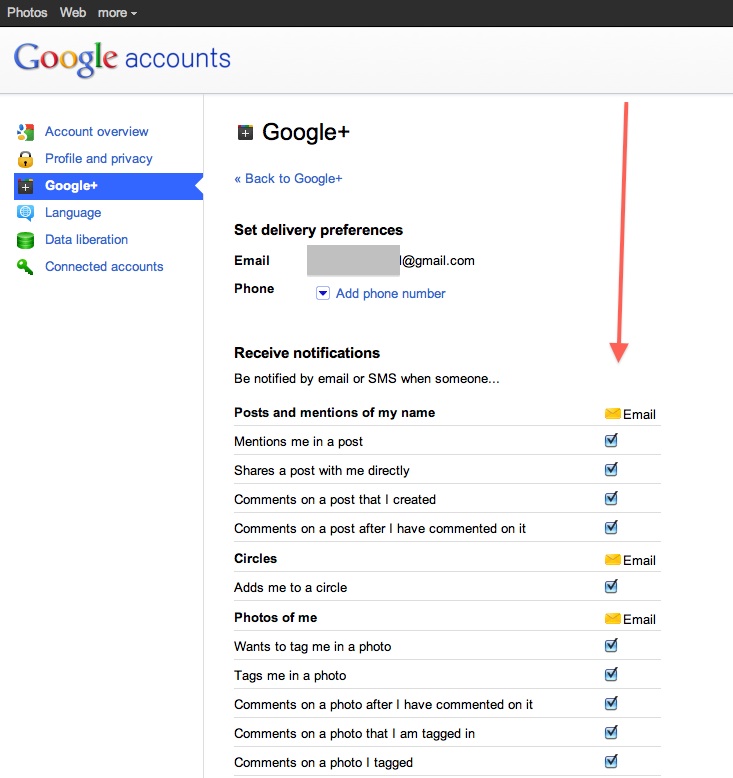
HIT – SAVE, and you are done!


Step 4 : Setting up Circles

Hit the circles button on your profile page to set up Circles.


Once on the circles page you will be able to , find people by email addresses or by searching for them over other networks and email services like yahoo mail or hotmail.

Simple create circles of your choice, Like Friends, Family, Colleagues, Game Buddies, College, etc.

You can also add the same person to multiple circles.

Once you are done finding and adding your friends, its time to start posting!.


Step 5 : First Post!

  • Simple click on the share bar in your Google Plus homepage and start writing.
  • You can add media like videos or photos or even links and location from where you are posting.
  • Also select what all circles you would like to share this post with.
  • You can also leave it blank to share with everyone
Once you are done typing click the green Share button.

Congratulations you have successfully started using Google Plus (+)


You can now start inviting your friends too!
Stay tuned for an update to this post where we share details about Sparks, Hangouts and Streams



We also have a tutorial on how to transfer your Facebook friends to Google + here.

Comments

23 responses to “How to : Set up your Google Plus Account Step by Step”

  1. srinivasnaroju Avatar

    please send me google plus invitation..at [email protected]

  2. Parweziqbal79 Avatar
    Parweziqbal79

    please send me google plus invitation..at  [email protected]

  3. Lakshmi Haritha994 Avatar
    Lakshmi Haritha994

    please send me google plus invitation..at [email protected]

  4. Saurav kumar Avatar
    Saurav kumar

    please send me g+ invitation,,,,,,,,,,,,

  5. Utkarshrajmallick Avatar
    Utkarshrajmallick

    sir can u give me 2 invitations email ids – [email protected] , utkarshrajmallick6@gmail:disqus .com

  6. Sameh2008vip Avatar
    Sameh2008vip

    send me an invitation
    [email protected]

  7. Pardeepsheokand898 Avatar
    Pardeepsheokand898

    please send me the invitation sir….my id is [email protected]     .thanx in advance

  8. Poblano Sexy Avatar
    Poblano Sexy

    Perfeck

  9. Ksanjeev099 Avatar
    Ksanjeev099

    please send me google plus invitation sir my email id  [email protected]

  10. Marwankhairy Avatar
    Marwankhairy

    Can just someone send me invittion to my email address    [email protected]

    thanx

  11. Khaledkazi Avatar
    Khaledkazi

    Thanks IGyaan who really help me to join the Gooogle+

  12. Kishore Avatar
    Kishore

    please send me google plus invitation sir my email id ———-love3kk@gmail:disqus .com

    thank u very much
    kishore kumar

  13. Singhshail101 Avatar
    Singhshail101

    please send me google pluse invitation my mail ID is [email protected]

    Best regards,
    Shail Singh

  14. Dipak1432003 Avatar
    Dipak1432003

    Plz send me an invitation, my ID is – [email protected]

    Regards,
    Dipak

  15. Graphic Arts Avatar

    please send me a google plus invitation at [email protected]   thank you so much!

  16. shalimar Avatar
    shalimar

    Hi my gmail id is [email protected] please please please invite me.

  17. Surender Avatar
    Surender

    can you invite me ,?

  18. alok kumar Avatar
    alok kumar

    Hi my gmail id is [email protected] please please please invite me..

  19. robert italianboo Avatar
    robert italianboo

    please send me a google plus invitation at [email protected]   thank you much!

  20. Pmr Marapa3 Avatar
    Pmr Marapa3

    plz send me google plus invitation [email protected]

  21. Pushkanthdigital Avatar
    Pushkanthdigital

    Hi, send me an Invite for google plus please.ID … [email protected]

  22. Trayan Genchev Avatar
    Trayan Genchev

    Hi, send me an Invite for google plus please. ID is [email protected]

  23. G. S Avatar
    G. S

    Hi, please send me request in googleplus my id is [email protected]

Leave a Reply to Ksanjeev099 Cancel reply

Your email address will not be published. Required fields are marked *

iGyaan Network
Privacy Overview

This website uses cookies so that we can provide you with the best user experience possible. Cookie information is stored in your browser and performs functions such as recognising you when you return to our website and helping our team to understand which sections of the website you find most interesting and useful.

Share via