Tag: Do It Yourself

  • Tips and Tricks to Keep Your Laptop Cool

    Tips and Tricks to Keep Your Laptop Cool

    Things tend to heat up a lot in the summer, especially all our electronic devices that we use everyday. Many laptops bake because the fan on the bottom is blocked, and the hard drive then quickly crashes. By using one (or all) of these techniques, you can keep your laptop cool and efficient without squandering your money on a cooling pad, we have got five really simple hacks for you:

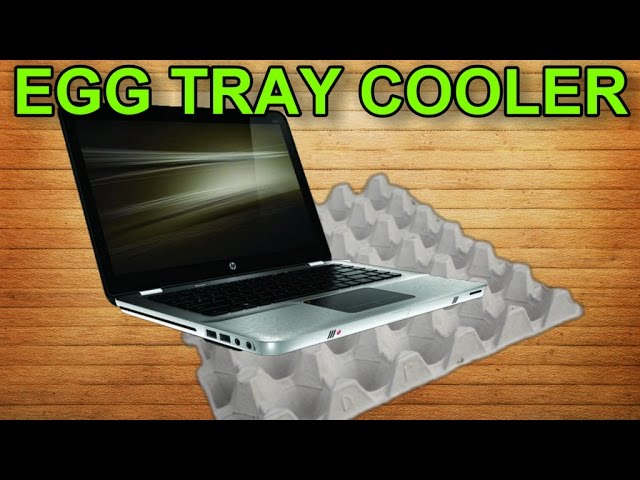
    1. Use egg cartons as Trays
    sddefault

    Flip some empty egg cartons over and you will get plenty of airflow. Plus point, you won’t burn your legs if you want to actually put your laptop on your lap. It is not the best-looking thing, but it is affordable and gets the job done. An ugly setting is better than an overheating machine.

    2. Keep the surrounding cool

    0013
    0013

    Keep a cool atmosphere. Try putting your laptop in an air-conditioned or cool area to allow your system to cool down and prevent it from heating.

    3. Clean out the Dust
    clean

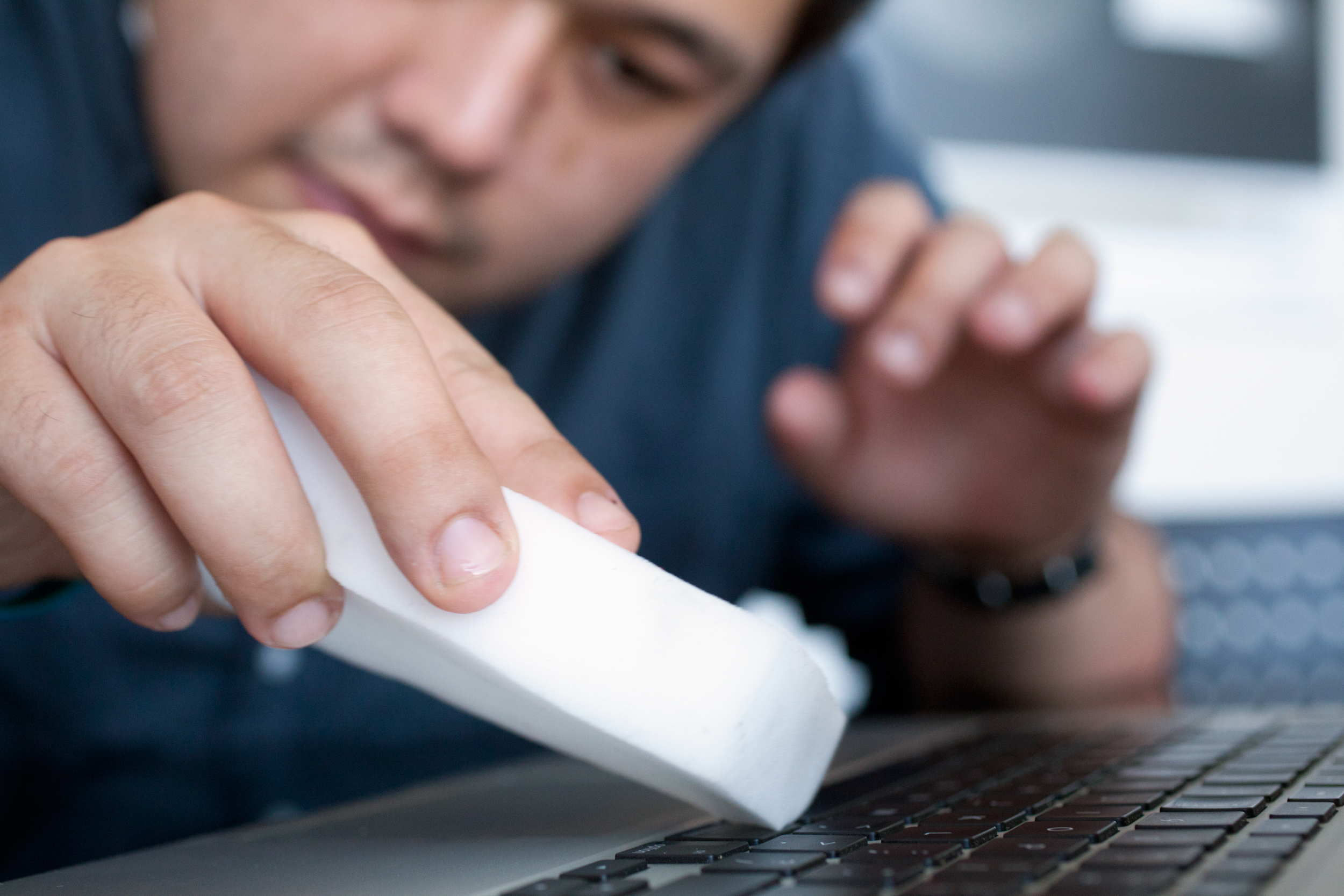
    Dust are the main reason laptops and computers heat up. There are many ways to address this problem. The simplest way is to buy a can of compressed air and spray it into the vents in swift and short bursts. Be sure your laptop is switched off and unplugged before doing so. You can also use a cotton swab to clean out any visible dust or suck it out using a computer vacuum.

    4. Check and adjust your settings
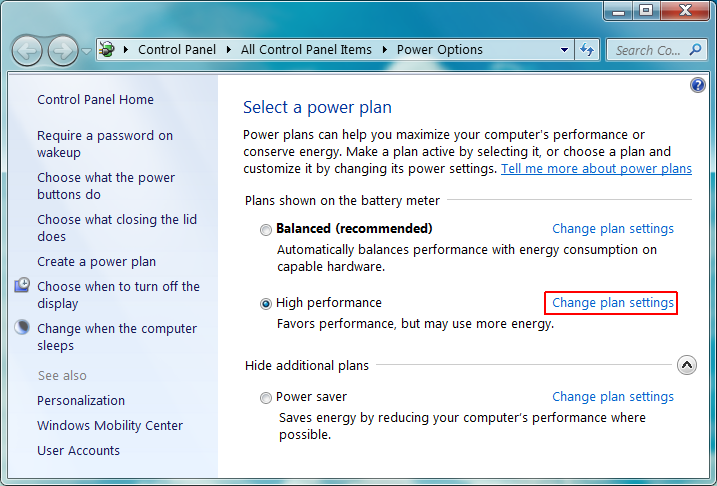
    Change-Plan-Settings

    Make sure your laptop is set up to manage a heavy graphics load. Gamers and movie watchers, this mainly concerns you. At the same time, if your software runs fine as is, do not update it unnecessarily. The goal is to reduce your machine’s workload. If your BIOS settings were freshly updated, for example, and your fan starts acting up shortly after that, you might try reinstalling them. Decreasing your screen’s brightness, unplugging U.S.B. powered devices and terminating idle apps that are hogging up CPU time will also further cool things down.

    5. Give it some rest
    maxresdefault

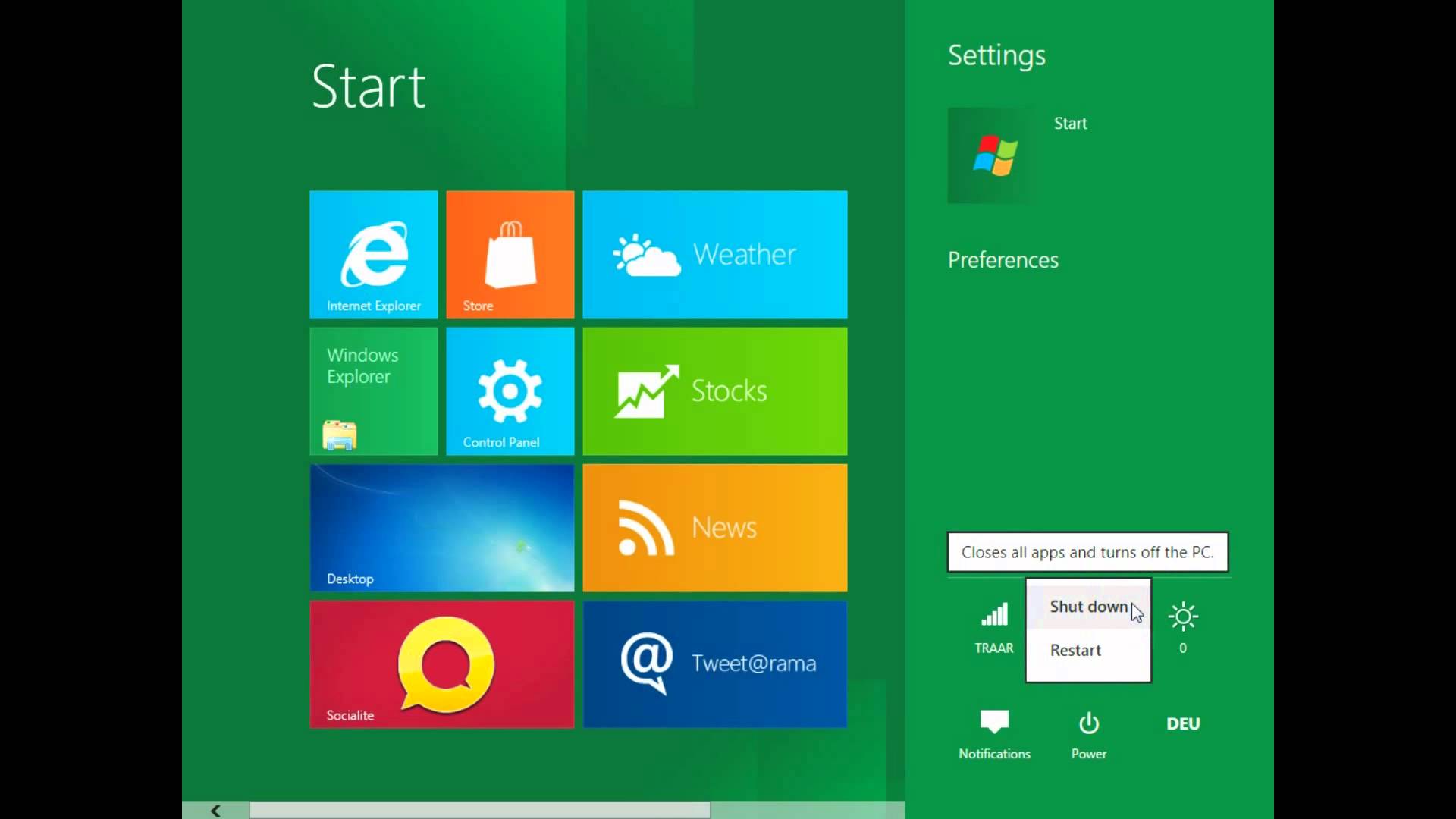
    If you have a desktop and a laptop, divide your time between the two. Don’t sleep/hibernate/shut down every other second. If you just logged on to check your e-mail, better to leave your laptop on than to turn it off shortly after, especially if you may use it again later that day. Your laptop might not be able to take as much exploitation as your desktop, so treat it with care.
  • 4 Simple Tips to Help Safeguard Your Smartphone this Monsoon

    4 Simple Tips to Help Safeguard Your Smartphone this Monsoon

    While we’re relieved the rain is washing away the scorching summer, monsoon can be tedious. Clothes don’t dry, the roads are mucky, and you’re perpetually losing your umbrella. More than anything, our precious smartphones need protection. Now, unless your phone comes with an inbuilt mechanism that expels water as it comes, it is most likely that it need protection.

    To make sure you have a happy monsoon, we bring some easy hacks to protect your phone:

    1. Use a spare phone

    nokia1100

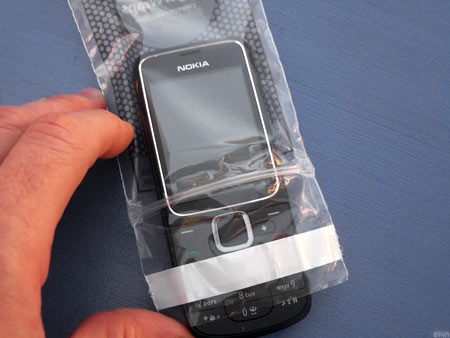
    In this case, the saying ‘better to be safe than sorry’ should be implemented. You can just leave aside your smartphone at home and use a spare phone for a while, maybe a Nokia 1100 or a reliable oldie that has what it takes to withstand the season. But remember to cover up your old device with a safe plastic casing.

    2. Zip Lock

    zip lock

    Normally, Ziplock pouches are used to store food or medicines. But it is also one of the cheapest ways to protect your phone from getting drenched.

    If this option is not available, any plastic bag would work out just fine. These are the most basic methods to protect your smartphone, and it always works out.

    3. Use Cling-film or Balloons

    Another low-cost method, cling film can help save your smartphone from the damage. Cling-film is a plastic foil with which our mothers used to pack us our tiffins. Tight and air-locking, this is yet another cheap method to protect your smartphone.

    Wondering how you can use a balloon? Take an inflated balloon and place the phone on it, screen side facing towards the balloon. Now slowly, start deflating the balloon till the end. You will see the mobile completely wrapped up with the rubber around it. The cover is water-tight and will protect your phone from the water-induced damage. Just for more protection, you can repeat the procedure again on the other side of the handset, thus gaining a double layer.

    4. Conceal the openings on your phone

    Samsung-Galaxy-S4-Mini-Top-1280x853

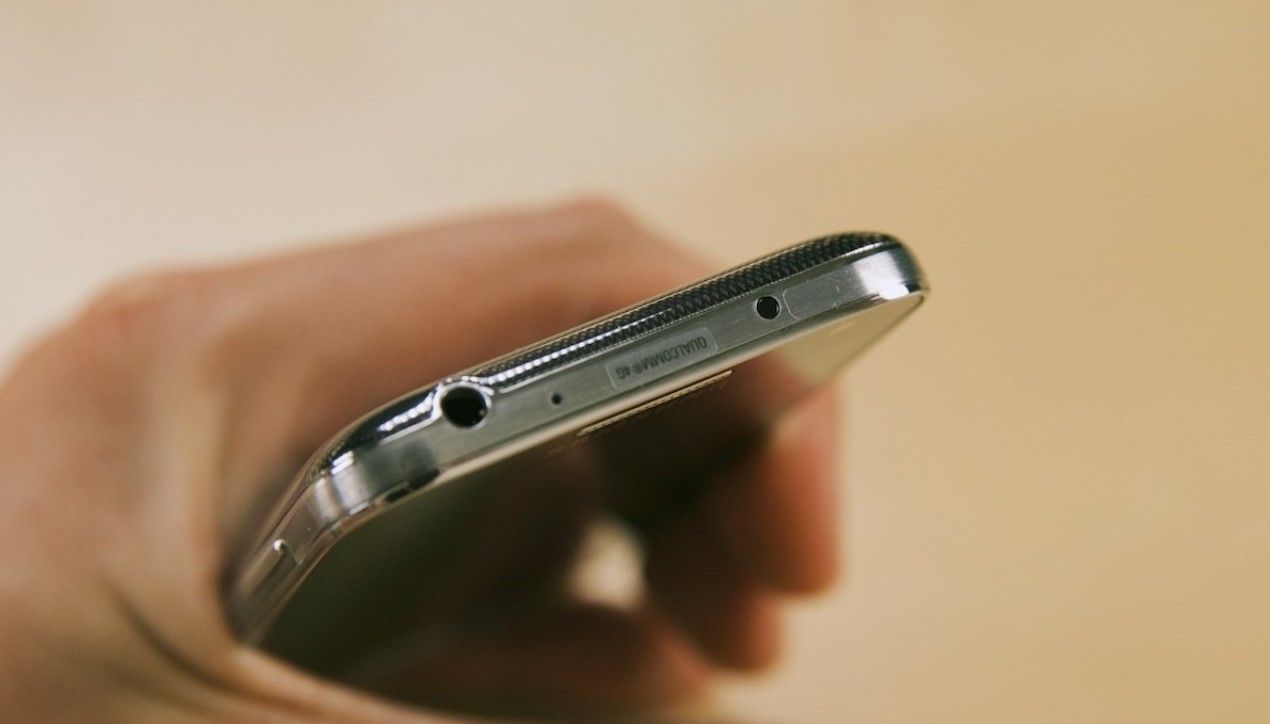
    Try to conceal the open areas of your phone like the micro-USB port, headphone jacks, speakers, etc with a tape. Be warned! Though this method is not a foolproof solution, it may help reducing the risk of water entering the device.

  • How to Install Android M on Your Nexus Device

    How to Install Android M on Your Nexus Device

    At the I/O 2015 conference, Google announced the next version of Android. The company detailed some interesting features that will be available on Android devices later this year. With Android M, they have focused on improving the system’s overall quality and fixing the bugs found on Lollipop. While Google SVP Sundar Pichai’s speech seemed impressive, we wanted to see for ourselves what the fuss was all about.

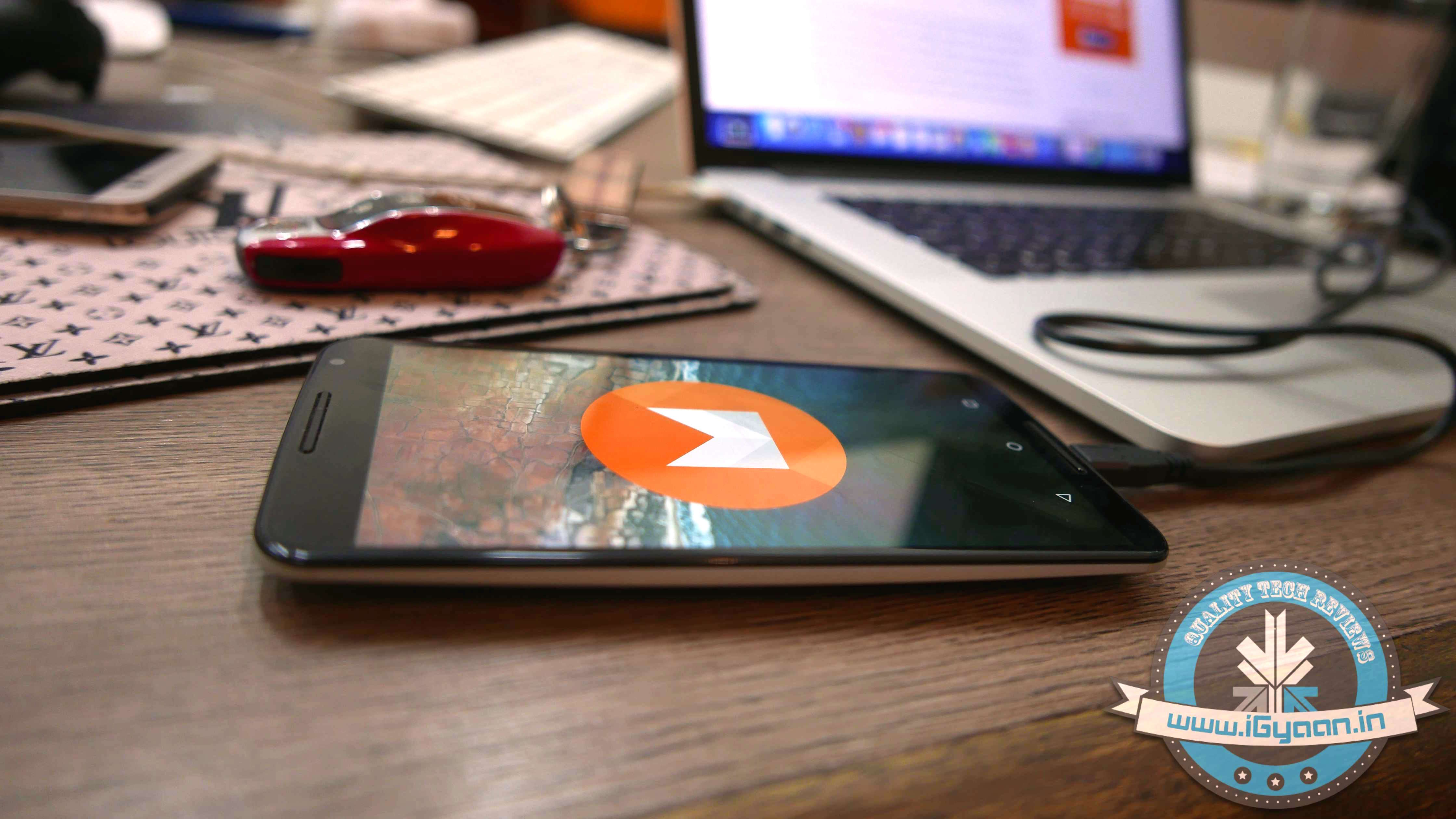
    We installed Google’s Android M developer preview on our Nexus 6 and decided to share the step-by-step procedure.

    Disclaimer: 

    • Before you decide to install Android M on your device, consider the fact that it will wipe the smartphone’s memory entirely.
    • The developer preview also contains several bugs and may be unstable.
    • We wouldn’t recommend installing the OS on the Nexus device you use on an everyday basis. Some of the major applications are having trouble loading on Android M.
    • The Developer Preview is only out for Nexus 5, Nexus 6, Nexus 9 and Nexus Player.

    Preparation 

    • Back-up your Nexus Device.
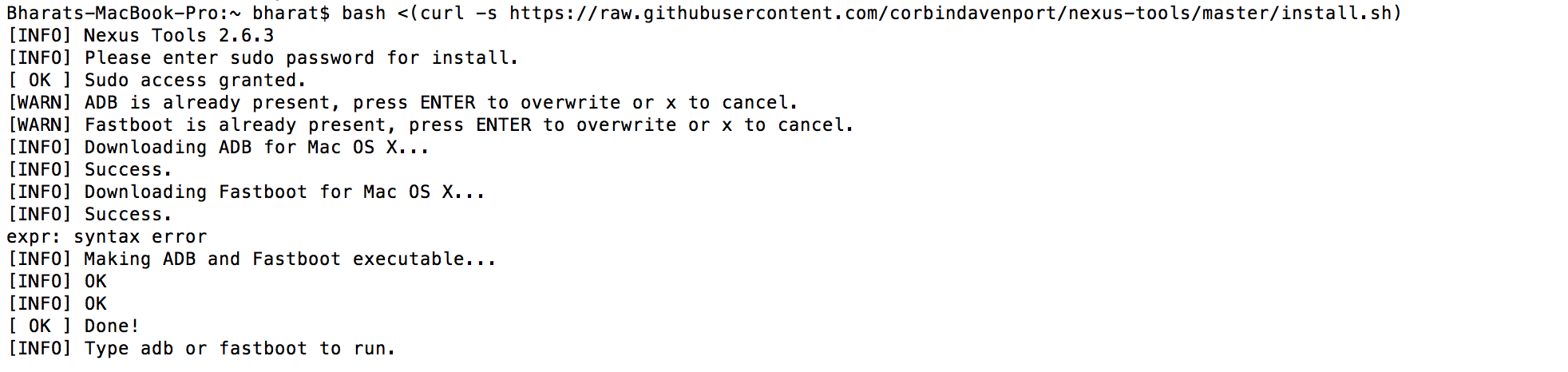
    • To make this quick and easy, before you begin, make sure you have ADB and fastboot installed on your computer.  The easiest way to install ADB on your machine is by inserting the following command on your Command Line/Terminal:
      bash <(curl -s https://raw.githubusercontent.com/corbindavenport/nexus-tools/master/install.sh)Android M 3
    • Download the factory images for your device here. Unzip and save them on a file on your desktop.

    Method

    • Now to begin, enable your device’s debugging mode and connect it to your computer via a USB cable.
    • Open an ADB command line and enter ‘adb reboot boot loader’Android M
    • Open the folder containing your factory images.
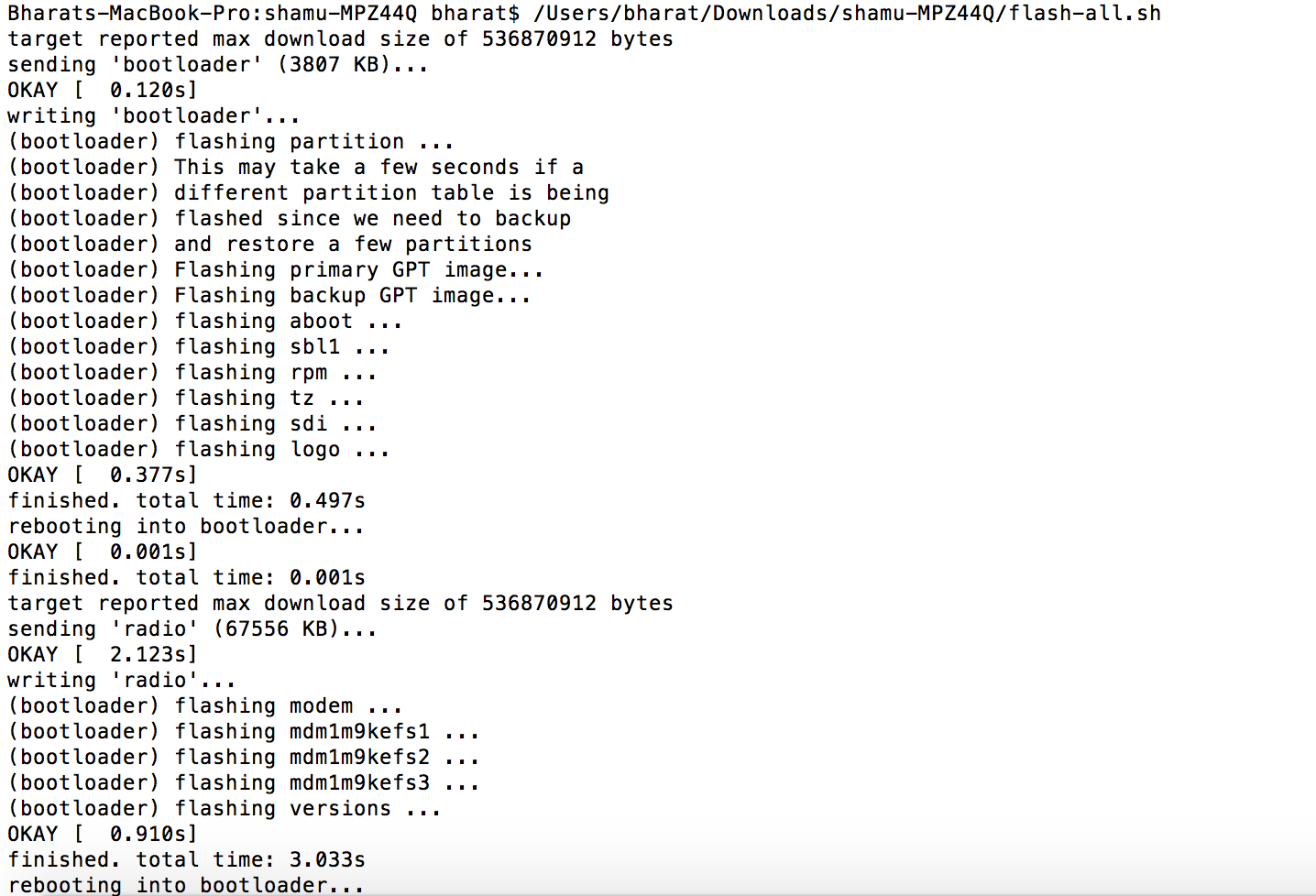
    • Now on the ADB command line, enter ‘flash-all’ to run the installation. This is the final step and it will initiate the process, as seen below: android M 2

    You will now have to wait till it gets installed. It took us approximately 5 minutes.

    Now you can enjoy fiddling around. To read more about Android M, click here.

  • DIY : How to set-up tethering on your phone!

    DIY : How to set-up tethering on your phone!

    First and foremost : What is tethering?  Tethering refers to using a cell phone as a modem for your laptop or any other device. Creating a connection either with cables or wirelessly “tethers” your cell phone to your other mobile device. 

    Basically it’s using the internet on your phone for other devices. 

    Now, how is it done? Do you need to jailbreak/root your phone? Read-on!

    [tabgroup][tab title=”iOS”]

    Tethering on iDevices was more of a hassle in the past, but come iOS 5, that changed! It can be done in 3 ways. Each requiring a data package from your carrier for your iDevice.  We tethered our iPhone 4s on AirTel. 

    Whoops! Something went wrong!
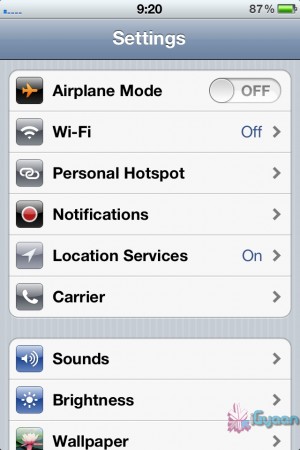
    Click on Personal Hotspot
    Whoops! Something went wrong!
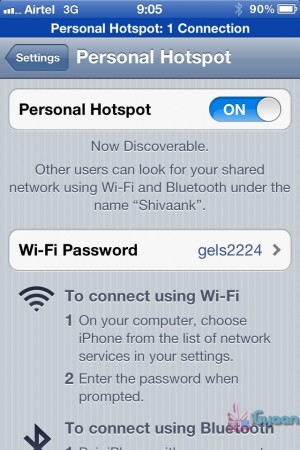
    Set your password and turn it on

    Through WiFi 

    Probably the most convenient of the 3.  Go to Settings->Personal Hotspot->On. Set your password and it’ll prompt you to turn on your WiFi and Bluetooth. Once this is done, your device becomes a Wifi Hotspot for other devices to connect to. 

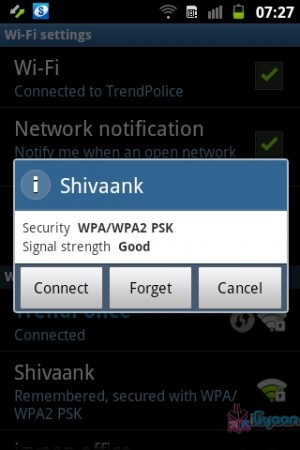
    As shown in the screenshot, the name of your device, in this case “Shivaank”, shows up as a WiFi network on your other device. Just click on connect and you’re connected to the internet via your iDevice’s network. 

    Whoops! Something went wrong!
    Your device name comes up as a WiFi connection

    Through USB 

    The basic steps for tethering through USB are the same as above. Go to Settings->Personal Hotspot->On. To save battery, turn off your WiFi and Bluetooth as you won’t be needing them. 

    Whoops! Something went wrong!
    Your device serves as an Ethernet connection

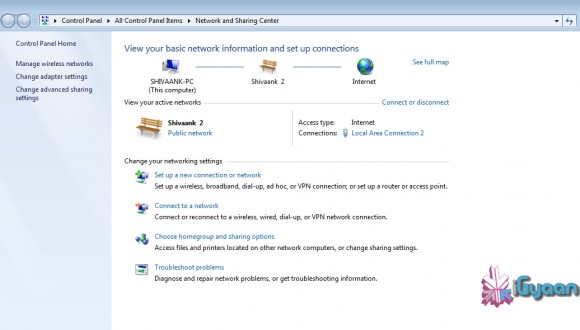
    Connect your device to your laptop and turn on your Hotspot toggle. Then go to your network settings of your laptop and you’ll see  your devices name as an Ethernet connection. Just click on connect and you’re good to go!

    Through Bluetooth

    Now, we were only able to tether our device to a MacBook using Bluetooth. The name of your device simply shows up on Bluetooth devices list. Click on pair to get going!!
     
     
    Apps like MiWi and Tether Me are viable options for those running an older version of iOS but these are paid apps.


    [/tab][tab title=”Android”]

    On Android, the tethering process is a breeze! Tethering feature is inbuilt into Android and to activate follow these steps.


    Through WiFi

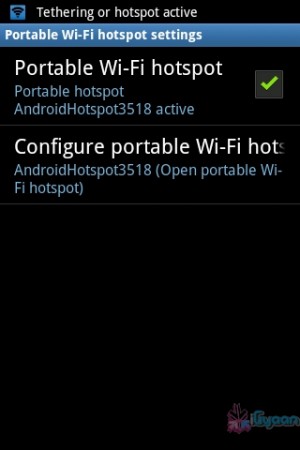
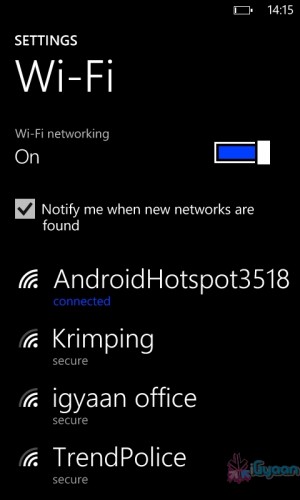
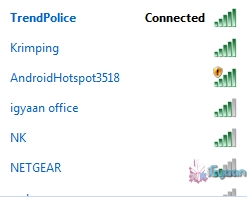
    Go to Setting->Wireless and Network->Tethering and Portable Hotspot->Portable Wi-Fi hotspot and turn it on. The name of your connection (which you can configure) shows up on other device’s to connect and voila! You’re connected!

    Whoops! Something went wrong!
    You can change the name of your WiFi by configuring it.
    Whoops! Something went wrong!
    Windows Phone connected to Android Hoptspot

    Through USB

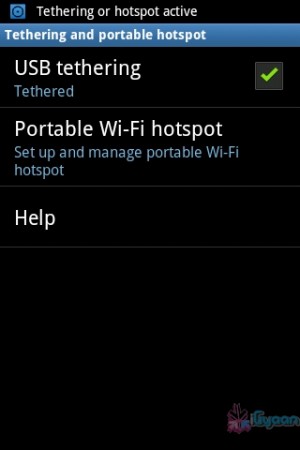
    Go to Setting->Wireless and Network->Tethering and Portable Hotspot->USB Tethering. Click on it to turn it on and the computer you’re connected to shows your devices network as an ethernet connection. Click on connect to start using it.

    Whoops! Something went wrong!
    Tethered through USB
    Whoops! Something went wrong!
    Device comes up as Ethernet connection

    [/tab]

    [tab title=”Windows Phone”]

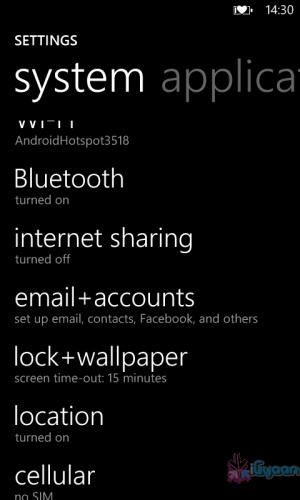
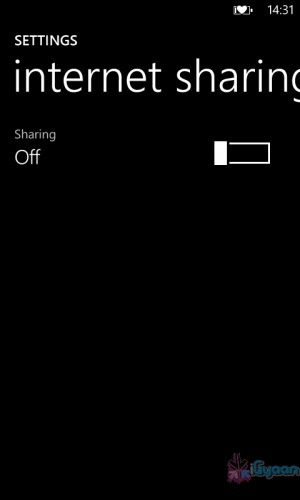
    Possibly the easiest of the three! Just go to Settings->Internet Sharing and turn it on! That’s it! You’re device shows up as an internet hotspot, click on connect and you’re done.

    Whoops! Something went wrong!
    Click on Internet sharing
    Whoops! Something went wrong!
    Turn it on and you're done!

    [/tab][/tabgroup]


  • CyanogenMod Compiler project lets you make your own ROM

    CyanogenMod Compiler project lets you make your own ROM

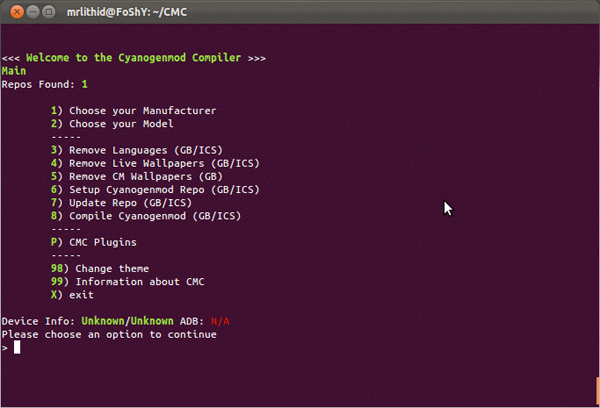
    A command line based project released by lithid-cm has the ability to go any user the power to create their own CM Roms. Called the CyanogenMod Compiler (CMC) it currently is in the test phase and allows only basic tweaks to a CM ROM including the ability to eliminate languages, wallpapers and tweak themes. The general idea is to be able to develop your own custom ROM without the need for dependence on anyone.

    [xda-developers]

  • DIY: Have a Crashed Ferrari, Make a Crashed Ferrari Coffee Table

    DIY: Have a Crashed Ferrari, Make a Crashed Ferrari Coffee Table

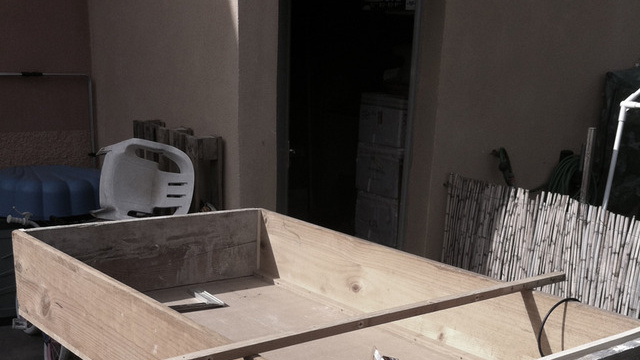
    Ever wondered what a Ferrari coffee table would look like? We have the right answers, and the wrong ones too. Folks over at Molinelli Designs found an ingenious way to turn a Rich mans sadness into happiness, depending on what you claim happiness is.

    So taking their cue we tell you how to make this wonderful coffee table

    Step 1

    Be rich Enough to Afford a Ferrari.

    Step 2

    Be dumb enough to crash your expensive Ferrari.

    Step 3 

    Make a coffee table with a shallow centre.

    Step 4

    Stuff it with your crashed Ferrari.

    Step 5

    Paint and cover with Glass

    Enjoy!

    [MAKE]

  • Exploit found in Siri’s server would allow you to use Siri on all iDevices, if You own a iPhone 4S

    Exploit found in Siri’s server would allow you to use Siri on all iDevices, if You own a iPhone 4S

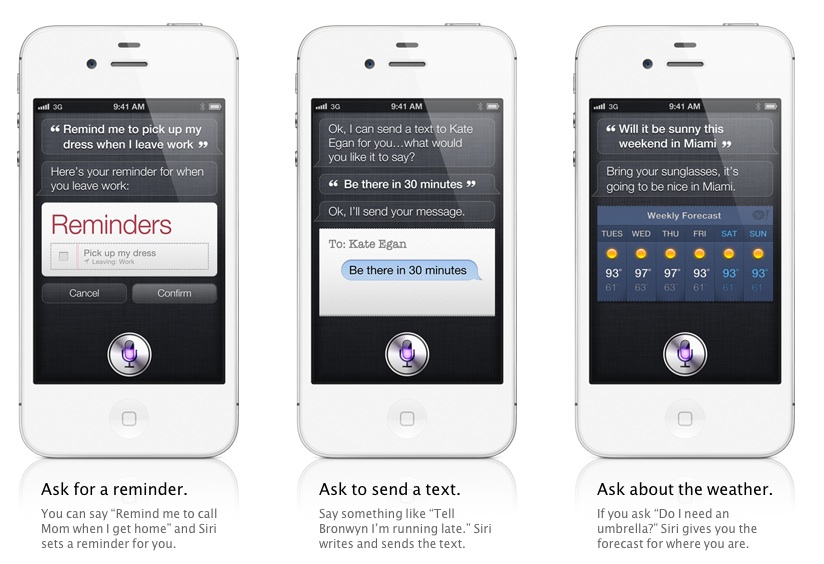
    A new twist of development has taken place in porting Siri to other Apple devices. A new exploit found would allow users that already own a iPhone 4S to enjoy the exploits of Siri on other iDevices. Sure a unique identifier could be formed but Apple would easily find it and ban it for abuse. 

    The best thing here is that this may actually hold possibility for Siri to be ported over to Android and other platforms. But the situation will always remain same. You will need an identified for the software to work with Apple’s servers. 

    So, its time to really see if the friend with an iPhone 4S is actually a true friend.

    [Applidium]

  • Cyanogen Mod 7 Comes to Touchpad in Alpha Build

    Cyanogen Mod 7 Comes to Touchpad in Alpha Build

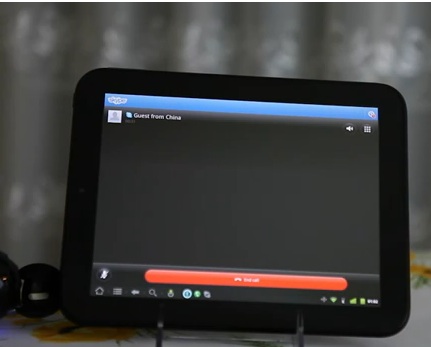
    The folks over at Rootzwiki and the Touchdroid team (whatever is left of it anyway) has finally managed to get CM7 running on the Touchpad, worth noting. The device looks be be running pretty smoothly with most of the aspects working well including Skype calling.

    Note that the build is still alpha and while most things work there is a high chance that things can go wrong. Head over to the link below if you feel like doing it anyway.


    [RootzWiki]

  • Sony Ericsson lends support to FreeXperia devs

    Sony Ericsson lends support to FreeXperia devs

    Sony Ericsson has handed its support to the FreeXperia dev team, which is dedicated to bringing CyanogenMod 7.1 .The company has donated 20 phones to the cause, realizing that “not all Android phones are alike”.

    Even though Sony Ericsson do not promote the unlocking of the bootloader and developing Android software on the Xperia devices, They certainly allow you to do it and also give you a step by step.

    [Sony Ericsson Developer World]

  • Lion Ultimatum Theme for Jailbroken iPhones brings Desktop looks to boring iOS

    Lion Ultimatum Theme for Jailbroken iPhones brings Desktop looks to boring iOS

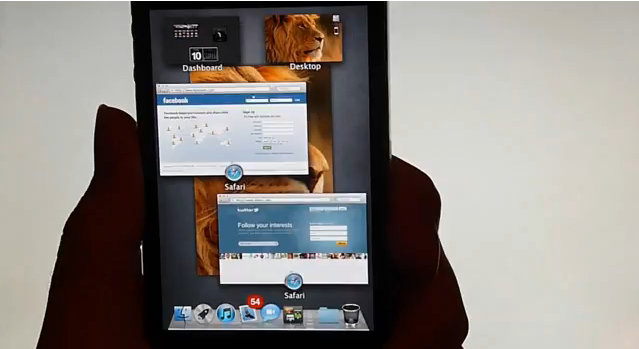
    Want to add flavor to your jailbroken iPhone? The new theme called LION Ultimatum from a theme creator SirTimothy1 brings IOS like looks on Dreamboard. The them also requires you to have your device already jailbroken. This theme comes with a functional file manager and Finder menus, a scrollable dock and draggable windows, along with Stacks, Launchpad, Mission Control and Dashboard. There’s also a customizable lock screen that provides access to the dialer, email and messages. The keyboard can also be modified to resemble the design of MacBook Pro or the traditional Apple Keyboard, thanks to integration with ColorKeyboard. 

    [ModMyi]

  • Tacit sonar gauntlet provides Radar tech to the Visually Impared

    Tacit sonar gauntlet provides Radar tech to the Visually Impared

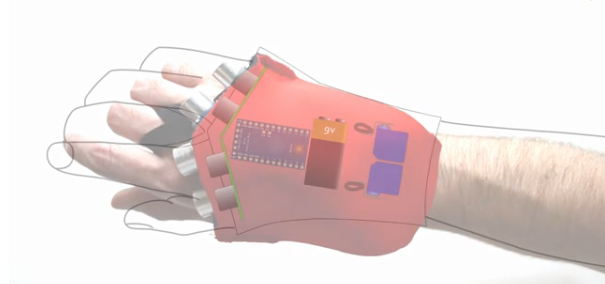
    The Grathio Labs’ Tacit glove, an Arduino powered sonar device that can help the vision impaired navigate foreign environments. It Has 4 ultrasonic sensors that decode objects in the wearers path and send feedback. According to the video below, it takes only seconds to wear and does not interfere with the natural sense of the hand. It has a vey small learning curve and is very easy to adapt to.


    Check out the full video for the technology that drives it and a quick demo of it in action.


    [Grathio Labs]

  • Samsung Galaxy 3 Official Android 2.2 Update Giving major Problems |  Froyo’d or Doomed?

    Samsung Galaxy 3 Official Android 2.2 Update Giving major Problems | Froyo’d or Doomed?

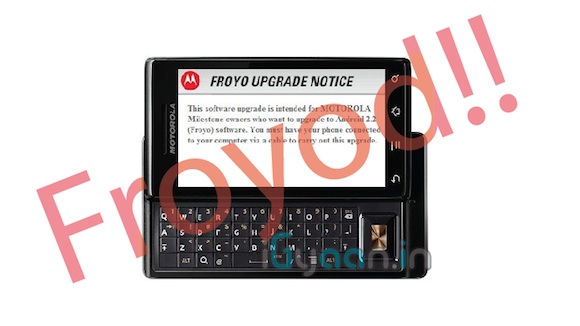
    Froyo’d or Doomed? The official update Galaxy 3 Update for Android 2.2 came out a couple of Days ago and multiple users are reporting several problems with the update:


    • Proximity sensor issues
    • Battery Life
    • Problem with silencing the device with volume rockers
    • Swype not working
    • Camera App Crashing

    So if you did update and are facing issues select your issues in the poll below and vote. If You still have not updated and want to despite the errors visit our Step by Step Guide


    [polldaddy poll=4954275]

  • DIY : Motorola Milestone 2.2 Froyo Update now Available, Defy also gets quick Update

    DIY : Motorola Milestone 2.2 Froyo Update now Available, Defy also gets quick Update

    According to a reader the 2.2 update for the Motorola Milestone is now available.

    To get the update

    • Update to the latest version of Motorola Phone Tools
    • Go to the help menu and select Phone software update
    • Select India in the country selection
    • Then select the Milestone in device selection

    You should now be able to see the update and start the process.

    According to the same reader there is also a quick update for the defy, but its not a Froyo update.

    Let us know your feedback below

    Thanks : Ankit

  • How to – Upgrade the Ram in your Unibody Apple Macbook Pro

    How to – Upgrade the Ram in your Unibody Apple Macbook Pro

    A simple and quick tutorial on how to save approximately 15,000/- INR.

    Do it yourself- Use the instructions from the video to upgrade the ram yourself.

    This does not void your warranty, and perfectly complies with Apple Terms of Use.

    iG Tech

iGyaan Network
Privacy Overview

This website uses cookies so that we can provide you with the best user experience possible. Cookie information is stored in your browser and performs functions such as recognising you when you return to our website and helping our team to understand which sections of the website you find most interesting and useful.