With recent news of Phone batteries exploding, a lot of people are getting worried whether their phones are safe or not.
Follow these simple five tips as a precaution from overheating and exploding phone batteries.
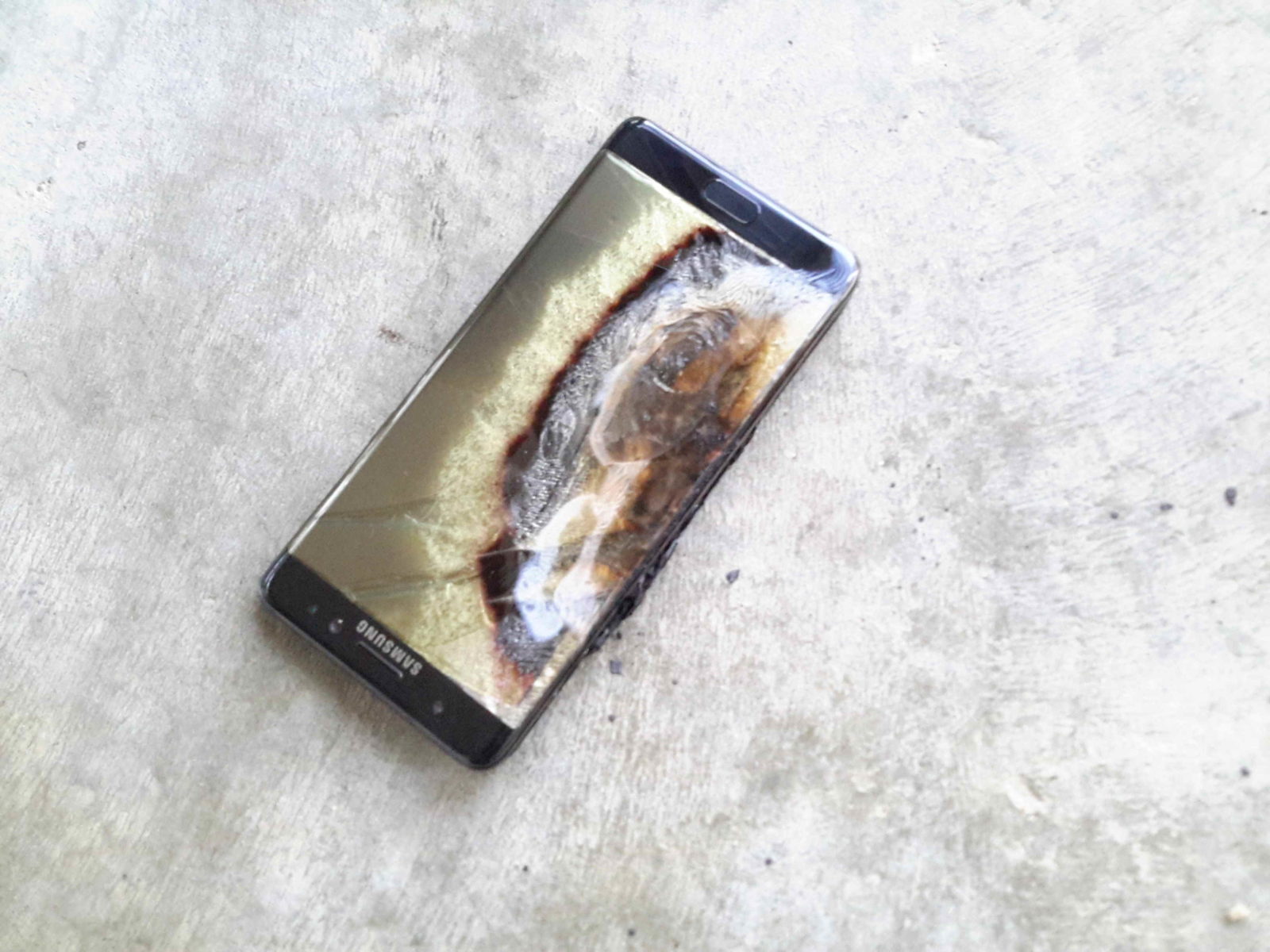
With recent news of Phone batteries exploding, a lot of people are getting worried whether their phones are safe or not.
Follow these simple five tips as a precaution from overheating and exploding phone batteries.

In this age of streaming and downloading, where our hunger for data is exponentially growing, most users often find themselves struggling with this ever losing battle of trying to not exceed or finish up their data allowances.
Data plans have become so expensive that most of us live in constant fear of exceeding our monthly smartphone data allowance, forcing us to run from one Wifi hotspot to another just to conserve as much data as possible.
Today, iGyaan brings to you tips and tricks for Android users to conserve data, and help them keep more of their hard earned money away from the clutches of the evil ISPs.
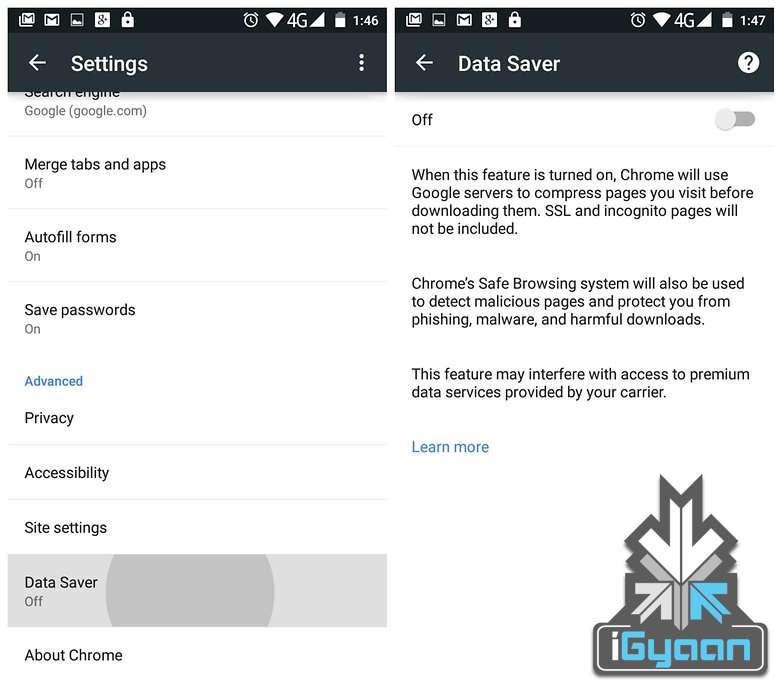
For users who use Google Chrome for browsing the Internet this tip can help them cut down significantly on data used for browsing. Google claims you can save upwards of 35% of data while using Chrome’s Data Saver feature. When enabled, Google’s servers reduce the amount of data that is downloaded when you visit a web page.
But such extreme data saving comes at a cost. When the data saver is enabled, certain websites might load slow, while ones with a lot of images displayed not at their best, but to us it seems like a fair trade for the major data savings that this feature provides.
To activate this feature, the user needs to launch Chrome, tap the three dots in the top right-hand corner, scroll down to the settings button and then click om Data Saver. Just to see the results for yourself monitor Chrome’s data usage after switching the data saver feature on.
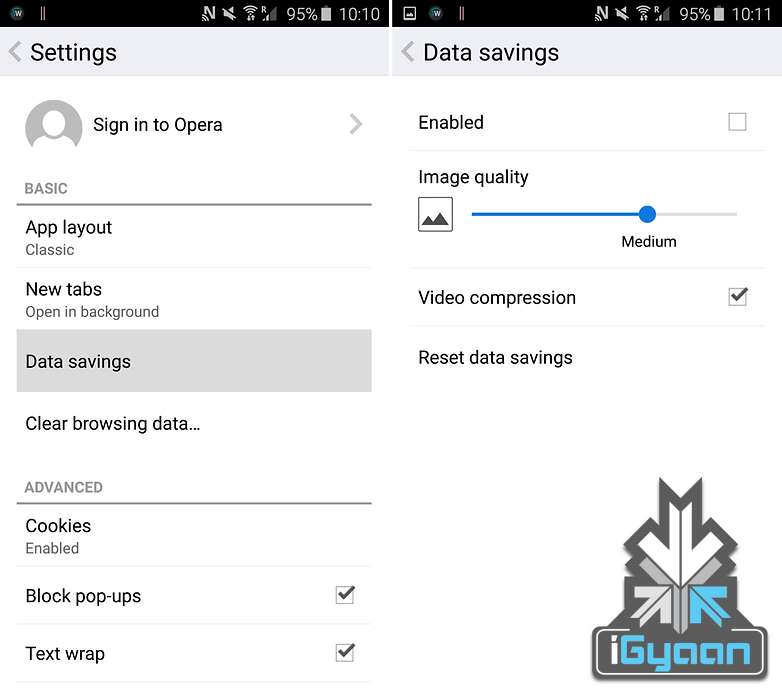
Much like the Chrome browsers compression technology for web pages Opera for Android provides users with a very nifty trick that allows them to watch compressed videos, resulting in almost similar quality content, but greatly reduced size.
The end result being reduced data usage for a very faster loading videos. Can’t say we don’t approve. the Opera browser, go to Settings > Data savings and tick the box that says Video compression.
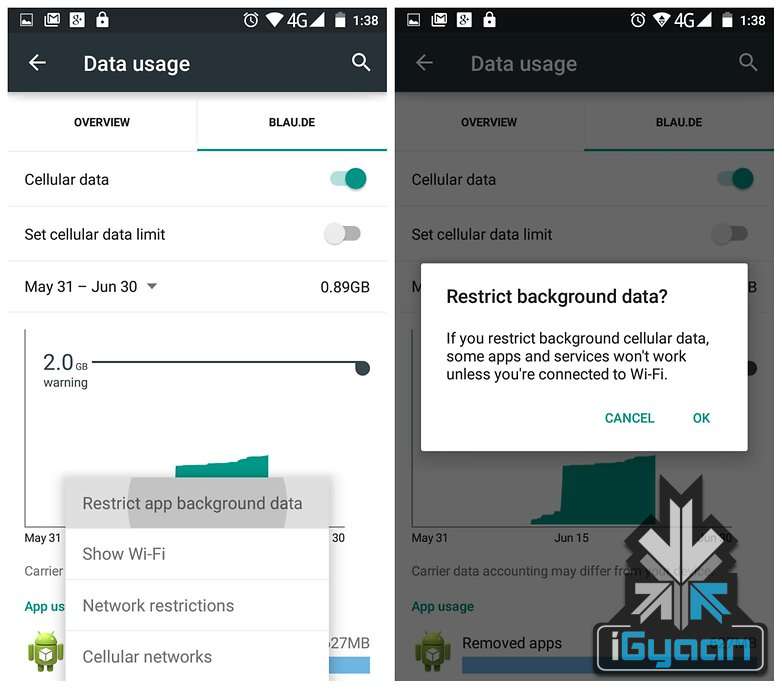
One of the best ways to conserve data that Google provides Android users is with the option of restricting background data using the inbuilt data saving mechanism of the Android operating system.
With this feature users can tell Android to restrict background data usage of specific apps, hence helping in greatly reduce data usage. Apps and tasks such as email syncing, feeds updating, weather widgets and so on can be stopped temporarily, and be taken care of when in a Wifi Hotspot area.
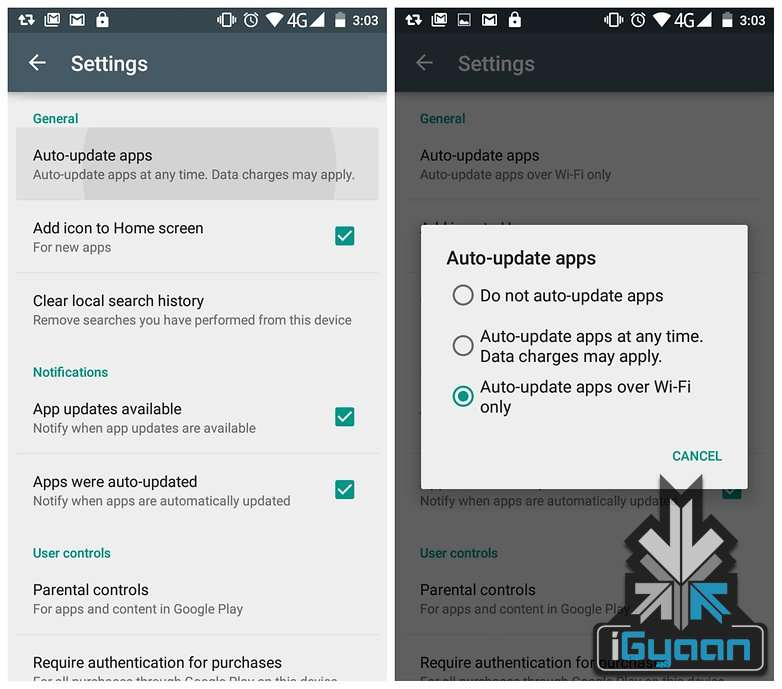
Android by default sets the Play Store to download updates to apps the moment they are available. Depending on your internet speed, this particular feature if left unattended, can eat through your phone’s data pack very quickly. Switching this to Auto Update Apps Over Wifi Only is recommended.
Head to the Play Store and head towards the Settings button. On the page you’ll see Auto-Update Apps. Tap this and make sure you either have it set to ‘Do not auto-update apps’ or ‘Auto-update apps over Wi-Fi only’.
For users looking for more customization, and want to manage individual apps, they can make way to the My Apps page, select an app and then tap the overflow menu to un-check Auto-Update.

The Facebook App is infamous for its habit of eating through mobile data for fun. Several reports have found that Facebook’s recommended app is a great drain on mobile data on the Android System along with being a dreaded enemy of your battery life. As such, uninstalling it in favour of the Facebook Lite App is highly recommended.
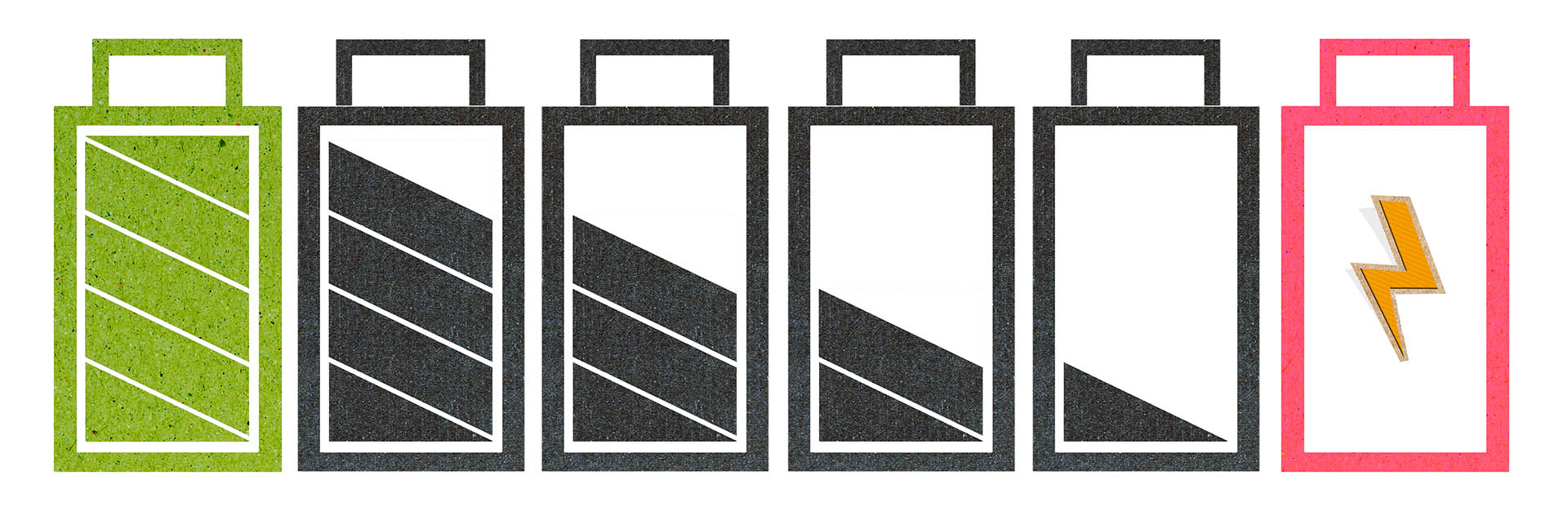
With an abundance of apps and services available today that require a significant amount of juice to run, we all have at some point of the other felt the pain of our smartphone battery dying on us. Honestly, for all its superpowers of computing, your smartphone is still at the mercy of the Lithium-Ion battery that powers it.
iGyaan today comes to you with tips and tricks to better care of your smartphone’s battery so that you can prolong it’s life, and delay the inevitable.
Power Cycling the Battery
Lithium-Ion batteries run for a limited amount of charge cycles before they start showing signs of deterioration. This process can be slowed down significantly, and battery life prolonged by understanding and using these charge cycles properly.
For optimum use of these limited cycles, partial discharging of the phone is recommended. Complete discharges and full charging of the battery is to be avoided as it puts undue pressure on the Lithium-Ion pack. The Lithium-Ion battery inside your device is a complicated beast to tame, and as such it prefers constant and even charge patterns to irregular ones.
For an average user, trying to discharge the smartphone’s battery down to 40% most times, and then juicing it up back to 80%, before removing the charger is recommended. This habit mixed with a complete discharge once every 30 cycles, or say a month, will ensure a happy battery set to a nice charging pattern.
Lose the Heat

No amount of stressing on this one single point can be enough. Lithium-Ion batteries in your phones have no bigger enemy than heat. It is their Kryptonite. The battery inside your smartphone will degrade at a faster pace if the thermal levels aren’t to its liking. Regardless of it being used or not, if it runs hot, it sees its maker.
So if you love the battery inside your phone enough, try what’s recommended, and keep the phone in cool conditions. Best tip here would be to avoid charging it inside a hot car, or charging/using it when the phone gets too hot. FHor emergency charging situations, car chargers should be avoided, and power banks should rather be used.
Say No to Non- Branded Power Banks and Chargers
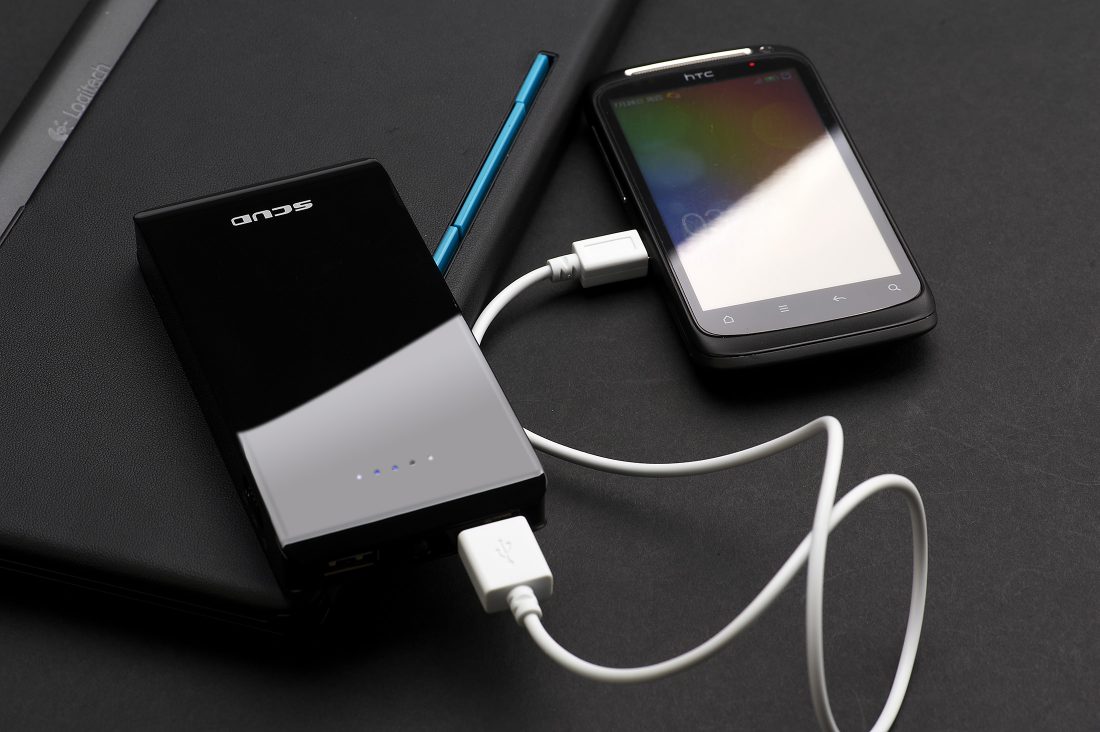
Non-Branded chargers and power banks can cause irreparable damage to your smartphone’s battery. Irregular power surges could lead to the device’s battery frying itself in a minute. Even if you’re lucky enough to avoid a disaster like this, using such power banks and chargers to juice your phone could over time lead to the battery prematurely aging, and as a result, starting to malfunction.
Lithium-Ion batteries as stated above prefer continuity, and can malfunction if there are irregularities when it comes to power being fed to them. Cheap car chargers and power banks are notorious for not being able to maintain power flowing through them, and as such should be avoided in any case.
Another quick tip here would be to avoid plugging your phone into any random USB ports for charging. Laptops, wall outlets and branded power banks that promise a constant ampere rating should be used.
Avoid Wireless and Fast Charging
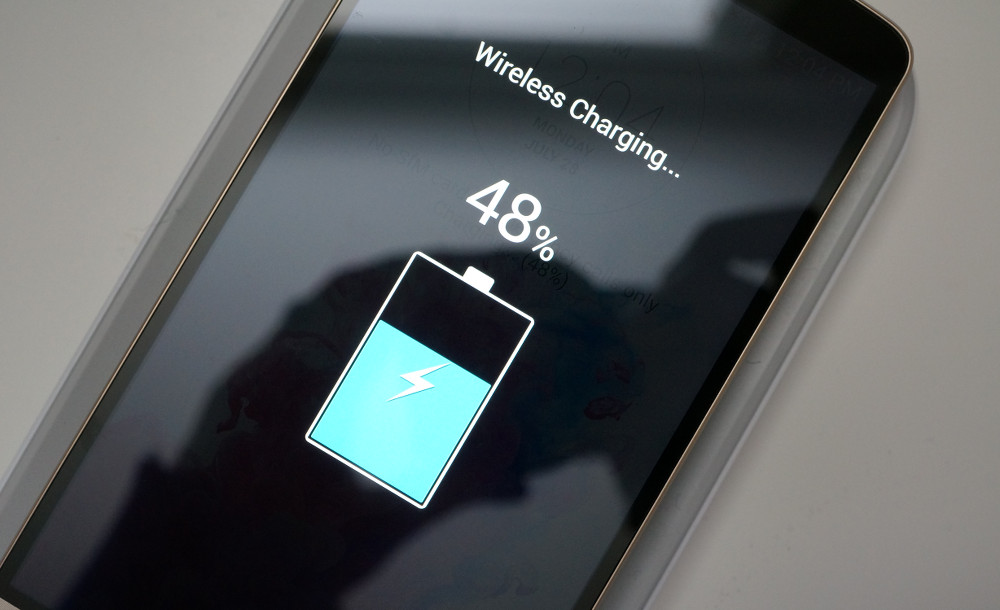
Don’t hate us for this, but avoid Wireless charging as much as possible. This fancy new tech that the race of smartphones has been introduced to is convenient alright, but it also does harm to your Lithium-Ion battery. The inductive, wireless chargers in the market generate waste heat during the charging process. This waste energy also heats your battery in the process causing it to run hot, and degrade at a faster pace.
Fast Charging, on the other hand, does not produce waste heat but instead forces the Lithium-Ion battery to charge in a way that it does not like. These batteries inside your phone like to be fed slow and steady, and any change to that habit upsets them. But having said that, this one’s an extreme measure really. Since fast charging only applies the extra voltage at the start of the cycle which does not last too long this particular nifty charging trick does not end up doing too much damage after all.

We have just heard about the catastrophic earthquake that hit Chile yesterday. This quake measured 8.3 on the Richter scale and was the biggest since Chile’s February 2010 earthquake. It also set the Tsunami alarm off and has reportedly flooded some coastal areas, apart from destroying buildings.
Even though Chile is one of the most earthquake-prone areas in the world, nobody can be prepared for a natural calamity. The reactions will always be the same, along with the helplessness and strangely there will also be political repercussions. Despite all that we’re here to tell you about a few ways you can deal with an earthquake.

First let’s talk a little bit about what you can do to be prepared (as prepared as one can be) before an earthquake hits. We don’t mean to say that you’re expected to predict earthquakes, we’re just saying that in case you live in an earthquake prone area here’s what you can do.
Firstly, whether you’re at work or at home, just identify safe places where you can “Drop, Cover and Hold On”; it would also help if you knew at least two ways to exit your building. Secondly, you can keep emergency supplies such as – a torch, first-aid kit, whistle, gloves, shoes, googles and blankets, ready. Stocking up on food is also essential if the earthquake hits real strong and your water and food supply are cut off. And Thirdly, for your work space, if you are in an earthquake prone area, it would be wise to keep all big furniture such as bookshelves, and cabinets anchored while storing heavy objects in low drawers or shelves.

Now, for what you can do during an earthquake. Remain calm. You see, in a tense situation where most people panic and emulate thoughtlessly, someone else might thoughtlessly emulate your cool and hence be saved; depending on the extent of the quake that is. There are usually two situations in which you can be caught during an earthquake – Indoors or Outdoors, unless you practice black magic and are in some ‘in-between’ space, in which case you can probably help yourself and others.
If you are indoors, then immediately move away from glass structures or unsecured heavy furniture and then “Drop, Cover and Hold On”, under a desk or table while protecting your head, face and neck, and then hang in there and pray until the debris settles or the earth stops quaking.
Let’s go back a couple months when our city, Delhi had faced a number of earthquakes and well honestly, we saw people run out of their office spaces and PGs. To where? The main road. Now unless you live in an open space there is honestly no reason you’d want to run out of tall concrete monsters. But, let’s say you are outdoors, try and find an open space away from trees, power lines and tall buildings and once again – “Drop, Cover and Hold On”. After an earthquake, spending a night in the open is recommended as after shocks are equally brutal.

Here’s what you may do after the earthquake: remain calm and reassuring. It is advisable to first check whether you are injured before checking up on others. Also, it’s better not to move injured people unless they are in danger, however, you can use your first-aid awareness to help them and yourself.
Remember, if there is a large earthquake there will probably be after shocks that will continue for days. So, just be prepared.

After a huge earthquake, usually the power lines get disturbed or destroyed, so you should be very careful while moving around in the dark and be very aware of things that have fallen down during the earthquake, lest you get hurt. If you need to leave the building, then do so cautiously and take all your essentials and a first-aid kit with you. And lastly, since telephone lines are usually jammed, in case of a major incident, text messages are more efficient.
If your phone data is working, then you shouldn’t have any trouble getting in touch with friends and family. In case you’re unable to connect to the internet on your smartphone, try and locate a wi-fi connection. Google’s Person Finder is a free tool that doubles up as a registry or a message board for survivors. This app was developed first during the 2010 Haiti earthquake, and its aggregated data include registries run by CNN, the Miami Herald and the New York Times. This tool can be used by family or friends to locate missing people or loved ones.
In extreme scenarios, use a landline since they work using underground cables. Something you can do in advance? Find out information about your local CB Radio which may be with the nearby fire station and/or police station.

Today we see natural calamities hitting and destroying human life so often that it has become just another piece of news, for us and we react to it accordingly. Especially in the age of social media, you’ll see statuses, memes and god knows what, but let’s try to keep it simple and most importantly, helpful.
Those of you who were up-to-date with the Apple event that took place last week will remember that the new iOS 9 update is scheduled for a September 16 release, which is today. The update is compatible for all current iPhones and iPads.
However, before you press that ‘Download and Install’ button, here are a few things you can do to prepare your phone for the update.
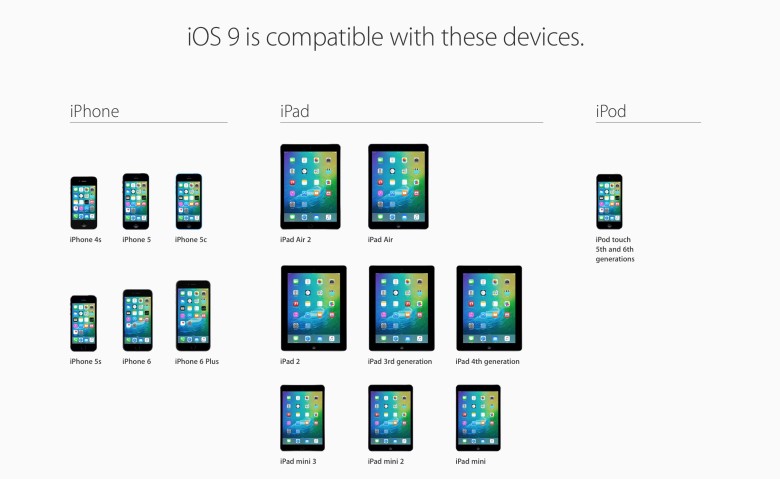
Before you get too excited, you should check whether you iPhone is compatible for an iOS 9 update. This is especially the case for those who are using really old Apple devices (we’re talking almost ancient). The new iOS 9 is compatible devices as old as the iPhone 4s, iPad 2, and 5th generation iPod touch, but will not work for the iPhone 4.

The new iOS 9 comes as a huge relief for 16 GB users as it will take up only 1.3 GB of space compared to iOS 8’s massive 4.58 GB. We can almost here the cries of joy over this news. However, before you can enjoy all that extra free space chances are that you’ve already filled up your 16 GB device to the brim. Any update requires some free space, so now would be a good time to delete some of the really old apps that you no longer use. You can press and hold on an icon till it does its little jig and then tap the X on the upper left to delete it, or you can go to the Usage option in Settings to find out which app is taking the most space and delete it from there.

There’s always that hint of fear when you go for a new update. Sometimes due to some bugs, your device may crash a lot like it did with iOS 8 in its initial months, or you may find that some of your data missing. Hence, we suggest you back-up your data using either iCloud or iTunes to be on the safe side.
If you’re backing up using iCloud simply go to Settings > iCloud > Storage & Backup and toggle iCloud Backup to ON and finally tap on Back Up Now.
If you wish to back up using iTunes simply open iTunes and go to File > Devices > Transfer Purchases and once that is done go to File > Devices > Back Up.
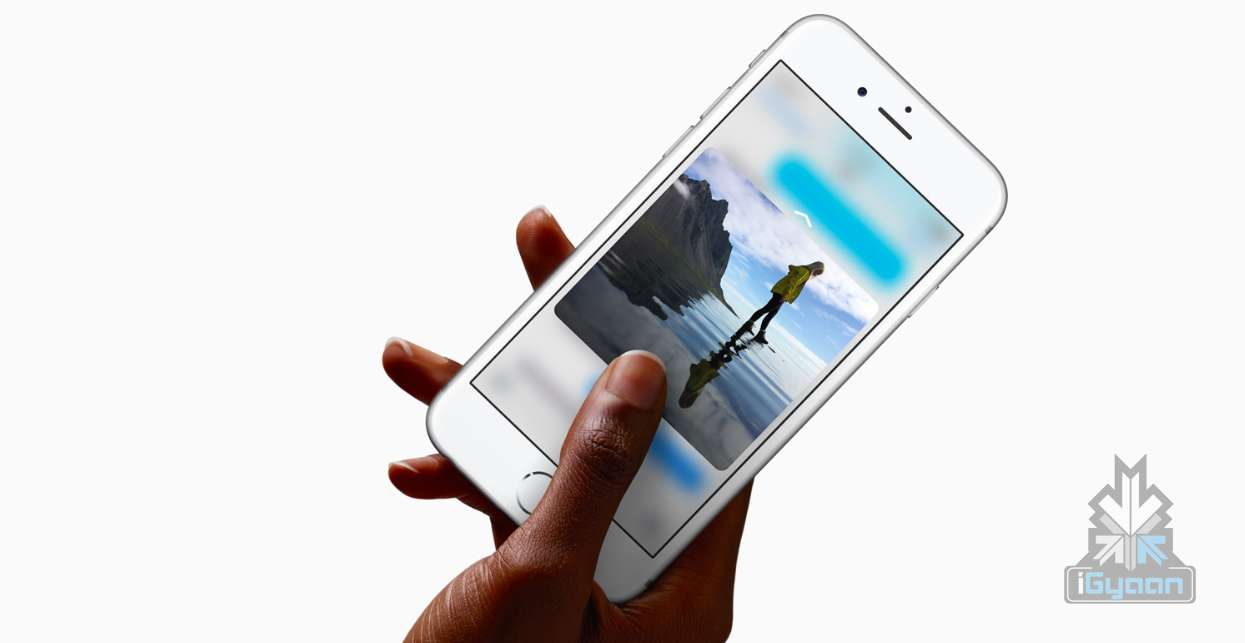
The iOS 8 recently introduced the Apple Music in which you can stream unlimited music for a monthly subscription. Those who have subscribed to it most likely stream all their music freeing up a lot of space. However, those who still have a lot of music or videos saved to their devices should take some time out and delete the ones you no longer listen to or watch.
Once you’ve sufficiently freed up your space, you can go ahead and download the new iOS 9. Wait for your Settings app to show a little red circle on the top-right corner sometime today, and update away.
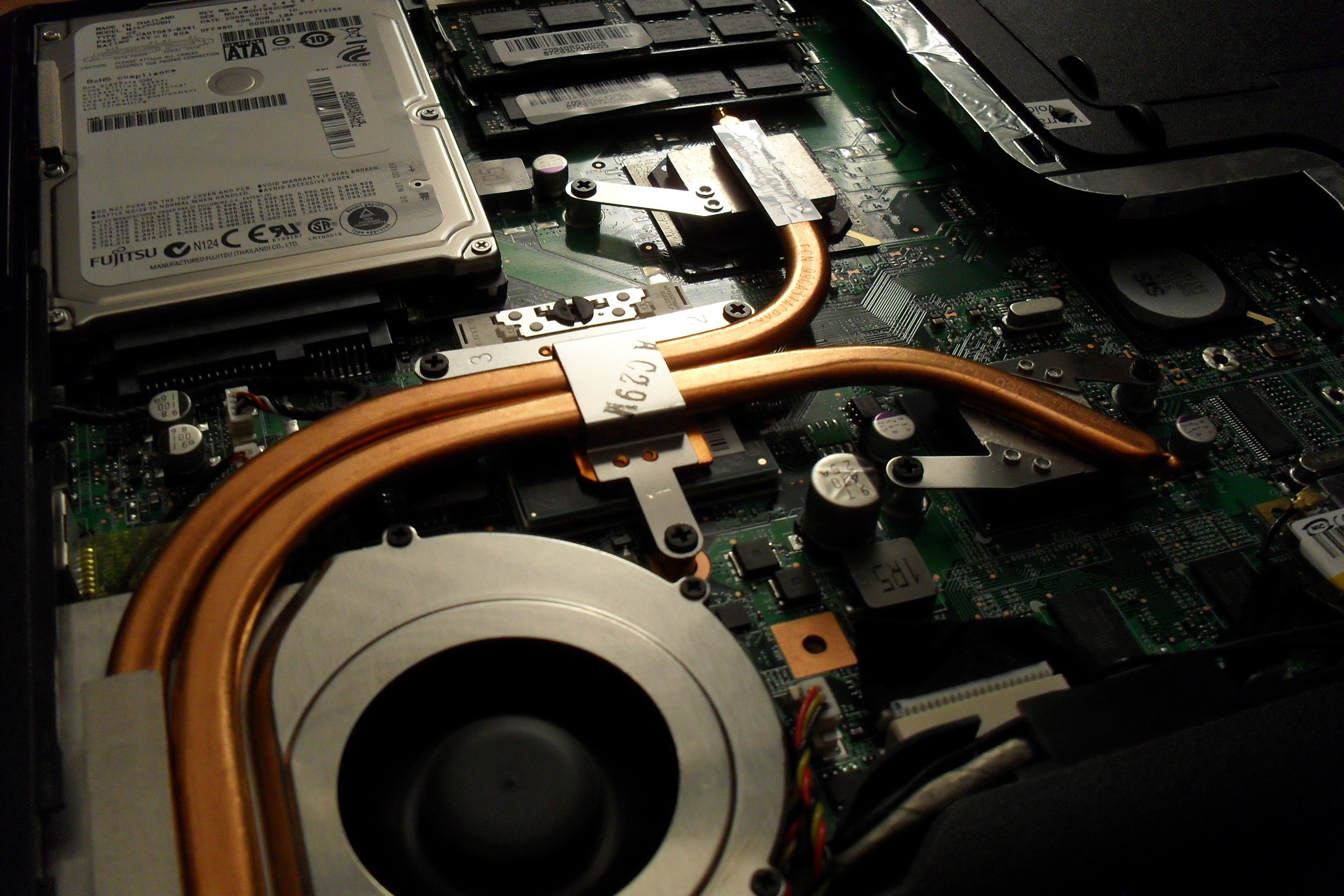
Has your laptop been heating up way too often for the past few days, making you worried about it crashing or burning your fingers? You know you’ve got a heating problem when your laptop sounds like an airplane taking off. We understand your plight and have a few ways to beat the heat.
One of the reasons your laptop is burning up is because you’re keeping it in all the wrong places. Keeping the laptop on your lap, or the bed, or any soft surface will cause it to heat up as you’re blocking the airflow vent that’s under the laptop. Make sure your laptop is sitting on a flat, hard surface and try to work in a cool room on a hot summer day.

Make sure that the moment your laptop reaches a hundred percent charge, you take it off the charger. Keeping the laptop constantly charged won’t increase the battery life, but will only harm the battery further. The charger adds to the heat that is already being produced inside your laptop.
We tend to keep multiple tabs open when browsing the net. You may have YouTube open in one tab, Facebook in another, Gmail in one more, and so on. While its perfectly okay to do that because background tabs become inactive, however, having multiple tabs open in your internet browser (which include video and heavy data sites) does take its toll on the processor. So keep as few tabs open as possible.
Sometimes we tend to minimize apps not being used rather than closing it. Minimizing the apps such as VLC player, or Office programs, only clears up the screen, but the app is still active in the background. These apps continue to take up processing space and consume battery, so it’s recommended you close the apps not being used. Basically, close down those apps that demand excessive amounts ( 90% and above).

Finally, the most obvious tip is to use a cooling pad. This is so obvious that almost all of you might already be using it. However, some may find it a troublesome affair to carry around a cooling pad everywhere you go. A cooling pad is handy if you plan to use your laptop in one fixed place. The important thing is to find a cooling pad that is right for your laptop and your work environment.
Here is a neat pad that you can keep on your lap, desk, or even on one leg while lounging around.
Though many of you may already be aware of some or most of these tips, there are always some tech novices out there who could use a little help. We hope these suggestions are helpful. If you know of more ways to cool a laptop, leave a comment below.
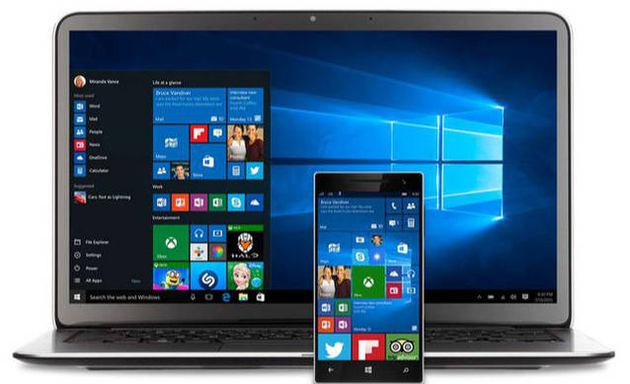
Sixty seven million Windows users are rejoicing at the thought of being upgraded to Windows 10 and are enjoying the convenience that comes with Bing knowing your location, Cortana knowing your name and sometimes other personal information. All your contacts, photos and everything are constantly being processed by the new software. It sounds perfect. However, one minor detail is missing. What is Windows 10 doing to protect your privacy as it constantly saves passwords, credit card numbers and personal information?
Here are a few things you can do to protect you privacy, while using Windows 10 and enjoying its features at the same time:

Many applications on Windows 10 require your personal information. For example, Maps, which needs your location in order to function. While Maps tells you where its using your personal information, many apps on Microsoft don’t necessarily follow the same protocol. Therefore, it is important to tweak the privacy settings of any app you use so that your personal information going out is limited, if not completely inaccessible.
Microsoft tends to take in all the contact information of their users, just incase their primary means of communicating, fail. It does this so that it can send you information as well as promotions. In order to manage these communications better, click here (if you have a Microsoft account) and here, if you don’t.

We all know that advertisements generate revenue. So if Facebook and Google can track you to sell ads, so can Microsoft. Microsoft does it according to your interests and even gives you your own advertising ID to make it simple. However, you can choose not to be a part of interest-based ads by clicking here. Opting out of that though, doesn’t mean that data won’t be collected or the number of ads that pop up will reduce.
Follow these steps to prevent Microsoft from collecting random data and information –
Start > Settings > Privacy > Feedback and Diagnostics > Click “never” to change the feedback frequency and Usage Data to “basic”
Also, while in the Privacy menu, you can regulate any information from your location, camera, microphone etc. It can be controlled from that menu.

You can stop the sending of your browsing history by Edge by clicking on the top right corner of Edge, then settings > Advanced Settings > View Advanced Settings, under Privacy and Services, turn off “Have Cortana Assist Me in Microsoft Edge.” This is essential because Edge only sends your information to Microsoft so that Cortana can be further personalised. So all you got to do, is turn her off. And while you’re in the Privacy and Services menu, make sure you turn off “use page prediction to speed up browsing, improve reading, and make my overall experience better.”
“If you received your Microsoft account from a third party, like an Internet service provider, that third party may have rights over your account, including the ability to access or delete your Microsoft account.” — Microsoft
Try and keep all your information within your local computer only. Even if Microsoft urges you to create an account, don’t do it because once done, it pieces together all your metadata and connects it to you ID. This can be a tricky situation and one must be extremely careful while sharing this information. Its never a good idea to share accounts. In order to delete or manage your Microsoft account go to Settings > Accounts > Your Account.

Yes, at first it is fascinating to have an attractive voice talking back to you and calling you by your name. But, Cortana doesn’t know just your name. She has access to more information than you think she does and the whole situation sounds a little intrusive. So if you want to snap Cortana out of being too clingy, click here. There, you will be able to clear the Interests section as well as the Speech Inking and Typing information.
Source: [tw-button size=”medium” background=”#07ABE2″ color=”” target=”_blank” link=”http://www.wired.com/2015/08/windows-10-security-settings-need-know”]Wired[/tw-button]
Do you think you’re taking full advantage of using one of the best computer systems in the world? Apple has hidden a few interesting hacks on your Apple MacBook, which are worth taking note of.
Here’s a list of 5 fun things you could do with your MacBook:
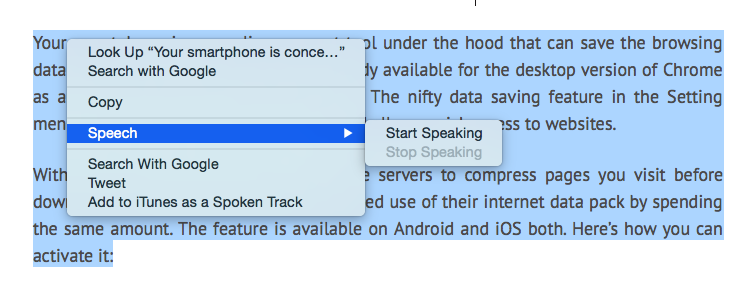
Not only is it super simple to get your Mac to read out text for you, you can even pick and choose the voice/accent you like. To have text read out to you, highlight the text, right click and pick the ‘Speech’ option, followed by ‘Start Speaking’. To change the voice, visit ‘Diction and Speech’ in System Preferences. Since we’re partial towards English accents, we like ‘Daniel’ from United Kingdom read out our articles to us.
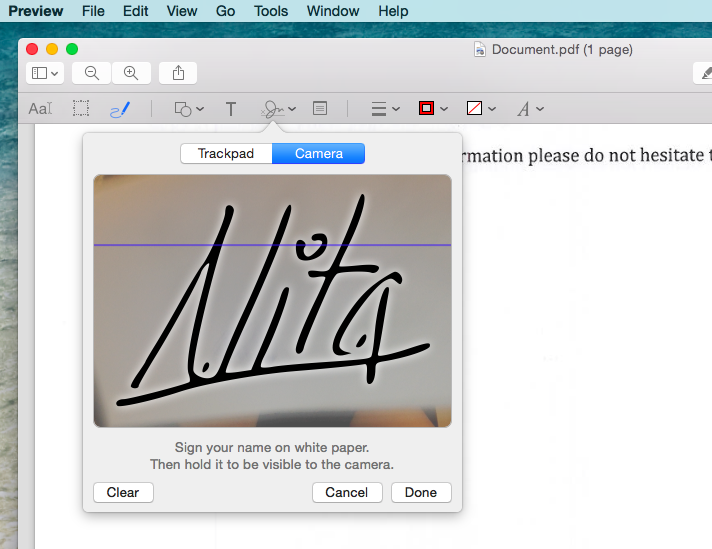
In this age of technology, did you really think you had to print a document, sign it, and then scan it again? No. Those days are long gone. You can have signatures saved up on your Mac for quickly sending out a document.
To save your signature, launch the Adobe Reader, pick ‘Tools’ from the top bar and then ‘Annote’. Which will then give you the option to manage your signatures. Now ‘Create Your Signature’ by signing a white piece of paper and holding it up for the camera which has been launched.
This might sound like a tedious procedure, but it’s way better than relying on your printer/scanner in the future. Not just that, you can save multiple signatures at the same time.
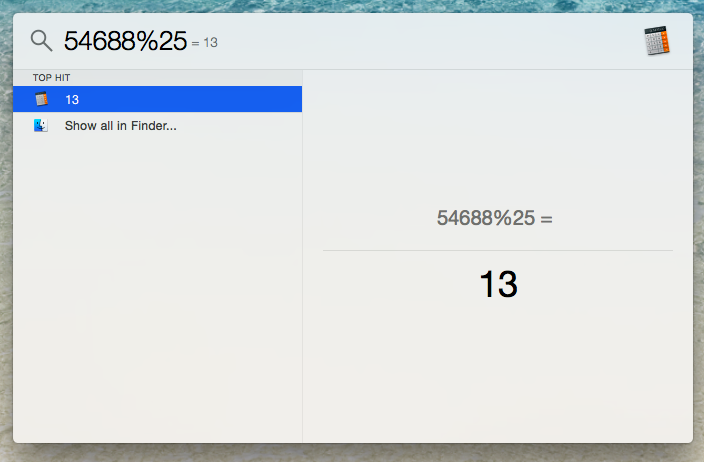
You can use the search bar of your computer to work out a quick calculation. It isn’t too hard to locate a calculator on your desktop, but this trick saves that extra second.
We’re all aware that by using Command + 3, you can screenshot the entire screen, but have to tested out Command + 4? You can pick and choose exactly the area of the screen you’d like to grab, without getting the unnecessary background of your desktop.
For times when you’re sneakily keeping up with the Kardashians, this is a nifty trick everyone should know. Command + H, and your browser is instantly hidden. We suggest you keep an official looking document in the background, just to add authenticity.
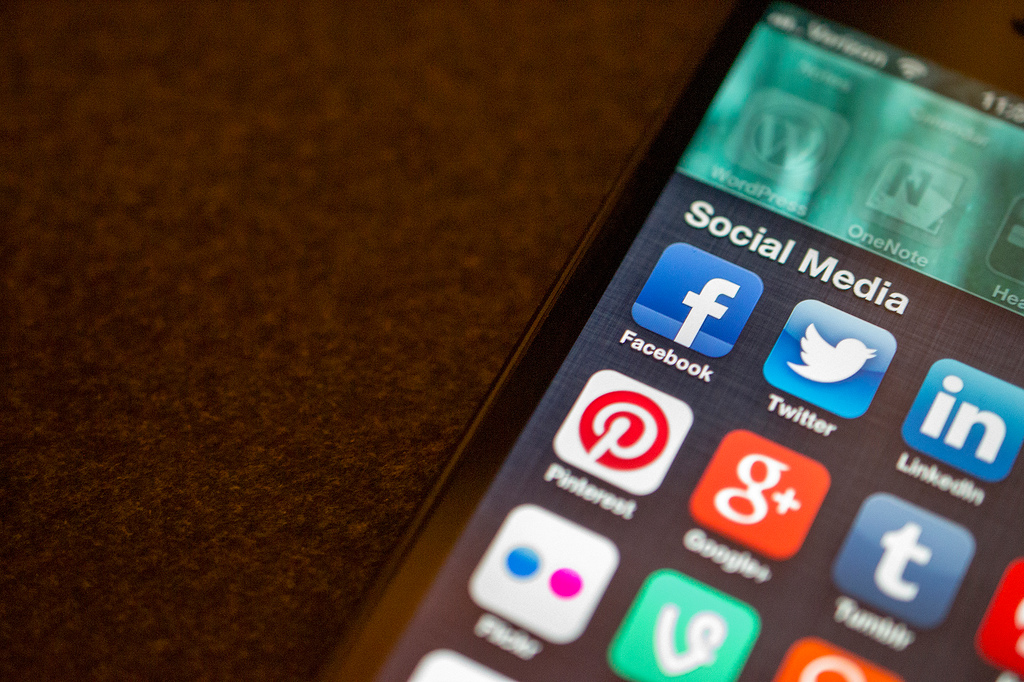
There is no doubt that social networking is the thing of our generation. Moreover with the growth of social network there are an impeccable amount of sources and opportunity. Twitter is on track to hit 500 million accounts by February. At the same time, Facebook is looking at hitting 1 billion users in August.
And it seems as if every day there are profusion of achievement stories of how people found a job through Twitter, how they found new clients or speaking gigs via Facebook, or connected to new people to expand their network. So the profit from using social networks proficiently are extremely powerful. Yet building up your personal brand through Twitter and Facebook is often a hard and overshadowing task.
So here are some tips to make your daily social networking more productive.
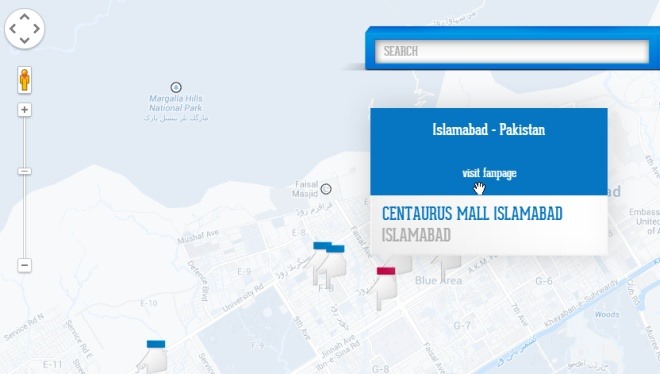
The great bit about having a social network that reaches over a billion people every month is that you can find all kinds of interesting information using data users share. That’s right, I’m referring to none other than Facebook, besides sharing bathroom selfies, Facebook is an awesome place to effectively promote your business in many powerful ways, one of which is the ability to attach the physical address of its location. Many pages we like on Facebook may have a physical address, but Facebook doesn’t offer a way to locate them using an interactive map of sorts. That’s what “Like Map” has tried to do, a web app that enables you to find your liked pages or search for new ones using the Google Maps API. Not only does this let you use Facebook as something like the yellow pages for finding an address, but it also makes it very easy to find other places close to the ones you’ve already visited.
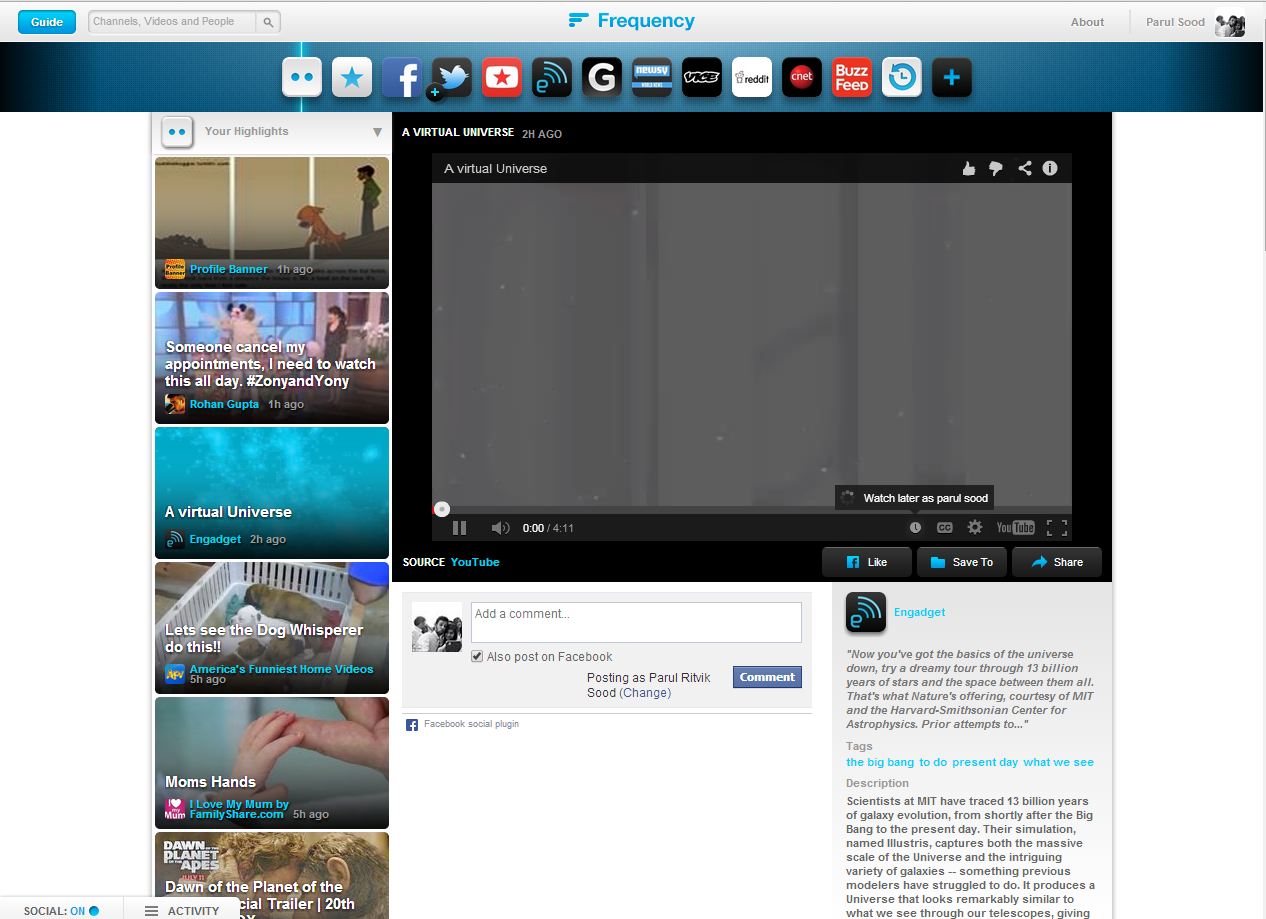
Frequency is a personal video service that lets you watch videos from anywhere on the internet in one place. Frequency turns the best websites and social media sites into video channels, gathering all the videos you love in real time. You’ll find videos from all of your favorite sources and all the videos your friends are sharing on Facebook, Twitter, YouTube and more. You can just sit back, get some popcorn and watch you whole news feed comfortably lying on your bed.
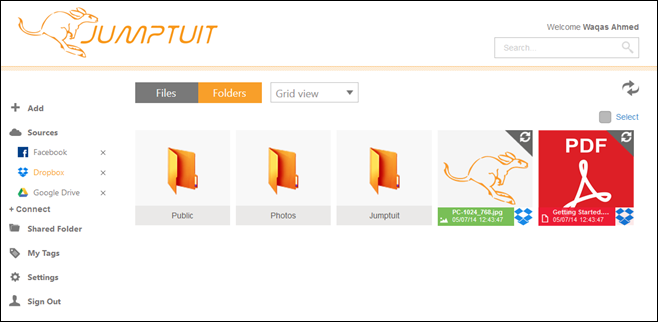
With so many cloud storage services and social networks out there, it can get fairly hard to manage them all. Many of us try to be everywhere at once, while others need a unified place where they can easily keep an eye on their virtual presence. If you’re looking for an easy solution to consolidate your life on the cloud, Jumptuit is a new cross-platform service that aims to help you organize, move and copy files between multiple cloud storage and social media services without much hassle. It boasts a decent interface, offers a ton of great features, and supports multiple mobile and desktop platforms. Jumptuit allows you to connect a ton of different cloud and social media services including Dropbox, Google Drive, OneDrive, Flickr, Facebook, Vimeo, Box, YouTube and more. Once that is done, you can easily move files from one service to another, or access the same content from multiple devices thanks to the native apps available for supported platforms. It even has a web interface that can be used in any web browser on your mobile or PC.
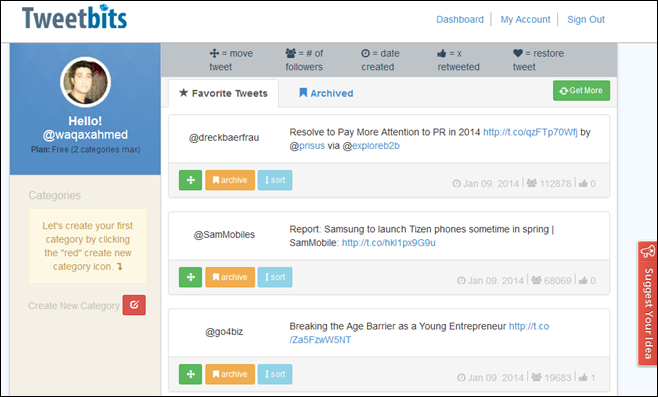
Nothing beats Twitter when it comes to micro-blogging. The service has proven to everyone that much can be said in 140 characters, and the ability to gain a strong following online is very much plausible for anyone who puts the effort into it (you might have heard of them Twittelebrities). Twitter fame aside, letting you organize your favorite Tweets isn’t exactly a strong point of Twitter when it comes to its native features. And if you’re one of those people who love favoriting one tweet after another, you would know how tedious it can become to find a particular previously favored tweet from the list at a future point. Enter Tweetbits – a third-party web app for Twitter that lets you organize your favorite tweets by grouping them in custom categories.
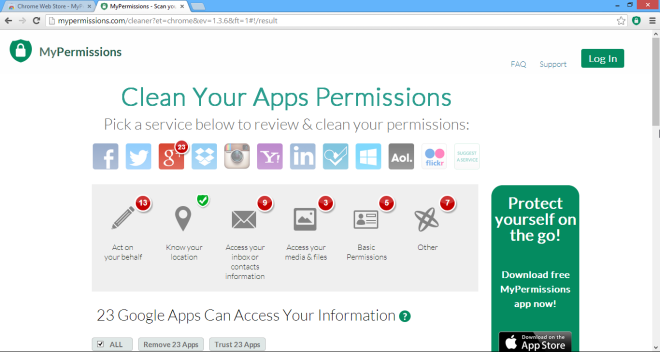
Every time we get on the internet, we put our privacy at stake, owing to the fact that the very services we heavily rely on are leaking our private info to third parties. That the data is mostly mined by marketing companies for advertisement purposes, or lately by intelligence agencies like NSA for mass surveillance of internet users. Though recently, a new breed of personal data collection has emerged in the form of app permissions. If you’ve ever used cloud services like Dropbox or SkyDrive and social network such as Facebook and Twitter, and have linked one of your accounts to a new web app, you might already be aware what app permissions are. MyPermissions Cleaner is a web service with a Chrome extension and apps for iOS and Android that lets you quickly clean up any previous app permissions of web apps that you may have granted during sign up process. MyPermissions Cleaner automatically scans your major online accounts on services like Google, Facebook, AOL, Dropbox, Microsoft, Instagram, Flickr etc. and lets you know what apps have access to your personal data, allowing you to manage these permissions under one roof, as well as revoke the ones you don’t need anymore.

They say sharing is caring, and in today’s modern society, the internet is the best resource to gather and share information with others. Therefore, people are constantly engaged in sharing pictures, photos, videos and other form of media through social networks and other content sharing services. But if you still find it hard to instantly share any type of content with your friends and others on social media, and use Google Chrome as your primary web browser, Cortex is probably one of the best extensions to help you tackle this problem. It lets you share photos, videos, news, blog posts, graphics and other type of links to a wide array of networks with a single mouse click. Cortex supports pretty much every popular online sharing service as of this writing, including Facebook, Twitter, Tumblr, Instapaper, Pocket, Gmail, Backplane, Postrous as well as Share to all. In addition, it allows you to share almost any kind of content you come across the web.

WARNING: DO NOT TRY THIS ON VISTA 64-bit!
I wonder how many of you have used cheat-codes in games?? Quite a few i presume. Well here’s a cheat code for windows that gives you God like powers to control your machine. To enable it, create a folder on your desktop and name it:
GodMode.{ED7BA470-8E54-465E-825C-99712043E01C}
This should give you an icon like this 
Double click on the God Mode icon to open a control-panelesque folder which contains over 48 different setting groups which let you control EVERY aspect of your windows computer. Have fun being God!

WARNING: DO NOT TRY THIS ON VISTA 64-bit!