The latest update for the popular search browser, Chrome 72 recently rolled out. The new update packs a ton of new features, bug fixes, and some security updates. Some of the features are aimed towards making the OS more “material friendly”, focusing on Google’s preferred theme. Read on to find other improvements within the update.
PiP And App Shortcuts
The new Chrome 72 update brings extra storage access for Android apps, which includes options for microSD cards and USB drives. The update also introduces Picture in Picture (PiP) for Chrome supported websites. As per Google’s blog post, they optimized Chrome 72 for tablet mode and touchscreen devices. Apart from this, Google also added app shortcuts for searchable applications in the launcher. Now you can find the app shortcut you want by just holding the app icon for some seconds. You can also right click on it to reveal the same options.
Google Assistant And ChromeVox Gestures
It seems that Google has finished testing the latest features of the Pixel Slate because they have brought Google Assistant and Android 9 Pie to even more Chromebooks. The new update also has a page dedicated to touch-screen gestures. It also explains how to use these gestures in Chrome’s built-in screen reader, ChromeVox. Google has added a setting in the ChromeVox options page that would read anything that’s placed under the mouse cursor.
Also, Chrome 72 will now show the files that you’ve saved via Backup and Sync under My Drive/Computers section. What do you think about the new update? Let us know in the comment section.
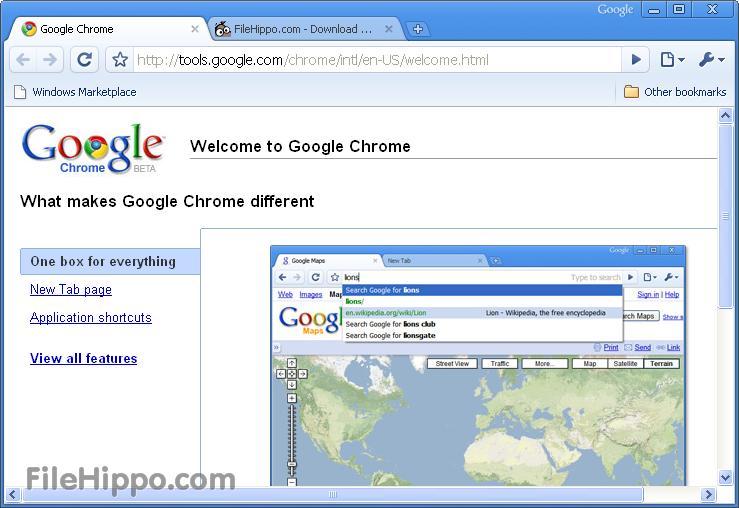
10 years ago, Google brought the Chrome internet browser into this world. At a time when Firefox was battling the giant Internet Explorer and Safari was used by a few, Chrome marched in and built an empire for itself. Most switched to Google Chrome around 8 years back, and since then, have never looked back.
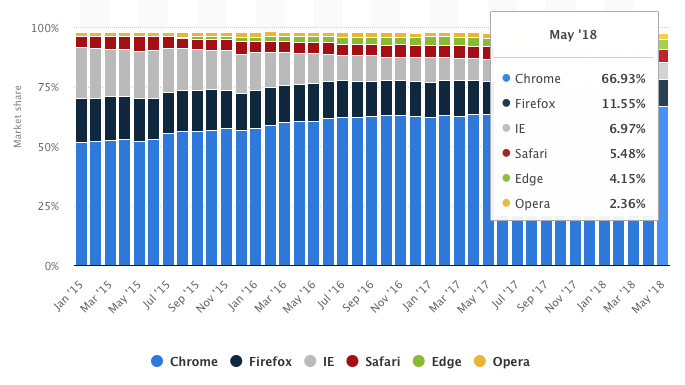
Google officially introduced Chrome in 2008 and it supported Windows at that time. By 2009, the company released Chrome for Mac Os and Linux as well. Fast forward to 2018 and Chrome now holds more than 60% of the internet browser market share, way ahead of its competition, the closest holding 11 %. The journey has been incredible, both for Google and the users. So here’s a look at 10 years of Chrome and the revolution that it brought along.
The Rise and Fall of Microsoft:
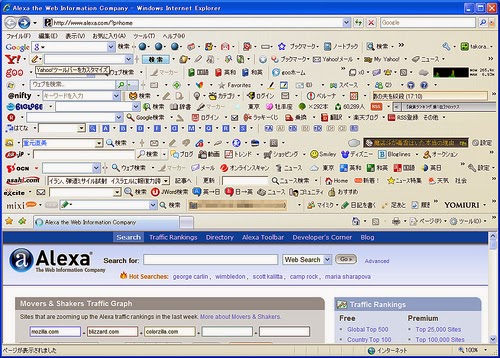
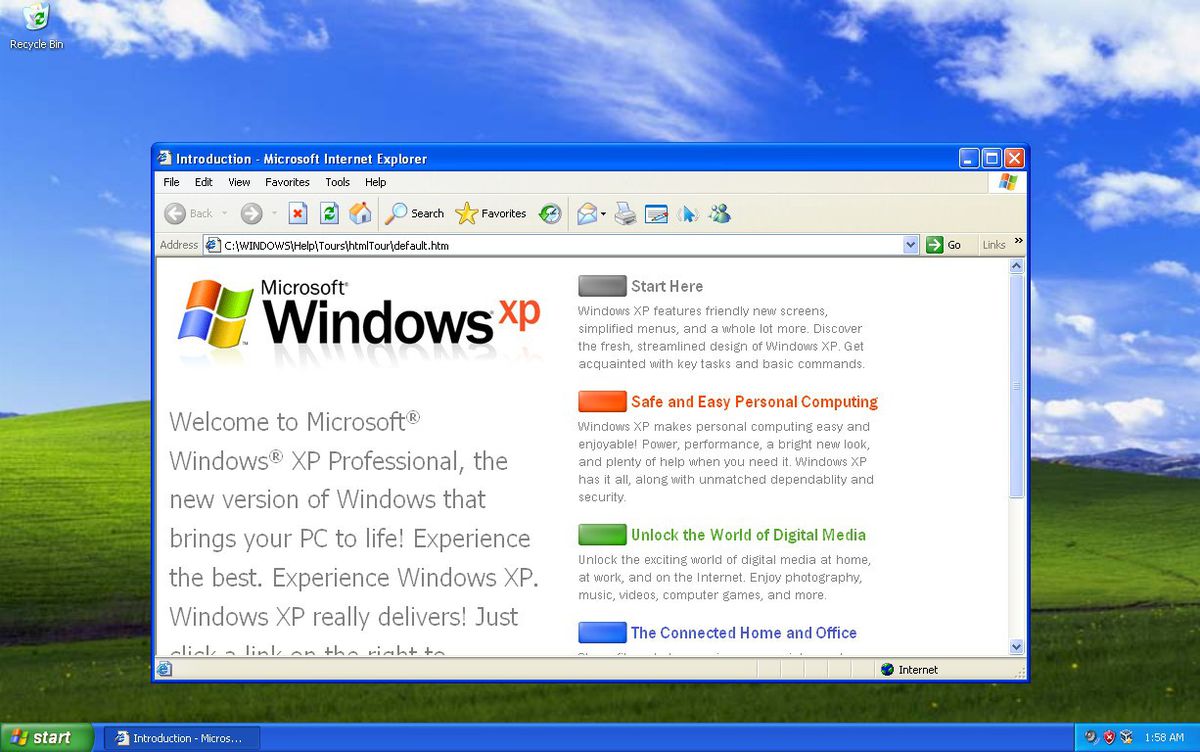
In the early 2000’s, the only competition Microsoft had was from Netscape. After it gained certain victory over Netscape, Microsoft now dominated the market, mostly because it had no rival. Microsoft introduced the Internet Explorer 6 along with Windows XP. Internet Explorer 6 worked very well with certain features of XP and came into a booming internet market. The users of Windows XP utilised IE 6 to access the web and soon it became synonymous with the internet for those users. IE 6 continued to rise in popularity and soon commanded more than 90% of the market. The top position gave Microsoft the power to do what it felt, or so it thought. Microsoft started disregarding open web standards and policies. Most websites started optimising themselves for IE 6, giving one the best experience.
With the rising popularity of the web, were set which would help developers design sites to work across various browsers and platforms. Microsoft largely ignored these standards. With the rising popularity of IE 6, developers had no other way out than to optimise their websites for IE.
Soon competition rose in the form of Firefox and it came out with new features such as tabbed browsing and a pop-up blocker. With IE 7, Microsoft introduced tabbed browsing and a few other features to ensure its relevance is up to date. However, it didn’t make much of an effort to improve its compliance with web standards. The criticism against Microsoft started growing.
Enter: Google Chrome!
Google Chrome came crashing down on this. It focused on web standards and passed the Acid 1 and Acid 2 tests. These tests determined the degree of compliance with web standards that a browser exhibited. Microsoft had not been able to pass these tests at that point of time.
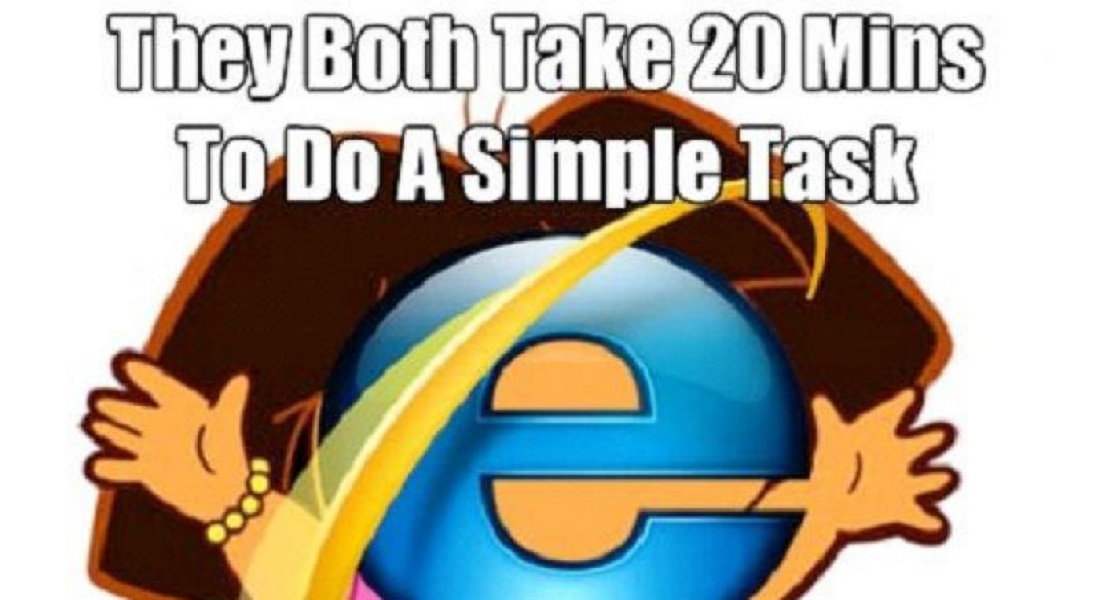
The entry of Google Chrome made the Internet Explorer a Meme Favourite
Soon, developers started moving towards Chrome as they could now build better websites based on web standards. Now Microsoft had two threats to worry about and the internet browser battle ensued. Google used components from Apple’s WebKit rendering engine and Mozilla’s Firefox to help build Chrome. It also made Chrome’s source code available openly under the name Chromium Project.
One of the most important features that Chrome brought with it was that of sandboxing. In simple words, sandboxing ensured that the contents of one tab stay in that tab. For example, if you accidentally access a sit which has malware or has been hacked, the sandboxing feature ensure that the other tabs will not be affected. Furthermore, the malware from that tab won’t spread into other parts of your computer. Sandboxing also helps in increasing the speed and stability of Chrome.
Soon, Chrome evolved to become something that was just more than a browser for PC’s. Over the years, it has grown to be one of the most preferred browsers for laptops, mobiles and tablets as well. Numerous applications such as Opera and Steam also use Chrome’s Blink engine.
However:
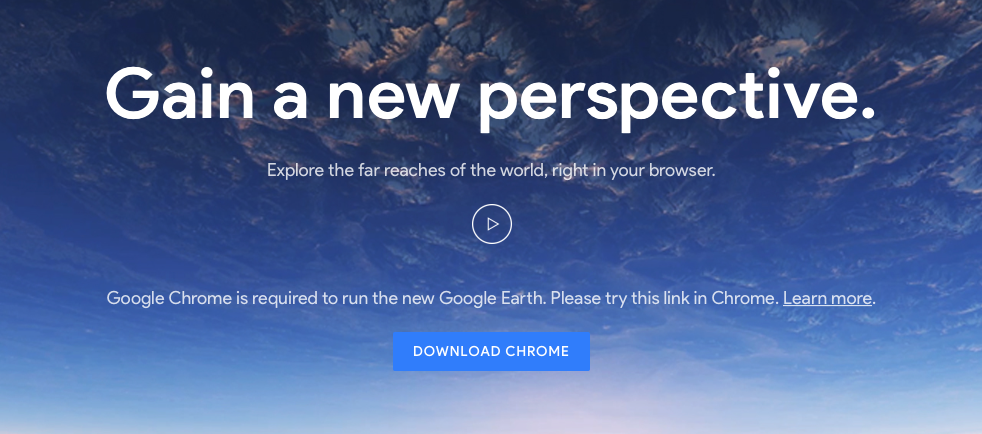
It is not all sunshine for Google. Recently, Google has drawn criticism as some allege it is stepping into the same spot that Microsoft did years back. With the development of new apps that ‘work best with chrome’ on the rise, some comparisons can certainly be drawn. Apps like Google Meet, Allo, YouTube TV, Google Earth, and YouTube Studio Beta block Microsoft Edge from accessing them and instruct users to download Google Chrome instead.
The use of the Google homepage for the ‘propagation’ of Chrome is also something which cannot be ignored Since google is the most widely used search engine, millions of people visit the homepage every day. If you happen to visit the page through a browser other than google, numerous messages will suggest that you download Chrome instead of the regular browser.
Companies other than Google are also making ‘Chrome only’ apps and websites optimised for Chrome. This surely does remind us of Microsoft’s tactics with IE 6. This is ironic, considering that Google Championed the cause of sticking to open web standards.
The Future:
Via Bleeping Computer
Over a decade, Chrome has evolved into a platform and it is no longer just an internet browser. Chrome books are extremely successful and perform a majority of tasks revolving around the browser. Considering the fact that it has grown to such an extent within this time, it is exciting to think about what it may bring in the coming few years.
In this age of streaming and downloading, where our hunger for data is exponentially growing, most users often find themselves struggling with this ever losing battle of trying to not exceed or finish up their data allowances.
Data plans have become so expensive that most of us live in constant fear of exceeding our monthly smartphone data allowance, forcing us to run from one Wifi hotspot to another just to conserve as much data as possible.
Today, iGyaan brings to you tips and tricks for Android users to conserve data, and help them keep more of their hard earned money away from the clutches of the evil ISPs.
Chrome Webpage Compression
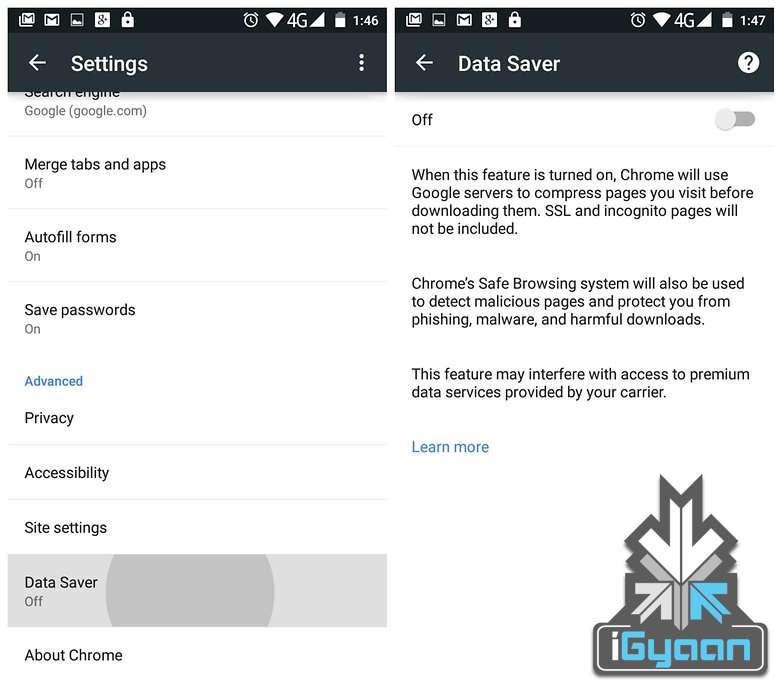
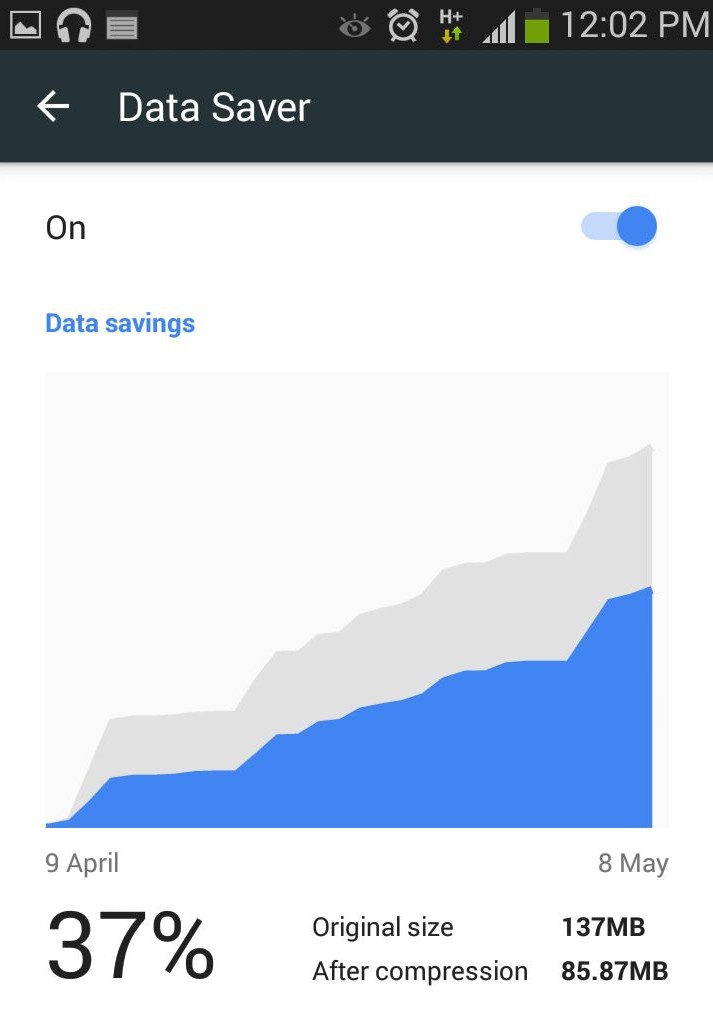
For users who use Google Chrome for browsing the Internet this tip can help them cut down significantly on data used for browsing. Google claims you can save upwards of 35% of data while using Chrome’s Data Saver feature. When enabled, Google’s servers reduce the amount of data that is downloaded when you visit a web page.
But such extreme data saving comes at a cost. When the data saver is enabled, certain websites might load slow, while ones with a lot of images displayed not at their best, but to us it seems like a fair trade for the major data savings that this feature provides.
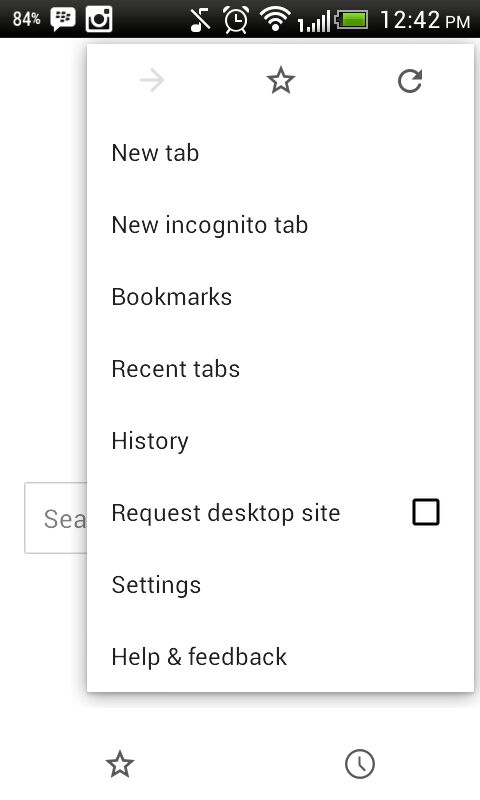
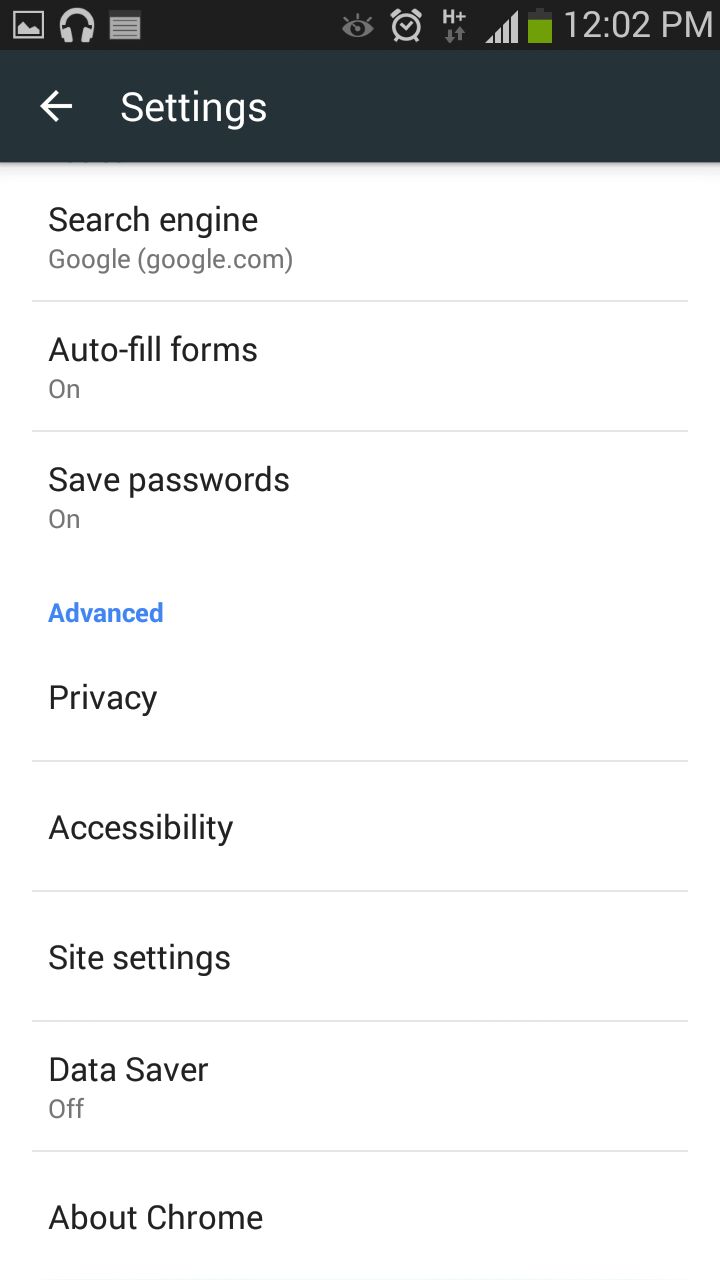
To activate this feature, the user needs to launch Chrome, tap the three dots in the top right-hand corner, scroll down to the settings buttonand then click omData Saver. Just to see the results for yourself monitor Chrome’s data usage after switching the data saver feature on.
Use Opera for Saving Data on Watching Videos
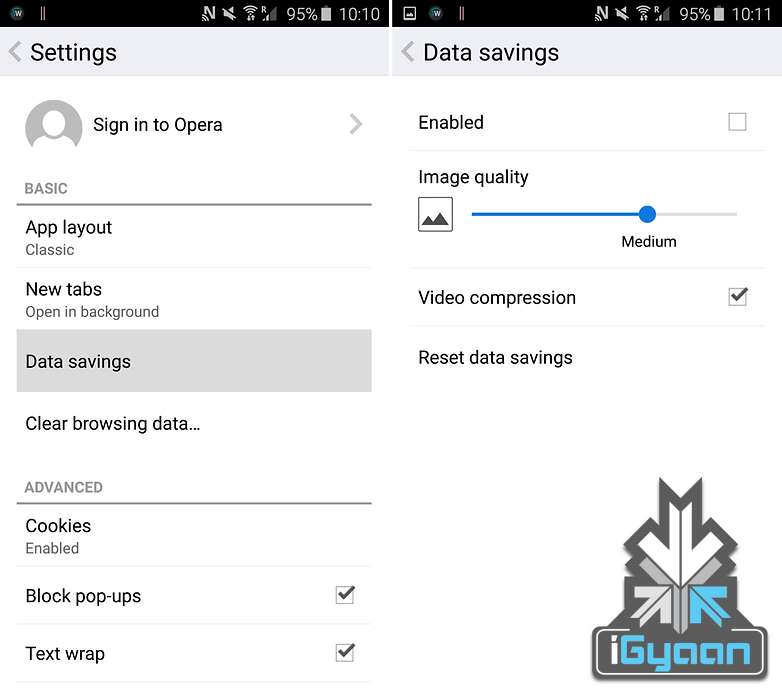
Much like the Chrome browsers compression technology for web pages Opera for Android provides users with a very nifty trick that allows them to watch compressed videos, resulting in almost similar quality content, but greatly reduced size.
The end result being reduced data usage for a very faster loading videos. Can’t say we don’t approve. the Opera browser, go to Settings > Data savingsand tick the box that says Video compression.
Restrict Background Data
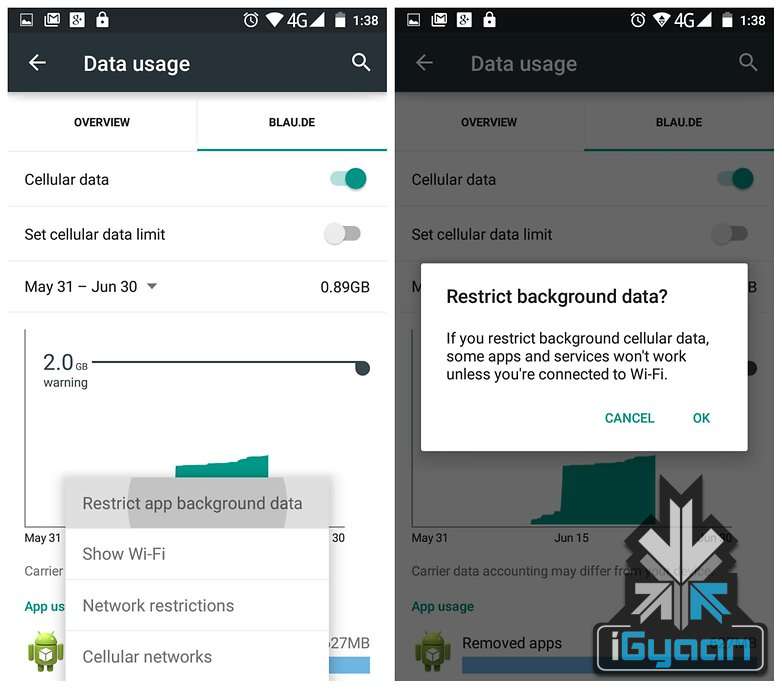
One of the best ways to conserve data that Google provides Android users is with the option of restricting background data using the inbuilt data saving mechanism of the Android operating system.
With this feature users can tell Android to restrict background data usage of specific apps, hence helping in greatly reduce data usage. Apps and tasks such as email syncing, feeds updating, weather widgets and so on can be stopped temporarily, and be taken care of when in a Wifi Hotspot area.
Turn Auto Update Off for Apps
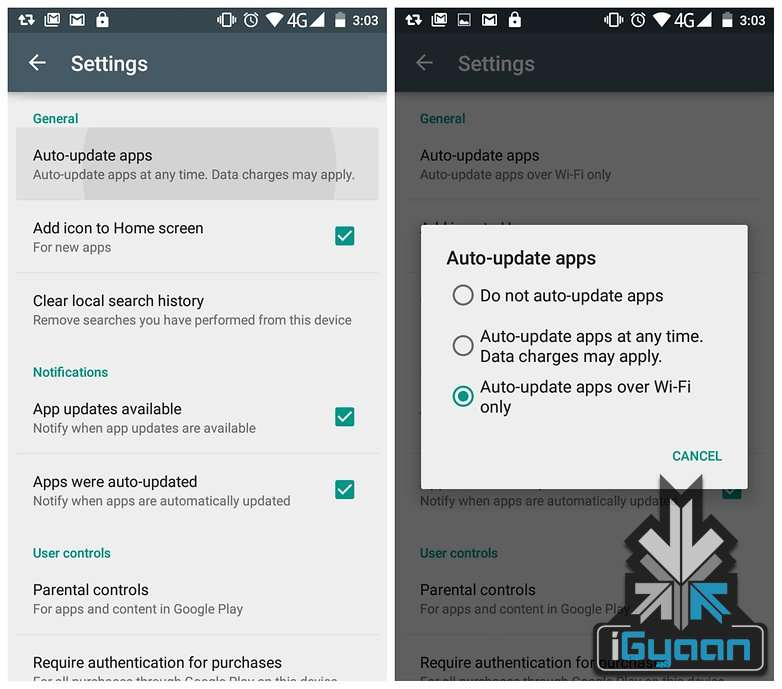
Android by default sets the Play Store to download updates to apps the moment they are available. Depending on your internet speed, this particular feature if left unattended, can eat through your phone’s data pack very quickly. Switching this to Auto Update Apps Over Wifi Only is recommended.
Head to the Play Store and head towards the Settings button.On the page you’ll see Auto-Update Apps. Tap this and make sure you either have it set to ‘Do not auto-update apps’ or ‘Auto-update apps over Wi-Fi only’.
For users looking for more customization, and want to manage individual apps, they can make way to the My Apps page, select an app and then tap the overflow menu to un-check Auto-Update.
Say Bye to the Facebook App
The Facebook App is infamous for its habit of eating through mobile data for fun. Several reports have found that Facebook’s recommended app is a great drain on mobile data on the Android System along with being a dreaded enemy of your battery life. As such, uninstalling it in favour of the Facebook Lite App is highly recommended.
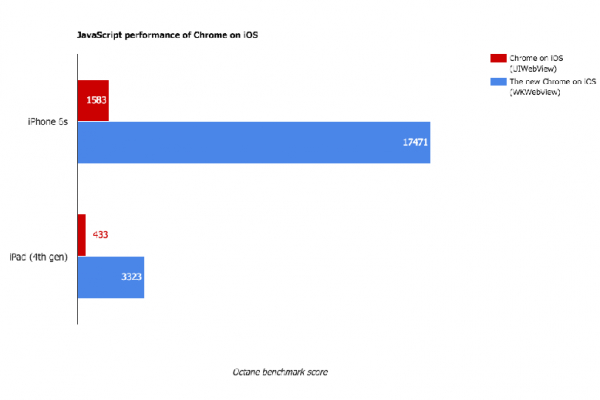
Chrome for iOS has received a major update which the company says will give the browser a huge increase in speed and stability. The developers attribute this to using WebKit (WKWebView) instead of the older UIWebView.
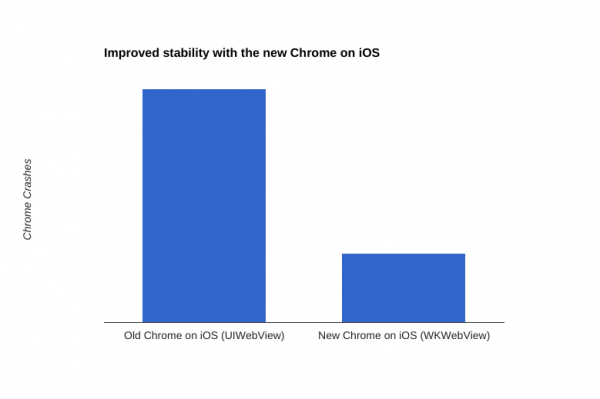
With the introduction of the WKWebView rendering engine, Google said it has been able to update its Chrome Web browser in such a way that it can perform far better on iPhones and iPads than the previous version. The new 48th version of Google Chrome for iOS according to estimates is almost 10x faster and 5x more stable than previous generations of the browser.
This particular switch to WKWebView from the previous iOS rendering engine has enabled Google to reduce Chrome browser crashes for Apple device users by upto a whopping 70 percent. According to a blog post by Google software engineer Stuart Morgan, Even Google’s “Aw, Snap!” error page loads faster when the renderer does crash, he noted.
Morgan further added “Out-of-process rendering was one of Chrome’s earliest innovations, and we’ve always wanted to bring its benefits to our iOS users,” Morgan said. “Unfortunately UIWebView, the component used to render Web pages on iOS, is in-process, so that’s never been possible before.”
This particular news comes on the heels of all the troubles Apple’s Safari web browser has been facing on iOS devices in the last couple of days. The issue of Safari crashing during searches has bothered iOS users for some time now. A fix had been issued but the timing of Google’s latest announcement will certainly take away a number of frustrated Safari users away from the Cupertino-based company.
Google has decided to take control over ‘inline installations’ that promise exciting features and then latch themselves on to your Chrome Web browser using random plugins.
Starting September 3rd, 2015, Google will restrict the installation of such extensions. The inline installation allows developers and web publishers a convenient option to make readers install their extensions without leaving the website.
The extensions can be found on the Chrome Web Store. However, publishers also found a way to embed a shortcut to it – so when a reader clicks on the install button, an installation dialogue automatically appears on the website, instead of the reader getting redirected to the Chrome Web Store first.
“It’s an important step to maintain a healthy extension ecosystem for users and the vast majority of extension developers who don’t use deceptive tactics.” says Google.
This feature soon began to annoy users, as the developers who maintain various advertisements claiming to offer free software updates etc. tricked users into installing their own extensions as well.
Google will now monitor any unwanted or mysterious extension and redirect them to the product page of that extension in the Chrome Web Store. This is to allow the user to decide whether he/she wants to install that particular extension or not.
However, it is also reported that inline installations will continue, but just not the unwanted ones.
Your smartphone is concealing a secret tool under the hood that can save the browsing data to a large extent. The feature is already available for the desktop version of Chrome as an extension called Data Saver (Beta). The nifty data saving feature in the Setting menu of Chrome compresses the pages and allows quick access to websites.
With this feature on, Chrome uses Google servers to compress pages you visit before downloading them. Users can make extended use of their internet data pack by spending the same amount. The feature is available on Android and iOS both. Here’s how you can activate it:
1. Go to your Chrome Web Browser and tap on the left touch-sensitive button.
2. Tap on Settings and you will see a few options under Basic and Advanced category.
3. In the Advanced section, search for Data Saver and turn it on.
Chrome will now start compressing pages for you to load it fast and will also save the data.
The Maps app by Google is a must-have tool while commuting from one place to another. Users need to type in the address or speak it to Google to get directions to the location, but what if you can avoid all that hassle. The search engine biggie has launched a new feature that allows sending directions from Chrome browser to your handheld device. Now users can search commute routes before leaving for the destination.
The announcement was made public by the company itself through its Google+ page. The process is as simple as searching on Google. Just type in send directions in the Chrome omnibox and add the final point. Tap on the ‘Send directions to my phone’ option and it will send the directions to your device. The Google Maps will load automatically with the specified location and will navigate to your destination.
It looks like the feature is not accessible in India as of now, but is expected to arrive soon. The hardware and software company launched ‘Find my Phone’ feature a week back that helps locate your missing Android device. It also revised its search algorithm to boost mobile-friendly websites and slipped a list of relevant apps within search results for you to download. All the moves are in favour of its users.
Back in September, Google released a beta project ARC (App Runtime for Chrome) that allowed Android apps to run on Chrome OS. Now the news has surfaced that speaks of its compatibility on every desktop version of Chrome. This means any user running the latest Chrome browser can download and run the Android apps on different platforms like Windows, Mac OS X, and Linux.
As aforementioned, the project is in beta stage and is officially designed for developers only. But one can download the .apk file of any Android app and install it on their desktops. All you need to download is the ARC Welder tool where you can find the official .apk files of all the Android applications from Play Store.
The ARC project is a double benefit initiative targeted at customers and developers alike. Customers can port any Android-powered app to the desktops, developers can test any app by submitting it on ARC. The application to run softwares is based on Android 4.4 KitKat, giving users access to a range of standalone apps like Twitter, Facebook, Facebook Messenger and a wide variety games.
It’s a nice push by Google to make every laptop or Macbook running Windows, Mac OS X, and Linux its platform. Through the project, the internet giant has given folks an easy way to peek into the gigantic Android world and experience it.
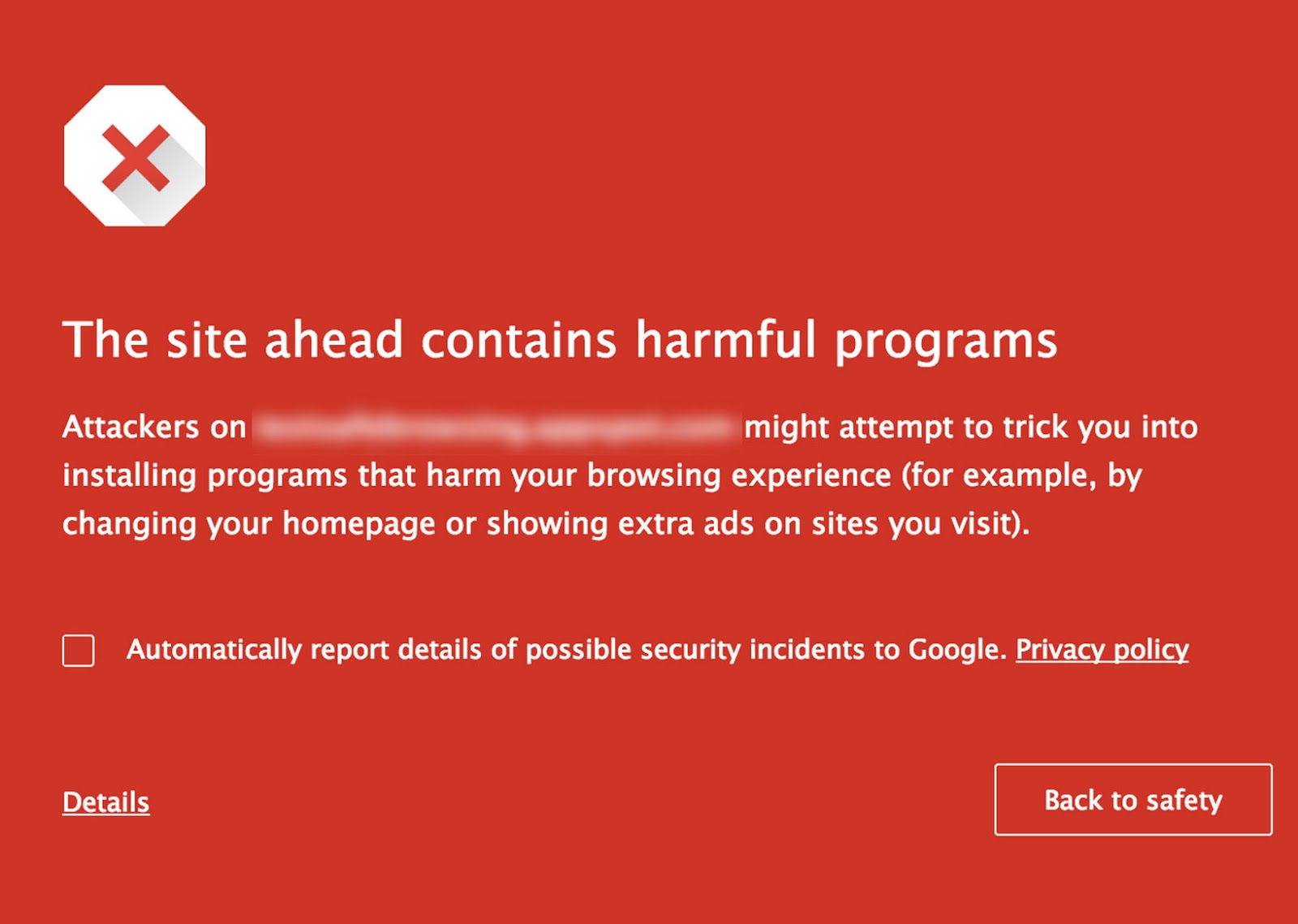
Search engine giant Google is expanding its SafeBrowsing initiative to make sure its users accidentally don’t download malware while browsing. Apart from the warnings prior to downloading, the Chrome browser from now on will pop up a red flag (like the one below) in case users visit a site that may encourage them to download malware.
Google is also asking site owners install its Webmaster Tools to help them tackle any threats and stay on top of any possible issues. Google will in return provide technical support to resolve any issues that may be caused by sites that encourage people to download malicious programs.
Even Google search now incorporates signals that identify such deceptive sites. This change reduces the chances you’ll visit these sites via search results. In addition, Google is actively disabling Google Ads that lead to sites with unwanted software.
Google has been criticized in the past, though it’s nice to see the company living up its motto “Don’t be evil”, trying to make the cyberspace a safer place for everyone.
Late last year, YouTube launched its highly anticipated music service YouTube Music Key. Unfortunately, not everyone had access to it as the service was invite-based. The ad-free service was available to selected users at the cost of $7.99 per month. Other options trim down to inconvenient apps that require you to sign in to websites or don’t allow background listening. However, there will be no longer a need for any of them.
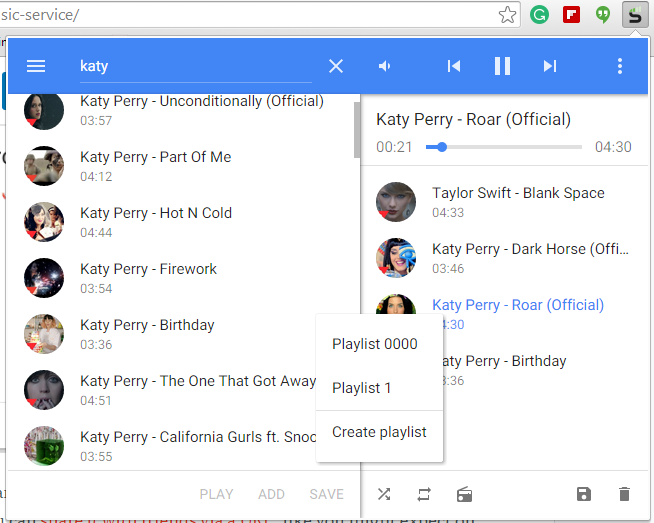
Streamus, a Chrome extension, is a new music service that simply uses YouTube content and plays it through a convenient music player. The extension sits on the top right corner of the address bar and pops up when chosen. It is very simple, and cuts off the need to visit YouTube to search for music.
You can also make a playlist, hear your favourite tracks, and can share the same with your friends via a URL. There is also an option of radio from where you can listen to the national and international stations. All in all, it’s an amazing player to get a quick access of your favourite tracks.
Google is on an update spree. Lately, the company has been rolling out new updates across its Android apps and services frequently, however, it is hard to keep track of all the updates. So, we are rounding up recent Google updates that you might have missed.
1. Google Lollipop 5.0.1
After the roll out of Android Lollipop, Google has begun the process of getting Lollipop 5.0.1 out the door. The company quietly updated its Factory Images page to reveal a 5.0.1 built for the Nexus 9, Nexus 7, and Nexus 10. Installing images from this page does require the flashing of devices in order to update them, and does not carry user data across in the process, unless backed up and restored by the user.
2. Gmail
With the new update, Gmail inbox allows users to edit Microsoft Office documents sent as email attachments. The new feature adds a Google Drive edit icon to Gmail attachments that says ‘Edit with Google Docs’. By clicking on this, the Office files get automatically converted into Google Docs, Sheets, or Slides.
3. reCAPTCHA
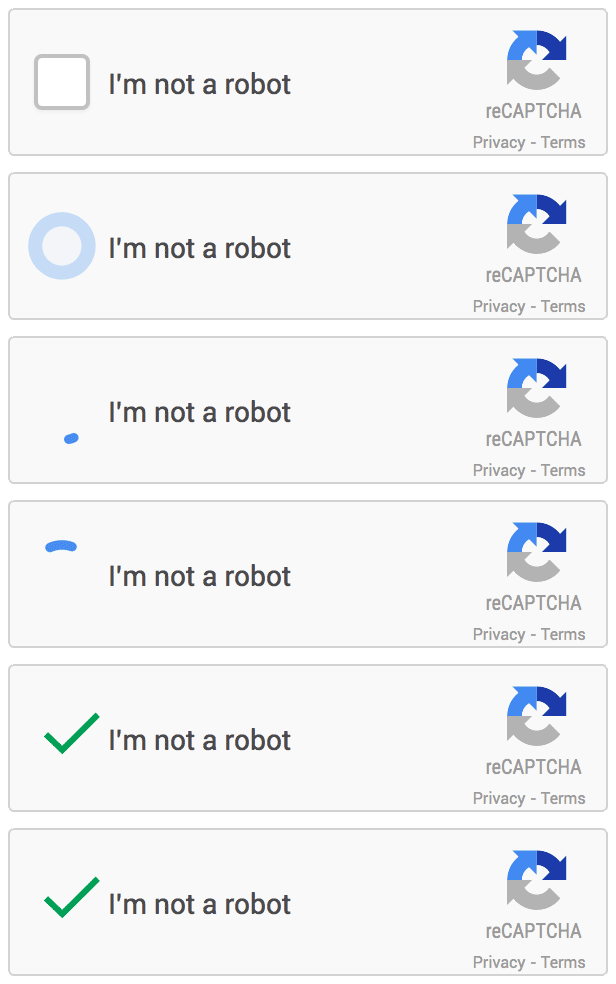
Google has announced that it is dropping Captcha, its anti-bot system that asks users to identify a deconstructed word or two in order to avoid spamming. The company has admitted that 98 percent of bots can now correctly answer a Captcha and so they are switching to a simple ‘tick the box if you’re not a robot’ system, with all the clever stuff behind the scenes rooting out impostors instead.
4. News & Weather app
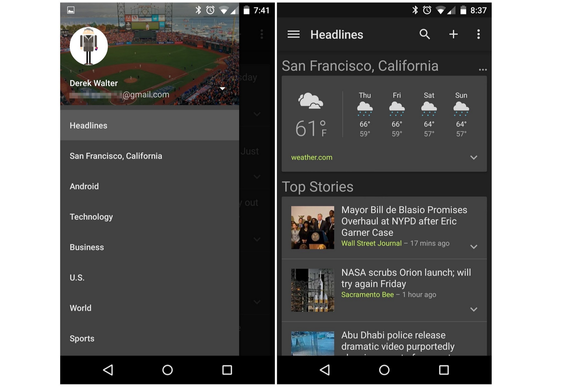
Google has released an updated version of its News & Weather app on Google Play, which brings brand new dark themes and other changes. The company will roll out the update globally soon. In addition to the dark themes, which can be activated from overflow menu, the updated News & Weather app includes search option, new UI tweaks and bug fixes.
5. Device Assist
Google has rolled a new troubleshooting app called Device Assist that offers specific tips and access to support Nexus, Google Play edition, and Android One running on Lollipop. Device Assist will alert you about any settings that could give you trouble, such as battery drain from cranking up the brightness too high. The app also includes a list of common tasks and how to perform them, such as taking screenshots and customising notifications. There is also an option of contacting to the Google Play support via call. Apart from requesting a call, you can also submit your smartphone statistics for more elaborate troubleshooting.
6. Chrome Beta
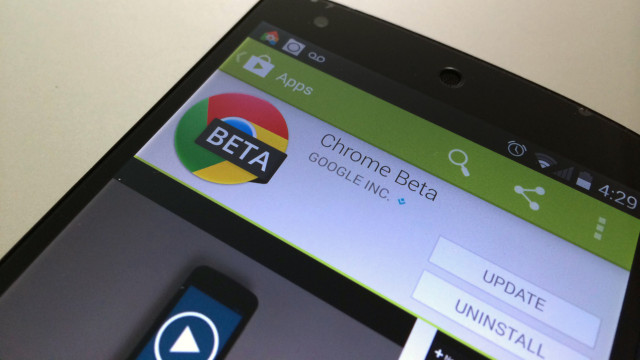
Chrome Beta for Android has been updated by the company with minor design changes. The address bar has been redesigned for Lollipop users with Merge Tabs and Apps option enabled to go all the way across the display. Google has also added several new flags to the app, allowing users to enable a new bookmark manager and password generator.
7. Google +
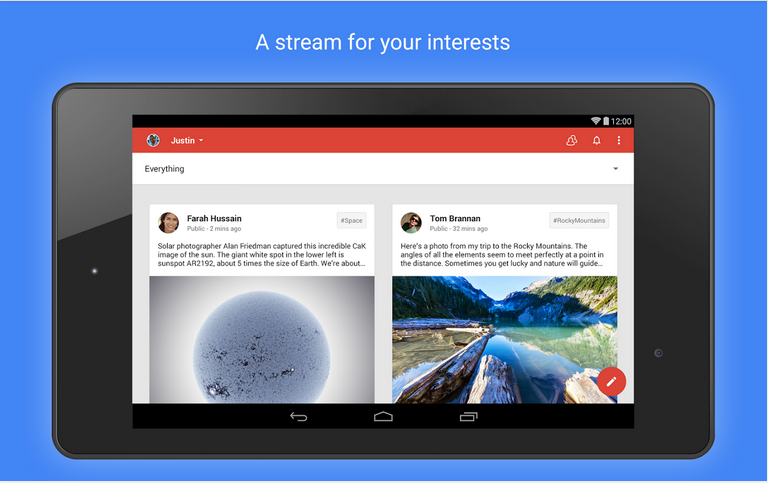
Google+ has also received an update, debuting the app version 4.8. This update makes a few minor design enhancements too, like Chrome Beta. The ‘new post’ page has been slightly reworked with the publish button moving from bottom to the top and swapping places with the menu button.
8. Google Play Games (version 2.2)
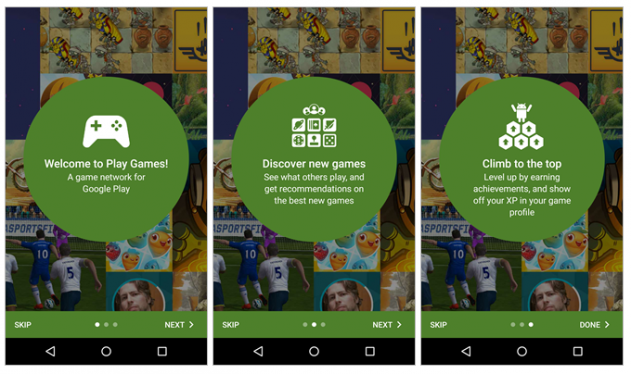
This update adds a new interface for picking an account to use. The interface also now appears for all users, even those that have added only one account, with a new prompt to easily add another email. Finally, the game detail page has been enhanced with new ‘View in Play Store’ and ‘Share’ options.
Many people use Google Chrome as their major web-browser on their PCs, tablets and phones these days. It’s a great, swift and feature-packed cross-platform browser that’s easy. Google Chrome also provides abundant apps and extensions to make your internet experience even more pleasant. Though picking the ones you need may be tricky. Most people never even hear about the extensions that may work extremely well for them. Well, we’ve listed 5 really useful Google Chrome extensions for you to check out:
‘Cleary’ by Evernote is a very helpful extension, particularly if you’re a student, writer or just someone who spends a lot of time doing research on the internet. It helps you focus only on the reading the important part of the article, blog or news; blocking out everything that is redundant. You can even save the sources to Evernote for later study. ‘Clearly’ also makes it probable to put in order the saved articles by tags, add footnotes or even let the extension read the material back to you. You can even change the background or font size of the materials. It is a very useful app, but you should know that it might not work on all websites.
This handy little tool brings Chat Heads to the desktop, enabling you to keep track of your Facebook messages in the simplest manner. It offers you notifications with small, modest head popups like the mobile app. And when they do show up , this could simply mean a new Facebook message is pending. The pop up circle displays your friend’s photo just like the Messenger app, their name, and recent message they sent when you hover the mouse pointer over their photo.
If you want to get the most out of your money, then use this comparison shopping service. Agora for Chrome aims to provide a clever solution. It gives you your personal workstation where you can append products to your dashboard, put them in order and make comparisons in order to make the best purchasing choice. Although still in early beta, the service works absolutely flawlessly.
TL;DR (Too Long; Didn’t Read) is a clever extension, it creates a summary of any web article you don’t have time to read fully. It allows you to choose between four different summary lengths, depending on the amount of time you have. With the summaries found on tl;dr, you can easily select what you really want to read and save precious time. Read only what matters, skim the rest.
It is an online spelling and grammar checker extension. Ginger proofreads your typing and cleans up your mistakes with a simple click. The extension integrates itself with the browser’s interface and works in text input fields. Whether you type in a misspelled word or use bad grammar, the extension underlines the mistake. Right-click the word, and a small popup will open, listing alternate word suggestions for incorrectly spelled words or the correct word itself, in the event that you’ve used the wrong tense.
Google has updated its Chrome Web Store policy to keep Chrome fast enough by restricting the extensions on the web browser.
This new policy from Google will start implementing today. With this update, Google is aiming towards extensions that have a single purpose, which is narrow and easy-to-understand. The multi-purpose extensions can crowd the browser UI and slow down the web browsing experience.
The blog from Erik Kay (Engineering Director) notes, a simple and speedy browsing experience has been part of the core principle of Chrome since the beginning. It further notes that Chrome will not use any toolbars as more toolbars reduces the capabilities of the browser. Users would have more control over features they add to their browser. For more information check out the source link below.
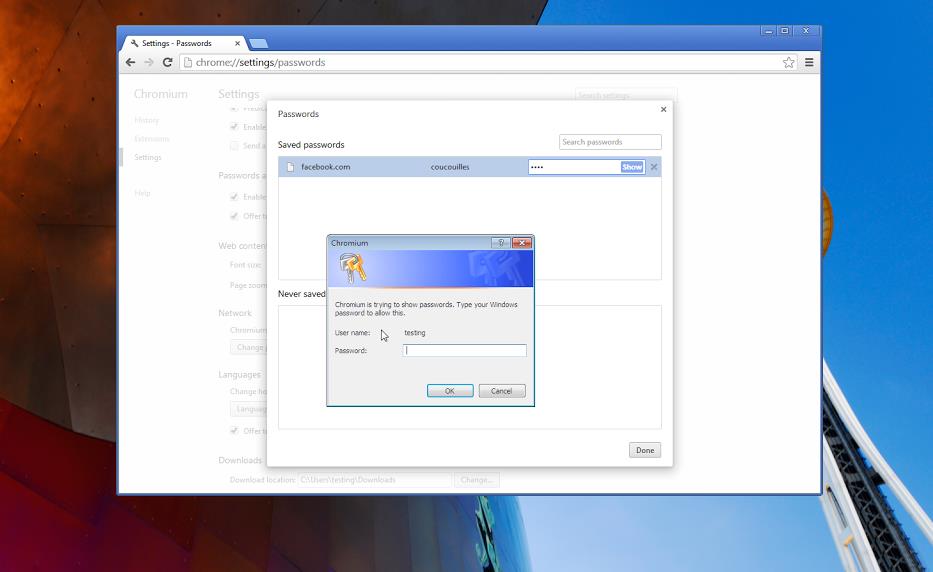
Extra password security for Google chrome is not new, as it has already been available to Mac users lately. Now even windows users will be able to secure Chrome with extra password.
As spotted by François Beaufort who is an open-source Chromium evangelist, this features will ask users to authenticate themselves before they can access any saved credentials inside their browser. Earlier, Chrome users could access a plain text list for saved passwords, simply by visiting chrome://settings/passwords. Which could have given easy access of the credentials to unwanted people.
This new version is still not official, but users can still download it. However, when you make an attempt to download, it will say that this is a raw build of Chromium for Windows, right out of the trunk. Google recommends Chrome Canary of Dev Channel for a build that regularly auto-updates to the latest.
The download page clearly says this may be tremendously buggy. If you would like to download and explore it further, you can check out the source below.
Unwanted music from websites is that one possible thing that annoys almost everyone. But when you have multiple tabs open, finding the culprit is almost impossible. Google Chrome’s new 32 beta update fixes that by adding a small speaker icon on the tab that’s playing the music.
It also lets you know which tabs are using your webcam, or streaming to your TV over Chromecast. Additionally, the Safe Browsing features now automatically blocks malware files, instead of advising you to merely proceed with caution.
Interested ? We have linked the download page below, check it out!
 The new Chrome 72 update brings extra storage access for Android apps, which includes options for microSD cards and USB drives. The update also introduces Picture in Picture (PiP) for Chrome supported websites. As per Google’s blog post, they optimized Chrome 72 for tablet mode and touchscreen devices. Apart from this, Google also added app shortcuts for searchable applications in the launcher. Now you can find the app shortcut you want by just holding the app icon for some seconds. You can also right click on it to reveal the same options.
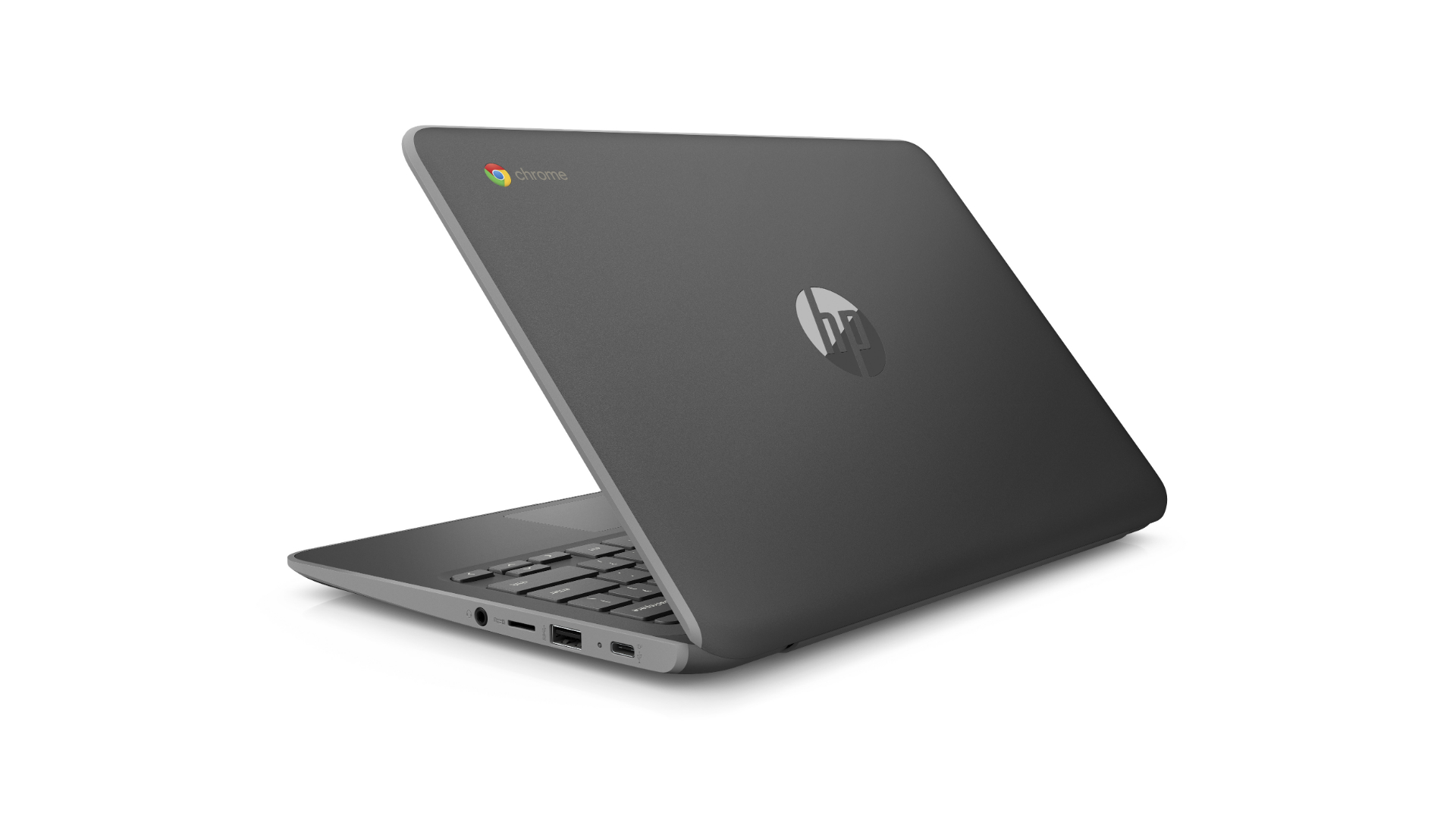 It seems that Google has finished testing the latest features of the Pixel Slate because they have brought Google Assistant and Android 9 Pie to even more Chromebooks. The new update also has a page dedicated to touch-screen gestures. It also explains how to use these gestures in Chrome’s built-in screen reader, ChromeVox. Google has added a setting in the ChromeVox options page that would read anything that’s placed under the mouse cursor.

















 It is an online spelling and grammar checker extension. Ginger proofreads your typing and cleans up your mistakes with a simple click. The extension integrates itself with the browser’s interface and works in text input fields. Whether you type in a misspelled word or use bad grammar, the extension underlines the mistake. Right-click the word, and a small popup will open, listing alternate word suggestions for incorrectly spelled words or the correct word itself, in the event that you’ve used the wrong tense.