Category: Do It Yourself

  • How to : Upgrade the Spice Mi 410 to 2.3.4 Gingerbread Step by Step

    How to : Upgrade the Spice Mi 410 to 2.3.4 Gingerbread Step by Step

    The Spice Mi 410 was launched some time back, we also got an unboxing video for you guys. Now thanks to several readers of iGyaan, we found a way to update the Mi-410 to the latest Software Update Android 2.3.4 aka Gingerbread, and we tell you how!


    Note : Please take a backup of your device, contacts/ pictures / files, anything thats important.

    Also Note : This might void your warranty or damage your device and you do this at your own risk


    What you Need!

    1. Spice Mi 410 (Duh!)
    2. A Windows / Mac
    3. Data cable (USB-microUSB) / Memory Card reader
    4. Patience
    5. Combo Update [button link=”http://www.cherrymobile.com.ph/downloads/MAGNUM_softwareupdate2.zip” style=”download”]DOWNLOAD [/button]

    Step 1

    Download the above mentioned file, its an update for Cherry Mobile Magnum, which is actually the same handset, branded under the cherry mobile name.


    Step 2

    Extract the ZIP file. downloaded above and copy the extracted FB0-318B-0-5019-A01.nb0 to your SD card. Make sure it is placed in the Root Folder and not in the Downloads folder.

    Also rename the file FB0-318B-0-5019-A01.nb0 to firmware.nb0 you can do this before or after copying the file, it does not matter.


    Step 3

    Enter bootloader mode :

    • To do this first power off your device.
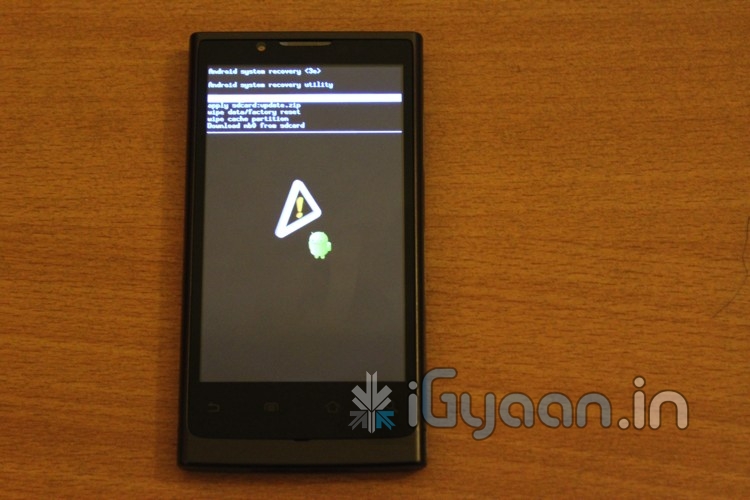
    • Once off, Hold – Vol Up + Vol Down + Power Button and you will see the Android Image as below

    • Next Hold down on the home button and you should be in the bootloader mode see below


    Step 4

    • Use the volume down button to scroll to “Download nb0 from SD card”
    • Then tap the back Button


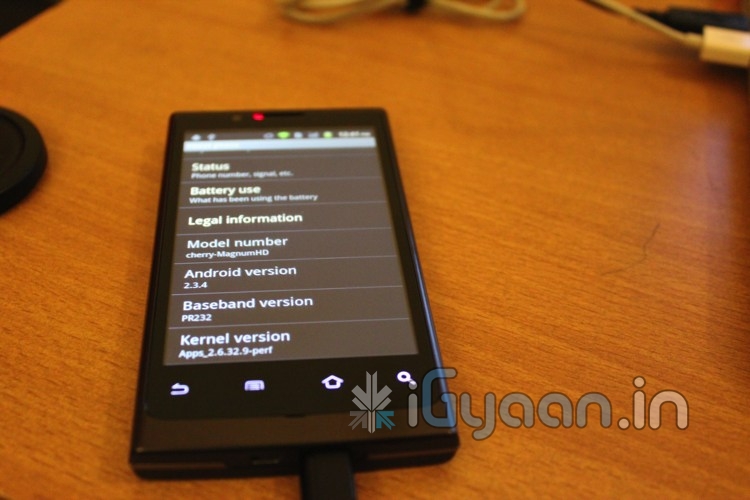
    Your phone should now upgrade to the new firmware and reboot into the new os with the Cherry Mobile Logo.

    Quickly jump into Settings to confirm the Upgrade

  • DIY: HOW TO : Fix Battery Drain in Samsung Galaxy POP / Fit / POP CDMA

    DIY: HOW TO : Fix Battery Drain in Samsung Galaxy POP / Fit / POP CDMA

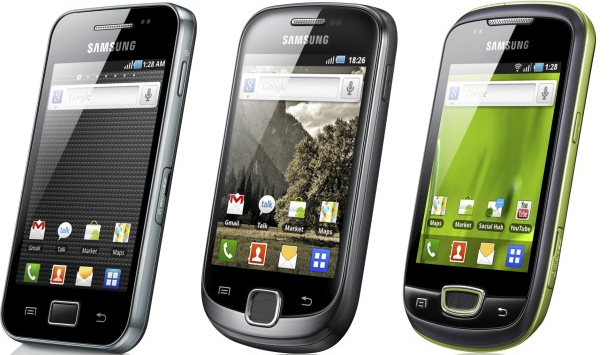
    If you have a Galaxy POP / FIT / POP cdma or even a Galaxy Ace

    You are probably complaining of the poor battery life! SO were we.


    But iGyaan has found a quick fix for all your woes. It seems that something in the devices is causing the chipset to overheat and cause the battery to drain. Sometimes enough to drain the battery in a few hours of NON-USE.


    So here is what you need to do ( incase you didn’t already know)

    • Make Sure you remember to turn off Wifi / GPS  and Location services
    • Turning off Background Data will also improve the battery life considerably.


    But we found that the above steps, may improve battery life, but do not improve it to an extent where the device is still usable. And a simple uncheck helped us resolve this predicament.

    Go to Settings < Wireless And Networks < Mobile Networks

    And turn of Cellular data / Phone data / Mobile data ( whatever it is called on your device)

    You will see a 10x improvement in battery life to say the least. And guess what ? No more overheating of the device. We found that the processor and chipset are constantly struggling to maintain a connection with the IP provided by the cellular network. In India the Cellular data is not stable and hence causes a change in IP every few minutes, Causing the device to go into a constant loop to resolve itself on the network. Hence leading to processor overload and battery drain.

    Please tell us if turning data off improved your battery life. We tested with several devices and were quite happy with the results.

    If you use cellular data often you can place a quick widget on the home screen which will toggle Cellular data when you need it.

  • DIY : How To Root The Samsung Galaxy S2 i9100

    DIY : How To Root The Samsung Galaxy S2 i9100

    We show you how to Root the Dual core monster from Samsung. The Galaxy S2 has been rooted and we have easy instructions for you:

    NOTE: Rooting is not recommended for the faint of Heart, and can possibly brick your phone, Void warranty and make you feel invariably sick.


    What you need:

    • A Samsung Galaxy S2 (Duh!)
    • A Windows PC
    • A USB DATACABLE
    • Odin Downloader (Download HERE)
    • Download the attached XWKDD, but do NOT extract the .tar file (Download Here)
    • Download and extract SuperOneClick
    • Put device in USB debugging mode: Settings -> Applications -> Development -> USB debugging

    Step One


    Reboot your device into download mode Turn the device off, then power it on again by pressing and holding VolumeDown + Home + Power simultaneously.


    Step Two

    Start ODIN Downloader


    Step Three

    • Connect the device to your computer using USB
    • Wait a few seconds, the ODIN screen should show you that a device is now connected.
    • tick the checkboxes next to “Auto reboot” and “F. Reset Time” and leave everything else as is.
    • Press the “PDA” button, and select the “XWKDD_insecure.tar” file.
    • Press “Start”. ODIN you should now be flashing the kernel, and the device should reboot.
    • DO Not Remove the cable and Wait until the device is rebooted.


    Step Four

    • Once the device is rooted and while still connected via USB
    • Start SuperOneClick, and press ROOT
    • Reboot the device


    And You Are Done ! Enjoy your rooted Beast.

    The Files And Instructions are made by iGyaan with the help of information from XDA DEVELOPERS

  • How To: Remove Spam from your Website Best Captcha Alternative

    How To: Remove Spam from your Website Best Captcha Alternative


    How many people have had to enter the funny squiggly text while registering on a new website? We have, and we’re sick of it. So when we went looking for alternatives, we found a brilliant piece of software. Its the same old captcha theory, with a new twist. It’s called PeopleSign. Instead of using text as a input field, it uses pictures. What you basically have to do is that you match a picture from a list of pictures. Spambots are currently programmed to decifer text captchas but they have no image processing capabilities. We have faced a huge reduction in spammers by using this captcha technology. Try it for yourself and leave your comments below.


    You can sign  up for this service here: http://www.peoplesign.com/main/registerToHostPeoplesign.html

  • DIY : How to Install Android 2.3 Gigerbread on you Samsung Galaxy Ace

    DIY : How to Install Android 2.3 Gigerbread on you Samsung Galaxy Ace

    Today we are going to show you how to Install GingerBread 2.3 on your SAMSUNG GALAXY ACE mobile PHONE.


    What you will NEED!


    1. A Samsung Galaxy ACE (DUH!).

    2. The 2.3 Firmware S5830( click here to download password =  samfirmware.com).


    3. ODIN downloader (click here to  download). and USB Driver (Click HERE)

    4. OPS files (click here to download).

    5. A windows PC + samsung data cable.


    Important NOTES:

    If you get errors after upgrade : i.e. error: phone application has stopped working or get constant crashes,do the following:

    To fix phone not working, initiate restore phone to factory settings command from Settings – Privacy

    TAKE SERIOUS CONSIDERATION BEFORE UPGRADING AND HAVE YOUR BACKUP IMAGE READY IF SOMETHING GOES WRONG – use the OLD FIRMWARES: (All backup images can be found here)

    • Make sure your device is fully charged!
    • BE sure to backup all your data!
    • You are doing this at your own risk, Although, This will NOT void your warranty!
    • Your phone does not need to be rooted to get this working.


    AFTER BACKUP – FACTORY RESET YOUR PHONE BY ENTERING THE FOLLOWING CODE

    *2767*3855#


    STEP 1

    Download all the files above, and make sure you have the latest version of KIES software installed.

    STEP 2

    Extract the RAR to get a .tar file.

    STEP 3


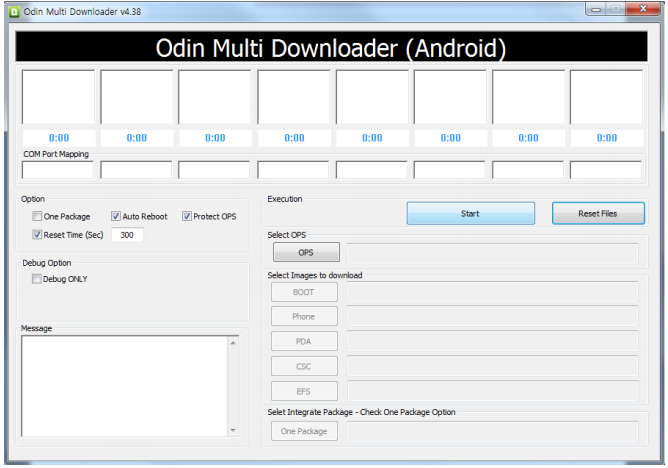
    Open ODIN Downloader.

    MAKE SURE you select One Package, Auto Reboot and Protect Ops checkboxes.

    Select the Ops file (the file we downloaded earlier).

    And finally select the tar package we extracted from the RAR downloaded earlier.

    (You can also extract the rtar and select packages indivisually)


    NOW CLOSE ODIN.

    STEP 4

    Backup you phone and data with the KIES software (after you are done exit KIES)

    Turn OFF the Galaxy ACE and remove the Battery

    Reinsert The Battery and Press the following buttons together

    CENTER HOME BUTTON + POWER BUTTON + VOLUME DOWN Together

    Hold the buttons together till you see the downloading screen


    STEP 6 (Final Step)

    CLICK START and wait for process to finish, once done your device will automatically reboot and will have Android 2.3 running on it.

    A Few Things you will notice with 2.3

    • The rom runs faster but uses more RAM
    • Video now is up to 640x480px
    • Camera can’t auto focus.
    • The interface is overall nicer looking and runs smooth
    • There are a lot of bugs and it may crash frequently

    Test this out at your own risk, if you have feedback please leave it below

    Rom Files courtesy (samfirmware.com)

  • Activate GOD MODE in Windows

    Activate GOD MODE in Windows


    WARNING: DO NOT TRY THIS ON VISTA 64-bit!

    I wonder how many of you have used cheat-codes in games?? Quite a few i presume. Well here’s a cheat code for windows that gives you God like powers to control your machine. To enable it, create a folder on your desktop and name it:


    GodMode.{ED7BA470-8E54-465E-825C-99712043E01C}


    This should give you an icon like this             


    Double click on the God Mode icon to open a control-panelesque folder which contains over 48 different setting groups which let you control EVERY aspect of your windows computer.  Have fun being God!


    WARNING: DO NOT TRY THIS ON VISTA 64-bit!

  • Samsung Galaxy 3 I5801 gets Android 2.2 FroYo update in India + How To

    Samsung Galaxy 3 I5801 gets Android 2.2 FroYo update in India + How To

    Samsung has finally let out their most awaited update for the Samsung Galaxy 3. Android 2.2 aka Froyo is now available for all those with samsung Galaxy 3s in India and Europe.

    To Update your Device

    Make sure your device is fully charged!

    BE sure to backup all your data!


    Step one

    Download the latest version of Kies

    Step two

    Fully charge your Galaxy 3

    Step three

    Connect via the USB cable to your computer

    Step four

    Fire up kies and let it search for update

    if it does not give you an update, check for update manually by clicking the update button in the bottom row.

    Step Five

    Follow the steps on the screen and your device will begin the new update.

    Few features that are in the 2.2 update –

    • A very colorful menu interface
    • The ability to Install apps to the SD CARD
    • Apart from general Performance boost in processor, better battery and ram management.
    • The 2.2 update also adds a lot of bug fixes and tweaks.

    Please leave your questions and feedback below.

  • DIY : How to Update HTC HD7 to NO-DO

    DIY : How to Update HTC HD7 to NO-DO

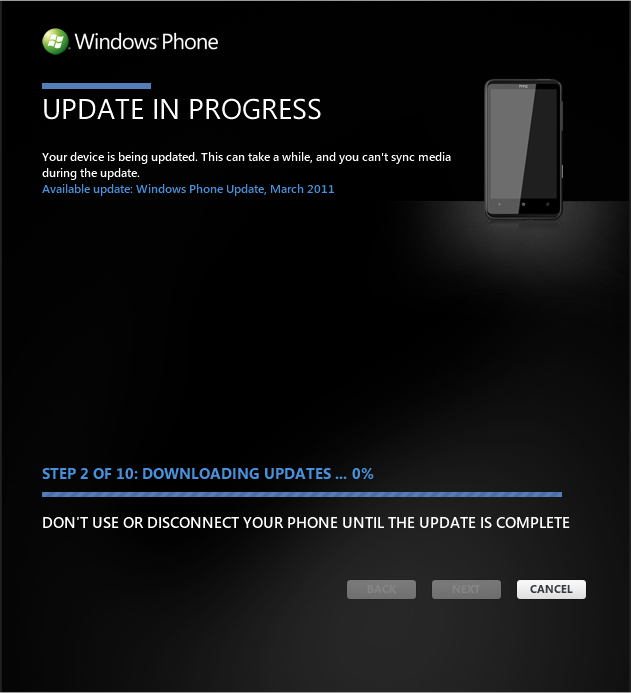
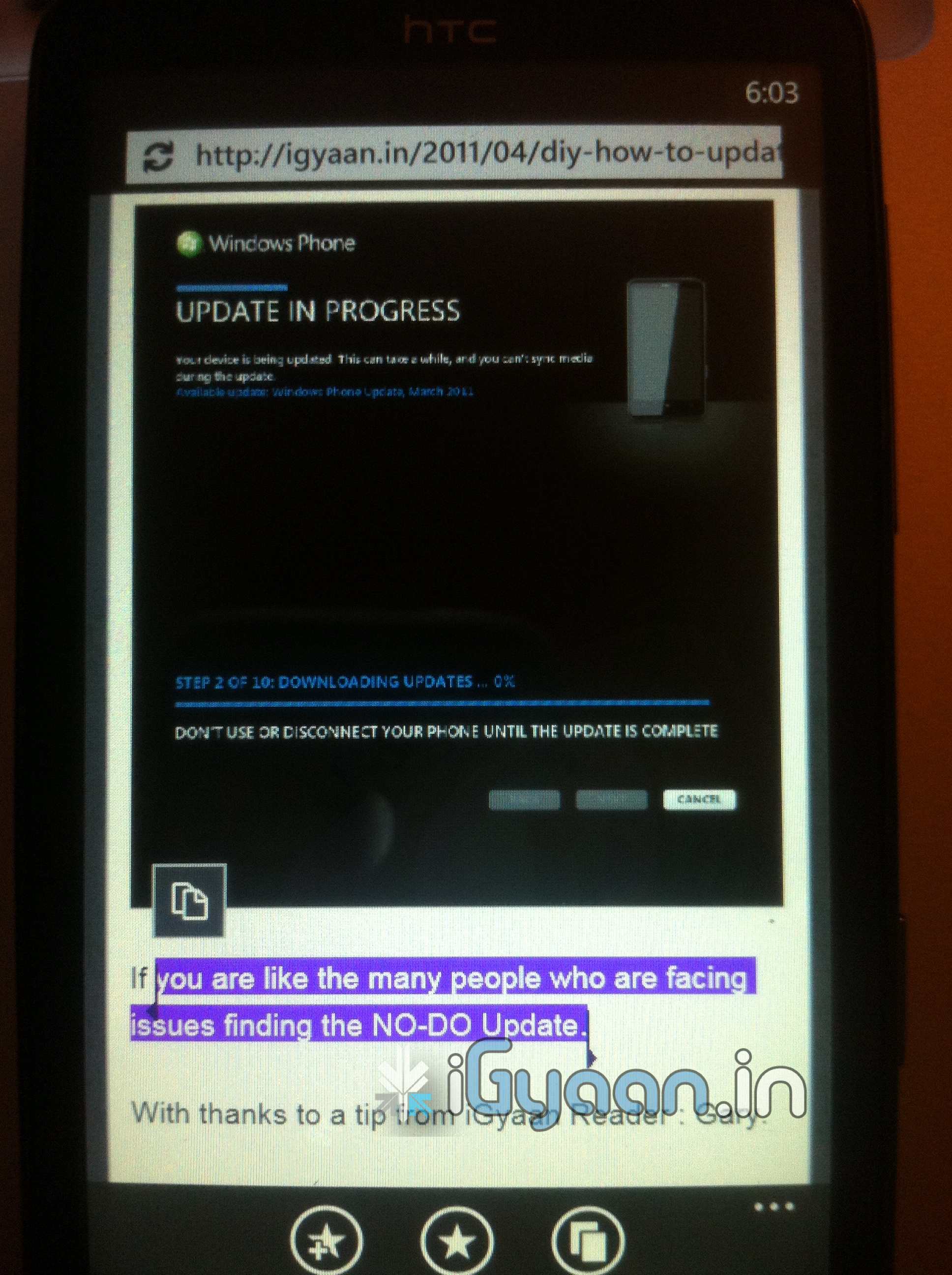
    If you are like the many people who are facing issues finding the NO-DO Update.

    With thanks to a tip from iGyaan Reader : Gary.

    We have the Step by Step Solution for You


    1. Start Zune
    2. Turn off Data connection and Wifi on the Phone
    3. Connect the Phone with the PC (USB)
    4. Start the update search in Zune
    5. About 3 seconds later, disconnect your PC from the internet (Turn WLAN off).
    6. Zune finds NoDo-Update. Press OK.
    7. Connect to the internet again and install the update.

    As we tested this works brilliantly on all those devices which don’t see the update.

    Also if it fails the first time, simply try the process again.

  • DIY : How To Revive An Old Computer Part 1

    DIY : How To Revive An Old Computer Part 1

    Lots of people today are looking for a new computer. Their reasons for doing so are varied but there are many common complaints that people have with old computers. The primary complaint i receive from users is that their computer is ‘too slow’. While the day to day tasks of the end-user remain pretty much the same (using Microsoft Office, surfing the web, watching movies,playing games etc.), the computing power required to perform those tasks has increased significantly.  So does this mean that your old desktop/laptop is now useless and obsolete? Should you throw it away or let it collect dust in a corner? NO. There are many uses for an old computer, a few of which i will be listing below:


    Make a Home Server

    The home server is one of the easiest and most common uses for an old computer. The basic home server can do simple tasks like sharing files over your home network, while more advanced setups can perform a plethora of tasks such as file sharing, website hosting, torrent downloader,  a dedicated firewall for your network, controlling electronic devices in your house etc. The requirements of each user will be different and you should decide the tasks that you would like your server to perform in advance to ensure an easier setup.


    The Basic Setup:


    I recommend using FreeNAS as an OS for your home server. It is an open-source OS based on FreeBSD which means it is free to download, use and distribute. The most basic task performed by FreeNAS, as the name suggests, is to provide Network Attached Storage in your home.  It can perform a wider variety of tasks but we’ll get to that later.


    Things you’ll need:

    • FreeNAS Live CD (Link Below)
    • Old Computer
    • Monitor & Keyboard for installation only (you can disconnect them after the install)
    • A few Hard Disks (minimum 1)
    • A 512mb or larger Pen Drive


    Download FreeNAS 32-bit Live CD

    Download FreeNAS 64-bit Live CD


    Insert the Live CD into your CD drive and wait for the computer to boot up. This can take some time, 5-10 minutes, and you will hear a *chirp* from your PC speaker when the system is ready. At this moment, the system is ready to use as-is from the Live CD or it can be installed onto our hdd or pen drive. I would personally recommend installing the system on your pen drive if your PC supports USB Boot. This leaves more SATA/IDE ports free to attach extra storage.

    When you reach the above screen, the system is booted. Since we dont want to run our system off a CD, choose option 9.

    We are going to be installing our system on a pen drive so we will choose option 1.


    You will receive a warning, Press OK.


    Choose your installation media and press OK. In most cases you will have only one option in this step.

    Choose your install destination and press OK. In most cases you will have a few options here. Please remember to choose your pen drive at this stage. If the device names (ad0, ad1, etc.) are confusing, you can identify your device with the capacity or manufacturer details.

    After this step, FreeNAS is installed on your system. Press Enter and choose the Exit option and you will be returned to the main menu. Choose option no. 7 to reboot your system. To ensure that the system boots from the pen drive, please remove the Live CD  and ensure that the pen drive is selected as the primary boot device in your BIOS.


    After the reboot, the first thing you have to do is to configure your network interface and LAN IP. These are the last things you need to configure on your FreeNAS box. When you get to the Console Menu, Choose option 1.

    Select your Primary interface. If you have multiple interfaces, you can select optional interfaces from the same menu.

    After assigning all interfaces select none and press OK.


    You will be given a list of assigned interfaces. Press OK and you will be taken back to the Console Menu.

    Select option 2 to assign your ip address. I recommend assigning a static ip to your server, so select No when given the option to use DHCP. Enter your ip address, subnet mask, internet gateway and DNS addresses. You do not need to configure an ipv6 address.
  • How to – Upgrade the Ram in your Unibody Apple Macbook Pro

    How to – Upgrade the Ram in your Unibody Apple Macbook Pro

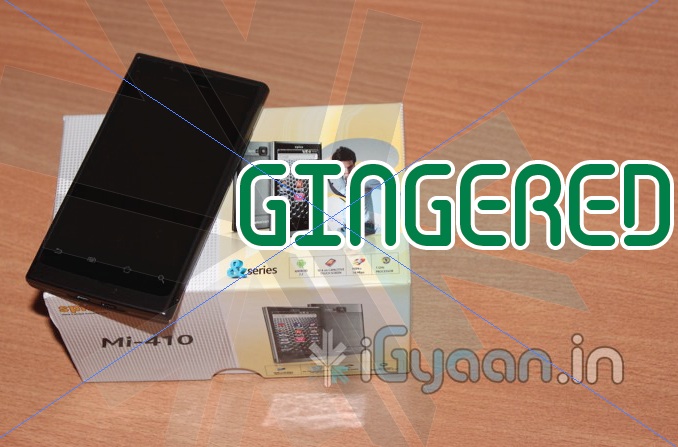
    A simple and quick tutorial on how to save approximately 15,000/- INR.

    Do it yourself- Use the instructions from the video to upgrade the ram yourself.

    This does not void your warranty, and perfectly complies with Apple Terms of Use.

    iG Tech

  • How to- Root HTC DESIRE HD – included Downgrade from 1.72.405.3 to 1.32

    How to- Root HTC DESIRE HD – included Downgrade from 1.72.405.3 to 1.32

    So we finally found a perfectly stable way to downgrade and root the HTC DESIRE HD. All credit goes to the devolopers at XDA-DEVELOPERS.com we are just bringing this guide for our readers in a simplified manner.

    Warning: Please note you are doing this at your own risk! there is a high chance that this might damage your device, or make it inoperable. ALL FILES AND TOOLS MENTIONED IN THIS WRITEUP ARE PROPERTIES OF THE DEVELOPERS

    THIS GUIDE IS PURELY FOR EDUCATION

    This guide has been made considering your device is factory unlocked.

    Now that legalities are out of the way lets begin!

    PART 1 : Downgrade

    First and foremost check the version of your bootloader.

    Do this by going to the about phone panel in the settings folder.

    If its 1.72 and above then follow part 1 – else move to part 2

    Lets begin

    What you need :

    • HTC Sync (or ADB drivers)
    • Desire HD with build number 1.72 or higher
    • Make sure the battery is fully charged

    What needs to be done:

    Step one

    Step Two

    Step Three

    • Connect Desire HD to a computer. Charge only, USB Debugging enabled!

    Step Four

    • Open Command prompt and navigate to the downgrade folder
    • If you placed the downgrade folder in your c: drive type in cd/Downgrade
    • It should show C:\Downgrade>

    Step Five

    Carefully type in the following commands one by one

    • adb push psneuter /data/local/tmp
    • adb push misc_version /data/local/tmp
    • adb shell chmod 777 /data/local/tmp/psneuter
    • adb shell chmod 777 /data/local/tmp/misc_version
    • adb shell /data/local/tmp/psneuter
    • adb shell

    If you got “#” in the result, you have temproot! Proceed:

    Now type the following one by one

    • cd /data/local/tmp
    • ./misc_version -s 1.31.405.3

    After its done

    • Put PD98IMG.zip to your SD card. You can close the cmd.
    • Reboot while holding volume down, it will go to the bootloader
    • Let it run the process
    • When it asks – do you want to start update
    • Press the volume up button to begin
    • Let it complete and then boot the phone

    Once you phone boots up – you have successfully downgraded to 1.32 bootloader, all your data has been erased and you will start with a fresh device.

    To begin rooting proceed to Part 2

    PART 2 Rooting The Desire HD

    To root your HTC Desire HD you will need the Visionary tool found here

    What you need

    • HTC Desire HD with bootloaded 1.32
    • Visi0nary tool from the link

    How you will do it

    Step one

    • Download and copy visi0nary tool to your sdcard

    Step two

    • Install and run visionary

    Step three

    • once visionary is running check “Set system r/w after root”
    • and click Temproot now wait patiently till it finishes.
    • once you have successfully Temprooted
    • Click PermRoot the device and wait for it to restart the Device.

    Once your Desire HD reboots – you have successfully rooted your DHD – and you will get superuser permissions.

    The next thing you want to do is to S-off the device

    For that : What you need

    • Windows XP SP2 or higher
    • .NET Framework 4.0
    • HTC Sync (or ADB drivers)
    • Desire HD with stock kernel (or Apache14’s 1.0.7 / 1.1.4 Sense)
    • It will not work on 1.72.405.3 or higher build, or new radio. Downgrade first (using Part 1)

    Step one

    Step two

    • Connect Desire HD – charge only mode + usb debugging on

    Step three

    • In “Desire HD easy radio tool.exe” select option 3 and click “do it now”
    • wait for it to finish

    You have now fully completed the Root process along with downgrade if applicable. If you already know how then you are ready to install custom roms on this. If not, then wait for our second update on the HTC desire HD – which will shine some light on that.

    Information and files : Various articles : xda-developers, Modaco, Phandroid, android-forums – youtube

  • How to : fix the Windows Phone 7 Activation Required Screen

    How to : fix the Windows Phone 7 Activation Required Screen

    Okay so you got your new Windows Phone 7 Device, You must be real excited to get the device online access the market place and download cool apps for your Phone. But, as soon as you try to login with your LIVE account the device says , Activation failed :

    Activation Required
    An activation code is required before we can finish setting up your phone. Please contact customer service. You can skip this step and do it later.

    Here is how you fix it, Well it worked for us anyway.

    Step 1

    Since most customer support networks are horribly backed in INDIA, Microsoft India had no clue whatsoever about activation of Windows Phone 7.

    So we placed a call to Microsoft UK

    The Number is +44 08448002400


    Step 2

    Make sure you placed a call during business hours – 9AM – 7PM (GMT)

    Choose option 2 and then option 7


    Step 3

    Tell the support executive that you need to activate a windows phone 7 device to a live account and politely ask him to generate a code for you. Tell him/her that the device was bought in the UK.

    Give your details and wait for him to generate the code.

    Once he gives you the code make sure to write it down properly (all in CAPS)


    Step 4

    Enter the code and enjoy the Live experience.

    If the code does not work call back and request a new one.

    We tried calling MS USA prior to UK, but, their menus seemed much more complex and we couldn’t get through to the right department.

iGyaan Network
Privacy Overview

This website uses cookies so that we can provide you with the best user experience possible. Cookie information is stored in your browser and performs functions such as recognising you when you return to our website and helping our team to understand which sections of the website you find most interesting and useful.