Tag: how to

  • How To Build A Gaming PC Under Rs. 25,000 For PUBG, GTA V And More

    How To Build A Gaming PC Under Rs. 25,000 For PUBG, GTA V And More

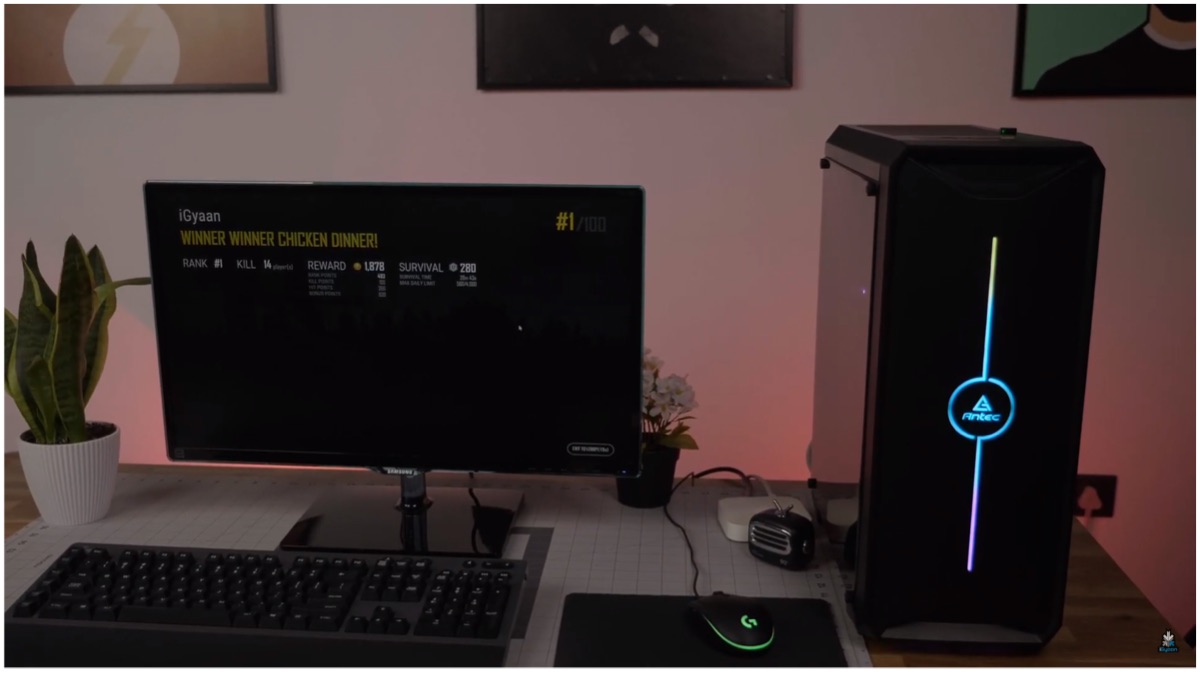
    It’s finally here! After many requests, the iGyaan team has finally built a budget gaming PC. We made a gaming computer for just under INR 25,000 and have provided links to all the parts that are available online. Furthermore, we have also provided step by step instructions as to how you can build it yourself. 

    Gaming PC Parts

    One of the hardest aspects of building a budget gaming PC is deciding on the components. We have used parts that are easily accessible and are available online while leaving room for future upgradability. Here is a list of what we used along with their respective buying links:

    Note: The parts we acquired may have their prices vary.
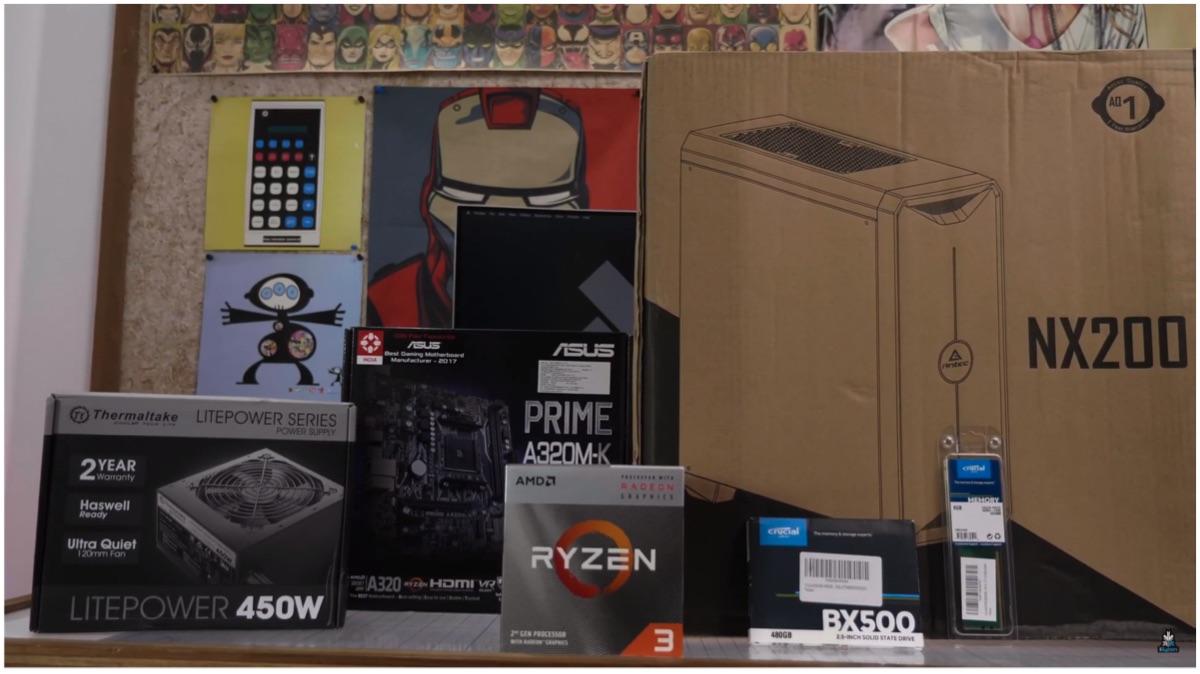
    Gaming PC

    How To Build A Gaming PC

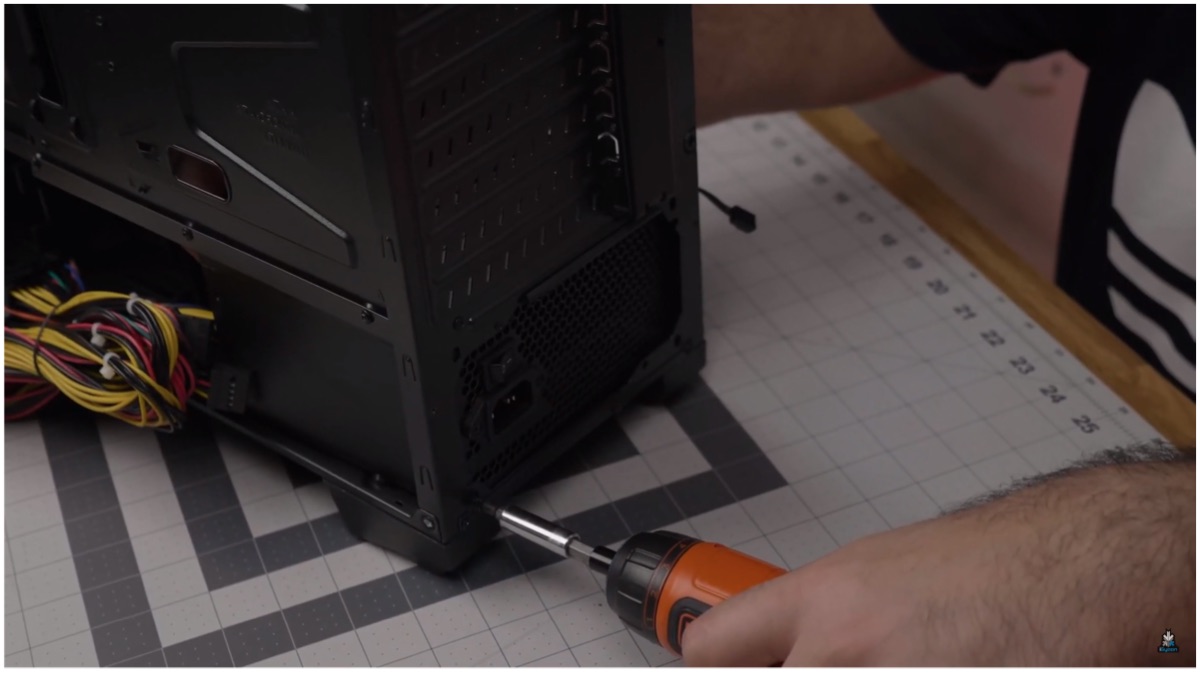
    Step 1: Install the PSU after opening up the Antec NX200 case, the Thermaltake 450W PSU will be installed first (always use a renowned brand as PSU is a crucial component). Do remember to always safely store screws while building or opening a PC. The bottom part of the case houses an area specifically for the power supply unit and we will start from there.
    Gaming PC

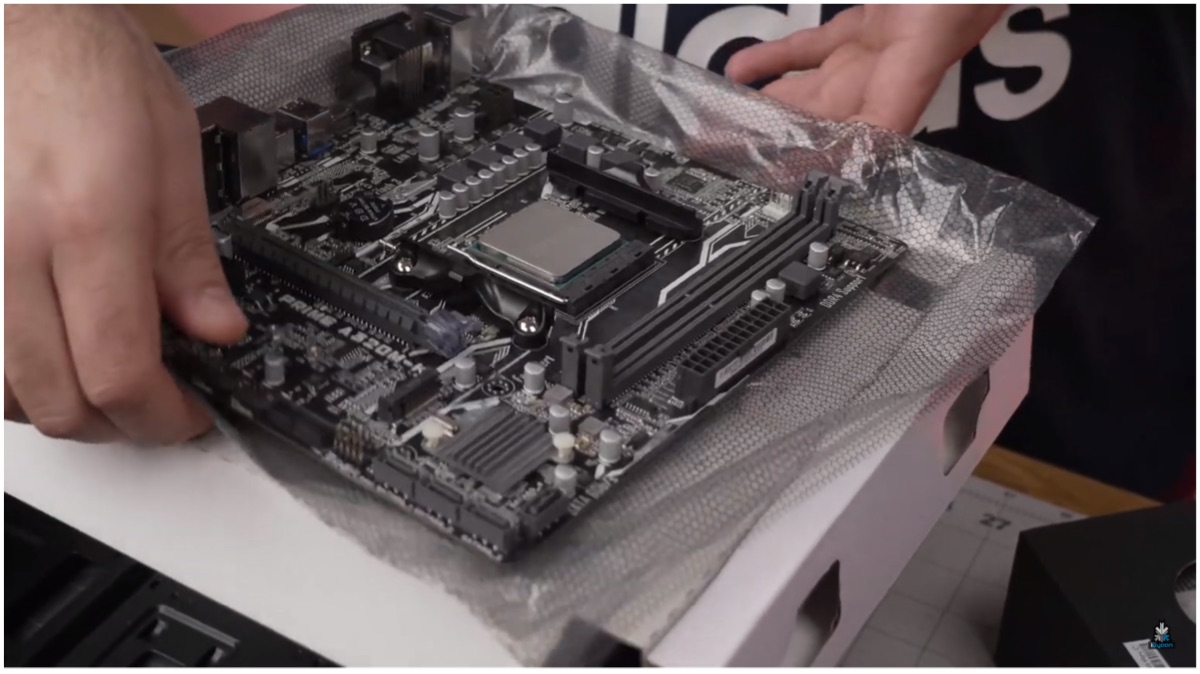
    Step 2: Now, we ready the motherboard before outfitting it onto the case. The Asus A320 AM4 compatible motherboard is perfect for the Ryzen 3200G. To install the APU, lift the lever before placing the chipset. Now, an arrow can be found on both the CPU and motherboard that must be aligned to ensure proper fitting. Pull the lever down again to lock in the CPU.
    Gaming PC

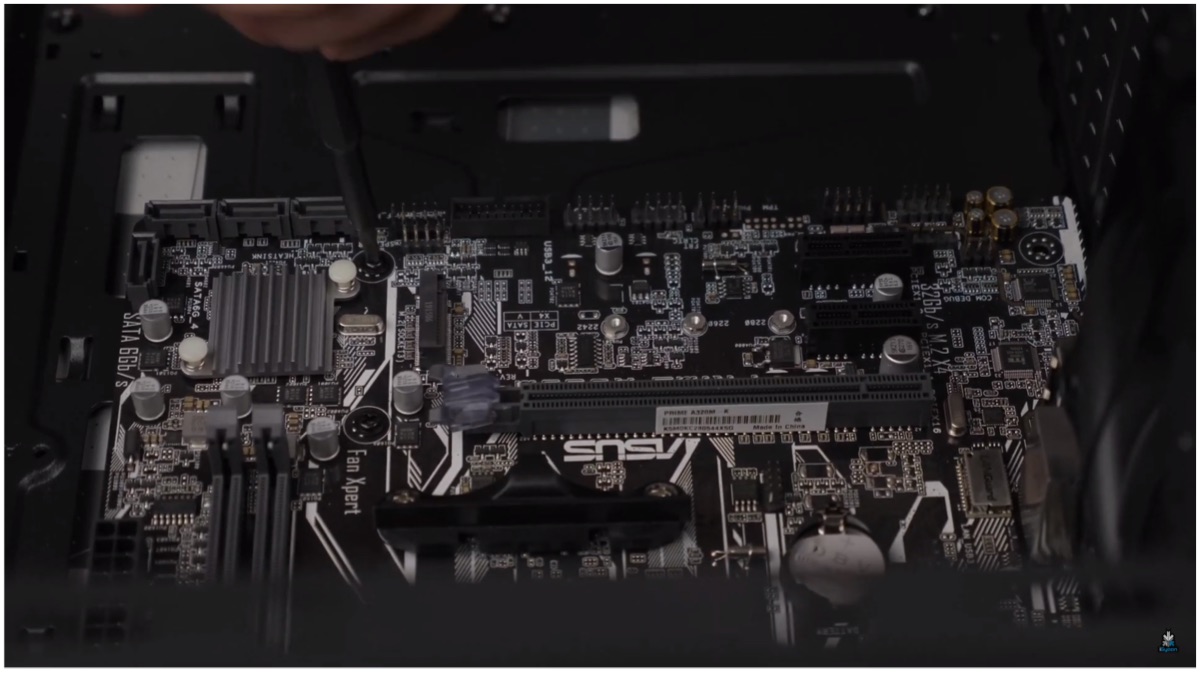
    Step 3: The A320 has 6 total standoffs holes which can be used to safely mount the motherboard onto the case. The case only offers four standoffs pre-installed but offer additional screws that make it possible to place two more. Make sure to have the standoffs at the same height lest the motherboard bends and gets damaged.
    Gaming PC

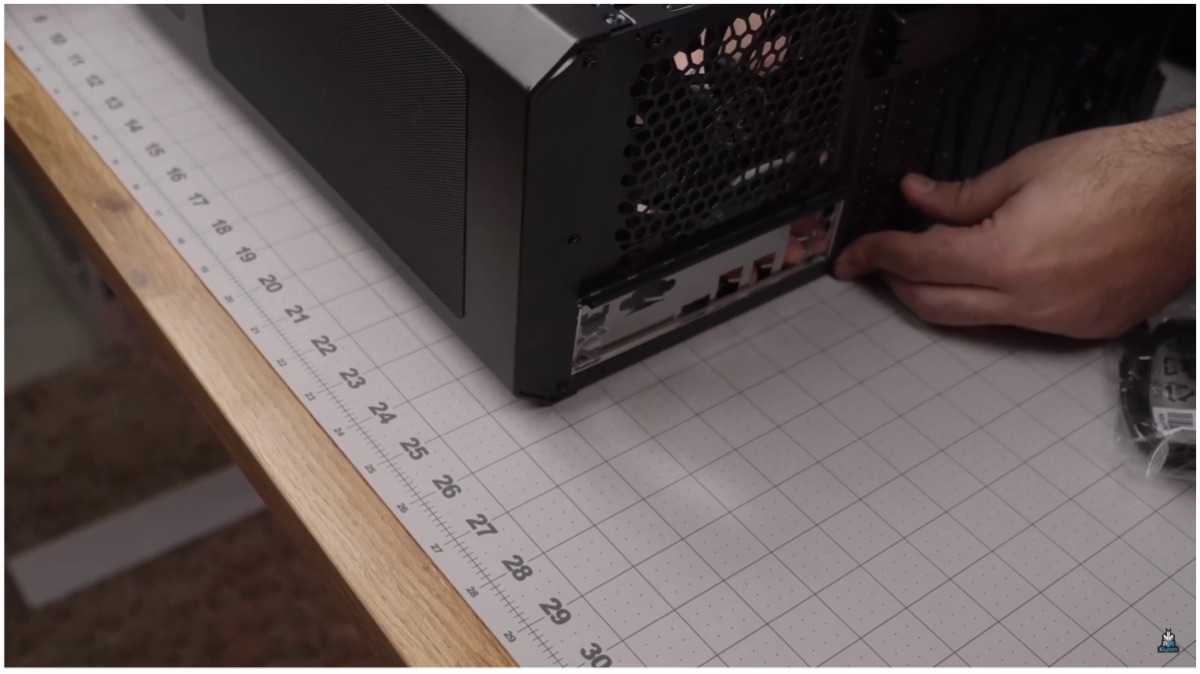
    Step 4: Place the IO shield on the backplate. It is a metallic slate which can be fitted into the backplate. Once you place the motherboard, the IO shield should have ports from the board that align perfectly with its holes. Now, use a screwdriver to ensure a secure fit of the motherboard onto the case and make sure not to overtighten the screws.
    Gaming PC

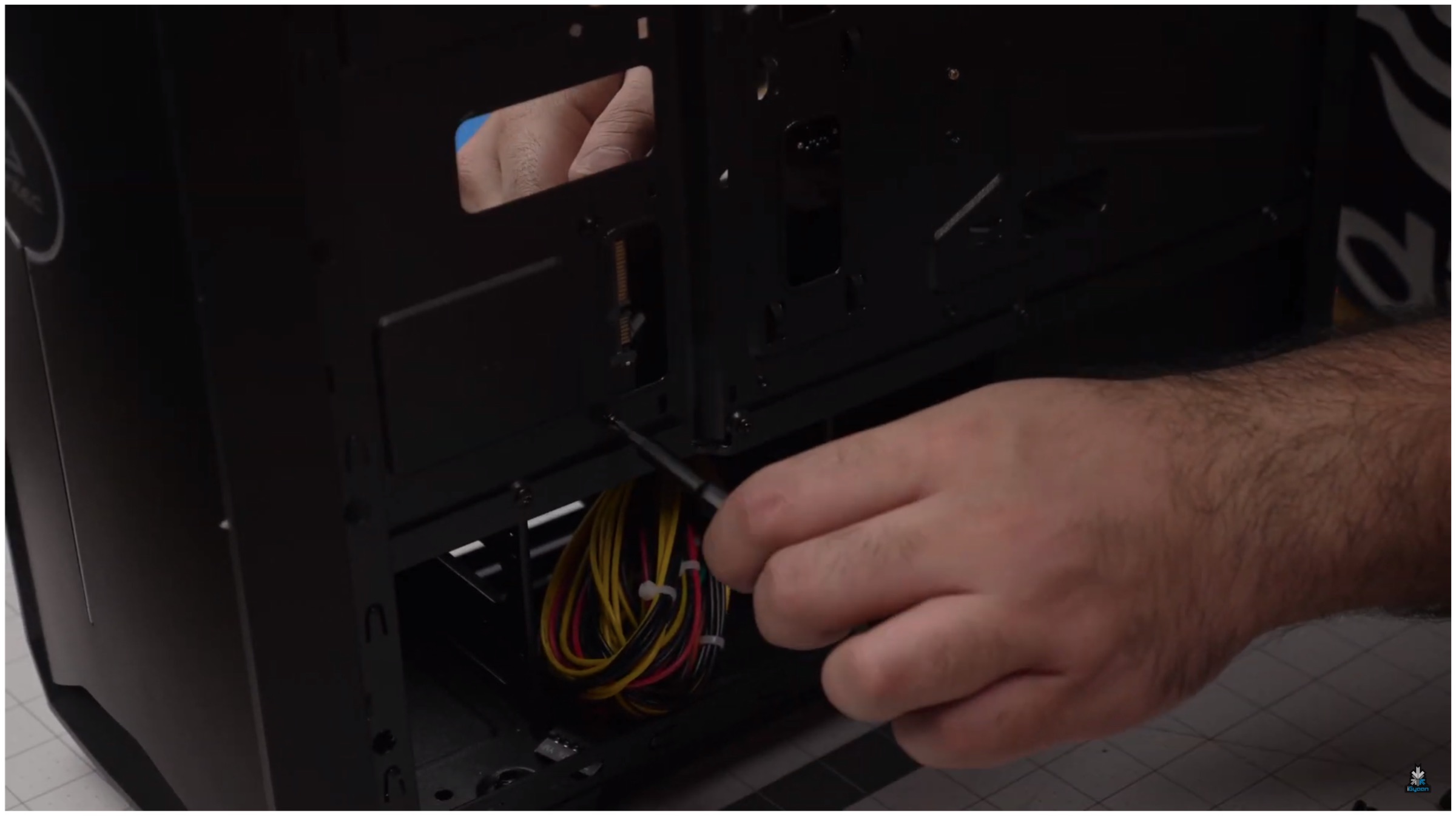
    Step 5: Install the RAM according to the slot. DIMM A1 is the first slot and where the 8GB Crucial RAM should be fitted. You should hear a click once it is housed properly. After this is done flip the case to route the cable and equip the build with the SSD. After opening the side panel users can use the screws provided to fit the 480GB Crucial SSD into place.
    Gaming PC

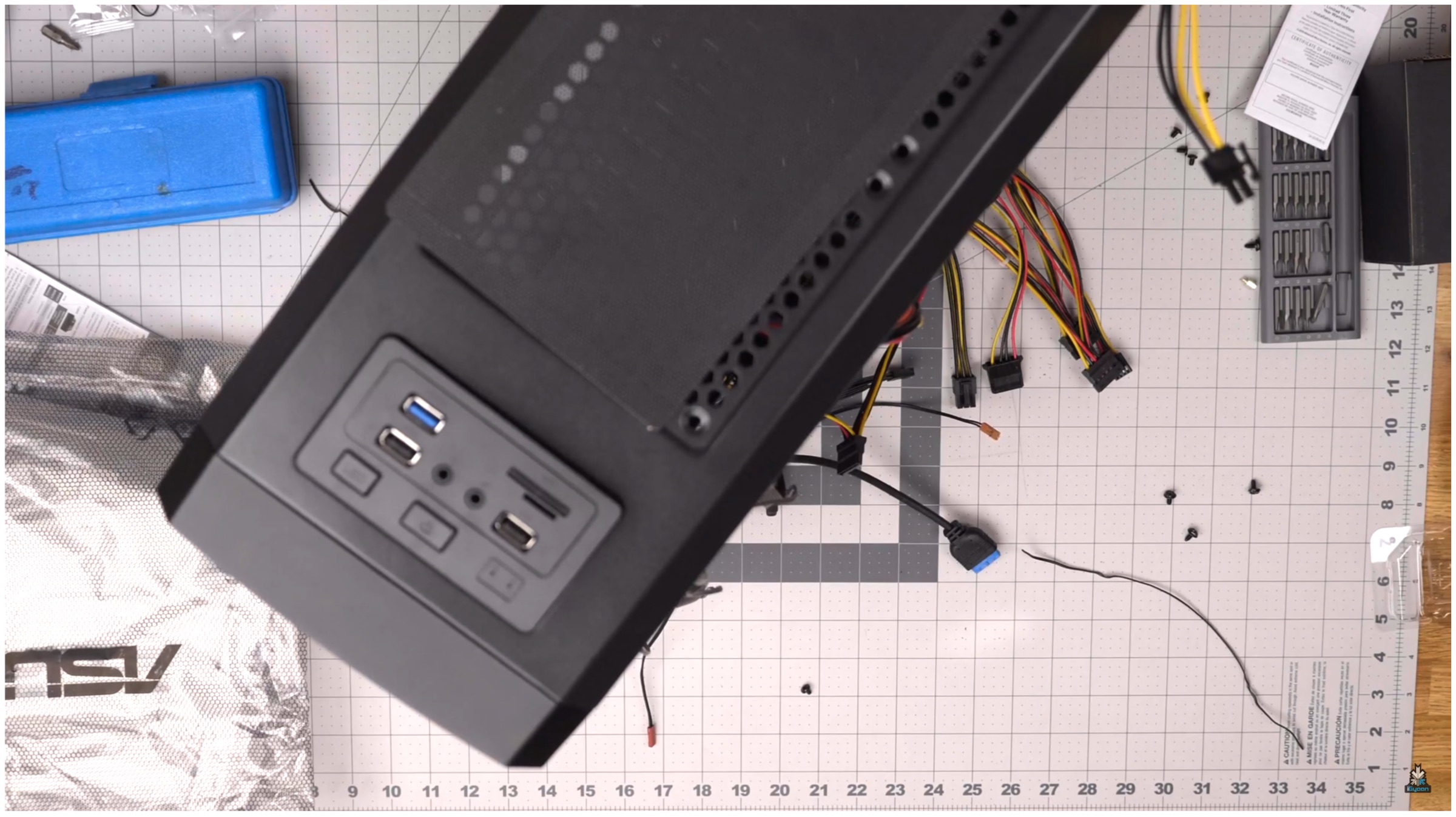
    Step 6: Cable management is always important. We used the cases inbuilt routes to ensure better cable management with wires being less evident from the clear side of the build. Users can take each cable out from the side panel. It is required to connect necessary cables, like the power cable, after being routed from the back. Users should check to see which pins the cable align with to know where to connect the plugs. For example, HD Audio connects to the audio connector. Like the LED power connectors, Always check the motherboard that has markings which define what each pin is made for. 
    Gaming PC

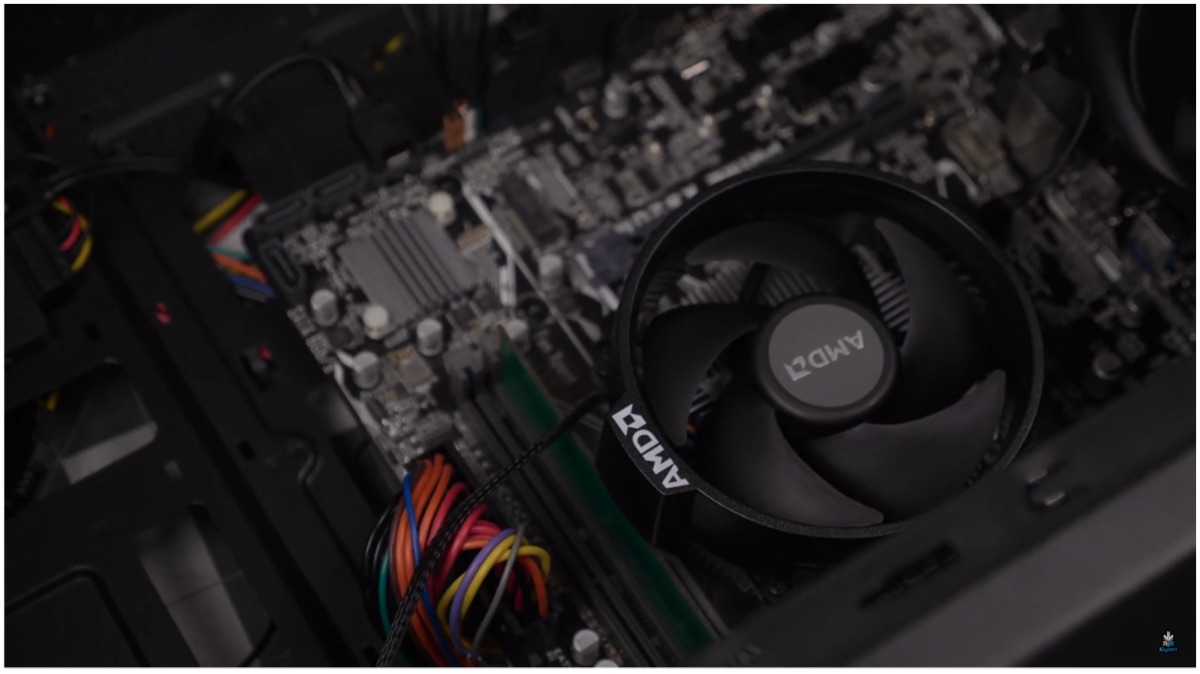
    Step 7: To keep the CPU cool, users need to install the Wraith Fan from AMD. Take the cable from the back before plugging, it is similar to what we have previously done with the other wires. This hides most of the wires to the back of the PC build. The CPU cooling fan has thermal paste pre-applied which can be cleaned and switched but we recommend using the stock. Remove the mounting brackets that are pre-installed on the flanks of the CPU unit, these are not required in our build.

    Make sure to hold onto the plates that are co-joined with the brackets from the opposite side and screw it along with the fan. In our initial attempt, we had the fan come into contact with the RAM. To fix the issue we rotated the fan bracket right way up to avoid the problem by loosening 4 screws on the fan itself and tightening it back again.
    Gaming PC

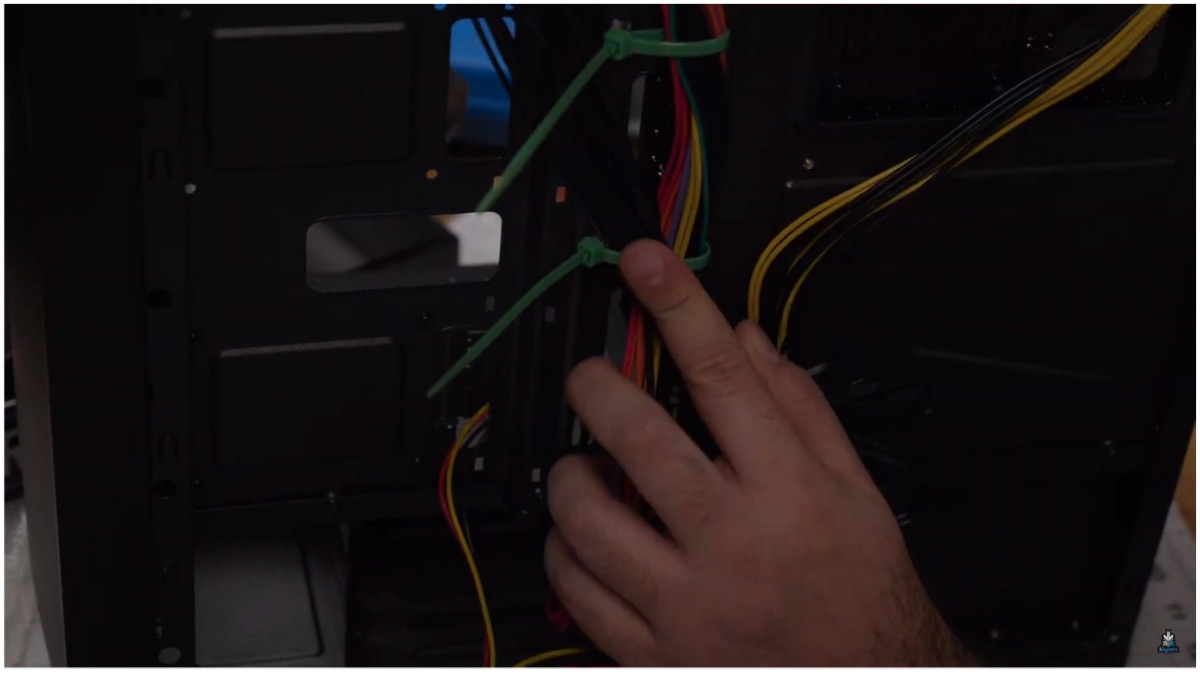
    The build is more or less done considering we don’t have to worry about a GPU or additional SSD. The case has space for added cooling via more fan units or even water cooling if users wish to upgrade in the future. The build isn’t complete before we can secure every cable and close up the case; so do check our video to see how we used ties to group the cables neatly before tucking them in.
    Gaming PC

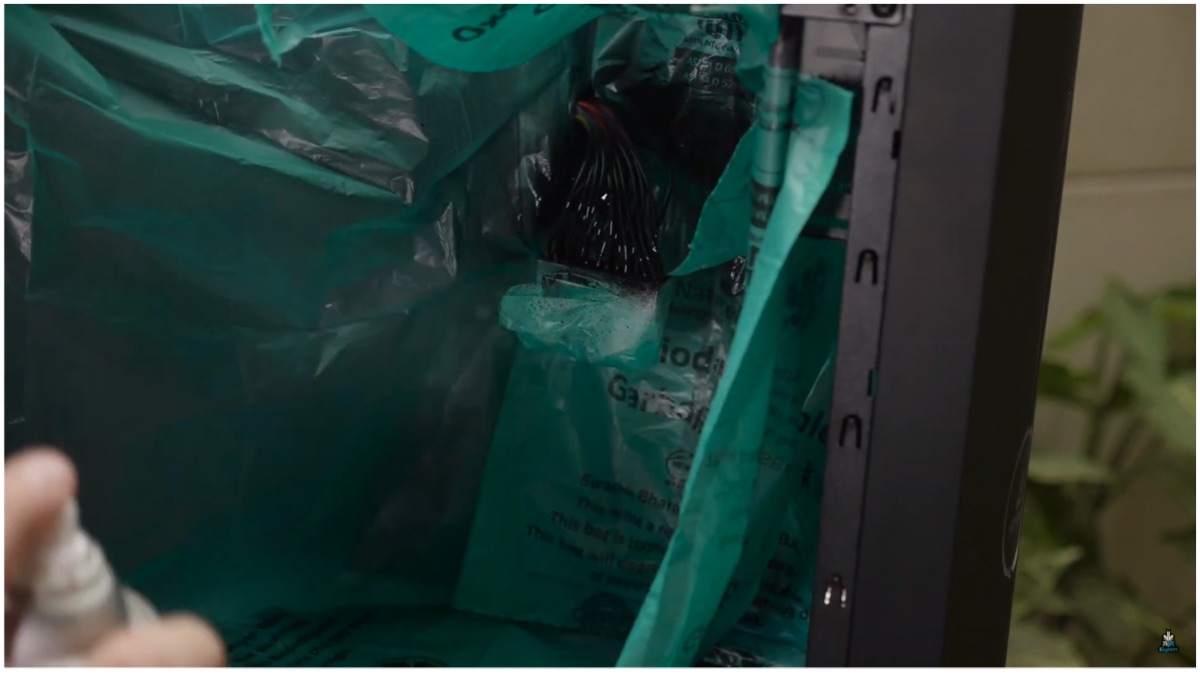
    Step 8 (Optional): For aesthetics, we also included an LED strip whose power had to be routed through the back to power it up. After the Windows installation was complete we decided to spray paint the red and mustard colour cables that seemed distracting. It was achieved without spending additional money and we went spraying to finally achieve the look we were after.
    Performance & Conclusion

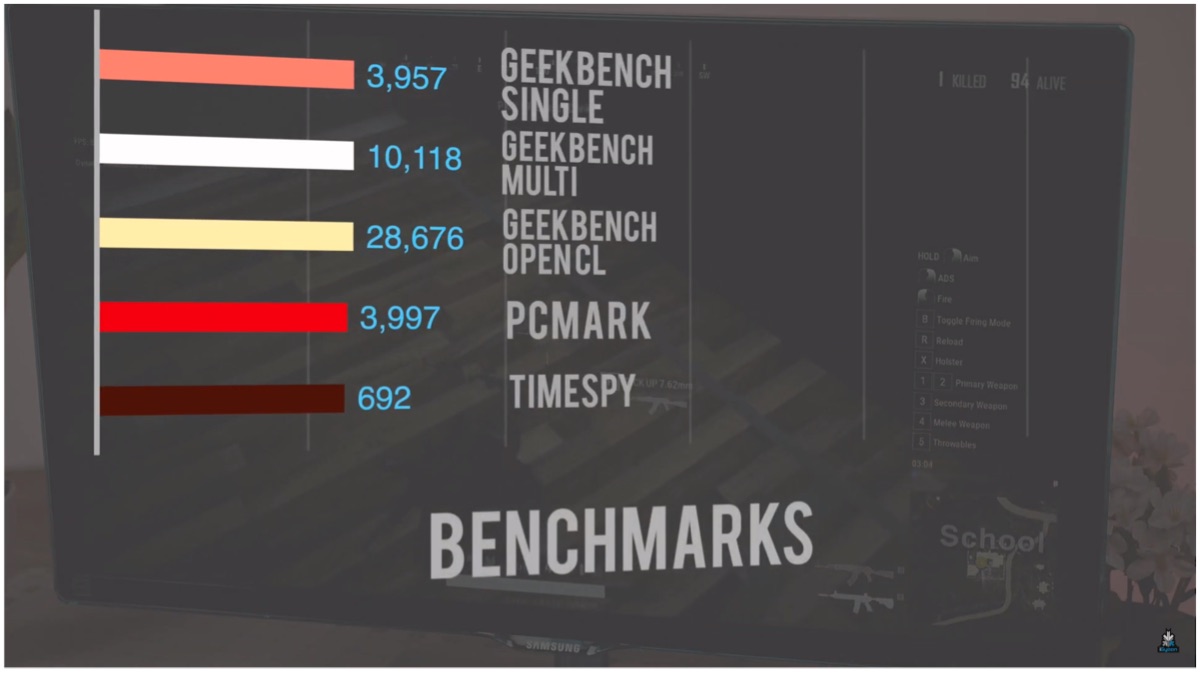
    In games like PUBG Lite and GTA V, we achieved frame rates between 50-60fps after tweaking some settings. The budget PC is capable of running other popular games like CS:GO, Apex Legends and even DOTA 2 as well. It is a long shot to claim you can play the latest AAA titles but most classic to even certain new games run well at the lowest settings. You can also look at the chart below to discern the synthetic benchmark of the PC.
    Also ReadRedmi K20 Lineup Will Receive A Price Cut From 1st August

    For visual assistance, while building your own setup, you can refer to our video on the official iGyaan Network YouTube channel. The video offers a much more in-depth look with visual cues as to how to go about certain complex portions such as cable routing or management. Do follow us on social media for more PC and gaming related content and stay tuned for more.

  • New Google Maps Feature Lets Users Publicly List Locations

    New Google Maps Feature Lets Users Publicly List Locations

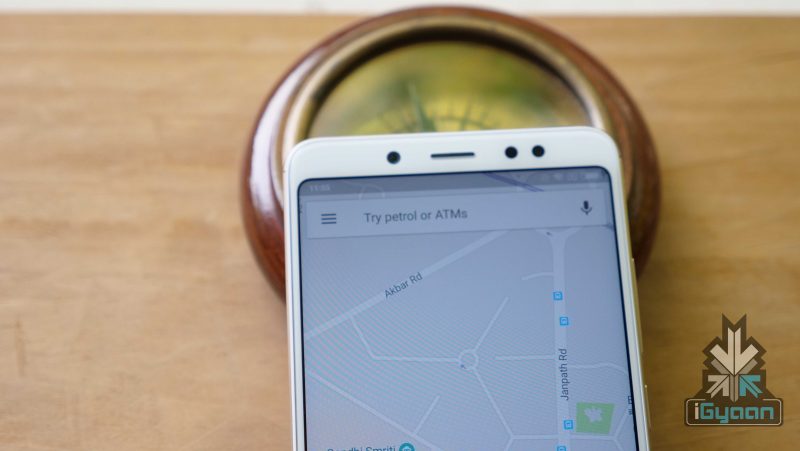
    Google Maps recently announced a bunch of new features for India. These new features ease the process of searching or sharing an address. The company has combined area code with the local code to generate a unique “Plus” code for every geographical area. The Google Maps Plus code can be broadcasted across social media platforms for sharing.

    Google Maps Plus Code

    The Google Plus code is a combination of GPS location details and the local area pin code. Up until now, Google Maps let the users share direct GPS locations. However, with the Google Maps Plus Code, the sharing of location is a lot easier. This feature is available for both Android and iOS operating systems.

    Google Maps

    How to add missing Address
    • Open Maps
    • Touch and hold the place to select the marker
    • Click on the description of the place
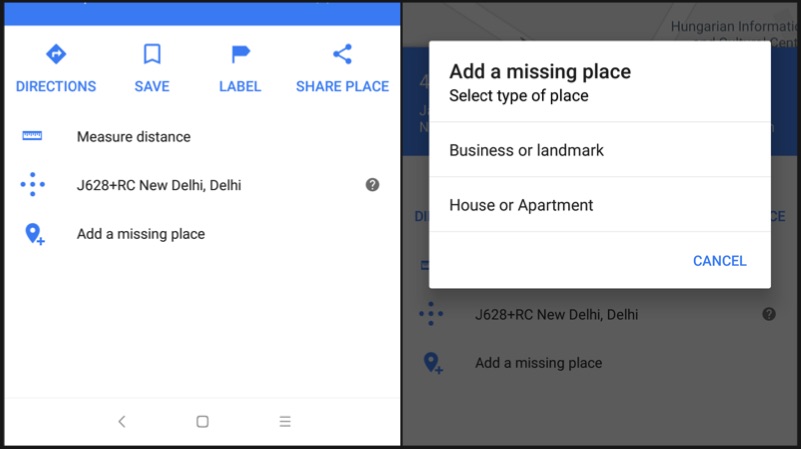
    • Click on “Add a missing place” option
    • Enter the details such as name, website etc and press the arrow mark on the top right corner
    How to generate Plus Code
    • Open Maps on your iOS or Android device
    • Touch and hold the place to select the marker
    • Click on the description of the place
    • Scroll down to the bottom to find the Plus code
    • Copy the code by pressing on it

    Google Maps

    How to search an address using Plus Code
    • Copy and paste the code into Google Maps search bar and hit enter to find the navigation for the address
    • Or simply, copy paste the code into Google search, and the address will be shown in the search results
  • Buy a Xiaomi Mi3 In The Next Sale Using These Tips to Better Your Chances

    Buy a Xiaomi Mi3 In The Next Sale Using These Tips to Better Your Chances

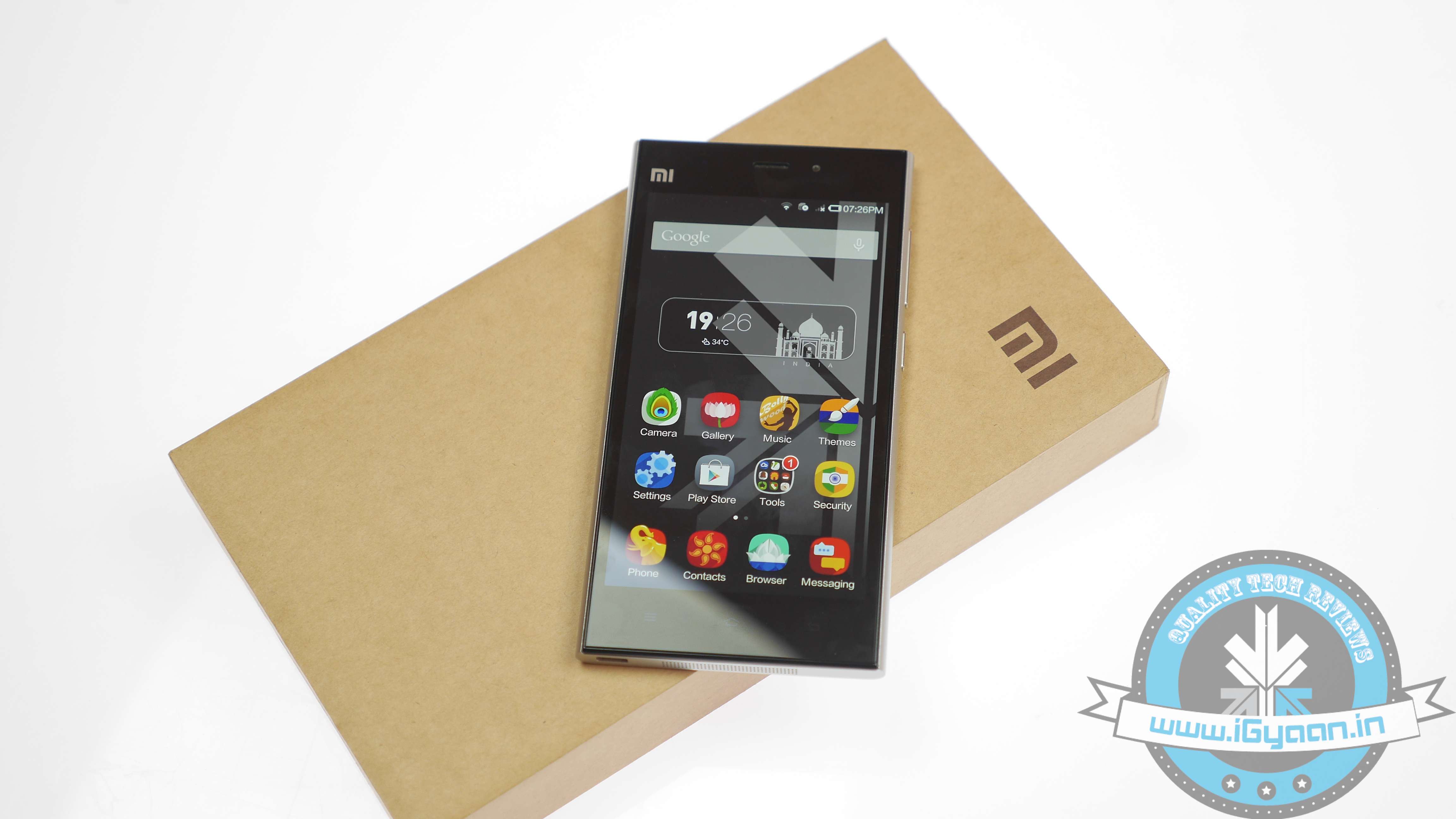
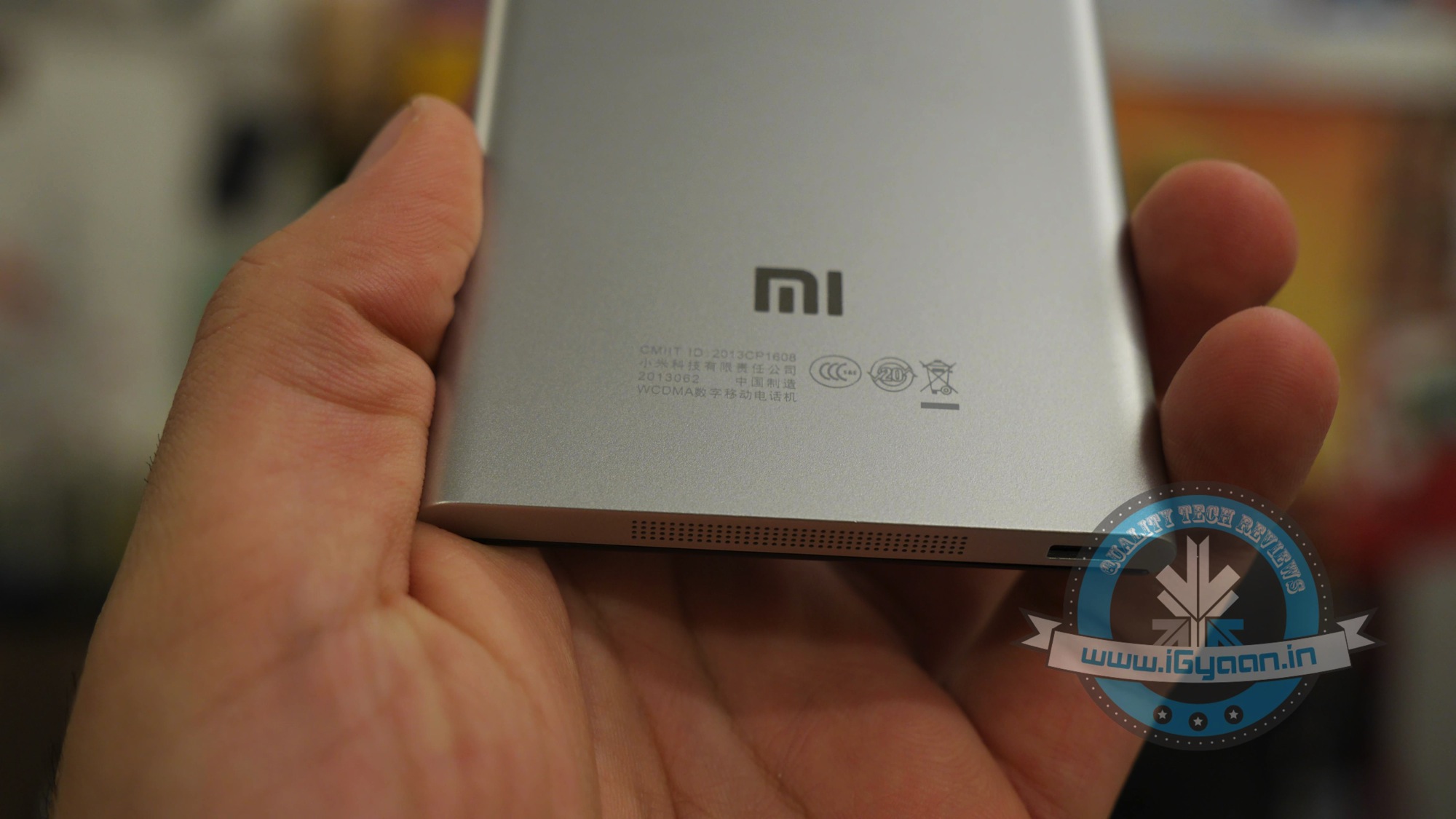
    The Xiaomi Mi3 has been a drop of evil for a lot of people, some have waited through the three sales patiently trying to get one of these chinese “wonder phones”. On August 12th 2014, at 2:00 pm the Xiaomi Mi3 will go on sale yet again, this time with a proported 20,000 handsets, says online shopping website Flipkart.

    If you really want to buy a Xiaomi Mi3 this time around, here are a few tips to better your chances of scoring one of these budget bad boys.

    1. Pre Register

    Possibly the most obvious tip, you need to pre register to buy the phone, so go ahead and do it by : Clicking Here

    flipkart

    2. Know the Time

    The Xiaomi Mi3 will go on sale at precisely 2:00 pm IST on the 12th of August, so try and reach the buying page at least an hour earlier, even though it seems like overkill.

    3. Multiple device logins

    Try being online from multiple devices, preferably on different internet connections; in order to have different I.P. addresses accessing the site, this will improve your chances and bring to one step closer to buying a Xiaomi Mi3.

    4. Flipkart App

    The Flipkart app uses a separate server and has a higher chance of “not failing” at the time of sale. If you want to buy a Xiaomi Mi3 the app might prove to be easier, “might being the key word.

    IMG_0032


    5. Super Refresh times 40,000

    When the sale starts, most people are struggling to open the webpage, ctrl+R / f5 (refresh) is your best friend, hit it till you get a page to buy a Xiaomi Mi3. (cmd+R on a mac). Other people have reported opening several tabs being helpful.

    pressing-f5-key


    6. Cart it!

    If you do get a page loaded, add that phone to the cart like there is no tomorrow, once you have the handset in your cart, your chances have just gone up from 1 in a million to 50:50 in order to buy a Xiaomi Mi3.

    cart cart 1


    7. Patience

    Once you have it in your cart, attempt payment by refreshing several times, in most cases you won’t be able to make payments due to overloads on the server so keep trying.Here the app helps too.

    Also, if the website fails completely, there is a very high chance that the phone is in your cart when Flipkart comes back online, thats the perfect moment for you to buy a Xiaomi Mi3.

    Once you do get through to the payment section and make your payments in whatever the mode you select, pat yourself on the back sir, you my friend are a lucky owner of the coveted Xiaomi Mi3.

    Yay!

    Xiaomi mi3 Review 5


    Now watch our Review Here:


  • Microsoft Launches Interactive Website For Windows 8.1 Newbies

    Microsoft Launches Interactive Website For Windows 8.1 Newbies

    Windows Phone a bit too confusing for you? Well, in hopes to encourage and increase users, Microsoft has created a new ‘How To’ website for newbies that will teach them tricks to master each and every aspect of its newly released Windows Phone 8.1 software.

    Screen Shot

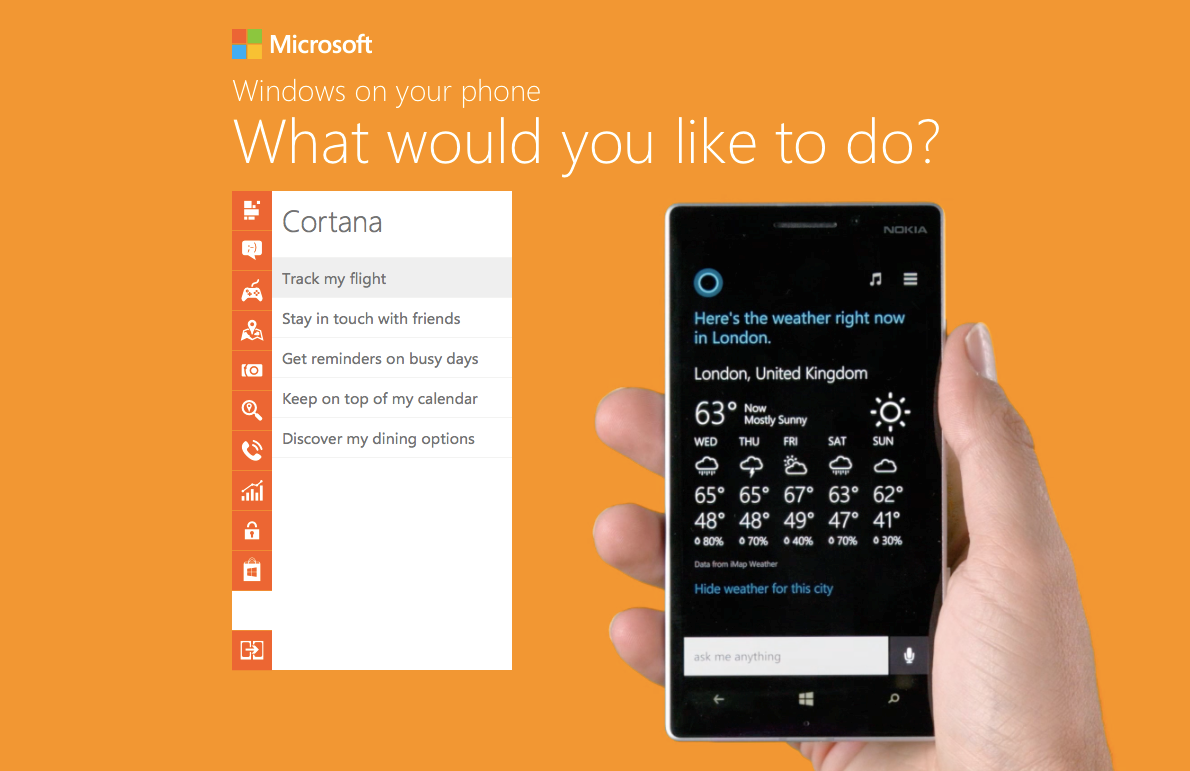
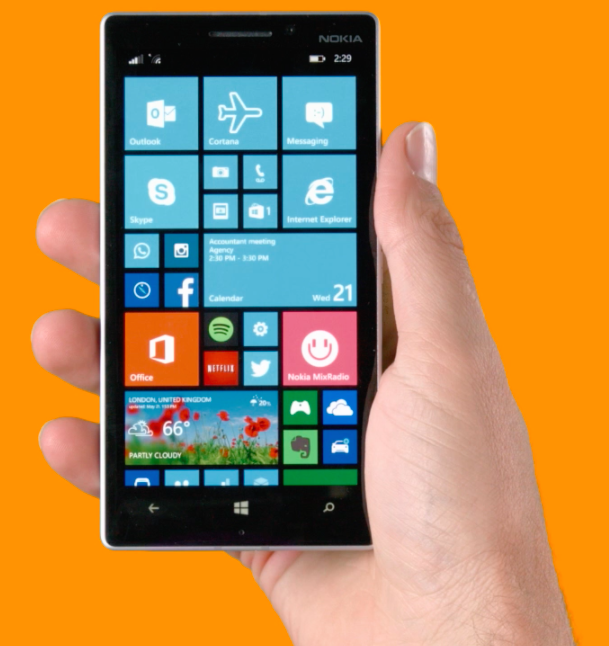
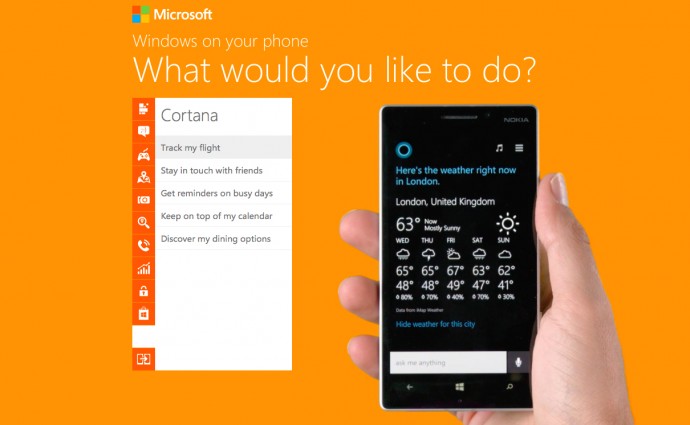
    This step-by-step guide by Microsoft shows and explains the basic things that Windows Phone is capable of doing. Microsoft has compiled a well thought out and extensive list of all the things a regular user might want to do on his/her Windows Phone and provides the shortest way to complete that task.

    It bears a simple design with a list of actions organized neatly into different categories, and a large Windows Phone device (funnily, a Nokia) performing the selected action on the side. The list includes a vast array of operations that users can perform on their phone, like personalizing your home screen, making calls, playing games, working on Microsoft Office, taking pictures, searching for places, protecting personal information, and even using the latest and most awaited feature of Windows Phone 8.1, Cortana. Yes, the site also includes demonstrations of Windows Phone’s own little personal assistant that is soon going to make it’s first appearance worldwide.

    Screen Shot 2 copy

    This is a pretty good move, as Nokia has just pushed out the Lumia Cyan update for it’s Lumia devices, and Microsoft is almost ready to release Windows Phone 8.1 to a majority of Windows Phone devices. It will also help build up some hype for the release.

    Now some of you may feel that they are a bit late to release a ‘How To’ website for an OS that is nearly four years of age, but better late than never right? So for all those users out there who need help completing a normal task on their phone, or those who are just curious as to what all Windows Phone is capable of doing, we encourage you to check out the website.

    By: Pranav Aroma

  • 5 Essential Tips To Get A Happy Motor Bike

    5 Essential Tips To Get A Happy Motor Bike

    Maintaining a bike is an easy routine. But for most it can be kind of troublesome and tiring. Taking care of your bike is the key to a bike that will serve you well for years.

    First of all change your engine oil or gear oil frequently as it lubricates your gears and engines, and also keeps your engine cool. Not changing the engine oil will cause further damage to the engine Which can’t be noticed early. The owner’s manual will specify how frequently the oil should be changed and this schedule should be followed.

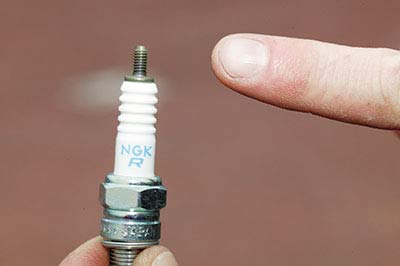
    Next is the spark plugs; it is the item which causes a spark which in turn will ignite the petrol. This should be changed as specified in the owner’s manual (or if a problem is suspected). It is critically important to use the correct spark plug grade and type. If the manual suggests an iridium plug then these can be worth the extra cost, lasting 16,000 kms or more. Considering that it can take several hours to access the spark plugs on many modern bikes this is money well spent.

    Spark Plug
    Spark Plug

    The chain which rotates the rear tire should be kept lubricated. If it’s kept lubricated, it should last for a very long time (50,000 kms is not unusual). If it’s not lubricated, it would be damaged due to excess heat and will wear. This cumulative wear on all the separate links makes the chain loose, and more likely to fall off the sprockets. This can be very dangerous indeed. The chain tightening procedure should be detailed in the owner’s manual, but bear in mind that too tight is a lot worse than too loose.

    Also washing the bike is part of maintaining. Keeping it clean of dirt will not only make it look nice, it has its benefits and it’s the key to a bike which lasts long. It also makes it easier to notice missing or loose bolts and nuts.

    Washing the bike.
    Washing the bike.

    Checking the tire treads every once a week is a good habit. You should change the tyres when you notice a change in the way the bike handles, or at the very latest when the tread is worn down to the wear bars. Under-inflated tyres will overheat and may fail. Over-inflated tyres will give less than optimal grip specially on Indian roads.

  • DIY : How to Root Micromax Canvas 4 A210

    DIY : How to Root Micromax Canvas 4 A210

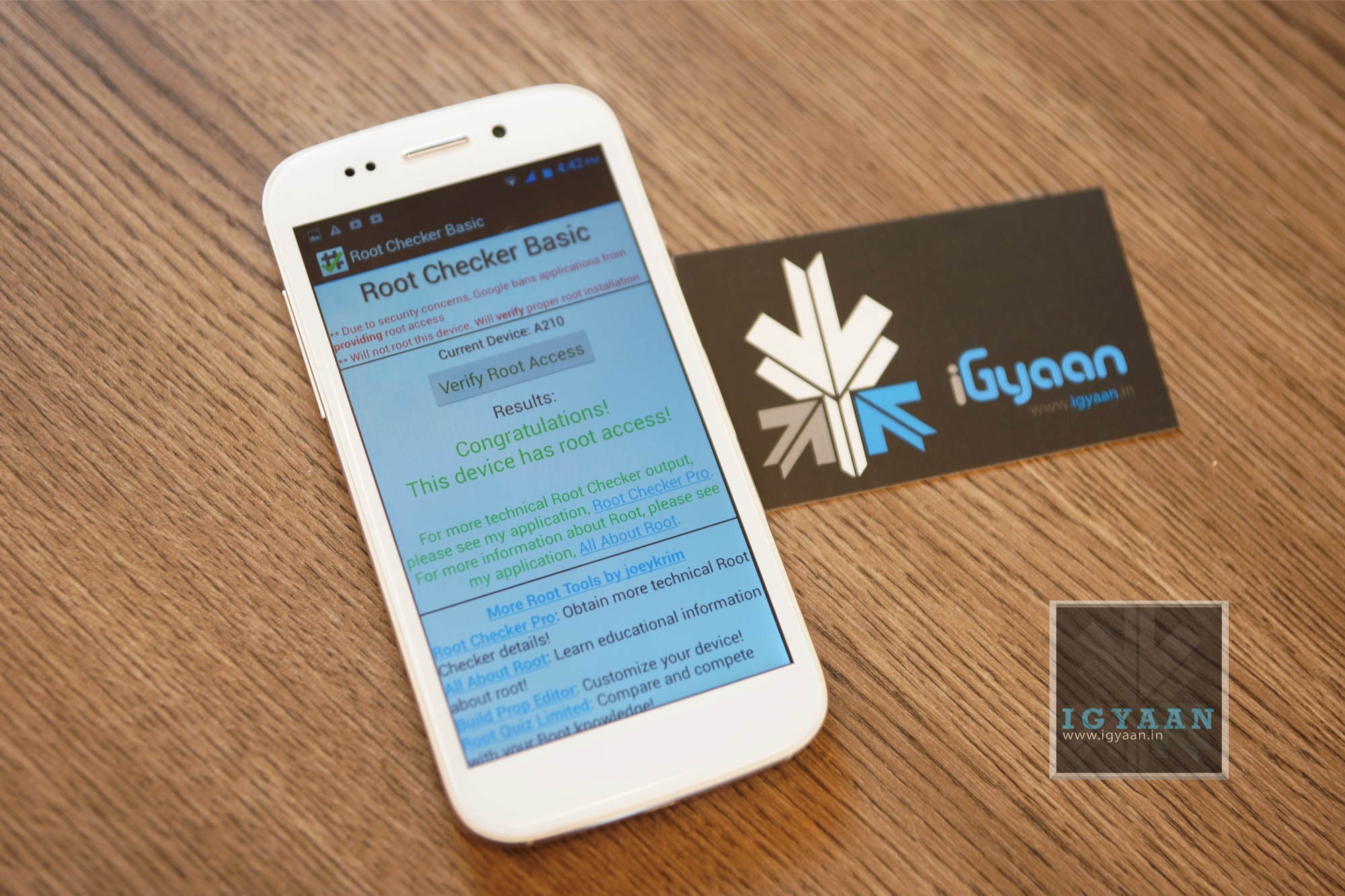
    If you recently bought the new Micromax Canvas 4 A210 and need root access to download games or modify the OS?

    Here is a quick method by iGyaan to Root Micromax Canvas 4 A210!

    Simply follow the instructions below.

    (Note : the following method will also work for the Micromax Canvas HD A116)


    Here is what you need

      1. Micromax Canvas 4 A210 (For Sure)
      2. Windows PC/Laptop
      3. USB – MicroUSB Cable
      4. iGyaan Micromax Canvas Root File (based on Motochopper) (Right click and save)
      5. Patience and Perseverance 


    Root Micromax Canvas 4 A210


    Step 1:

    Make sure you phone is fully charged.


     Micromax Canvas 4 A210 Root 0

    Step 2:

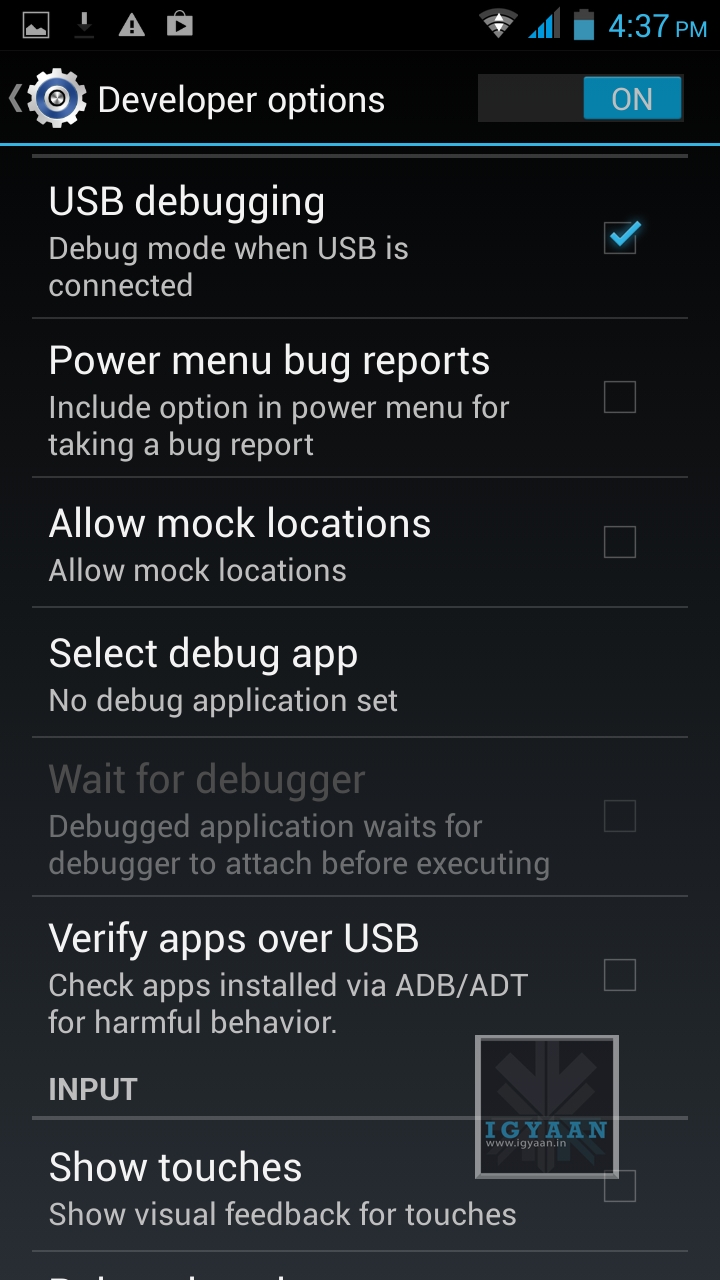
    Enable USB debugging on your device.

    Go to Settings > Development > USB debugging.

    Disable Verify Apps over USB like shown above.

    Not: If you don’t see the  Development Panel, enable it by tapping several times on the Build Number in the Setting > About screen .

    Once enabled connect your Canvas 4 to your PC via the USB cable. (make sure all the drivers for the phone are installed, this will happen automatically)


    Step 3:

    Download the iGyaan Root Tools zip file above and unzip them into a folder called “root” on the Desktop.


    Step 4:

    Open this new “root” folder and launch Run.bat and press Enter.

    Micromax Canvas 4 A210 Root 3

    The Process will begin and your device may reboot several times, DO NOT REMOVE THE CABLE until the process is compete.

    Micromax Canvas 4 A210 Root 2

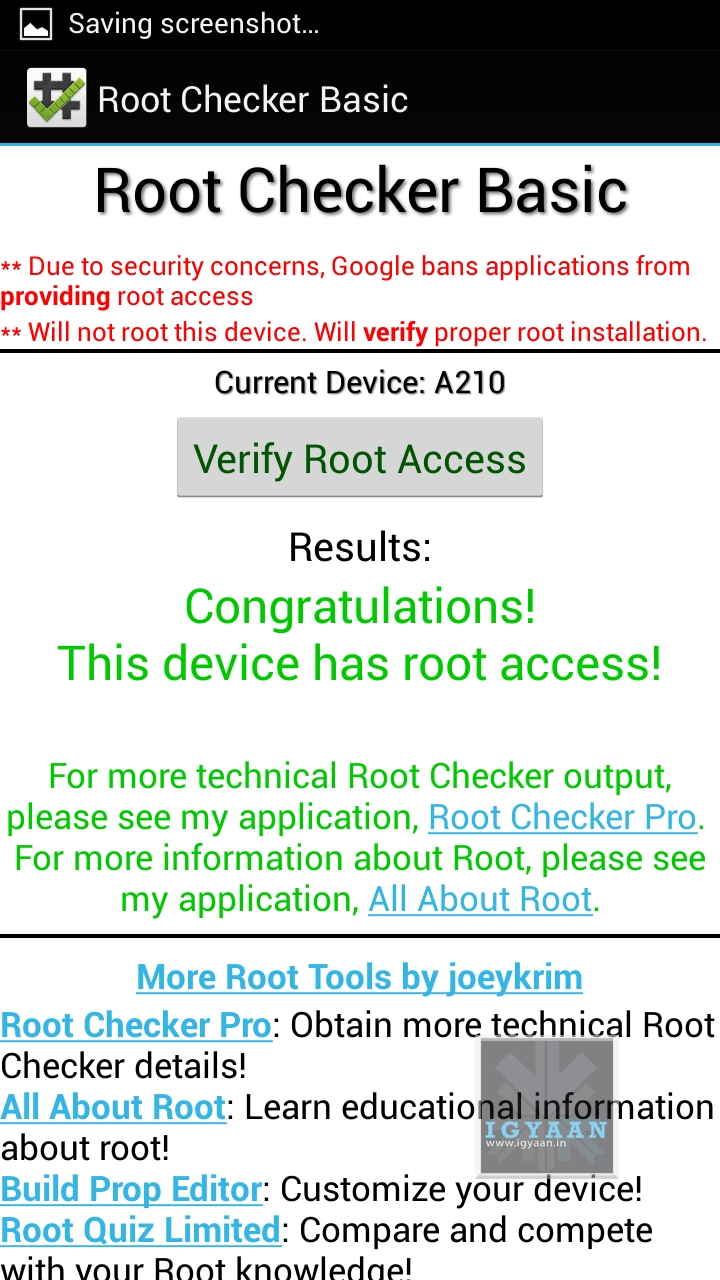
    Once completed you will find “SuperSu” in the application list. You now know how to root the Micromax Canvas 4 A210.


    Micromax Canvas 4 A210 Root 1

    UN Root Micromax Canvas 4

    Simply Open SuperSU > Settings > Full Unroot

    Your Micromax Canvas 4 A210 will reboot and Unroot.


    Video

    [youtube id=”R8VFEcmzCdw” width=”100%” height=”300px”] 


    Related Products

  • How To : Upgrade Micromax A85 to Android 2.3.4 Gingerbread, Step by Step ( iGyaan Version)

    How To : Upgrade Micromax A85 to Android 2.3.4 Gingerbread, Step by Step ( iGyaan Version)

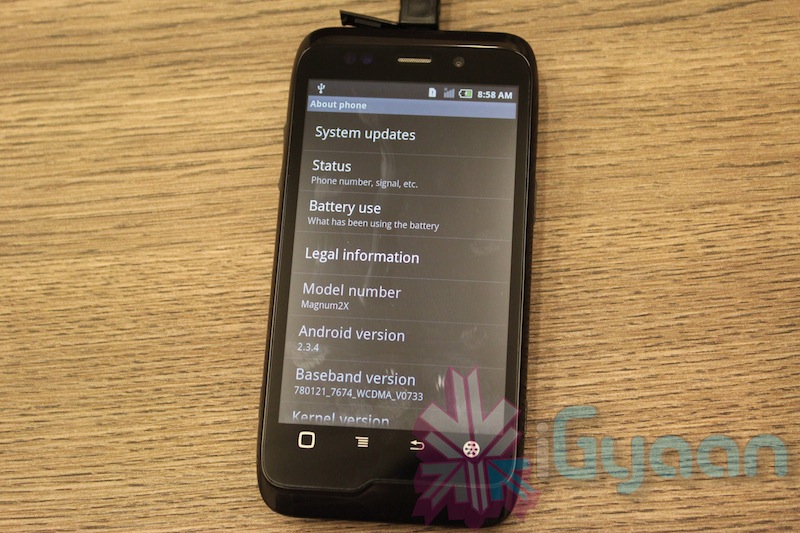
    Happy March 2012 people, since we promised a stable workable rom for the A85/ cherry Magnum / K Touch k700 with Android 2.3 , we are here to deliver in time. 

    Before we begin with the update process there are a few things we would like to clear out few important things with you people.

    Important Notes 

    1. We do not take guarantee that this rom will work perfectly and could crash / damage / brick your device. So proceed with your own caution.


    2. This ROM has been cooked by iGyaan but is majorly based on the official Cherry Magnum 2x update (you will see once you flash your phone)
    3. We have added bug fixes and tweaks from the Micromax Android 2.2 rom and K-touch K700 Rom to this upgrade.


    4. Unfortunately during the update you will loose all data/ apps and most importantly gesture features from the Micromax 2.2 stock rom. So Please Backup Accordingly.


    Here are our finding with this rom.

    (Based on 3 test units)

    1. Its very stable = Little or no crashes.
    2. Audio quality is excellent and networks are solid.
    3. Battery performance seemed better / depends on usage.
    4. Very fast and snappy.


    Okay now that you are aware of the above lets begin with the process.

    Tutorial

    What you need

    • Micromax A85/ Cherry Magnum 2x / KTouch K700 (either will do).
    • Windows PC.
    • RAR expander ( winRAR etc.).
    • USB-MicroUSb Data Cable.
    • iGyaan Update Bundle : [button link=”https://rapidshare.com/files/1042248031/igyaan_a85_bundle.rar”]Download Here[/button]
    • Finally , A strong heart and lots of patience.


    Step One 

    • Make sure you downloaded the iGyaan Update Bundle : if not then [button link=”https://rapidshare.com/files/1042248031/igyaan_a85_bundle.rar”]Download Here[/button]
    • Extract the RAR on your desktop.


    Step Two 

    • Extract vcredist_x86.rar and install the software within ( its Visual C++ redistributable)


    Step Three

    • Power off your A85/ Cherry Magnum 2x / KTouch K700
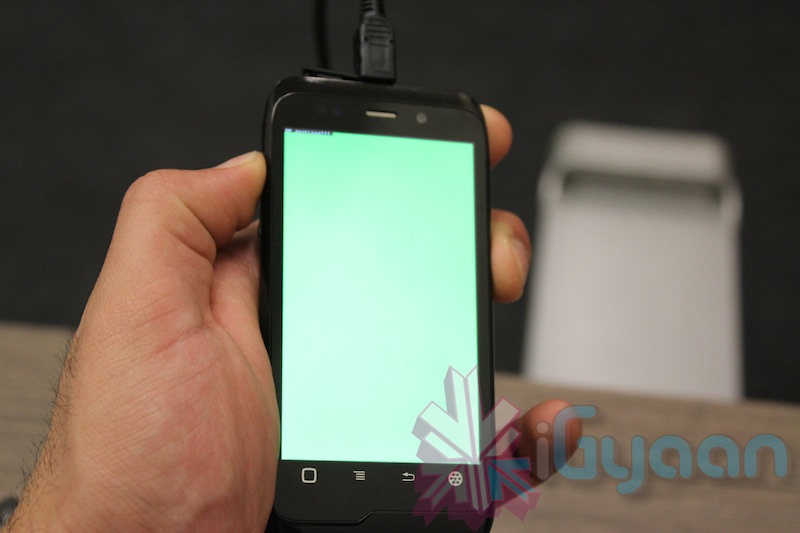
    • Once OFF : Hold the Power + Volume Up button till you see a Green Display 
    • Let go immediately after you see the green screen on the device

    Step Four

    • Plug in the USB cable into the PC and attach it to the A85/ Cherry Magnum 2x / KTouch K700
    • Windows will try and install the drivers but will not be able to.
    • Manually select the drivers ( included in the igyaan bundle in a folder called usbpcdriver)
    • Once the drivers are successfully installed Reboot you pc

    Step Five

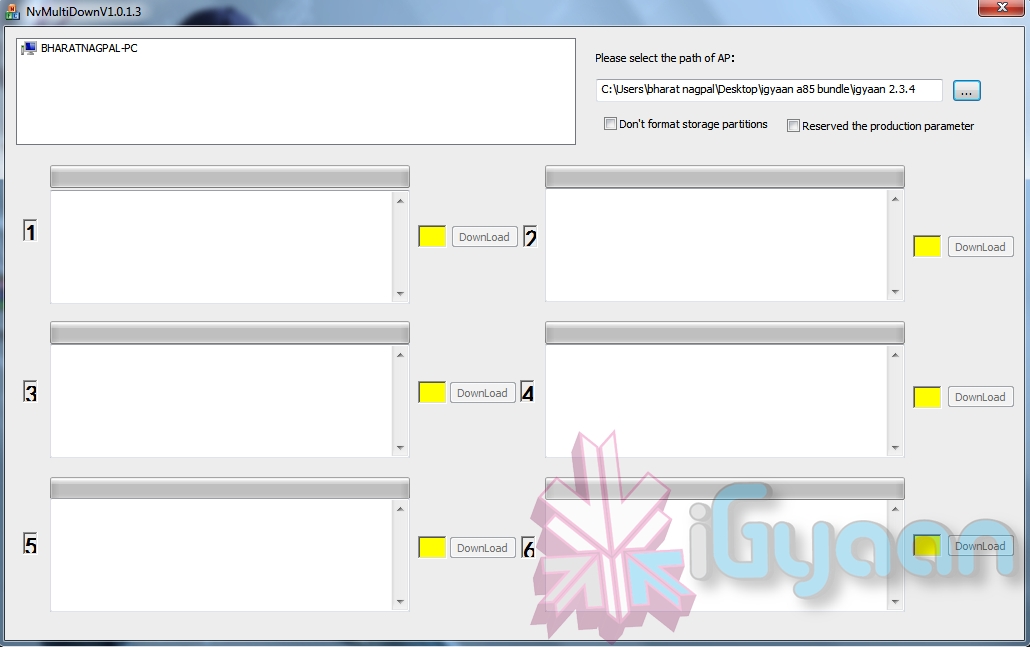
    • Once rebooted Navigate to the iGyaan bundle and then folder NvMultiDown
    • Now run the NvMultiDOwn.exe


    Step Six

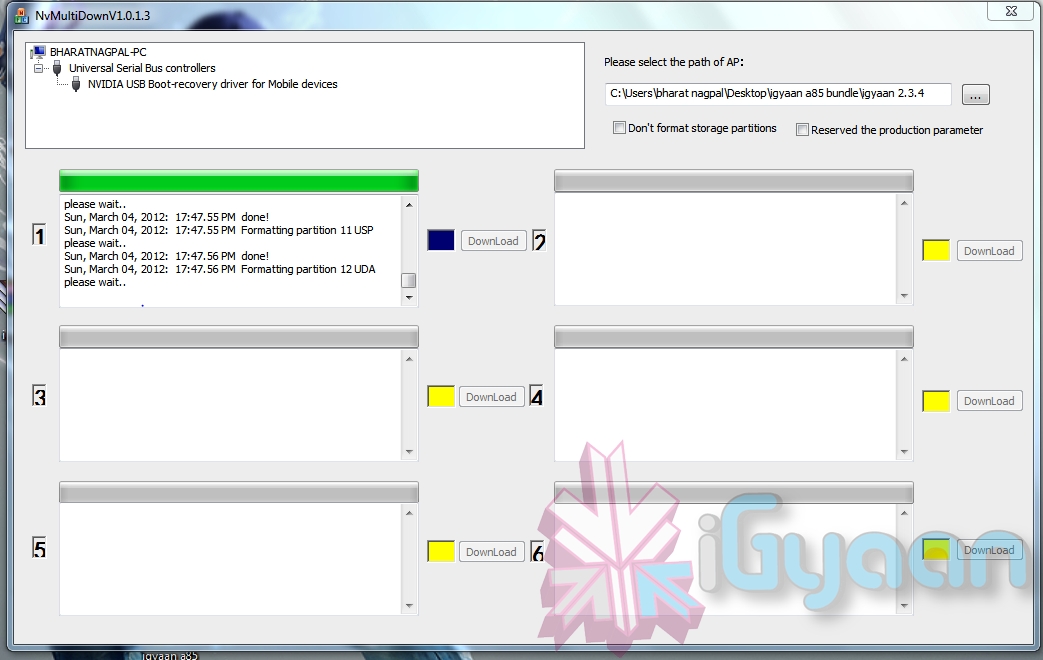
    • Once the program is running On the right side select the “iGyaan 2.3.4” update folder 
    • Uncheck the 2 boxes below the file location. (if they are checked.)
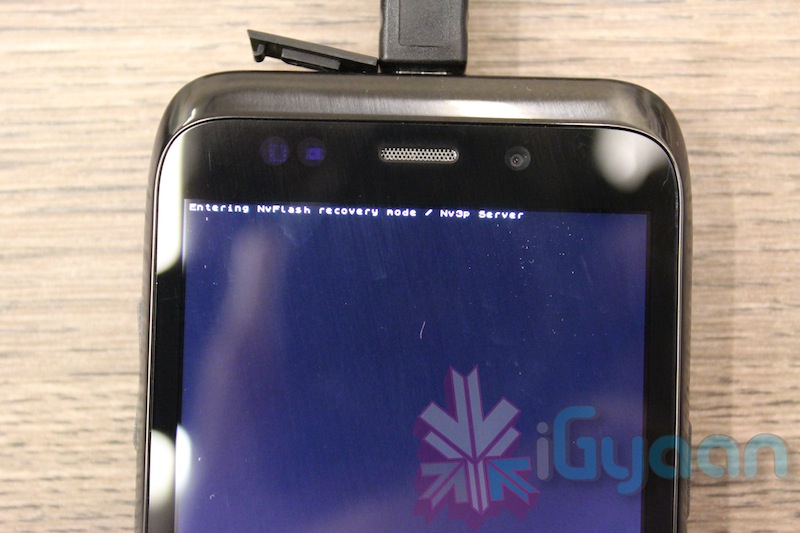
    • Remove the battery and usb cable from you A85/ Cherry Magnum 2x / KTouch K700
    • Repeat Step 3 from above and connect the Device to the USB cable
    • Once you connect the device will show up in the NvMultiDown program
    • Your device will start to update.

    Step Seven

    • Once Update finishes your device will boot with Android 2.3.4
    • Enjoy!


    Now a lot of you may face problems with the update, so those who figure out answers to the problems please help each other out in iGyaanForum.com in the discussion thread : [button link=”http://igyaanforum.com/showthread.php?t=541″ bg_color=”#bcc483″ border=”#7a097a” text=”dark”]Discussion Thread[/button]


    Please don’t mirror the downloads and keep the original link intact.

    If you create instructions don’t forget to link back to this page and don’t copy our links.


    Micromax Android 2.2 Stock Rom

    Incase you are facing problems with the 2.3 build that you cannot find a fix for, we have instructions to revert to the original rom. in our update bundle we have also included the stock rom.

    The stock Rom also includes the gestures app and all stock applications , incase you have warranty issues you can revert to the stock ROM aswell.

    Tutorial to revert to Stock 2.2

    Follow Step 1 – Step 5 Above

    Step Six

    • Once the program is running On the right side select the “Stock mmx 2.2” folder 
    • Uncheck the 2 boxes below the file location
    • Remove the battery and usb cable from you A85/ Cherry Magnum 2x / KTouch K700
    • Repeat Step 3 from above and connect the Device to the USB cable
    • Your device will start to downgrade to 2.2

    Step Seven

    • Once Update finishes your device will boot with Stock Micromax Rom.
    • Enjoy!


    Video Coming Shortly!

  • DIY : How to Jailbreak your iPhone 4s / iPad 2 Using Absinthe

    DIY : How to Jailbreak your iPhone 4s / iPad 2 Using Absinthe

    So ready to break your device free from the evil clutches of Apple? The highly awaited untethered jailbreak for iPhone 4s and iPad 2 is finally out. 

    Lets begin

    Here is what you need

    1. iPhone 4s / iPad 2 on iOS 5.o or iOS 5.0.1
    2. Download Absinthe from the links below
      [greenpois0n 1][ greenpoison 2]
    3. Apple computer/Hackintosh running MAC OS X / Snow Leopard
    4. Windows users will need to wait for the windows app

    Lets begin with Jailbreak

    Step 1

    • Make sure you backup your device with iTunes or have all you data synced with iCloud
    • For this jailbreak to work you have to disable backup passwords from iTunes.


    Step 2

    • Download and Open Absinthe on your Mac

    Step 3 

    • Plugin your iPhone 4s / iPad 2 on your mac using the USB cable
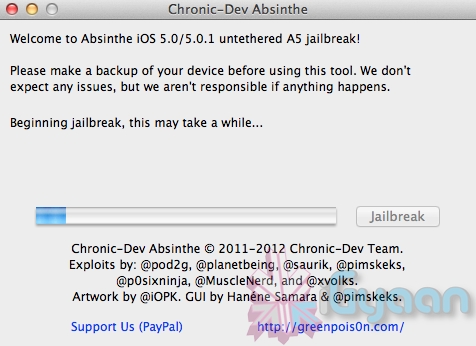
    • Click the Jailbreak button on Absinthe and wait for the process to finish.


    Step 4

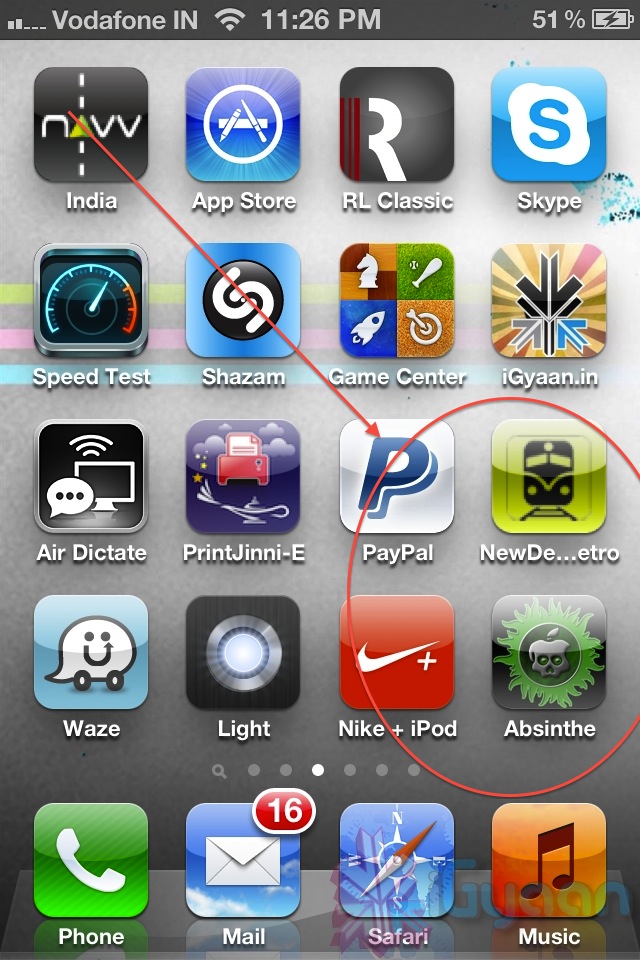
    • Once the process is complete you will see a new app on your iPhone/iPads screen – Absinthe


    • Tap the app to start it ( make your you have internet connectivity)
      Note: you might get error connecting to database – due to high usage currently) 
    • Once you do get a connection it will download the Jailbreak data and reboot your device.
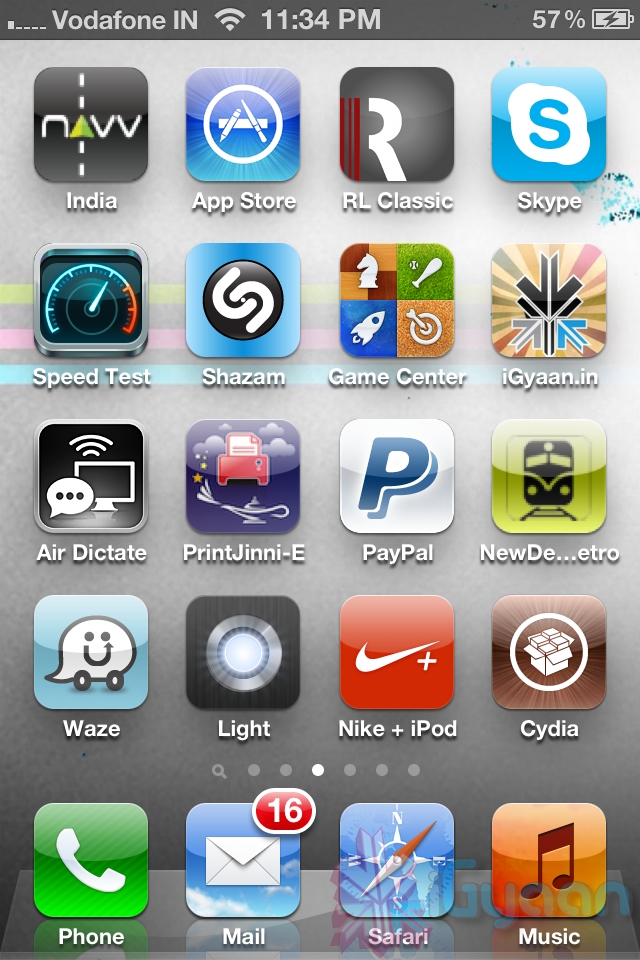
    • Once the device reboots you will see the Absinthe icon replace with CYDIA!
     

    Enjoy your Jailbroken iPhone 4s / iPad 2 ! 

    Video Coming Shortly!


  • How To : Import Your Facebook Contacts to Google Plus (+) : Step by Step

    How To : Import Your Facebook Contacts to Google Plus (+) : Step by Step

    After getting you an Invite,

    And Telling you

    How to Setup your Account on Google Plus.


    We are now helping you shift your Facebook contacts to Google + .

    It is a tedious, process but it works


    Step 1. Yahoo Mail

    • Create a Yahoo mail account if you don’t already have one.
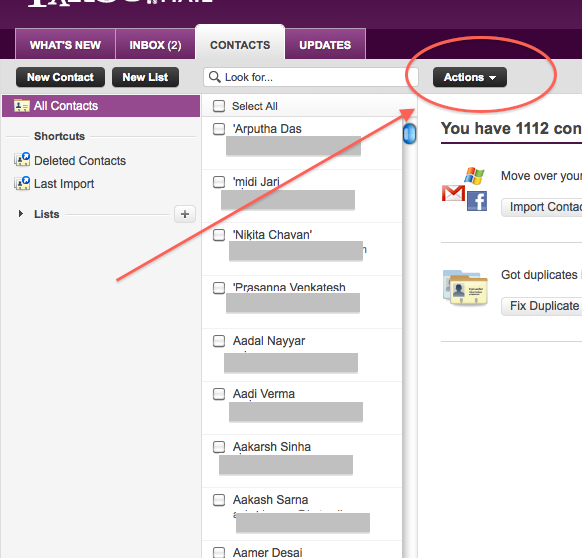
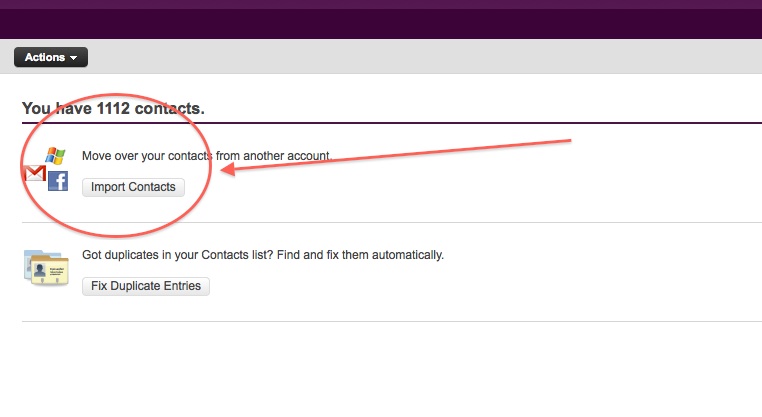
    • Login and click the contacts tab.
    • Once in the contacts tab you will be able to import contacts from Facebook.
    • Go ahead and do that.
    • After you enter your Facebook details all your contacts will appear in the contacts tab.
    • Next its time to export the contacts.
    • Click  the Actions button in the contacts screen.
     
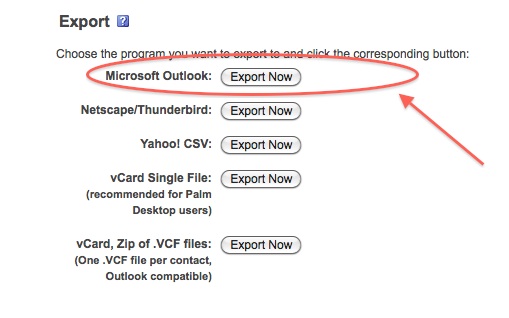
    • Now click Export all and choose the Microsoft Outlook option.
    • Save the file
    • Move on to Step 2
     

    Step 2 : Windows Live Mail

    At this point you would want to say to yourself, Why would i need a windows mail account?

    Answer : Currently Google + supports contact import from Yahoo and Hotmail. But once you import your contacts from Facebook to yahoo mail, Google plus can’t import them. Same is the case with Hotmail/Windows Live Mail. But with our work around Google Plus will import your contacts, So go on ahead:

    • Make sure you have a Windows Live Mail or Hotmail account (if not get one) 
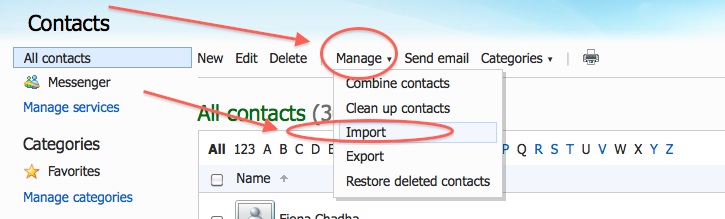
    • Next go into the Contacts Menu
    • Click Manage and then Click Import


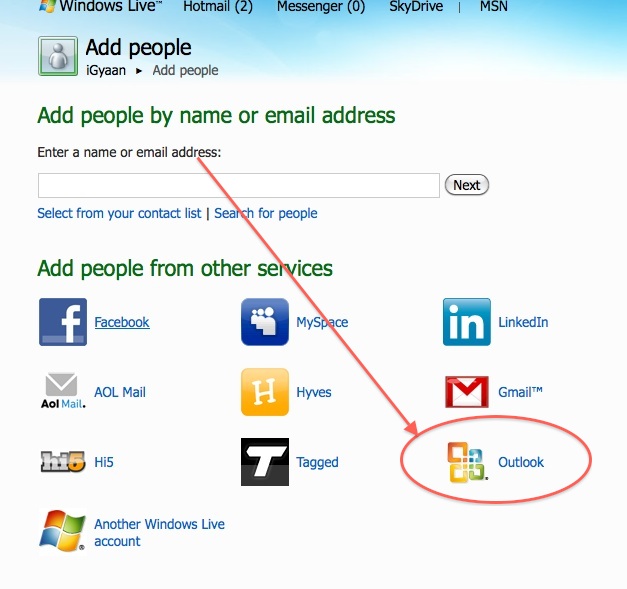
    • Next, Choose  Outlook and import the file you previously exported from Yahoo mail.
    • Now that your contacts are imported in yahoo mail the next step is to add them to Google Plus

    Step 3 : Google Plus

    • Log onto your Google Plus account
    • Visit the Circles tab
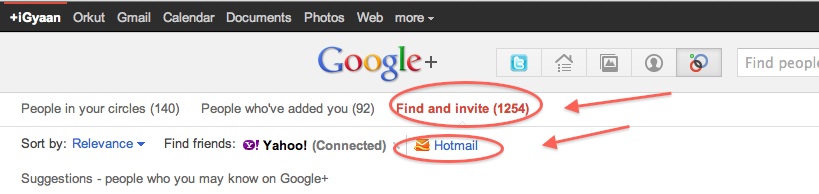
    • Click find and Invite
    • Click on hotmail
    • Enter your details


    You are Done!

    You have successfully imported your Facebook Contacts into Google Plus. 
    Now go ahead and add people to the circles of your choice and invite them.


  • How to : Set up your Google Plus Account Step by Step

    How to : Set up your Google Plus Account Step by Step

    Today we are going to help you set up a Google Plus Account – Step By Step


    Step 1 : Invitations

    If you don’t already have an invitation to Google plus, then you should consider making friends with better people, like us.

    Hit this link to get an Invite 

    Note:

    • You will need a gmail email address or a fully qualified google profile to get this to work.
    • Google apps and associated email addresses  are currently not supported

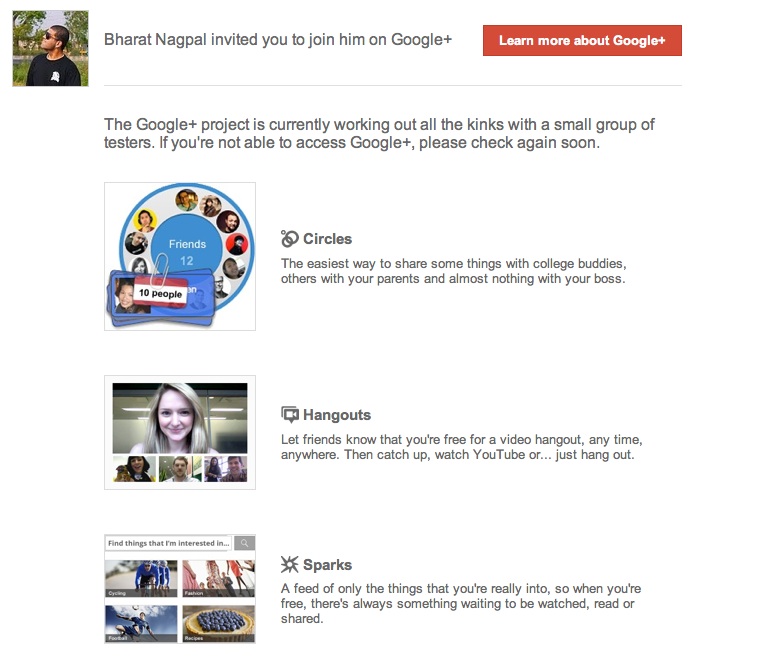
    When you get an invite it should look something like the image below


    After you get an invite  you will need to click the button :  


    Step 2 : Register 

    Once you click on the button you will be redirected to the registration page:


    Add your details, upload and crop your profile Photo.

    And you are all set to CLICK JOIN


    Step 3 : Profile

    Now that you are in, you would want to set up your profile.

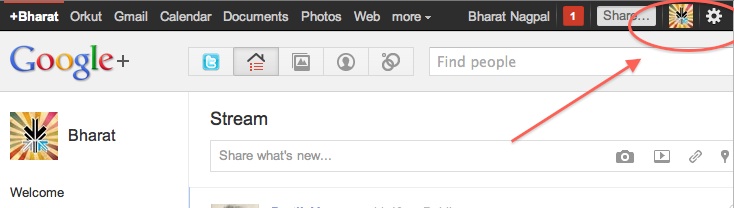
    You will be greeted with a similar welcome page : 

    welcome page
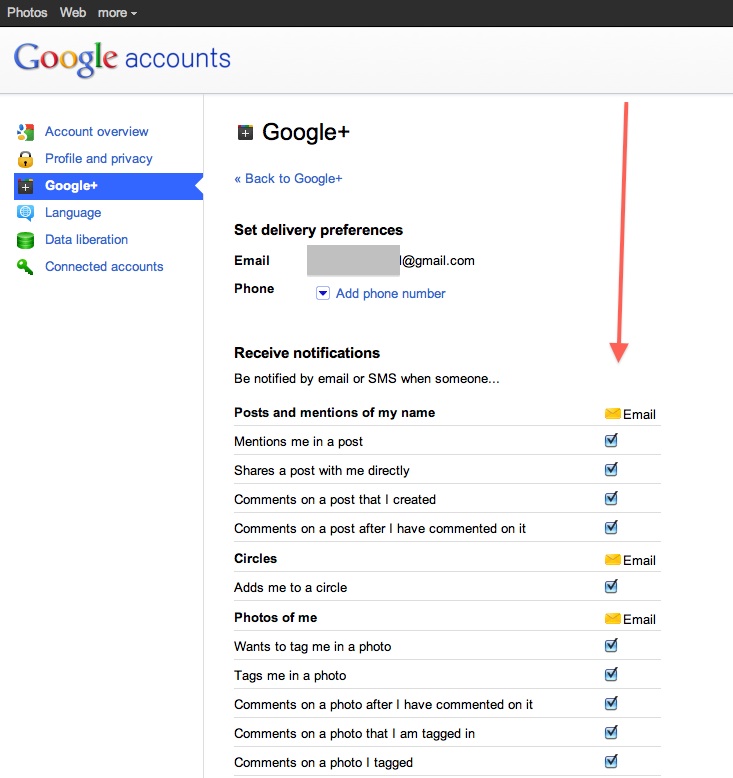
    • Click the sprocket settings button on the top right of you browser to get into Google Plus settings.


    • Next, Set up your privacy and sharing settings in the page.

    HIT – SAVE, and you are done!


    Step 4 : Setting up Circles

    Hit the circles button on your profile page to set up Circles.


    Once on the circles page you will be able to , find people by email addresses or by searching for them over other networks and email services like yahoo mail or hotmail.

    Simple create circles of your choice, Like Friends, Family, Colleagues, Game Buddies, College, etc.

    You can also add the same person to multiple circles.

    Once you are done finding and adding your friends, its time to start posting!.


    Step 5 : First Post!

    • Simple click on the share bar in your Google Plus homepage and start writing.
    • You can add media like videos or photos or even links and location from where you are posting.
    • Also select what all circles you would like to share this post with.
    • You can also leave it blank to share with everyone
    Once you are done typing click the green Share button.

    Congratulations you have successfully started using Google Plus (+)


    You can now start inviting your friends too!
    Stay tuned for an update to this post where we share details about Sparks, Hangouts and Streams


    We also have a tutorial on how to transfer your Facebook friends to Google + here.

  • DIY : How to Install Android 2.3 Gigerbread on you Samsung Galaxy Ace

    DIY : How to Install Android 2.3 Gigerbread on you Samsung Galaxy Ace

    Today we are going to show you how to Install GingerBread 2.3 on your SAMSUNG GALAXY ACE mobile PHONE.


    What you will NEED!


    1. A Samsung Galaxy ACE (DUH!).

    2. The 2.3 Firmware S5830( click here to download password =  samfirmware.com).


    3. ODIN downloader (click here to  download). and USB Driver (Click HERE)

    4. OPS files (click here to download).

    5. A windows PC + samsung data cable.


    Important NOTES:

    If you get errors after upgrade : i.e. error: phone application has stopped working or get constant crashes,do the following:
    To fix phone not working, initiate restore phone to factory settings command from Settings – Privacy

    TAKE SERIOUS CONSIDERATION BEFORE UPGRADING AND HAVE YOUR BACKUP IMAGE READY IF SOMETHING GOES WRONG – use the OLD FIRMWARES: (All backup images can be found here)

    • Make sure your device is fully charged!
    • BE sure to backup all your data!
    • You are doing this at your own risk, Although, This will NOT void your warranty!
    • Your phone does not need to be rooted to get this working.


    AFTER BACKUP – FACTORY RESET YOUR PHONE BY ENTERING THE FOLLOWING CODE

    *2767*3855#


    STEP 1

    Download all the files above, and make sure you have the latest version of KIES software installed.

    STEP 2

    Extract the RAR to get a .tar file.

    STEP 3


    Open ODIN Downloader.

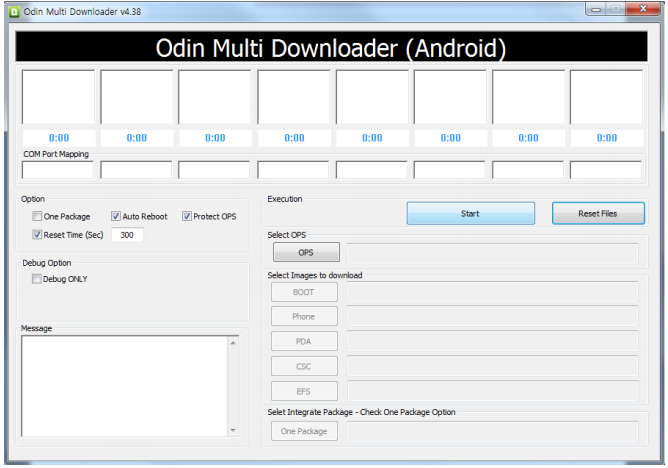
    MAKE SURE you select One Package, Auto Reboot and Protect Ops checkboxes.

    Select the Ops file (the file we downloaded earlier).

    And finally select the tar package we extracted from the RAR downloaded earlier.

    (You can also extract the rtar and select packages indivisually)


    NOW CLOSE ODIN.

    STEP 4

    Backup you phone and data with the KIES software (after you are done exit KIES)

    Turn OFF the Galaxy ACE and remove the Battery

    Reinsert The Battery and Press the following buttons together

    CENTER HOME BUTTON + POWER BUTTON + VOLUME DOWN Together

    Hold the buttons together till you see the downloading screen


    STEP 6 (Final Step)

    CLICK START and wait for process to finish, once done your device will automatically reboot and will have Android 2.3 running on it.

    A Few Things you will notice with 2.3

    • The rom runs faster but uses more RAM
    • Video now is up to 640x480px
    • Camera can’t auto focus.
    • The interface is overall nicer looking and runs smooth
    • There are a lot of bugs and it may crash frequently

    Test this out at your own risk, if you have feedback please leave it below

    Rom Files courtesy (samfirmware.com)

  • Samsung Galaxy 3 Official Android 2.2 Update Giving major Problems |  Froyo’d or Doomed?

    Samsung Galaxy 3 Official Android 2.2 Update Giving major Problems | Froyo’d or Doomed?

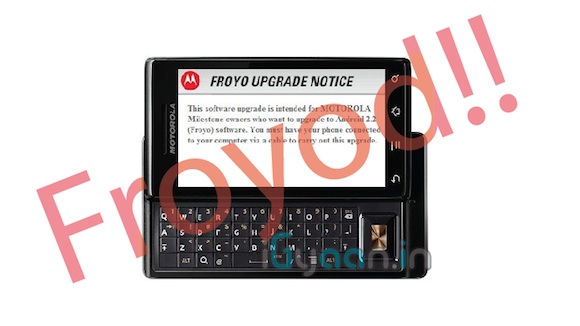
    Froyo’d or Doomed? The official update Galaxy 3 Update for Android 2.2 came out a couple of Days ago and multiple users are reporting several problems with the update:


    • Proximity sensor issues
    • Battery Life
    • Problem with silencing the device with volume rockers
    • Swype not working
    • Camera App Crashing

    So if you did update and are facing issues select your issues in the poll below and vote. If You still have not updated and want to despite the errors visit our Step by Step Guide


    [polldaddy poll=4954275]

  • Samsung Galaxy 3 I5801 gets Android 2.2 FroYo update in India + How To

    Samsung Galaxy 3 I5801 gets Android 2.2 FroYo update in India + How To

    Samsung has finally let out their most awaited update for the Samsung Galaxy 3. Android 2.2 aka Froyo is now available for all those with samsung Galaxy 3s in India and Europe.

    To Update your Device

    Make sure your device is fully charged!

    BE sure to backup all your data!


    Step one

    Download the latest version of Kies

    Step two

    Fully charge your Galaxy 3

    Step three

    Connect via the USB cable to your computer

    Step four

    Fire up kies and let it search for update

    if it does not give you an update, check for update manually by clicking the update button in the bottom row.

    Step Five

    Follow the steps on the screen and your device will begin the new update.

    Few features that are in the 2.2 update –

    • A very colorful menu interface
    • The ability to Install apps to the SD CARD
    • Apart from general Performance boost in processor, better battery and ram management.
    • The 2.2 update also adds a lot of bug fixes and tweaks.

    Please leave your questions and feedback below.

  • DIY : Motorola Milestone 2.2 Froyo Update now Available, Defy also gets quick Update

    DIY : Motorola Milestone 2.2 Froyo Update now Available, Defy also gets quick Update

    According to a reader the 2.2 update for the Motorola Milestone is now available.

    To get the update

    • Update to the latest version of Motorola Phone Tools
    • Go to the help menu and select Phone software update
    • Select India in the country selection
    • Then select the Milestone in device selection

    You should now be able to see the update and start the process.

    According to the same reader there is also a quick update for the defy, but its not a Froyo update.

    Let us know your feedback below

    Thanks : Ankit

  • How to – Upgrade the Ram in your Unibody Apple Macbook Pro

    How to – Upgrade the Ram in your Unibody Apple Macbook Pro

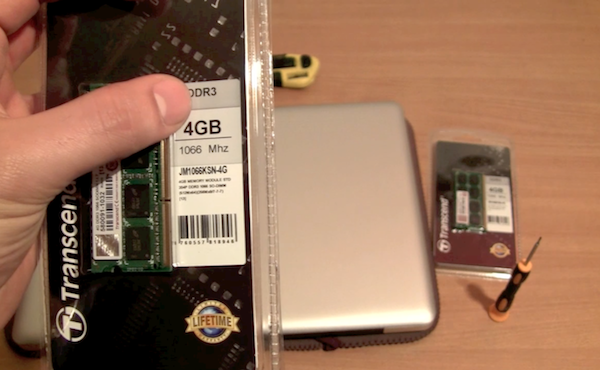
    A simple and quick tutorial on how to save approximately 15,000/- INR.

    Do it yourself- Use the instructions from the video to upgrade the ram yourself.

    This does not void your warranty, and perfectly complies with Apple Terms of Use.

    iG Tech

iGyaan Network
Privacy Overview

This website uses cookies so that we can provide you with the best user experience possible. Cookie information is stored in your browser and performs functions such as recognising you when you return to our website and helping our team to understand which sections of the website you find most interesting and useful.