Category: Do It Yourself

  • How To Build A Gaming PC Under Rs. 25,000 For PUBG, GTA V And More

    How To Build A Gaming PC Under Rs. 25,000 For PUBG, GTA V And More

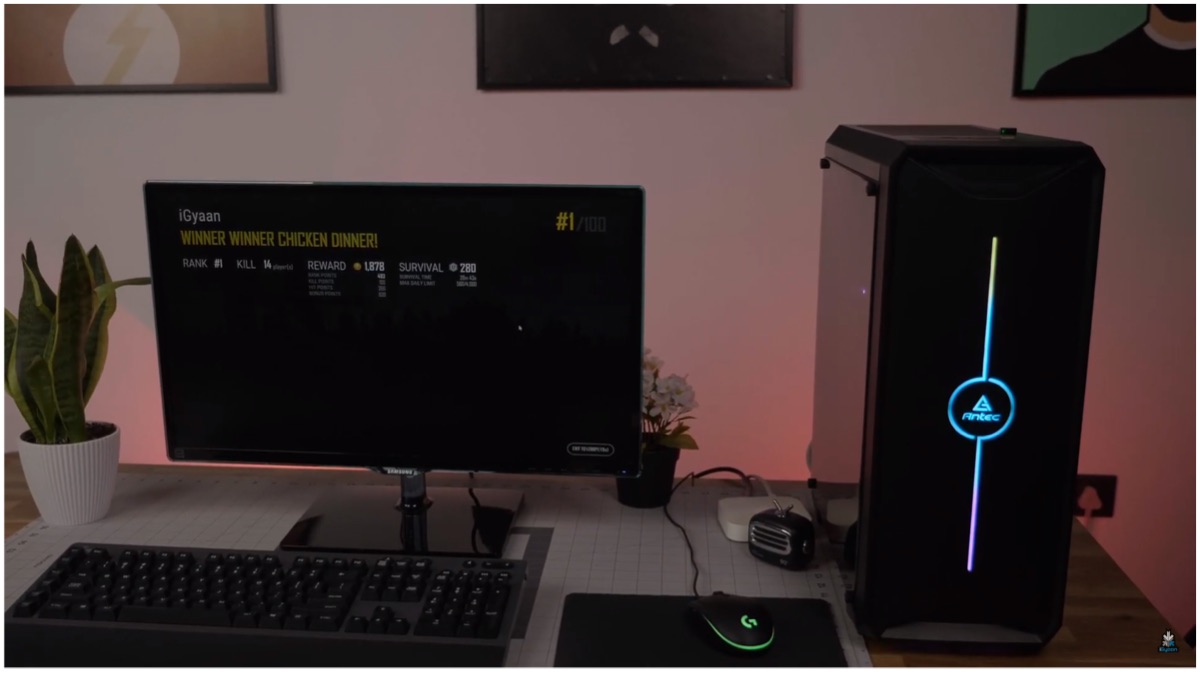
    It’s finally here! After many requests, the iGyaan team has finally built a budget gaming PC. We made a gaming computer for just under INR 25,000 and have provided links to all the parts that are available online. Furthermore, we have also provided step by step instructions as to how you can build it yourself. 

    Gaming PC Parts

    One of the hardest aspects of building a budget gaming PC is deciding on the components. We have used parts that are easily accessible and are available online while leaving room for future upgradability. Here is a list of what we used along with their respective buying links:

    Note: The parts we acquired may have their prices vary.
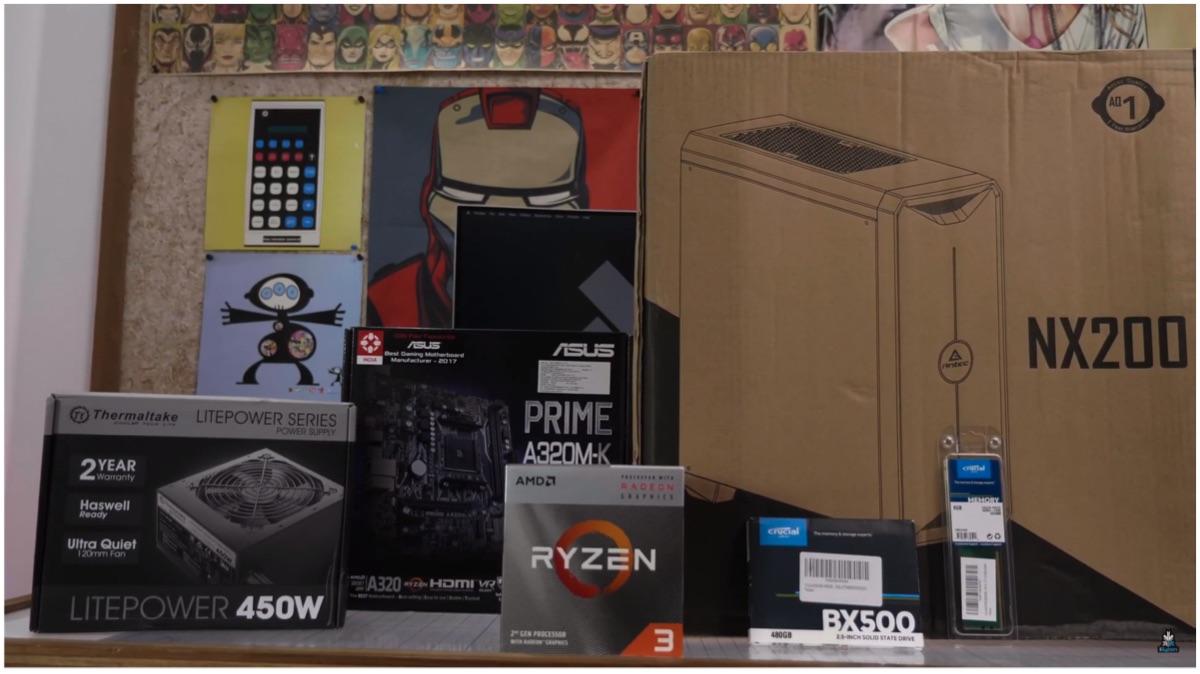
    Gaming PC

    How To Build A Gaming PC

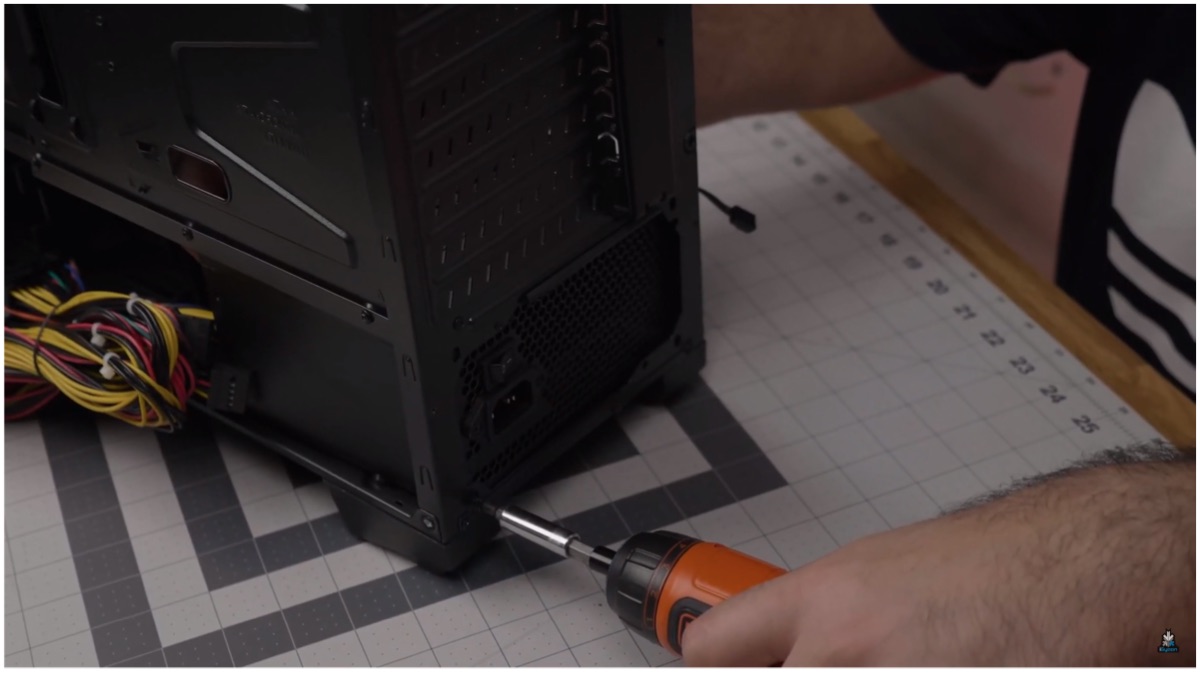
    Step 1: Install the PSU after opening up the Antec NX200 case, the Thermaltake 450W PSU will be installed first (always use a renowned brand as PSU is a crucial component). Do remember to always safely store screws while building or opening a PC. The bottom part of the case houses an area specifically for the power supply unit and we will start from there.
    Gaming PC

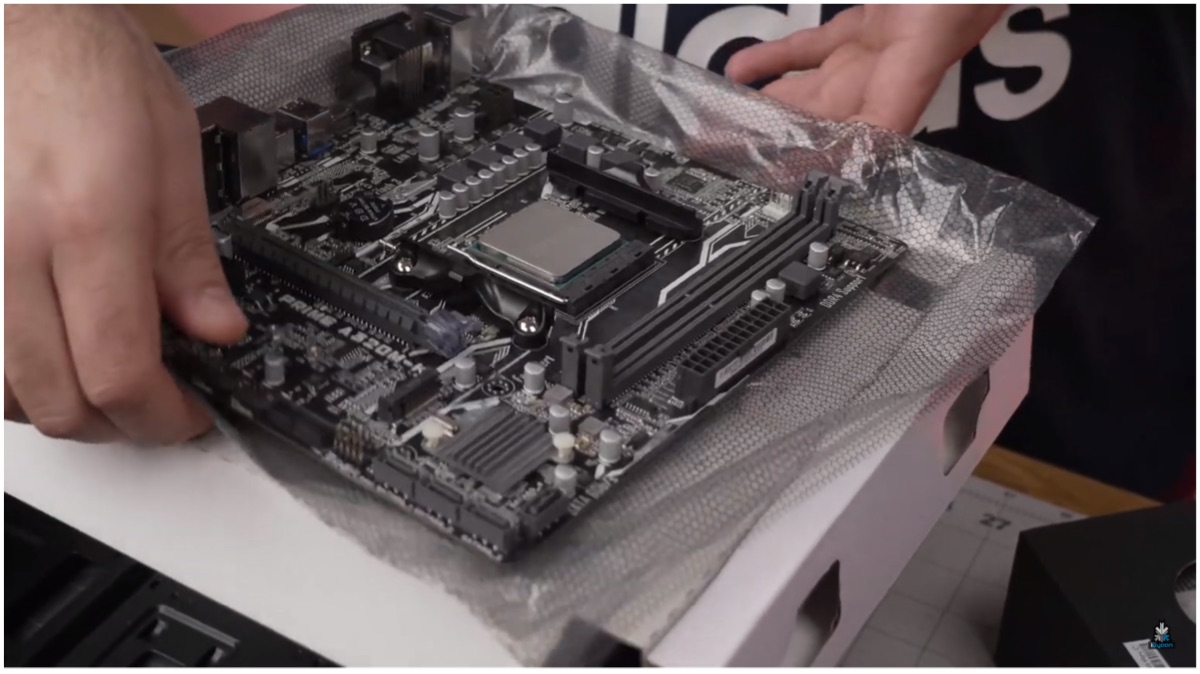
    Step 2: Now, we ready the motherboard before outfitting it onto the case. The Asus A320 AM4 compatible motherboard is perfect for the Ryzen 3200G. To install the APU, lift the lever before placing the chipset. Now, an arrow can be found on both the CPU and motherboard that must be aligned to ensure proper fitting. Pull the lever down again to lock in the CPU.
    Gaming PC

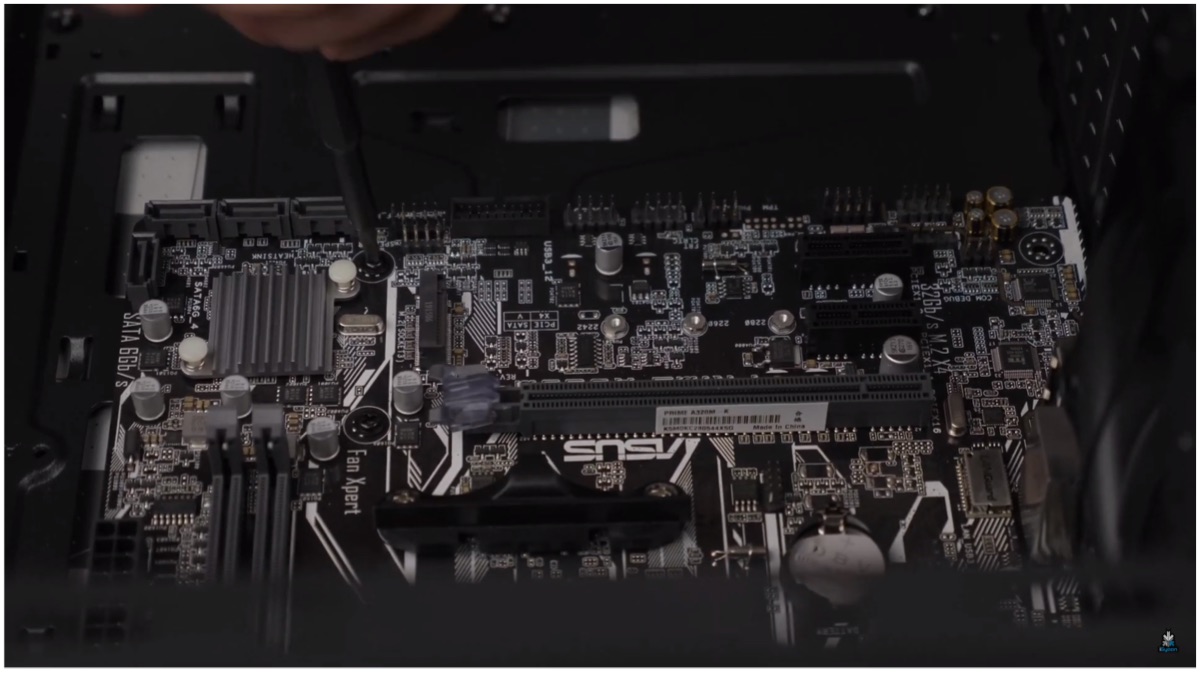
    Step 3: The A320 has 6 total standoffs holes which can be used to safely mount the motherboard onto the case. The case only offers four standoffs pre-installed but offer additional screws that make it possible to place two more. Make sure to have the standoffs at the same height lest the motherboard bends and gets damaged.
    Gaming PC

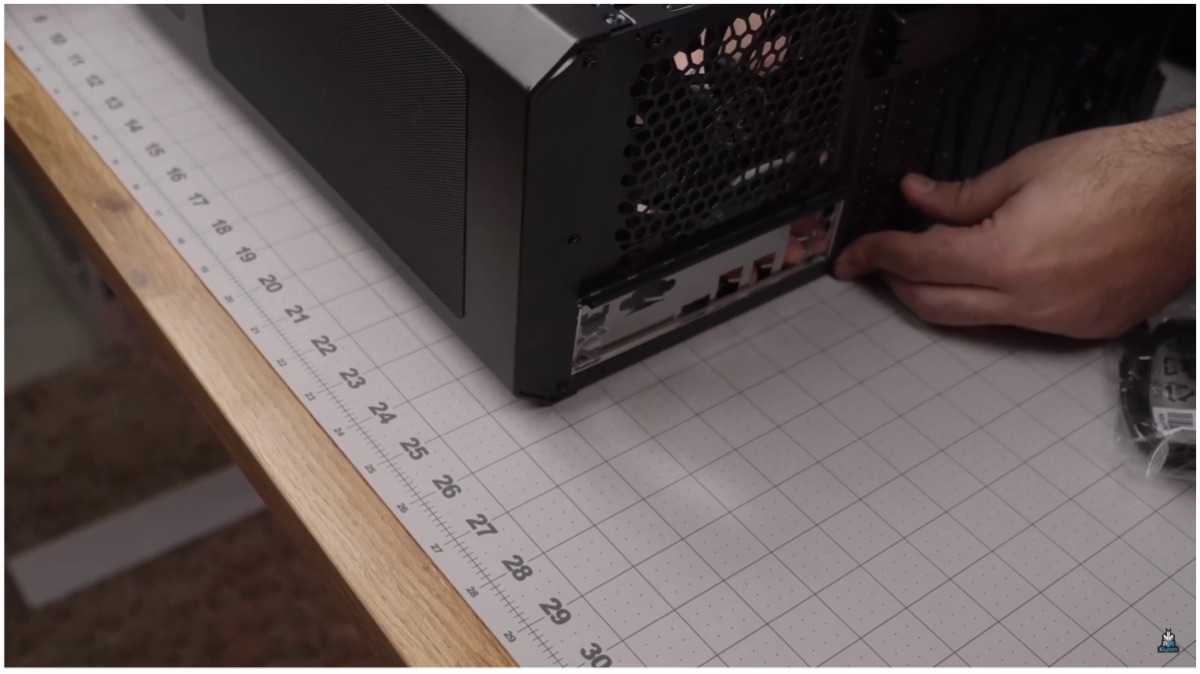
    Step 4: Place the IO shield on the backplate. It is a metallic slate which can be fitted into the backplate. Once you place the motherboard, the IO shield should have ports from the board that align perfectly with its holes. Now, use a screwdriver to ensure a secure fit of the motherboard onto the case and make sure not to overtighten the screws.
    Gaming PC

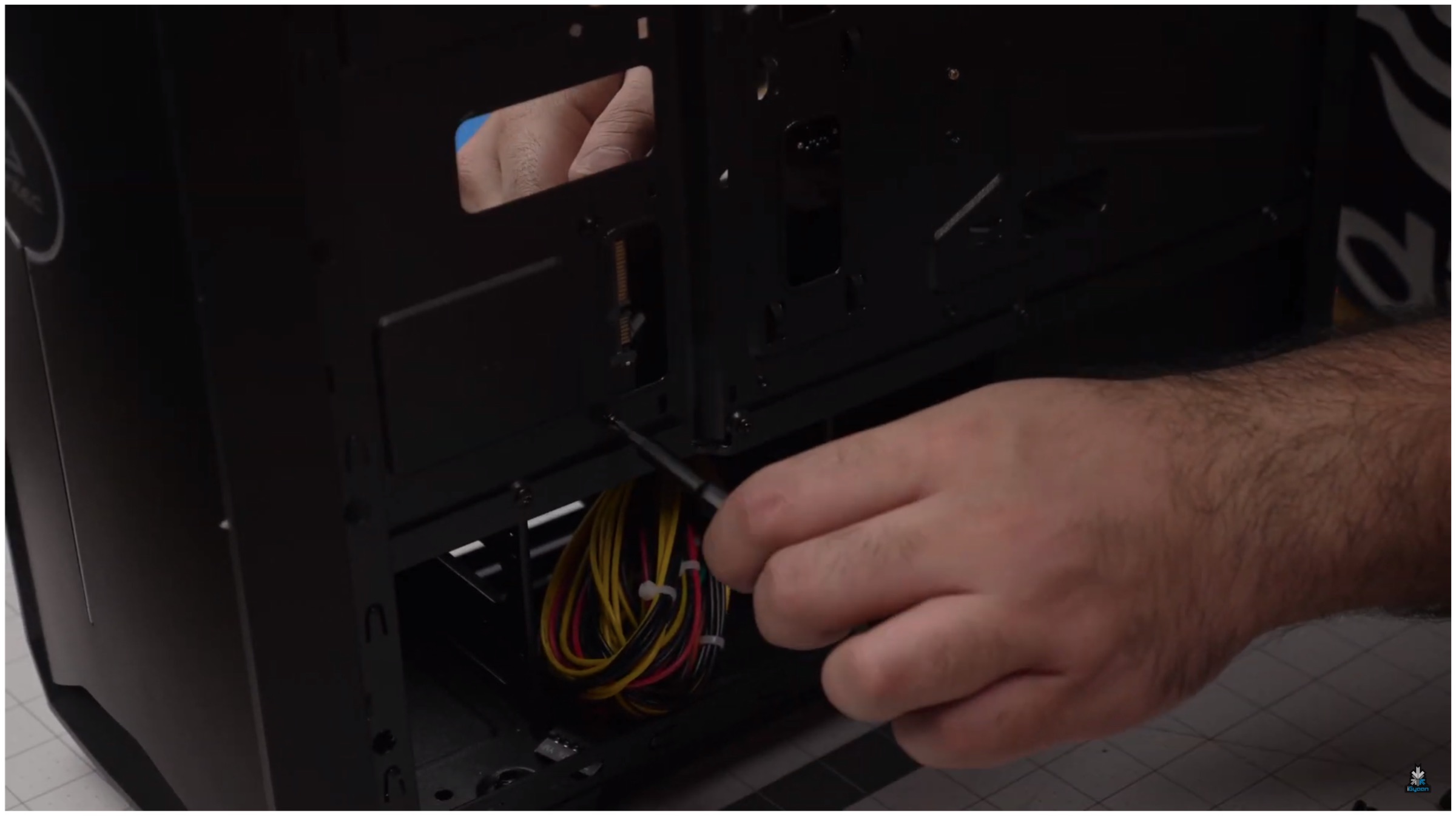
    Step 5: Install the RAM according to the slot. DIMM A1 is the first slot and where the 8GB Crucial RAM should be fitted. You should hear a click once it is housed properly. After this is done flip the case to route the cable and equip the build with the SSD. After opening the side panel users can use the screws provided to fit the 480GB Crucial SSD into place.
    Gaming PC

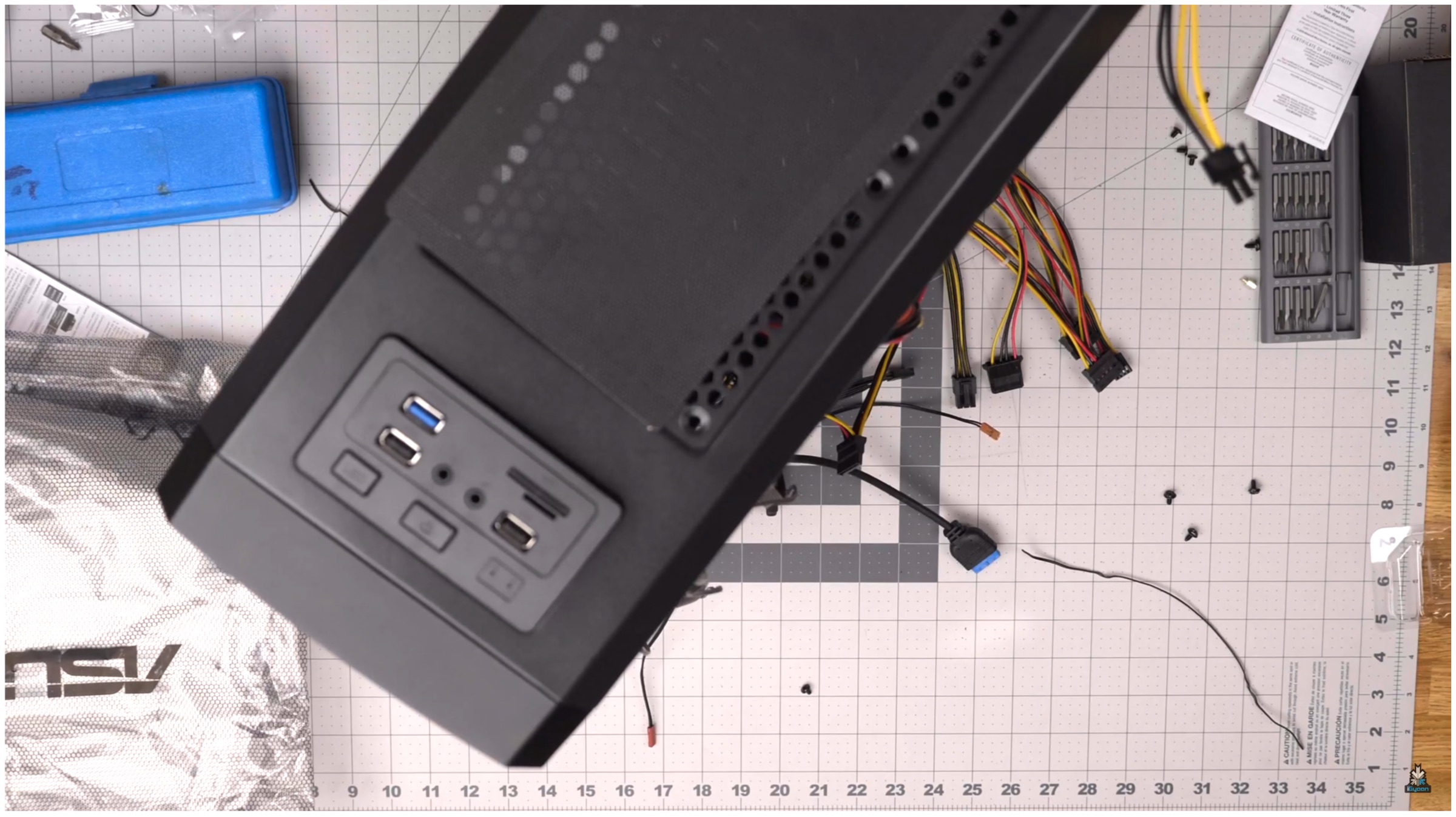
    Step 6: Cable management is always important. We used the cases inbuilt routes to ensure better cable management with wires being less evident from the clear side of the build. Users can take each cable out from the side panel. It is required to connect necessary cables, like the power cable, after being routed from the back. Users should check to see which pins the cable align with to know where to connect the plugs. For example, HD Audio connects to the audio connector. Like the LED power connectors, Always check the motherboard that has markings which define what each pin is made for. 
    Gaming PC

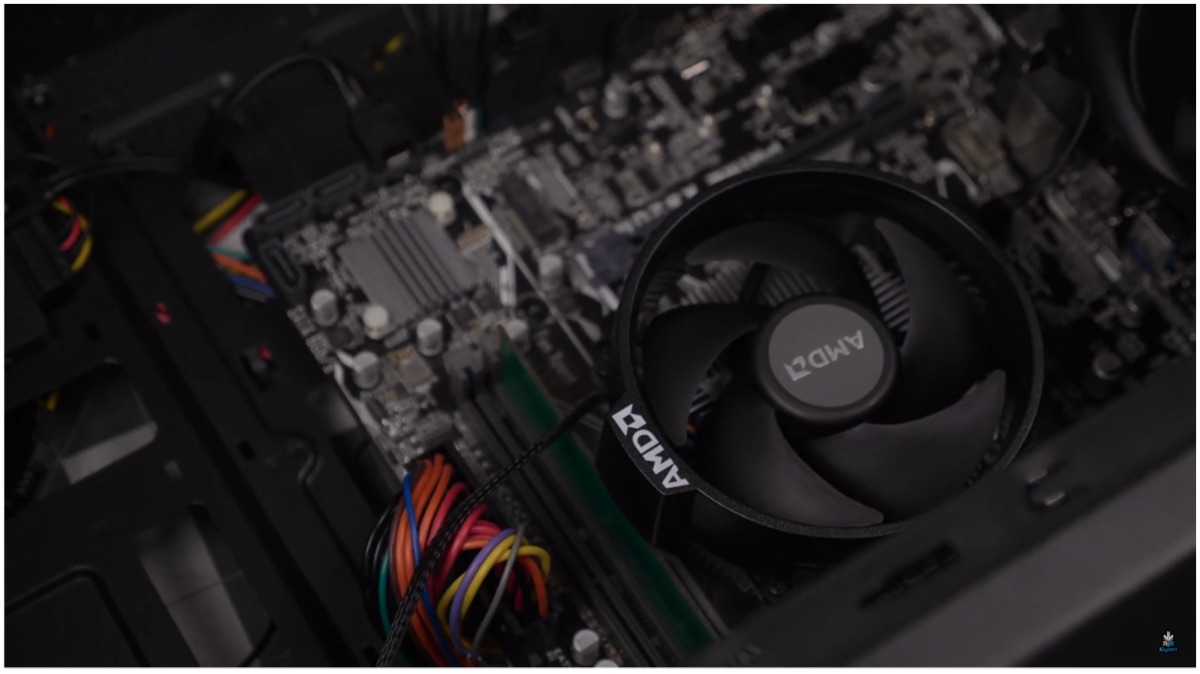
    Step 7: To keep the CPU cool, users need to install the Wraith Fan from AMD. Take the cable from the back before plugging, it is similar to what we have previously done with the other wires. This hides most of the wires to the back of the PC build. The CPU cooling fan has thermal paste pre-applied which can be cleaned and switched but we recommend using the stock. Remove the mounting brackets that are pre-installed on the flanks of the CPU unit, these are not required in our build.

    Make sure to hold onto the plates that are co-joined with the brackets from the opposite side and screw it along with the fan. In our initial attempt, we had the fan come into contact with the RAM. To fix the issue we rotated the fan bracket right way up to avoid the problem by loosening 4 screws on the fan itself and tightening it back again.
    Gaming PC

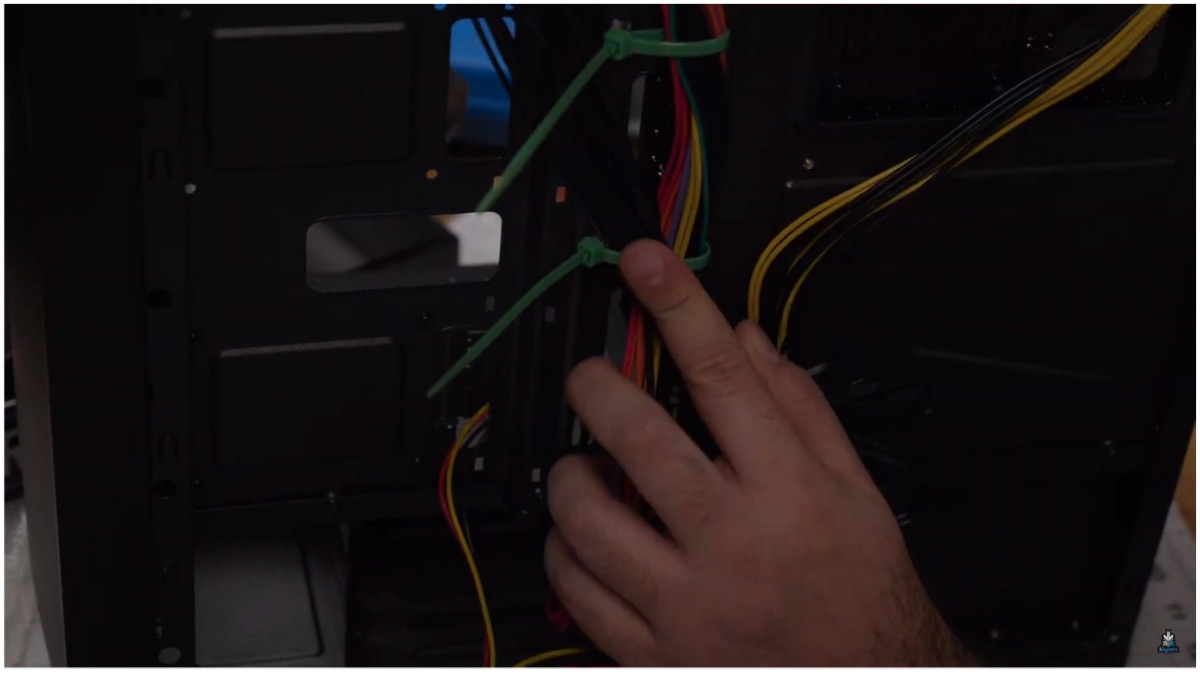
    The build is more or less done considering we don’t have to worry about a GPU or additional SSD. The case has space for added cooling via more fan units or even water cooling if users wish to upgrade in the future. The build isn’t complete before we can secure every cable and close up the case; so do check our video to see how we used ties to group the cables neatly before tucking them in.
    Gaming PC

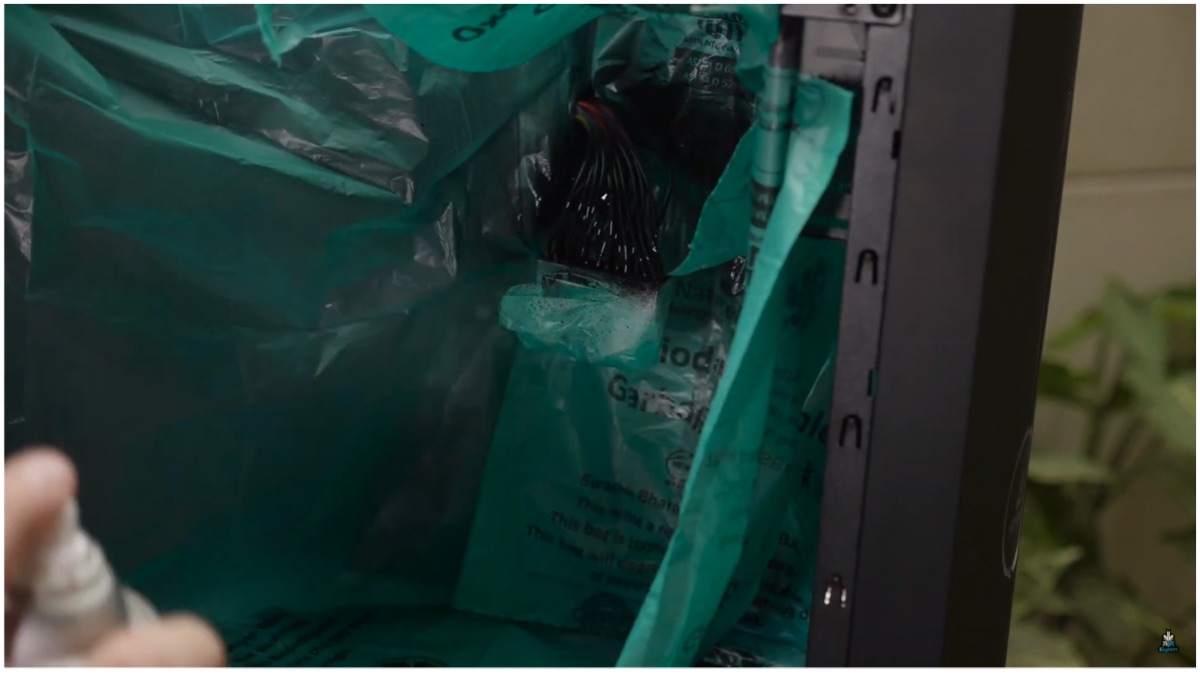
    Step 8 (Optional): For aesthetics, we also included an LED strip whose power had to be routed through the back to power it up. After the Windows installation was complete we decided to spray paint the red and mustard colour cables that seemed distracting. It was achieved without spending additional money and we went spraying to finally achieve the look we were after.
    Performance & Conclusion

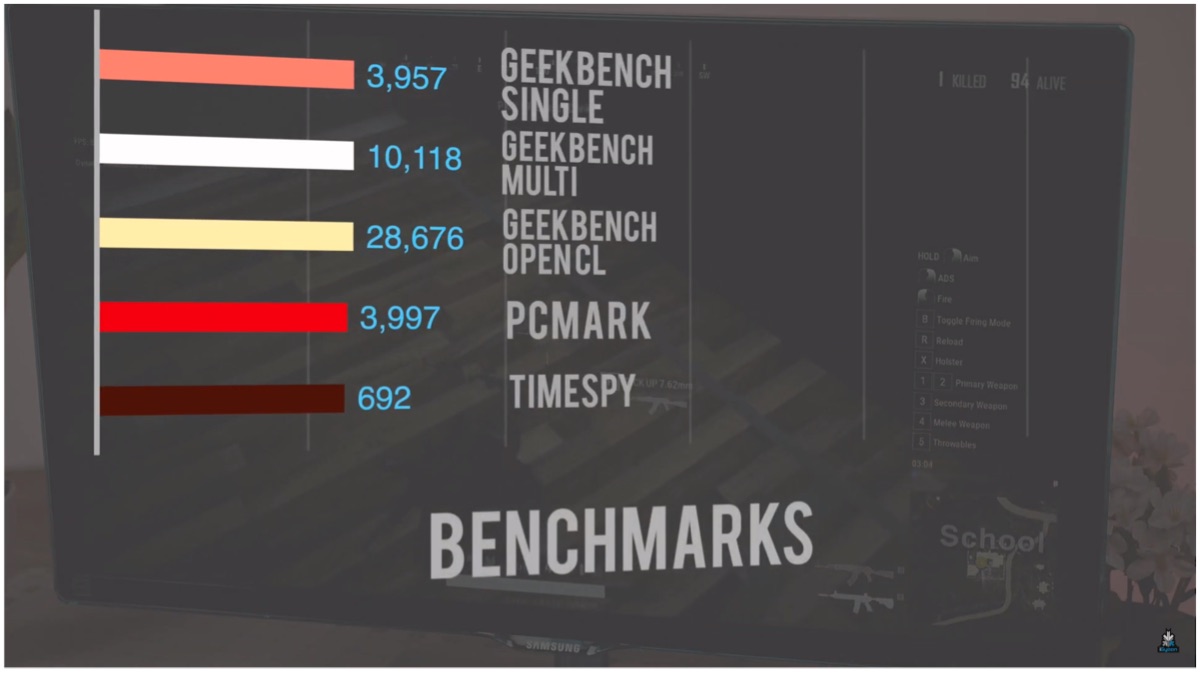
    In games like PUBG Lite and GTA V, we achieved frame rates between 50-60fps after tweaking some settings. The budget PC is capable of running other popular games like CS:GO, Apex Legends and even DOTA 2 as well. It is a long shot to claim you can play the latest AAA titles but most classic to even certain new games run well at the lowest settings. You can also look at the chart below to discern the synthetic benchmark of the PC.
    Also ReadRedmi K20 Lineup Will Receive A Price Cut From 1st August

    For visual assistance, while building your own setup, you can refer to our video on the official iGyaan Network YouTube channel. The video offers a much more in-depth look with visual cues as to how to go about certain complex portions such as cable routing or management. Do follow us on social media for more PC and gaming related content and stay tuned for more.
  • How To Port Your Number Using Mobile Number Portability

    How To Port Your Number Using Mobile Number Portability

    On the 3rd of July, telecom companies around India launched the National Mobile Number Portability (NMNP). This means that you can now move from one city to another and still retain your mobile number. While many may be aware of this already, we decided to provide a step-by-step guide for those who may not know the proper procedure to port their number and a few things to keep in mind before doing so.

    Step 1 : Generate An Eight-Digit Unique Porting Code

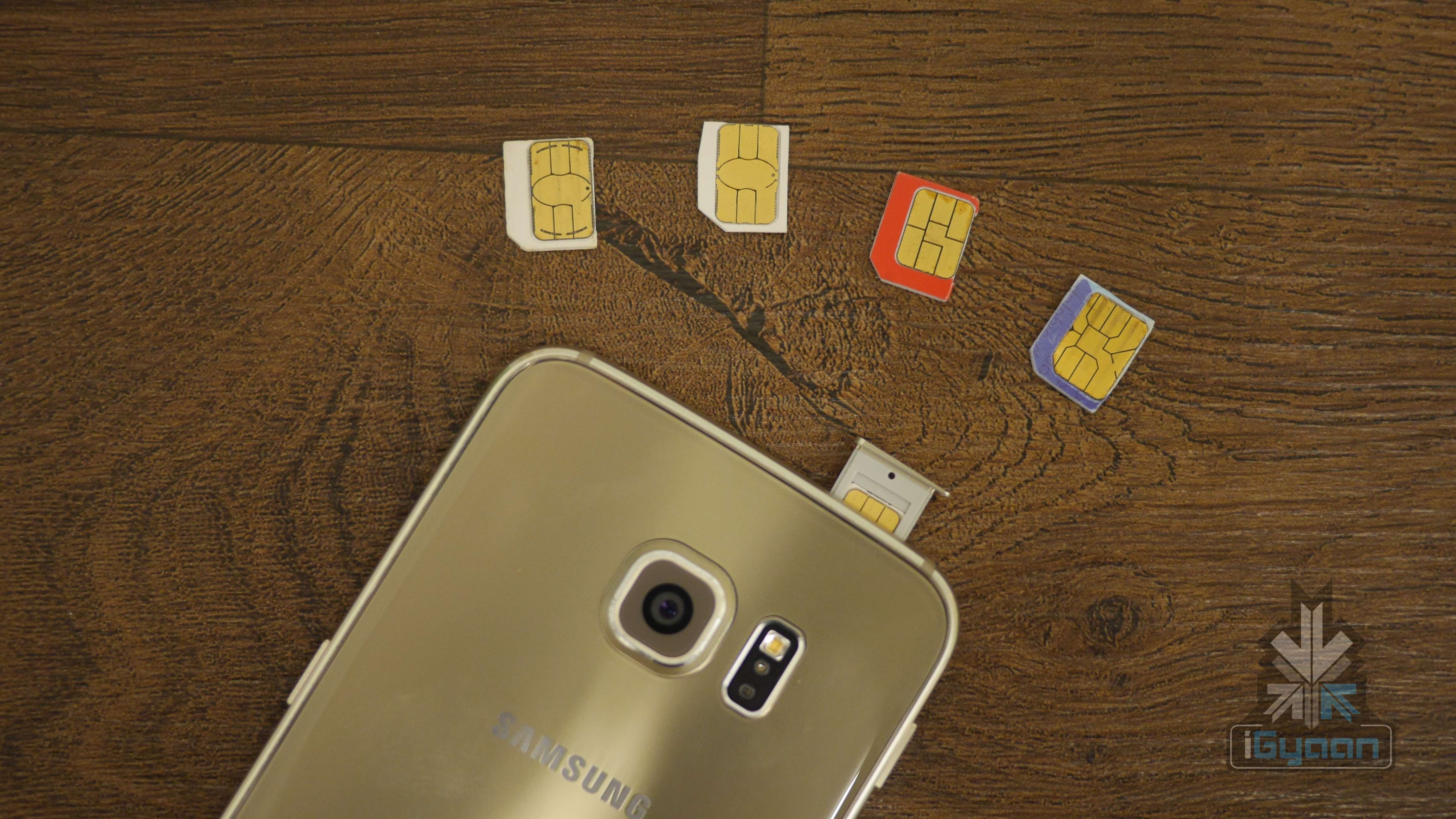
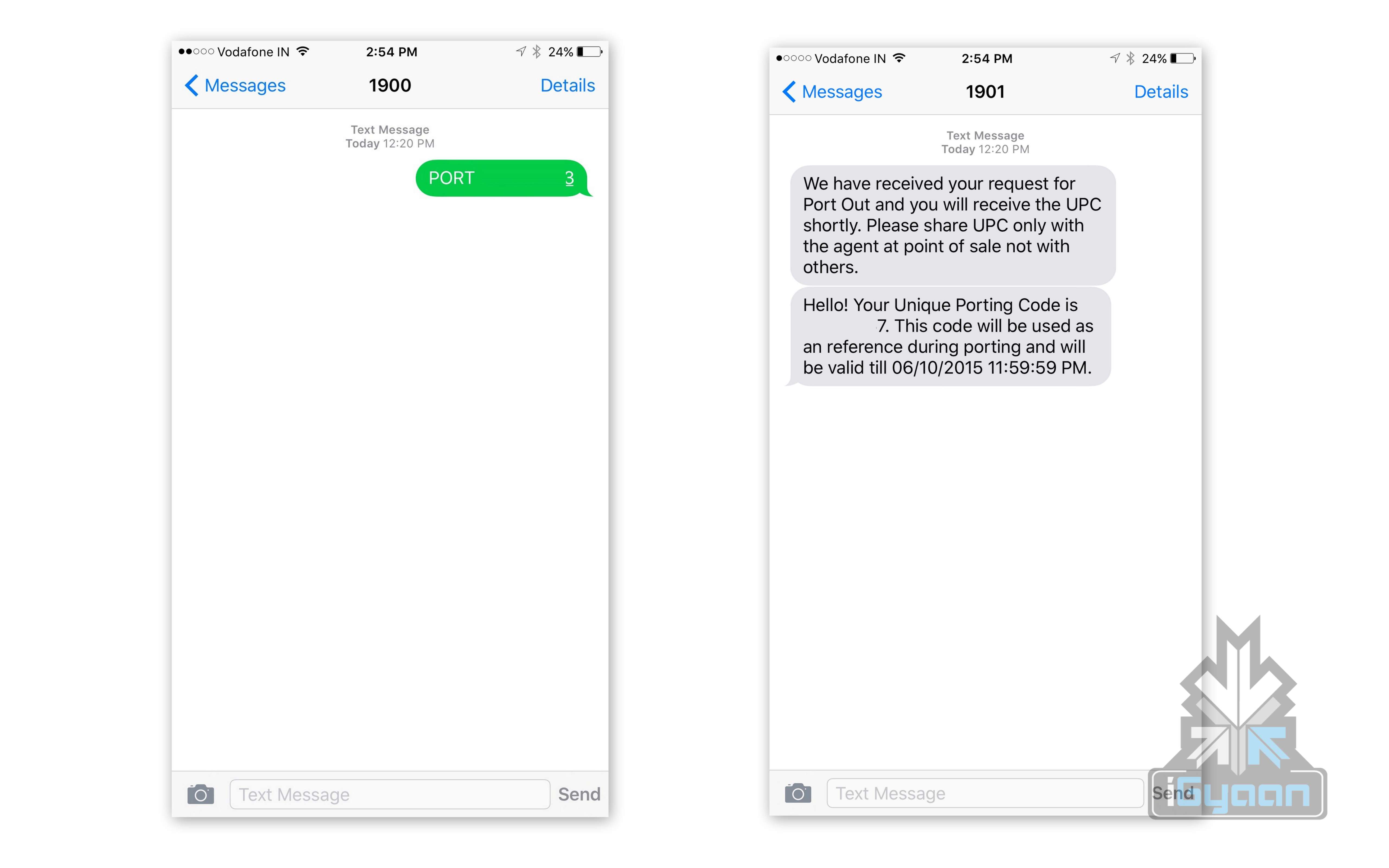
    The first thing you have to do is generate an eight-digit Unique Porting Code by sending “PORT <10-digit mobile number>” to 1900. You will then receive an SMS of the UPC code and the UPC expiration date.

    Number portability India igyaan 0

    Step 2 : Get The Required Documents

    Before you head to your mobile operating store, you’ll need to carry along a few documents. You will need an ID proof, address proof, a passport size photograph, and a copy of your last paid bill (in case of post-paid customers). Airtel customers can carry forward the existing talk-time or outstanding/pending bills to the new telecom service.

    Step 3 : Visit The New Mobile Operator Store

    Once you have your UPC code and required documents ready, you can visit the mobile operator store you wish to switch to and fill out the number porting form. You will also buy a new sim card. The whole porting process costs Rs. 19.

    STEP 4 : Choose Your Plan

    Both pre-paid and post-paid customers will have the option to either retain their original plan or to choose a different one based on their needs. Every operator has its own range of plans and you can pick yours at the store.

    Number portability India igyaan 3

    Step 5 : Processing Time

    Some operators like Airtel promise that all NMNP requests will be processed within 24 hours. You will receive an SMS regarding the deactivation of your old sim card. Once deactivated, you can insert your new sim. Generally, most operators complete the porting process within 7 days.

    Note : Some Important Points

    • Post-paid customers must make sure any unpaid bills are paid before porting as this can hold up the porting process
    • Make sure your active connection is at least 90 days old
    • Some operators like Airtel and Idea require you to call 59059 for tele-verification once the new sim is activated.
  • New Delhi From the Sky

    New Delhi From the Sky

    With a lot of smartphones now showcasing their 4K video recording capabilities, we decided to evaluate the best for 4k video. After extensive testing, we chose the Motorola Moto Turbo for our video.

    The Moto Turbo has a high speed 64 GB inbuilt storage which lets you capture 4K footage non stop vs most of the other devices which have a maximum peak of 5 minutes or so and are prone to over heating.

    We took the Moto Turbo and retro fitted it on to a drone , a DIY hack of massive proportions. Before we proceed with the details further, Flying a Drone in India without permissions is punishable by law and get you jail time or large fines. Now that we have the disclaimers out of the way, We took the drone out in New Delhi and took it to the Sky.

    The Ballistic Nylon back of the Moto Turbo gave us a hope that if the phone did fall from our Zip-tie DIY hack, it would land on the back and be safe (although, that did not happen). What happened next simply blew us away. Check the video below.

    Note: The Video has been post-processed, sped up, stabilized in certain places and the night shots have been enhanced.

    Also if you liked this project, leave your feedback below and share.


    Buy the Turbo:


  • 4 Simple Tips to Help Safeguard Your Smartphone this Monsoon

    4 Simple Tips to Help Safeguard Your Smartphone this Monsoon

    While we’re relieved the rain is washing away the scorching summer, monsoon can be tedious. Clothes don’t dry, the roads are mucky, and you’re perpetually losing your umbrella. More than anything, our precious smartphones need protection. Now, unless your phone comes with an inbuilt mechanism that expels water as it comes, it is most likely that it need protection.

    To make sure you have a happy monsoon, we bring some easy hacks to protect your phone:

    1. Use a spare phone

    nokia1100

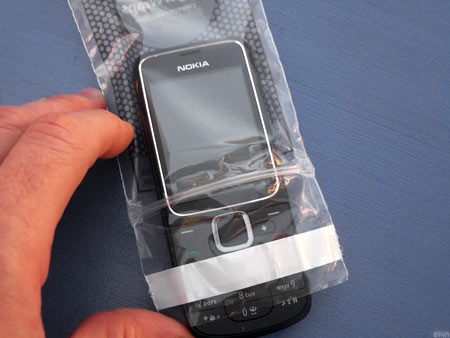
    In this case, the saying ‘better to be safe than sorry’ should be implemented. You can just leave aside your smartphone at home and use a spare phone for a while, maybe a Nokia 1100 or a reliable oldie that has what it takes to withstand the season. But remember to cover up your old device with a safe plastic casing.

    2. Zip Lock

    zip lock

    Normally, Ziplock pouches are used to store food or medicines. But it is also one of the cheapest ways to protect your phone from getting drenched.

    If this option is not available, any plastic bag would work out just fine. These are the most basic methods to protect your smartphone, and it always works out.

    3. Use Cling-film or Balloons

    Another low-cost method, cling film can help save your smartphone from the damage. Cling-film is a plastic foil with which our mothers used to pack us our tiffins. Tight and air-locking, this is yet another cheap method to protect your smartphone.

    Wondering how you can use a balloon? Take an inflated balloon and place the phone on it, screen side facing towards the balloon. Now slowly, start deflating the balloon till the end. You will see the mobile completely wrapped up with the rubber around it. The cover is water-tight and will protect your phone from the water-induced damage. Just for more protection, you can repeat the procedure again on the other side of the handset, thus gaining a double layer.

    4. Conceal the openings on your phone

    Samsung-Galaxy-S4-Mini-Top-1280x853

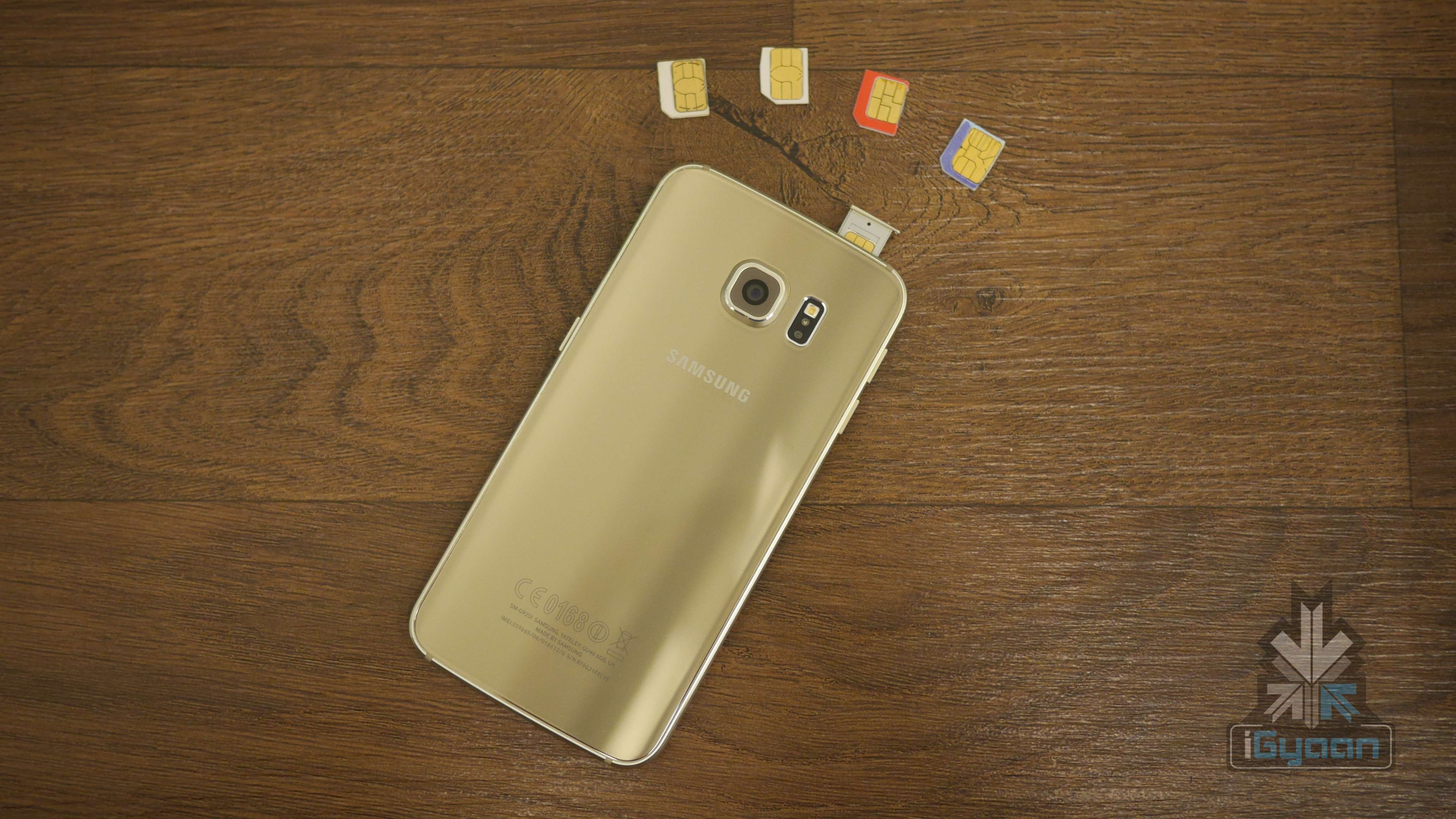
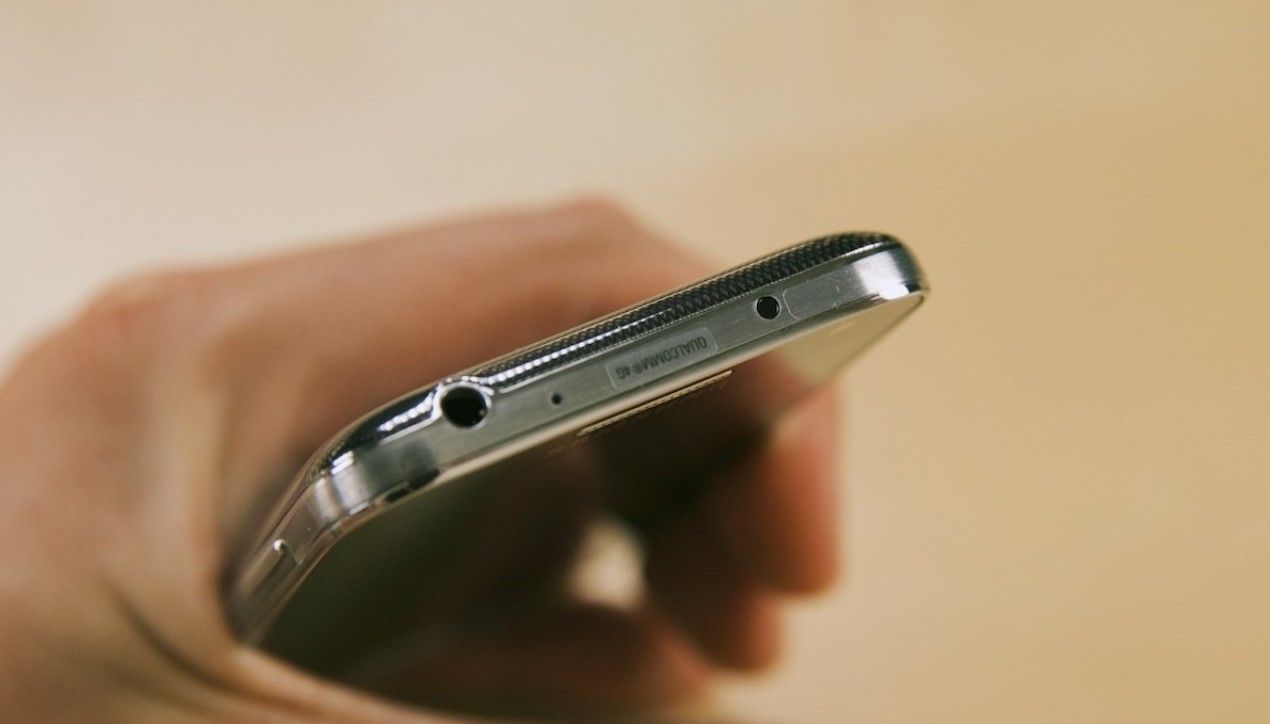
    Try to conceal the open areas of your phone like the micro-USB port, headphone jacks, speakers, etc with a tape. Be warned! Though this method is not a foolproof solution, it may help reducing the risk of water entering the device.

  • How to Install Android M on Your Nexus Device

    How to Install Android M on Your Nexus Device

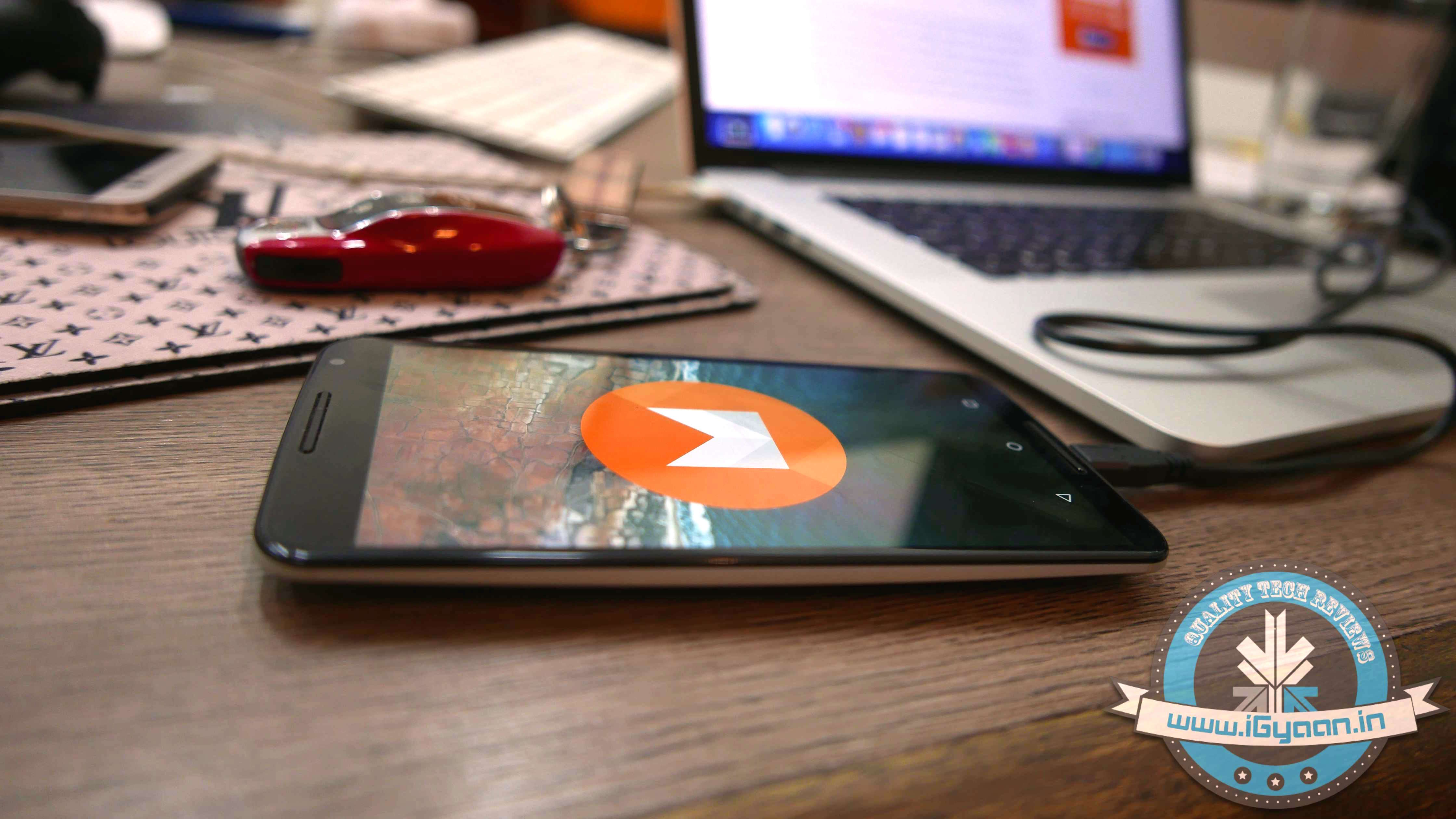
    At the I/O 2015 conference, Google announced the next version of Android. The company detailed some interesting features that will be available on Android devices later this year. With Android M, they have focused on improving the system’s overall quality and fixing the bugs found on Lollipop. While Google SVP Sundar Pichai’s speech seemed impressive, we wanted to see for ourselves what the fuss was all about.

    We installed Google’s Android M developer preview on our Nexus 6 and decided to share the step-by-step procedure.

    Disclaimer: 

    • Before you decide to install Android M on your device, consider the fact that it will wipe the smartphone’s memory entirely.
    • The developer preview also contains several bugs and may be unstable.
    • We wouldn’t recommend installing the OS on the Nexus device you use on an everyday basis. Some of the major applications are having trouble loading on Android M.
    • The Developer Preview is only out for Nexus 5, Nexus 6, Nexus 9 and Nexus Player.

    Preparation 

    • Back-up your Nexus Device.
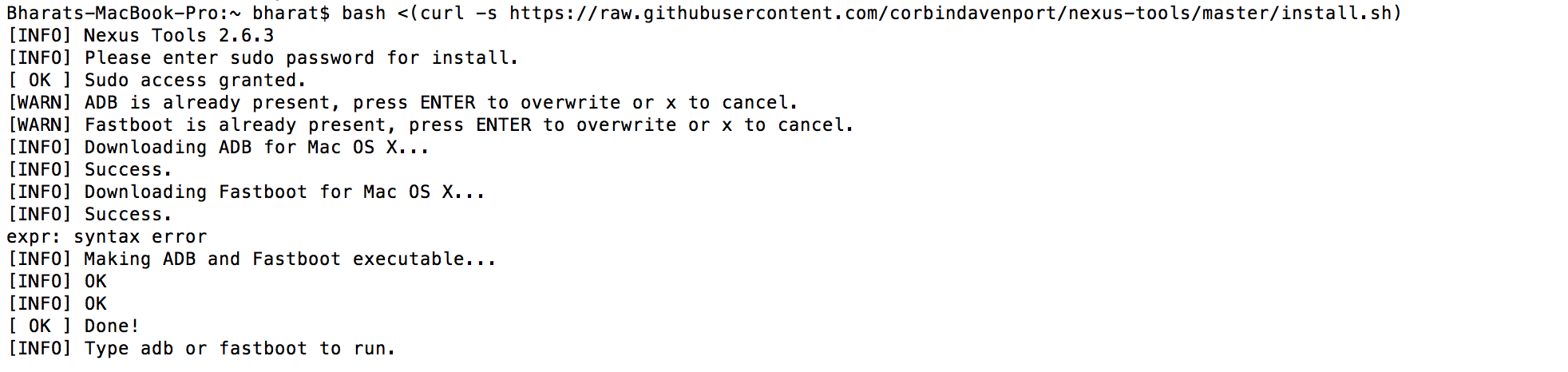
    • To make this quick and easy, before you begin, make sure you have ADB and fastboot installed on your computer.  The easiest way to install ADB on your machine is by inserting the following command on your Command Line/Terminal:
      bash <(curl -s https://raw.githubusercontent.com/corbindavenport/nexus-tools/master/install.sh)Android M 3
    • Download the factory images for your device here. Unzip and save them on a file on your desktop.

    Method

    • Now to begin, enable your device’s debugging mode and connect it to your computer via a USB cable.
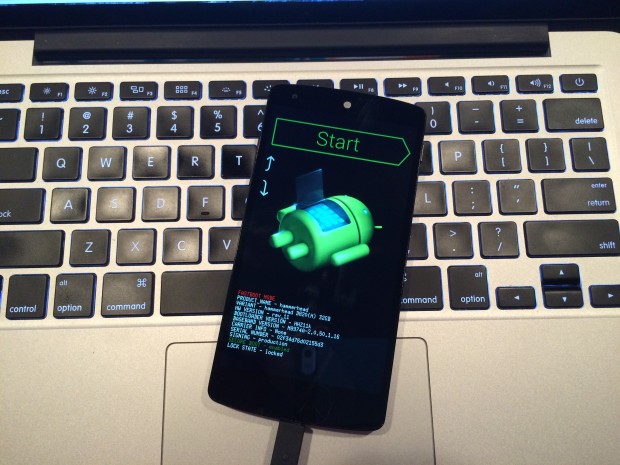
    • Open an ADB command line and enter ‘adb reboot boot loader’Android M
    • Open the folder containing your factory images.
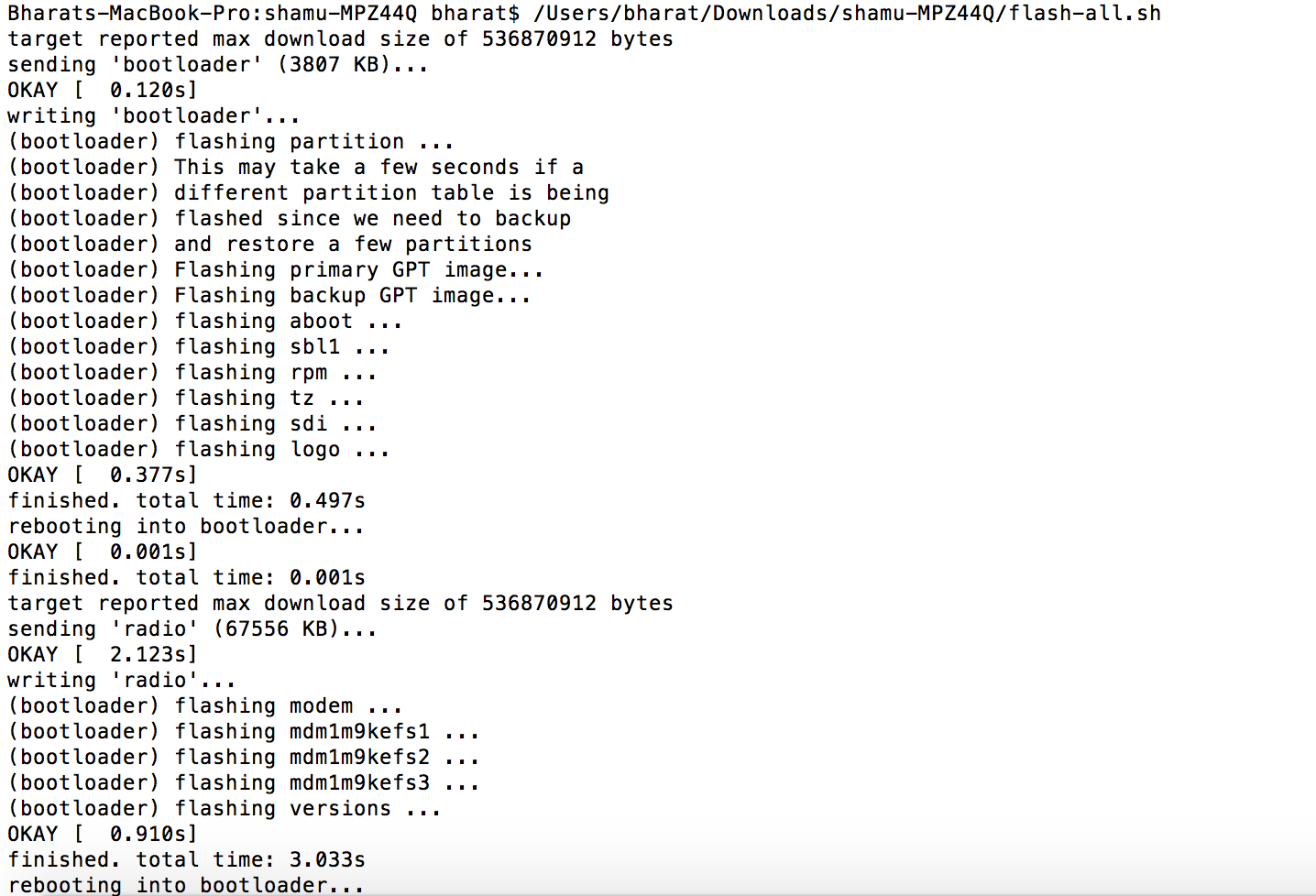
    • Now on the ADB command line, enter ‘flash-all’ to run the installation. This is the final step and it will initiate the process, as seen below: android M 2

    You will now have to wait till it gets installed. It took us approximately 5 minutes.

    Now you can enjoy fiddling around. To read more about Android M, click here.

  • 5 Affordable Upgrades to Make Your Old Desktop More Efficient

    5 Affordable Upgrades to Make Your Old Desktop More Efficient

    Windows PCs slow down over time, that’s a long known fact. These day in the era of Bring Your Own Device (BYOD), your desktops must have been sitting in the corner, eating dust. However, it is also true that desktops come with better upgradation options than laptops. Meanwhile, these desktop also prove to be worthy companions to your laptop, if you want to work across multiple devices.

    Be it your personal PC or an office one, you can oomph these devices to work better without spending too much from your pocket. We are listing top 5 affordable upgrades that will make your old desktop more efficient.

    1. SSD Storage

    SSDIf your desktop is still running on a hard disk drive (HDD), the first and foremost step is to replace it with a solid-state drive (SSD). You will see a considerable speed-up in practically every aspect of your computing experience. One glitch you may experience is the high price of SSD for a large storage capacity. A simple hack to this problem is to install a smaller 128GB or 256GB SSD drive as the primary drive, and use a high-capacity HDD as a secondary drive for which you can use your existing HDD.

    2. Expand Your RAM

    4gb ram stick

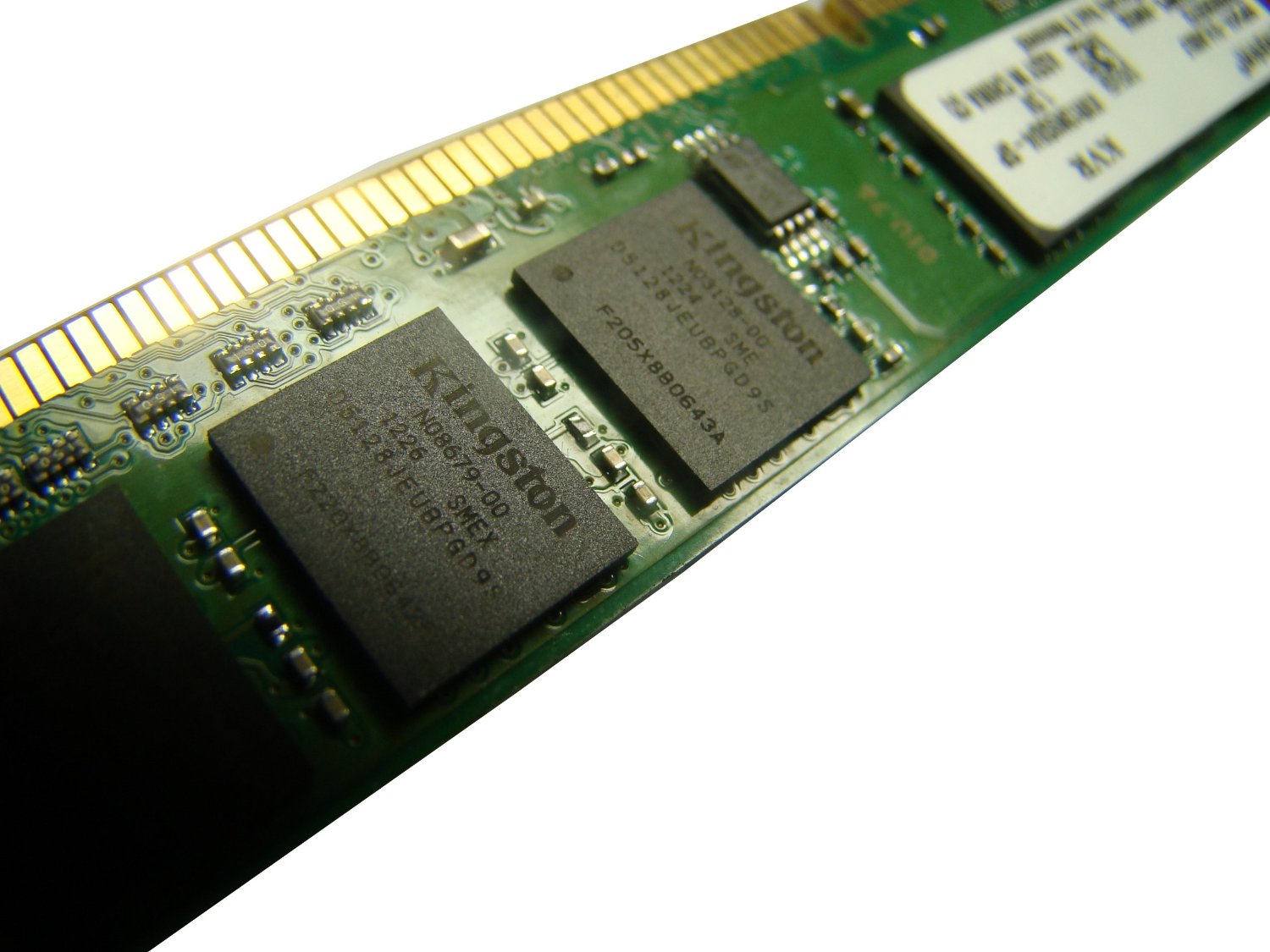
    With a 4GB DDR3 RAM stick from Kingston costing less than Rs. 3,000, a RAM upgrade is something to seriously consider. This simple upgrade from 2GB to 4GB RAM will deliver a noticeable boost in performance.

    Most desktops have between two and four slots, and you will need to swap out lower-capacity RAM modules for higher-capacity ones if there are no empty slots available. And while most PCs should be using DDR3 RAM by now, some older machines use DDR2 RAM, which tend to be more expensive to upgrade.

    3. Speed up the Networking

    Ethernet

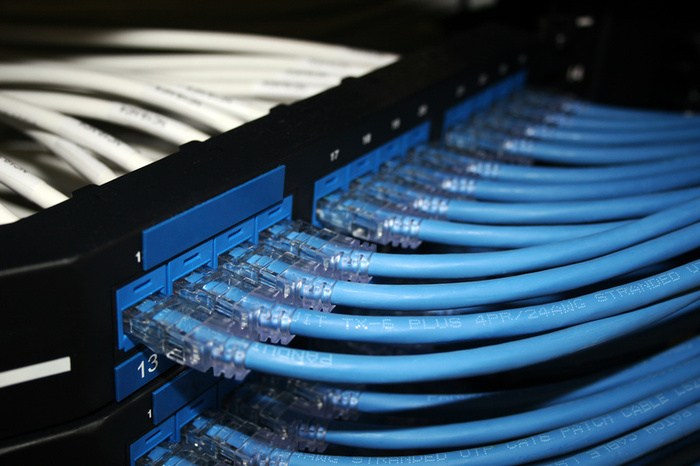
    If you need maximum network performance, go for wired Ethernet connectivity instead of wireless networking. The Ethernet is far more reliable, offers dedicated bandwidth to your PC, and factors that commonly affect wireless signals such as office layout will not be an issue. You can also check weather your PC comes with Fast Ethernet (100Mbps) ports, so an upgrade to Gigabit Ethernet with an add-on network interface card (NIC) may also work on your benefit.

    4. Multi-monitor set-up

    multi-monitor setup

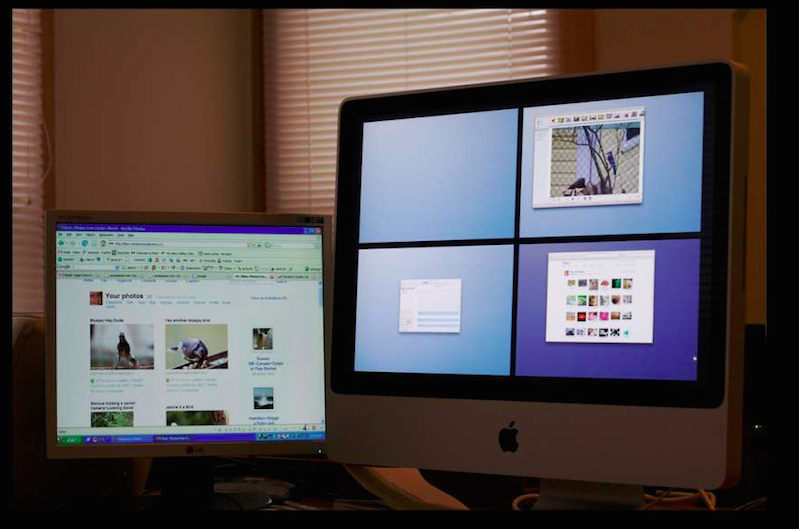
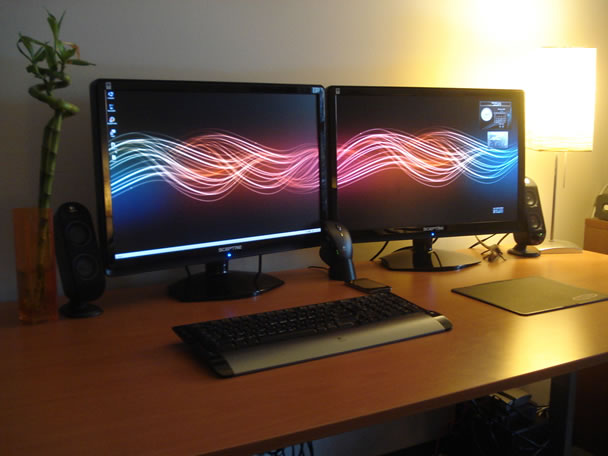
    Over the years, users and tech analysts have noted that multitasking is easier and smooth with two or more monitors. While laptops can run multiple monitors as well, it is much easier to set up desktop systems to do it. Indeed, many desktops can probably support at least two monitors without any external upgrades.

    5. Desktop casing

    desktop casing

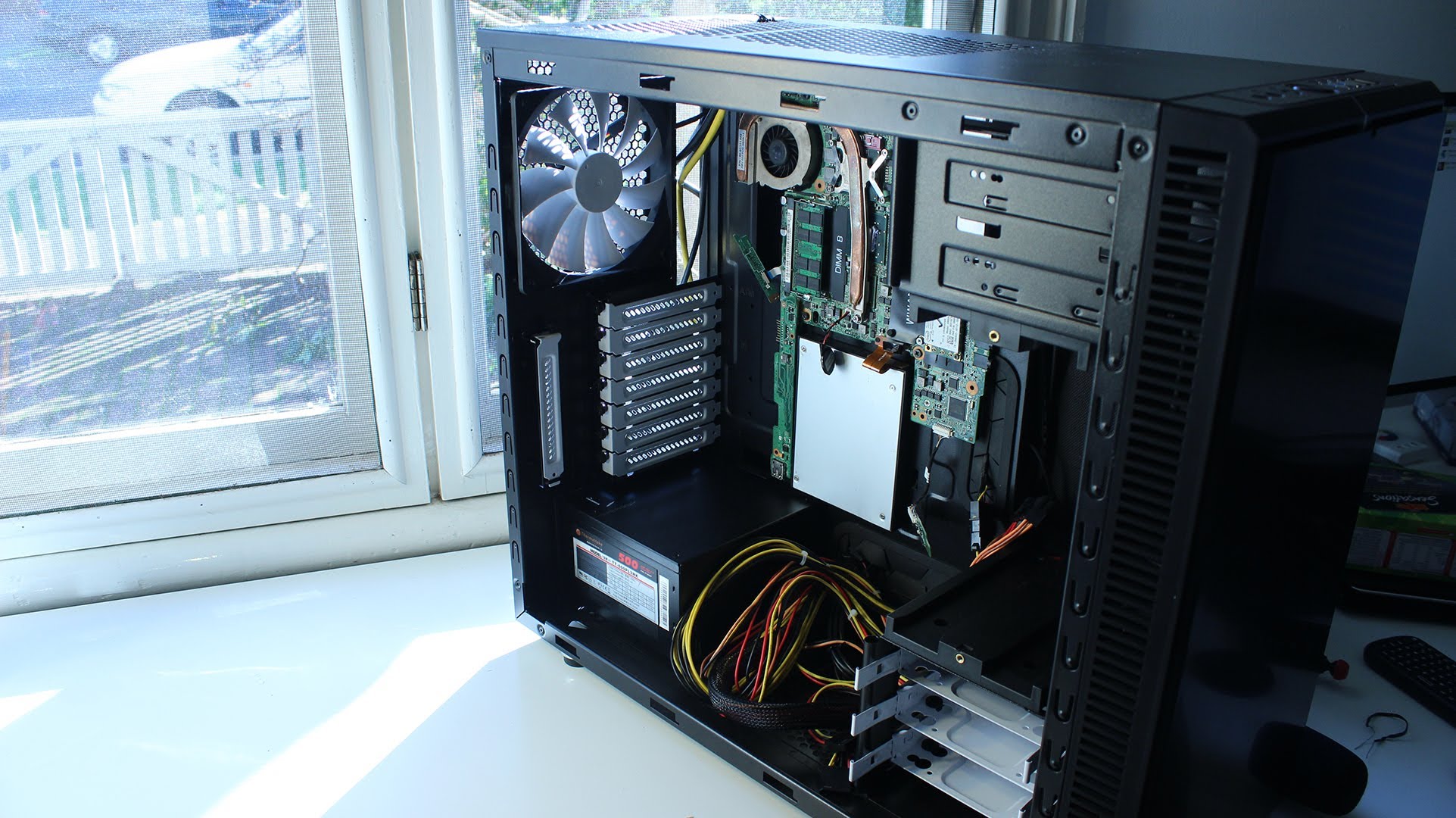
    This one will make you work a little bit. Changing your desktop’s casing will open you up to many upgradable options. You can get space for more components and more cooling. You can also make your desktop look new with some fancy features such as clear side panels or glowing fans and lights. And yes, you can also upgrade your front-panel connectors to support the latest and greatest connection types.

  • 10 Useful Things To Do With Your Old Laptop

    10 Useful Things To Do With Your Old Laptop

    Despite everyone’s assumptions, the geek inside you is not always privy to the latest and greatest technology. If you’re stuck with an old, slow, crappy computer, there are a few things you can do to make the best of a bad situation. Whether it’s a desktop computer or a laptop, whether or not it’s broken, and no matter how old it is, it can still be useful to you.

    1. Sell The Working Parts

    internal laptop

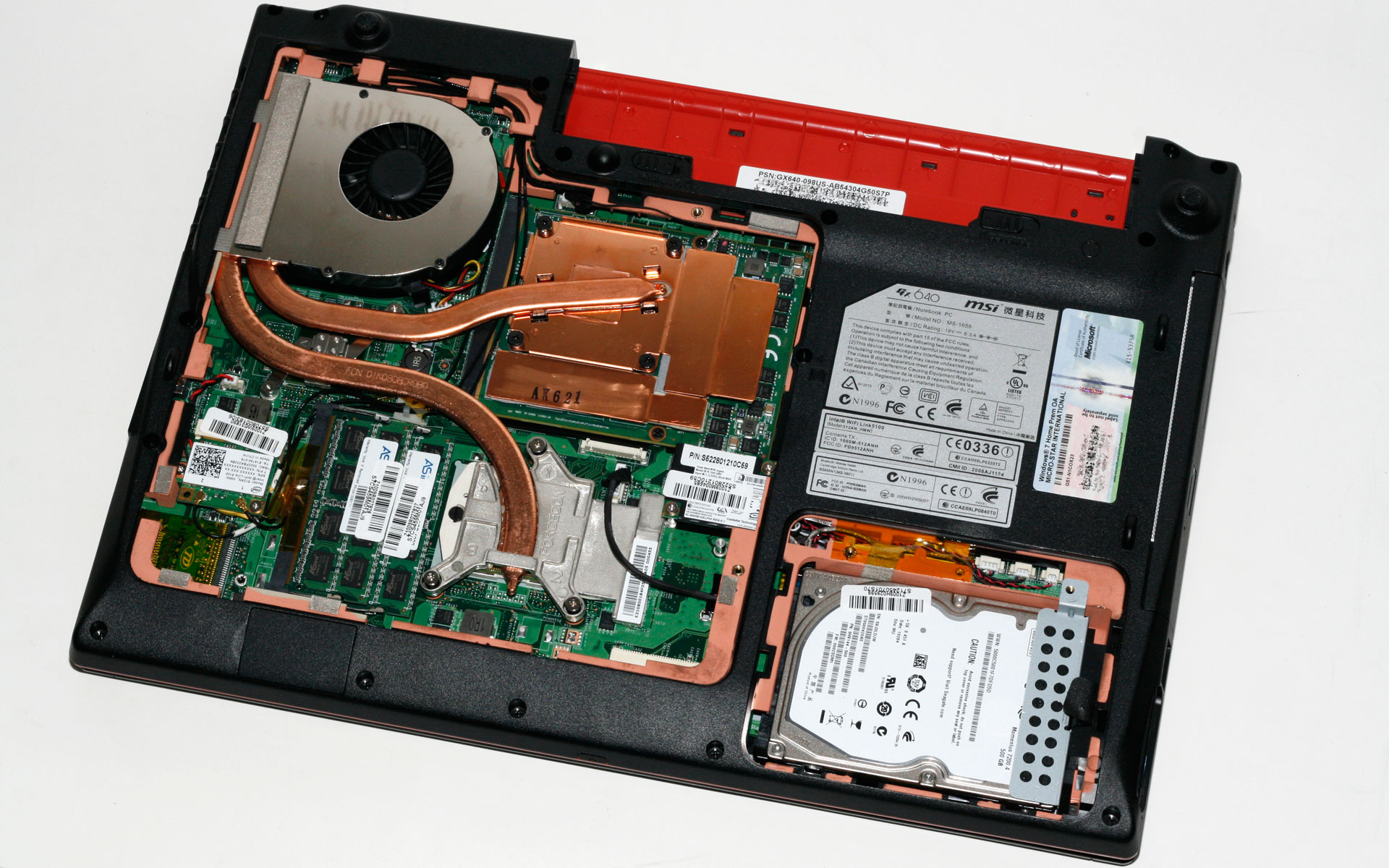
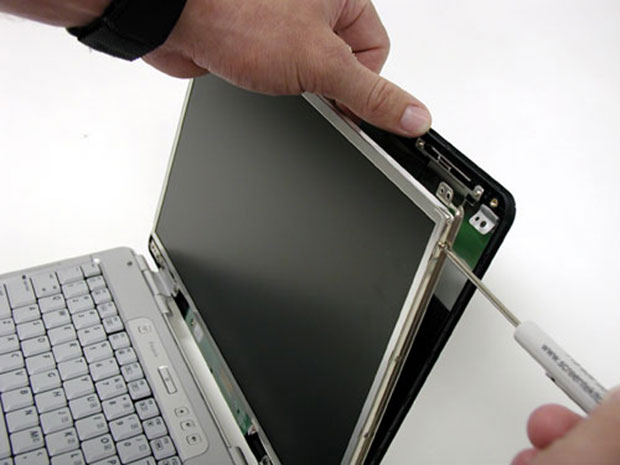
    You can dismantle your entire broken computer or laptop and sell the working parts online. Hard drive, RAM, A/C adapters, motherboards, graphics and audio cards, and even an intact case will get you some cash. It might not make your old laptop useful, but you may be able to save up some extra money to buy those cool headphones you’ve been eyeing for months.

    2. Install a Light Weight Operating System

    archbang

    If nothing seems to workout, one of the best things you can do is install a new operating system altogether. It’ll definitely shake up your workflow, but with enough commitment, you can use one of the many Linux-based OS to give your computer a major speed boost. If you are already familiar with Linux, we will recommend ArchBang, otherwise Ubuntu or Chrome OS might work well for you.

    3. Turn it into a Wi-Fi Hotspot

    LibrarySymbolLaptop-WifiBl

    Well, this one of the best things you can do with your old laptop. Turn your laptop into a hotspot for sharing an Internet connection via Wi-Fi. There is a step-by-step guide on Windows XP or 7 and there is also the option of using 3rd party software. Specifically, Connectify. If you’ve already got a router with Wi-Fi, run Ethernet on the laptop and with Connectify you can create a secondary network using the same Internet connection.

    4. Use it as a Digital Photoframe

    laptop-screen

    If your laptop’s screen is fine, you can use it to build a cheap digital photo frame. With a working wireless connection you could even make it show your latest photos. There are loads of DIY instructions available online. So, go ahead and experiment.

    5. Create an External Hard Drive

    hard disk

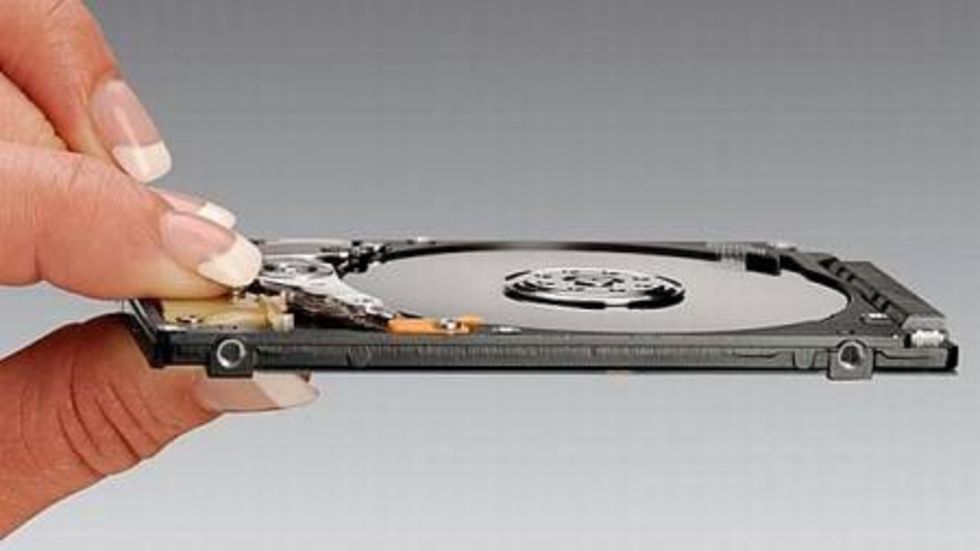
    If parts of your laptop or desktop computer hardware are broken, you can salvage the working parts. So if the hard drive is still working, you can dismount it and transform it into an external and portable hard drive for your new computer. You’ll have to invest in a USB caddy, which can be bought online easily.

    6. Use it as a back-up machine

    Dusty keyboard

    Lets face it, in this digital world we are struggling with information overload. The floods of gigabytes have taken over our lives, be it professional or personal. This is where your old laptop can be useful for you. Use it as a back-up machine where you can save your photos, documents and video.

    7. Home server for file sharing

    freenas

    Heard about network attached storage? It is like a server for your home or small business network, used for storing files that you share with all the PCs on a particular network. If you’ve got an old PC with lots of storage drive space, you don’t need to buy a NAS, you can make one. FreeNAS is a software program for doing just that, and it’s then accessible by any OS on your network. FreeNAS will also stream media to mobile Operating Systems like iOS and Android and you can even control the user access.

    8. Turn it into a guitar amp

    laptop-ready

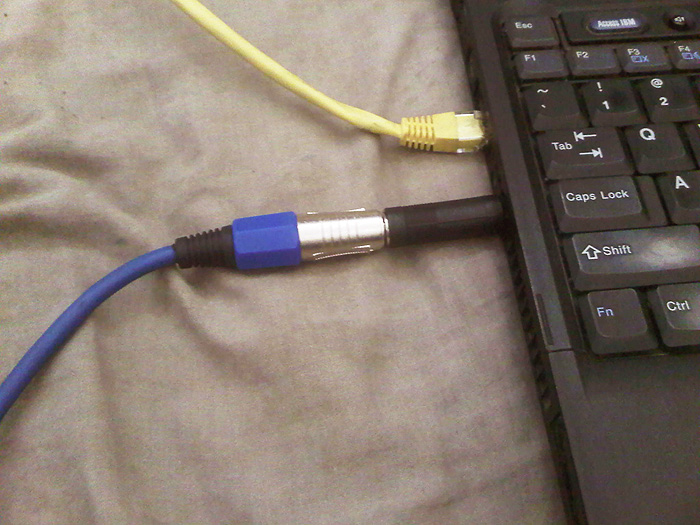
    You can turn your laptop into a guitar-ripping audio workstation. Using an older laptop that might not have the fastest processor will work for basic MIDI programming by connecting an audio interface and controlling a virtual amp.

    9. Home Surveillance

    ispymg

    If that laptop has an integrated webcam (most of them do), you can put it for a good use. Reinstall Windows XP or higher and grab a copy of iSpy. Use it to monitor the house, employees, babysitters, kids, pets, and more. You can covertly or overtly watch the goings-on via a Web page or apps on iOS and Android.

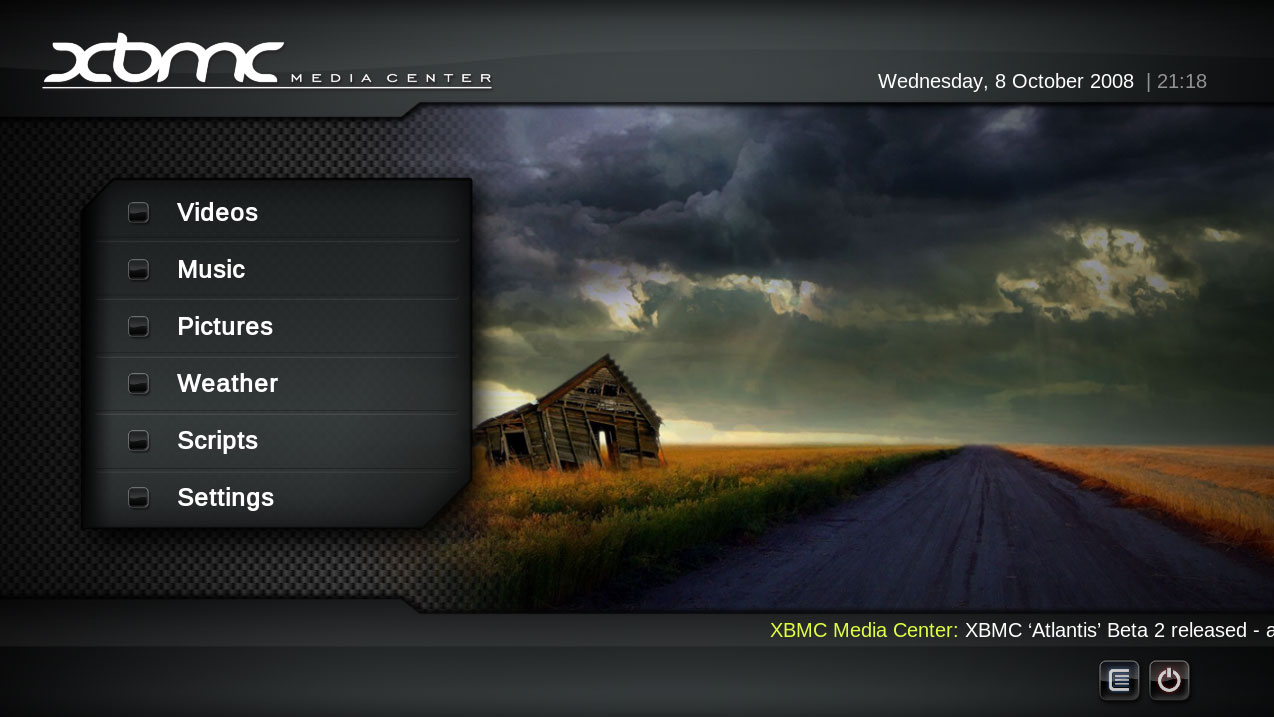
    10. Turn it into a Media station

    XBMC-Media-Center_1

    Load all your music and videos onto this computer, if necessary, supply it with an external hard drive. You can now set up your favorite media player, listen to Last.fm, install a TV tuner card, record movies, record music from radio stations, download MP3s, stream music throughout the house using wireless speakers etc.

  • DIY : iGyaan Hackintosh Build : Parts

    DIY : iGyaan Hackintosh Build : Parts

    We recently decided to build us up a hackintosh, and while the project is slightly time consuming and laborious, the outcome truly makes it worth your while.

    We were highly conflicted between a mac-pro and a hackintosh, and the latter made sense for the kind of ‘on the fly’ upgradability we need.

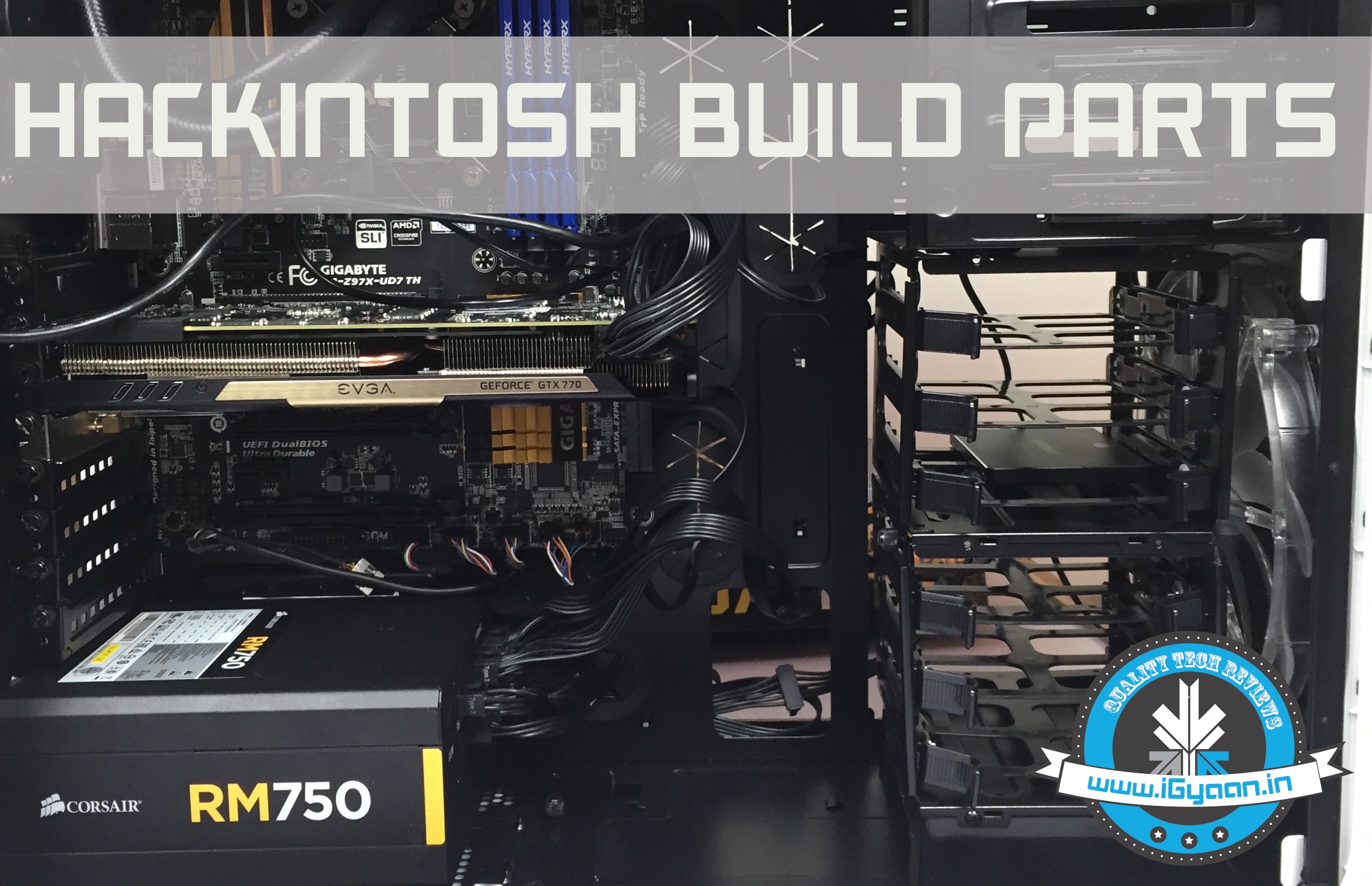
    Here are the parts that we used, and we are listing both INR and Dollar Prices for the convenience of easy purchase.

    1. Corsair Graphite 600T Cabinet

    2. Motherboard : Gigabyte GAZ97x UD7TH

    The motherboard is one of the few that has thunderbolt ports that can be enabled even though the process of doing so is tedious.

    3. Intel® CoreTM i7-4790K Unlocked 4.0 GHz

    4. EVGA GTX 770 Superclocked with Boost 4 GB DDR 5

    While there are many upped GPUs available, this one works out of the box with a mackintosh and is SLI ready so it works well with a similar card over the bridge. We got two of these so it made sense. Although EVGA cards are slightly difficult to find, you do get similar cards, also 2GB cards are available easily. Linked below.

    5. Kingston HyperX Fury 8 GB DDR3 RAM ( 4 Slots)

    No particular reason we chose this RAM. The Corsair Vengeance is alternative incase you don’t like the Kingston units.

    6. Samsung 850-pro SSD

    We got a 256 GB drive that we will use for a boot up and main app drive, we used a Thunderbolt RAID which was bought separately.

    7. LG Ultrawide 25 inch monitor

    We almost dropped our money for the Samsung 4k Monitor, but with the rumor mill abuzz about a Apple 5k Thunderbolt display, we wanted to wait just a bit longer. This monitor has a great 21:9 aspect ratio for editing and also does screen split, which is useful for better multitasking.

    8. Thunderbolt Raid

    This raid allows for 4 Full-Size Hard-Drives or SSDs and connects via Thunderbolt 2, also has a Thunderbolt out, for convenience of Daisy chaining.

    9. Drives for RAID

    We bought the HGST 7200rpm Deskstar 4TB drives for the Above Raid, and they work really well. They are designed for a commercial desktop NAS systems, so you can expect them to last long.

    10. Bluetooth Dongle

    The Motherboard does not come with Bluetooth, and most of the locally available adapters/dongles don’t work. Here are few that do.

    11. TP-LINK TL-WDN4800 Wi-Fi Card

    This is the most compatible card and it works out of the box.

    12. Corsair RM 750 PSU

    This 750watt PSU is powerful, efficient and easily available.

    13. Corsair H100i CPU Cooler

    This fits perfectly in the cabinet we chose, and is pre sealed with the cooling liquid, radiator and pipes come pre installed. So it’s a complete package ready to install, and it works well.

    14. Apple Magic Mouse

    What the heading says, it’s Apple’s mouse, so it just works, provided you get your bluetooth up and running.

    15. Apple Magic Trackpad

    You learn the importance of this trackpad once you start using it. Improves efficiency during multitasking. This is optional for those who want it. Works like a Charm.

    16. Apple Bluetooth Keyboard

    This final piece of the puzzle is highly recommended. You can also find any alternative Apple compatible keyboard. i.e. one which has a “cmd” key.

    That is basically the list of parts for our Hackintosh build. Our Install guide will be up shortly.

    You will also need a 16 GB USB 3 pen drive to make the install boot disk. It’s great if you have one lying around. Else we recommend :

    What we ended up Spending? A Whopping Rs. 3,13,000!

    Not all Mac-Hackintosh builds are or need to be this expensive. However this one worked the best for us. and we are happy.

  • Here’s How You Can Get Android Lollipop 5.0 Right Now on Your Nexus 5

    Here’s How You Can Get Android Lollipop 5.0 Right Now on Your Nexus 5

    Google has started rolling out Android Lollipop 5.0 update for Nexus 5. You can expect the new update soon on your device via OTA in the coming days. However, there are some of us who don’t want to wait anymore. It is true that the OTA method is the most convenient way to upgrade your phone. However, we don’t mind doing some hard work to get the new upgrade.
    So, here is how you can get Android Lollipop 5.0 right now on your Nexus 5.

     Things you’ll need:

    • A Windows computer installed with ADB and Fastboot.
    • Android Lollipop ROM for the Indian version of the Nexus 5. Download it Here.
    • USB drivers for Nexus 5. Download it Here.

     How to do it:

    1. Go to the phone Settings and make sure the Developer mode is enabled.

    2. Put the downloaded Lollipop Zip file into a new folder in the desktop and rename it according to your preference.

    3. Make sure the USB debugging option is on; you can find it under Developers option in your phone’s ‘Setting’ window.

    Nexus 5 Lollipop3

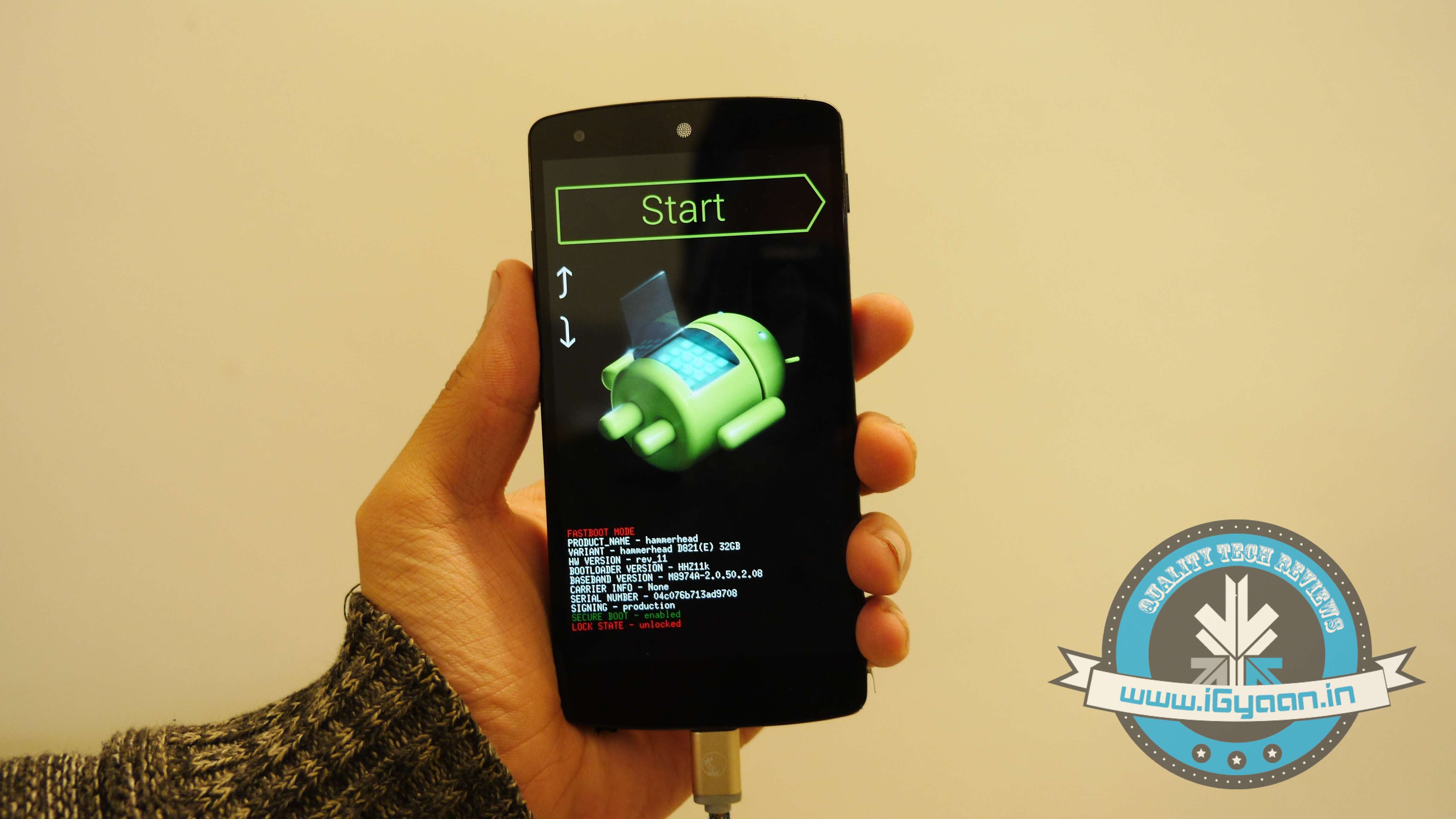
    4. Switch off your phone. Now press Volume Down + Power button simultaneously. This will switch on the phone in Fastboot. You will see Start written in big letters on the top of the screen. Use volume buttons to navigate to Recovery Mode. Once found, select it using the Power button.

    Nexus 5 Lollipop2

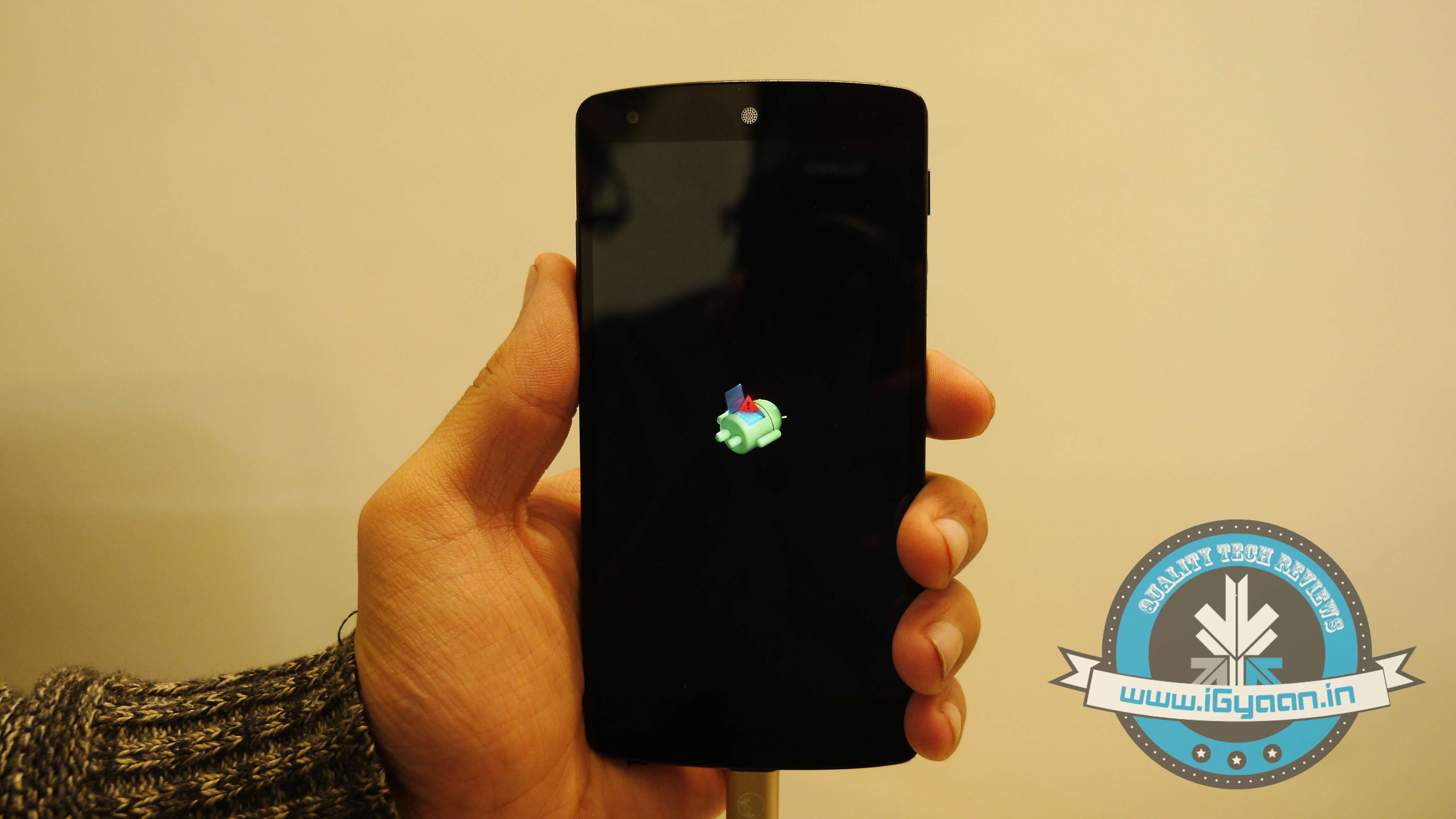
    5. You’ll see small Android robot lying flat with a red mark over its belly. Now press the Power button for a couple of seconds and press the Volume Up button once while holding the power button. This will turn on the ADB mode in your device. If it doesn’t, try it again starting from step 4.

    6. Once the phone is in Recovery Mode, use volume buttons to highlight ‘apply update from ADB’ and press Power button to select it.

    Nexus 5 Lollipop5

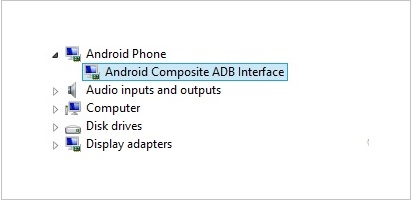
    7. Connect your phone with the PC via USB. Make sure the PC recognises the device as Android phone with Android Composite ADB Interface functionality in your computer’s Device Manager. If not, uninstall the drivers and install them again.

    Nexus-5-Driver-Installation-Completed

    8. Now press ‘Windows+R’ on you keyboard to launch RUN and type ‘cmd’ to open the Command window.

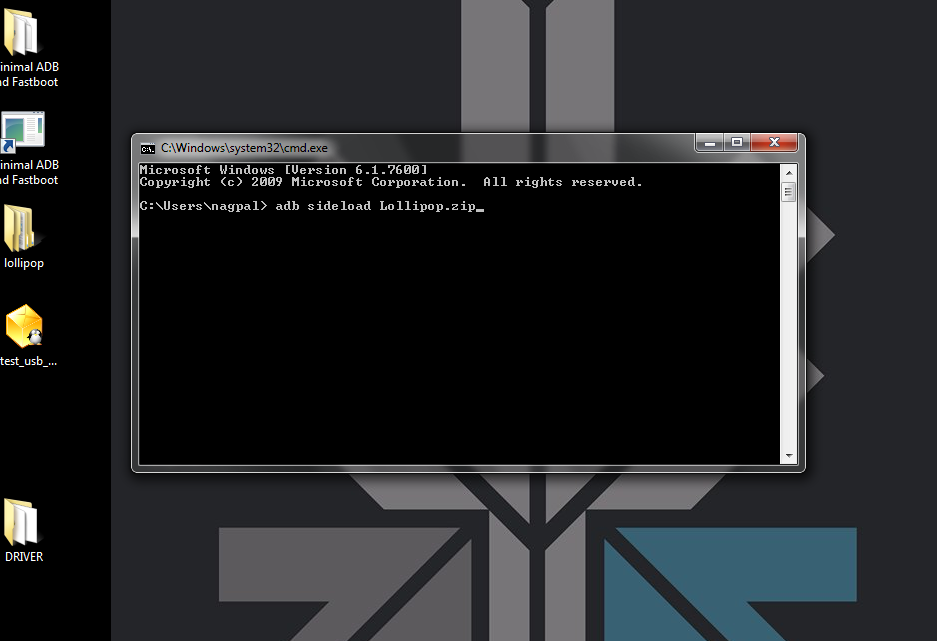
    9. Type ‘adb sideload <name of the Lollipop zip file>’. For example, if your file name is Lollipop.zip, then write: adb sideload lollipop.zip and press Enter.

    cdm

    10. Now,  you will see that the ROM will be copied onto your phone. This way, Lollipop will be installed. The whole process will take around 10 minutes.

    lollipop

    TIP: If you get confused or lose the track somewhere in between, press the Volume Up, Volume Down and Power buttons together to reboot the phone. And remember, never ever pull it off charging.

  • Smart Cap : A DIY Google Glass Replica Made For Only Rs.4500

    Smart Cap : A DIY Google Glass Replica Made For Only Rs.4500

    We love to get ‘inspired.’ Our Bollywood movies are predominantly ‘inspired’ by previous works by other filmmakers who in-turn get their inspiration from others. But sometimes these inspirations lead to some cool new inventions like a Google Glass replica that costs a meager Rs. 4500 in comparison to the hefty price tag of Google’s Augmented glasses.

    Smart Cap 4
    Though the Smart Cap looks rudimentary, it is quite functional

    Now Cochin-based Arvind Sanjeev has invented the “Smart Cap” which is basically a nerdier version of the sleek Google Glass. Now we, of course, need to cut him some slack as he didn’t have huge monetary resources backing those researchers at Google X.

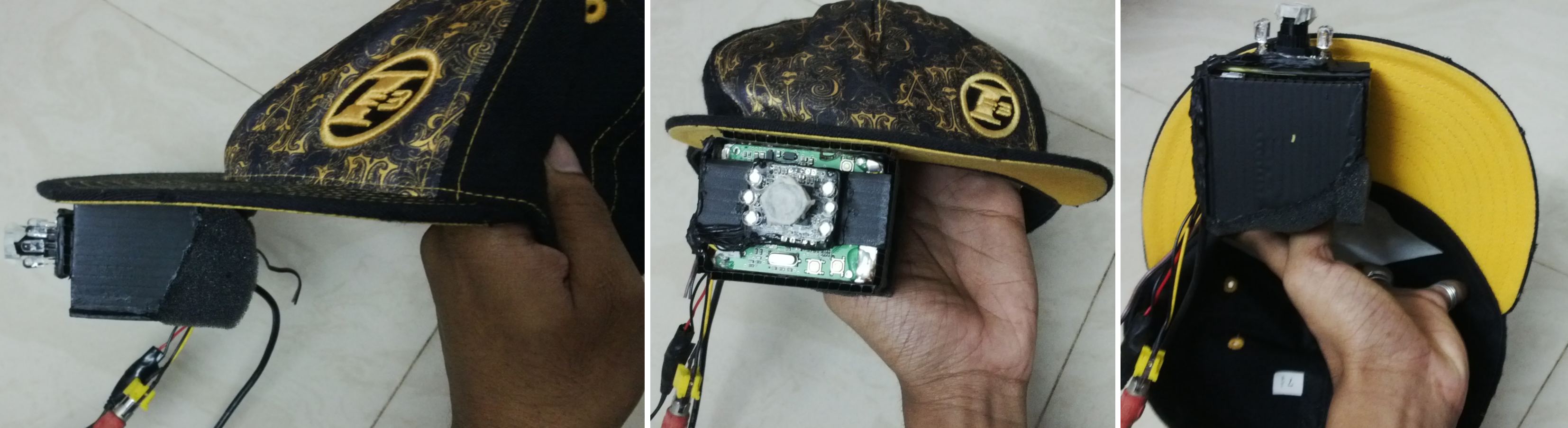
    Arvind’s design though rudimentary is pretty functional. The raw materials that went into making the smart cap are easily available. The Smart cap uses a USB Webcam, an LCD panel, aspheric lens, headphones, a Raspberry Pi Board, a sun board sheet and glue which is a DIY guy’s favorite tool.

    Now since creating an operating system would have been a long task, Arvind went with open Android as the OS for Smart cap. The front of the cap has the camera, the Raspberry Pi board, and 2.5 inch LCD display mounted on it. To make the LCD display legible at such close distance, he used an aspheric lens.

    The Smart cap works by taking commands using the microphone on the headset. The device can help you with navigation, Google search, YouTube, webcam recording and first person viewing of other cameras, etc.

    Smart Cap 1
    Smart Cap can be used to access maps, send emails, take photos and more.
    What is really appreciable is that he put the entire project in DIY and posted it for anyone to create their own smart cap. He has been doing this for a while and has uploaded several DIY tutorials. He also owns a start-up called A.R.S devices which make devices for automation, connected devices and safety purposes. He has in line for a hardware patent which will let you control your car using a smartphone app. Now that’s an app we’d all love to have.

    Even though the Smart Cap is inspired by Google Glass, Arvind’s audacity and patience in creating this device is commendable. The value of DIY has always been to bring replicated expensive technology and attaining similar levels of functionality using cheaper alternatives. The Smart cap stands up to the value, and though it looks rudimentary, it is pretty dope, almost like a prop from a sci-fi movie about robots. So if you have the talent of DIY, then go ahead, get in the game and teach the world how to make some awesome stuff inexpensively.

  • Buy a Xiaomi Mi3 In The Next Sale Using These Tips to Better Your Chances

    Buy a Xiaomi Mi3 In The Next Sale Using These Tips to Better Your Chances

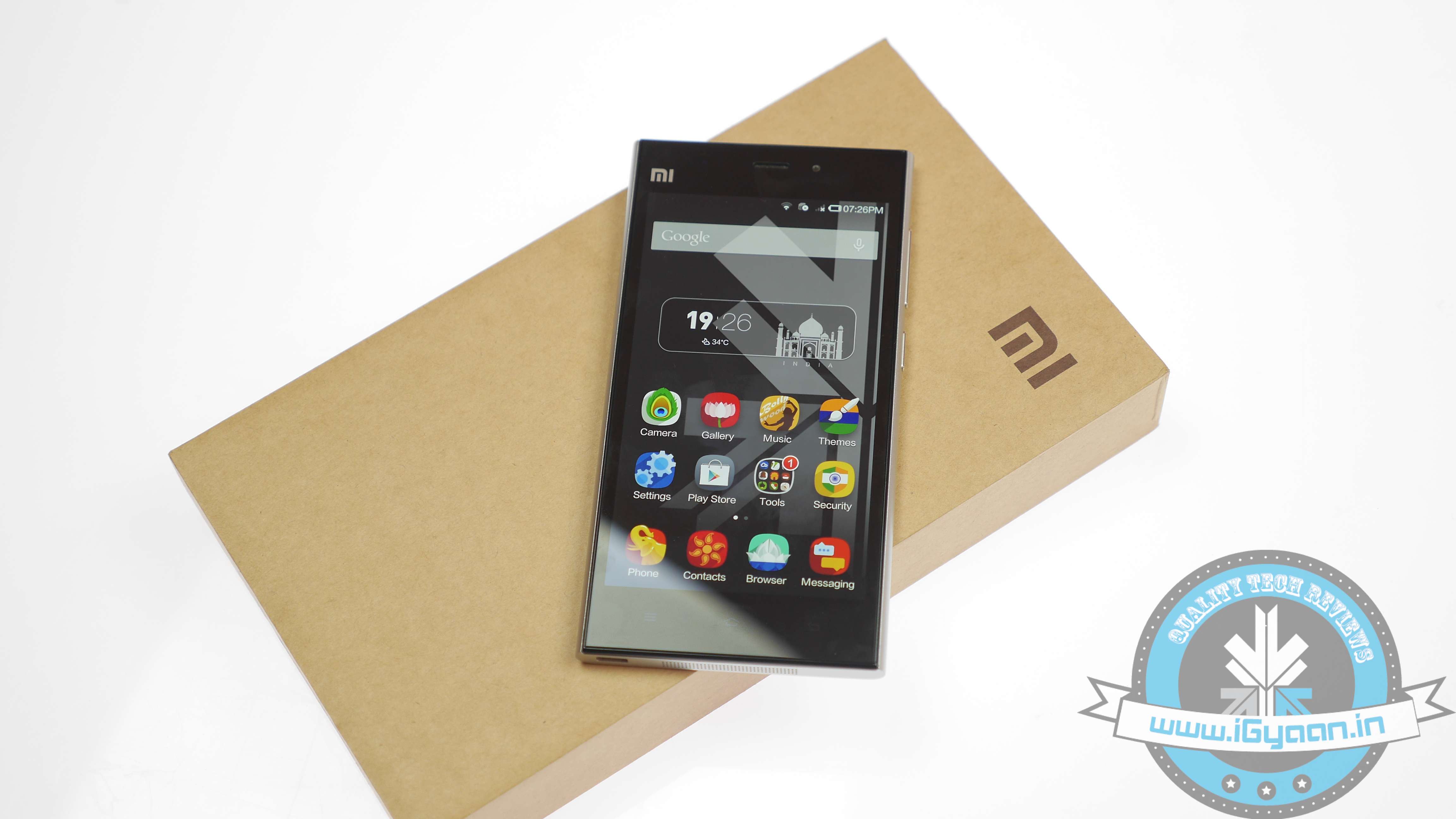
    The Xiaomi Mi3 has been a drop of evil for a lot of people, some have waited through the three sales patiently trying to get one of these chinese “wonder phones”. On August 12th 2014, at 2:00 pm the Xiaomi Mi3 will go on sale yet again, this time with a proported 20,000 handsets, says online shopping website Flipkart.

    If you really want to buy a Xiaomi Mi3 this time around, here are a few tips to better your chances of scoring one of these budget bad boys.

    1. Pre Register

    Possibly the most obvious tip, you need to pre register to buy the phone, so go ahead and do it by : Clicking Here

    flipkart

    2. Know the Time

    The Xiaomi Mi3 will go on sale at precisely 2:00 pm IST on the 12th of August, so try and reach the buying page at least an hour earlier, even though it seems like overkill.

    3. Multiple device logins

    Try being online from multiple devices, preferably on different internet connections; in order to have different I.P. addresses accessing the site, this will improve your chances and bring to one step closer to buying a Xiaomi Mi3.

    4. Flipkart App

    The Flipkart app uses a separate server and has a higher chance of “not failing” at the time of sale. If you want to buy a Xiaomi Mi3 the app might prove to be easier, “might being the key word.

    IMG_0032


    5. Super Refresh times 40,000

    When the sale starts, most people are struggling to open the webpage, ctrl+R / f5 (refresh) is your best friend, hit it till you get a page to buy a Xiaomi Mi3. (cmd+R on a mac). Other people have reported opening several tabs being helpful.

    pressing-f5-key


    6. Cart it!

    If you do get a page loaded, add that phone to the cart like there is no tomorrow, once you have the handset in your cart, your chances have just gone up from 1 in a million to 50:50 in order to buy a Xiaomi Mi3.

    cart cart 1


    7. Patience

    Once you have it in your cart, attempt payment by refreshing several times, in most cases you won’t be able to make payments due to overloads on the server so keep trying.Here the app helps too.

    Also, if the website fails completely, there is a very high chance that the phone is in your cart when Flipkart comes back online, thats the perfect moment for you to buy a Xiaomi Mi3.

    Once you do get through to the payment section and make your payments in whatever the mode you select, pat yourself on the back sir, you my friend are a lucky owner of the coveted Xiaomi Mi3.

    Yay!

    Xiaomi mi3 Review 5


    Now watch our Review Here:


  • DIY : Install Android L On a Nexus Device Right Now

    DIY : Install Android L On a Nexus Device Right Now

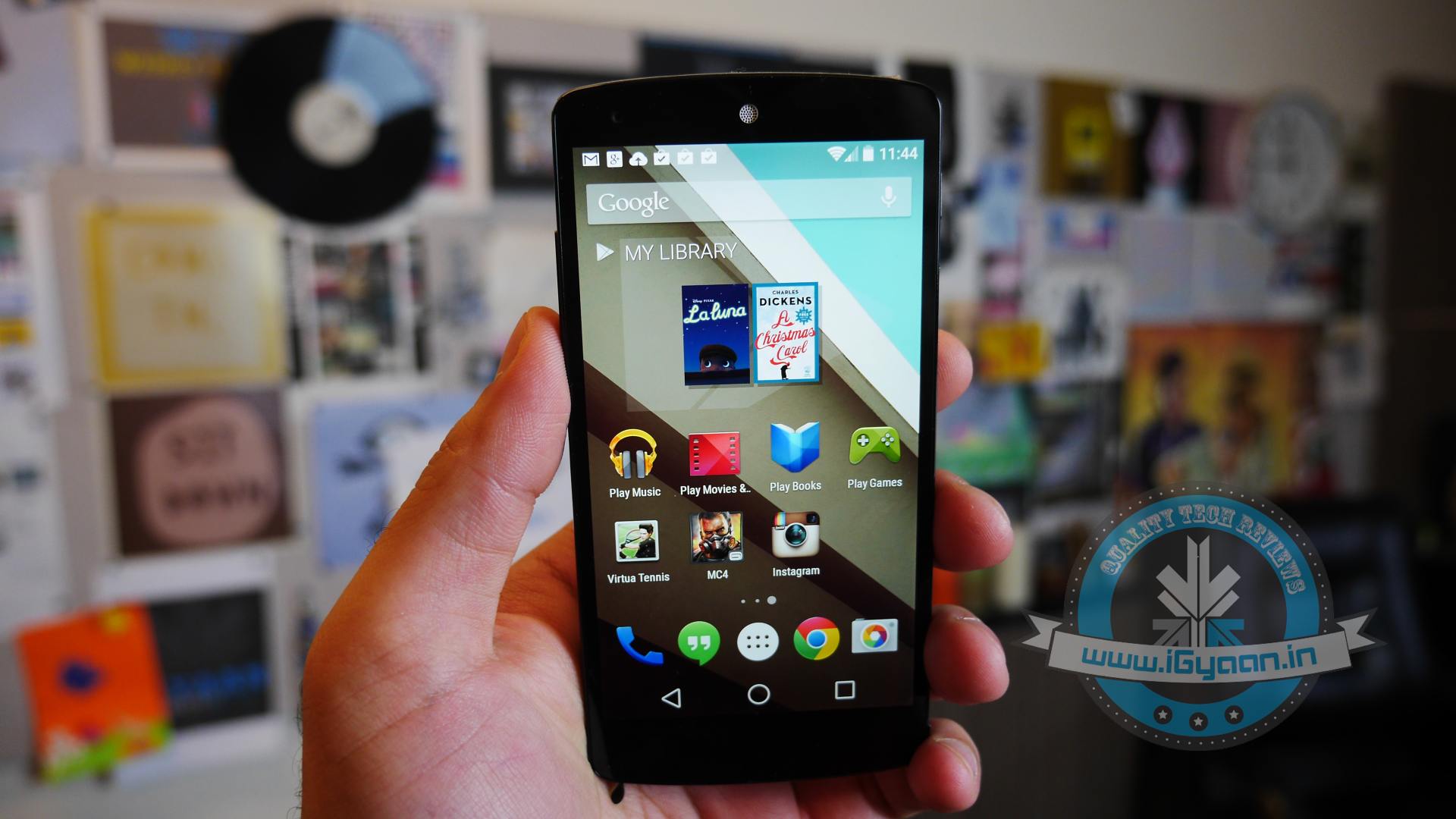
    At the I/O 2014 conference, Google showcased the latest version of Android, known only as L until its official launch later this year. Now, Google is offering an Android L Developer Preview, which is essentially an Android L Beta that comes complete with Android L factory images for the Nexus 7 and Nexus 5. You will need these Android L factory images to install the Android L Beta on your device. In addition you will need to install the Android SDK or at least ADB and Fastboot.

    Android L may not yet be ready for prime time, but a preview version is now available for Nexus 5 and Nexus 7 (2013 Wi-Fi model), giving users the option to get comfortable with the slew of changes it introduces. Here is how you can download and install it.

    P.S. Don’t forget to Back-up first.

    Also, if you are just interested in our detailed look at Android L : Hit the bottom ! or Click Here.

    google_android_l_developer_preview_screenshot_googleio

    What you Need

    • The Android SDK Tools, that you can download from Google Developers
    • The Android L preview factory image for your Nexus 5 and/or 2013 Wi-Fi Nexus 7, that you can also download from Google Developers.
    • A program that can handle archived files, like 7-Zip or WinRAR.

    How to do it

    Step 1.

    Before you can install the Android L Beta to Nexus devices you will need to install ADB and Fastboot to your computer. This is a program that runs on your computer to connect to your Android through a USB cable and flash the Android L Beta to your device.

    HOW TO INSTALL ADB ON WINDOWS

    If you are using a Windows machine, including up to Windows 8 and Windows 8.1 you can use the 15 second adb installer to streamline the process.

    Download the ADB installer for Windows. Find the file, right-click on it and choose Run as Administrator. When prompted you need to give the app access to run as an administrator. After the app launches type a Y and enter to select yes to Install ADB & Fastboot, to intsll ADB/Fastboot systemwide and to install Drivers. When a new window pops up follow the steps to install the drivers.

    After this is installed you should be ready to install the Android L Beta on the Nexus 5 and Nexus 7.

    HOW TO INSTALL ADB ON MAC, LINUX & CHROMEOS

    Nexus Tools makes it easy to install ADB on a Mac, Linux or even ChromeOS. All you need to do is open Terminal on your computer and paste in the code from xda.

    This will install ADB and Fastboot on Mac, Linux and Chrome OS without the need to do anything else.

    After the script completes you can type ADB or Fastboot to start running either program.

    Step 2.

    If you are on a Mac/Linux/Chrome OS jump to Step 12
    Windows PC folks; go to the folder where Android SDK Platform-tools is located (in my case, its path is C:\Program Files (x86)\Android\android-sdk\platform-tools) and copy the following files to the Root folder:

    • AdbWinApi.dll;
    • AdbWinUsbApi.dll;
    • fastboot.exe.

    Step 3.

    While in the Root folder, extract the Android L preview factory image to the same location. This will create a new folder inside Root, which name depends on the device.

    Step 4.

    Open the folder and copy all of its contents to Root.

    Step 5.

     Now, you have to install the correct drivers for your Nexus 5 and/or Nexus 7. Here is what you need to do:

    • After connecting the device to the PC, power the Nexus off.
    • Turn on your device in fastboot mode; the key combination for your device is either volume down + power  or volume up + volume down + power.
    • From Device Manager (Computer -> Properties -> Device Manager) identify your device (it will show up with a yellow exclamation mark icon).
    • Right click on it, select Update Driver Software and then select Browse my computer for driver software.
    • Select Let me pick from a list of device drivers on my computer.
    • From Have Disk… option manually install the android_winusb.inf driver ( its location may be same as C:\Program Files (x86)\Android\android-sdk\extras\google\usb_driver). Accept any prompts that may appear.
    • Select the Android ADB Interface option when given the option. Accept any prompts that appears.

    Step 6.

    Enter fastboot mode, open a command prompt window in the Root folder (while pressing the Shift key, right click inside it and select Open command window here) and use the fastboot devices command.

    Step 7. 

    Open a command prompt in the Root folder. Use the fastboot oem unlock command to unlock the bootloader. A prompt will show up on your Nexus device; use the volume keys to select Yes and press the power button to validate. This command will erase all personal data from the device.

    Step 8. 

    Use the flash-all.bat command to perform a clean install of the Android L preview. Alternatively, you can also open the file with the same name from the Root folder.

    Step 9.

    Using Notepad, open the flash-all.bat file (or, right click on it and select Edit). To avoid any issues make sure that your Nexus device is disconnected from the PC beforehand.

    Step 10.

    Identify the fastboot -w update sequence. Remove the -w so the sequence is fastboot update. Save the changes.

    Step 11. 

    Connect your Nexus device to the PC in fastboot mode. Open the flash-all.bat file in the Root folder.

    Android L 1

    Step 12

    For Mac/Linux/ Chrome OS users

    Extract the downloaded Android L file onto a folder on your desktop named “android”

    Now open a Terminal window and type the following:

    adb reboot bootloader
    (this will reboot your device into fastboot mode)

    In Fastboot type:

    fastboot oem unlock

    Then hit enter. Follow the on-screen instructions and choose to erase the device. Wait a minute or so for it to unlock. This removes everything on your device.

    Now Go into your desktop folder in Terminal

    cd /USER/desktop/android
    (replace "USER" with your username)
    
    Then type in the following
    sudo ./flash-all.sh
    (wait about 5 minutes and your phone will reboot into Android L)

    And you’re done. Following these steps your device will run the Android L preview. Be aware that you may encounter bugs due to it being in an earlier stage of development. In case you wish to go back to KitKat, you can apply the same steps as detailed in this article, but using a KitKat factory image instead. 

    Hands on with Android L

    Here is what the Animation looks Like:

  • Quick Tip: Sync Your iPod to a New Desktop Without Losing Music

    Quick Tip: Sync Your iPod to a New Desktop Without Losing Music

    Picture this: You’ve recently bought a new computer (the last one died out on you.) Once you sync your iPod to it, all your old songs vanish. Still aching from pains of your laptop dying, losing out on all the music you’ve collected through the years – might just be too much to handle.

    There is an alternative, it’s quite a simple task to change the sync settings on your iPod. Here’s what you need to do:

     Things You’ll Need
    [icon name=”square-o”] iTunes
    [icon name=”square-o”] iPod

     Instructions

    [icon type=”rectangle” size=”small” name=”e-check”]Download and install iTunes on the new computer.

    [icon type=”rectangle” size=”small” name=”e-check”]Connect the iPod you’re syncing to the new computer using the player’s USB cable.

    [icon type=”rectangle” size=”small” name=”e-check”]Open the iTunes software. Wait a few seconds and the name of the player will appear in the left iTunes column (under “Devices”). Click the iPod name.

    [icon type=”rectangle” size=”small” name=”e-check”]Various tabs will appear listed near the top of the iTunes program

    [icon type=”rectangle” size=”small” name=”e-check”]Click the “Summary” tab. Options will be visible in the middle of iTunes.

    [icon type=”rectangle” size=”small” name=”e-check”]Click on the box that is positioned directly next to the “Manually manage music and videos” option.

    [icon type=”rectangle” size=”small” name=”e-check”]Click the “Apply” button, found under the previous mentioned options. The iPod will sync to the new computer without any damage.

  • 7 Simple Tips To Keep Your Gadgets New

    7 Simple Tips To Keep Your Gadgets New

    Our gadgets are now a necessary part of our everyday life. We honestly believe they deserve their own section on Maslow’s Hierarchy of Needs. We do want to get the most out of them, but often they give us serious heart aches by dying out too soon. There are certain precautions you can take to ensure they manage to surpass their average life of 12-18 months.

    Use these tips to service your gadgets routinely:

    1. Cleaning:

    Like everything else, your gadgets also require regular clean ups. For touchscreens ideally use a microfiber cloth, the same one used for sunglasses, or you can substitute it with a soft cotton cloth. It is extremely important to avoid over rubbing. Make it a point and regularly clean your gadget to avoid the build up of grime.

    2. Battery Management:

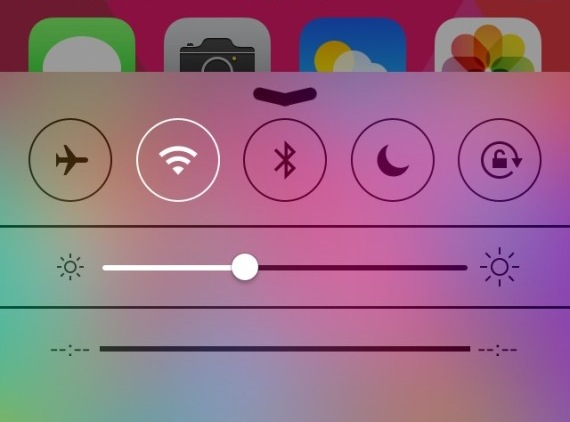
    This is one important area of focus as its the life of our gadgets. The batteries have faced the brunt of high performance machines which are released one after the other. Turn off the services you don’t need – Wi-Fi, Bluetooth, GPS, cellular data and high screen brightness are the major juice drainers. You can use a few credible battery apps as well. They help to increase efficiency and enhance the battery backup by automatically closing unwanted applications.

    3.Upgrades:

    Upgrades are cheaper and more efficient than investing in whole new equipment. Scan through the available ones available from time to time, to figure out the best add-ons and upgrades to keep your system efficient. Powerbanks are also a good idea if you don’t find time to regularly charge your phone.

     4. Buy Genuine:

    Whichever accessory you wish to add to your device, it’s important to make sure that it is compatible as well as genuine. Fake accessories have the potential to cause harm to your expensive gadgets. There is also an added value of warranties/replaceability when you’re buying original products.

     5. Maintaining the OS:

    The operating system is  the essence of every device, it is the basis of our interaction with the device. There are several diagnostics and maintenance tools available on the OS which should be used regularly. Unwanted clutter, such as multiple copies of the same file and unnecessary softwares, slows down the system. Take out time every few weeeks to clean up the mess.

    6. Protectors:

    With the increased delicateness of our gadgets, added protection is necessary. Starting with the stage, a.k.a the screen, where it all happens – a protector is required. Invest in high quality anti-glare and anti-scratch protectors, they are worth the extra cost. Also a body guard or a protective case which can protect the gadget from dust as well as impact is always advisable.

     7. Banana:

    Yes, a Banana. We were equally vary of the fact that a fruit might be useful. Just to be cautious, we checked out a few tutorials before trying it out ourselves.  If you want your device squeaky clean, all you need to do is spread a layer of Banana on the surface.  Keep caution about any openings: concentrate only on the screen. Use the banana peel to wipe the surface after a while. Follow it up with glass cleaning liquid on a cotton cloth.


  • iOS 7 Battery Drain Fixes for iPods, iPhone 4, 4s, iPhone 5, 5c and iPhone 5s

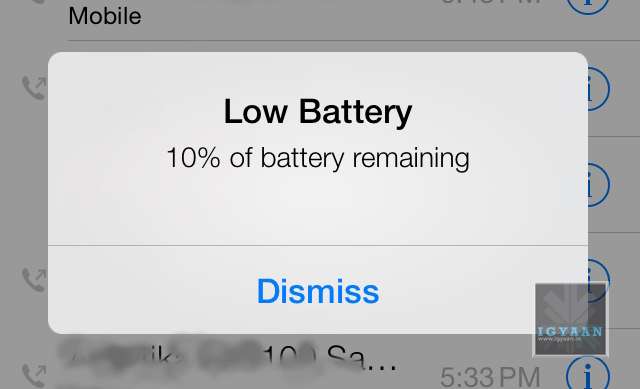
    iOS 7 Battery Drain Fixes for iPods, iPhone 4, 4s, iPhone 5, 5c and iPhone 5s

    If you recently upgraded your iPhone 4, 4s and or 5 to iOS 7 then you are probably suffering from massive battery loss on your iOS device also known as post-upgrade-drain-syndrome. However we have been able to locate a few causes that could be the culprits behind the whole iOS 7 battery life drain issue. 

    Check out the ten quick fixes below and the ultimate fix at the bottom. 

    o-IOS-7-BATTERY-LIFE-570

    Quick Fixes

    1. Brightness and Display Timeout : It’s an age old problem, and probably the easiest to fix quickly : ensure that the brightness is not turned up too high and the timeout of the display is at 1 minute. This will save the battery considerably as the biggest consumer of iOS 7 battery is the Display.


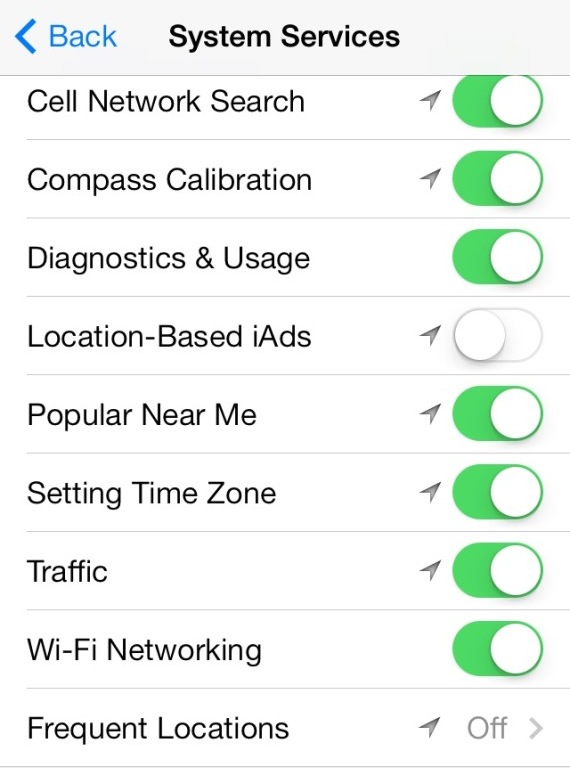
    2. Location Services : In iOS 7 a lot of apps ask for location use consent and users mostly agree without realizing that the use of GPS causes sufferable battery drain, quickly fix theis by going to Settings > Privacy > Location Services and turning off apps you don’t want using this service. For example Google Chrome may use location to find localized results but you may not need that, so turn it off. Also at the bottom of the Location services menu,you will find a System Services panel, which can be further tweaked to turn off options like Location Based iAds etc. that you don’t need.


    o-IOS-7-BATTERY-LIFE-570


    3. iPhone 5/ 5s Parallax : The fun new animation which causes the wallpaper in the background to move, making the whole plane of the iPhone look 3 dimensional also affects the battery life drastically. Head over to Settings > General > Accessibility  and set “Reduce Motion” to On. This will disable parallax and increase iOS 7 battery life.


    4. Background App Refresh: If your apps are getting updated and refreshed while your phone is resting, its not really resting. While your phone is on standby , its actually getting drained pinging the servers for data refreshes. turning this off will improve battery life considerably. Find it in Settings > General “Background  App Refresh” you can turn it off completely or turn off apps you can refresh manually.


    5. Push Mail / Fetch Mail : Push Mail and Fetch mail also check the servers for new email frequently, using up data and battery life, setting this to manual will help the battery life of your iPhone / iPod. However some would rather have this feature on. Find the settings in Settings > Mail,Contacts, Calendars > Fetch New Data.


    6. Incompatible Apps : Some apps that have not been optimized for iOS 7 may cause battery drain issues, one such daily use app is “Whatsapp”. In our testing we saw that battery drained 200 times faster if Whatsapp is actively running on the iOS 7 device. If not using this app is not an option, then double tapping the home button and sliding the app away to fully quit the app may be a good option to save battery life.


    7. iPhone 5/ 5s Airdrop: On the iPhone 5, 5c and 5s a new feature called Airdrop allows you to share files between other iOS devices that support this feature including Mac OS devices. However if you don’t use this feature frequently turning this off from the control center will save additional battery. Swipe the control center up and tap on AirDrop , then tap “Off” and you are all set.

    o-IOS-7-BATTERY-LIFE-570


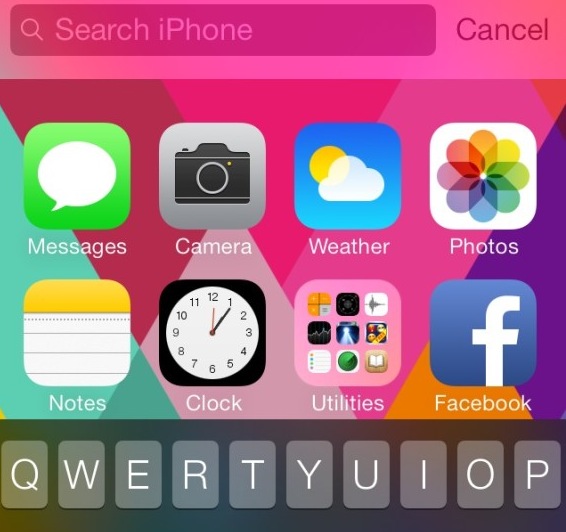
    8. Spotlight Settings : With iOS 7, you can now search for anything on your iPhone using Spotlight. All you have to do is pull down on your Home screen and you can search pretty much every part of your phone, from notes to music, to mail. This also takes a mjor hit on the Battery, simply reduce the search options to the ones you do use : go to Settings > General > Spotlight search and set it to use only things you use.


    9. Siri: Unless you use Siri frequently, turn her/him off. If you do use Siri, then turning off “Raise to Speak” in Settings > General > Siri will keep the proximity sensor from being used all the time. 


    10. Bluetooth and Wifi: Although the essence of any Smartphone, if you are not a frequent user of Bluetooth and Wifi, then turning them off will help improve iOS 7 battery life.


    Although the above fixes will help a lot with the battery life drain, turning off only those features you can live without is recommended. If all else fails try the major Fix below.

    Major Fix:

    Set Up as a new device: 

    In most cases when we update any hardware from one generation of OS to the next, it is recommended that a fresh install be done. Similarly when you upgraded your iOS 6 device to iOS7, a lot of profiles and cached files, tmp file and even some preferences get carried over to iOS 7 which may not essentially be compatible with the new OS and may cause the processor on the iPhone/ iPod to get overworked. 

    Take a backup of all your images, sync up your contact to iCloud or any similar service, and bid adieu to the old messages. Put your iPhone / iPod in DFU mode , and restore the device via iTunes, once the new iOS is downloaded and flashed on your iPhone / iPod, set it up as a new device and do not restore from backup.

    Simply sync back your images, contacts, music and apps and you are good to go. You will see a drastic change in the battery life of your iDevices, as this method will make your device fresh and delete all the garbage that was not required. 

iGyaan Network
Privacy Overview

This website uses cookies so that we can provide you with the best user experience possible. Cookie information is stored in your browser and performs functions such as recognising you when you return to our website and helping our team to understand which sections of the website you find most interesting and useful.