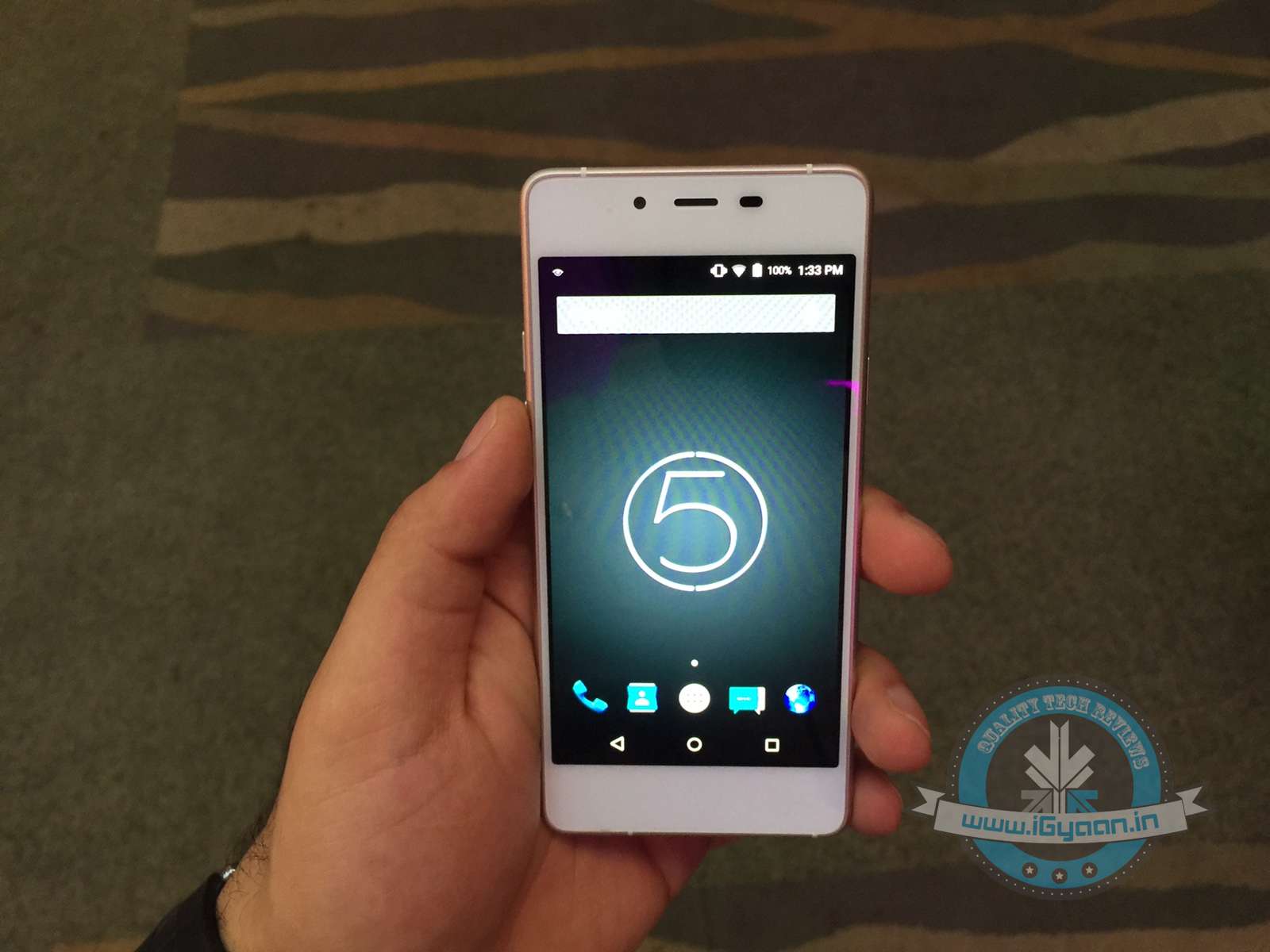
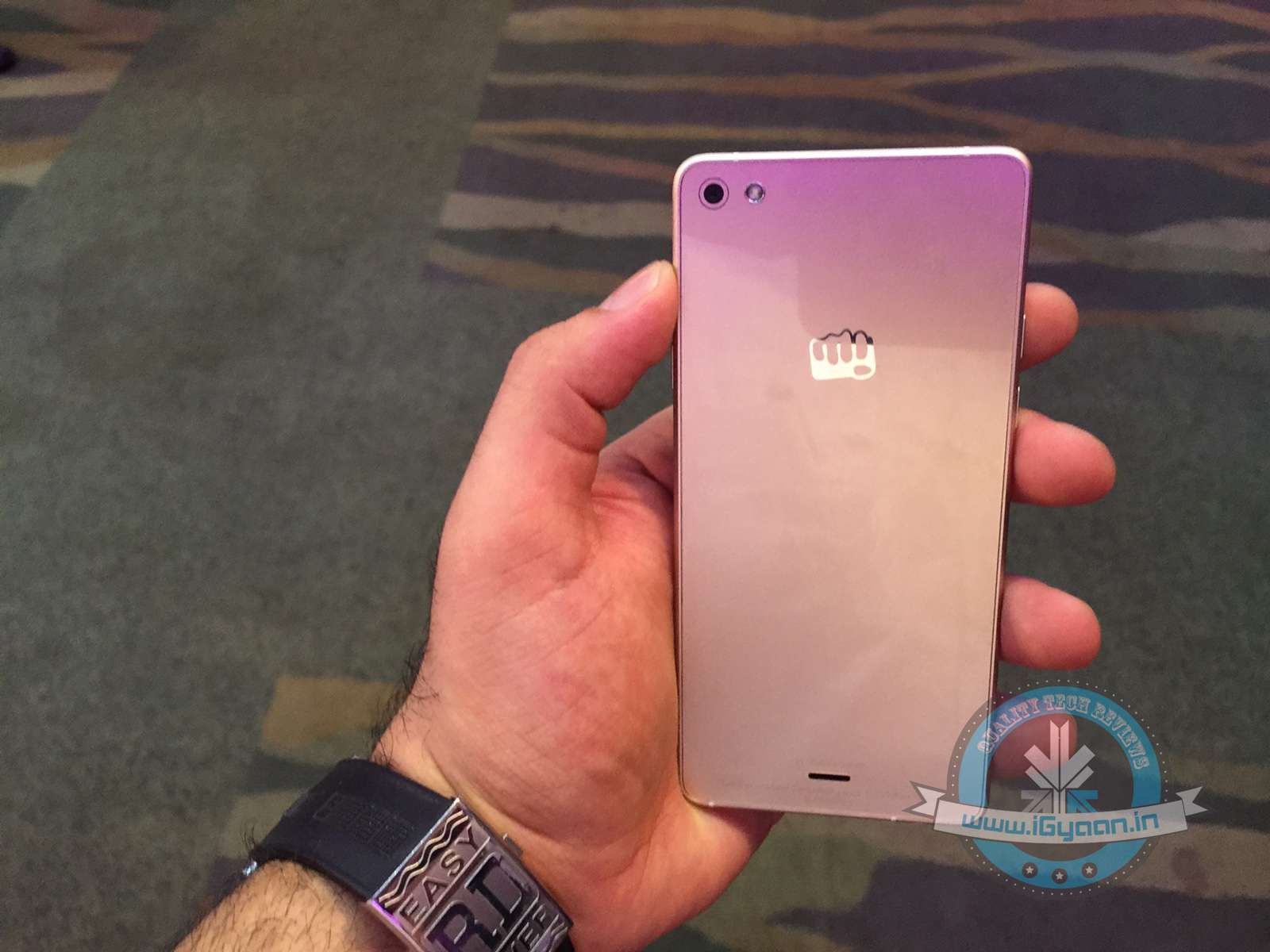
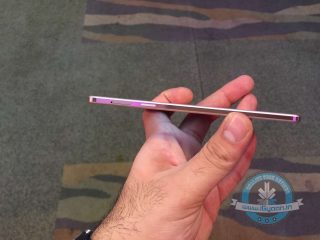
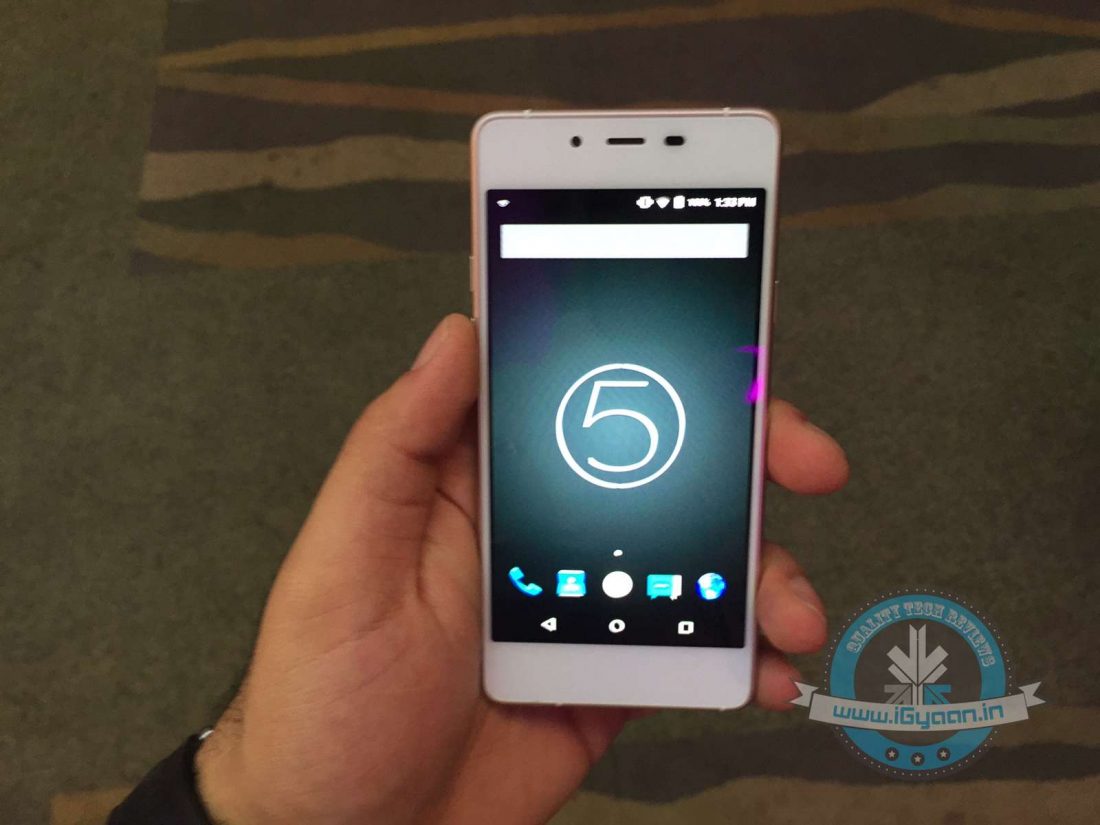
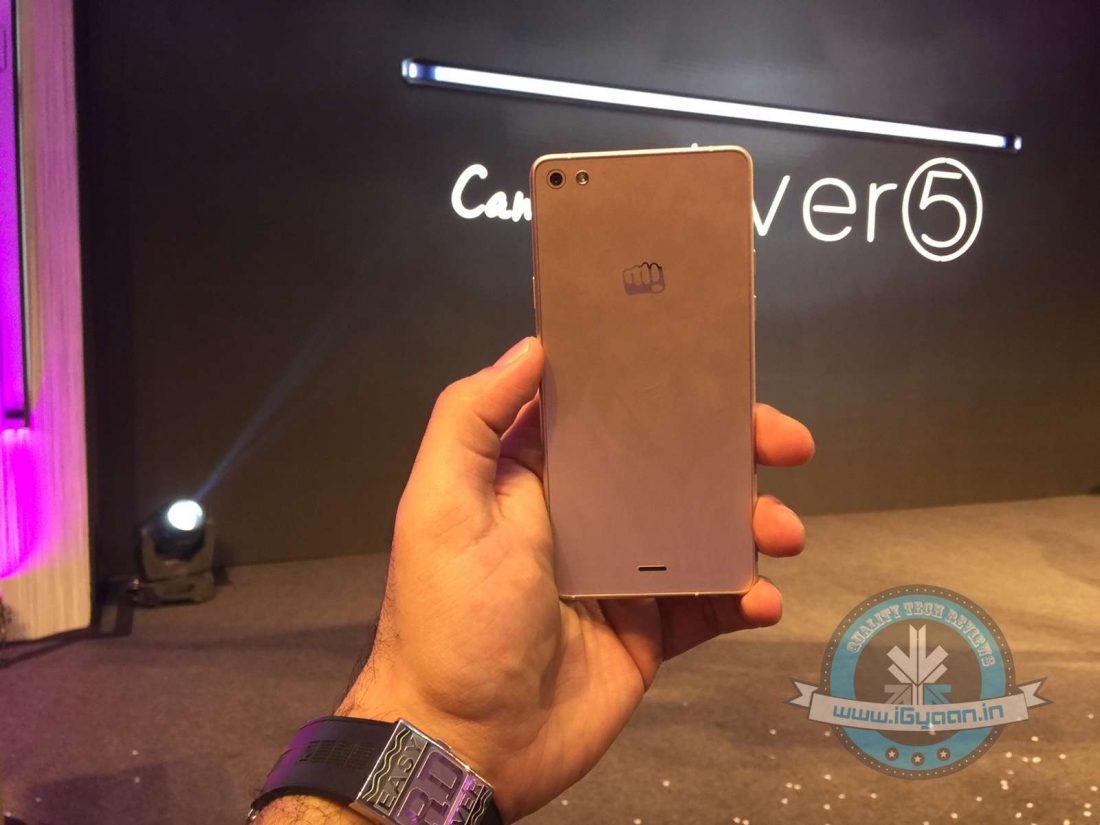
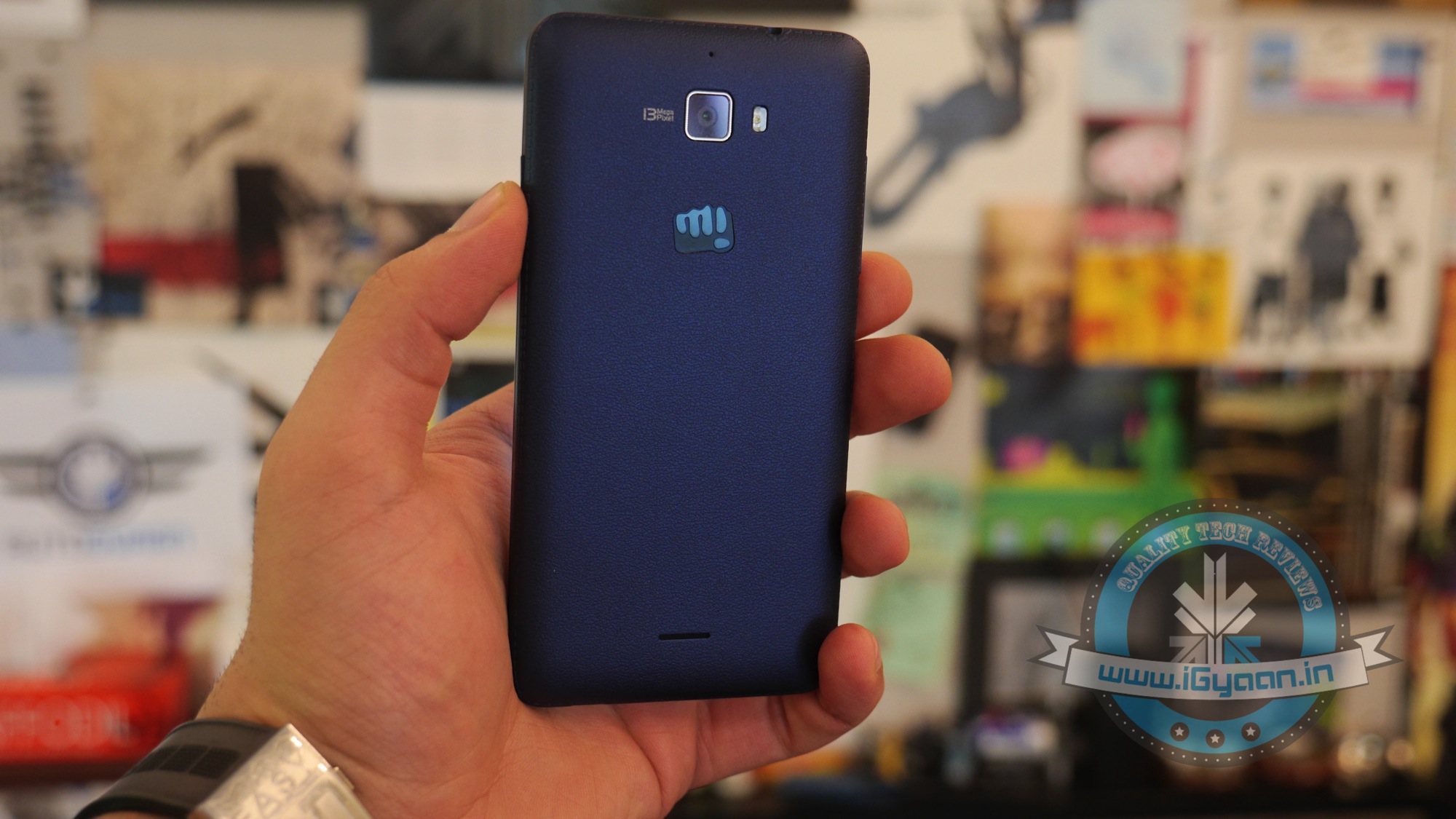
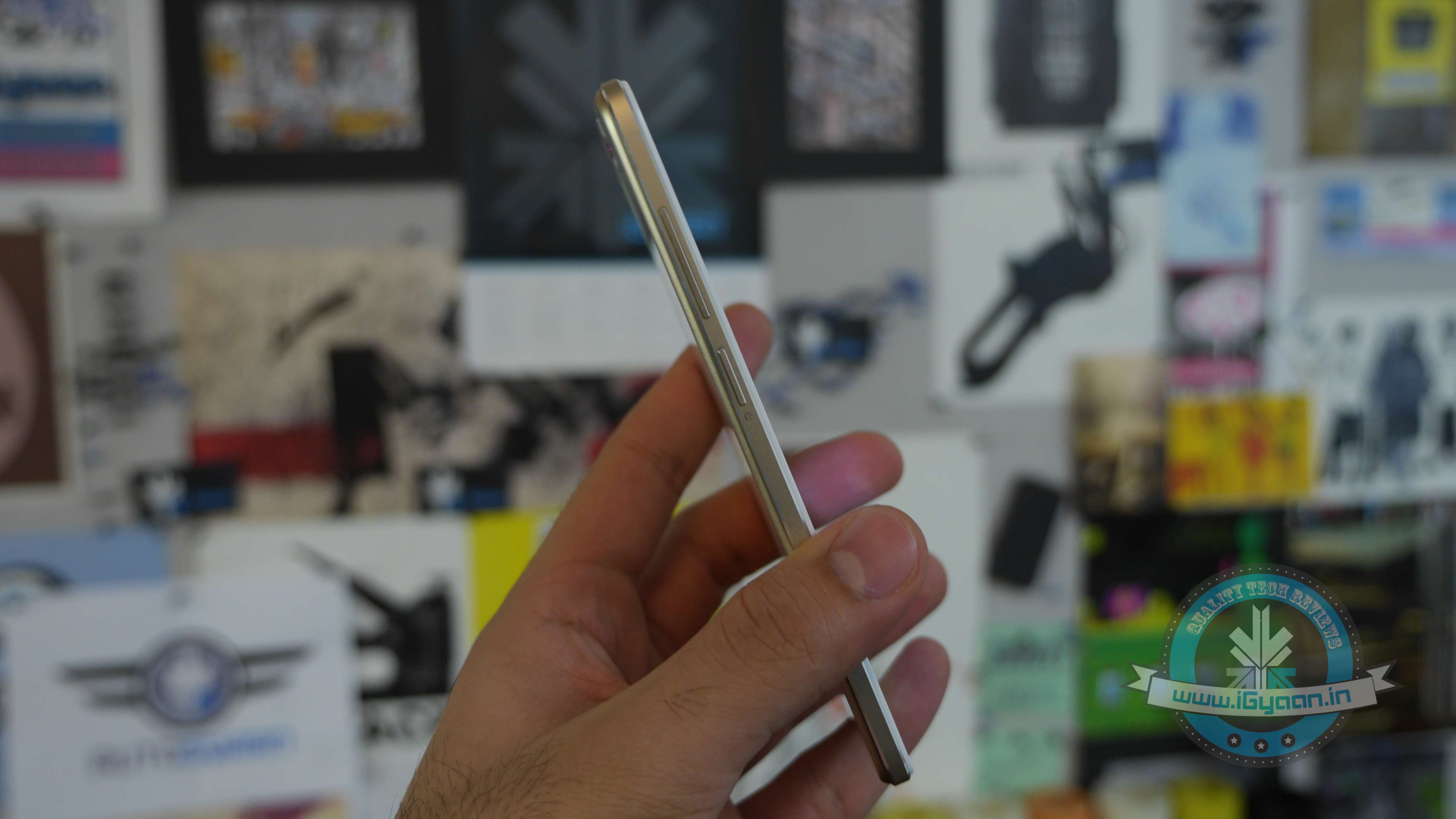
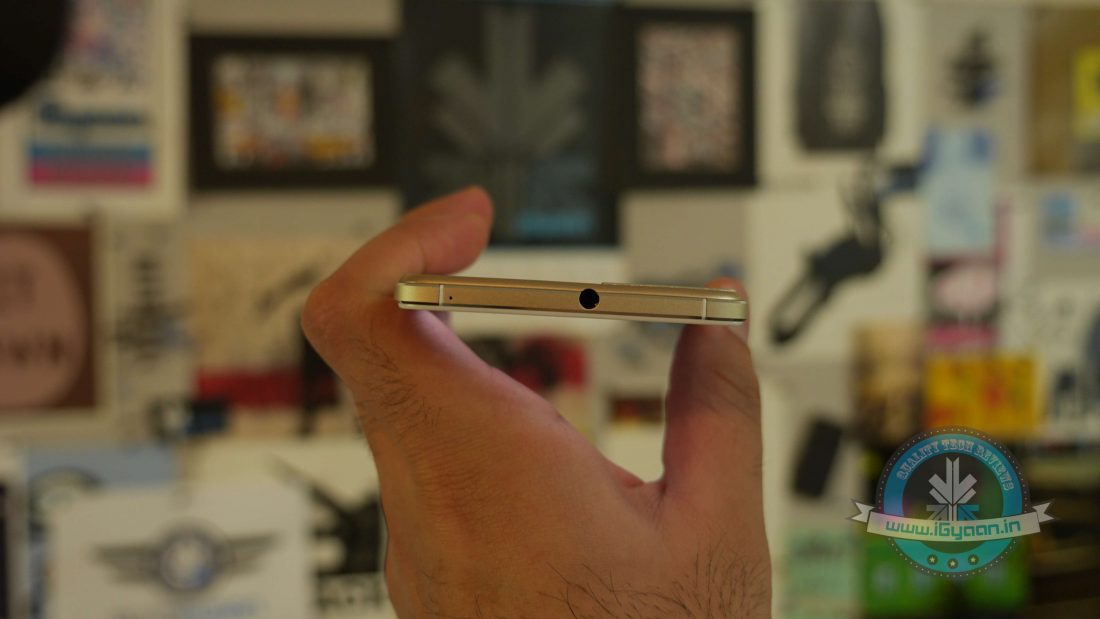
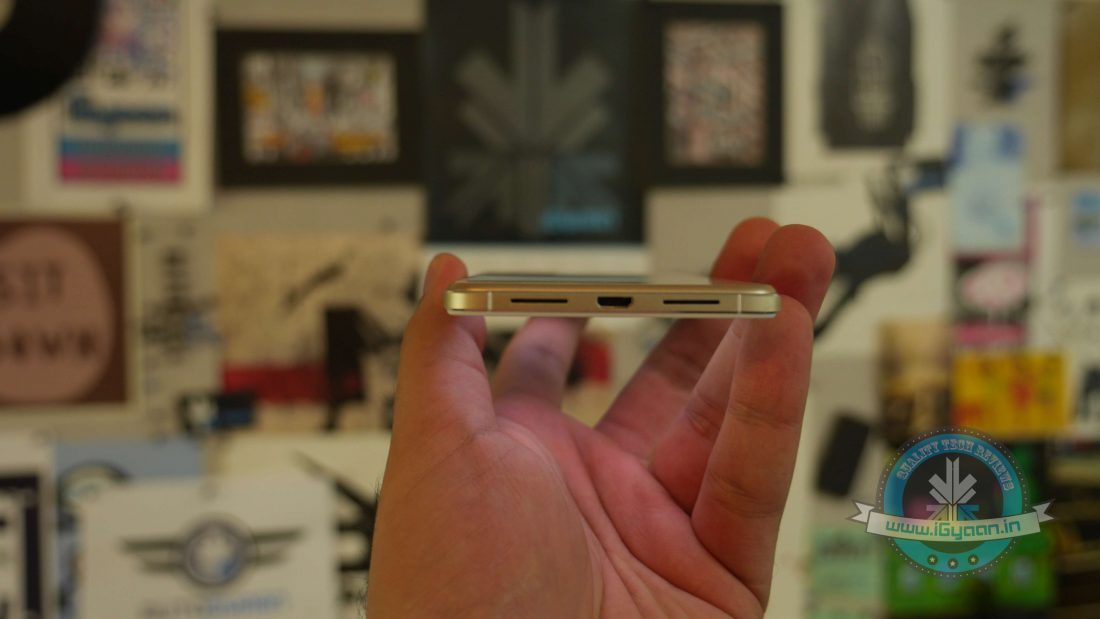
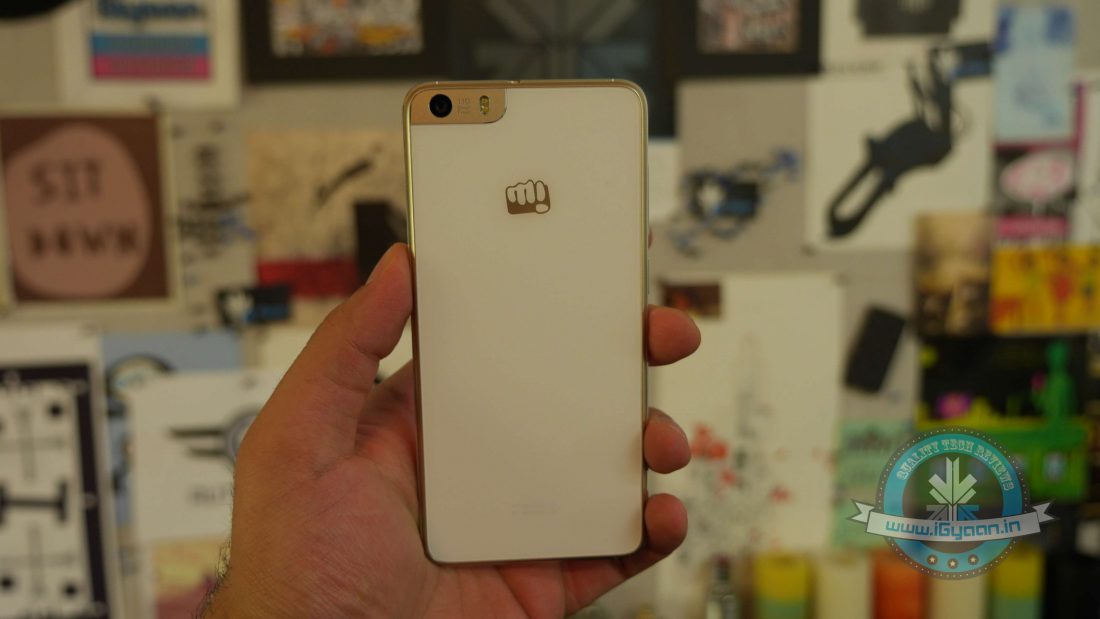
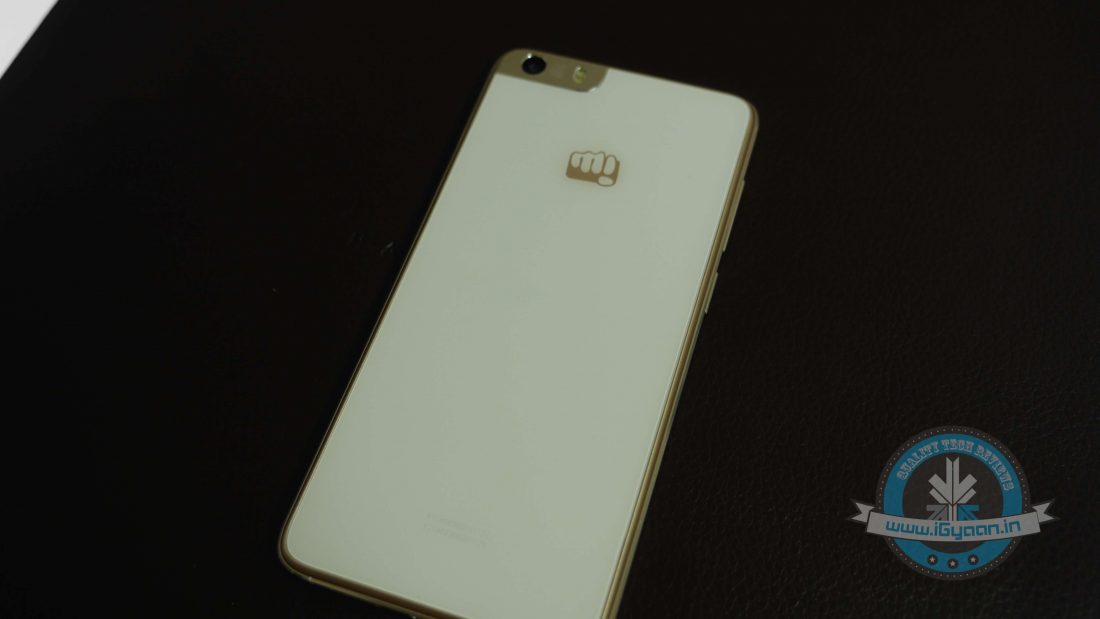
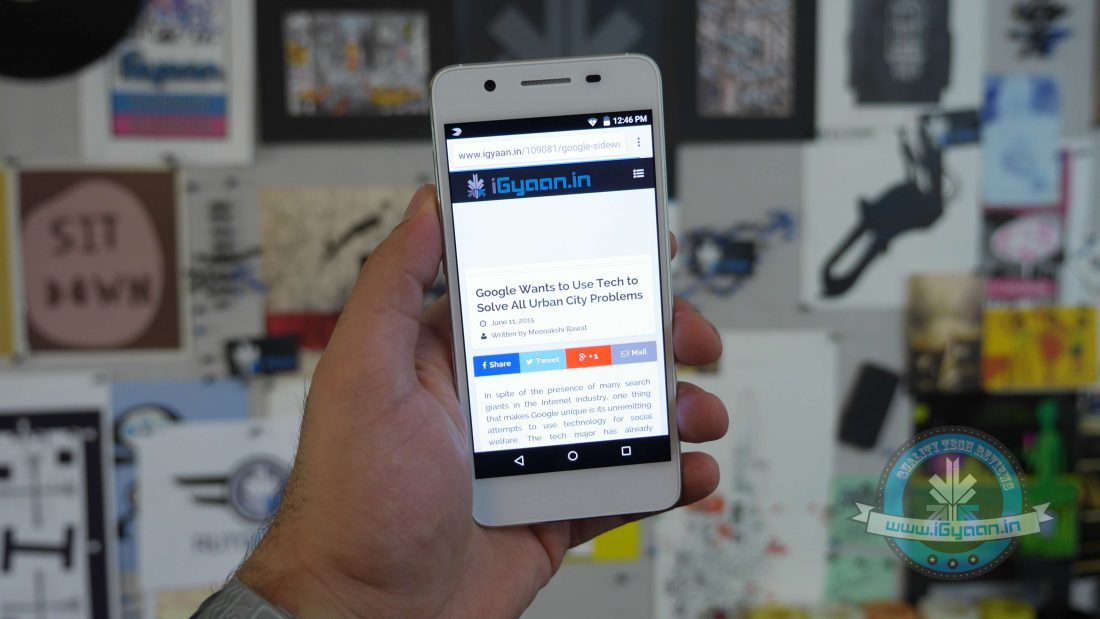
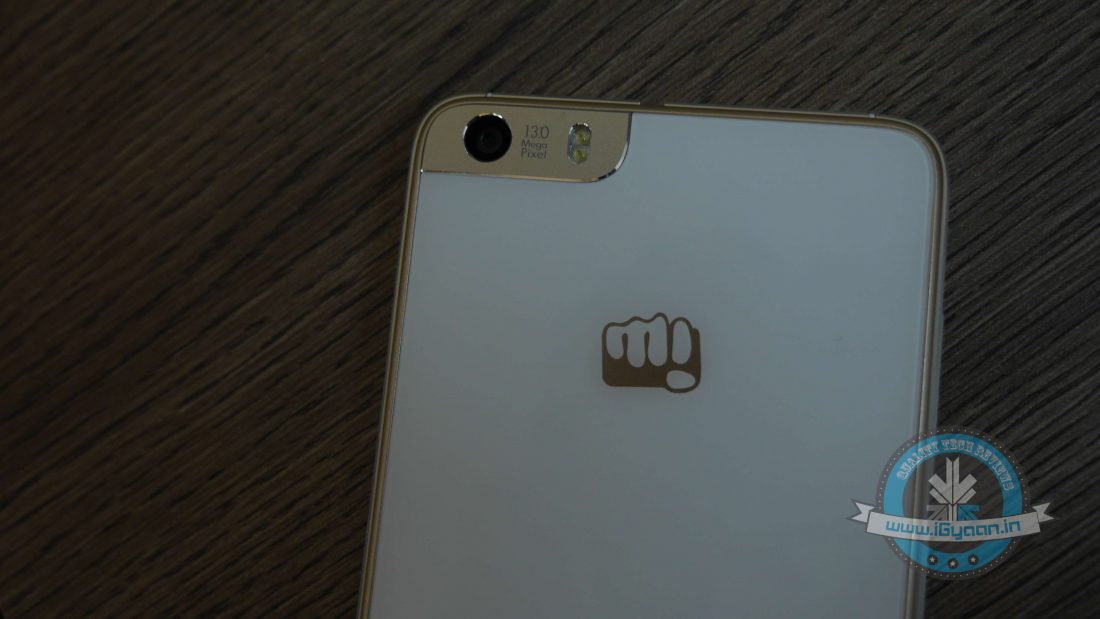
Micromax’s new entrant into the smartphone rat race, is not really new. The Micromax Canvas Sliver 5 is the Indian manufacturer’s slim device to take on the other slim phones. The upside, the Canvas Sliver 5 is 5.1mm end to end with no bumps or depressions. The frame is made from Aircraft grade aluminium and the front as well as the back is glass.
Specs wise, a few disappointments can be made out easy. For the price of Rs. 17,999, Micromax has included a Snapdragon 410 chipset, 2 GB RAM, 16 GB non-expandable storage and an 8 MP camera.
The front has a paltry 720p display along with Gorilla Glass 3, the battery is a mere 2000mAh. There is not a lot on offer here apart from the slim profile and the lightweight design.
The software is mostly stock Android 5.0.2 with some installed software, most of it is easily uninstalled. A flagship was expected from Micromax today, but the Rs. 17,999 price is might be the reason Canvas Sliver 5 remains on shelves. At a time where the world’s smartphone makers are battling to offer maximum at minimum rates, the Canvas Sliver 5 seems to fall short with average specifications. Besides, users have the choice to spend Rs. 2,000 extra and buy the OnePlus One (64GB) at Rs. 19,998. For that small amount, you would get a better camera, processor and a massive (multimedia-friendly) display.
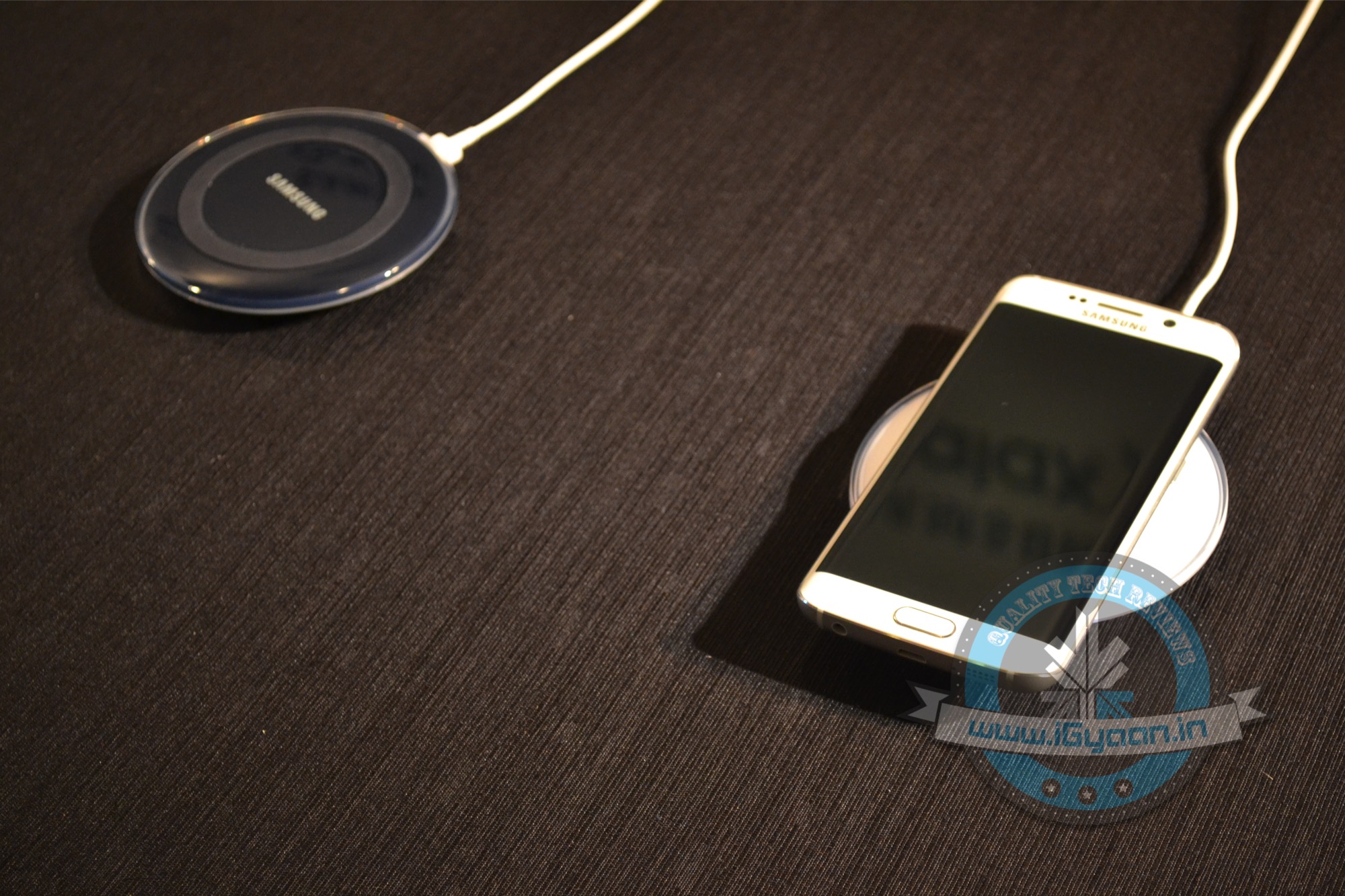
This year, at the Mobile World Congress held in Barcelona, we saw that Wirless Charging was one of the most talked about subjects. Many big companies such as Samsung, Microsoft and Motorola have been investing heavily in this technology.
So, what is Wireless Charging? As the name suggests, it is the method of charging a device sans a physical wire. This concept is not new. Nikolas Tesla, whose work in the field of electricity and electromagnetism has defined our modern lifestyle, spectacularly demonstrated the possibility of wireless power transfer in 1891, as visualized by the principle of electromagnetism by Michael Faraday 60 years before. The experiment was quite successful, but long distance wireless charging is still not a practical idea. However, Tesla’s research on short distance wireless power transfer became a reality.
It took nearly a century for the technology to find its way in the mainstream industry, but now, this technology has finally emerged into the consumer electronics market.
In 2008, the newly formed Wireless Power Consortium began outlining plans to design the world without wires, of devices that could juice up upon being dropped on charging pads. But, the journey ahead to seek and work out such technology was difficult. Hence, the work began on achieving this.
How does it work?
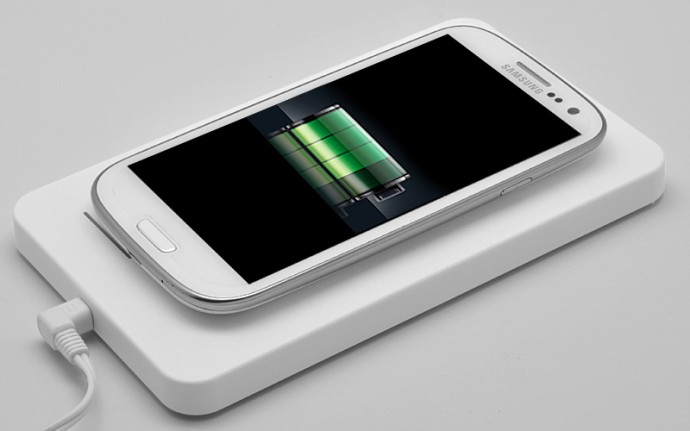
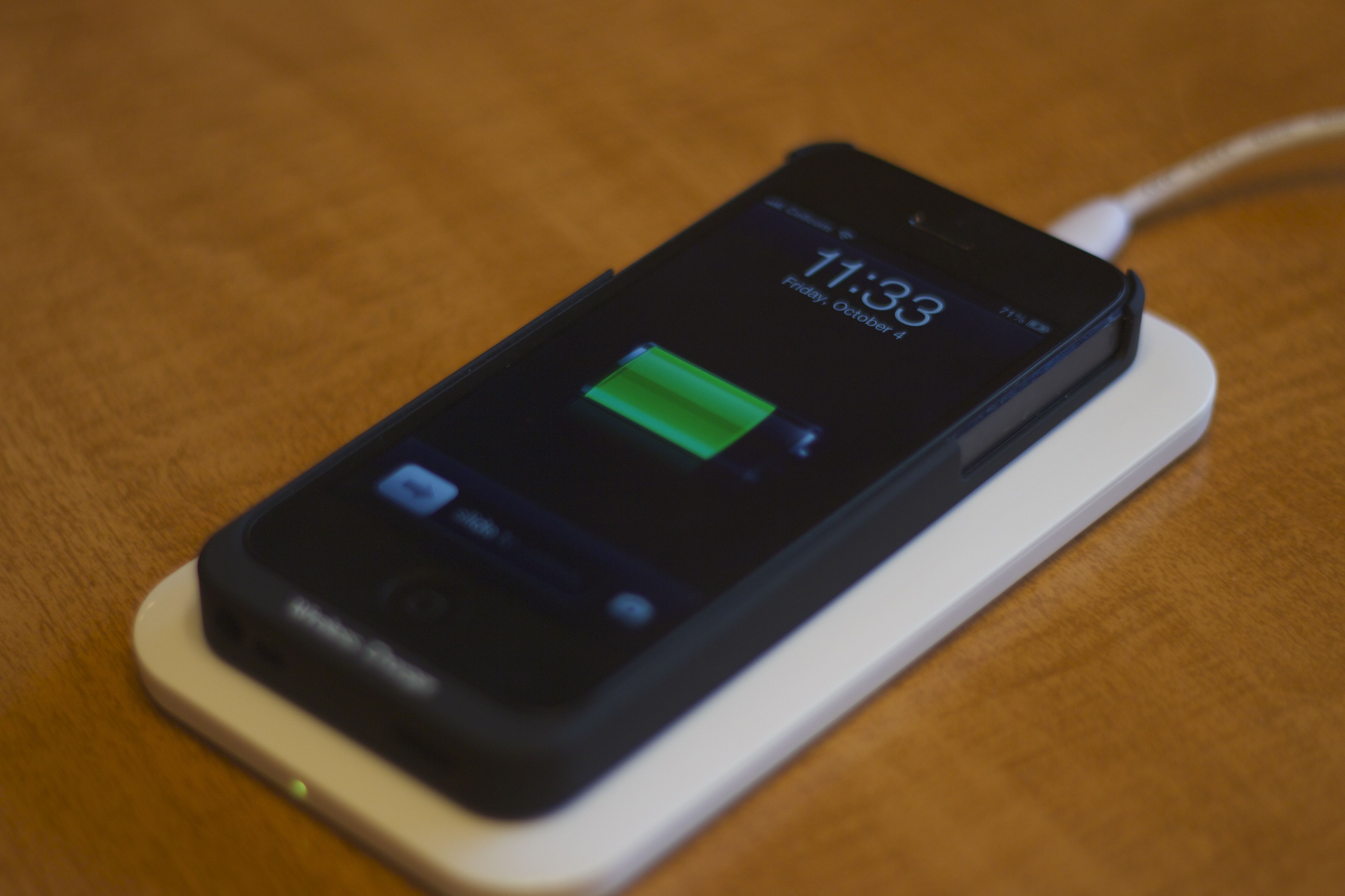
Wireless charging, also known as ‘Inductive Charging’ is based on the principle of magnetic resonance or Inductive Power Transfer- the process where electricity is transferred between two objects through coils. This process uses an induction coil to create an alternating electromagnetic field from within a charging base station. The second induction coil inside the portable device (namely, smartphones) receives the power from the electromagnetic field and converts it into electricity to charge the battery. The two induction coils are in close range to form an electrical transformer.
This interface was developed by the Wireless Power Consortium for inductive electrical power transfer over 4cm. You just have to place the device on to the power transmission pad, and it charges using resonant inductive coupling. Just plug in the charging dock and place your device on the charging pad. Then, watch your device juice up. It’s that simple. For now, Qi, pronounced as ‘Chee’ is leading in the wireless charging technology.
Asus, HTC, LG, Motorola, Samsung and Huawei are among the few mobile device manufacturers that are working towards the required standard of Qi.
To this end, the industry has set up three groups that are working to standardise wireless charging technologies: the Wireless Power Consortium (WPC) and its Qi standard, the Power Matters Alliance (PMA) and the Alliance for Wireless Power (A4WP).
Advantages
No requirement of a power cord: The first and foremost reason wireless charging is being worked upon is to eliminate the use of wires and cables. Elimination of cables also means less e-wastage.
Portability: It is small. Hence, you can carry it anywhere along with you. It can be used in your car, house or garden.
Ease of access: Wireless charging points are slowly being accepted in different outlets and food joints. For example, a type of wireless charger is being used in some McDonald’s outlets in UK. This device allows multiple devices to charge at the same time.
Environmentally friendly: The growing use of wireless charging technologies reduces CO2 emissions by hundreds of tons each year by eliminating disposable batteries and cords. Your use of a wireless charging device will be contributing to a more sustainable environment by helping to reduce world waste.
Safety: Wireless charging eliminates sparks and debris related to wired contacts.
For now, there are two very important factors that may play foul against wireless power charging:
A risk of radio interference: Emissions from the wireless charger may cause radios and other devices using energy in the same frequency range to malfunction. This is due to the radiation and the signals which cut each other if they are in the same frequency.
Energy consumption: Wireless chargers will always waste more power than their wired versions, and the more flexible adaptive resonance devices will be most at risk of that.
Standardisation would allow the ecosystem for wireless charging to develop and evolve fast. But, it is hard to say about the future of this technology. This technology has just started out and is still in its developing process. But, if it works out successfully on a large scale, people would be able to charge all of their devices wirelessly in restaurants, airports, public spaces, cars and living spaces, freeing them from the burden of carrying their power cords.
It’s always showering discounts online. Despite the festive drought during summer, the e-commerce platforms have managed to draw customers to its portal through irresistible deals on smartphones. They’re currently throwing inviting offers with a major price drop, together with optional exchange deal and additional benefits.
Here are some of the deals that you can grab right now:
Nexus 6
Coming at a launch price of Rs. 43,999, Flipkart is selling the phone at a cost of Rs. 36,999, a substantial markdown of Rs. 7,000. The price cut is on both the versions – 32GB and 64GB. The 64GB variant is available at Rs. 41,999, down from Rs. 48,999. Nexus 6 can cost you Rs. 36,999 on exchange, an additional Rs. 5,000 off.
Featuring a display of 5.96 inches, the Nexus 6 packs 2.7GHz quad-core Qualcomm Snapdragon 805 with Adreno 420 GPU and 3GB RAM. The device runs on Android 5.0 Lollipop, upgradable to v5.1 (Lollipop).
Another good pick is Motorola’s premium range smartphone – Moto X (2nd Gen). Flipkart is giving a 26% concession on the handset, offering it for Rs. 21,999, instead of Rs. 29,999. The Rs. 8,000 price difference is significant, and with exchange from your present smartphone, it will cost even lower. If you are going for an exchange offer, the Rs. 29,999 device can be around 50% cheaper at Rs. 16,999.
The phone holds a 5.2 inch AMOLED display with Gorilla Glass protection, a Qualcomm Snapdragon 801 processor, 2GB RAM, and 16GB internal storage.
With our rating of 7.9 out of 10, Micromax Canvas Nitro is one of the best performance-oriented phones in the budget category. Buy the phone at Rs. 1,000 less, i.e. Rs. 8,999. Sporting a vivid 5-inch LCD display with 5MP camera on top, the Canvas Nitro features a Mediatek Mt6592 octa-core chipset clocked at 1.7GHz. It holds 2GB RAM, 16 GB in-built storage and 13MP primary shooter.
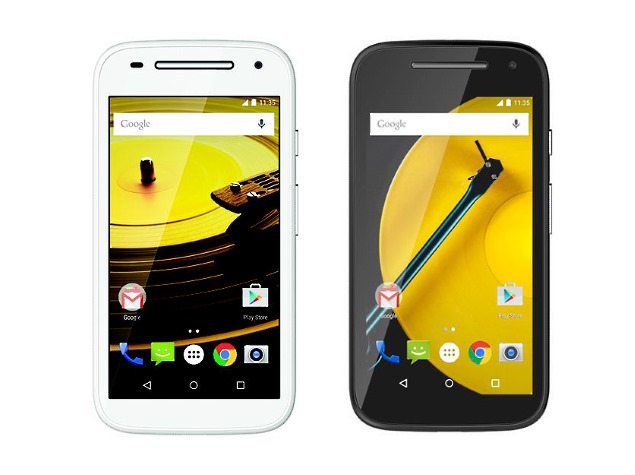
There is no heavy discount on this Motorola model if are not willing to barter your old phone. The LTE version of Moto E (Gen 2) is being offered at Rs. 500 less, but on exchange, you can get it on Rs. 2,000 off, i.e. Rs. 5,999. Other gifts comprise of free Airtel 4G SIM, Double data absolutely free with Airtel and a few more.
The device touts a bigger 4.5-inch qHD (540×960p) screen, a 1.2 GHz quad-core Snapdragon 410 processor, 1GB of RAM and 8GB of inbuilt storage capacity, expandable up to 32GB. A rear camera of 5MP is fitted onto Moto E (Gen 2) LTE, while the front has a 0.3MP shooter. Running on Android 5.0 Lollipop, the device comes with a 2390mAh battery.
The excellent all-round multimedia device has gotten more affordable. Honor 4X is now under sub-Rs. 10,000 category (although temporarily), costing Rs. 9,999 at the ongoing Flipkart sale. Besides the phones, customers will get other offers, such as Rs. 3000 off on Yatra wallet, offers worth Rs. 3,000 on Freecharge, 1-3 months of free streaming and downloads from Hungama and much more.
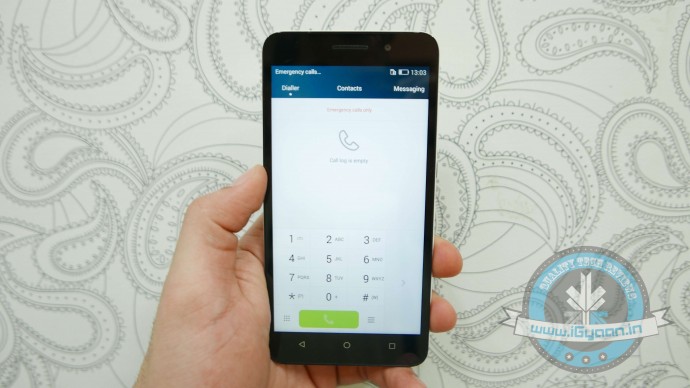
In terms of specifications, Honor 4x sports a 5.5 inch HD (720×1280) display, Snapdragon 410 processor, 2GB RAM, 8GB in-built storage, expandable up to 32GB. The handset features a 13 MP camera on the back and a 5MP front snapper. The whole system is powered by a 3000mAh battery.
Updating its Canvas Knight series, Micromax has introduced the second-generation Canvas Knight 2 in India. The device, which supports 4G connectivity, is priced at Rs. 16,299. The dual-SIM Canvas Knight 2 is not a major overhaul of its previous version; it packs a Snapdragon chipset, which was MediaTek in the last offering, advanced operating system and Corning Gorilla Glass 3 protection. The handset came to our testing lab and we got our hands on the device.
Here’s our first experience with the phone:
The super slim Canvas Knight 2 is surrounded by a golden metal frame. It sports a big-sized screen of 5-inch HD AMOLED with 720 x 1280 resolution and 294ppi pixel density. The display surface, as well as the back, is protected by Corning Gorilla Glass 3, which is scratch resistant. On the front, they’ve provided a 5MP camera for selfie enthusiasts.
The dual SIM card slots offer support for one Micro SIM and one Nano SIM card. If one wishes to expand the storage capacity of the device, a memory card can be placed in place of the Nano SIM card slot. That means you can use just one SIM card if you want to expand its storage capacity.
On the top side of the Micromax Canvas Knight 2 is a 3.5mm headphone jack with secondary noise cancellation microphone. The right side of the device has the SIM card slot where you can stuff the MicroSD card for memory expansion. On the left, volume rockers as well as a power button.
Inside is a 1.5GHz octa-core Qualcomm Snapdragon 615 processor with 2GB RAM and 16GB in-built storage space. Users have the option to expand it up to 32GB via MicroSD card. The new iteration runs on Android 5.0 Lollipop.
The rear camera of the Canvas Knight 2 is a 13MP autofocus with Sony IMX214 CMOS sensor and 5-element lens. A non-removable Li-ion battery of 2230mAh keeps the device running for around 8 hours.
On the 7th of June 2015, iGyaan turned five years old. But what also reached five years, is our love for technology. We have constantly strived to serve a purpose in the online space. With our visual introductions and our fun cues, we have often set the ball rolling. The last few years have taught us a lot, about the internet, about technology, about people and hostility and most importantly about survival.
However, we stand here at five, young and proud, stronger than ever and even more resilient than when we started. How do we do it? We don’t know. But, with the amount of love and support we get from you;
WE ARE NOT STOPPING ANYTIME SOON
Happy Birthday to iGyaan and to each and everyone of our readers. See you for another five.
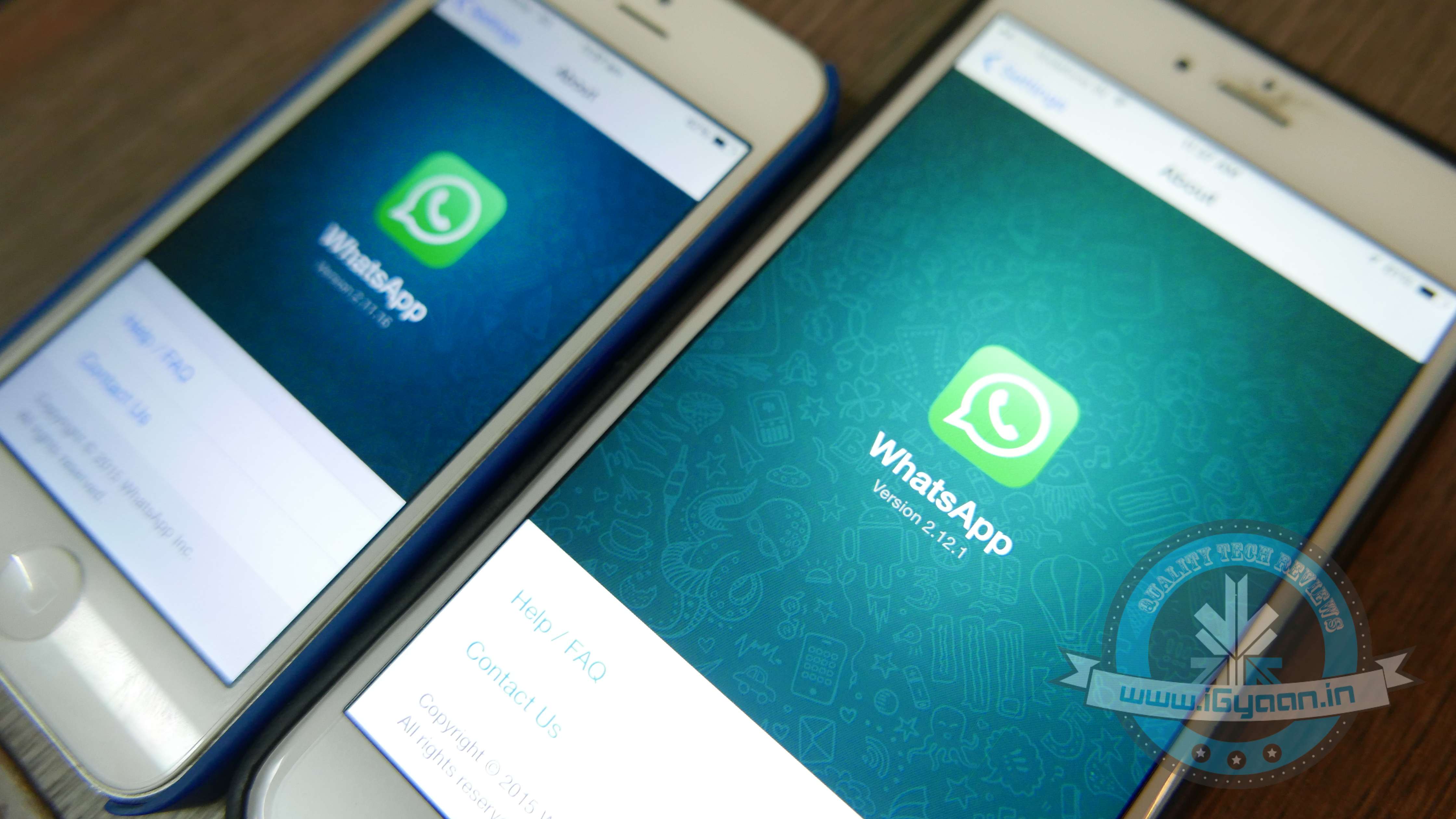
WhatsApp is sure to have found a space on almost everyone’s handsets. The app with over a 800 million active user base, offers one of the best services to have a real-time conversation. Most of us must be using the app for a while now, but you probably didn’t know that WhatsApp is hiding many features that could make the wrinkles from your forehead, vanish. Mastering the tool can help you save the bandwidth, mute negligible groups, keep the stalkers at bay, and hence, have a good night’s sleep.
Here are some of the features that can make your life a lot easier.
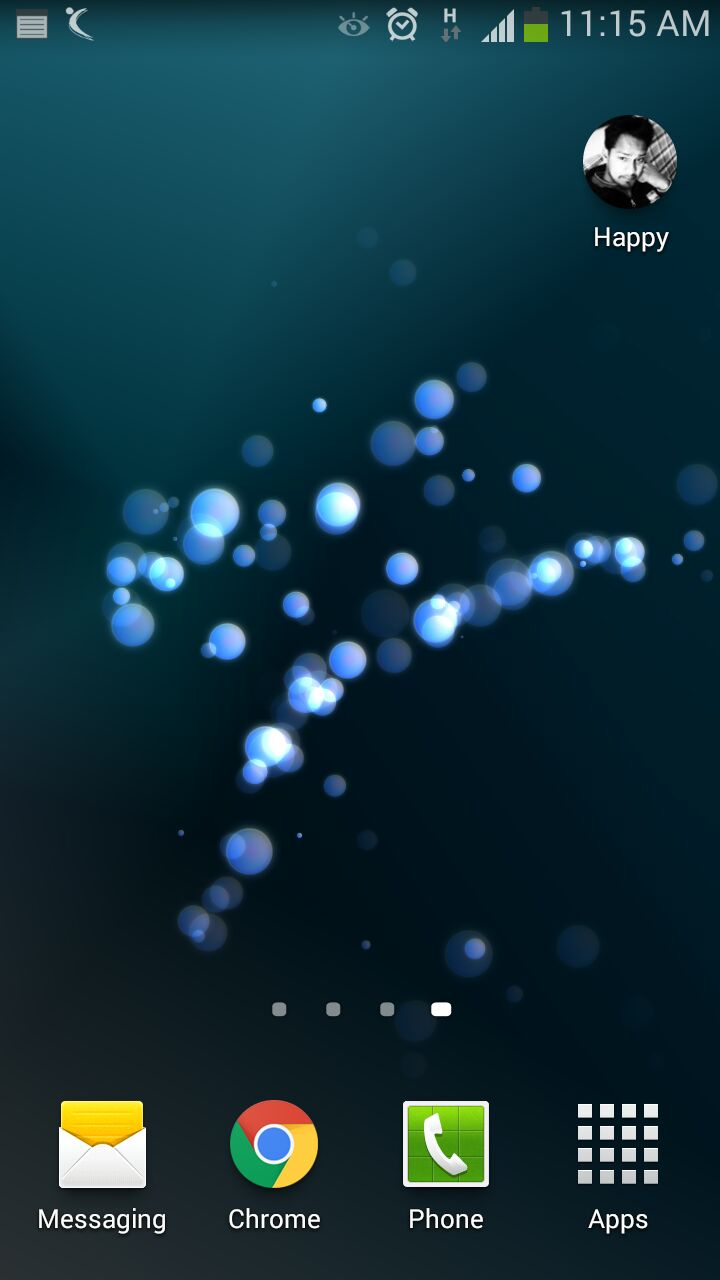
Add Conversation Shortcut to the Home Screen
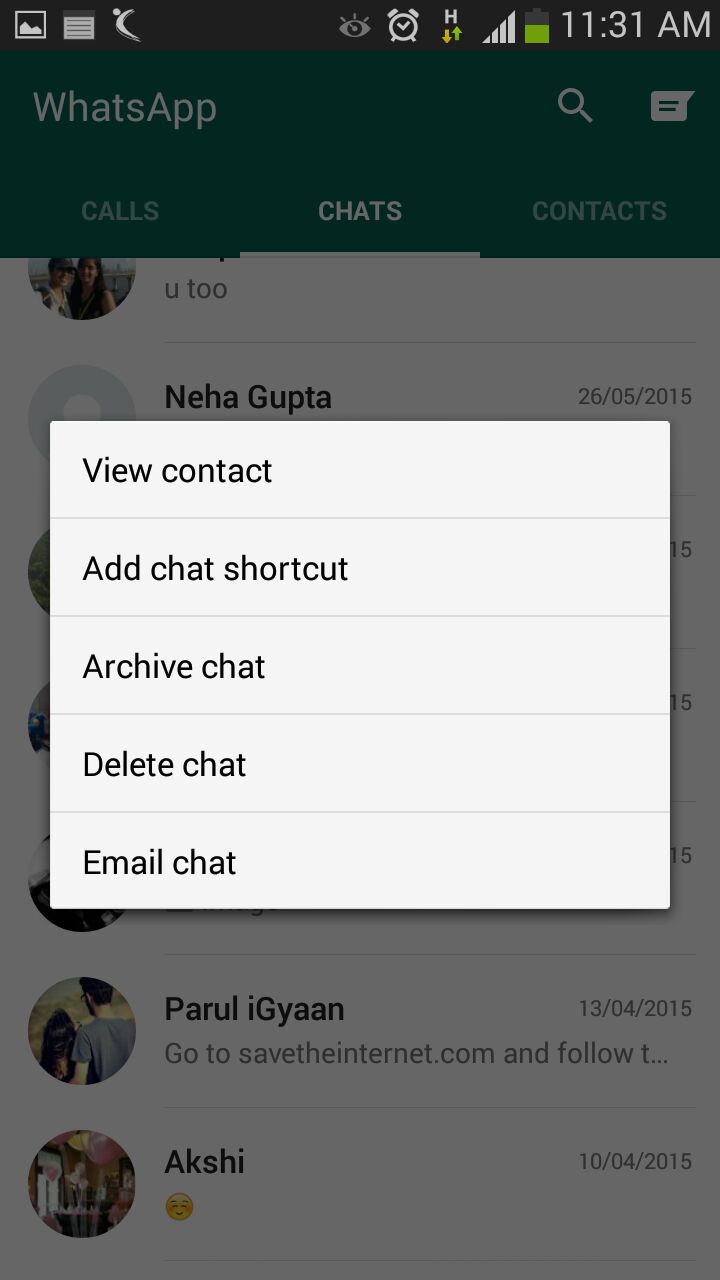
There must be folks in your WhatsApp contacts with whom you talk frequently to. Bring them a step closer by creating a chat shortcut on Home screen. Long tap on the desired contact and click ‘Add chat shortcut’ present in the chat menu. An icon will add to your home screen through which you can chat directly with the person, without surfing through a list of contacts. A useful feature, unfortunately missing on Apple devices.
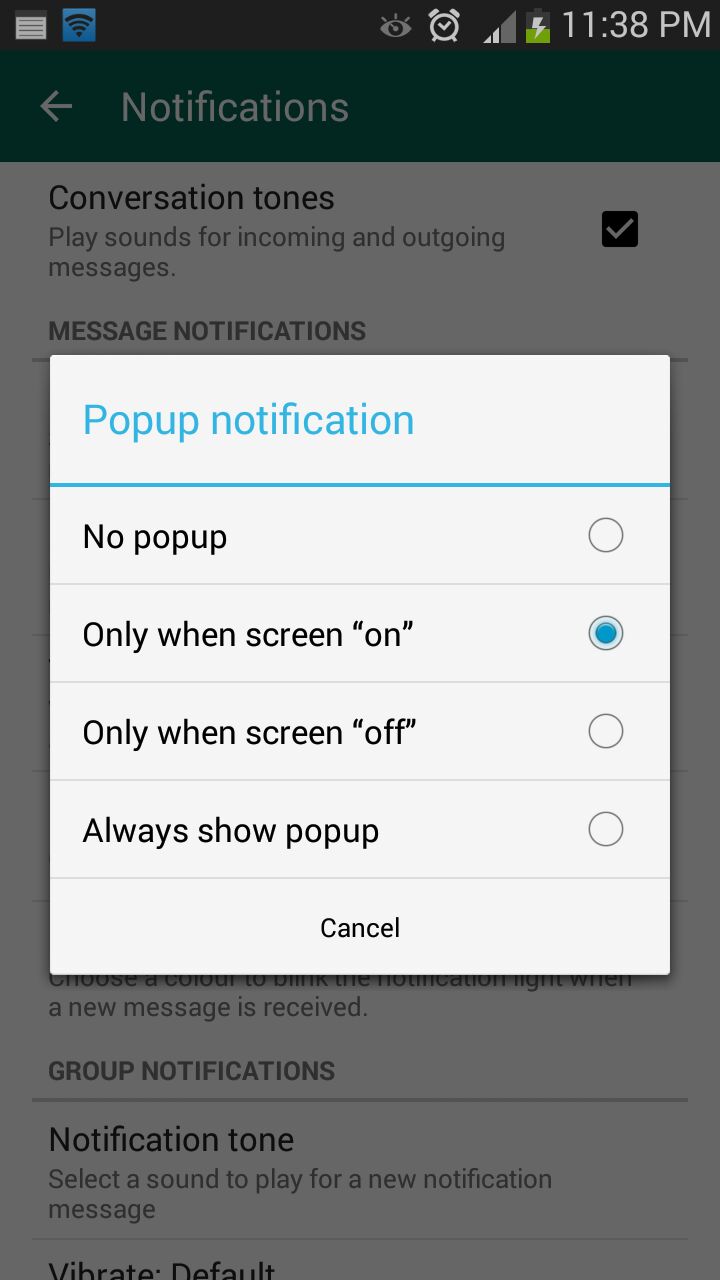
Pop-Up Notifications
This feature on WhatsApp lets you access messages even when the screen is locked. Go to Settings > Notifications > Popup Notifications and select ‘Only when screen is off’ to see messages and reply without unlocking the device. Pop up notifications put aside the hassle of unlocking screen to see received notifications and reply to them.
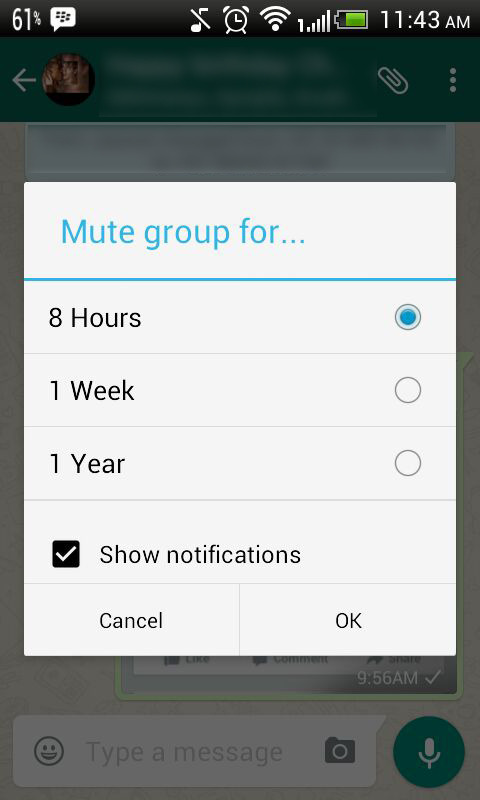
Mute Group Chats
Besides giving you the convenience of sharing things at one place, Group chats can be a bit noisy at times. No worries! Mute them and let your friends do the talking. Click on the group and from the drop-down menu, select Mute. Select the time frame for which you don’t want any updates and disable Show notifications.
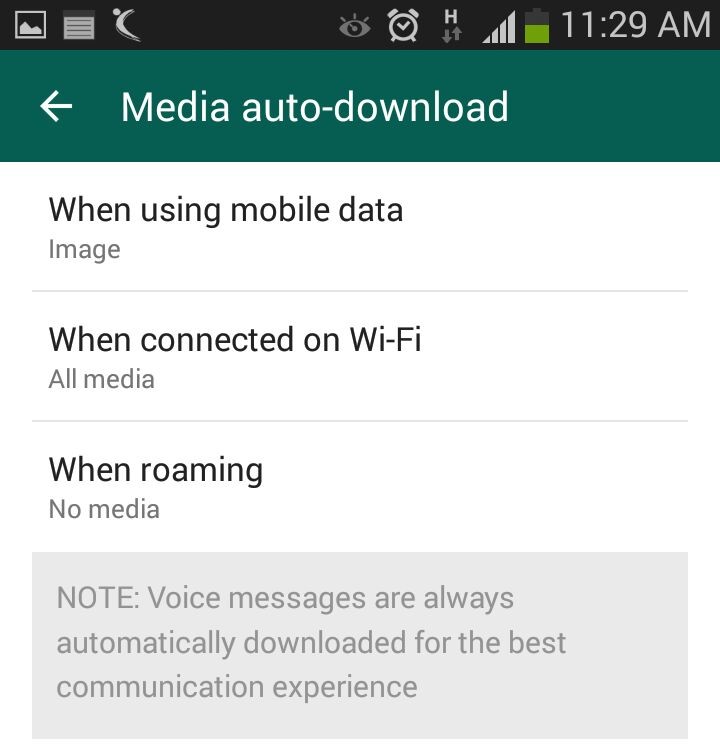
Disable Media Auto-Download
Media auto-download gobbles up your internet data. Turn it off to save the bandwidth and specify WhatsApp when you want the audio and video files to be downloaded. Click on Settings > Chat settings > Media auto-download and choose from the options when using mobile data, Wi-Fi and roaming.
Send Conversations Through Email
Users are going to love this feature, at least some of them. WhatsApp allows you keep a record of your chats on your PC or inbox by sending conversations through email. It’s as fast as any other mailing process and takes mere seconds. Long press the contact and tap on ‘Email chat’ from the chat menu. Add recipients’ email address and the conversation will be sent to the provided address. You can choose to include media file if you like.
Avoid Blue Ticks
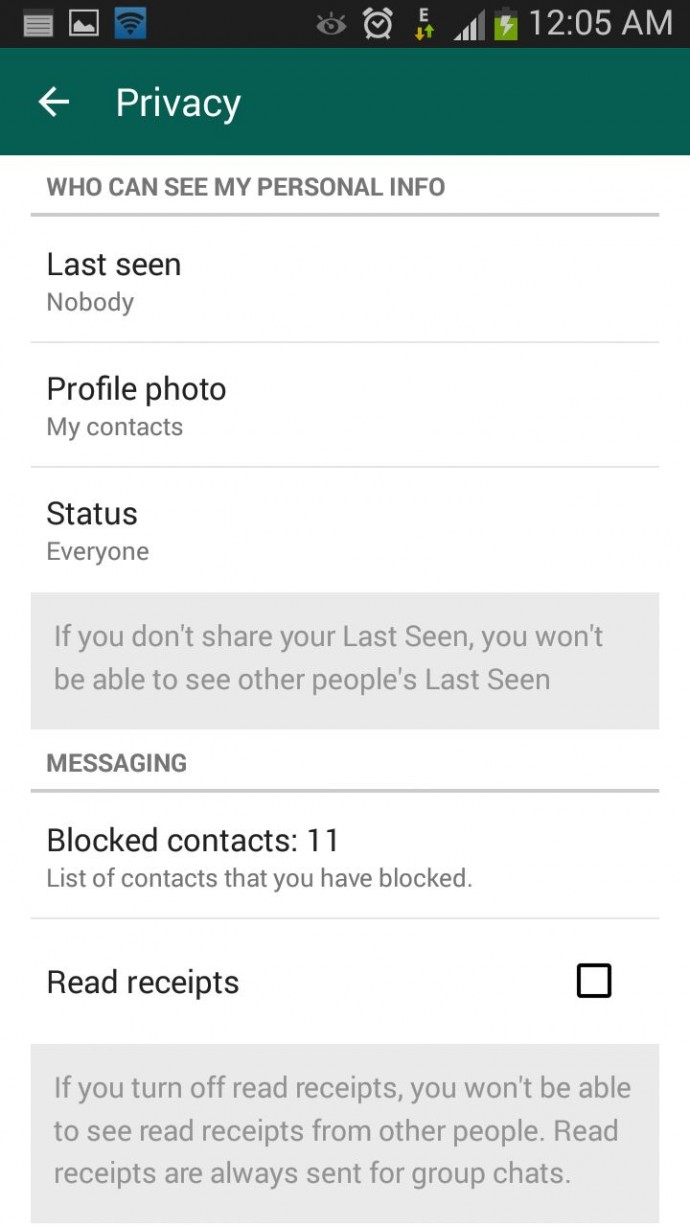
Where the cross-platform social messaging service got acclaims for real-time conversation, blue ticks brought outrage for offering recipients with read receipts. The new WhatsApp version allows you to avoid this through a simple setting. Click on Settings > Account > Privacy and disable Read receipts if don’t want the sender to know about the delivery status. Now, neither you nor any sender will be able to see read receipts. Isn’t it useful?
Travel today has become simple. Well, simpler than what it used to be. With some who travel frequently and the summer upon us, a chance or need to visit a new destination may arise for a lot of people. However, with a lot to consider when traveling to new lands; from modes of transport to lodging and getting around. It has become more a stressful exercise. Having spent the early part of 2014 and 2015 traveling from one part of the world to another, I have come across people who seem fearful of said experience. They find what is supposed to be a fun exercise, a torture or a stressful endeavour.
Here are a few of my tips to overclock your travel experience and hack into making everything work better for you when you travel.
1. Pro Packing
The one thing you must educate yourself with before you travel, is the general atmospheric nature of the region to where you are headed. This will help you determine what all you need to take with you. Take only what you must, and as little as possible, you might end up shopping more than you expected to. If splurging on consumerism is not your thing, traveling light has many benefits. With Airlines trying to extract the profit balance, the Allowed weight of baggage is becoming lesser and lesser. If you do go on a shopping frenzy, always keep a digital luggage scale handy, so that you know when you have reached your limit.
Pack Like A Pro
While everyone is an expert in packing their own things, few tips like rolling up clothes, and lining the bottles to the side of your luggage really works to free up that space. Stuff your shoes with socks and other soft small clothing items, double pack your liquids in sealed plastic bags to avoid those unwanted shampoo stains on your favorite business suit.
An extra set of clothing in your carry on luggage goes a long way, especially when your luggage is delayed or lost in transit. Never put anything of value in checked in baggage and wrap fragile items in layers of newspaper or bubble wrap.
TSA Lock
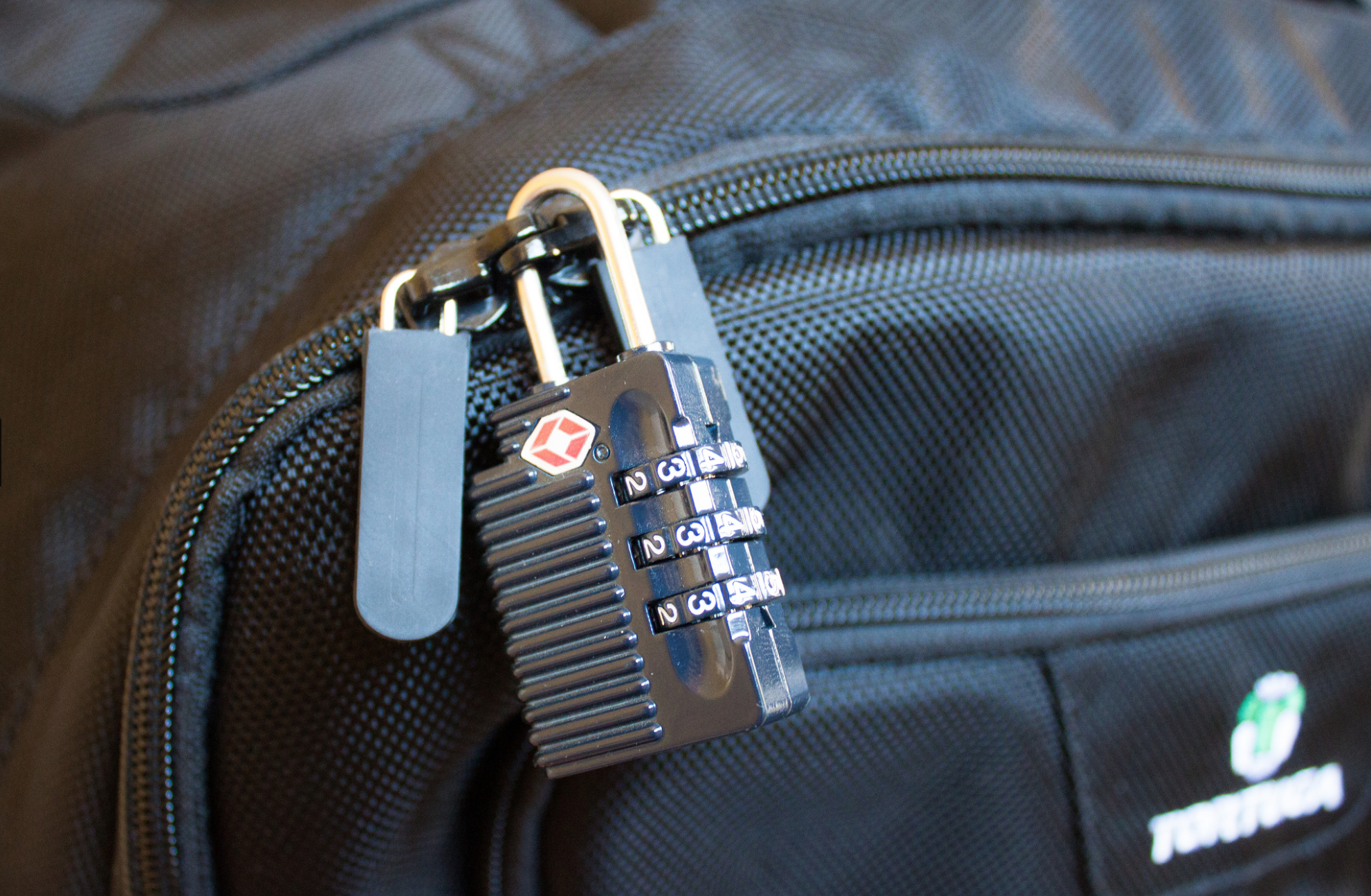
Lock your checked in bags with a TSA approved locks. This type of lock will allow security agencies to open and check the bag if they so need to, then re lock it safely. Travel size is the way to go, so ensure that, if you carry any liquids in your carry-on bags they are within the carry-on size limits (below 100ml in most cases).
2. Beat The Airline
When you travel, it seems that everything is chargeable. Extra luggage, food and even basic comfort is a paid luxury. When possible, plan in advance; buy tickets early and even pay for the extra luggage online. This will save over 50% of what airlines call “opportunity earnings”. Always check in online, this helps you beat the queue, find a fairly comfortable seat and also mostly get away with slightly heavier baggage. Use the bag drop service, when available, after checking in online, to avoid the luggage being weighed when traveling within countries.
If you can afford to, then always only buy business class tickets, use the same airline as often as you can and always join that airlines frequent flyer program. If booked well in time, business class tickets can be had for only a slight percentage more than the economy tickets. The business class service is fantastic , seats are very spacious, enough to be sleep-worthy on a long haul and food is actually edible and healthy, while alcohol is poured in generous quantities.
Business Class is Awesome!
Tanking up on frequent flyer miles miles can have its privileges, once you progress from silver to gold to platinum, you will see a host of possibilities open up. An additional bag, priority check-in, free lounge access, porter service at most international airports all this for basically being loyal to the airline. You will also get free upgrade vouchers, and freebie gifts as a frequent flyer.
Your miles always come in handy too, pay excess baggage fee, get upgrades, or even buy tickets using up your miles as modes of payment. You can often end up traveling for free if you are smart from the get go.
3. Pick Your Transport
Depending on the kind of person you are pick your transport and plan for it in advance. The best way to get around in a new city is to use what the locals use. For example, New York city is best seen with the use of the underground rail and the bus network.
New York Metro Card
If you are traveling for a week or more, buying a weekly/monthly pass may come in handy. This card allows free unlimited rides on the train and bus network within the city, also a month long pass usually ends up being cheaper than one single taxi ride.
Car Rental Counter
Some cities are easily accessible on foot, and some using cycles available for rent. Barcelona is one such place, where travelers can get around best using rented bicycles. Goa is best seen by renting motorbikes, or even cars and open trucks. You can even rent vehicles when traveling considerable distances, an hour or two hours drive away from your place of stay. Most rental companies will accept foreign Drivers licenses and offer great discounts and upgrades when booked well in time. These rental companies also have loyalty programs which almost work like frequent flyer programs, allowing free upgrades, priority service, etc.
Airport transfers can be tricky too, always plan these in advance. Usually governments arrange bus services from Airports to downtown areas. New York has the “NYC Airporter” service which is run by the city, this service costs US $ 15 one way VS the one way taxi fare which is roughly US $ 70. New Delhi Airport has shuttles that run for free and sometimes for a very nominal fee. If you cannot find such a service, try using the local public transport when available. Berlin for example ( and most European destinations) has a great bus networks that connects to the airport.
Pro-Tip: Pre booking a taxi or finding a govt. authorized taxi service works well.
4. Pro Lodging
Depending on the kind of person you are, there are always lots of options available when booking a place to stay. If you are okay sharing spaces, websites like AirBnB have proven to be pocket friendly.
If you are booking a hotel that you have never stayed at before, always only book for the first night. Your epic vacation could come to a screeching halt if the pictures you saw while booking lied about the exact state or locality of said hotel. If you have paid only for the first night you can always go look for a better place incase your existing spot does not cut it for you.
Smart Booking can be healthy!
If the place of stay is known by you or those around you, then always book well in advance to get the best possible deals. Try booking directly with the hotels from their websites, using coupons or by emailing hotels. This usually turns out much cheaper than using websites that claim to be cheapest, and you often get deals like free breakfast and room upgrades.
5. Eat and Party where the Locals Do
Make friends before you arrive! The best way to know a place is to actually have friends who live there. Lots of travel forums and social networks allow you to get to know people before you arrive to a new city.
Ho Chi Minh Food Market
Avoid going to “touristy” places, they usually end up being a disappointment. As far as food goes, there is no better way to experience the food of new place than to eat where the locals eat. This will have the most authentic flavors and the best prices, you will meet fun people and have a blast.
6. Pro Connectivity
While travel sim cards are available a plenty, staying connected nowadays is more than just phone calls. Data is a very important need of the modern day traveller, and it’s best had by getting a local number. Most countries issue Sim cards to tourist almost instantly, after taking a copy of your passport. Find out the best phone and data plans for pre paid cards and simply get there and get connected. Retain these cards and activate online account for your numbers, so you can simply recharge your number before you travel again, to be connected on arrival.
Coffee shops and Cafes like Starbucks provide free Wi-Fi and power sockets to charge your devices. Never miss an opportunity to grab a hot cuppa, or a mocha frappuchino and get connected while you recharge your portable.
Most airlines now have Apps that not only allow you to check in and get your boarding cards on your phone, but also send instant notifications on delays, gate closing times and last minute gate change. Just so you don’t miss the last call announcement while listening to music on your fancy noise canceling headphones. If you own an iPhone, Passbook will scan your emails and remind you about your flights and add boarding cards to the book.
Bonus : Tech Travel
While most travel to enjoy visiting a new place, there are some with a fixed agenda. If you fly often, a long battery life tablet like an iPad and noise cancellation headphones may as well become your best friends.
A tablet allows you to carry millions of books, games , movies and a lot more to keep you busy. The noise cancellation headphones with active noise cancellation will almost entirely eliminate the loud airline engine hum and also prevent babies from waking you up with their first flight in a pressurised torture tube.
A travel adapter you own, will save you upto US $ 100 that some hotels may charge you, for not owning one. Some hotels don’t even carry these, so you might get stuck at a hotel without being able to charge your phone, your laptop or even your shaver. Different countries and regions have different power sockets and a multi country travel adapter is a must for a frequent flyer to international destinations.
Related Travel Products
Enjoy you Summer, plan well and if you do end up in some disaster let us know!
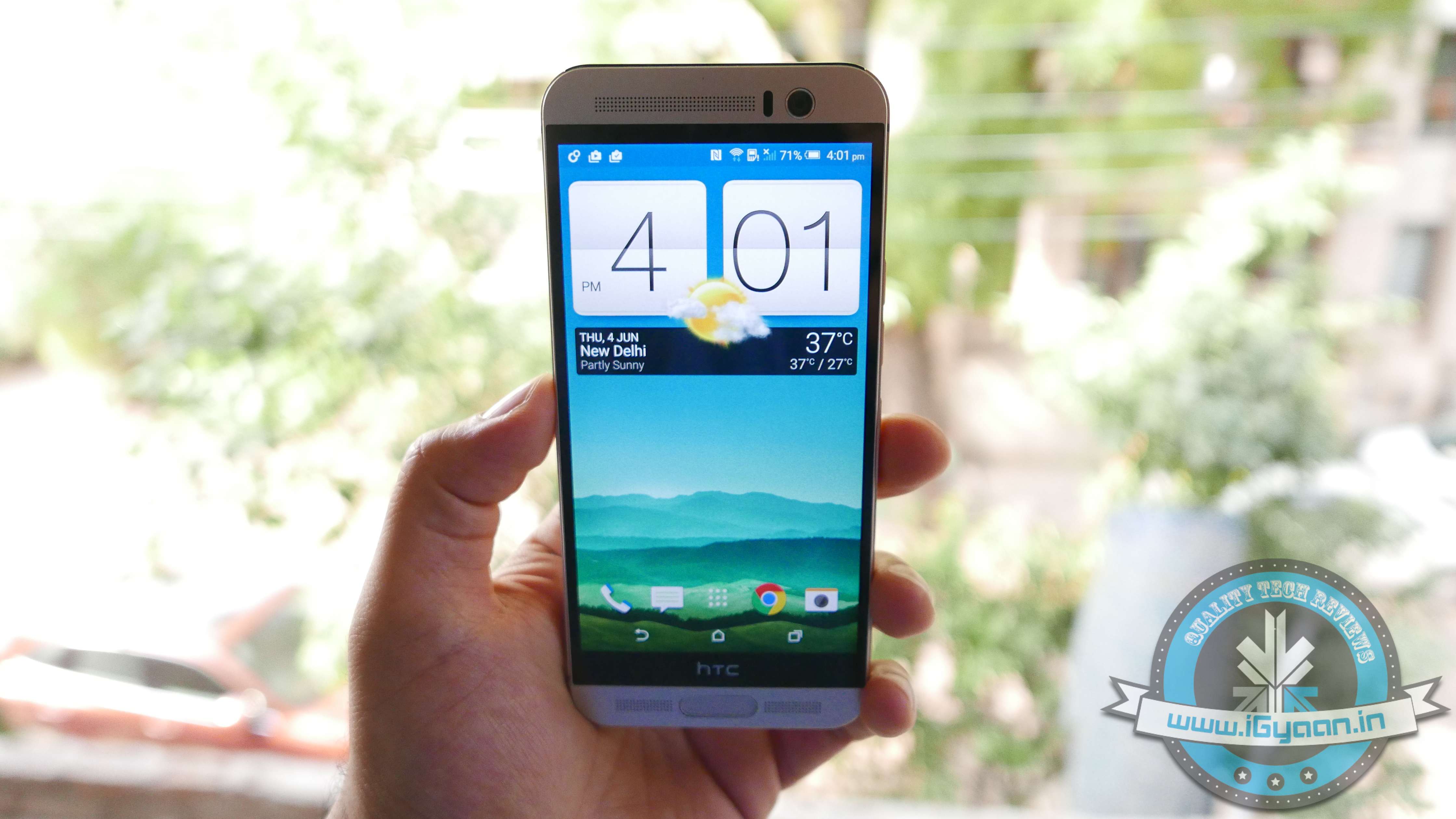
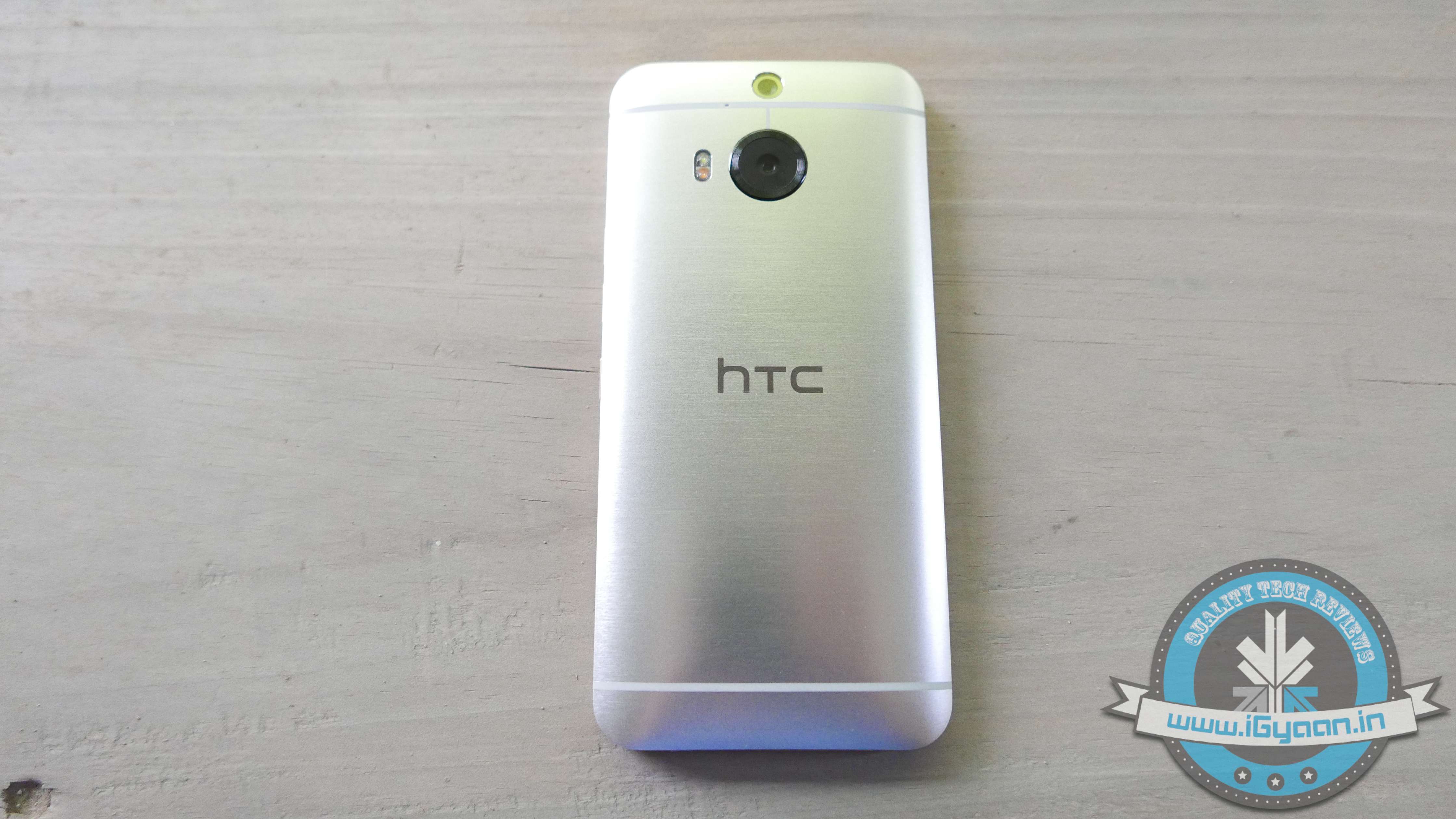
Since the launch of the One M9, the whole world has been conflicted on whether HTC did enough of an upgrade from the One M8 to the One M9. The HTC One M9+ made things more confusing for the buyers and eventually led to unhappiness all round. While the original HTC M9 was launched in the European and American markets, there was more demand in the Asian region and vice-versa with the M9+, which was launched in the Asian market, and had more takers in Europe.
HTC One M9 (Original ) Unboxing:
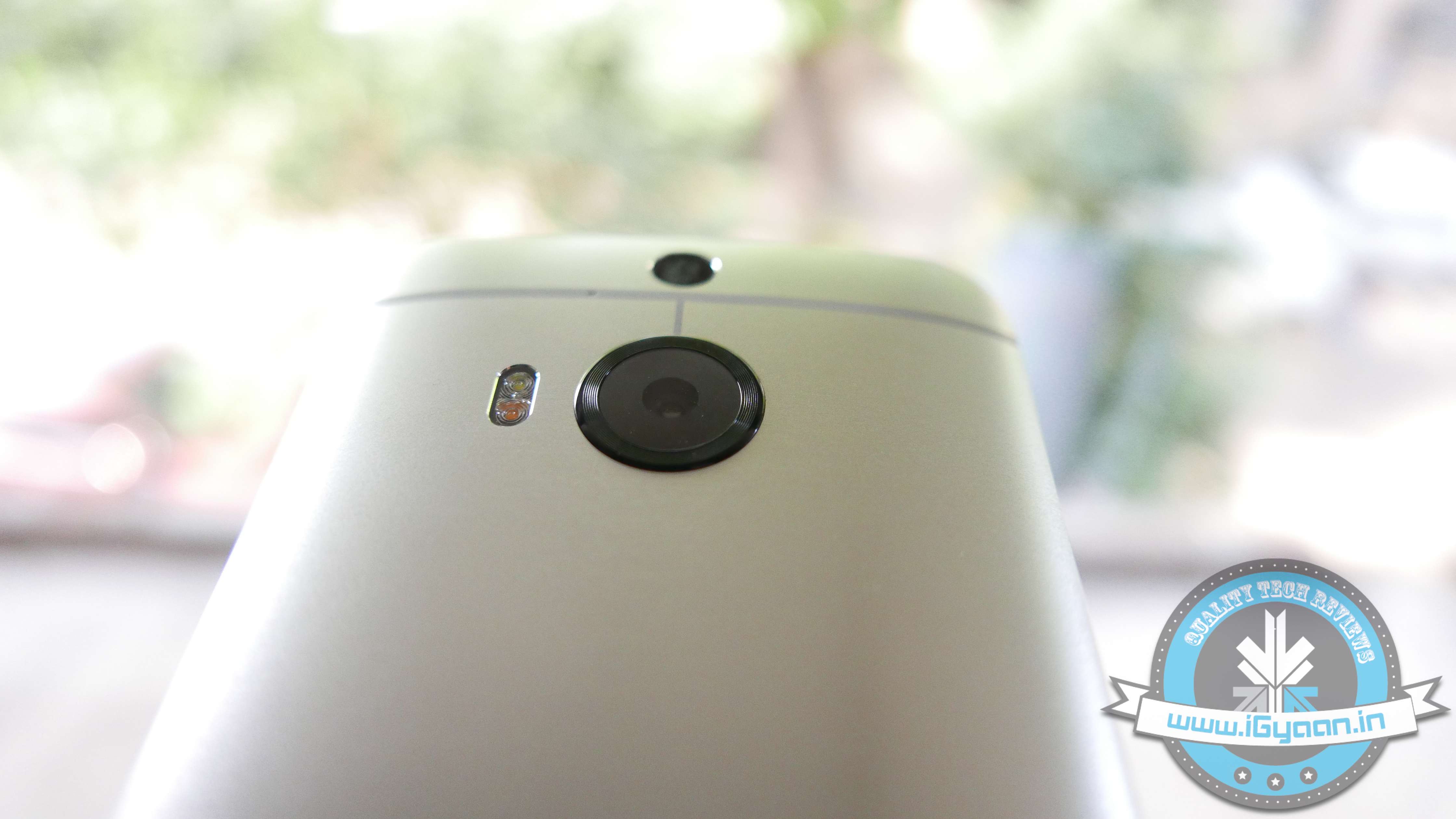
Apart from the name, there are quite a few differences between the One M9 and the One M9+. For starters you have a completely different chipset. While the global M9 is packing Qualcomm Snapdragon the M9+ packs a MediaTek MT6795T. The M9+ does have DUO cameras at the back, just like the M8. However a mix of 20MP+2MP vs the Ultrapixel combo on the M8 or the single 20MP on the M9 makes for better photographic options.
Another difference is the way HTC M9+ handles storage, allowing upto a 2 TB microSD to be inserted into the handset and used as storage.
Build Quality
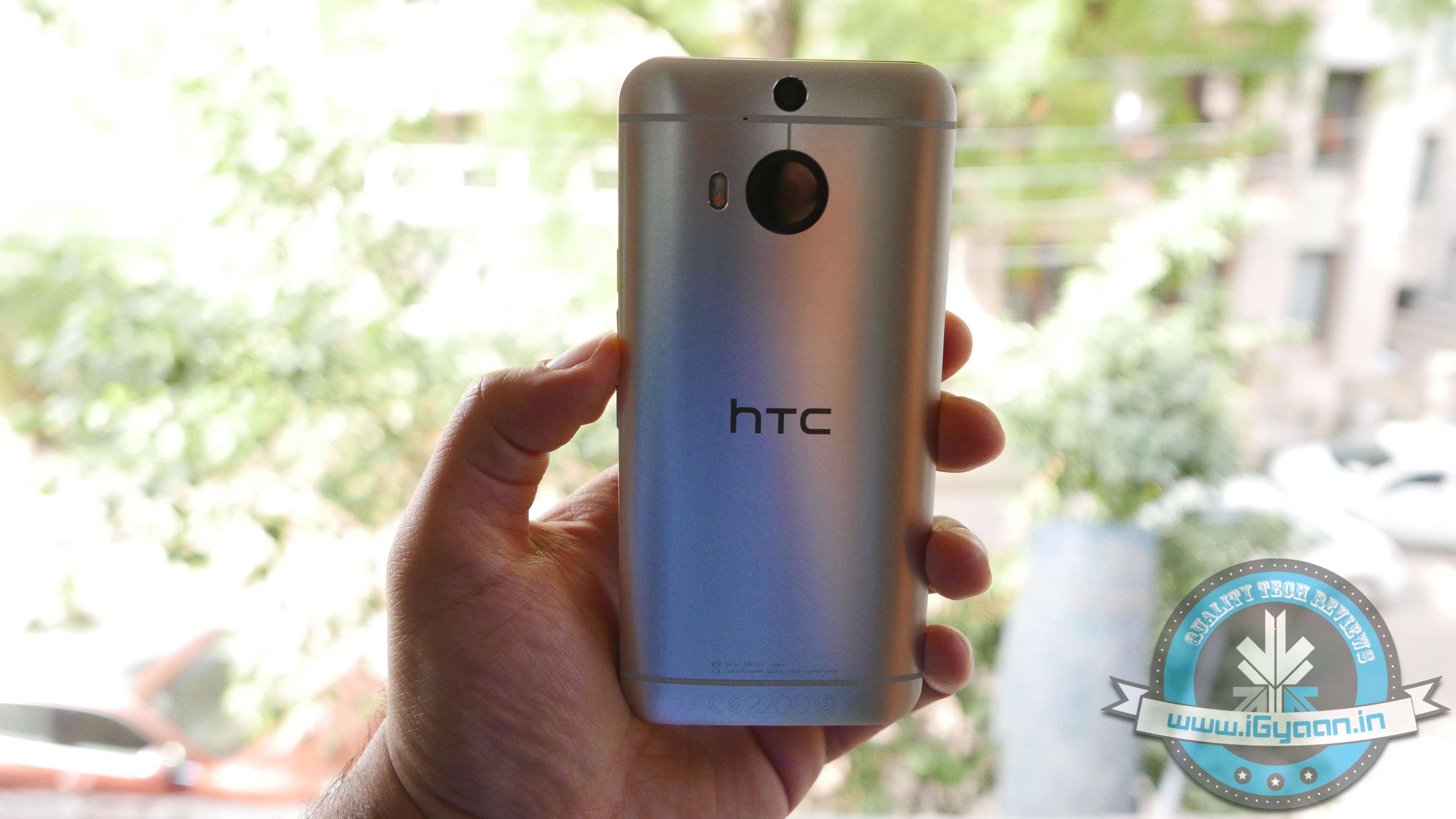
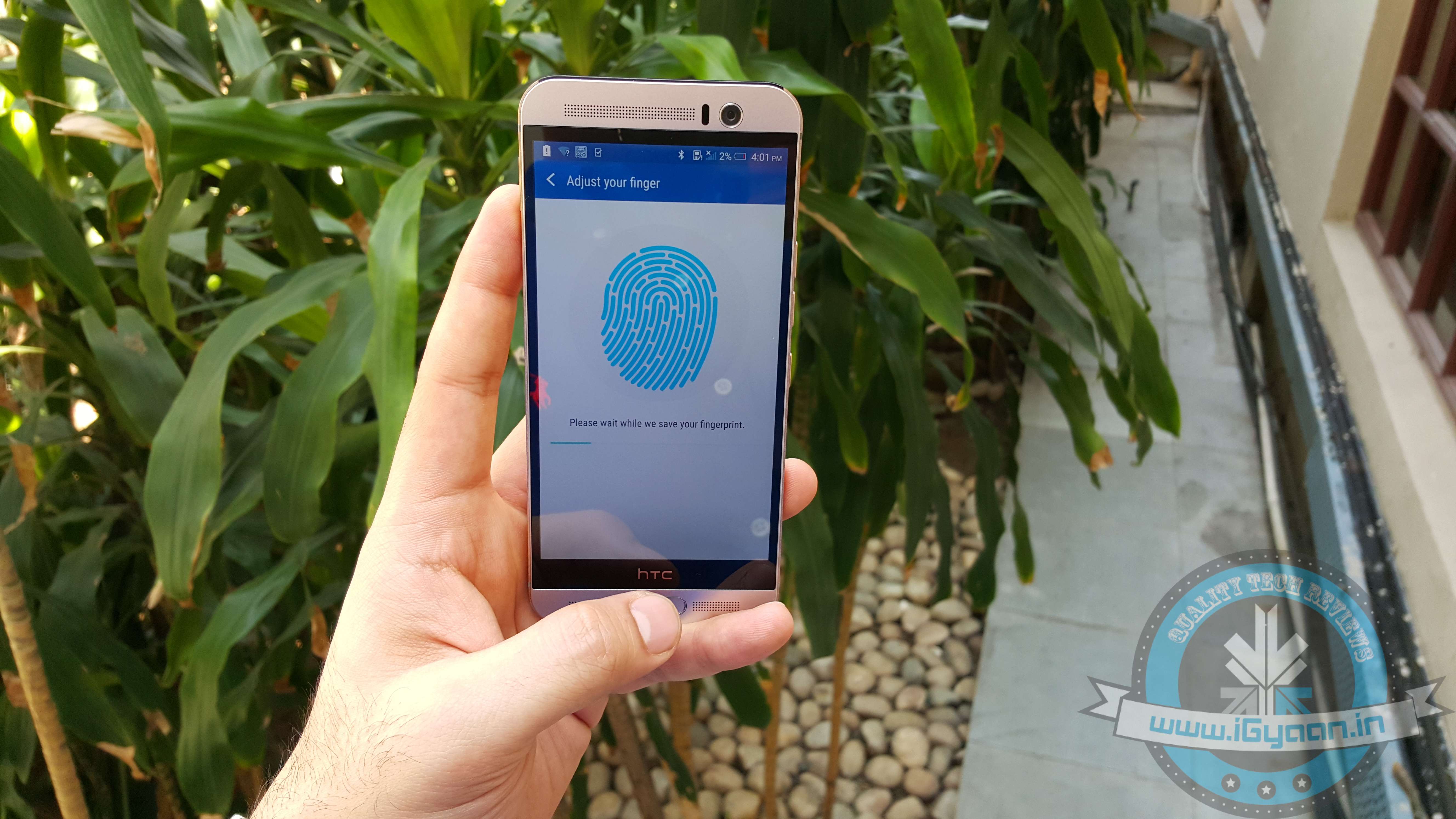
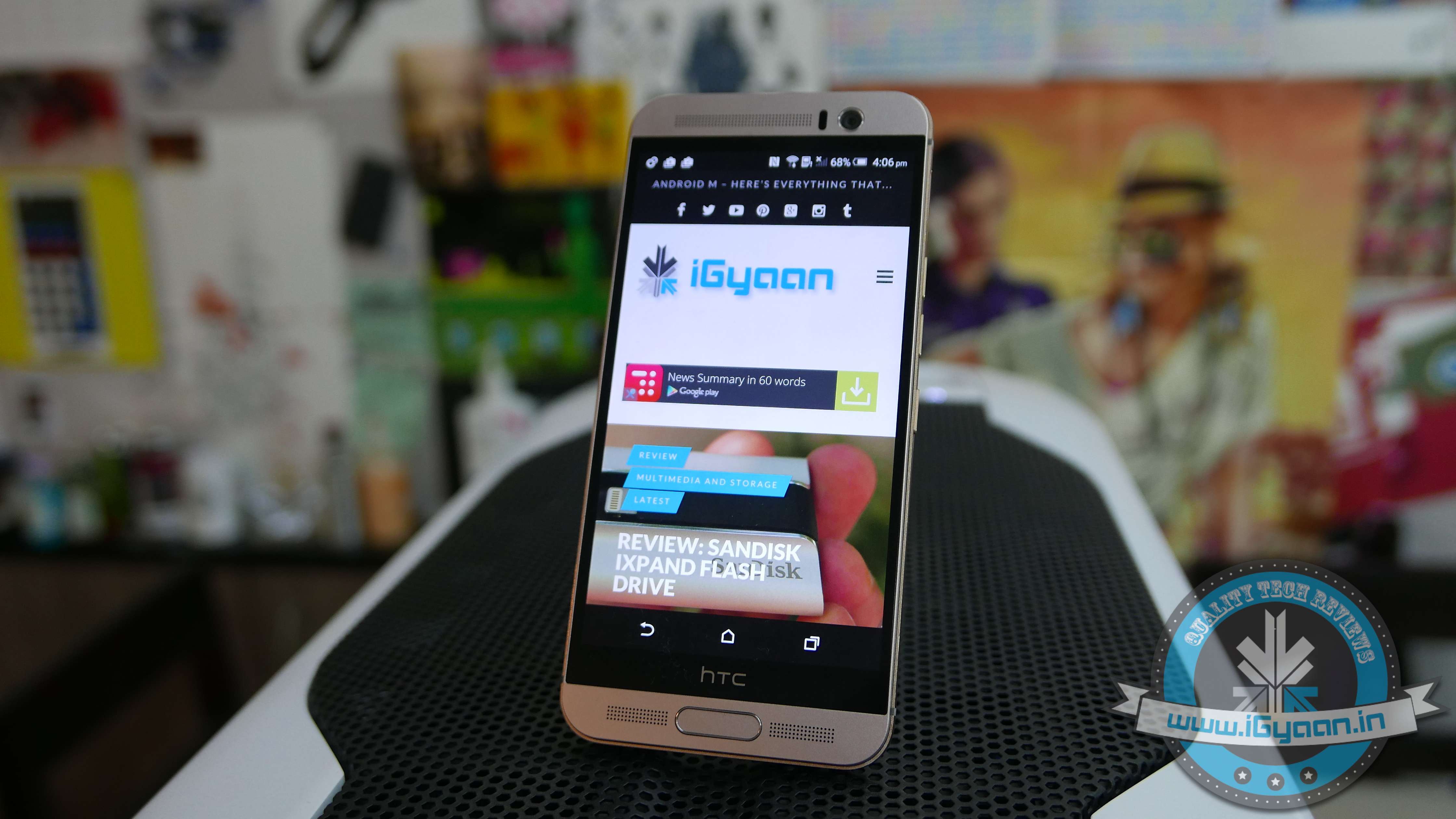
HTC keeps up to tradition with the new HTC M9+ and it’s quite identical in design with the HTC One M9. A brushed two-tone finish with the same all Aluminium back as seen earlier on the M9. The gold trim is easy on the eyes, and even though not everyone has shown a lot of appreciation towards it, the material trip is unique. The front has new-gen Gorilla Glass 4 and a centrally located fingerprint scanner, which may be confused for a main button.
Although, when the phone is unlocked an activated finger would allow you to jump back to the home screen. So it is touch button that looks like a real button with a fingerprint scanner embedded in it.
Hardware
Hardware wise the HTC One M9+ truly brings it to the table; great cameras, excellent display, ample storage and a large battery. However the Mediatek chipset was a real surprise to consumers and to us alike. This new chipset is actually much better than we anticipated, and puts the M9+ right back up in the flagship league.
The questions around the One M9+ are bang on. Is the Mediatek chipset a mistake? Should HTC have stuck with Qualcomm? Is the performance getting affected?
However the answers are even simpler. HTC found the new Mediatek MT6795T to be refined and powerful enough to power their flagship. We find it difficult to disagree. The processor does not tire, it’s efficient and highly performance driven and allows the user to truly take advantage of the handset.
Also, unlike the dual setup of the Qualcomm Snapdragon, the Mediatek chipset comes with an 8 Core CPU.
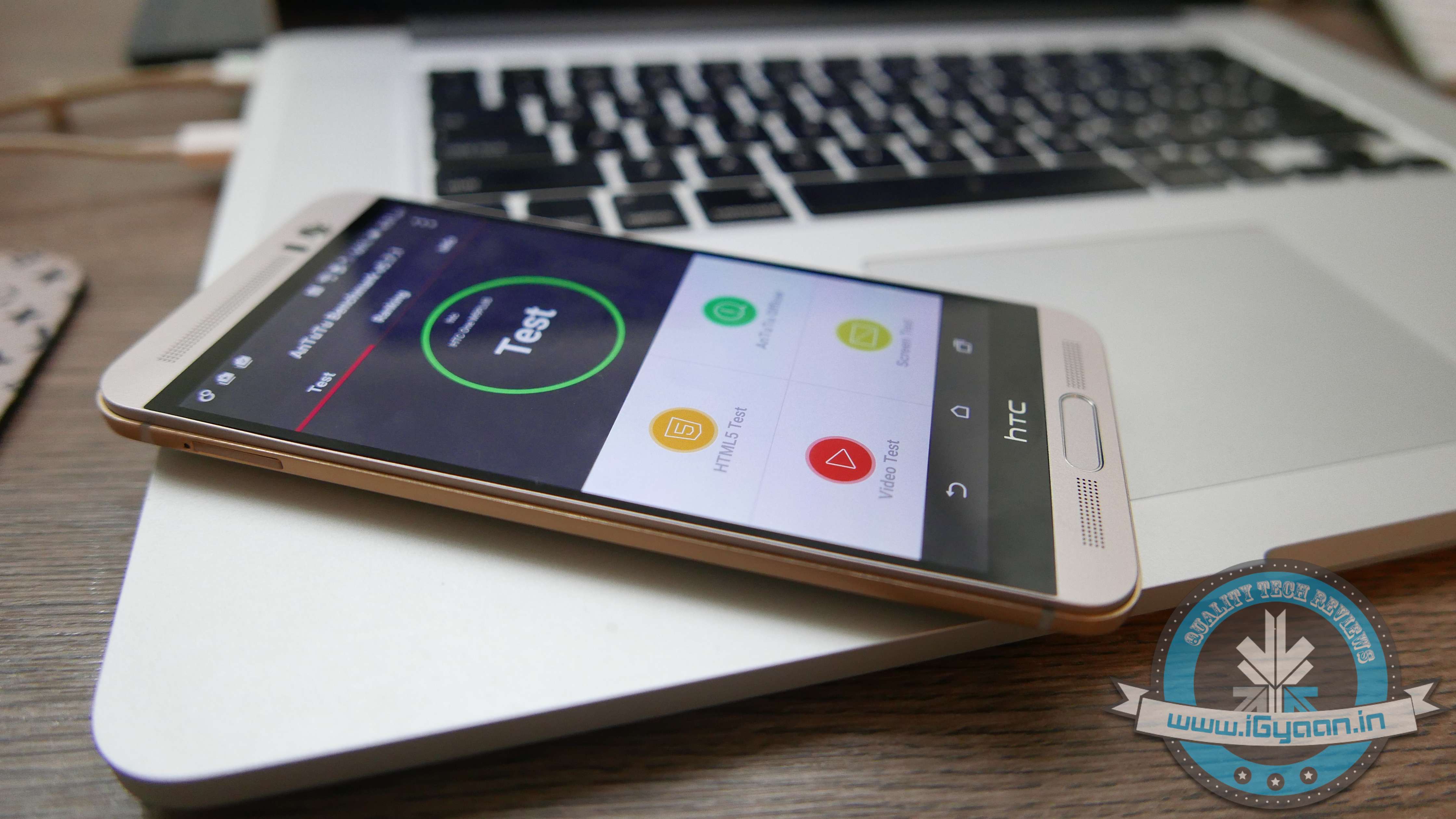
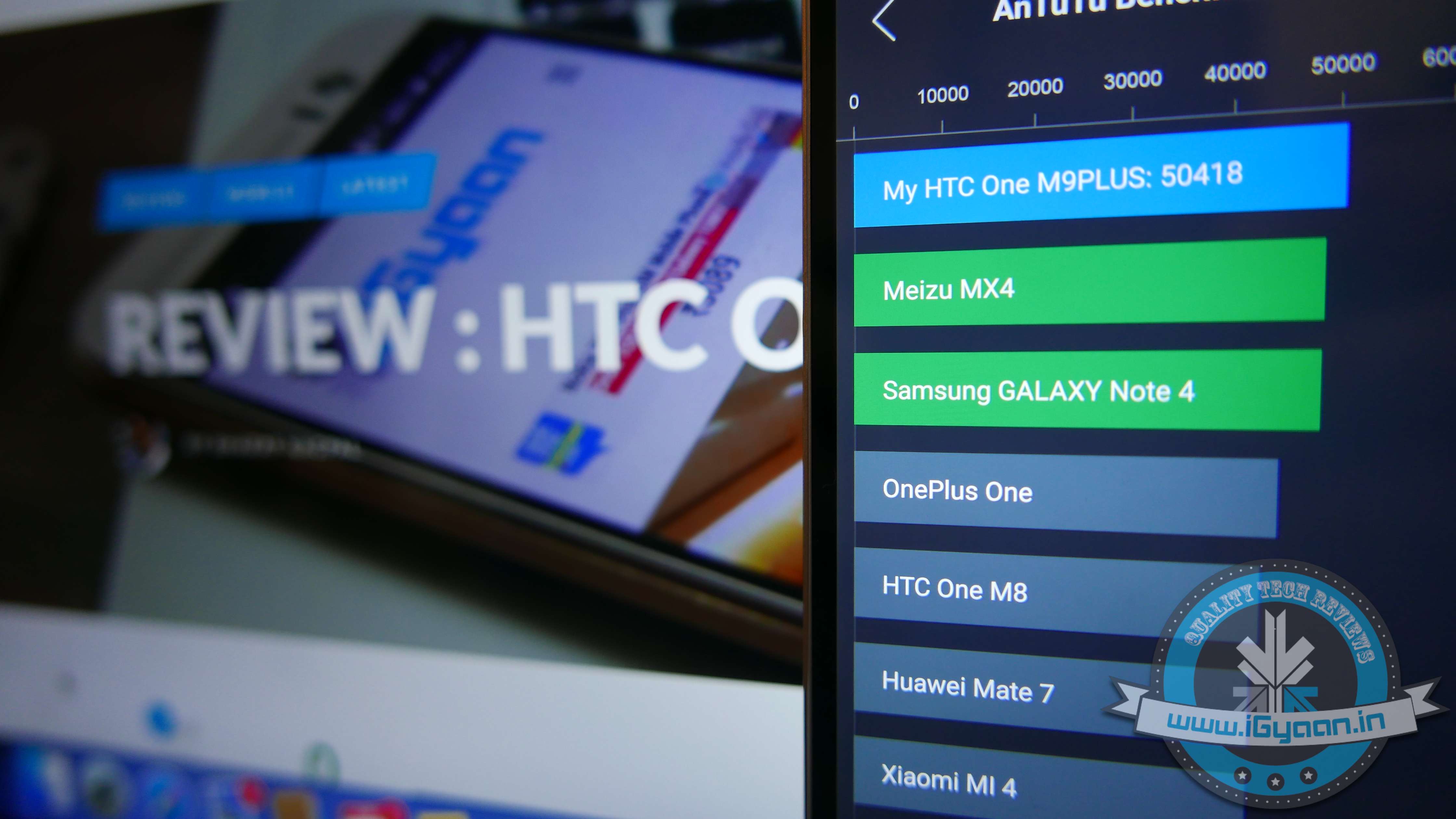
The HTC One M9+ scores positive results on benchmarks, with a happy 48000+ on AnTutTu 64 bit. The performance report pitches it against all market flagships and gaming performance is better than 85% of the other devices at hand.
Gaming is not a problem on the HTC One M9+, the chipset is quick at CPU calculations and load times are highly improved. GPU renders 2D and 3D graphics with easy and most games perform well at high graphics.
Display and Multimedia
It’s a pity that the original HTC One M9 didn’t get a high resolution display. A 2k display makes sense on a handset with over 5 inches to spare, and HTC has managed to get it all well within the sweet spot. As with most HTC displays in the past, this too gets a SLCD panel with Gorilla Glass 4 and great brightness indoors or outdoors.
Gorgeous 2K Display
Boomsound is much better on the M9+ when compared to the audio quality of the HTC One M8, larger speaker cavities improve the native sound and an enhanced audio chip improved audio from the headphones. The Boomsound speakers are possibly the industry’s best and they have seen significant improvement on the M9+.
Camera
HTC has also majorly overhauled their camera strategy. From saying “Megapixels don’t matter” to stuffing a 20 MP sensor in their latest flagship, HTC has truly gone with what the market wants. A wide f2.2 enables good low light shots, however, the Samsung Galaxy S6 takes the cake on low light with their f1.7 aperture lenses.
The images from the HTC One M9+ are sharp and the colours are well balanced. The contrast is good and the light compensation in low light is excellent. Native image stabilization is hugely missed on this handset.
The Camera app is a lot more simplified and easy to use. While certain things that came naturally on the HTC One M8 are now slightly difficult to operate, like the Dual-Camera capabilities. The addition sensor on the dual setup measures the field of view and allows the user to capture images with defined and adjustable depth. It’s mostly gimmicky, however in a perfect light and area setup, it works flawlessly. An idea example would be a landscape shot with a subject in the foreground. These type of shots will work best and will also allow customisations using HTC’s inbuilt features.
Duo Camera 20 MP + 2 MP
ZOE, now independent of the camera app on HTC devices, is more of a cross platform photo sharing app. Important filters and features make it fun to use and allow the user to experiment a lot more with the camera on the HTC One M9+.
Front Ultrapixel Camera
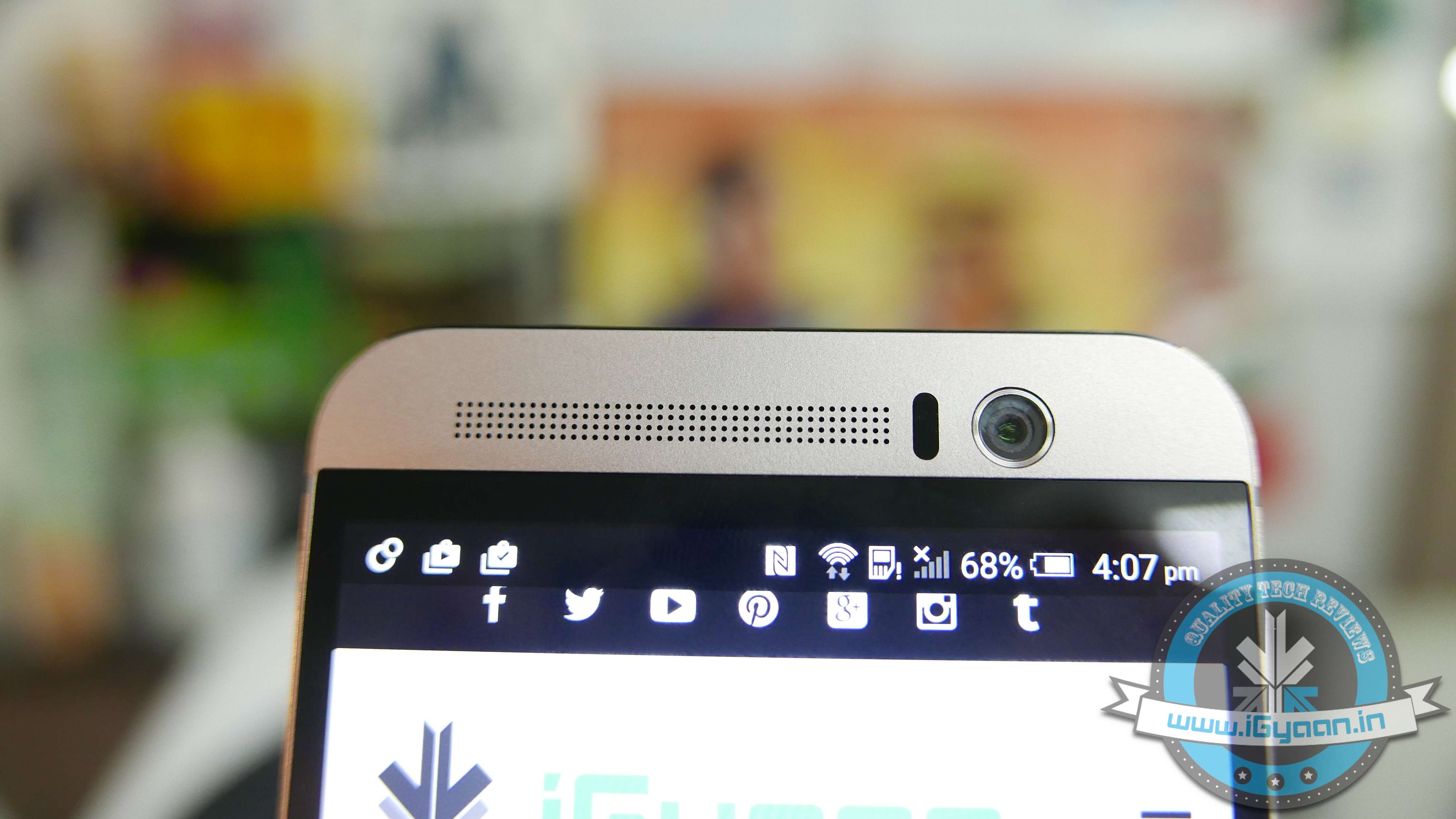
The front camera is an Ultrapixel camera from HTC, the same sensor we saw on the back of the M7 and the M8 last year. This drastically improves the front facing camera’s quality as well as low light capabilities.
OS and Blinkfeed
One of the best things HTC has done on the M9 and the M9+ is reduce their control of the Android OS space. The new HTC Sense 7 is a lightweight skin vs what it used to be in the past. Less customisations by HTC also mean that Android Lollipop and Android M (in the future) get to display their full glory.
If you do miss customizations, like HTC’s flip clock, they are now included in the widgets section and are just a simple long tap away. You also, still get themes which you can further customize, by changing colours, images and layouts.
Blinkfeed has also upped its game, with a faster re-hash of feeds and a better layout. The higher resolution display of the M9+ helps in highlighting the content.
The OS and the UI elements are highly optimized, this helps improve productivity and reduce battery consumption.
Phone Network & Battery
The HTC One M9+ supports LTE networks as well as all bands in India. It has a fantastic antenna and excellent voice quality, something that has become synonymous with HTC in the past. No dropped calls and hit network in places with poor reception, are great things to have.The reduced search for strong network also improves battery life on the handset.
Both the speaker and microphone are loud and responsive, allowing parties on both sides to communicate effectively.
The 2840 mAh battery is more than sufficient in getting through the day and then some. The chipset along with the optimizations on the software front make the battery-drain end up on the lower side of the spectrum. The battery life could have been better and things like fast charge are missing from the mix, we honestly don’t mind.
Type
WiFi
Cellular
Talk Time
N/A
6 Hours
Standby
150 Hours
48 Hours
Music
12 Hours
10 Hours
Internet
5 Hours
5 Hours
Video and Gaming
4-5 Hours
4 Hours
Conclusion
With the One M9+, HTC has put all its cards on the table. Their experiment with a relatively newer chipset manufacturer may have paid off well. Consumers in Europe are craving the One M9+ while being served the One M9, and there is good reason for that. The M9+ turns out to be a much better handset than many already in the market, it also is a much better handset than the company’s own M9. Excellent build quality, great design and aesthetics, premium materials, great hardware and excellent cameras make the HTC One M9+ a better device. The camera improvements will satisfy those that missed it last year, and the OS improvements will really push the envelope on making the One M9+ ownership worthy.
The One M9 was a huge disappointment, failing to play catch up with what was happening in the industry. However, with the new M9+, HTC not only caught up, they set precedent.
Everyone needs a reliable WiFi connection today. Almost all our devices are WiFi enabled, and the Internet is a crucial part of our lives too. We stream radio, music and videos from any corner of our house and connect multiple devices thanks to the wireless technology. Although it is one of the most important part of our lives now; slow speed, bad receptions and other negative WiFi issues are very frustrating.
Here are some common ways to boost your WiFi signal:
The Perfect Spot for your Router
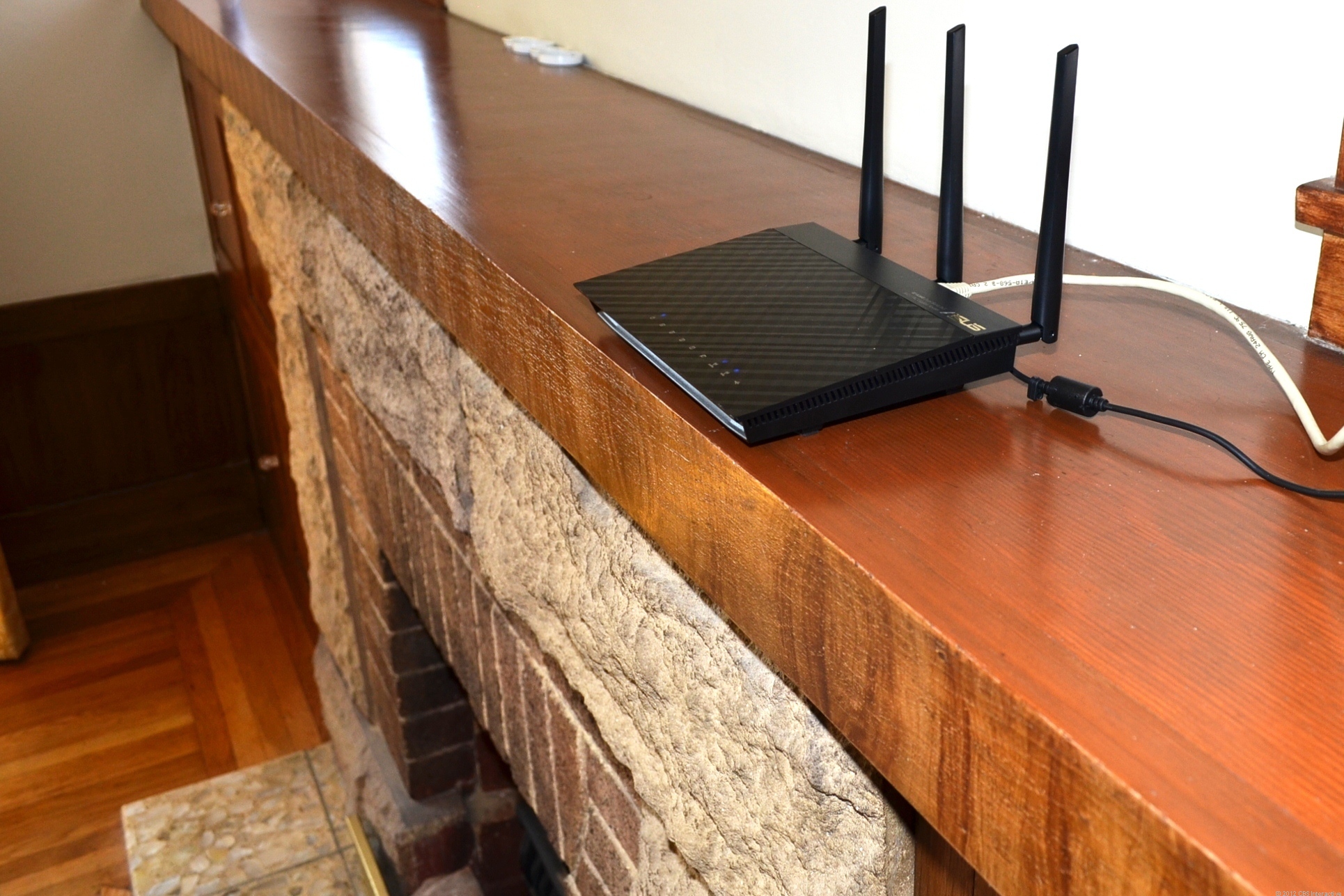
Just because the router looks dirty or outdated does not mean you hide it behind the desk or dressing table. In order to get the best signal, it must be put in a place that has minimum obstruction and is free of any walls. For example, the best place would be the living room because of the huge area. An elevated area would prove to be an advantage too.
Switching the Channel
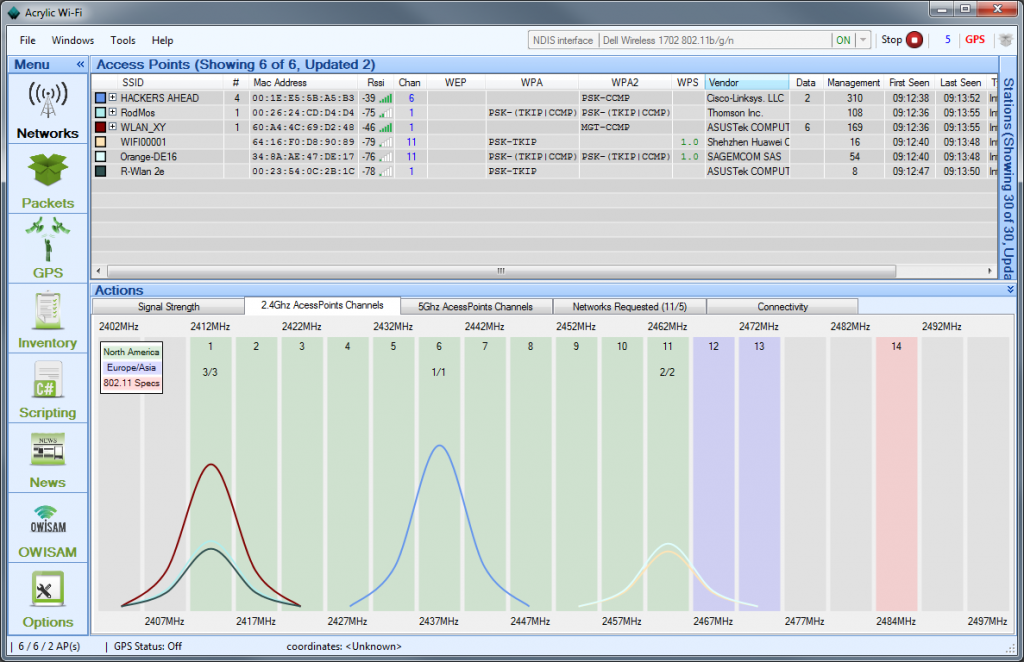
Neighbouring WiFi signals tend to interfere with your own WiFi signals, thus leading to the degrading of the network. WiFi routers operate on different channels, and you would want to adjust your channel on to the one with minimum interference. The most common channels for wireless networking are channel 1,6 and 11.
The more, the merrier
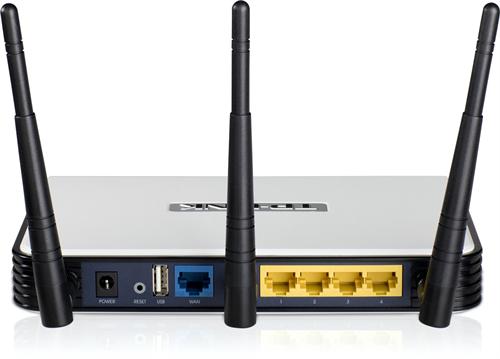
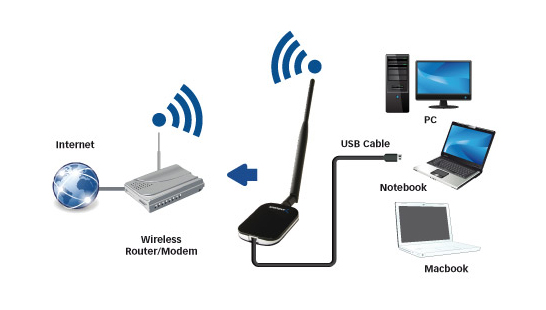
Most WiFi routers come with two fixed antennas, which are obviously not strong enough to send signals to the distant corners of the house. Adding a booster antenna can solve this problem. With three antennas in place, it comfortably covers large areas, throughout entire homes or offices.
Avoid Interfering Devices
Devices like cell phones, cordless phones, microwaves can often interfere with your signal. Suggestions would be to move the router as far as you can from the interfering appliances.
For example, a microwave operates at the same frequency as one of the WiFi access points, thus reducing efficiency and capacity of your access by 50%.
Install a Wireless Repeater or Booster
Attaching a wireless Booster will boost the strength of your wireless network. But, if you need to boost the range too, connect a wireless Repeater. These devices allow you to communicate with specific SSID or repeat the signal with the same or a different name, thus providing enhanced coverage and strength, without having an Ethernet cable to connect to the access points. The greatest benefit is it works like an extended signal provider, without requiring additional wiring. Both attachments are very cheap in cost.
Yu Televentures recently launched its latest budget offering the Yuphoria, at a mere Rs. 6,999. According to our review, the YU Yuphoria may be a budget handset, but its build quality and design feels like a lot more. The phone has a fantastic construction for its price, an all-metal frame, made from stamped parts, which have been laser welded into place. The edges give the phone a lot of rigidity and strength, which in turn gives a reassuring feeling to the holder. The back has a soft touch rubberized back panel, which is not prone to fingerprints.
That was our initial feedback of the device. Now we decided to really test the sturdiness of the phone. What better way to do that than to have the phone take a drop test?
If you’re one of the lucky few who get to escape the country’s blistering summer, we’ve got some handy tips for you. We’re here to tell you how to utilise what technology has to offer to ensure you have a safe, fun, and stress-free vacation.
First things first, figure out the best way to get an affordable data connection on your phone, in the countries you’re visiting. There are several companies (Lyca, Matrix) that provide you with international calling cards, even before you leave the country.
So, let’s get started.
Pack Up!
The excitement of the journey begins when you start deciding the stuff you’re going to be carrying with you. If you’re willing to spend a minimal amount on an app, we’d recommend Packing Pro (iOS). Just like its name suggests, it helps you pack like a pro. You can make customised to-do lists, but the best part about this app would be the ‘Expert List’ assistant. This has already got packing lists ready depending on if you’re a male/female, if you’re going camping or if you’re stepping out for a short business trip. The app is intuitive and customisable, and in our opinion, worth every rupee spent.
How to Fill the Language Gap
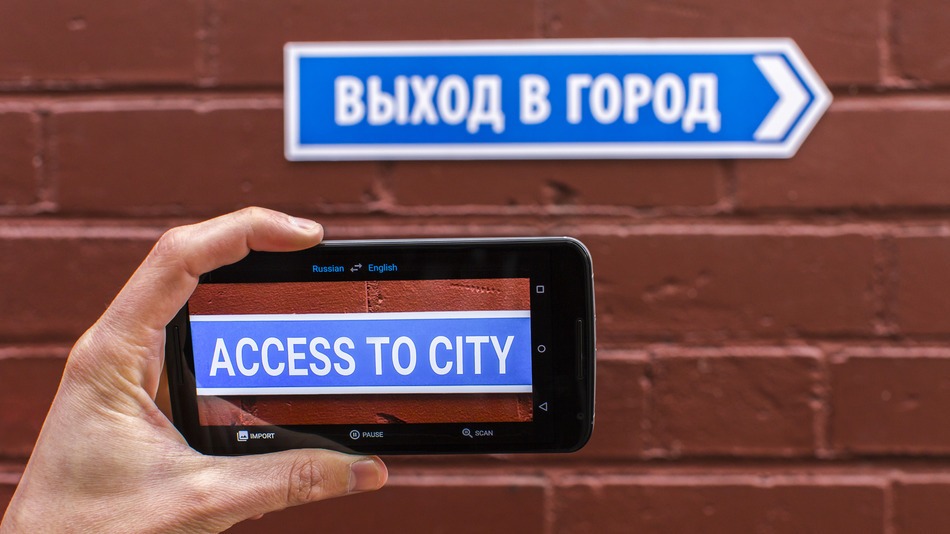
A recent update to the Google Translate app, integrated a World Lens tool. Word Lens uses the smartphone’s camera to scan scenes, identify writing and then display it as if it were written in English. You can hover your device in front of menus, road signs, and more, and see the translated text overlaid on the screen immediately without any internet connection. Pretty neat, right? A super useful feature when you’re jet-setting across the world and trying to make your way through foreign cities, where English isn’t the first or second language.
TripLingo, on the other hand, gives you some of the commonly used phrases in a particular language. Believe us when we say this, you’d want to memorise how to say “Where is the Bathroom?” in Mandarin, before you land in China. This app also gives you a crash course in local customs and etiquette.
Both Google Translate and TripLingo, are available for free on the Play Store.
Make Some Lists
To prepare for a trip abroad, the first thing any travel magazine will recommend is that you make a list. A list of things to pack, a list of places you’d want to visit and even a list of things you want to buy. If you’re flying solo, the Notes app provided on your smartphone would suffice. However, in case you’re travelling in a group, ask everyone to download a single note-taking app. Go for Slack or Evernote. You can make a checklist and multiple people can contribute and edit the list while on the go. While these apps may be designed for businesses, they serve the purpose just as well.
Both Slack and Evernote are available for free on the Google Play Store.
How to Make Sure You Never Get Lost
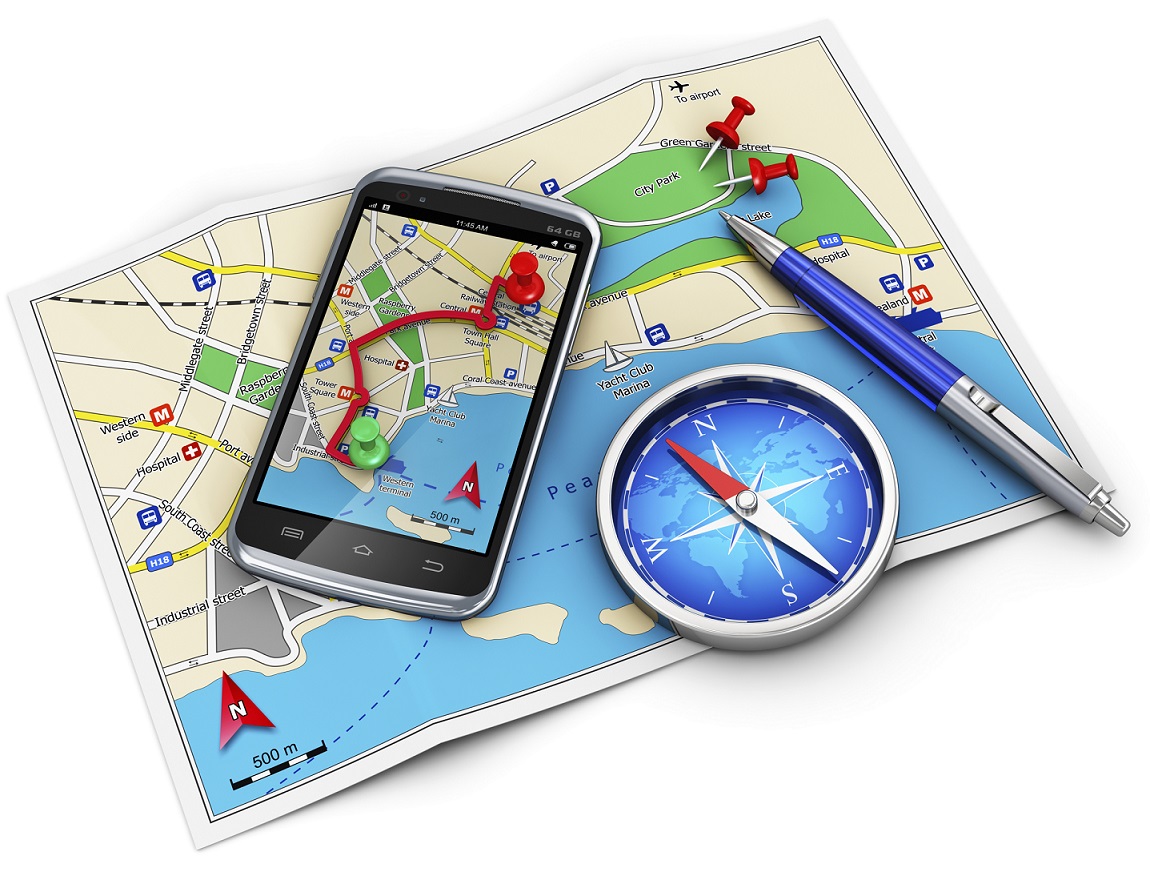
Other than Google Maps, there are a slew of apps available to help you navigate your way through an unknown city. From the bunch, we would recommend City Mapper and Moovit. The two help you make your way around a city’s public transport system. Just add your destination and it will tell you how to get there. Other than route-navigation, it gives you step-by-step instructions which include local modes of travel (ferry timings, cycle pick-up, etc.) The highlight about the apps is the fact that they provide real-time updates. For example, if the bus you’re waiting for is held up in traffic, it will tell you exactly how much longer you would have to wait for.
Google Maps, City Mapper and Moovit, are available for free on the Play Store.
So, What do Locals Do Around Here?
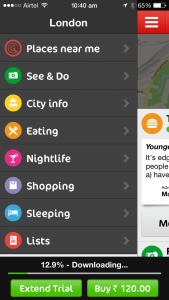
The traditional way to find out the hidden gems of a city, would be to try and strike a conversation with a local resident of the town you’re visiting. We now have an app which will help you with this, and much more. Available in more than 40 cities worldwide, Like a Local gives you genuine reviews about the local restaurants and markets to check out. The app promises that their recommendations have been curated solely by local editors. If you hate being a tourist in a foreign city, this one’s for you.
Like a Local Offline CityGuide is available for free on the Google Play Store. If you’re still contemplating where to head to this summer, you can click here for inspiration.
In developing times like now, we live under the constant threat of computer viruses and malware that reach your system through emails or any external devices like a pen drive. We have multiple Anti-Virus programs available and it is critical to keep updating them. But the key to a virus-free environment is beyond using an anti-virus program. Safe computing practices and policies should be used to safeguard your PC from such threats.
Let’s take a look at some user friendly, yet efficient methods of dealing with viruses, other than using Anti-Virus programs:
Do not open suspicious email attachments
Most of the infected emails are filtered in the SPAM Folder
It is wise not to open any unknown email with an attachment unless you are expecting them. Most of the viruses and links to phishing websites come through emails. To know whether the mail contains a virus or not, you can follow the steps below:
Always check the sender’s address. If the address is known to you, it is safe to open the mail. But if the address is unknown, we would recommend caution before clicking on the mail.
Check the subject line. If the subject line shows some random sentences asking you to open the mail, Do Not click on it. Some viruses are capable of mimic, or spoof, legitimate email addresses.
Keeping your computer updated
Keeping your computer updated helps to lower down incoming viruses from external sources. It is because across different Operating Systems, various security updates are released, thus helping in protecting your computer.
Using a Firewall
Pictorial representation of how a Firewall works
Use of Firewall does not entirely eliminate the threat of Viruses, but it helps in alerting you if a virus or worm attempts to connect to your computer. It can also block hackers from downloading potentially harmful files to your computer.
Disabling the Auto-Play Option
Many viruses attach themselves to a drive and start installing automatically when the media is connected to a computer. As a result, connecting any external hard disk or external data can lead to automatic propagation of such threats. Hence, disable Autoplay.
Lastly, Surf Safe
Many anti-malware programs include browser plug-ins that help avoid virus infections and internet phishing. These plug-ins should always be utilized with regular web browsing. Personal data and sensitive information should never be entered on any web page that has arrived independently. They should instead open a web browser, enter the address of the page they need to reach, and enter their information instead of clicking on a hyperlink and assuming the link has directed them to the proper URL. Hyperlinks contained within an e-mail message often redirect users to fraudulent, fake, or unauthorized websites. By entering web addresses manually, users can help ensure that they arrive at the actual page they intend.
Although the above methods should be carried out on a daily basis, the only fool-proof savior is a good Anti-Virus program, like Avast! to name one. Many computers receive free anti-virus programs, but these are not enough to provide sufficient protection against the ever-growing list of threats. We need to stay updated with ever-growing technology. Browse safe!
At the I/O 2015 conference, Google announced the next version of Android. The company detailed some interesting features that will be available on Android devices later this year. With Android M, they have focused on improving the system’s overall quality and fixing the bugs found on Lollipop. While Google SVP Sundar Pichai’s speech seemed impressive, we wanted to see for ourselves what the fuss was all about.
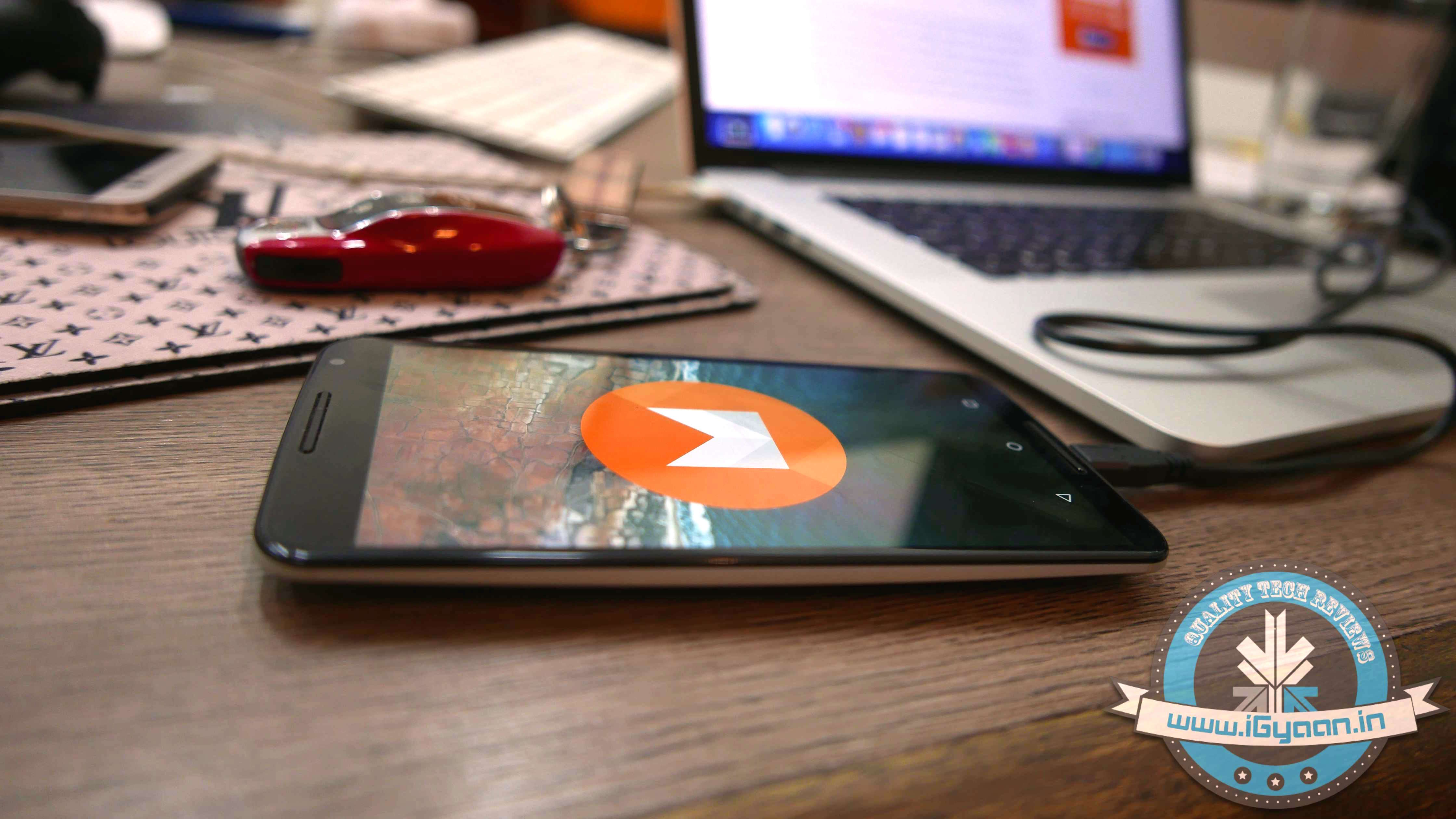
We installed Google’s Android M developer preview on our Nexus 6 and decided to share the step-by-step procedure.
Disclaimer:
Before you decide to install Android M on your device, consider the fact that it will wipe the smartphone’s memory entirely.
The developer preview also contains several bugs and may be unstable.
We wouldn’t recommend installing the OS on the Nexus device you use on an everyday basis. Some of the major applications are having trouble loading on Android M.
The Developer Preview is only out for Nexus 5, Nexus 6, Nexus 9 and Nexus Player.
Preparation
Back-up your Nexus Device.
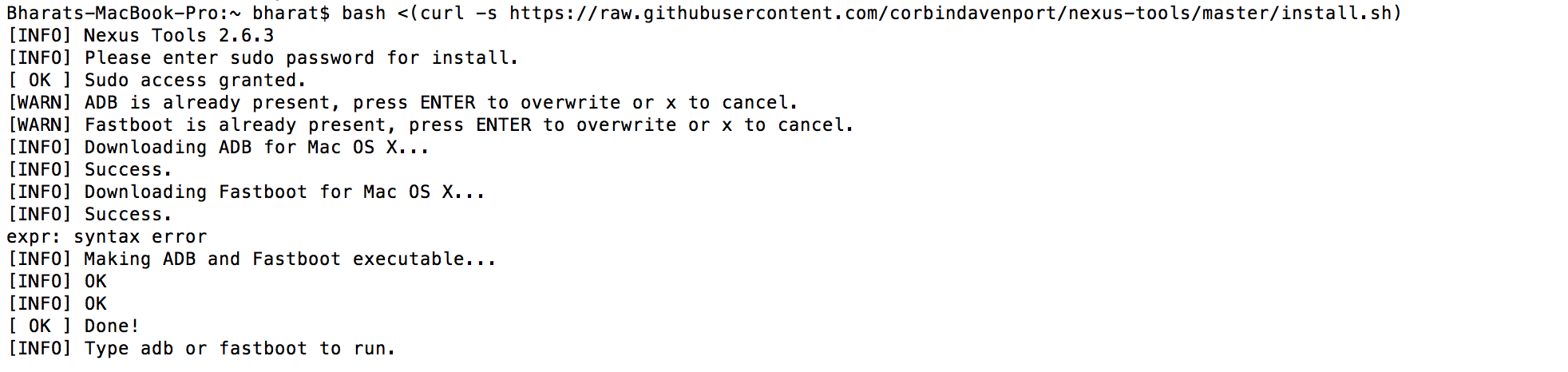
To make this quick and easy, before you begin, make sure you have ADB and fastboot installed on your computer. The easiest way to install ADB on your machine is by inserting the following command on your Command Line/Terminal:
bash <(curl -s https://raw.githubusercontent.com/corbindavenport/nexus-tools/master/install.sh)
Download the factory images for your device here. Unzip and save them on a file on your desktop.
Method
Now to begin, enable your device’s debugging mode and connect it to your computer via a USB cable.
Open an ADB command line and enter ‘adb reboot boot loader’
Open the folder containing your factory images.
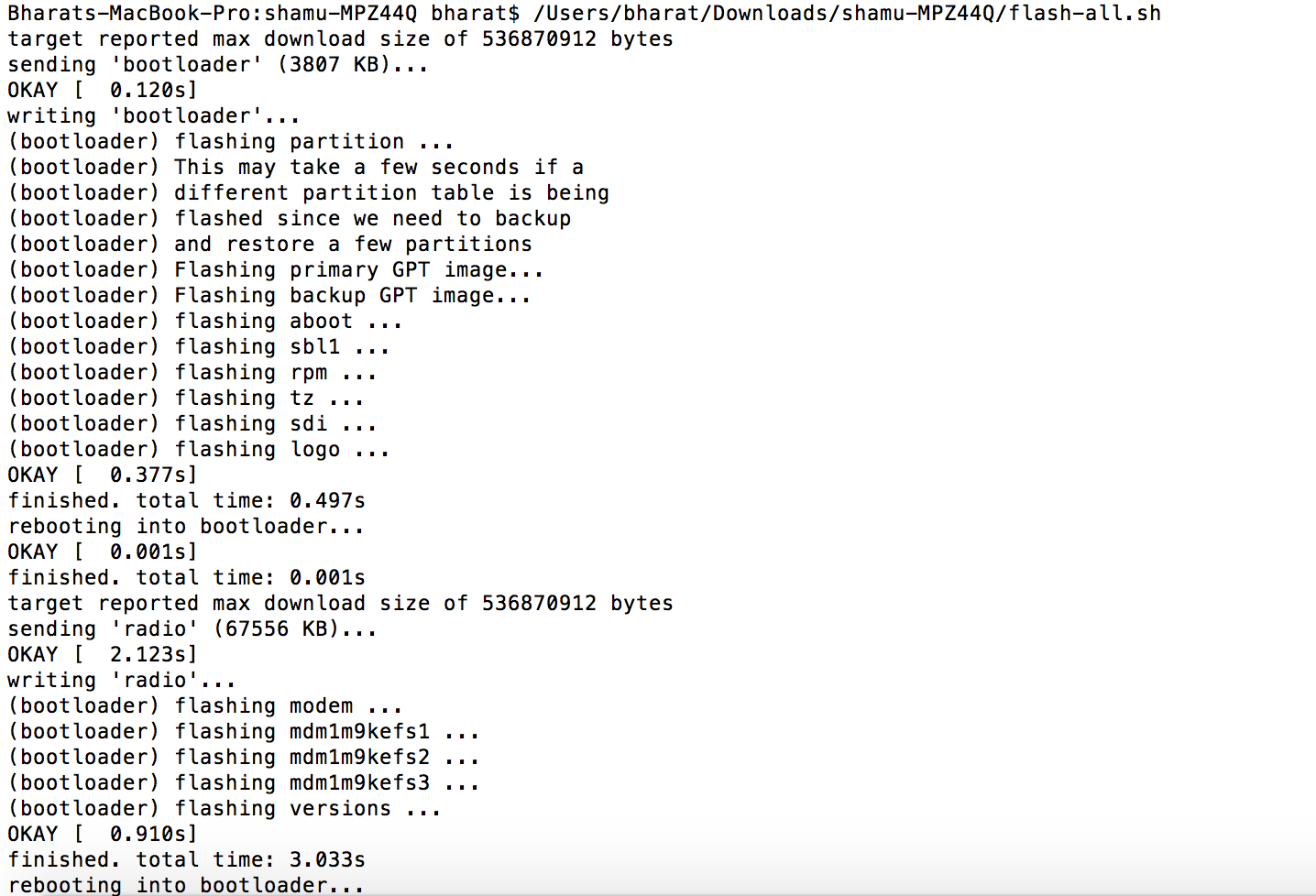
Now on the ADB command line, enter ‘flash-all’ to run the installation. This is the final step and it will initiate the process, as seen below:
You will now have to wait till it gets installed. It took us approximately 5 minutes.
Now you can enjoy fiddling around. To read more about Android M, click here.
Despite all the announcements made at Google I/O for the new Android M OS , Google left out a set of updates that may be slightly more crucial to some people. With the developer preview of Android M now available to those with Nexus devices, some of the new features we saw are interesting.
However, one big thing that will affect every Android phone buyer in India is the new handling of microSD storage. With Android M, all new handsets will have the ability to turn microSD card storage into system memory. This is a very big deal, especially because it will make buying a larger capacity smartphone redundant. Companies often charge premiums for higher capacity variants of the same hardware, differentiating them only on the inbuilt storage.
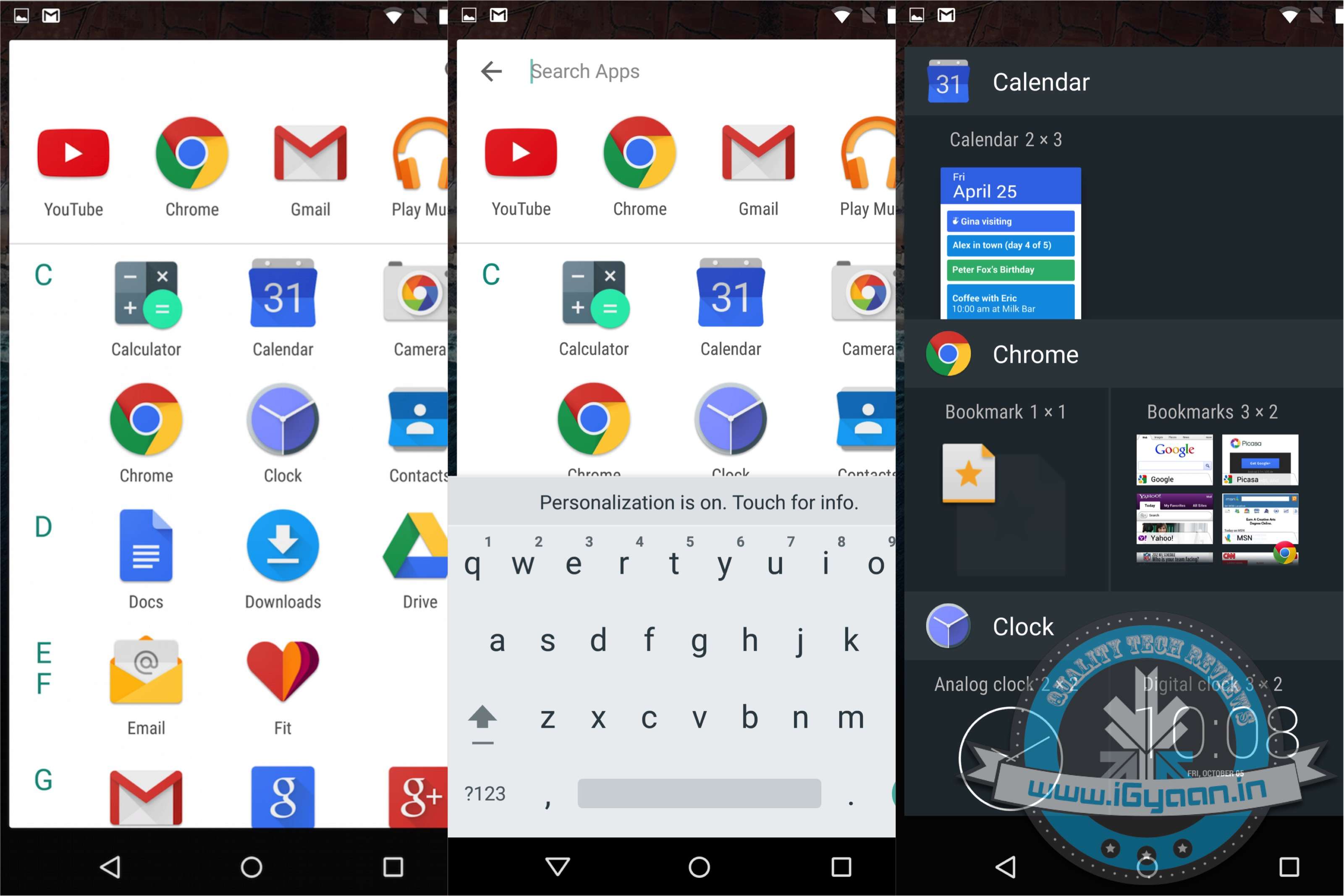
Google Now Launcher
Sources tell us that Samsung intentionally left out microSD card storage from the Galaxy S6 and S6 Edge to earn premiums on higher capacities. They also did this because they were aware of this feature being launched in the next update of Google’s Android operating system. If Samsung had given the ability to install a microSD on the Galaxy S6 and S6 Edge, after the launch of Android M and Samsung’s update, it would have meant either lower earnings on the higher storage variants or a halt in sale all together as people would get the cheapest and then install a microSD.
Here are the other hidden features of Android M:
Uninstall apps using the Google Now Launcher. Long tap any app and drag up and right.
Head over to Settings > Device > Apps > Advanced > Memory to visit the RAM Manager. This feature lets you seethe performance of each App on your device per the RAM available on the handset. This nifty feature also allows you to kill Apps that consume too much memory.
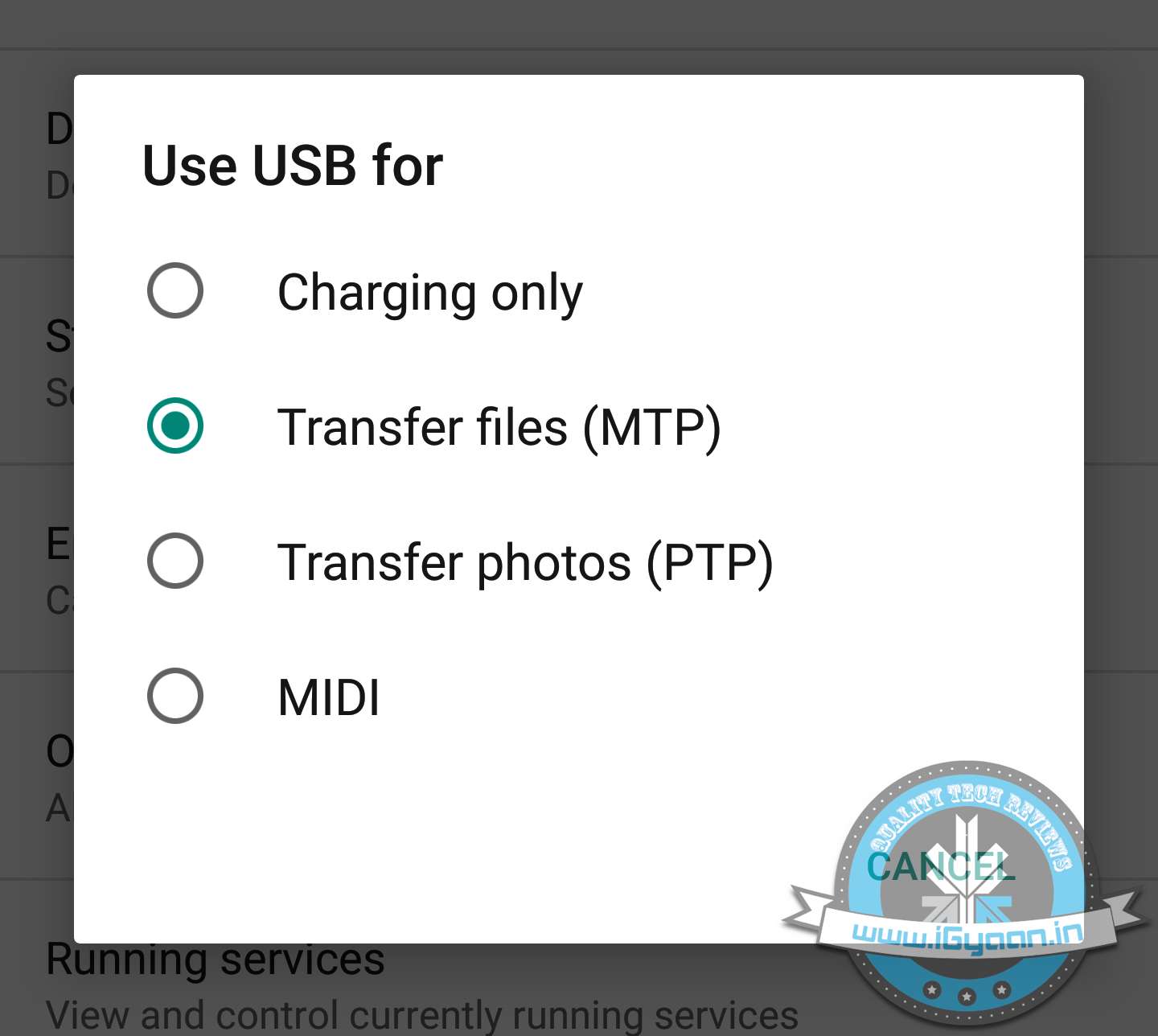
Support for MIDI devices: a feature that budding musicians have had on the iOS devices for a while now comes to Android and will allow you to attach Keyboards and DJ decks that support MIDI connections.
USB OTG is also standard, and all devices with Android M will support USB OTG. This mixed with the new microSD management will essentially end the high price variant devices.
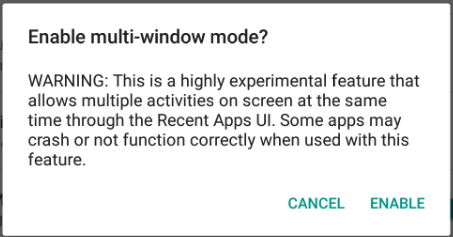
Multi-window support can also be enabled by going through a slightly back end process.
Hotspot 2.0 allows you to create Wireless Hotspots on both the 2.4 GHz and 5 GHz bands.
Swiping from the bottom left to right on the Lock Screen will now launch Google Now Voice search vs the dialer in Android Lollipop.
The new Doze feature is highly customisable and can be turned on or off on a per app basis. Allowing you to save battery on the usage of apps you do not need in the background.
Do you think you’re taking full advantage of using one of the best computer systems in the world? Apple has hidden a few interesting hacks on your Apple MacBook, which are worth taking note of.
Here’s a list of 5 fun things you could do with your MacBook:
1. Have Your Emails Read to You, in an English Accent
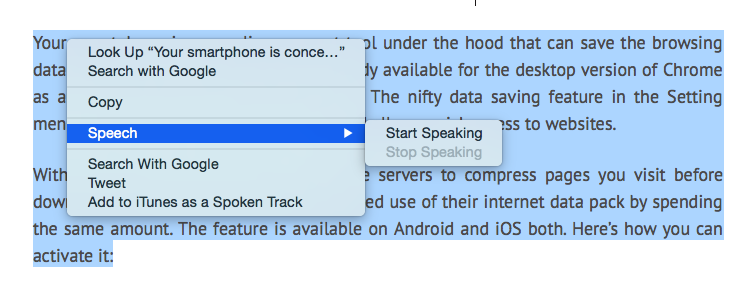
Not only is it super simple to get your Mac to read out text for you, you can even pick and choose the voice/accent you like. To have text read out to you, highlight the text, right click and pick the ‘Speech’ option, followed by ‘Start Speaking’. To change the voice, visit ‘Diction and Speech’ in System Preferences. Since we’re partial towards English accents, we like ‘Daniel’ from United Kingdom read out our articles to us.
2. No, you don’t need to print a document to sign it.
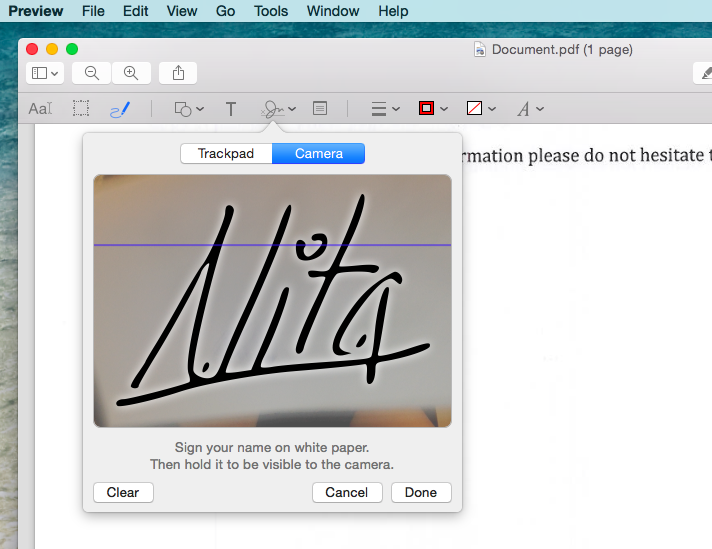
In this age of technology, did you really think you had to print a document, sign it, and then scan it again? No. Those days are long gone. You can have signatures saved up on your Mac for quickly sending out a document.
To save your signature, launch the Adobe Reader, pick ‘Tools’ from the top bar and then ‘Annote’. Which will then give you the option to manage your signatures. Now ‘Create Your Signature’ by signing a white piece of paper and holding it up for the camera which has been launched.
This might sound like a tedious procedure, but it’s way better than relying on your printer/scanner in the future. Not just that, you can save multiple signatures at the same time.
3. Too Lazy to Open the Calculator? No Problem.
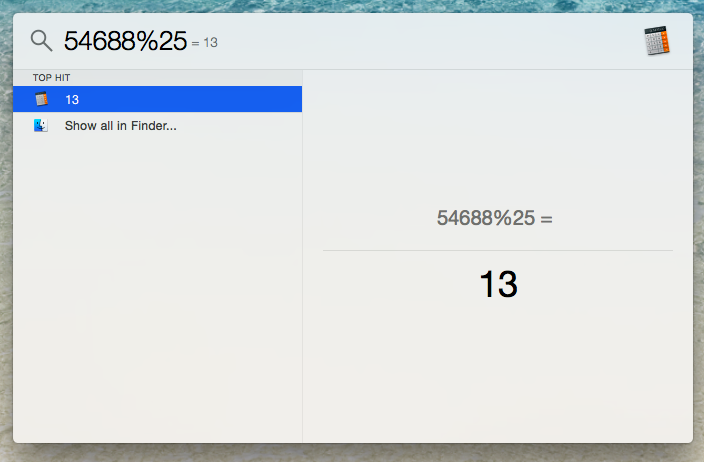
You can use the search bar of your computer to work out a quick calculation. It isn’t too hard to locate a calculator on your desktop, but this trick saves that extra second.
4. Selective Screenshot
We’re all aware that by using Command + 3, you can screenshot the entire screen, but have to tested out Command + 4? You can pick and choose exactly the area of the screen you’d like to grab, without getting the unnecessary background of your desktop.
5. Quickly hide your browser
For times when you’re sneakily keeping up with the Kardashians, this is a nifty trick everyone should know. Command + H, and your browser is instantly hidden. We suggest you keep an official looking document in the background, just to add authenticity.