Category: iGyaan

Everything Exclusive to iGyaan

  • Switching From Android to iOS? This iGyaan Guide Will Help You Out

    Switching From Android to iOS? This iGyaan Guide Will Help You Out

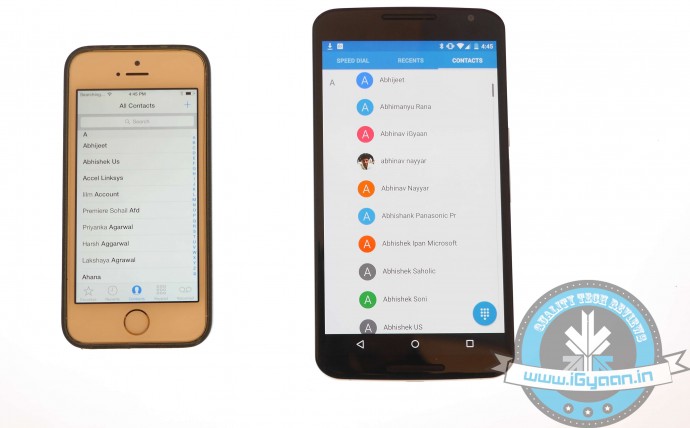
    Switching phones with different operating system is easy, but transferring data between the two can be a task. If you are an Android user and are planning to switch to iOS, then you might be concerned about your contacts, music, calendar, photos and videos. This guide will assist you in making a smoother and effortless shift between the two ecosystems.

    The first rule of safe data transfer is backing your device. This way, even if you are stuck at any step, you will have the data with you. Once all your data is backed up, follow the directions below and get started:

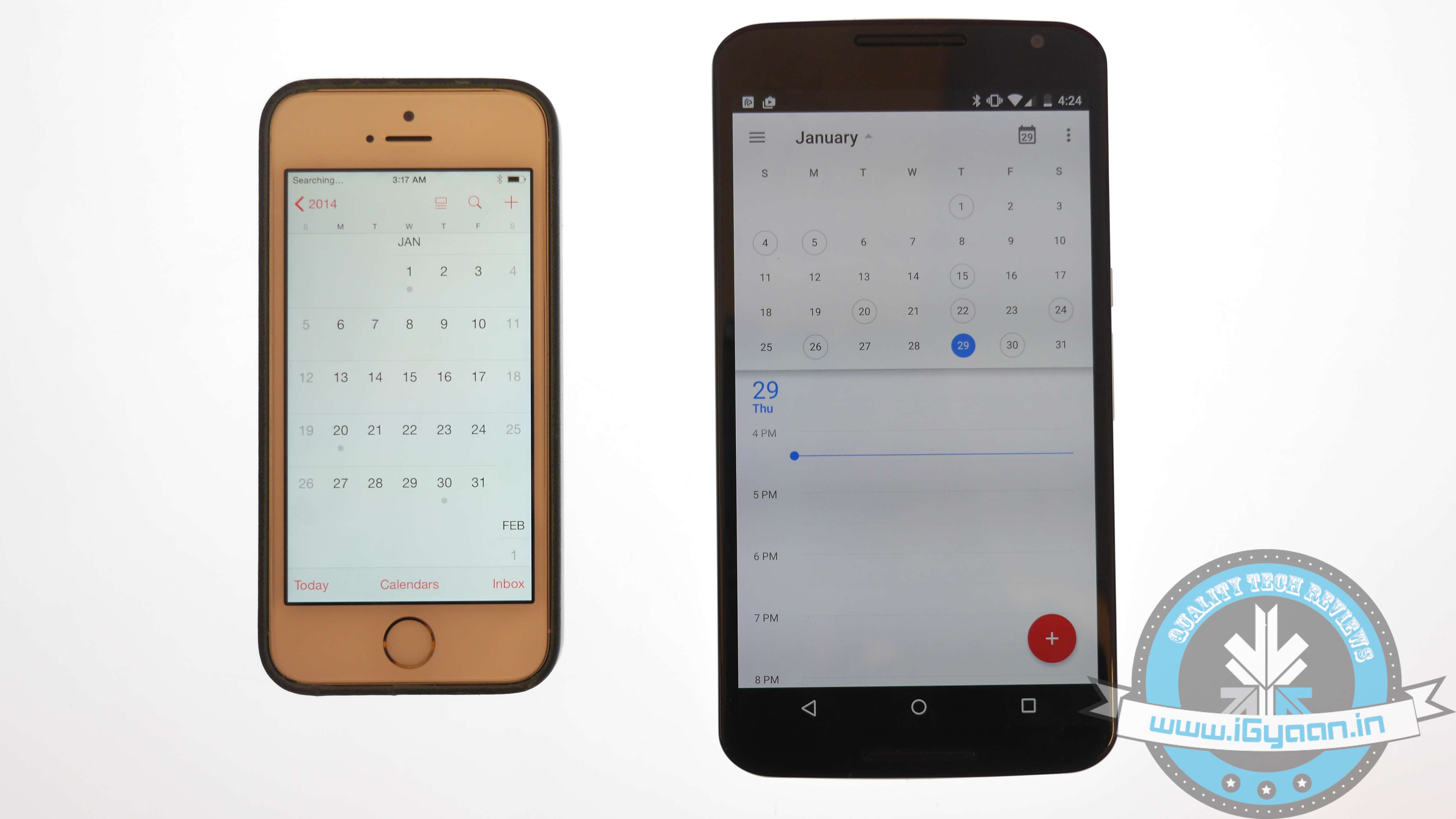
    Shift Contacts, Mail and Calendar
    iOS vs Android 11

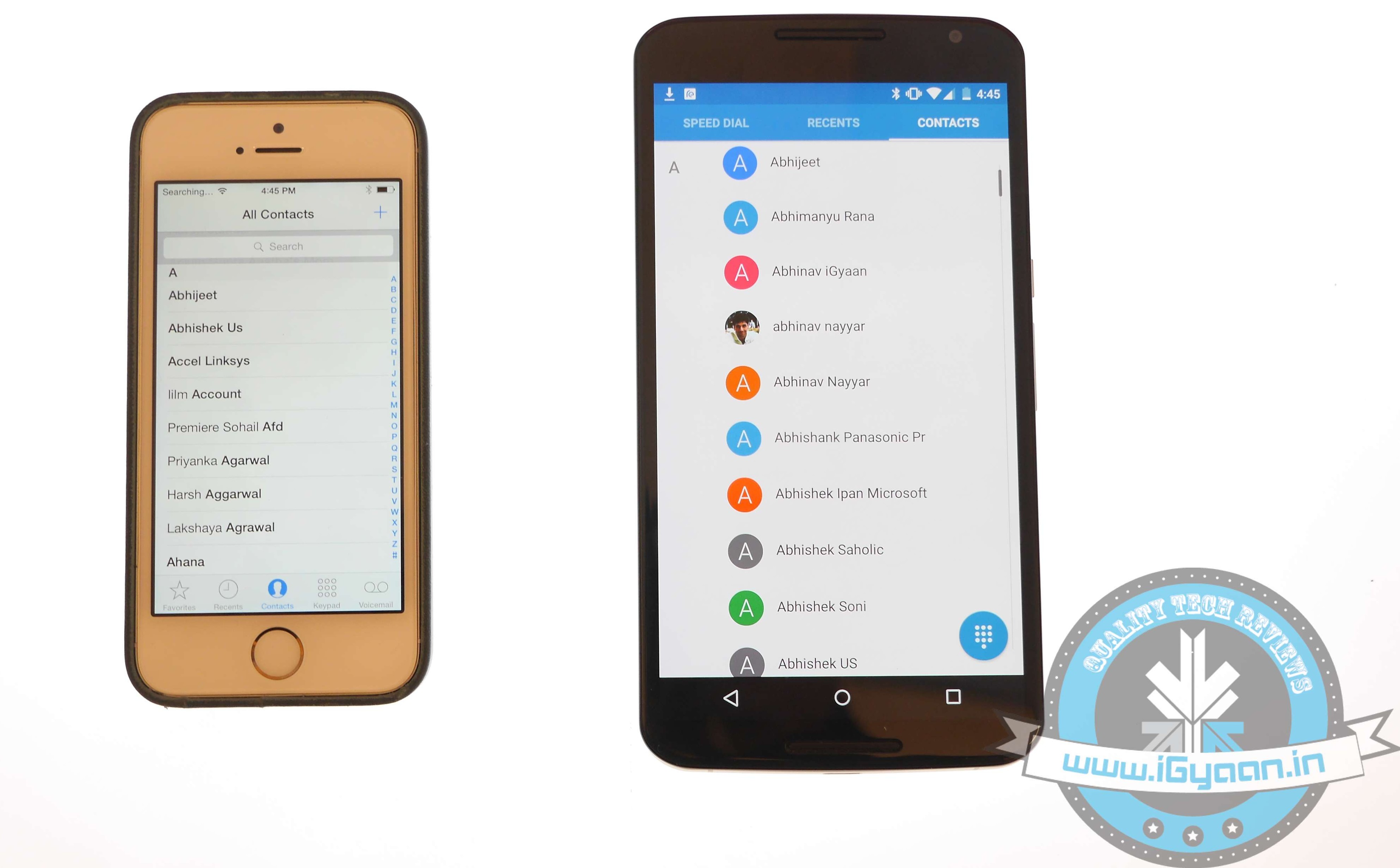
    One of the easy and quick methods to transfer contacts, emails, and calendar to the iOS is by syncing your Gmail account. Go for the below-mentioned steps on your Android:

    • Go to Settings > Accounts > Google
    • Click on your Gmail account and tap on Sync Gmail, Sync Calendar and Sync Contacts
    • This will sync your selected information to your Gmail account. Now open your iPhone and perform the following steps:
    • Choose Settings > Mail, Contacts, Calendars and add your Gmail account
    • Enable all the options like Mail, Contacts, Calendar and Notes if you wish.

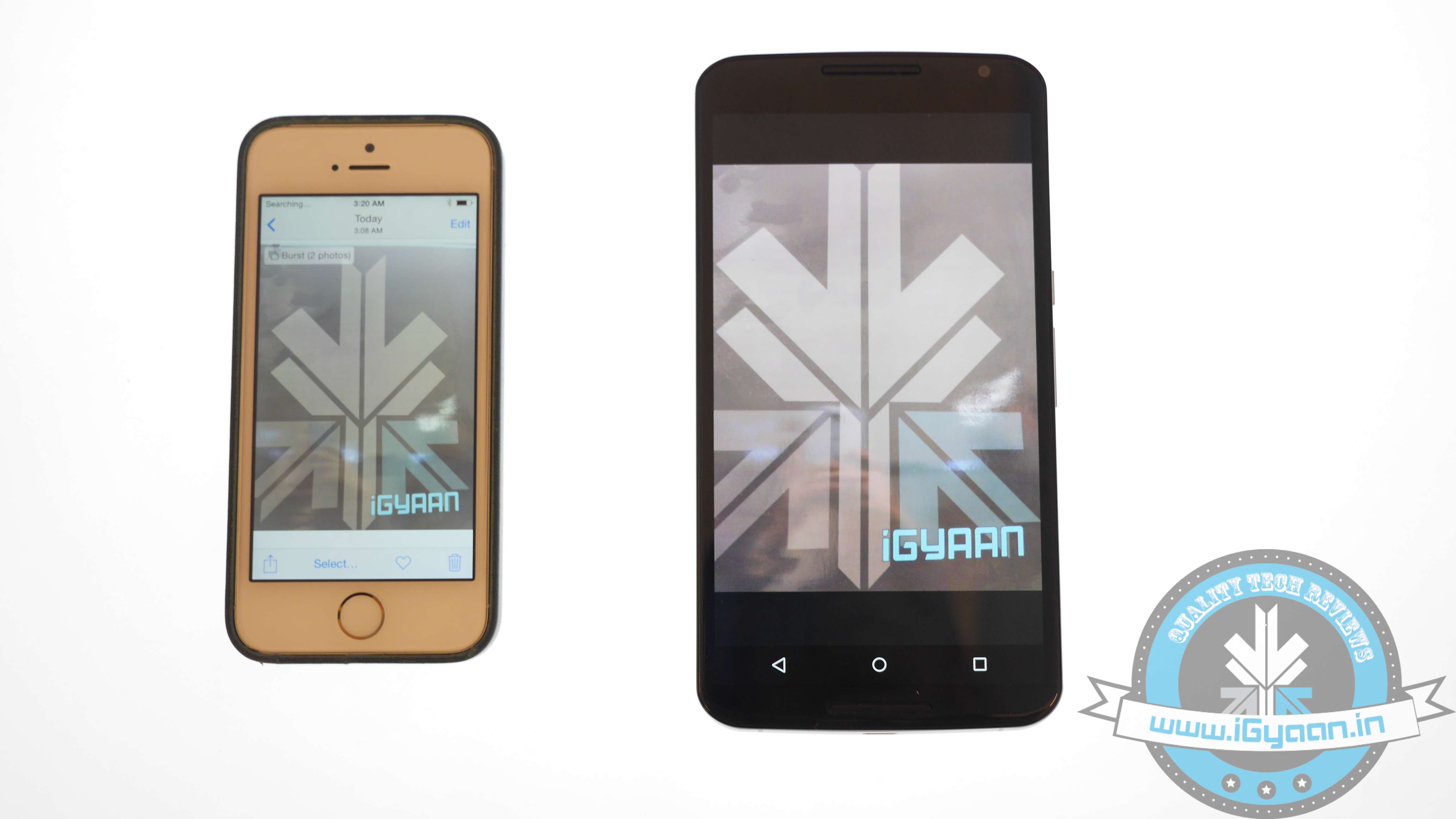
    Transfer Photos and Videos
    iOS vs Android 7

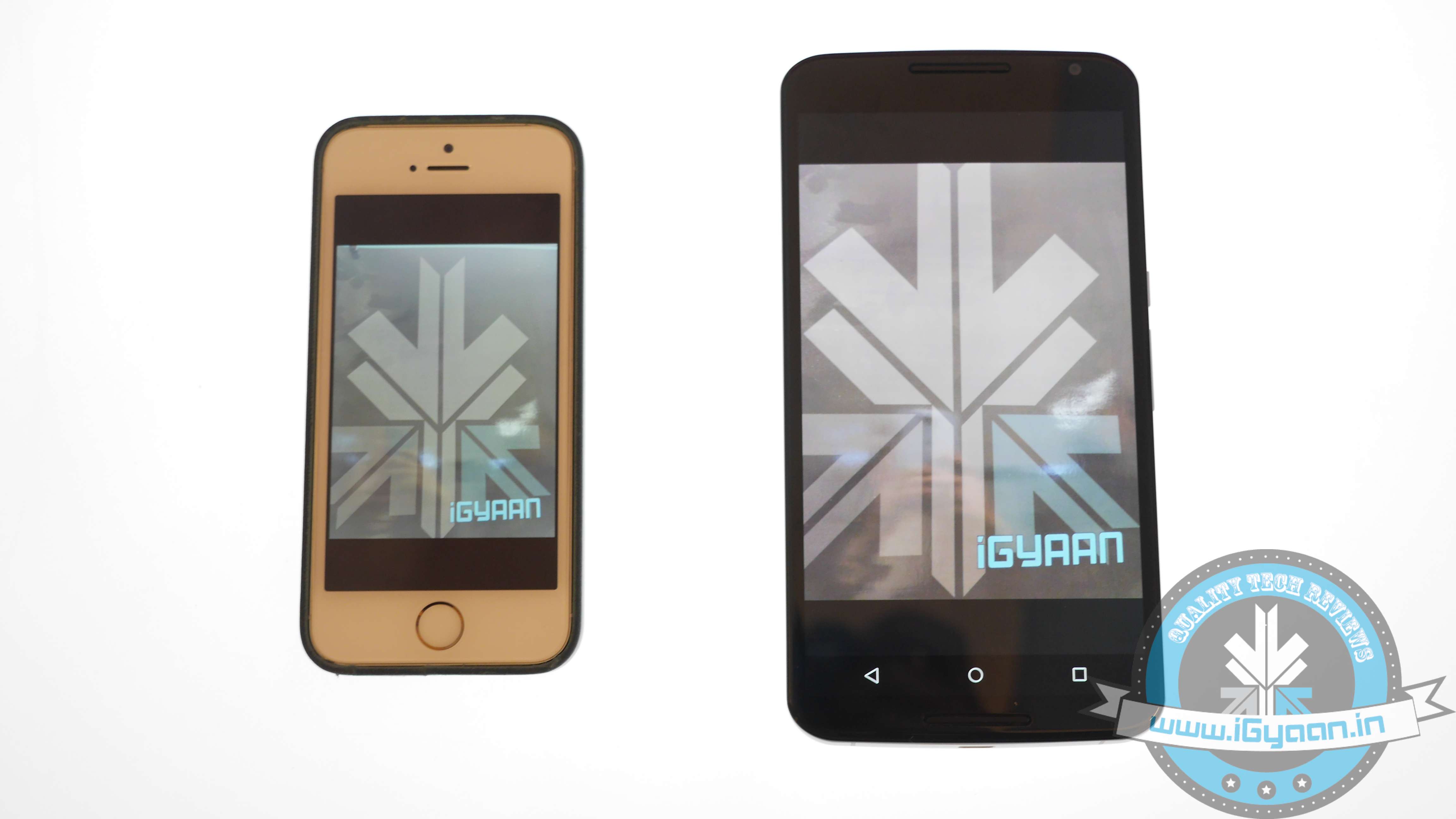
    If you don’t wish to lose the pictures and videos on your Android, then Copy My Data or PhotoSync would be the best option to go for. Perform the below-mentioned method to transfer photos, as well as videos:

    • Download and install PhotoSync (or Copy My Data) on both iOS and Android.
    • Open PhotoSync on Android and make a selection of the pictures
    • Tap on the minuscule, Refresh-like red button on the top and select Phone in the next window that will appear
    • Tap on the iPhone name in the other window or type in IP address in case it doesn’t appear automatically
    • The transfer will begin.

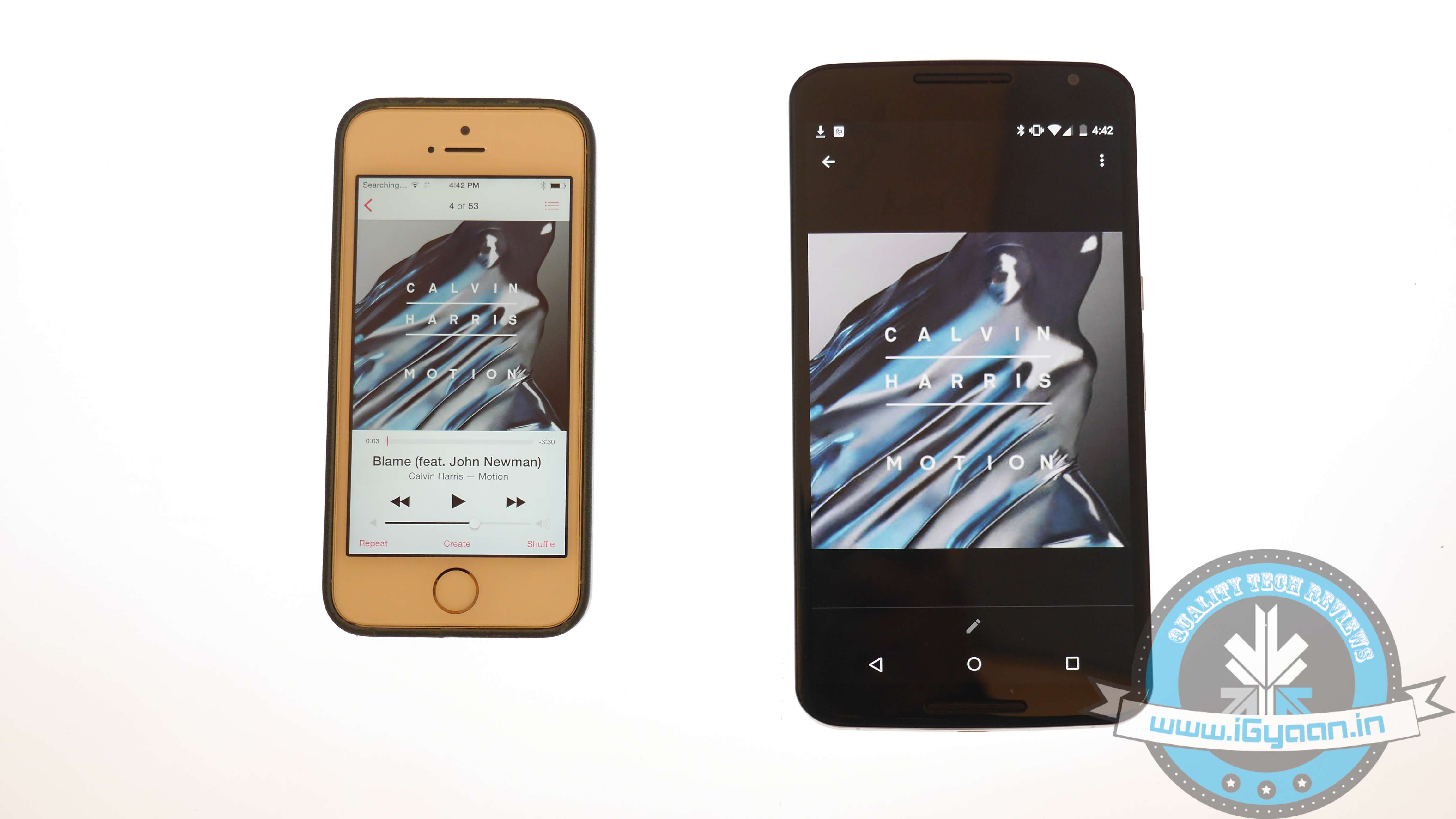
    Transfer Music
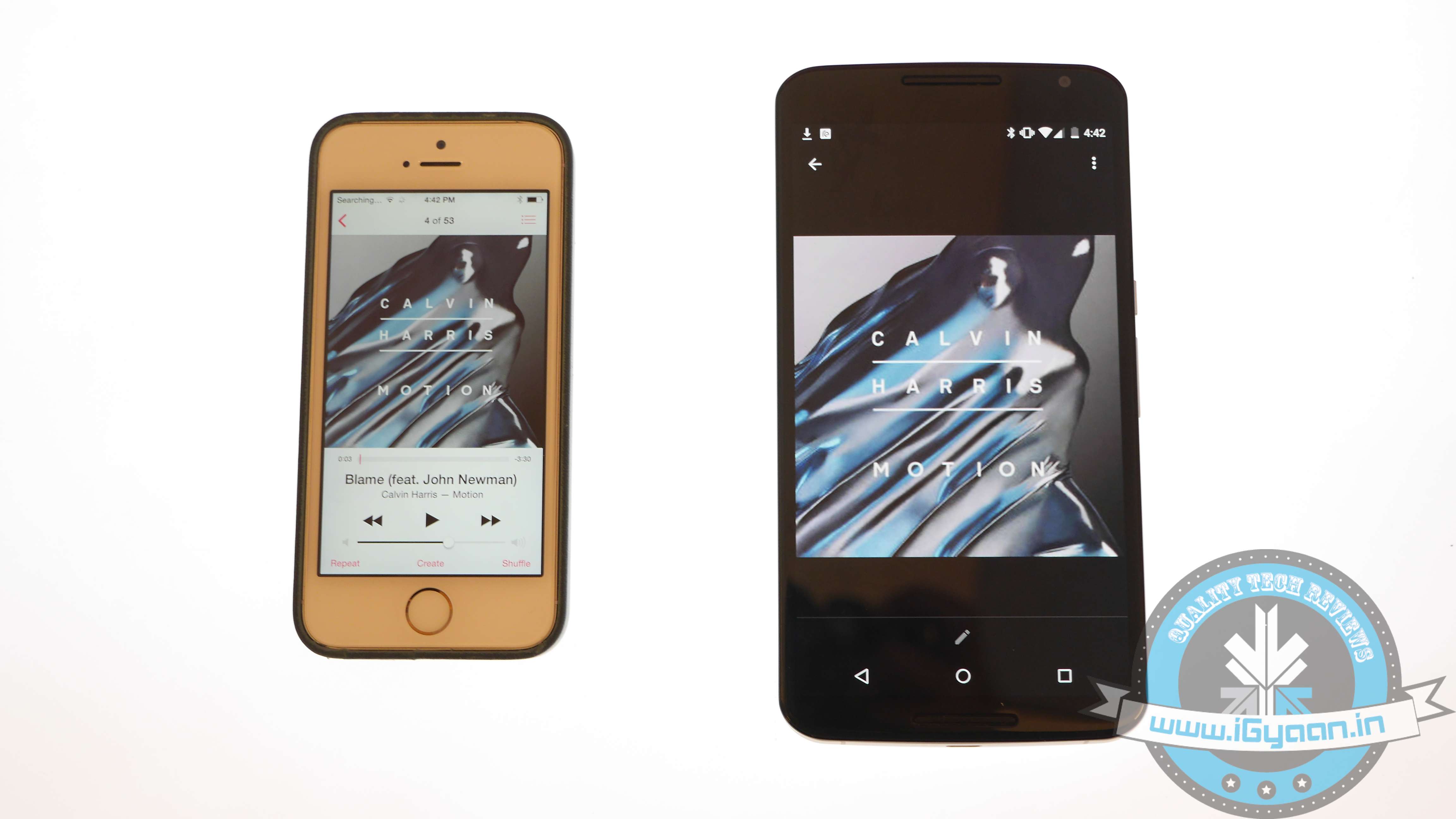
    iOS vs Android 13

    Music transfer from Android to iOS conveniently through iTunes. Read and replicate the steps below:

    • Plug in the Android device to a computer and copy your collection to it
    • Install iTunes and go to Library > Music > File > Add Folder to Library.
    • Copy all audio files you want to have on your device
    • Now without closing the iTunes, attach your iPhone to the computer
    • Click Sync on the dialogue box that appears on attaching the iPhone

    All your songs will now appear on your iOS device.

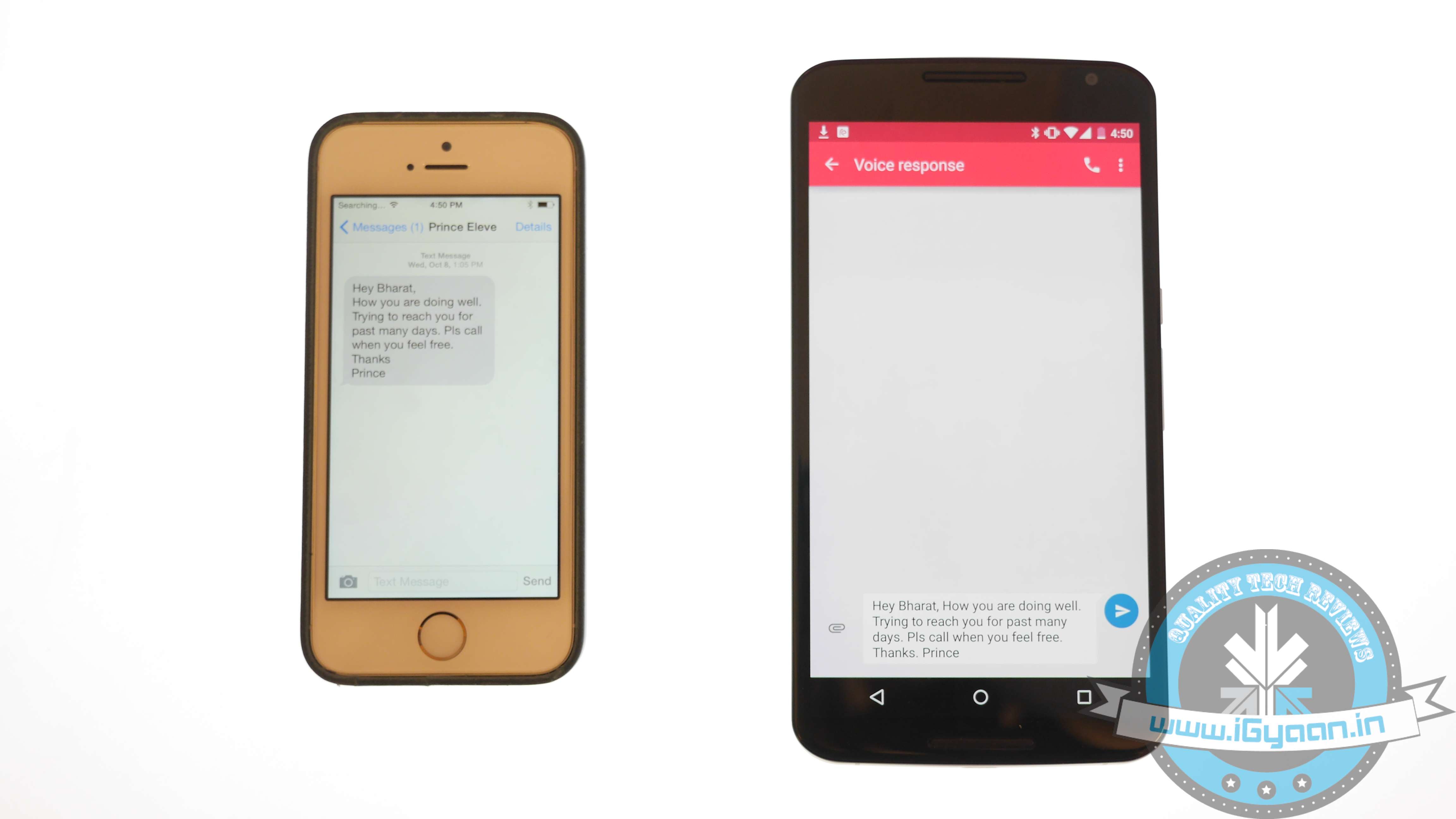
    Transfer Messages
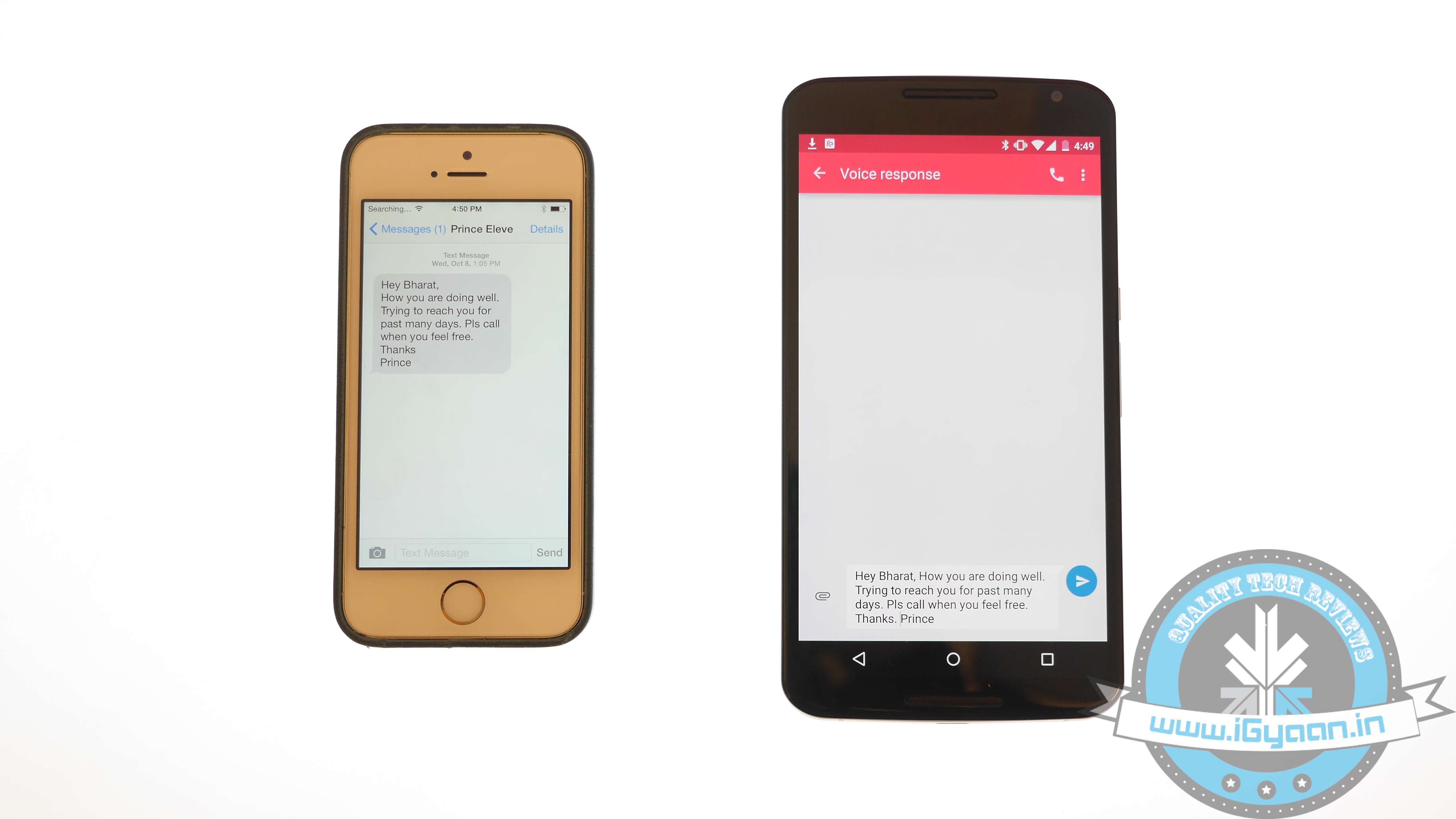
    iOS vs Android 2

    There are moments your messages carry important information and losing them is no option. Well, this means that you have to shift your messages to the new iOS device. Message transfer is a stressful task, but we have figured out the easiest way for you.

    • Download the Phone Transfer app on your computer
    • Connect both Android and iOS via USB to the PC.
    • A window will appear with Android device on left and iOS on the right. Flip the two if it’s not the case as the destination phone has to be on right.
    • Click on Text messages and deselect the rest and press Start Copy

    You can now read the transferred messages on the iOS devices.

    If you want to know how to transfer data from an iOS device to your Android device, then follow this easy guide.
  • Microsoft Lumia 532 | Hands On

    Microsoft Lumia 532 | Hands On

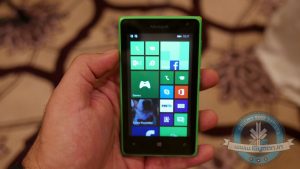
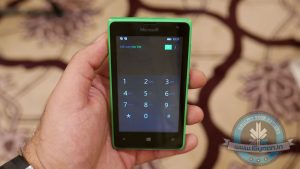
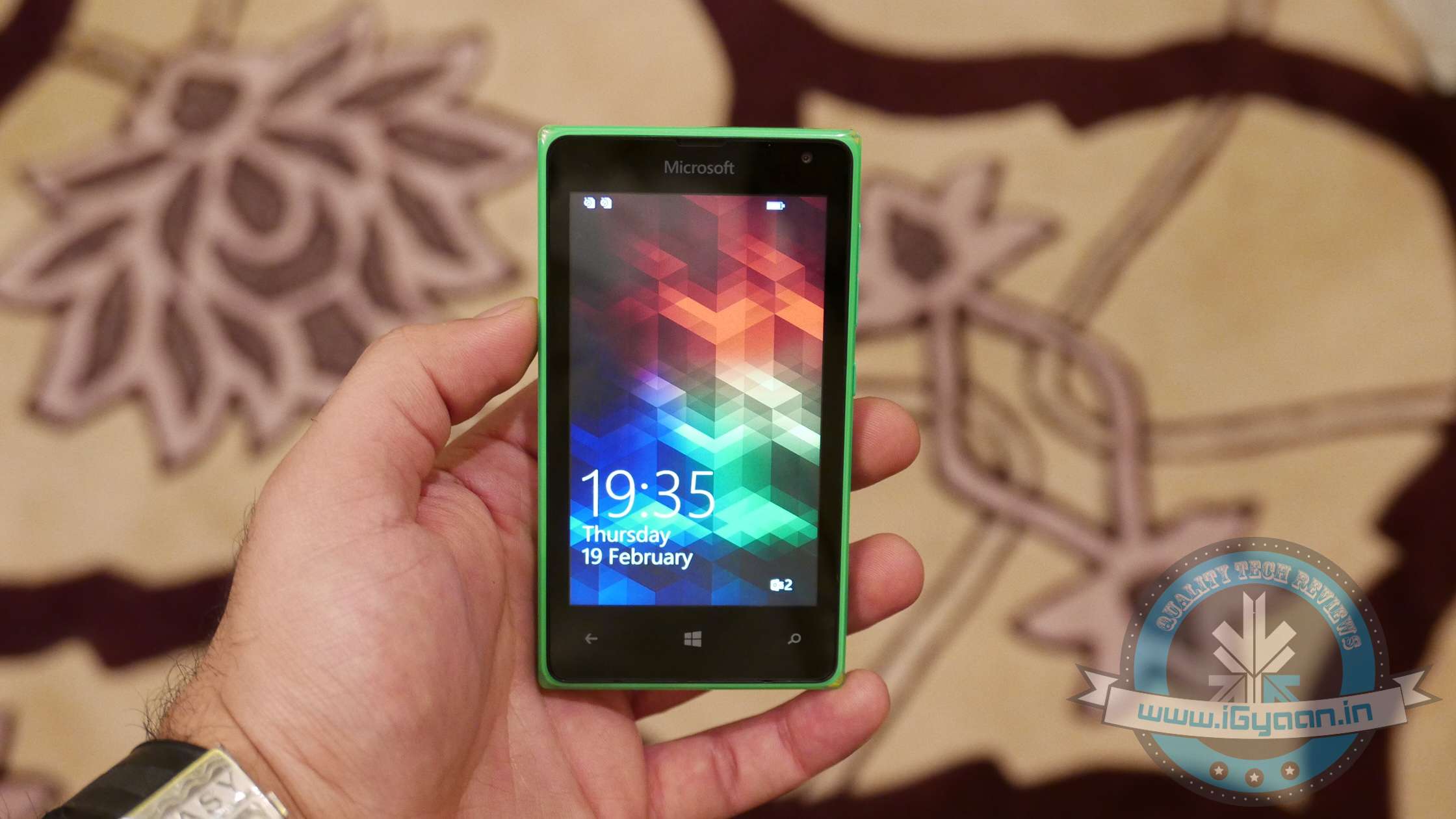
    Microsoft yesterday launched the Lumia 532 in India targeted at the affordable segment of the market. The phone runs on Windows Phone 8.1 OS and will be getting the Windows 10 update. Microsoft launched the devices with multiple offers like data connection and premium access to Truecaller for six months. But what has it really got to offer for its price tag of Rs.6,499, let’s have a look.

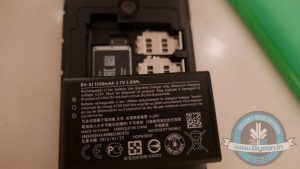
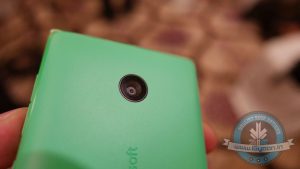
    The Lumia 532 comes from the Nokia inventory of devices that now feature a Microsoft logo. The phone is fairly fast and responsive. It features a 1 GB RAM and a 1.2 GHz Snapdragon 200 processor. You get a 5 MP shooter at the back and a VGA camera on the front that lets you make Skype calls from the device. This dual-sim, 3G device gets its power from a 1560 mAh battery.

    Microsoft Lumia 0

    Microsoft has said that the device will always get the latest operating system(OS) updates and will be getting the Denim update soon. Microsoft’s next major OS update is Windows 10, and the Lumia 532 will be getting it too.

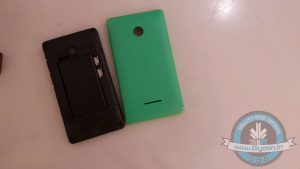
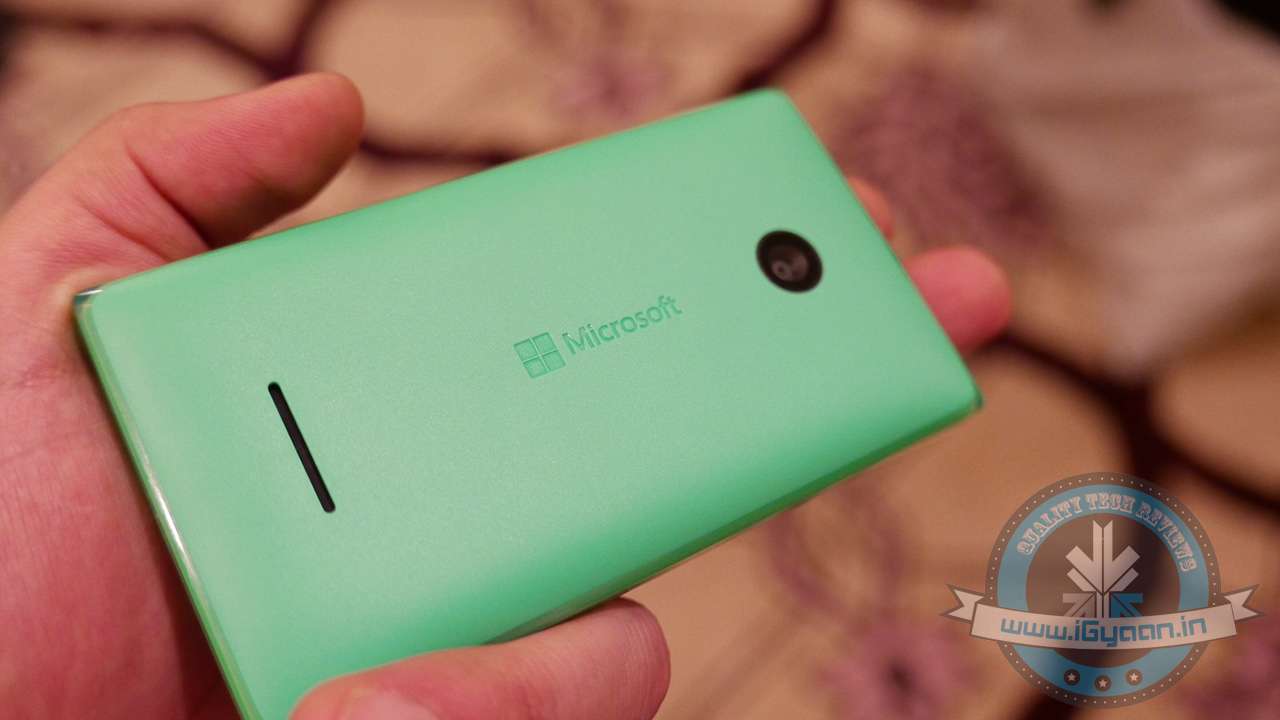
    Coming to build quality, the device does impress you with its exteriors. It carries on the legacy of the Nokia’s strong build, for which it is still appreciated (*Nokia 3310 memes). It has a robust, matte finish, polycarbonate back panel along with a strengthened front glass. The sides of the device have been given a glossy finish which is unique offering from Microsoft. It might be a bit tough to get the back panel out initially, but it will get easier once you understand the technique to open it.

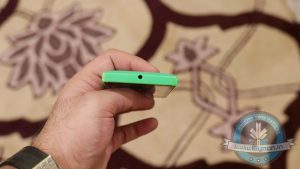
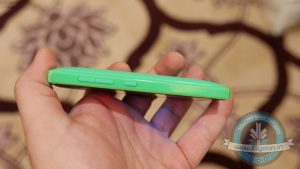
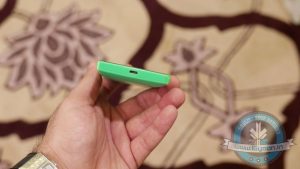
    The physical controls and ports are easy to access too. On the right side, you have the volume rockers and the power buttons. On the bottom, you get the microUSB port for charging and data syncing. On the top is a 3.5 mm jack for hands-free. The phone lets you expand storage to up to 128 GB which will be appreciated by multimedia hoarders.

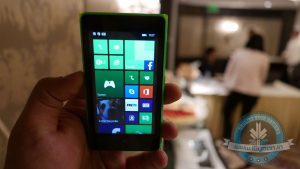
    Windows phones are known to be fast and responsive, and so is this device. The UI is really responsive, and the 1 GB helps you to get your tasks done with ease. You can customize the size of your live tiles just by holding them out and then selecting what size you want. You can also move the tiles as you desire. The device lets you change the basic color of the device, and you can get a back panel with the same color too. So this will be loved by the young folks. There is also a new predictive keyboard that will make it a lot easier to type messages.

    So the device overall offers some good features for its price tag of Rs. 6,499. The device will always be updated and has a lot of colors and customization features that will impress the youth market. We will bring out a full review out soon and if you have any questions and queries regarding the device then post it in the comment section below and we’ll try to address them in our review. Keep checking iGyaan for more.


    SPECS

    Microsoft Lumia 532

    Operating System Windows Phone 8.1
    Screen Size 4 inch
    480 x 800 pixels
    RAM 1 GB
    Battery 1560 mAh
    Processor  Snapdragon 200
    CPU Quad-core 1.2 GHz
    Internal Storage 8 GB
    Expandable Up to 128 GB
    Front camera  VGA
    Rear Camera 5 MP
    Price Rs. 6,499
  • Samsung Galaxy Grand Prime | Hands On

    Samsung Galaxy Grand Prime | Hands On

    Samsung came out with a plethora of devices at the 2015 Samsung Forum held in Bangkok, Thailand. The newest entrants in the 4G lineup are four handsets – Galaxy J1Galaxy A7Galaxy Core Prime and Galaxy Grand Prime. The company looked promising and the India Head of Samsung, Asim Warsi, took to the stage announcing that the firm will focus on bringing out more 4G devices to the market.

    Meanwhile, we got an opportunity to get our hands on one of the devices, Galaxy Grand Prime 4G.

    Samsung Galaxy Grand Prime 1

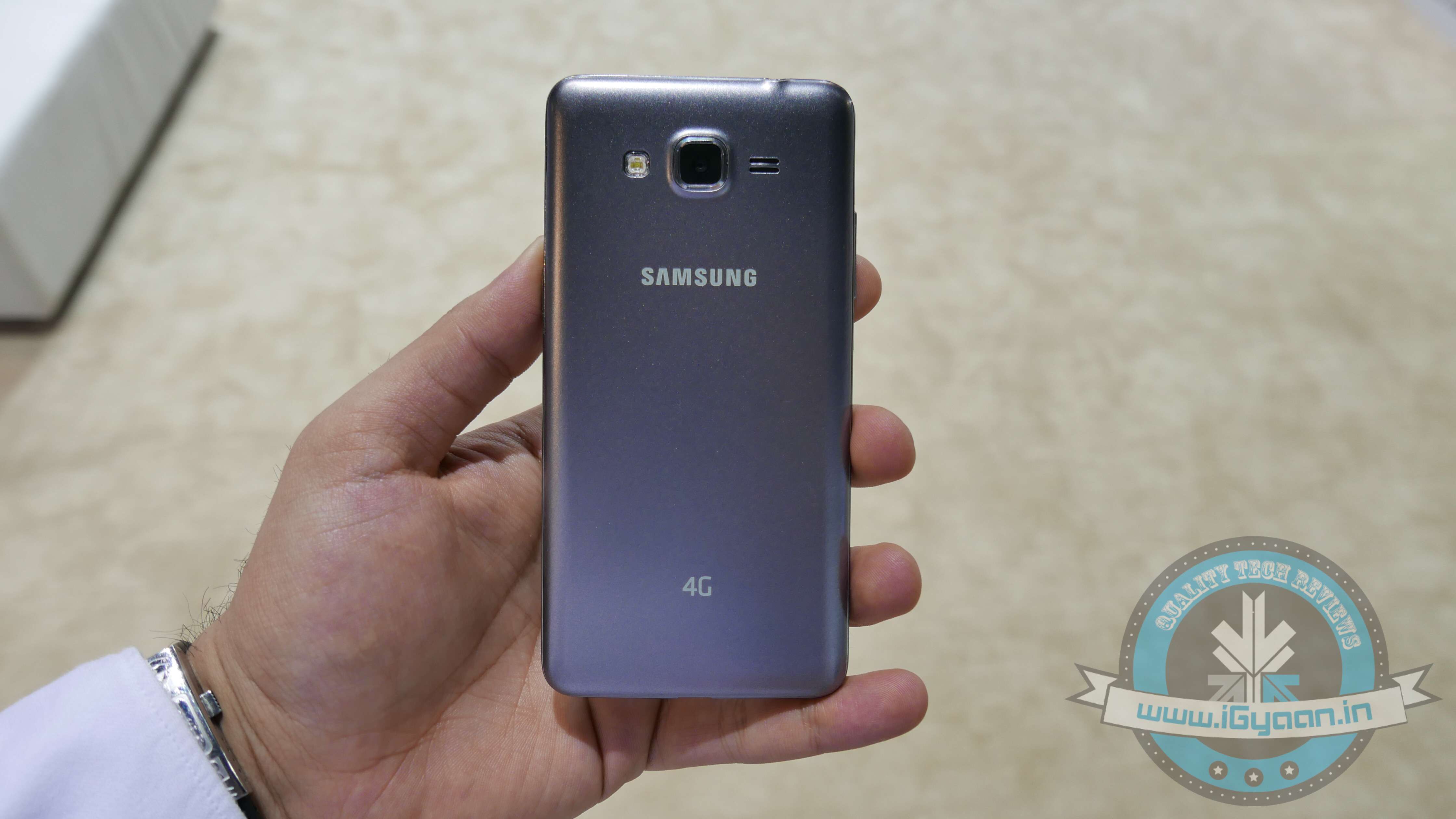
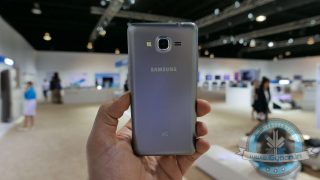
    The Galaxy Grand Prime, as earlier said, is a 4G capable device and holds two SIM slots. At a thickness of 8.6mm, it couldn’t be considered slim, and the rounded edges give it more bulky look. With a plastic body, the Grand Prime weighs mere 156 grams. The design of the Galaxy Grand Prime is nothing extraordinary and is akin to the other Samsung models with similar key placement and identical build.

    The handset comes in two colour options – white and grey.

    Samsung Galaxy Grand Prime 0

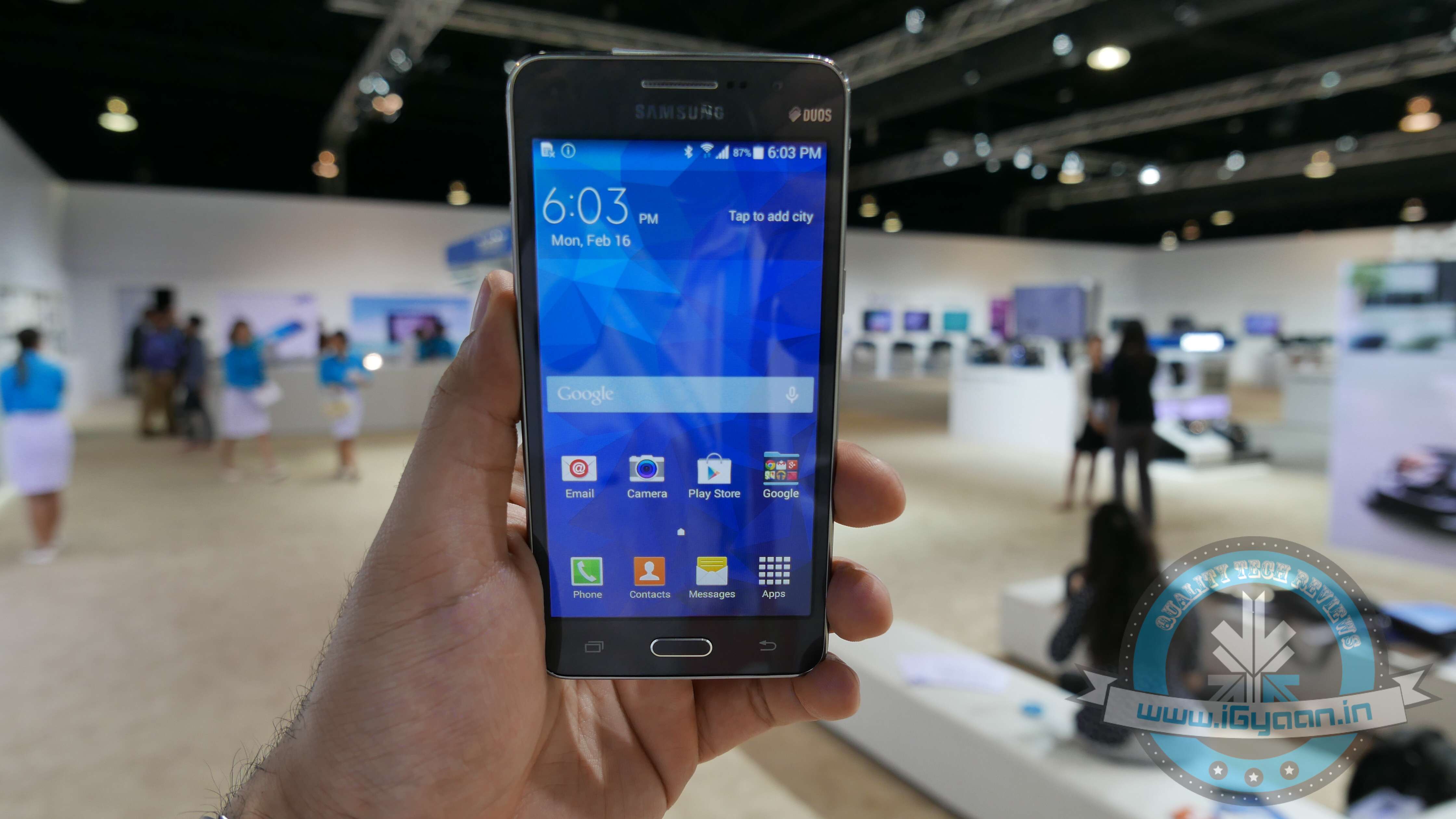
    Talking about the specifications of Galaxy Grand Prime 4G, then the smartphone boasts a 5-inch qHD TFT (960x540p) display and is equipped with a 1.2GHz quad-core processor. The device runs on Android 4.4 KitKat with TouchWiz UI on top, and there’s yet no notification if the device can be upgraded to Android 5.0 Lollipop. The smartphone sports an internal memory capacity of 8 GB (expandable up to 64 GB) and 1 GB RAM.

    Samsung Galaxy Grand Prime 2

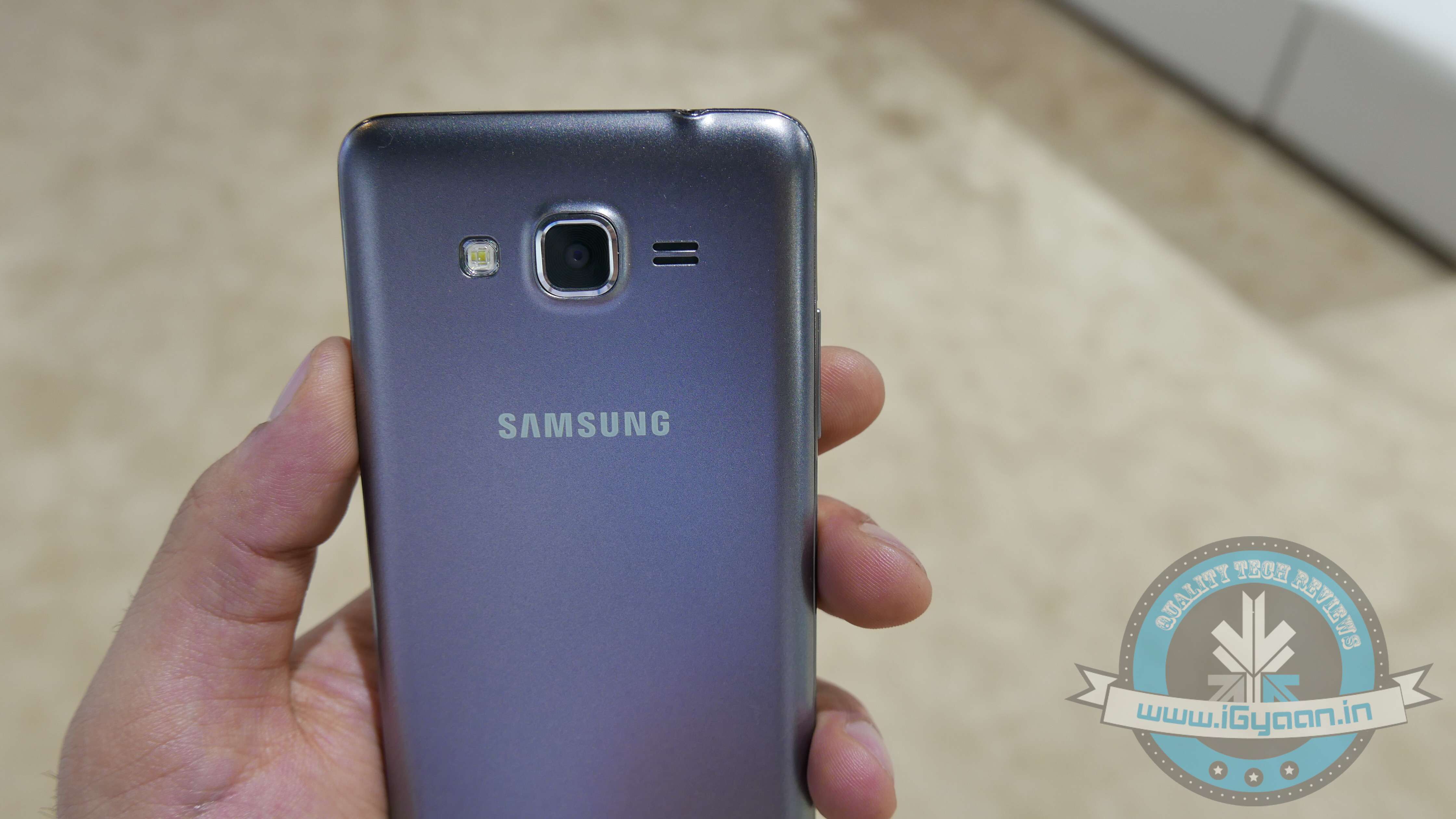
    The Galaxy Prime Grand features an 8MP snapper at the back with LED flash and speakers. The front sports a good 5MP front camera that sits at the top of the 5-inch screen for clicking selfies. The back of the phone secures a 2,600mAh battery that powers up the device. Connectivity options like Bluetooth, USB 2.0, Wi-Fi Direct, Wi-Fi and NFC.

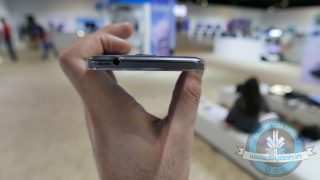
    Just like any other handset, the Galaxy Grand Prime holds the volume rocker on the left-hand side and power button on the right. The top of the rim has a 3.5mm audio jack and the bottom comprises of a USB slot for charging the device.

    The Samsung Galaxy Grand Prime 4G support TDD-LTE (2300) 4G network used in India. The 3G variants of the smartphone are already available in the market, but this handset will hit Indian stores in March this year. Meanwhile, the company is tight-lipped about its price but is anticipated to be priced slightly higher than the J1, around Rs. 15,000.

    Check out the specs sheet below for details:

    SPECS Samsung Galaxy Grand Prime
    Operating System Android OS, v4.4 (KitKat)
    Screen Size 5.0-inch, 960×540 pixels
    RAM 1 GB
    Battery 2600 mAh
    Processor  1.2 GHz quad-core
    Internal Storage 8 GB
    Expandable up to 64 GB
    Front camera  5 MP
    Rear Camera 8 MP
  • Samsung Galaxy J1 4G | Hands On

    Samsung Galaxy J1 4G | Hands On

     Yesterday, Samsung at their annual Forum announced that they will be focusing more on releasing 4G smartphones for the Indian market. Keeping in line with their word, they went forward to announce four 4G devices. The Samsung Galaxy J1, is one of the devices. It was also the cheapest handset announced by the company yesterday.

    Samsung Forum 2015 Galaxy J1 4G4

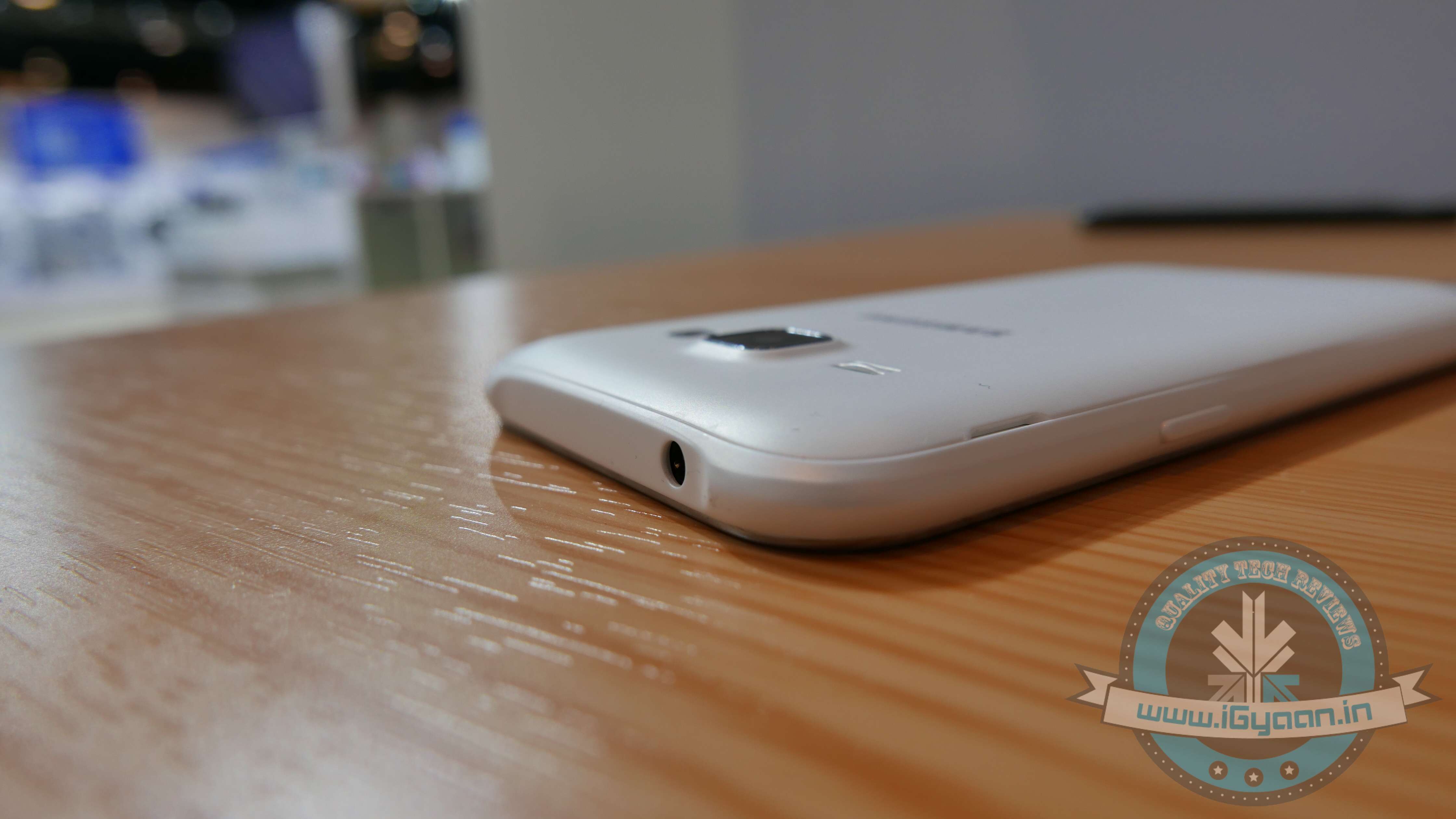
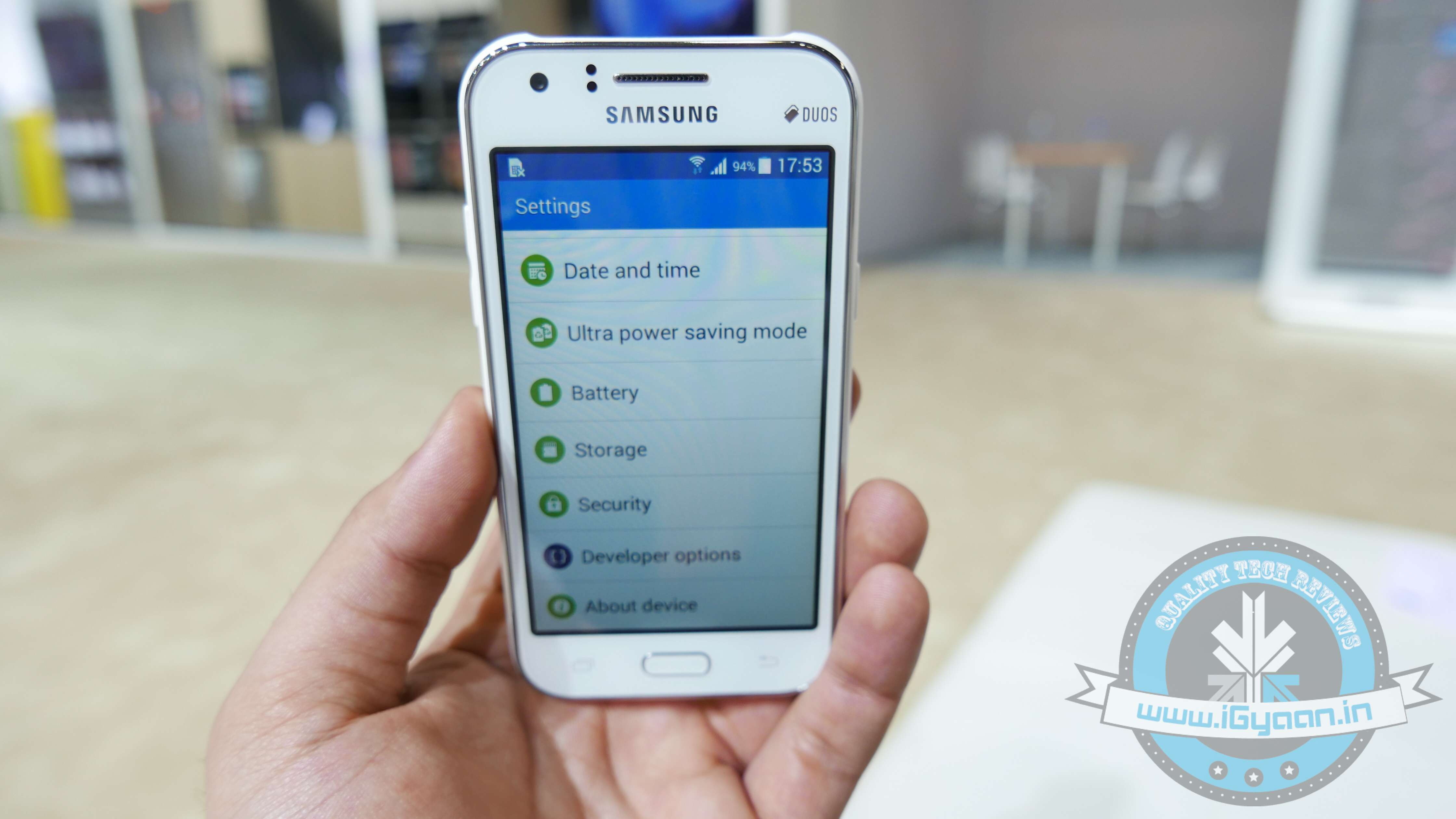
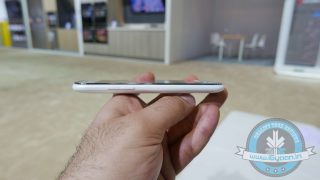
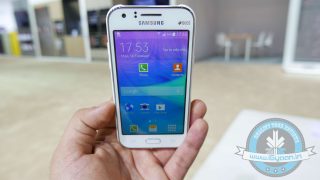
    The Galaxy J1 sports a 4.3-inch WVGA TFT display with 480×800 pixel density. It is equipped with 1.2GHz quad core processor and runs on Android 4.4 KitKat.  It has an inbuilt memory of 768 MB RAM and 4 GB internal memory, which can be upgraded up to 128 GB via microSD slot.

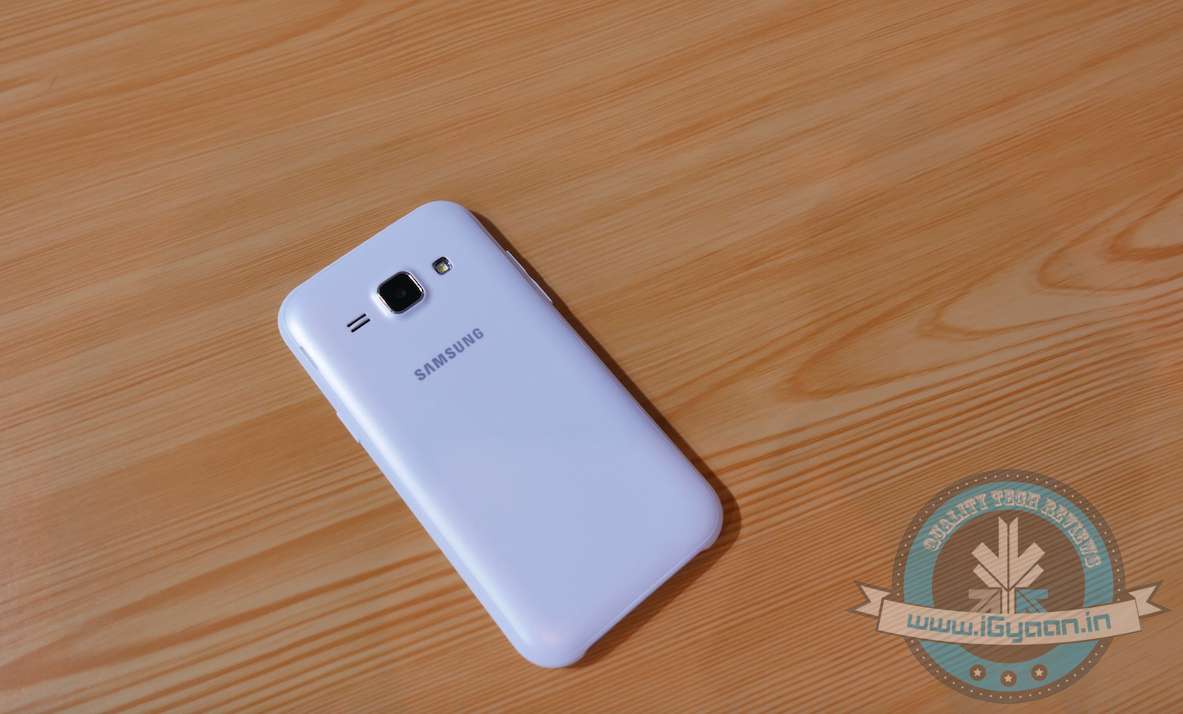
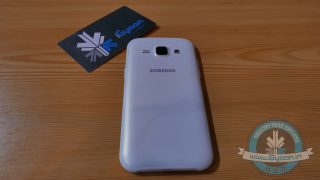
    Samsung has gone for a curvier look with the J1. The design is typical Samsung-style – touch capacitive buttons at the bottom, centre oval shaped home button and the logo placement is kept the same as every other model by the company.

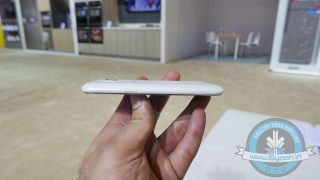
    The look and feel of the device is good, however it is slightly on the bulky side, especially when compared to the rest of the sleek devices recently launched by Samsung.

    Samsung Forum 2015 Galaxy J1 4G1

    The Galaxy J1 features a 5MP rear shooter with Flash along with 2 MP front camera; the company should’ve considered going for a higher resolution cameras.

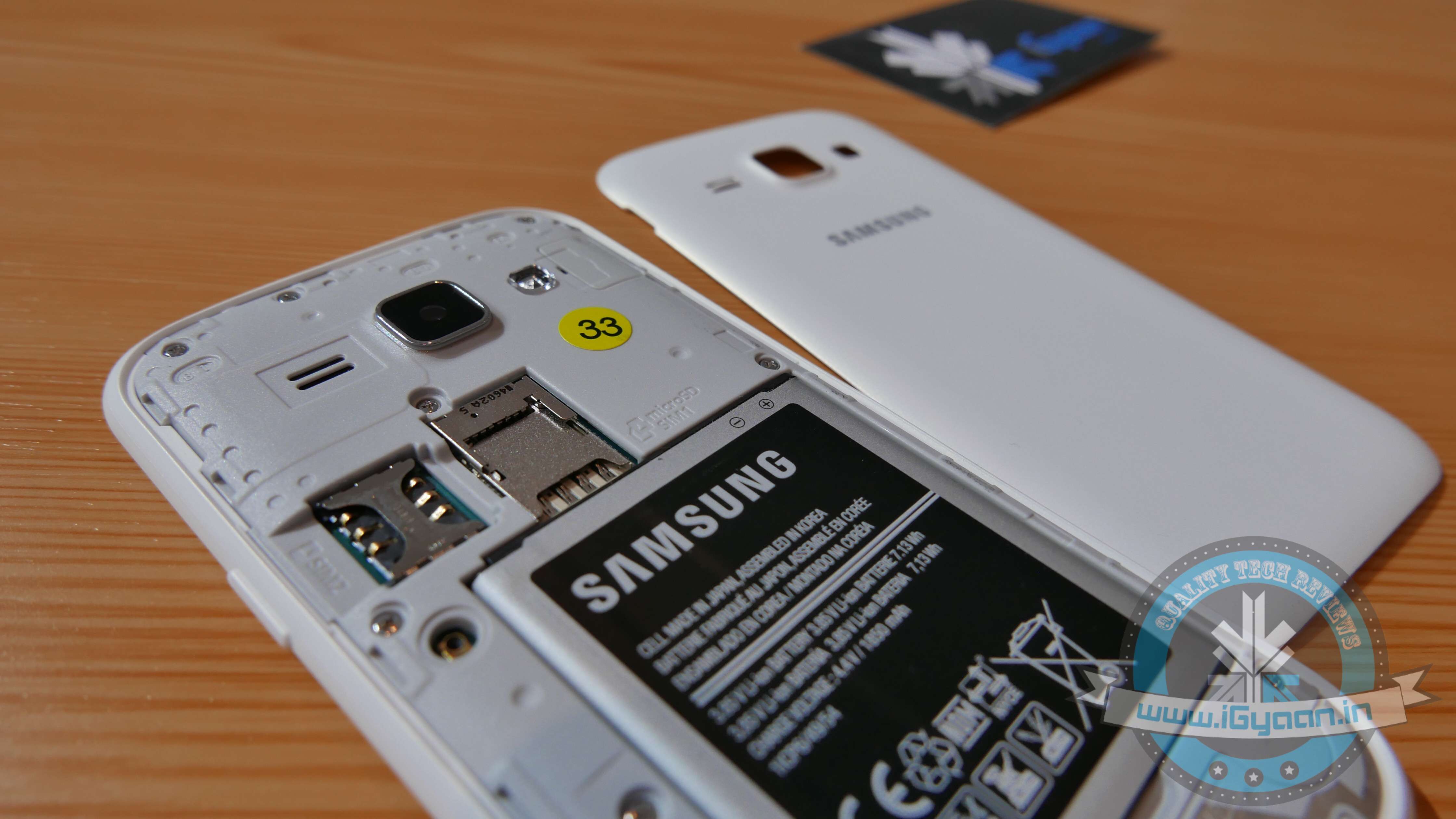
    The Dual SIM handset gets powered up by a 1,850mAh battery. The device is available in blue, black and white colour variants. The model will come at Rs. 9,900 and will be available in India from the second week of March 2015.

    Samsung Forum 2015 Galaxy J1 4G0

    The specifications are mediocre for the amount the company has priced the device. There are several devices in the sub-Rs. 10,000 segment, which offer way better specs, some even at lower prices.

    SPECS Samsung Galaxy J1 4G
    Operating System Android OS, v4.4.x (KitKat)
    Screen Size 4.3 inch
    480×800  pixels
    RAM 768 MB
    Battery 1850 mAh
    CPU Quad-core 1.2 GHz
    Internal Storage 4 GB
    Expandable Up to 128 GB
    Front camera  2 MP
    Rear Camera 5 MP
    Price Rs. 9,900
  • Samsung Galaxy A7 | Hands On

    Samsung Galaxy A7 | Hands On

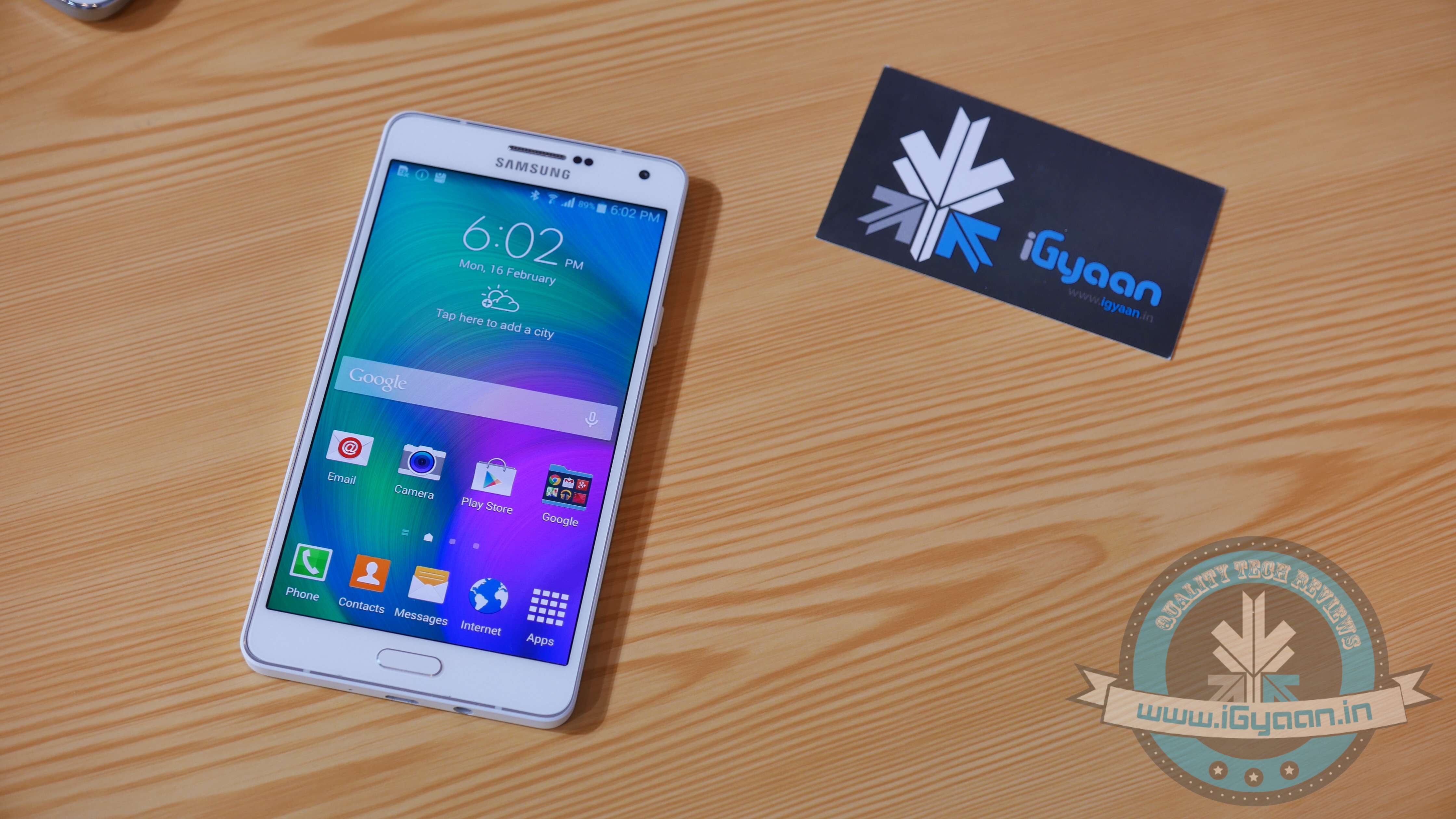
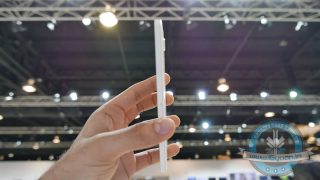
    Yesterday, Samsung Forum 2015 kicked off in Bangkok Thailand, and the company took the opportunity to announce a couple of devices. One of them was the new Galaxy A7, the slimmest Galaxy smartphone yet, measuring only 6.3 mm. They claimed that the phone has been packaged with premium hardware for a superior social experience. We decided to check the smartphone out for ourselves. Here are our first impressions:

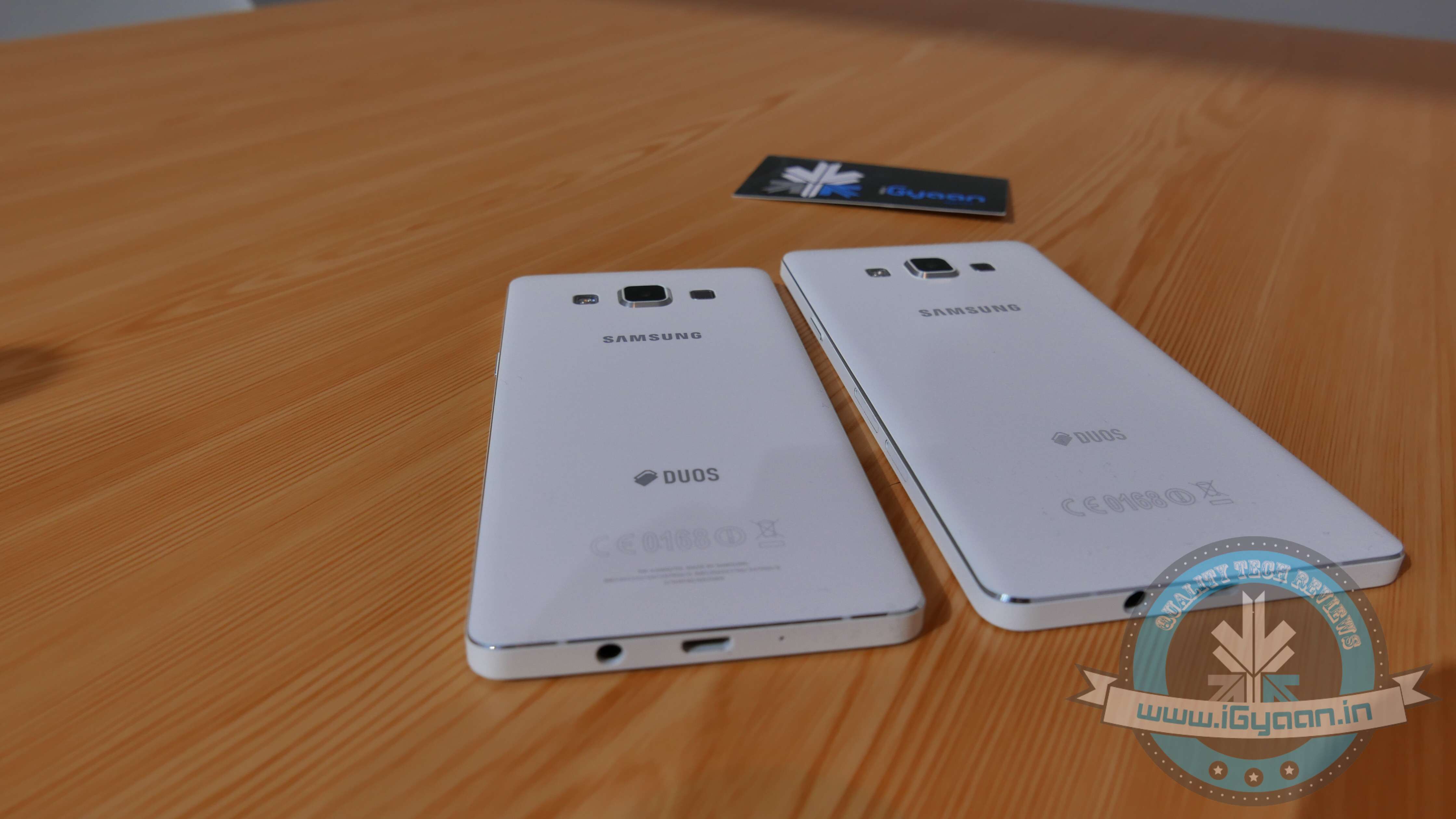
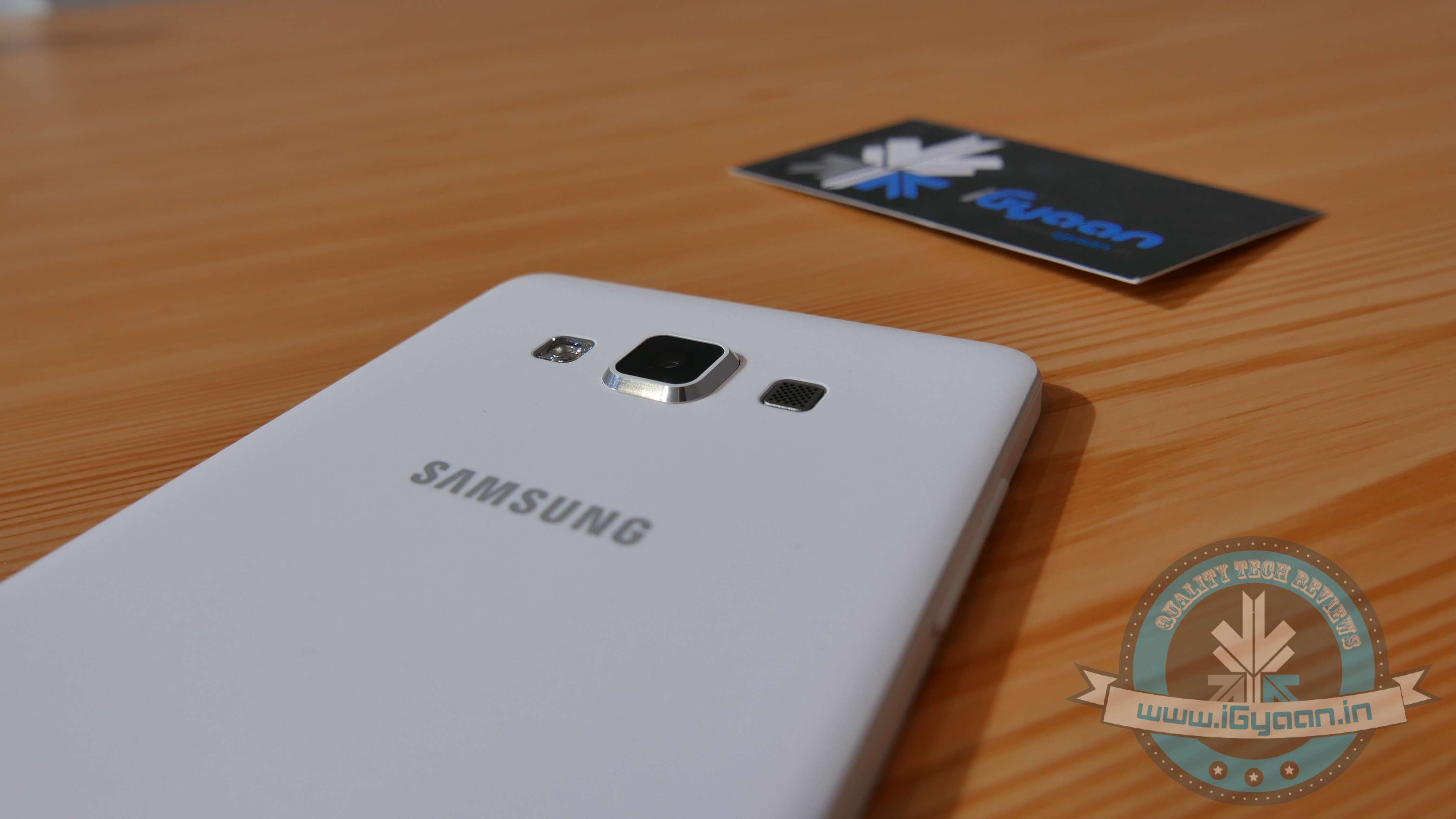
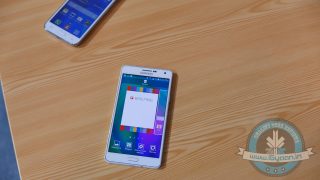
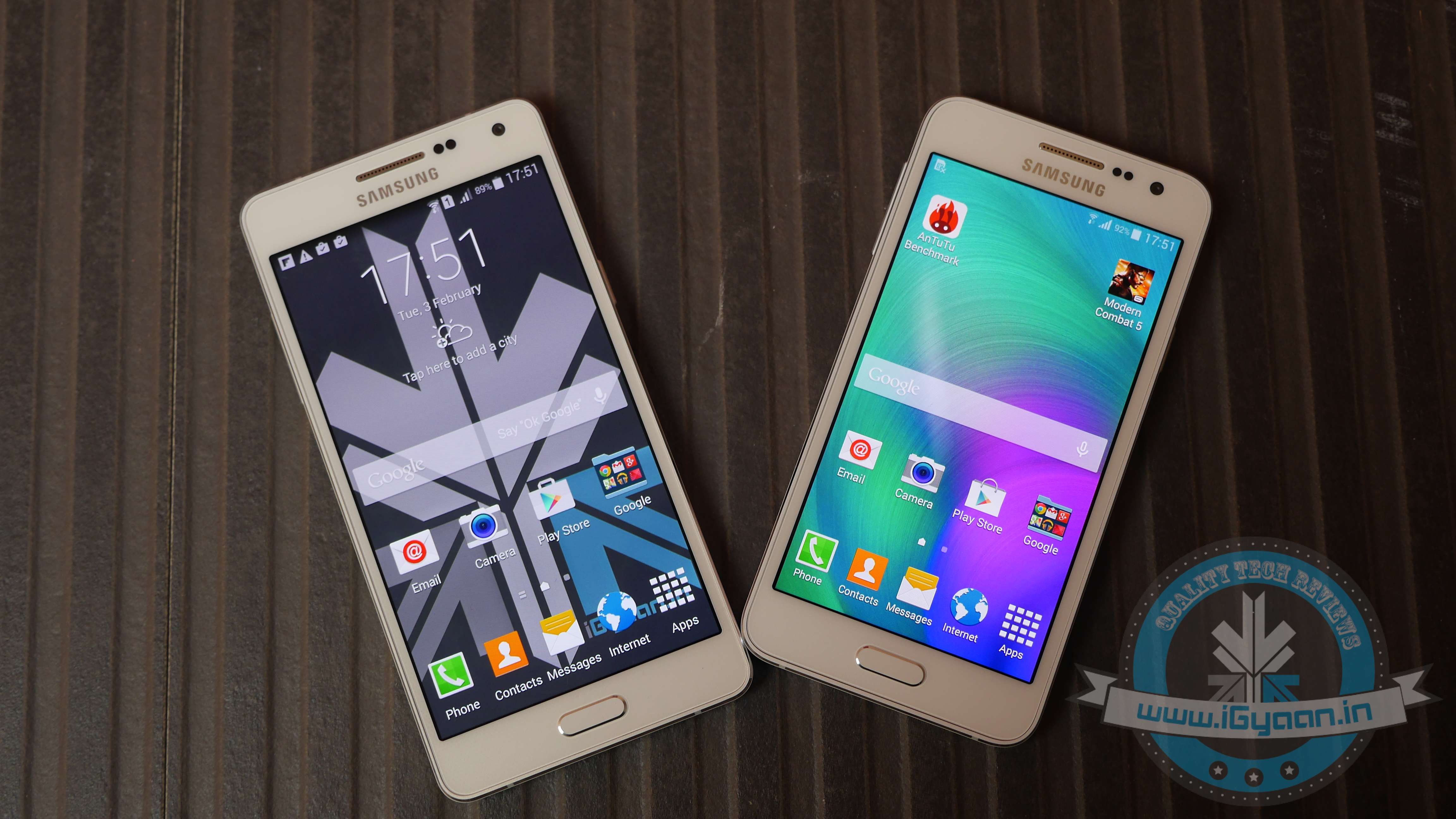
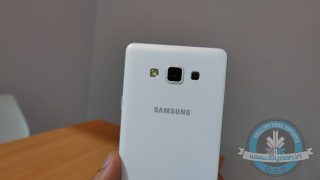
    Galaxy A7 vies to expand the services provided by Galaxy A5 and A3. The A7 is exactly like the big brother of the A5. Except that they’ve upped the notch on specifications, the look and feel of the two devices is exactly the same. The use of metal gives this device an extremely premium feel. The device will be appreciated for its classy design.

    Samsung Forum 2015 Galaxy A7 9
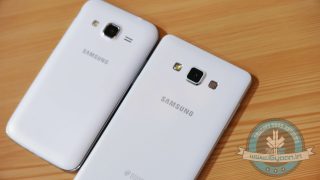
    The Galaxy A5 and the A7, size comparison.

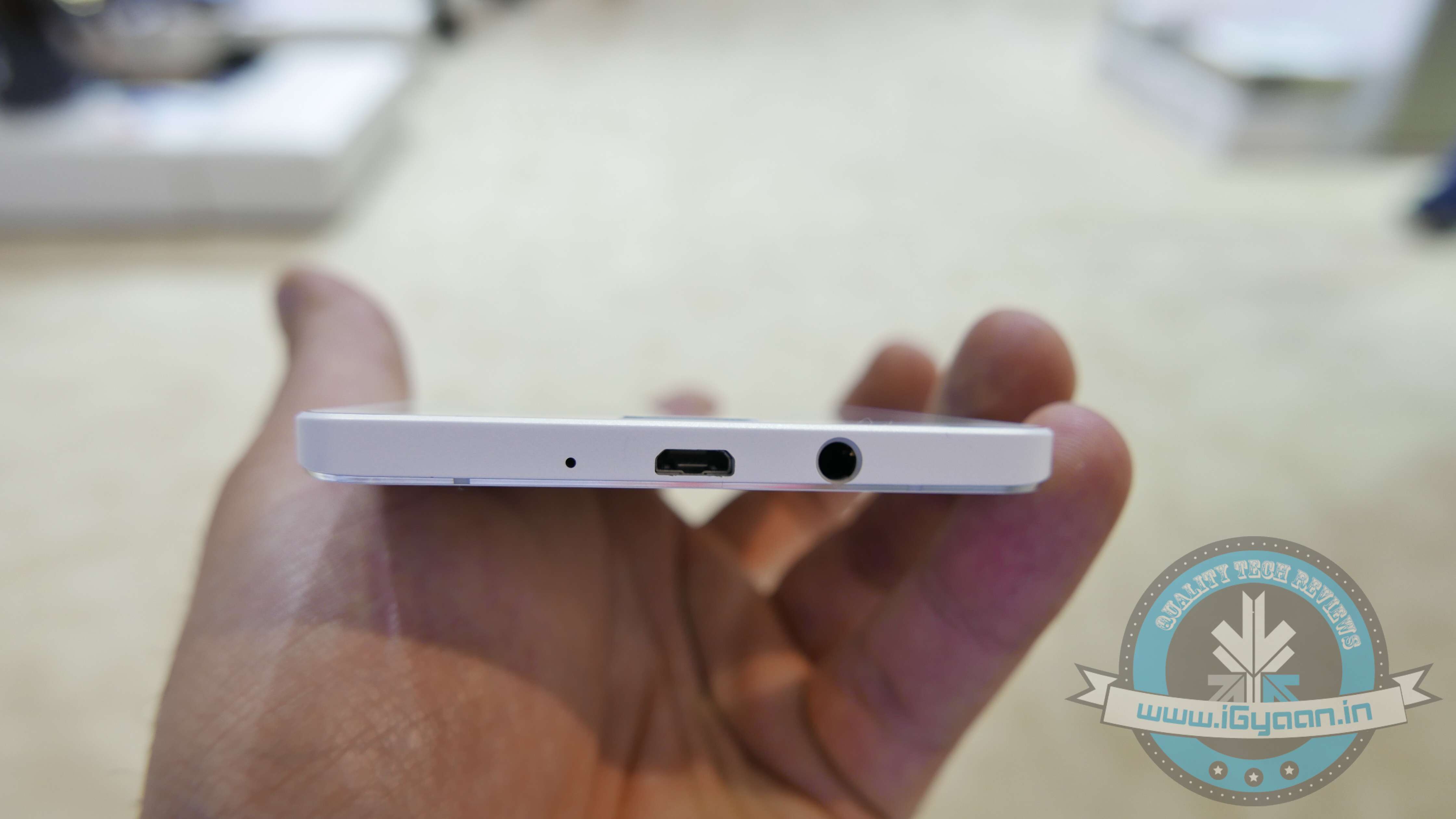
    On the front bottom, below the screen of the device, there are the touch capacitive buttons, and in the centre is the Samsung’s typical oval style Home Button. At the bottom we have the main USB slot/Data synching port and 3.5 mm jack.

    Samsung Forum 2015 Galaxy A7 3


    The metal handset is equipped with a 5.5 inch, Full HD Super AMOLED display, which is a step ahead of the A5. This one delivers an excellent viewing experience. With the bigger screen and good display, watching videos and browsing the internet was a breeze.

    The company has also added Adaptive Display Technology which intelligently optimizes the screen brightness and the color saturation.

    Samsung Forum 2015 Galaxy A7 0

    Coming to the camera of the device, it is equipped with a 13 MP primary camera and a 5 MP front camera, along with Advanced Selfie features like Ultra Wide Shot, GIF shooting modes and Auto Selfie modes (Palm and Voice Selfie.) We checked out the camera, and it served the purpose well.

    Samsung Forum 2015 Galaxy A7 1

    It runs on Android 4.4 KitKat and comes packed with 2GB of RAM. It is powered by a Qualcomm Snapdragon Octa-core processor which allows users to easily perform data intensive tasks. On the first go, the UI seemed really fast and responsive.

    All in all, with its nice accents of metal, the big brother of A5 is a good addition to Samsung’s portfolio. Priced at Rs. 30,499, it may appear to be expensive but is unique in its own way!

    SPECS

    Samsung Galaxy A7

    Operating System Android OS, v4.4.x (KitKat)
    Screen Size 5.5 inch
    1080×1920  pixels
    RAM 2 GB
    Battery 2600 mAh
    Processor  Qualcomm MSM8939 Snapdragon 615
    CPU Quad-core 1.7 GHz
    Internal Storage 16 GB
    Expandable Up to 64 GB
    Front camera  5 MP
    Rear Camera 13 MP
    Price Rs. 30,499

    The handset is available online at the company’s official India e-Store in black, white and gold colors.

  • Tech in 2, Episode 1 : 3D Printing Explained in 2 Minutes

    Tech in 2, Episode 1 : 3D Printing Explained in 2 Minutes

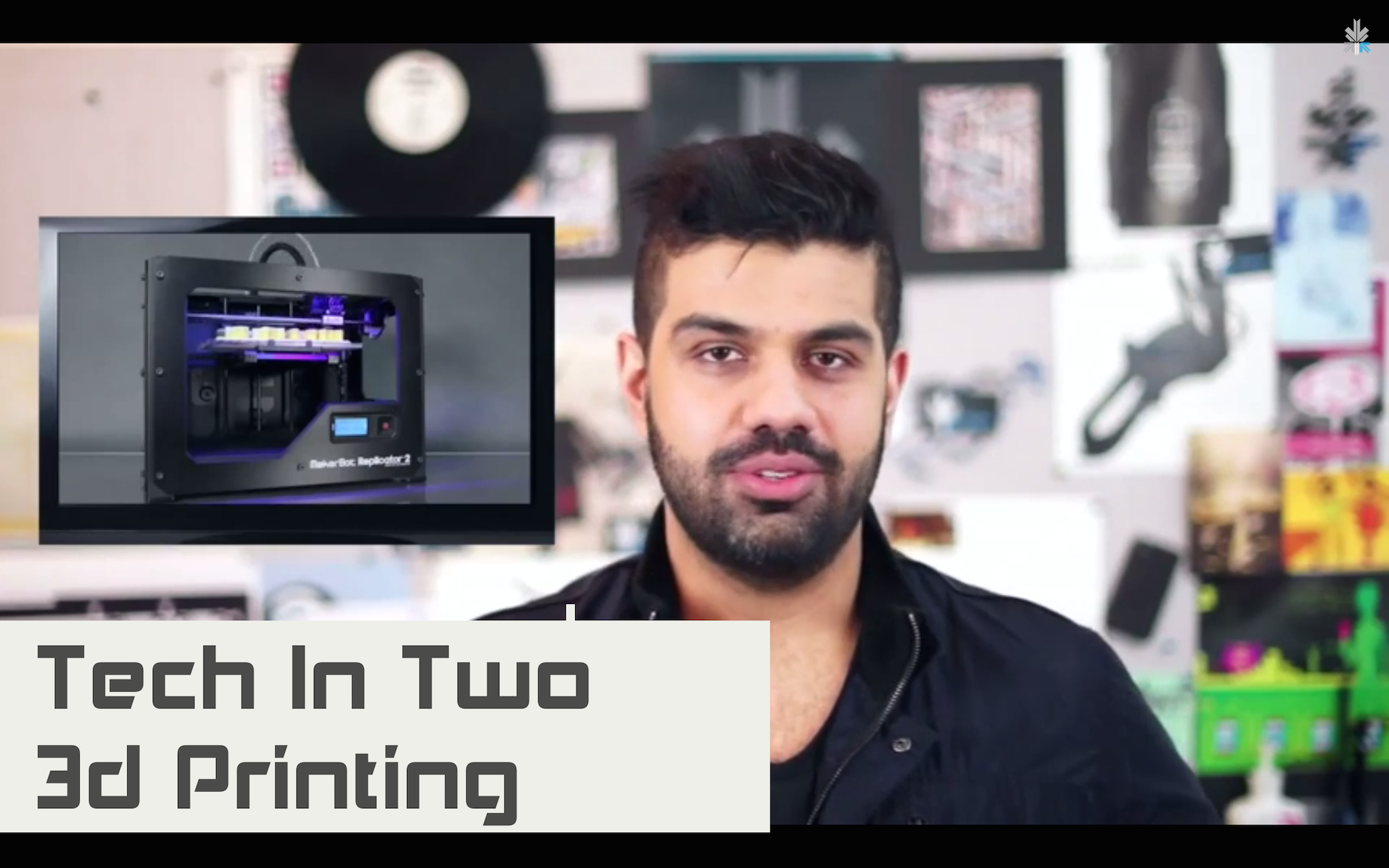
    In this fast-paced world, wouldn’t it be great if  someone explained complex technology in the time your instant noodles cooked? We took it upon ourselves to bring the best of the information in one easy sized bite.

    Welcome to ‘Tech In 2’, iGyaan’s latest show. Here you get everything you want to know about any gizmo or technology you desire. If you want to know about anything in the world of technology, leave a comment below, and we’ll bring out an episode for you.

    To begin, we bring you this episode on 3D printing or additive manufacturing(AM). It is a revolutionary technology that will completely revolutionize the way we buy things. We explain how you can create almost anything from a small tool to an entire house using the technology. Feel free to share the video with someone you think needs the info.

    Read more about 3D printing technology here.

  • Unboxing | Lava Iris X1 Grand | Hands On

    Unboxing | Lava Iris X1 Grand | Hands On

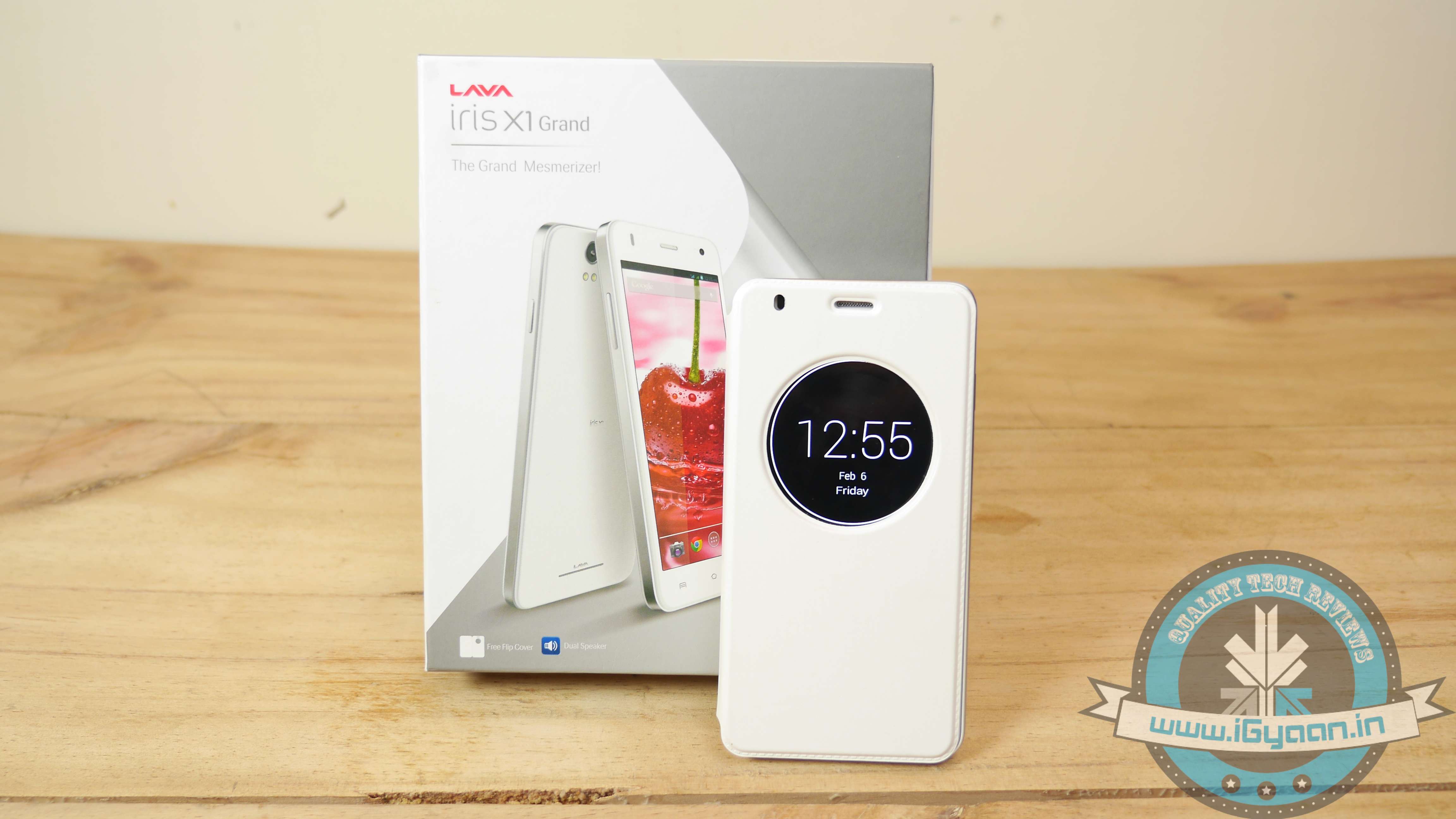
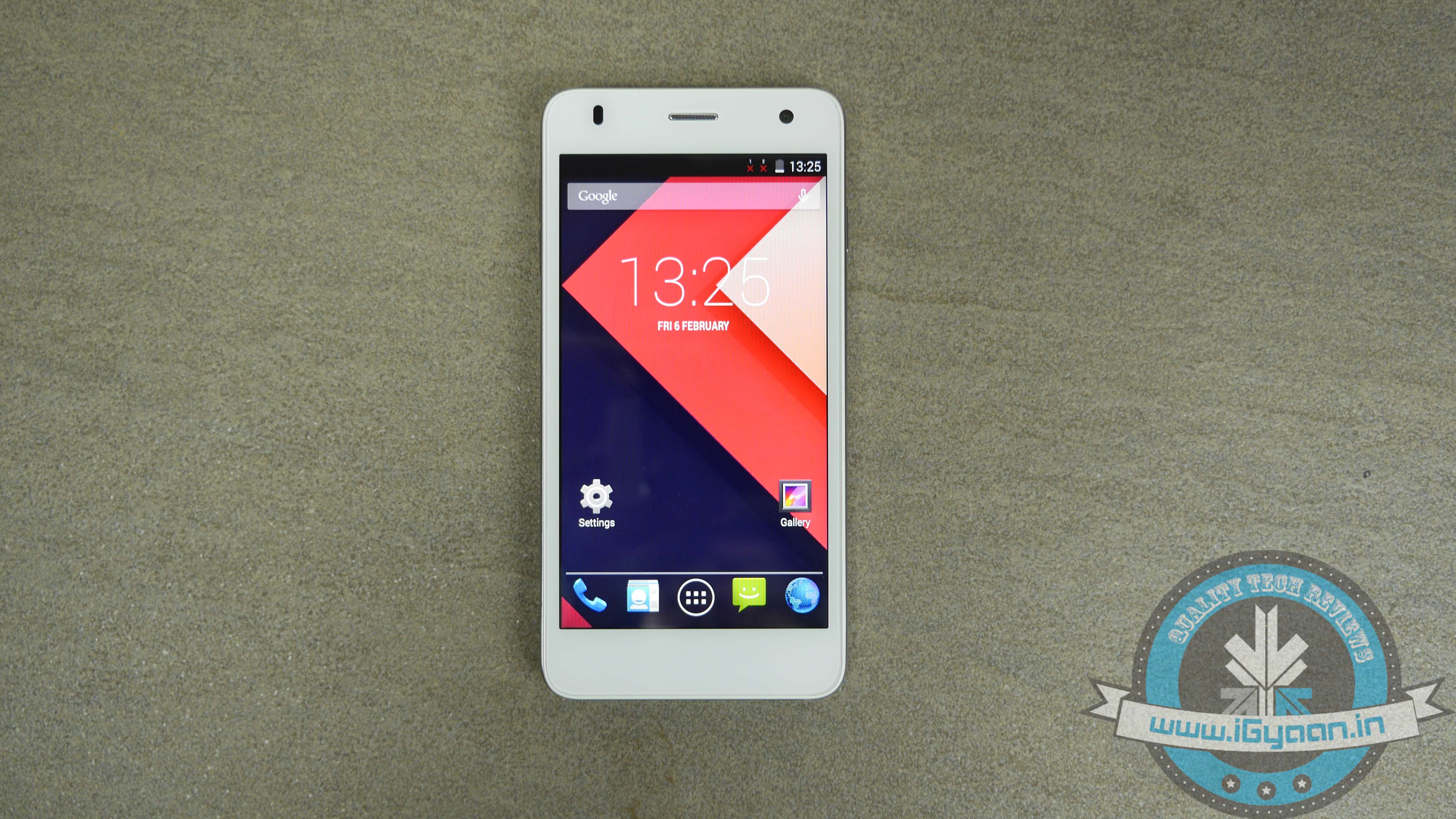
    Indian smartphone brand Lava recently brought out their new offering in the sub-Rs.10,000 market in the form of the Iris X1 Grand. This is a successor to the Lava Iris X1 that the company launched in the May of 2014. We unbox the device for you.

    The device looks like an elder sibling to the Iris X1. It sports a 5-inch display with a resolution of 480×854 pixels. The power button is located on the right while the volume rockers are placed on the left. The flip cover provided with the device has markings on it which lets you manipulate the volume without opening the case.

    The Lava Iris X1 Grand
    The Lava Iris X1 Grand

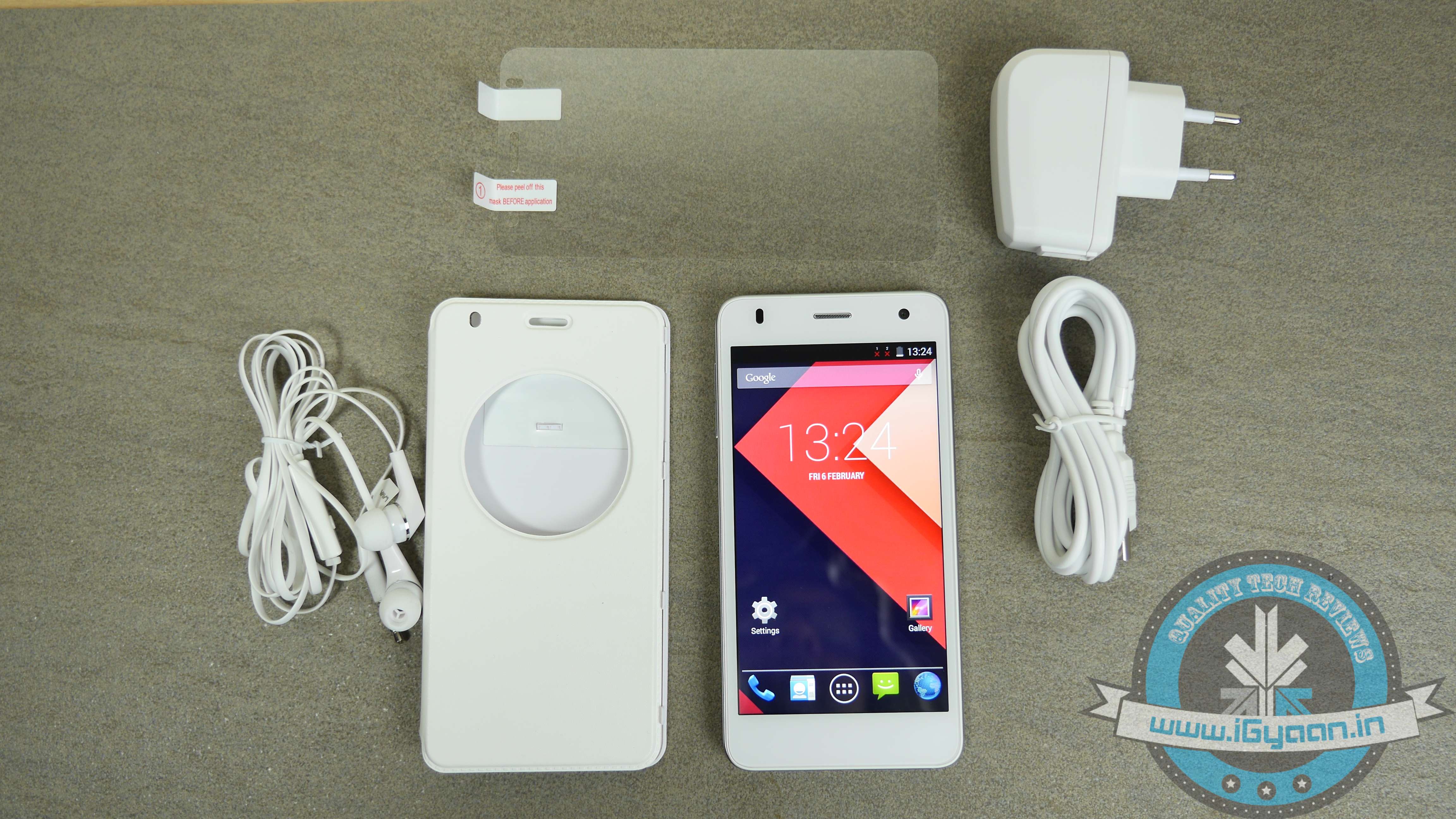
    In the Box you get:

    • Lava Iris X1 Grand Handset
    • In-ear Earphones
    • Charger and USB cable
    • Flip cover
    • Screen Protectors
    • Information booklet
    The Iris X1 Comes along with a free Flip case and screen protector.
    The Iris X1 Comes along with a free Flip case and screen protector.

    The device runs Android KitKat 4.4.2, out of the box, but it promises a guaranteed upgrade to Android Lollipop 5.0 which makes the deal attractive for the price. There aren’t a lot of bloatware on the device and the interface felt snappy and responsive.

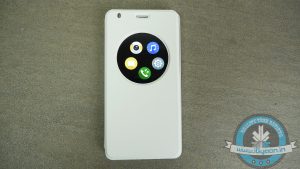
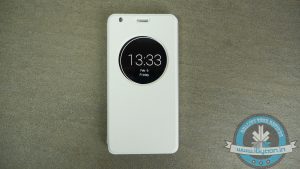
    Lava offers a free flip case with a round opening in the front which looks “inspired” from LG G3. The case is magnetic, so the screen shuts off when the case is on. You get quick access to the phone log, messages, music, settings and camera from the round screen so it would come handy when you are on the move.

    The Lava Iris is priced at Rs. 6,500 which along with all the freebies such as flip case and the screen protectors makes it a bargain. Overall, the Lava Iris X1 Grand felt great in its first impressions, and we’ll take the device to task in our in-depth video, so stay tuned for that.

    Specs

    Lava Iris X1 Grand

    Operating System Android 4.4.2
    Screen Size 5.0 inch
    480×854  pixels
    RAM 1 GB
    Battery 2200 mAh
    Processor  MediaTek MTK6582M
    CPU Quad-core 1.3 GHz
    Internal Storage 8 GB
    Expandable Up to 32 GB
    Front camera  2 MP
    Rear Camera 8 MP
    Price Rs. 6,500


  • Unboxing | Samsung Galaxy A3 | Hands On

    Unboxing | Samsung Galaxy A3 | Hands On

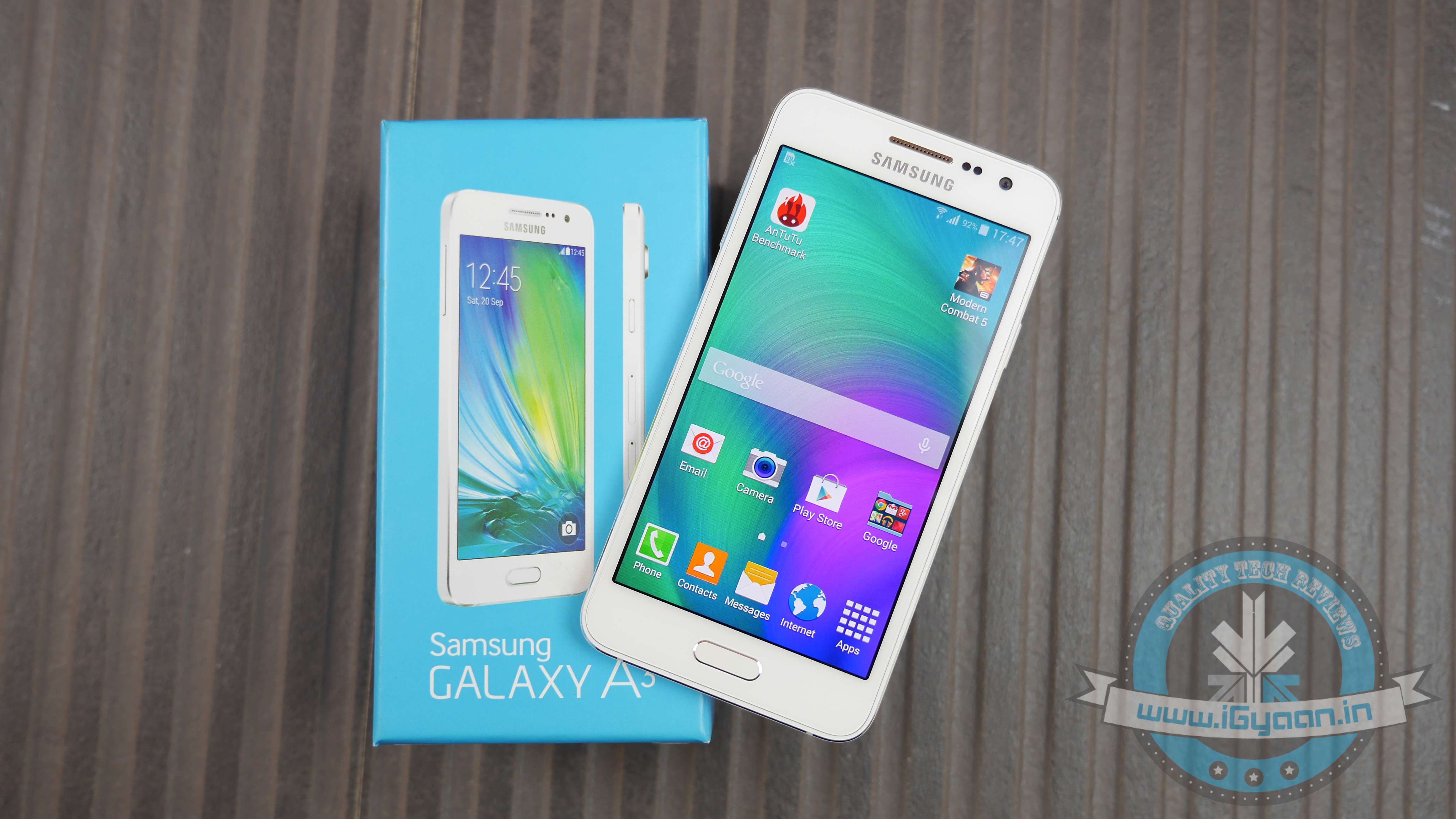
    Samsung has been expanding the new metal frame design in its product portfolio. They recently unveiled low-cost Tizen based Z1 also flaunted the new design element. The company has launched two new mid-range devices called the Galaxy A3 and A5 that take the classy metal-based design forward.

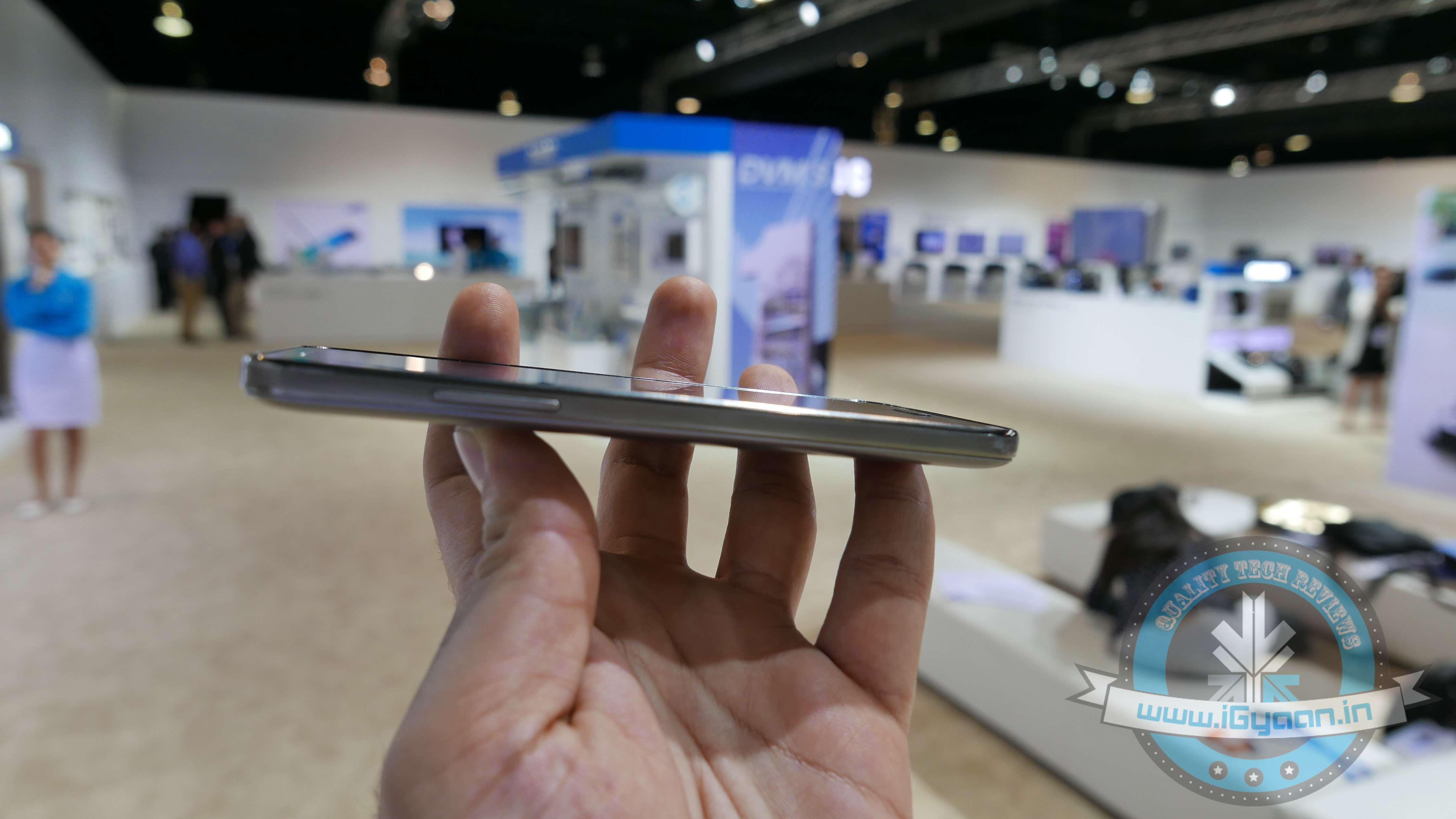
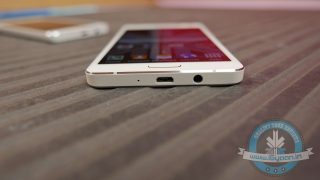
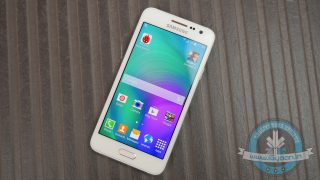
    On the looks front, the device looks classy and has a pocket-friendly size. The 6.9 mm thickness of the device coupled with metal frame makes it feel robust, slim and outdoorsy. The placement of the headphone jack and the microUSB port on the lower end might feel troublesome to a few users. The main camera has a prominent bulge on the back. The design features do seem reminiscent of iPhone 5S kind of styling.

    The display of the device is quite a disappointment for its price. It has a resolution of 540 x 960 pixels with a pixel density of 245 PPI. At a time when sub-Rs.10,000 devices are featuring 720p HD displays, the A3’s display is definitely a downer.

    In the box you get:

      • The Galaxy A3
      • Earphones
      • Charger + Cable
      • SIM Removal Tool
      • Information Booklet

    In terms of performance, you get almost the same output as the Galaxy A5. The TouchWiz UI running on the device is a simplified version so you won’t get the Flipboard application on the left of the home screen. Samsung has also kept away bloatwares from the device which is a plus for the device.

    At the price of Rs.20,500 the low resolution display and low specs does make this device feel overpriced. We’ll delve in deeper into the Galaxy A3 and its bigger sibling the Galaxy A5 in our upcoming full review, keep checking iGyaan for more.

    Specs

    Samsung Galaxy A3

    Operating System Android 4.4.4
    Screen Size 4.5 inches
    Super AMOLED
    540 x 960 pixels
    RAM 1.5 GB
    Battery 1990 mAh
    Processor  Qualcomm Snapdragon 410
    CPU Quad-core 1.2 GHz
    GPU Adreno 306
    Front camera  5 MP
    Rear Camera 8 MP
    Price Rs. 20,500


    At 4.5 inches the Galaxy A3 is pocket friendly.
    At 4.5 inches the Galaxy A3 is pocket friendly.
  • Unboxing | Samsung Galaxy A5 | Hands On

    Unboxing | Samsung Galaxy A5 | Hands On

    With the launch of the Galaxy Alpha last year, Samsung attempted a new metal frame based design philosophy that also influenced their last major flagship, the Note 4. Samsung recently launched the A3 and A5, which are based on the same design elements, but come with a mid-range price tag. We unbox and take a look at the new Galaxy A5 from Samsung.

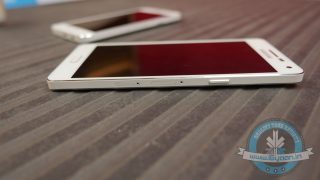
    Except for their display sizes, both the A3 and A5 look identical. There is nothing on the top as both the microUSB slot and 3.5 mm jack are placed on the lower end. On the right, you have the power button along with two SIM slots out of which the bigger slot can be used as a microSD card slot. On the left, you have the volume rockers and staying true its, ‘Samsungness’, the main button sits at the center below the display along with the capacitive touch buttons. The pearl white color of the device is fantastic.

    In the box you get:

    • The Galaxy A3
    • Earphones
    • Charger + Cable
    • SIM Removal Tool
    • Information Booklet

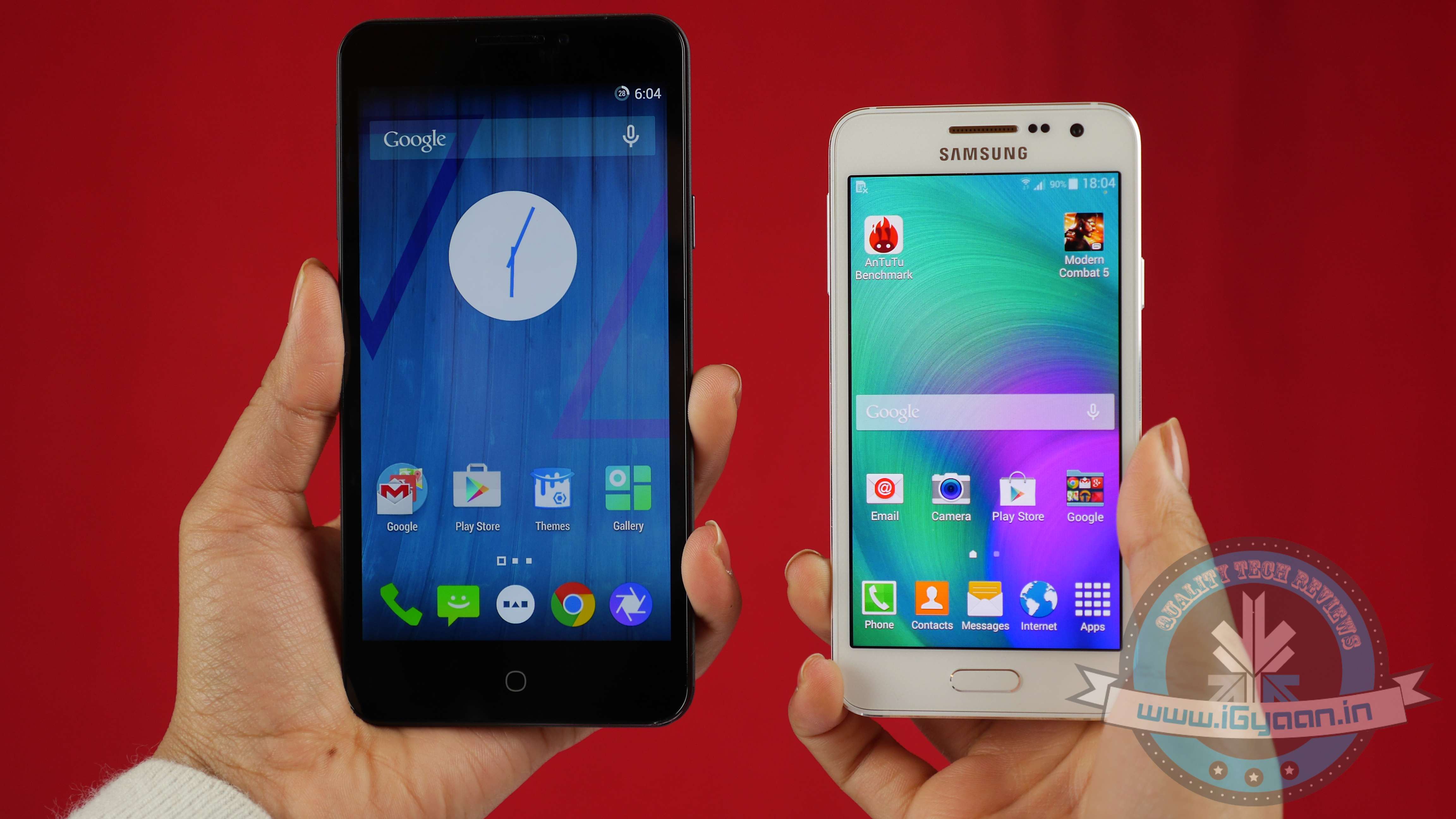
    The devices are marketed as selfie and camera friendly  and hence provide instant access to the camera from the lock screen. The touch felt responsive, and there were minimal lags in the time of use. The Galaxy A5 has a 1280×720 display which is a dissapointment as Samsung could have easily provided a Full HD display at the price.


    The Galaxy A5 comes for a price of Rs. 25,500 and has more to offer than its younger sibling; the Galaxy A3. Stay tuned for the full review of the devices only on iGyaan.in.

    Specs

    Samsung Galaxy A5

    Operating System Android 4.4.4
    Screen Size 5.0 inch HD
    Super AMOLED
    1280×720 pixels
    RAM 2 GB
    Battery 2300 mAh
    Processor  Qualcomm Snapdragon 410
    CPU Quad-core 1.2 GHz
    GPU Adreno 306
    Front camera  5 MP
    Rear Camera 13 MP
    Price Rs. 25,500


    Samsung Galaxy A3 and A5 1
    The A3 and the A5 Compared : The A5 being the larger variant
  • 5 Affordable Upgrades to Make Your Old Desktop More Efficient

    5 Affordable Upgrades to Make Your Old Desktop More Efficient

    Windows PCs slow down over time, that’s a long known fact. These day in the era of Bring Your Own Device (BYOD), your desktops must have been sitting in the corner, eating dust. However, it is also true that desktops come with better upgradation options than laptops. Meanwhile, these desktop also prove to be worthy companions to your laptop, if you want to work across multiple devices.

    Be it your personal PC or an office one, you can oomph these devices to work better without spending too much from your pocket. We are listing top 5 affordable upgrades that will make your old desktop more efficient.

    1. SSD Storage

    SSDIf your desktop is still running on a hard disk drive (HDD), the first and foremost step is to replace it with a solid-state drive (SSD). You will see a considerable speed-up in practically every aspect of your computing experience. One glitch you may experience is the high price of SSD for a large storage capacity. A simple hack to this problem is to install a smaller 128GB or 256GB SSD drive as the primary drive, and use a high-capacity HDD as a secondary drive for which you can use your existing HDD.

    2. Expand Your RAM

    4gb ram stick

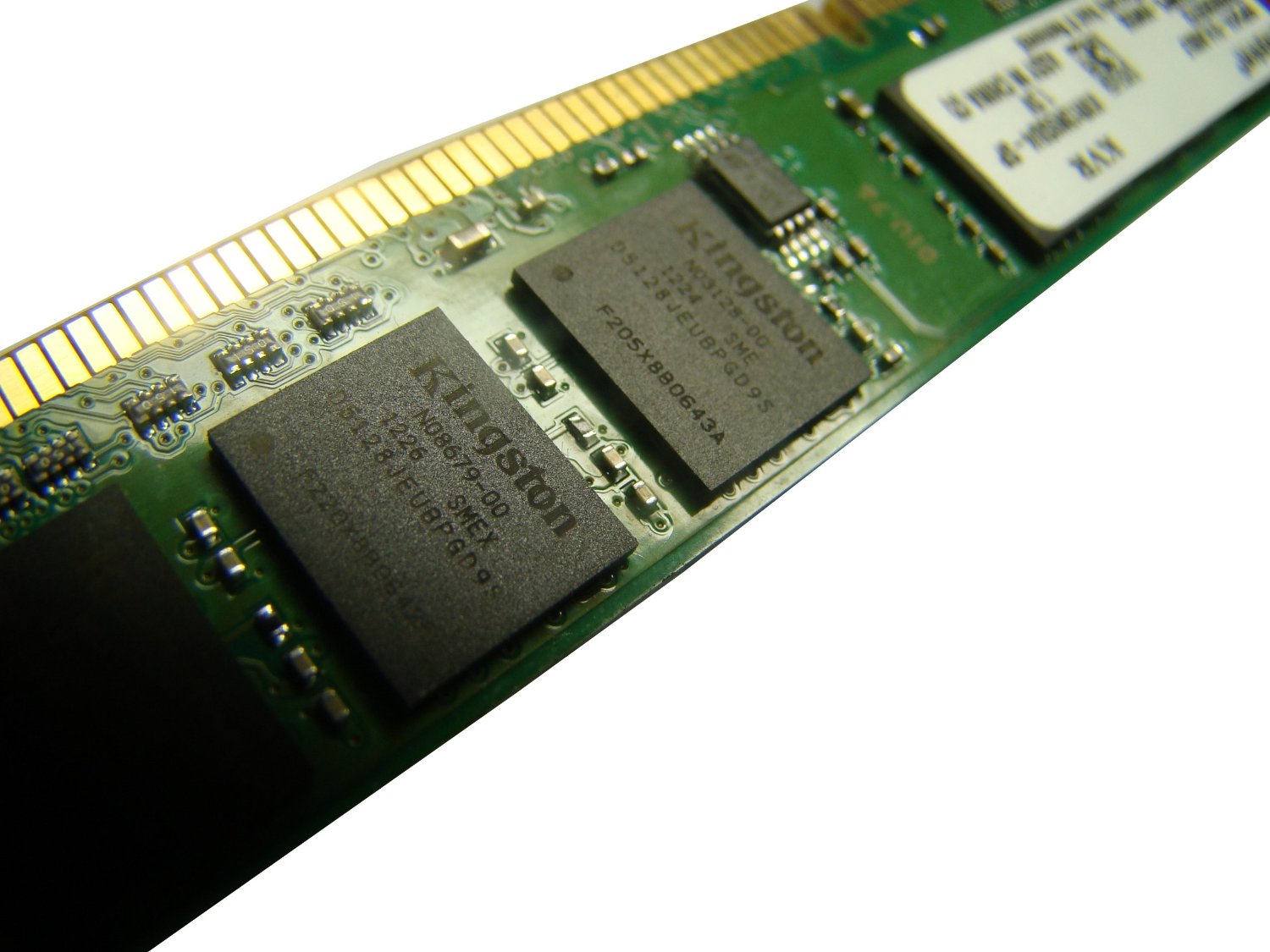
    With a 4GB DDR3 RAM stick from Kingston costing less than Rs. 3,000, a RAM upgrade is something to seriously consider. This simple upgrade from 2GB to 4GB RAM will deliver a noticeable boost in performance.

    Most desktops have between two and four slots, and you will need to swap out lower-capacity RAM modules for higher-capacity ones if there are no empty slots available. And while most PCs should be using DDR3 RAM by now, some older machines use DDR2 RAM, which tend to be more expensive to upgrade.
    3. Speed up the Networking

    Ethernet

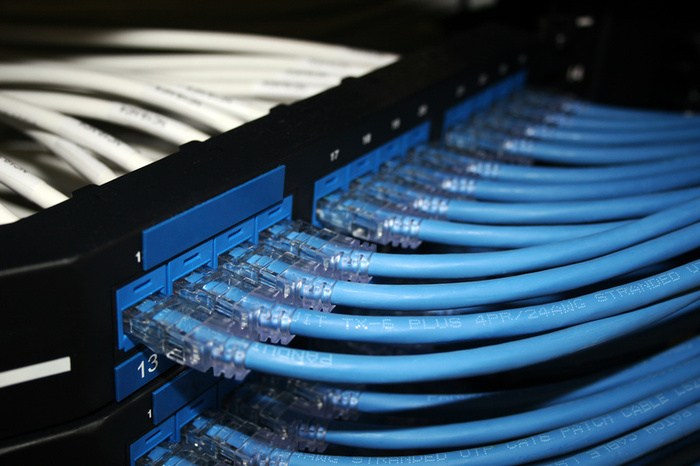
    If you need maximum network performance, go for wired Ethernet connectivity instead of wireless networking. The Ethernet is far more reliable, offers dedicated bandwidth to your PC, and factors that commonly affect wireless signals such as office layout will not be an issue. You can also check weather your PC comes with Fast Ethernet (100Mbps) ports, so an upgrade to Gigabit Ethernet with an add-on network interface card (NIC) may also work on your benefit.
    4. Multi-monitor set-up

    multi-monitor setup

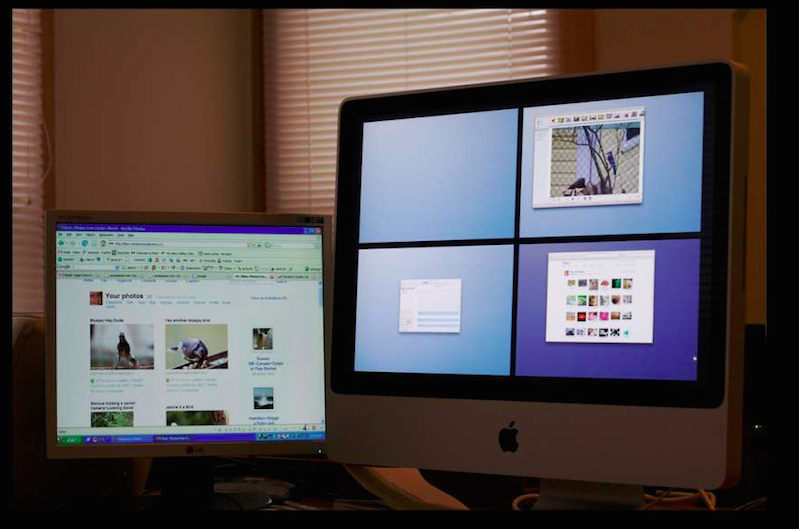
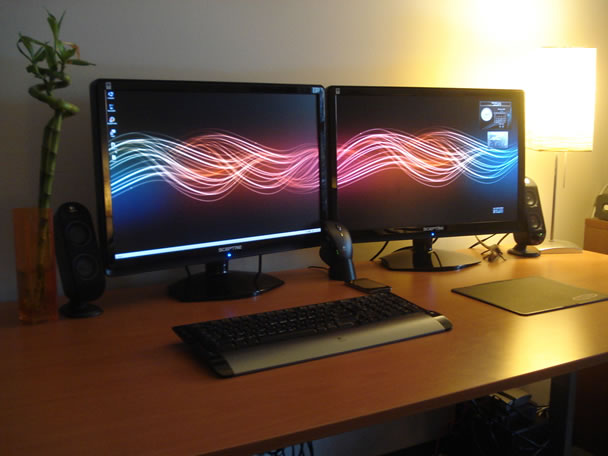
    Over the years, users and tech analysts have noted that multitasking is easier and smooth with two or more monitors. While laptops can run multiple monitors as well, it is much easier to set up desktop systems to do it. Indeed, many desktops can probably support at least two monitors without any external upgrades.

    5. Desktop casing

    desktop casing

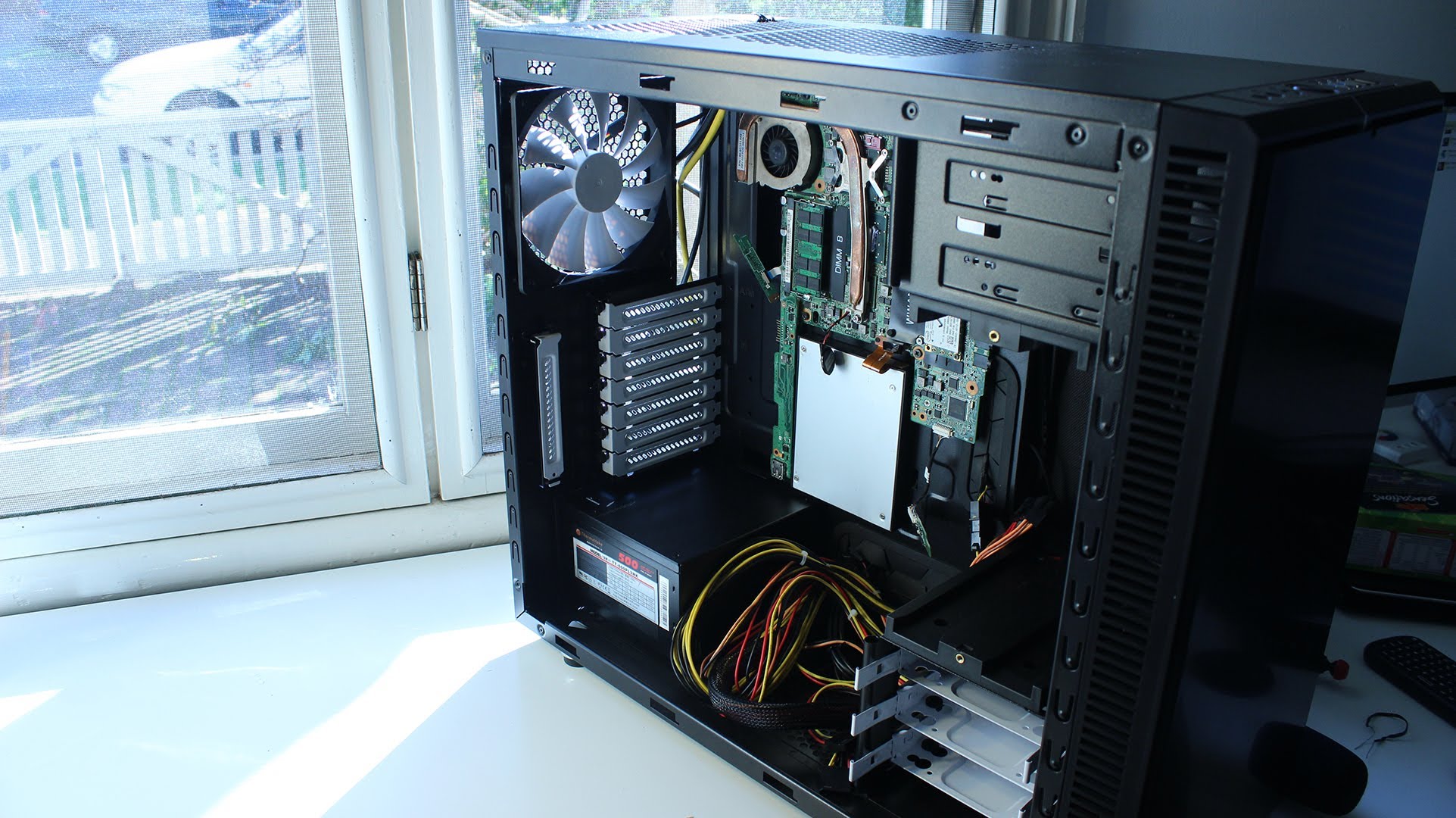
    This one will make you work a little bit. Changing your desktop’s casing will open you up to many upgradable options. You can get space for more components and more cooling. You can also make your desktop look new with some fancy features such as clear side panels or glowing fans and lights. And yes, you can also upgrade your front-panel connectors to support the latest and greatest connection types.

  • Switching from iOS to Android? Then This Guide is For You

    Switching from iOS to Android? Then This Guide is For You

    Apple has garnered a reputation for being the most genuine and reliable brand for many years. Its iOS smartphones, Macbooks and the upcoming Apple smartwatch have seized the attention of the audience. In spite of this, the fact also stands true that there are also some dissatisfactory customers who wish to switch from iOS to Android.
    For those who have been using the iOS platform from the beginning may find it hard to switch to Android. The operating system may intimidate first-time users as it works quite differently. Use this guide and transfer music, contacts, messages, videos and other relevant documents to your new Android smartphone.

    Transfer Contacts

    Before you land on to the Android platform, the first thing you need to do is back up your iOS device. Contacts are important need to be saved in top priority. Transferring data through iCloud is extremely easy. Just keep in mind these simple steps:

    1. Sign into iCloud and click Contacts.
    2. Select all contacts by pressing Command+A.
    3. Go to the cog wheel icon and tap Export vCard; a VCF file with all the contacts will download.
    4. Plug in the Android device and copy the VCF file onto your Android.
    5. Import the copied contacts from the Contacts or People app.iOS vs Android 11

    Another way to copy contacts is through iTunes:

    1. Plug your iPhone via USB and open iTunes.
    2. On the Info tab on the Menu bar, tick Sync Contacts with.
    3. Choose Google Contacts.
    4. Type in your Gmail Username and Password in the new window and click Apply.
    5. All your contacts information along with numbers and email addresses will store on Gmail and Apple alike.

    As the contacts are now on your Gmail account. Your new Android smartphone will ask you for an option to sync on the first boot. Just add the Gmail account and your contacts will automatically appear in a list on the device.

    Sync Calendar

    iOS vs Android 1

    Syncing Calendar is not an easy job, but SmoothSync for Cloud Calendar will make it convenient for you. Get started with these few easy steps on your iOS device:

    1. Open SmoothSync for Cloud Calendar and login to your iCloud account.
    2. On the next window, select calendars you wish to sync.

    Now, it will take care of the rest. All the important events and notifications will now come on your Android device.

    Transport Music

    iOS vs Android 8

    Building a music library of your choice is a hard done effort of many years. You cannot afford to lose it. The easiest possible way to transfer music files from iOS to Android is to download Music Manager on a system that has both Google Music and iTunes.

    1. Sign in to Google Music.
    2. Once the Music Manger is downloaded and installed, select iTunes option as the present music storage option.
    3. Choose Upload all songs and playlist. The songs will then be uploaded on the app apart from your iOS handset.
    4. You can now transfer your music library to your Android device.

    Shift videos and photos

    iOS vs Android 3

    Out of many ways of transferring pictures and videos from iOS handset to Android, the easiest one is to connect your iOS handset and Android device to a computer via USB cable.

    1. Locate both the devices in My Computer folder.
    2. Open the storage of both the devices.
    3. Locate DCIM on the iOS device.
    4. Select the images and drop them into the Android storage folder.
    5. Images of the iOS phone will now appear on your Android device.

    This drag-and-drop method is the simplest and least time consuming than the wireless transfer option.

    Relocate text messages

    iOS vs Android 0

    Some of you might find it useless, but for some others messages are as important as contacts, music and photos. The transferring of iMessages to Android is not an easy job; it’s a three-step process, which is simplified below:

    1. Connect iPhone to your computer and open iTunes.
    2. On the bar at left, right click on your phone name and choose Backup.
    3. A file with random name will save on your system.
    4. Transfer this file to your Android device storage.

    The messages are in your Android device but are not yet readable. Convert them to a readable format through iSMS2droid.

    1. Download iSMS2droid and install it.
    2. Open the application and choose Select iPhone SMS Database.
    3. Locate the backup file just transferred to your phone.
    4. A pop-up will ask you for your permission to load SMS.
    5. Tap All and the conversion will start.

    Post the conversion, another app needs to be installed – SMS Backup & Restore.

    1. Open the app and choose Restore.
    2. Select the converted file from the directory and click Restore All Messages; the restoration will commence.
    3. A pop-up will show the restored message number along with those that cannot be restored.

    Once you are done with relocating your stuff, visit Google Play Store. A whole new world of apps is waiting for you!

  • Top 5 ‘Lite’ Apps You Should Download to Save Battery and Storage

    Top 5 ‘Lite’ Apps You Should Download to Save Battery and Storage

    Apps help us stay connected, book movie tickets, message our loved ones and improve our overall daily efficiency. But it’s not all pretty; they also tend to suck up our phone’s battery life. As apps improve and become more sophisticated, they tend to drain more battery from your smartphones. Well, there’s an easy way out to this problem, there are plenty of free ‘lite’ versions you can use as alternatives.

    We are listing top 5 Lite-versions of your favorite apps that will help save your smartphone’s battery life.

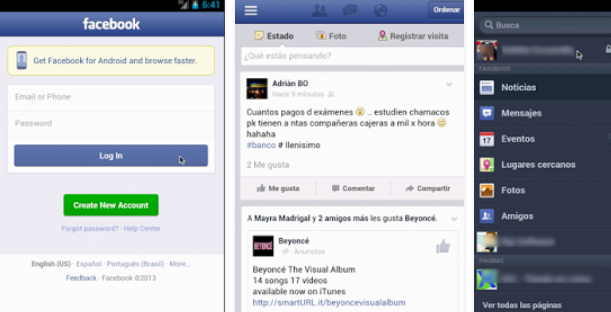
    1. Lite WebApp for Facebook

    Facebook Lite

    As much as we appreciate Facebook’s strategy to continuously keep updating their app with new features, we have to admit that the official Facebook app slows down and exhausts our smartphones. Lite WebApp is a Facebook look-alike app designed for phones with low memory and can save some of your battery. The best part that you’re sure to appreciate, it still syncs your Facebook inbox, which Facebook recently dropped in the favour of their standalone Messenger App. Since we still don’t have access to the newly launched Facebook Lite, we’ll have to make do with this one.

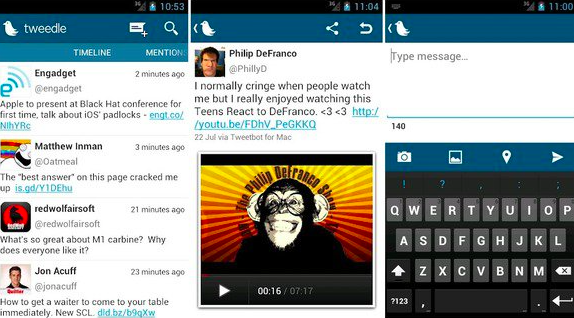
    2. Tweedle for Twitter

    Tweedle for Twitter

    The worst part about the official app for Twitter is that it constantly refreshes the feed. This is the reason it consumes a ton of battery life. Tweedle, an alternative to Twitter, runs smoothly, consumes less battery and has a clean interface. The app saves battery as the user needs to manually refresh the feed to use it.

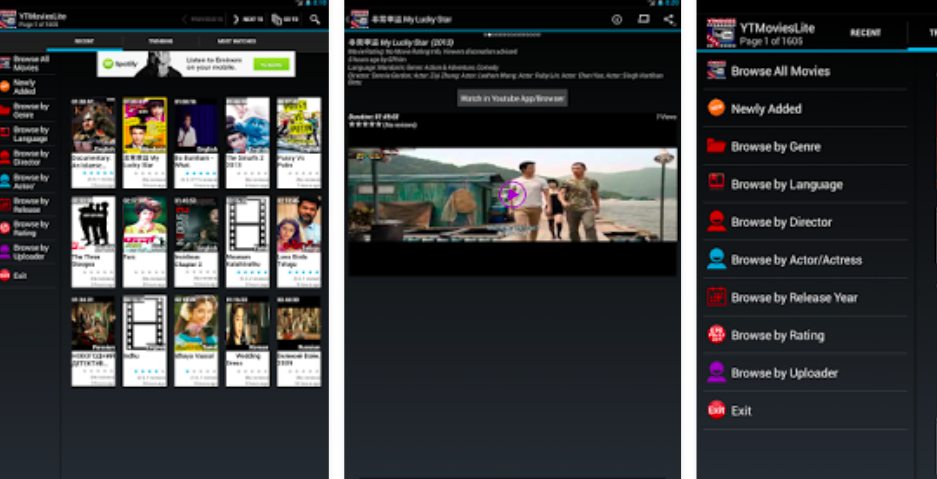
    3. YTMovies (Lite) for YouTube

    YT Movies

    YT Movies lets you watch YouTube clips and send them to your smart TV and other media players. YTMovies(Lite) is ad-supported with limited options, and is only available for Android devices. It also offers a pro version called Pro YT Movies, which however, is not free.

    4. CloudMagic for E-mails

    Cloud Magic for EMails

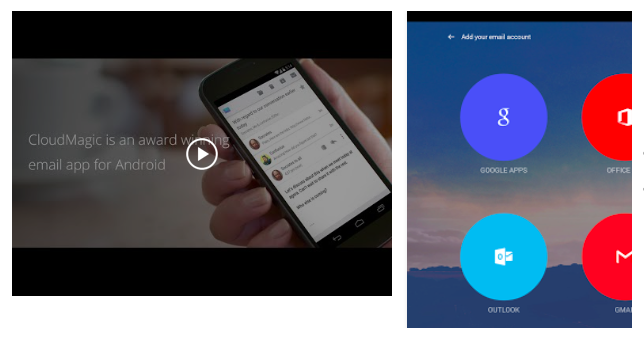
    Mail apps can destroy your battery life as they are constantly synced to the e-mail websites to refresh the feeds. A great alternative to your e-mail apps is CloudMagic, which simply merges all of your email accounts into one app. You can find emails quickly and, most importantly, it’s easy on battery life.

    5. PicShop Lite for photo editing

    PicShop Lite

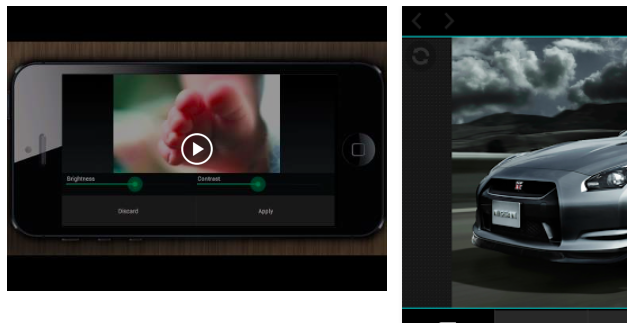
    Smartphones come handy when you need to edit photo directly from the phone gallery. There are loads of photo-editing apps available in the app store such as Hipstamatic, Snapseed, Pixlr-o-matic and many more. But on-the-go photo editing apps eat up your phone’s memory and suck battery really fast. PicShop Lite app massively reduces memory usage and allows you to edit, add filters and frames, and share your photos.

  • List of the Best Republic Day Tech Deals on Amazon

    List of the Best Republic Day Tech Deals on Amazon

    Festive season offers are a great time to make purchases. Amazon has organised a special clearance parade on the occasion of Republic day where you will get electronic devices at discounted rates. You can get from memory carda to phones to tablets and lots more.

    Here’s a collection of top 5 deals you can go for this Republic day:

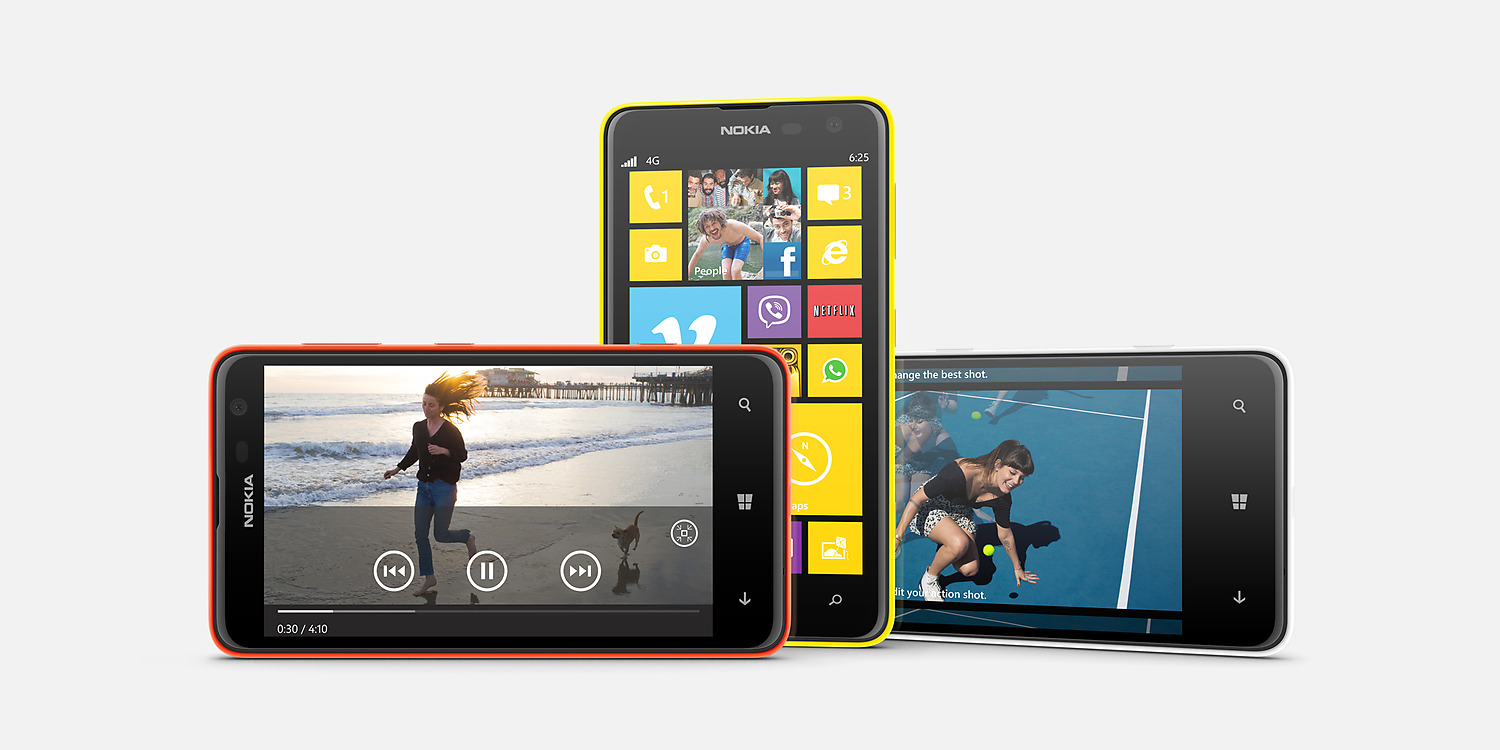
    1. Nokia Lumia 625 (White)

    Nokia-Lumia-625

    • 4.7-inch WVGA capacitive touchscreen
    • 1.2GHz Qualcomm Snapdragon S4 dual core processor, 512MB RAM
    • Windows 8 (Windows 8.1)
    • 8 GB internal memory,  64 GB expandable
    • 2000mAH battery (23 hours talk-time on 2G)
    • 1-year manufacturer warranty for the device and 6 months manufacturer warranty for in-box accessories
    • 5 MP primary camera with LED flash, full HD video recording and 0.3 MP front facing camera

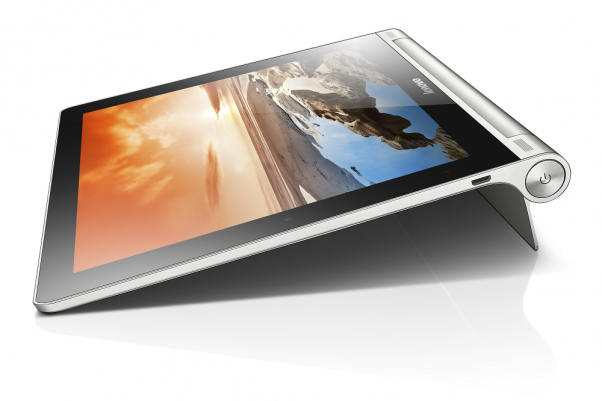
    2. Lenovo Yoga 8 Tablet

    lenovo yoga tab 8

    • 8-inch IPS capacitive touchscreen
    • 1.2GHz Mediatek 8389 quad-core processor, 1 GB RAM
    • Android 4.2 Jelly Bean
    • 6000mAH battery
    • 16 GB internal memory,  64 GB expandable
    • 5MP primary camera with auto focus and 1.6MP front facing camera
    • 1-year manufacturer warranty for the device and 6 months manufacturer warranty for in-box accessories

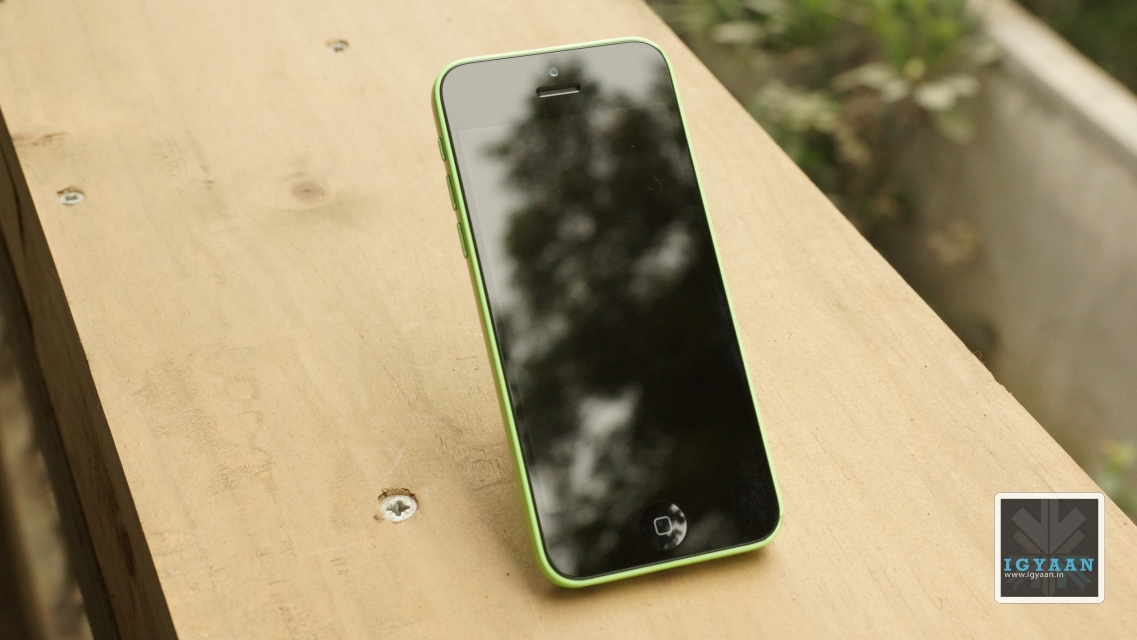
    3. iPhone 5c (White, 8 GB)

    iPhone 5C 11

    • 4-inch multi-touch Retina display
    • iOS 7 OS with 8 GB internal memory
    • 8 MP primary camera with LED flash, auto focus, 1.2 MP front-facing camera for HD video recording
    • Rechargeable battery with 10 hours of talk time on 3G network
    • 1-year manufacturer warranty for the device and six months manufacturer warranty for in-box accessories

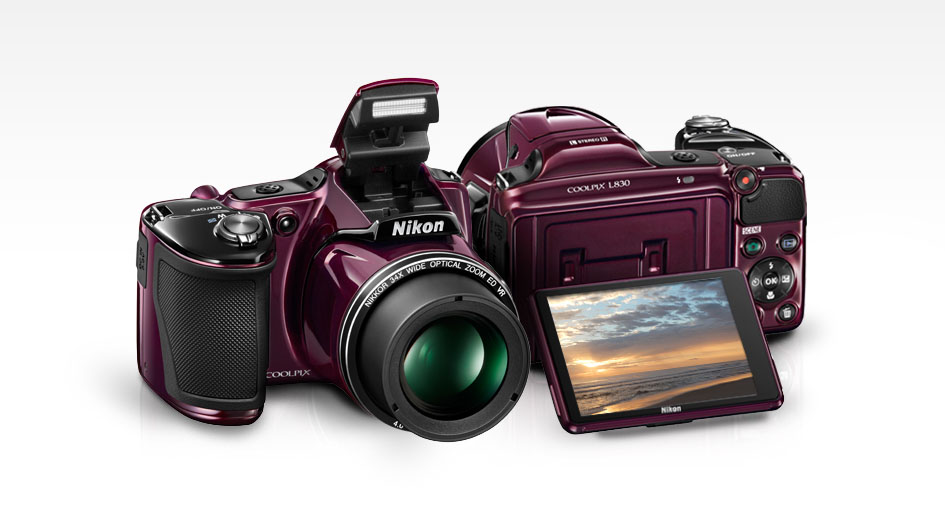
    4. Nikon Coolpix L830

    nikon coolpix l830

    • 3.0-inch and 921,000 dot TILT LCD display
    • Comes with 16.0 MP CMOS sensor
    • Comes with f/3 – f/5.9 aperture
    • 34x zoom-NIKKOR glass ED lens and 1080p full HD video with stereo sound
    • 4 GB memory card and camera case
    • 2 years Nikon India warranty

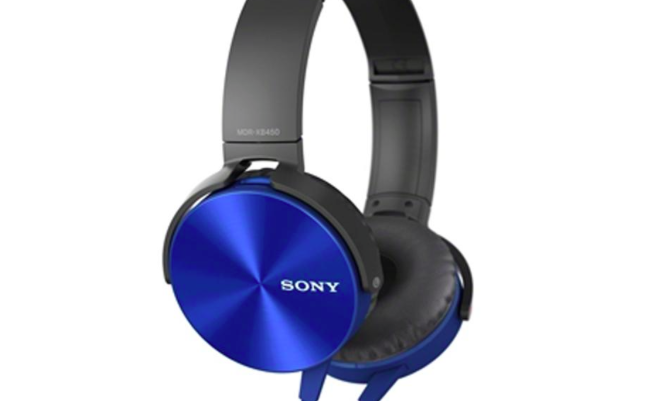
    5. Sony MDR XB-450 Extra Bass Foldable Headphones

    Sony MDR XB-450

    • 30 mm driver unit for powerful sound
    • Portable with folding design
    • Pressure-relieving ear pads for extensive comfort
    • Tangle-free flat cord

  • 10 Useful Things To Do With Your Old Laptop

    10 Useful Things To Do With Your Old Laptop

    Despite everyone’s assumptions, the geek inside you is not always privy to the latest and greatest technology. If you’re stuck with an old, slow, crappy computer, there are a few things you can do to make the best of a bad situation. Whether it’s a desktop computer or a laptop, whether or not it’s broken, and no matter how old it is, it can still be useful to you.

    1. Sell The Working Parts

    internal laptop

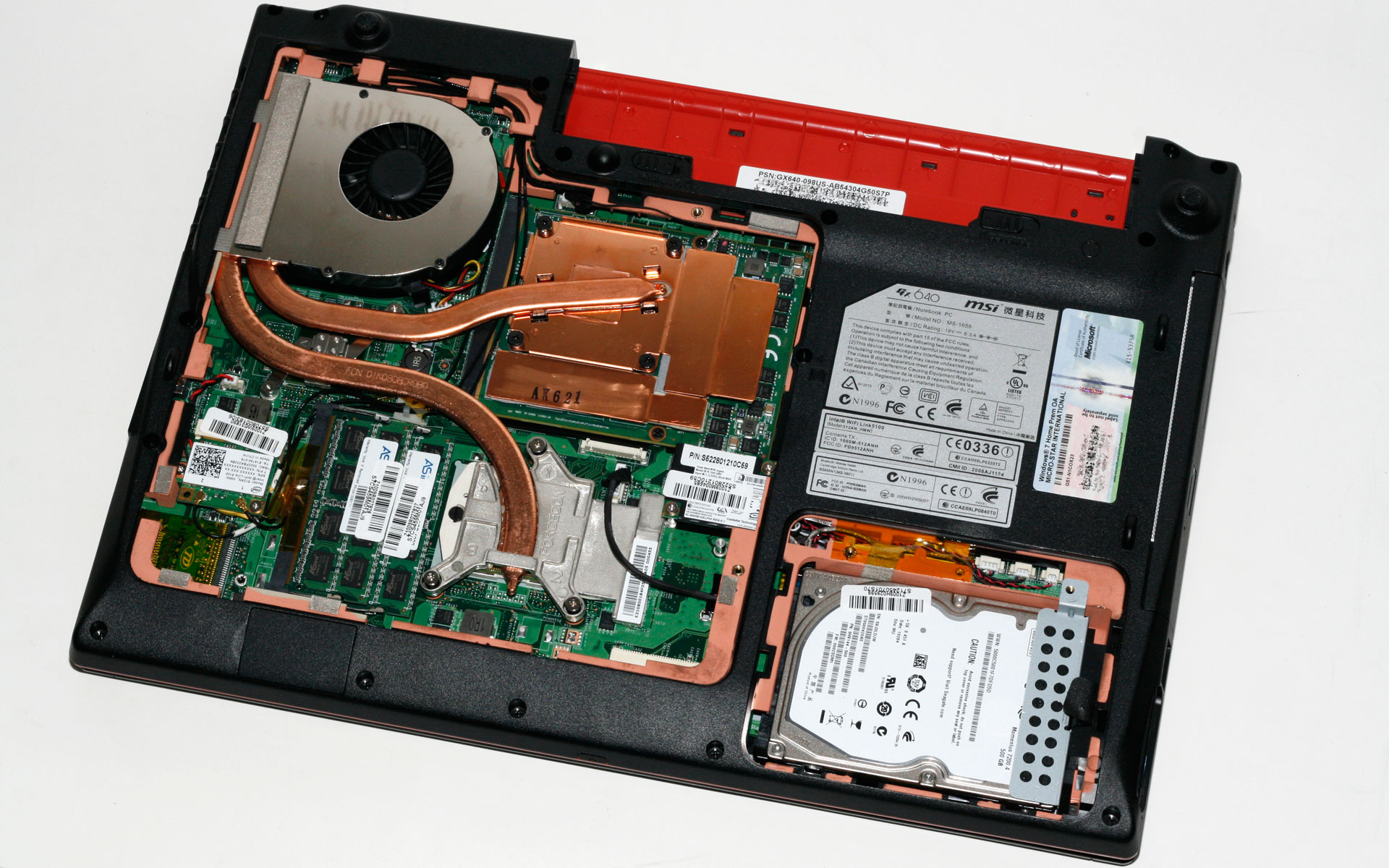
    You can dismantle your entire broken computer or laptop and sell the working parts online. Hard drive, RAM, A/C adapters, motherboards, graphics and audio cards, and even an intact case will get you some cash. It might not make your old laptop useful, but you may be able to save up some extra money to buy those cool headphones you’ve been eyeing for months.

    2. Install a Light Weight Operating System

    archbang

    If nothing seems to workout, one of the best things you can do is install a new operating system altogether. It’ll definitely shake up your workflow, but with enough commitment, you can use one of the many Linux-based OS to give your computer a major speed boost. If you are already familiar with Linux, we will recommend ArchBang, otherwise Ubuntu or Chrome OS might work well for you.

    3. Turn it into a Wi-Fi Hotspot

    LibrarySymbolLaptop-WifiBl

    Well, this one of the best things you can do with your old laptop. Turn your laptop into a hotspot for sharing an Internet connection via Wi-Fi. There is a step-by-step guide on Windows XP or 7 and there is also the option of using 3rd party software. Specifically, Connectify. If you’ve already got a router with Wi-Fi, run Ethernet on the laptop and with Connectify you can create a secondary network using the same Internet connection.

    4. Use it as a Digital Photoframe

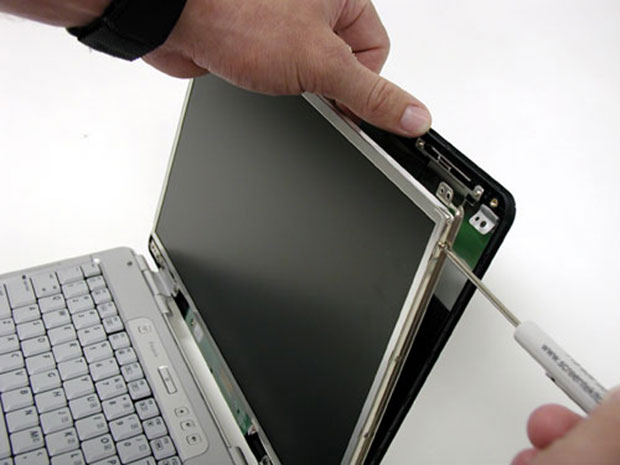
    laptop-screen

    If your laptop’s screen is fine, you can use it to build a cheap digital photo frame. With a working wireless connection you could even make it show your latest photos. There are loads of DIY instructions available online. So, go ahead and experiment.

    5. Create an External Hard Drive

    hard disk

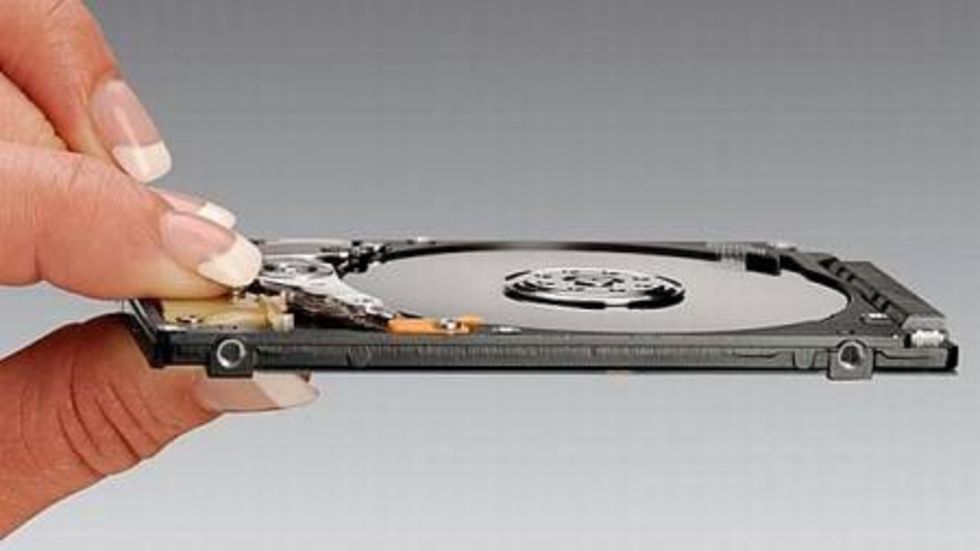
    If parts of your laptop or desktop computer hardware are broken, you can salvage the working parts. So if the hard drive is still working, you can dismount it and transform it into an external and portable hard drive for your new computer. You’ll have to invest in a USB caddy, which can be bought online easily.

    6. Use it as a back-up machine

    Dusty keyboard

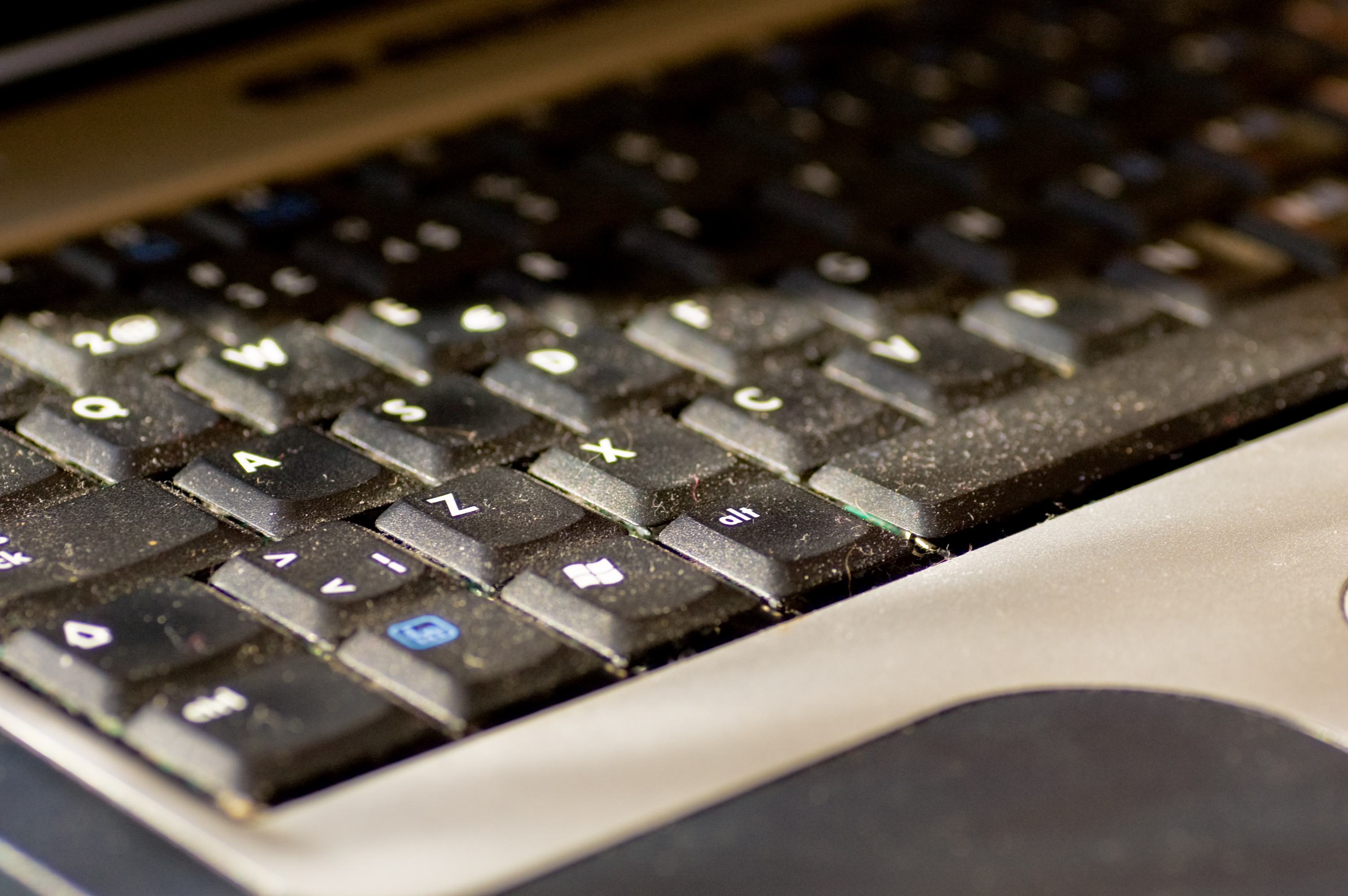
    Lets face it, in this digital world we are struggling with information overload. The floods of gigabytes have taken over our lives, be it professional or personal. This is where your old laptop can be useful for you. Use it as a back-up machine where you can save your photos, documents and video.

    7. Home server for file sharing

    freenas

    Heard about network attached storage? It is like a server for your home or small business network, used for storing files that you share with all the PCs on a particular network. If you’ve got an old PC with lots of storage drive space, you don’t need to buy a NAS, you can make one. FreeNAS is a software program for doing just that, and it’s then accessible by any OS on your network. FreeNAS will also stream media to mobile Operating Systems like iOS and Android and you can even control the user access.

    8. Turn it into a guitar amp

    laptop-ready

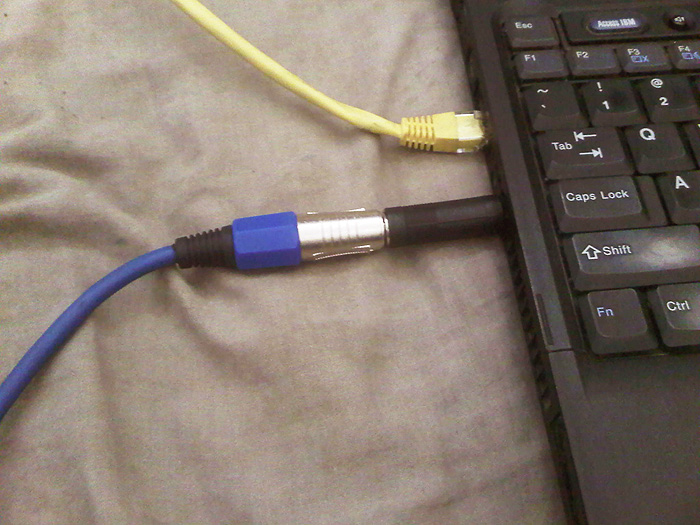
    You can turn your laptop into a guitar-ripping audio workstation. Using an older laptop that might not have the fastest processor will work for basic MIDI programming by connecting an audio interface and controlling a virtual amp.

    9. Home Surveillance

    ispymg

    If that laptop has an integrated webcam (most of them do), you can put it for a good use. Reinstall Windows XP or higher and grab a copy of iSpy. Use it to monitor the house, employees, babysitters, kids, pets, and more. You can covertly or overtly watch the goings-on via a Web page or apps on iOS and Android.

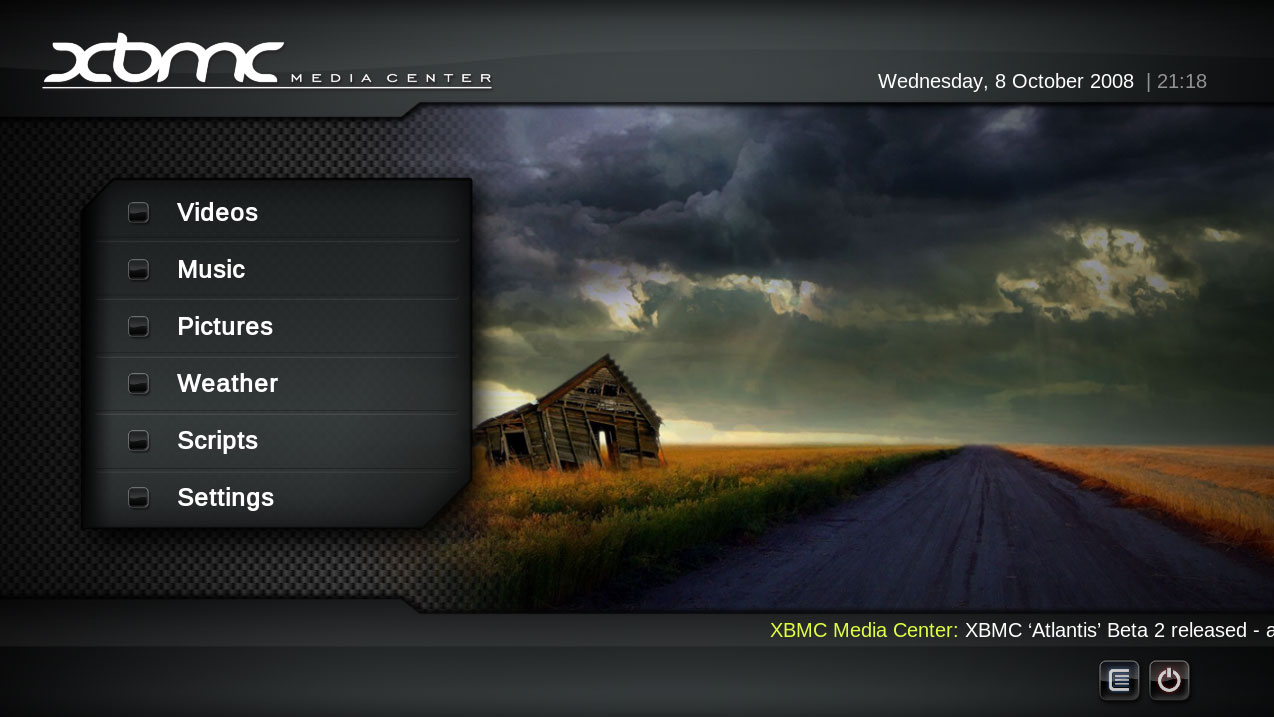
    10. Turn it into a Media station

    XBMC-Media-Center_1

    Load all your music and videos onto this computer, if necessary, supply it with an external hard drive. You can now set up your favorite media player, listen to Last.fm, install a TV tuner card, record movies, record music from radio stations, download MP3s, stream music throughout the house using wireless speakers etc.

iGyaan Network
Privacy Overview

This website uses cookies so that we can provide you with the best user experience possible. Cookie information is stored in your browser and performs functions such as recognising you when you return to our website and helping our team to understand which sections of the website you find most interesting and useful.